


Inspiration
I took the inspiration to make this game by going back to the fact that when I had my first contact with video games it was from the Atari, SEGA, Nintendo NES, N64, and Super Nintendo consoles. Reminding me of good titles such as Sonic, Mario, Zelda, Contra, Mortal Kombat, and many others. Also, now that I want to show people that making video games is an art at the same time. Two fields to which I feel attracted to continue developing video games on different platforms.
What it does
The player is presented with a series of coins in the playing area, which must be collected by a wizard. For this, the magician must take different paths trying to avoid any collision with the thorns that are in motion. Also, if he touches the ground where there are some flames the magician will immediately die. To beat the game, the player must manage to collect all the coins that are in the entire window.
Every time the wizard dies, a message appears to the player telling him that he failed to beat the challenge and that he must try again. For this, he must click the reset button again to start a new game.
Whenever the game starts, the wizard appears in the air so the player must be careful to press a directional arrow or the space bar on the keyboard if they want to avoid the character dying. Otherwise, he has to restart the game by clicking the reset button.
How we built it
Different elements were used to create the video game:
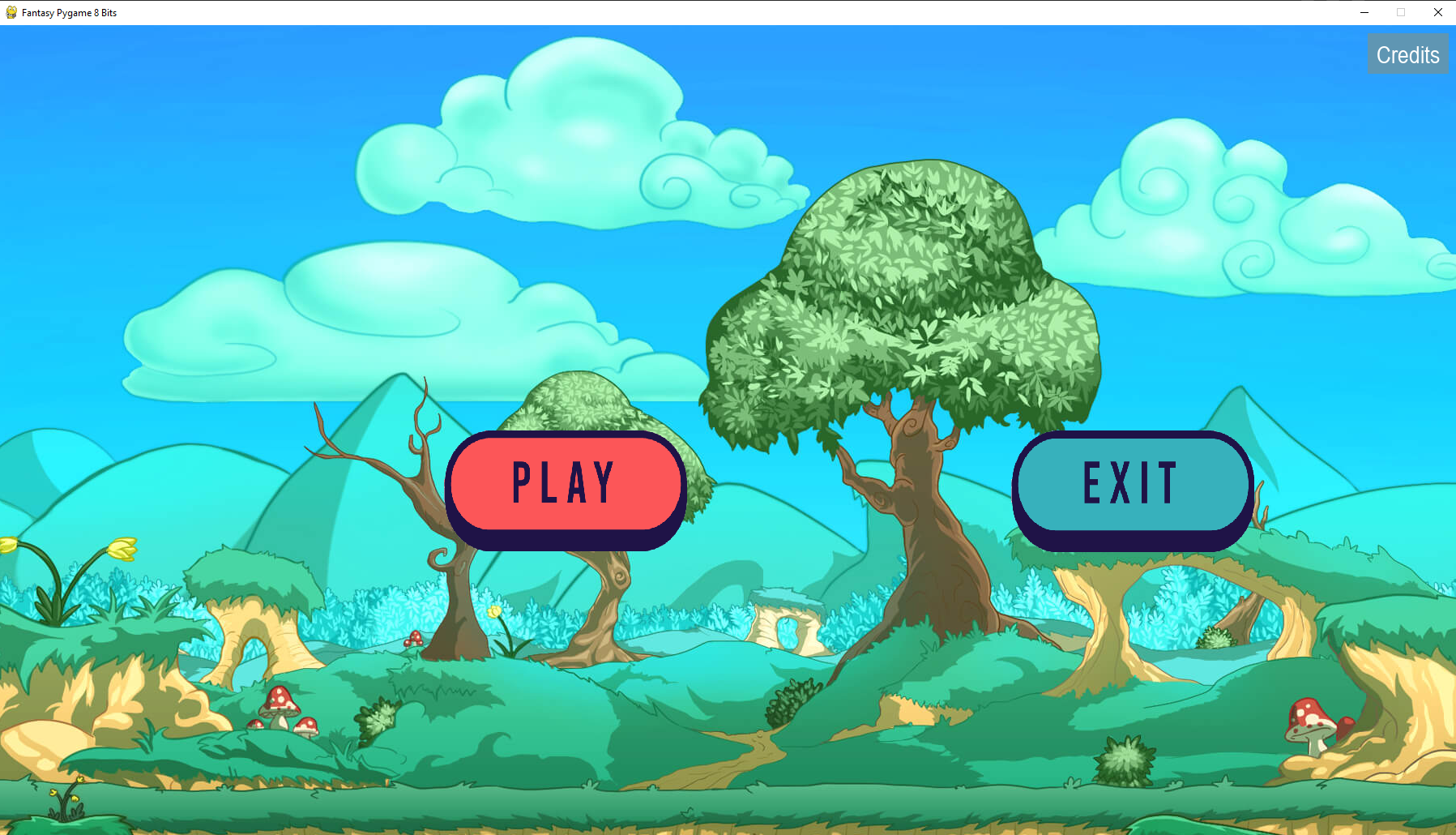
It has a background image that helps give the game an atmosphere. It has a start menu that is made up of two buttons: the first button is to load the game and the second button is to quit the game immediately.
#Creating Buttons for the Main Menu
start_button = Button(screen_width // 2 - 350, screen_height // 2, start_img)
exit_button = Button(screen_width // 2 + 350, screen_height // 2, exit_img)
Different images were selected to build the scene. Among these, we can mention: platforms, coins, thorns, buttons, and gravity. The game also has sounds such as the start of the game, when the character walks, when the magician takes a coin, jumping sound every time the user presses the space bar on the keyboard to move the character around the game area. It has collisions between the enemy objects and the main character, if there is a collision then it's game over. Appearing to the player a message and a reset button.
Regarding the technical aspects of video programming, we have the following:
The installation of pygame was done on the work computer. It was verified that there was a version of python installed on the computer. Visual Studio Code was used for programming.
Once the main file of the video game was created, the following was done
Import the necessary libraries to work with Pygame
import pygame
import sys
import os
from pygame.locals import *
from pygame import mixer
Define the dimension of the window in WIDTH and HEIGHT that will be used to present the video game. In this case, the dimension used is 1800 x 1000
screen_width = 1800
screen_height = 1000
screen = pygame.display.set_mode((screen_width, screen_height))
pygame.display.set_caption("Fantasy Pygame 8 Bits")
4 global variables were declared to be used to control operations within the source code.
tile_size = 50
game_over = 0
main_menu = True
score = 0
In order to know where to place the elements that will be part of the game area, a special function was created that draws a grid taking into account the dimensions of the window.
def draw_grid():
    for line in range(0, 40):
        pygame.draw.line(screen, (255, 255, 255), (0, line * tile_size), (screen_width, line * tile_size))
        pygame.draw.line(screen, (255, 255, 255), (line * tile_size, 0), (line * tile_size, screen_height))
The control of the character of the video game is done by means of the keyboard. In this case, to control its movement, use the directional keys --> to go to the right and <-- to go to the left. With the spacebar, you control the jump of the character. If the player presses the space bar several times in a row then continuous jumps are generated providing a kind of gravity or the character can fly on the Y axis of the window. And by doing the combination of the directional keys plus the space bar then you can reach the coins that are in different positions in the player window.
if game_over == 0:
            #When the user get keypresses
            key = pygame.key.get_pressed()
            if key[pygame.K_SPACE] and self.jumped == False:
                jump_fx.play()
                self.vel_y = -15
                self.jumped = True
            if key[pygame.K_SPACE] == False:
                self.jumped = False
            if key[pygame.K_LEFT]:
                dx -= 3 #If we increase the number, the sprite will move "more fast"
                self.counter += 1
                self.direction = -1
            if key[pygame.K_RIGHT]:
                dx += 3 #If we increase the number, the sprite will move "more fast"
                self.counter += 1
                self.direction = 1
            if key[pygame.K_LEFT] == False and key[pygame.K_RIGHT] == False:
                self.counter = 0
                self.index = 0
                if self.direction == 1:
                    self.image = self.images_right[self.index]
                if self.direction == -1:
                    self.image = self.images_left[self.index]
To control the animation of the character, a class named Player was created. In it, an arrangement of images is loaded that in this case will provide the effect that it walks when the directional keys are pressed from the keyboard.
class Player():
    def __init__(self, x, y):
        self.reset_game(x, y)
Code snippet that controls character animation
#Handling animation into the character
            if self.counter > walk_nice:
                self.counter = 0
                self.index += 1
            if self.index >= len(self.images_right):
                    self.index = 0
            if self.direction == 1:
                    self.image = self.images_right[self.index]
            if self.direction == -1:
                    self.image = self.images_left[self.index]
To put the elements that are part of the game in the player's window, a class called World was created. This class is in charge of containing everything that is displayed to the user.
class World():
    def __init__(self, data):
        self.tile_list = []
Part of some images that are loaded into the World class to be displayed in the main window of the video game.
#Loading images to be put it into the world
        dirt_img = pygame.image.load('img/dirt.png')
        dirt1_img = pygame.image.load('img/dirt1.png')
        dirt2_img = pygame.image.load('img/dirt2.png')
        ground_img = pygame.image.load('img/ground0.png')
        ground1_img = pygame.image.load('img/ground1.png')
....
These images were placed using a grid as a reference. For this, use was made of tile and Sprite which can be used within Pygame. Each image is randomly assigned an integer number that must be within an array-type list that basically represents the position of the image that we want to place within our window for the game.
                 if tile == 4:
                    spike = Enemy(col_count * tile_size, row_count * tile_size - 15)
                    spike_group.add(spike)
                if tile == 100:
                    spike_invert = Enemy_invert(col_count * tile_size, row_count * tile_size - 15)
                    spike_invert_group.add(spike_invert)
                if tile == 101:
                    spike_invert_y = Enemy_invert_y(col_count * tile_size, row_count * tile_size -15, 0, 1)
                    spike_invert_y_group.add(spike_invert_y)
                if tile == 102:
                    spike_invert_y_opposite = Enemy_invert_y_opposite(col_count * tile_size, row_count * tile_size - 15, 0, 1)
                    spike_invert_y_opposite_group.add(spike_invert_y_opposite)
The class that contains the numbers that represent the grid is named world_data and contains the following information
world_data = [
[0, 0, 0, 100, 0, 0, 0, 100, 0, 0, 9, 9, 9, 0, 0, 100, 0, 9, 9, 0, 100, 0, 9, 9, 0, 100, 0, 0, 9, 9, 0, 100, 0, 0, 0, 0],
[0, 0, 0, 0, 0, 0, 0, 0, 0, 0, 0, 0, 0, 0, 0, 0, 0, 0, 0, 0, 0, 0, 0, 0, 0, 0, 0, 0, 0, 0, 0, 0, 0, 0, 0, 0],
[0, 0, 0, 0, 0, 0, 0, 0, 0, 0, 0, 0, 4, 9, 4, 9, 0, 0, 0, 0, 0, 0, 0, 0, 0, 0, 0, 0, 0, 0, 0, 0, 0, 0, 0, 102],
[101, 0, 0, 0, 0, 0, 0, 0, 0, 0, 1, 2, 2, 2, 2, 2, 3, 0, 0, 0, 0, 0, 0, 9, 0, 0, 0, 0, 0, 0, 0, 0, 0, 0, 0, 0],
[0, 0, 9, 9, 9, 9, 9, 0, 0, 0, 0, 0, 100, 100, 100, 0, 0, 0, 0, 0, 0, 0, 44, 45, 46, 0, 0, 0, 9, 9, 9, 9, 9, 0, 0],
[0, 0, 9, 0, 0, 44, 45, 46, 0, 0, 0, 0, 0, 0, 0, 0, 0, 0, 0, 0, 0, 0, 0, 0, 0, 4, 4, 0, 333, 334, 335, 336, 337, 0, 0, 102],
[0, 0, 9, 0, 0, 0, 0, 0, 0, 0, 0, 0, 0, 0, 0, 0, 0, 0, 0, 0, 0, 0, 0, 0, 0, 0, 0, 0, 0, 9, 776, 9, 0, 0, 0, 0],
[0, 0, 9, 0, 0, 0, 0, 0, 0, 29, 9, 9, 9, 9, 30, 0, 0, 0, 0, 0, 9, 9, 9, 0, 0, 0, 0, 0, 0, 9, 776, 9, 9, 0, 0, 0],
[101, 1, 2, 3, 0, 0, 0, 0, 0, 29, 776, 776, 776, 776, 30, 0, 0, 0, 0, 333, 334, 335, 336, 337, 0, 4, 4, 4, 0, 0, 776, 776, 776, 0, 0, 102],
[0, 0, 776, 0, 0, 0, 0, 0, 0, 0, 0, 0, 0, 0, 0, 0, 0, 0, 0, 0, 9, 776, 9, 0, 0, 0, 0, 0, 0, 0, 0, 100, 0, 0, 0, 0],
[0, 0, 0, 0, 0, 0, 0, 0, 0, 0, 0, 0, 0, 0, 0, 0, 0, 0, 0, 9, 9, 776, 9, 0, 0, 0, 0, 0, 0, 0, 0, 0, 0, 0, 0, 0],
[0, 0, 0, 0, 0, 0, 0, 0, 0, 9, 0, 0, 0, 0, 0, 0, 0, 0, 0, 776, 776, 776, 9, 0, 0, 0, 9, 0, 0, 0, 0, 0, 0, 0, 0, 102],
[0, 9, 0, 0, 0, 0, 0, 1, 2, 2, 2, 3, 0, 0, 0, 0, 0, 0, 0, 0, 100, 0, 0, 0, 0, 1,2,3, 0, 0, 0, 0, 0, 0, 0, 0],
[101, 2, 0, 0, 0, 0, 0, 0, 0, 100, 0, 0, 0, 0, 0, 0, 0, 0, 0, 0, 0, 0, 0, 0, 0, 0, 100, 0, 0, 0, 0, 0, 0, 0, 0, 0],
[0, 0, 0, 0, 0, 0, 0, 0, 0, 0, 0, 0, 0, 0, 0, 0, 0, 0, 0, 0, 0, 0, 0, 0, 0, 0, 0, 0, 0, 0, 0, 0, 4, 0, 0, 0],
[0, 0, 0, 0, 0, 0, 0, 0, 0, 0, 0, 0, 0, 0, 0, 29, 9, 9, 29, 0, 0, 0, 29, 0, 0, 0, 0, 0, 0, 0, 0, 776, 776, 776, 0, 0],
[0, 0, 0, 0, 0, 0, 0, 0, 0, 0, 0, 0, 0, 0, 0, 0, 9, 9, 0, 0, 0, 0, 0, 0, 0, 0, 0, 0, 0, 0, 0, 0, 776, 0, 28, 0],
[0, 9, 0, 0, 9, 0, 0, 0, 0, 4, 9, 0, 4, 0, 9, 9, 9, 9, 9, 9, 0, 0, 0, 0, 0, 0, 9, 0, 0, 0, 0, 0, 776, 776, 776, 776],
[9, 29, 9, 9, 29, 9, 9, 1, 2, 2, 2, 2, 2, 2, 3, 8, 8, 8, 1, 2, 3, 9, 9, 9, 333, 334, 335, 336, 337, 9, 9, 9, 0, 0, 0, 0],
[8, 8, 8, 8, 8, 8, 8, 775, 776, 776, 776, 776, 776, 776, 776, 776, 776, 776, 777, 8, 8, 8, 8, 8, 8, 8, 8, 8, 8, 8, 8, 8, 8, 8, 8, 8, 8, 8],
]
If the character suffers a collision with some enemy element located in the player's window, then a button appears with the possibility of restarting the game. The function that controls this part is the following
def reset_game(self, x, y):
        self.images_right = []
        self.images_left = []
        self.index = 0
        self.counter = 0
        for num in range(1, 24):
            img_RIGHT = pygame.image.load(f'img/hero/hero{num}.png')
            img_RIGHT = pygame.transform.scale(img_RIGHT, (60, 90))
            img_LEFT = pygame.transform.flip(img_RIGHT, True, False)
            self.images_right.append(img_RIGHT)
            self.images_left.append(img_LEFT)

        self.image = self.images_right[self.index]
        self.rect = self.image.get_rect()
        self.rect.x = x
        self.rect.y = y
        self.width = self.image.get_width()
        self.height = self.image.get_height()
        self.vel_y = 0
        self.jumped = False
        self.direction = 0
This is the code fragment that validates when the character had a collision with an enemy within the game area. A message appears to the user plus an image of the character that he represents who died and a button to restart the game also appears.
#Checking for collision with the enemies in the game
            if pygame.sprite.spritecollide(self, spike_group, False):
                game_over = -1
            #Play sound when the player died
                game_over_fx.play()

            if pygame.sprite.spritecollide(self, spike_invert_y_group, False):
                game_over = -1
            #Play sound when the player died
                game_over_fx.play()

            if pygame.sprite.spritecollide(self, spike_invert_group, False):
                game_over = -1
            #Play sound when the player died
                game_over_fx.play()

            #Checking for collision with the fire
            if pygame.sprite.spritecollide(self, dang_group, False):
                game_over = -1
            #Play sound when the player died
                game_over_fx.play()


            #For update the player coordinates
            self.rect.x += dx
            self.rect.y += dy

        elif game_over == -1:

            for num in range(1, 15):
                self.dead_image = pygame.image.load(f'img/hero_death/hero_death{num}.png')
                #dead_image = pygame.transform.scale(dead_image, (60, 90))
                self.image = self.dead_image


            draw_text('You cant beat the Pygame Challenge. Try again..!', font, blue, (screen_width // 2) - 700, screen_height // 2 )


            if self.rect.y > 50:
                    self.rect.y -= 1


        #Draw the player onto images
        screen.blit(self.image, self.rect)
        #pygame.draw.rect(screen, (255, 255, 255), self.rect, 1)

        return game_over
This is a code snippet that allows us to work with the Sprite type classes provided by Pygame to add elements to the game window. Here we present some sprite groups that were created
spike_group = pygame.sprite.Group()
spike_invert_group = pygame.sprite.Group()
spike_invert_y_group = pygame.sprite.Group()
spike_invert_y_opposite_group = pygame.sprite.Group()
dang_group = pygame.sprite.Group()
coin_group = pygame.sprite.Group()
Then those Sprite groups should be drawn in the window. This is a code snippet that performs that action.
        spike_group.draw(screen)
        spike_invert_group.draw(screen)
        spike_invert_y_group.draw(screen)
        spike_invert_y_opposite_group.draw(screen)
        dang_group.draw(screen)
        coin_group.draw(screen)
        world.draw()
A button named "Credits" was put in the upper right corner. As its name implies, it displays the name of the person who created the game. When the user presses the button by clicking on it, a message appears with the name of the developer. In this case, the name of Danny Chavez appears. This message lasts for 3 seconds on the screen and then fades away to give the player the chance to continue the game. The code snippet that does this is as follows:
# create the credit button rectangle
        credit_button_width = 100
        credit_button_height = 50
        credit_button = pygame.Rect(screen_width - credit_button_width - 10, 10, credit_button_width, credit_button_height)

    # set up the font for displaying the message
        font = pygame.font.SysFont('Arial', 30)

    # draw the credit button
        pygame.draw.rect(screen, (0, 255, 0), credit_button)
        credit_message = font.render('Credits', True, (255, 255, 255))
        credit_message_rect = credit_message.get_rect(center=credit_button.center)
        screen.blit(credit_message, credit_message_rect)

    # check for mouse clicks on the credit button
    mouse_pos = pygame.mouse.get_pos()
    mouse_clicked = pygame.mouse.get_pressed()
    if credit_button.collidepoint(mouse_pos) and mouse_clicked[0]:
        # display the credit message
        message1 = font.render('This game was created by Danny Chavez', True, (0, 0, 0))
        message2 = font.render('using Pygame.', True, (0, 0, 0))
        message1_rect = message1.get_rect(center=(screen_width/2, screen_height/2-20))
        message2_rect = message2.get_rect(center=(screen_width/2, screen_height/2+20))
        screen.blit(message1, message1_rect)
        screen.blit(message2, message2_rect)
        pygame.display.update()
        pygame.time.wait(3000) # wait for 3 seconds before clearing the message
        screen.fill((0, 0, 0)) # clear the screen

    # draw the credit button again (in case it was covered by the credit message)
    pygame.draw.rect(screen, (95, 150, 179), credit_button)
    screen.blit(credit_message, credit_message_rect)
And finally the game loop part looks as follows
run = True

while run:

    clock.tick(FPS)

    screen.blit(bg_img, (0, 0))

    if main_menu == True:
        if exit_button.draw():
            run = False
        if start_button.draw():
            main_menu = False
    else:

        if game_over == 0:
            spike_group.update()
            spike_invert_group.update()
            spike_invert_y_group.update()
            #Update the score of the player
            #Checking if a coin has been collected
            if pygame.sprite.spritecollide(player, coin_group, True):
                score += 1
                coin_fx.play()

            draw_text(' ' + str(score), font_score, white, tile_size - 10, 10)

        spike_group.draw(screen)
        spike_invert_group.draw(screen)
        spike_invert_y_group.draw(screen)
        spike_invert_y_opposite_group.draw(screen)
        dang_group.draw(screen)
        coin_group.draw(screen)
        world.draw()

        draw_grid()

        game_over = player.update(game_over)


        #If the player has died, which I expected happen :=)
        if game_over == -1:
            if restart_button.draw():
                player = Player(100, screen_height - 500)
                game_over = 0
                score = 0

        #If the player completed the level
        if game_over == 1:
            draw_text('YOU ARE THE MASTER OF THE PYGAME CHALLENGE', font, blue, (screen_width // 2) - 140, screen_height // 2)


    for event in pygame.event.get():
        if event.type == pygame.QUIT:
            run = False

    # create the credit button rectangle
        credit_button_width = 100
        credit_button_height = 50
        credit_button = pygame.Rect(screen_width - credit_button_width - 10, 10, credit_button_width, credit_button_height)

    # set up the font for displaying the message
        font = pygame.font.SysFont('Arial', 30)

    # draw the credit button
        pygame.draw.rect(screen, (0, 255, 0), credit_button)
        credit_message = font.render('Credits', True, (255, 255, 255))
        credit_message_rect = credit_message.get_rect(center=credit_button.center)
        screen.blit(credit_message, credit_message_rect)

    # check for mouse clicks on the credit button
    mouse_pos = pygame.mouse.get_pos()
    mouse_clicked = pygame.mouse.get_pressed()
    if credit_button.collidepoint(mouse_pos) and mouse_clicked[0]:
        # display the credit message
        message1 = font.render('This game was created by Danny Chavez', True, (0, 0, 0))
        message2 = font.render('using Pygame.', True, (0, 0, 0))
        message1_rect = message1.get_rect(center=(screen_width/2, screen_height/2-20))
        message2_rect = message2.get_rect(center=(screen_width/2, screen_height/2+20))
        screen.blit(message1, message1_rect)
        screen.blit(message2, message2_rect)
        pygame.display.update()
        pygame.time.wait(3000) # wait for 3 seconds before clearing the message
        screen.fill((0, 0, 0)) # clear the screen

    # draw the credit button again (in case it was covered by the credit message)
    pygame.draw.rect(screen, (95, 150, 179), credit_button)
    screen.blit(credit_message, credit_message_rect)

    pygame.display.update()

pygame.quit()
Challenges we ran into
Detect when the character has a collision with an enemy within the area of the game window.
Creation of Sprite to provide a better development of the algorithm.
Read about which sound file is best to put in a game.
When I put the background image, it covered all the elements that I already had inside the grid. So I had to reorder all the source code to follow the drawing sequence in the game window.
In the beginning, I thought that different windows could be created to guide the player. I had to rethink how to present the user with the menu option to then load the game.
Accomplishments that we're proud of
Create a 2D game with a moving character inspired by the movement of the Flappy Birds character.
Design a simple game mechanism, easy to understand and entertaining for the player
Put certain elements in the video game window taking some games from the 80s and 90s as inspiration. For example, the sounds are inspired by the time
Create the game installer using the tool called pyinstaller
What we learned
How to design a window for a video game using pygame
How to create classes and functions to control the elements and the character of the video game.
How to present a 2D figure that contains an animation by using Sprite
How to create groups of Sprite
How to define keyboard input or reads to be read by pygame source code
How to add sound inside pygame. Because a game without sound is a boring game.
How to define or draw a grid in a 2D view that serves as a reference to place elements with which the player will interact.
Add images within the defined window that will contain the video game.
Define collisions to provide a better user experience.
Create an executable using pyinstaller that allows me to distribute my game to my friends for testing on their computers
What's next for Fantasy Game
Create a series of levels for the game. Maybe 5 levels to start
Create an AI to introduce new enemies
Distribute my game to my acquaintances, family and friends so they can try it out. I could also share it with gaming communities on different sites such as Reddit, itch, twitch, Twitter and others.
Incorporate new object animations.
Incorporate new challenges for the player
During the time that I was dedicating the development of this video game, I came across the information that you can create video game controllers using Arduino. And since pygame has the option to add a function that controls a joystick then it would make a version of the game available that has a game mode with a joystick. This would be a great update.
Incorporate the use of a camera within the game window.
Define if I want it to be a 2D-Scrolling type game or to be completely level by level.
Maybe I would add a timer so that a level is completed in a certain time.

Log in or sign up for Devpost to join the conversation.