-
Logo For Our Application.
-
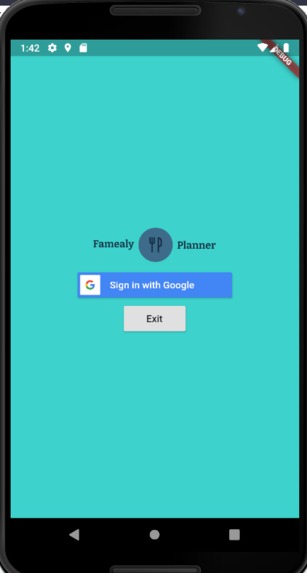
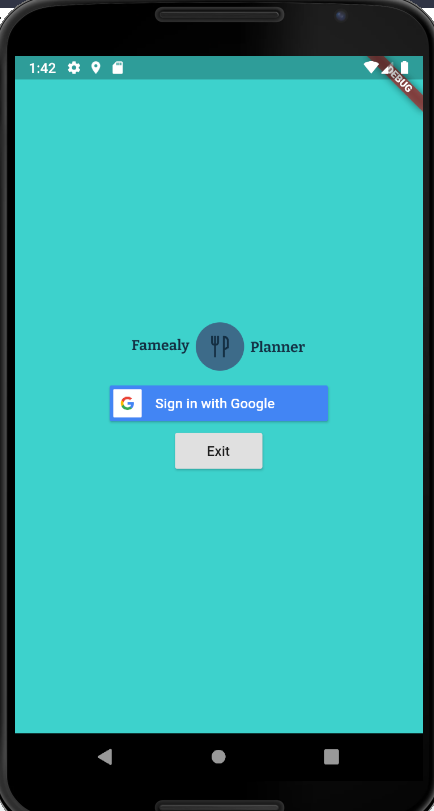
This is the login page for the app. From here you can login with your google account or quit the app.
-
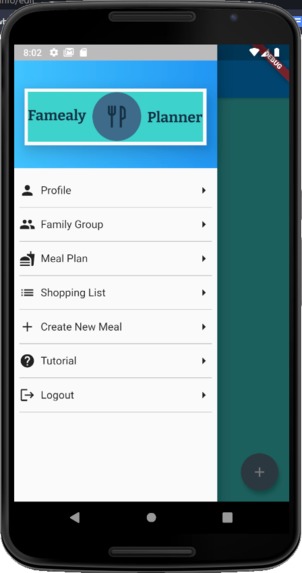
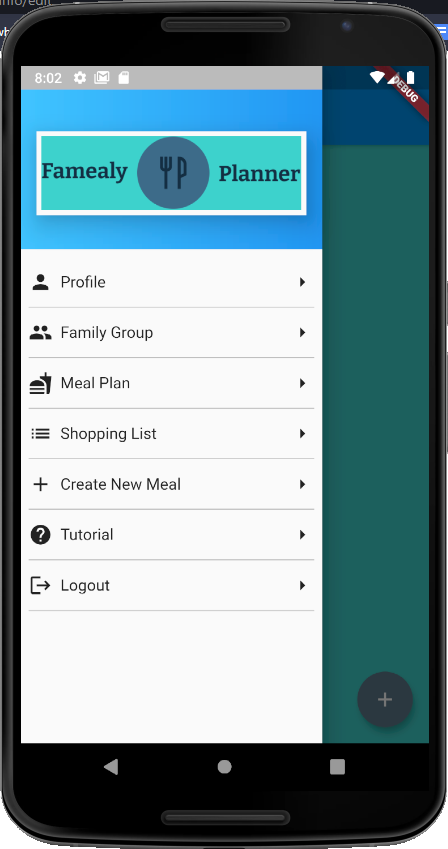
On each page there is a universal drawer that acts as the main navigation route for the app.
-
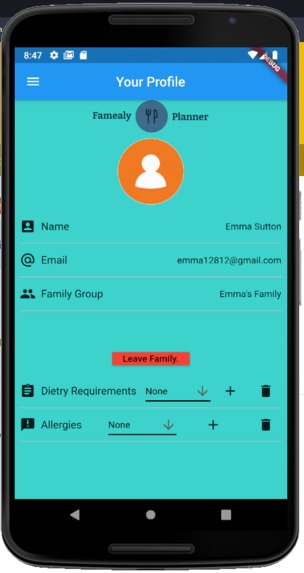
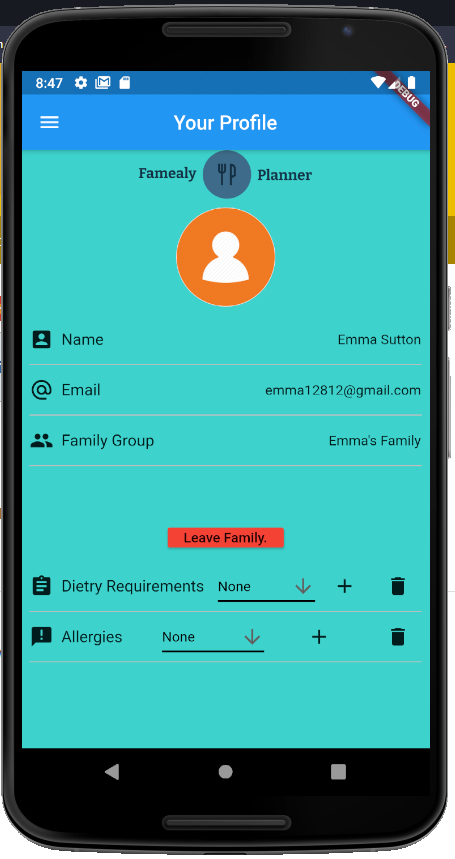
When you login, you are taken to the profile page and you can view info about your profile and set dietary requirements and allergies.
-
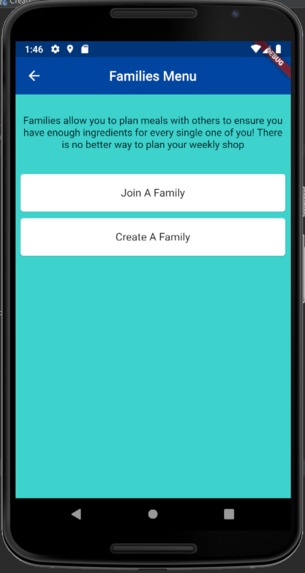
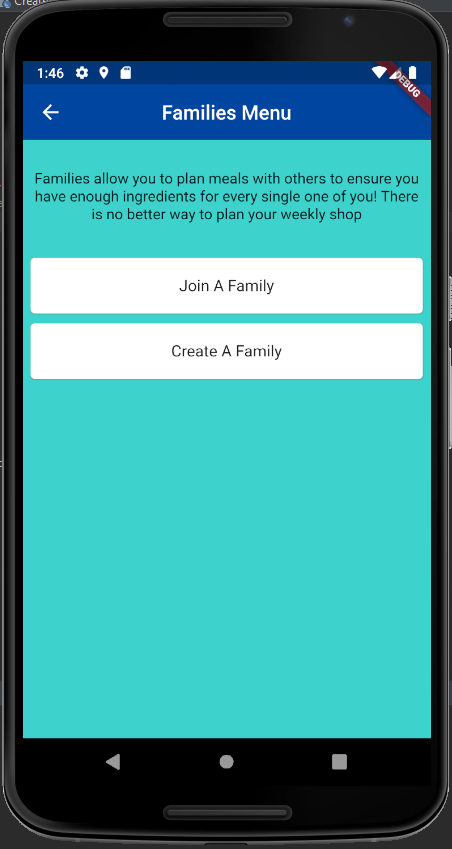
If you want to learn about what families are or start / join a family of your own then this is the page to do that.
-
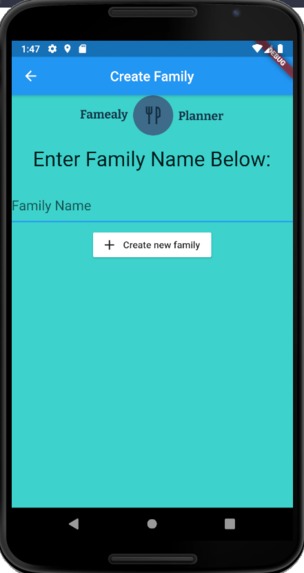
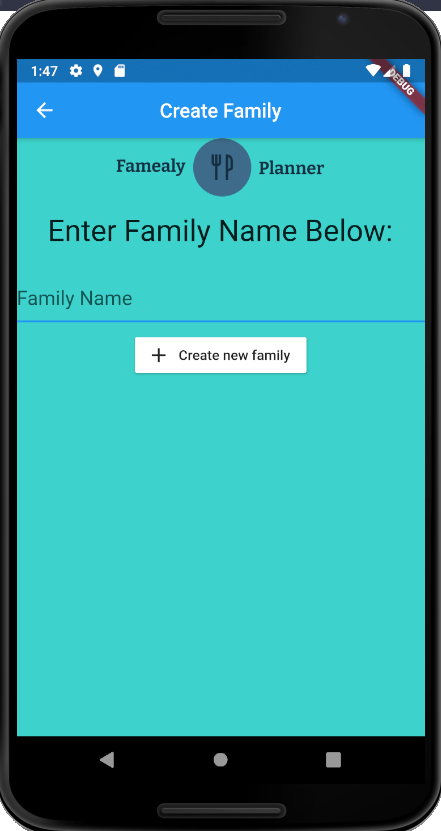
To create a family you simply have to enter the name you would like to call your family and press create.
-
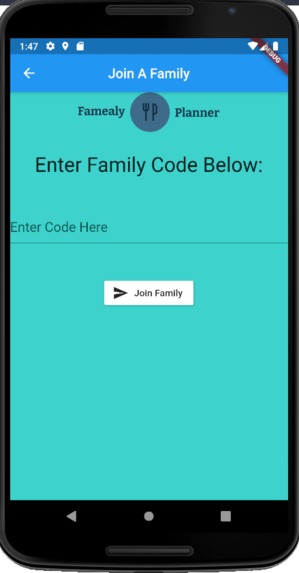
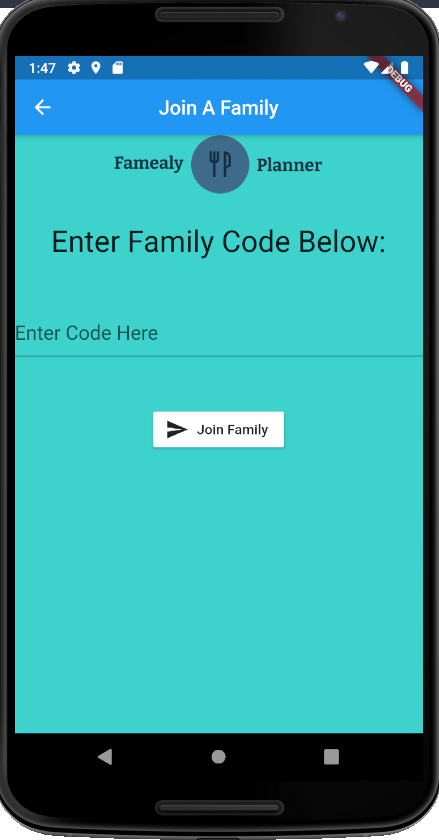
To join a family you need to enter the family code created when a family is initially set and press the button and you can join that family.
-
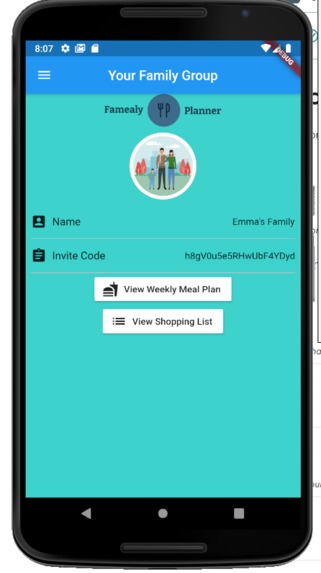
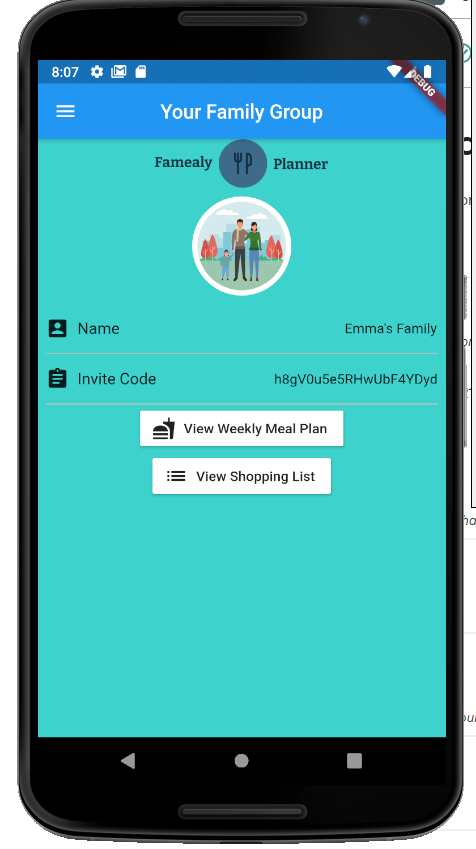
When you join a family, you can view the information about that family from the family page
-
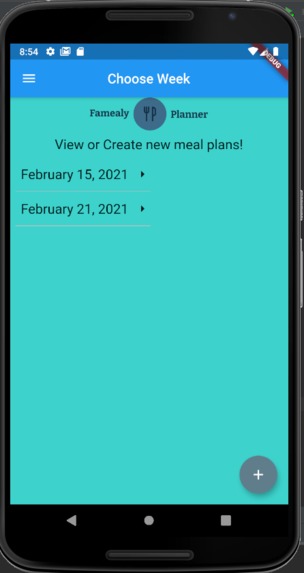
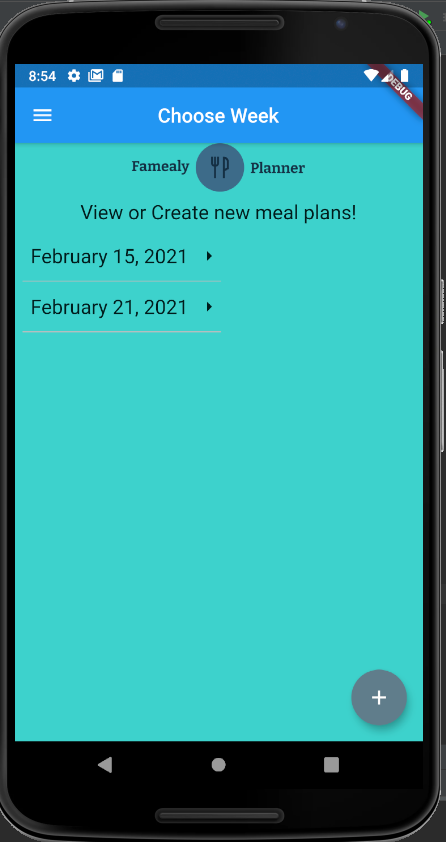
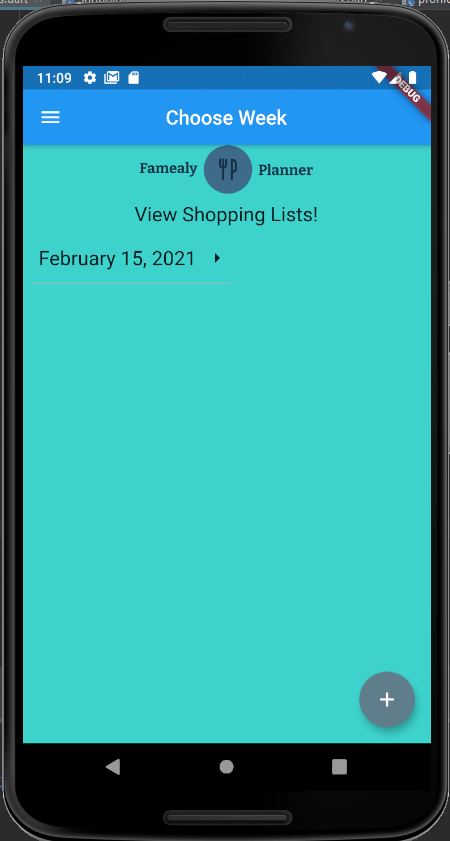
Here you can select which meal plan you would like to use or press the + button to create a new one
-
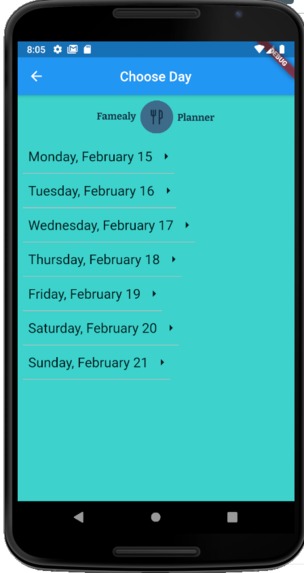
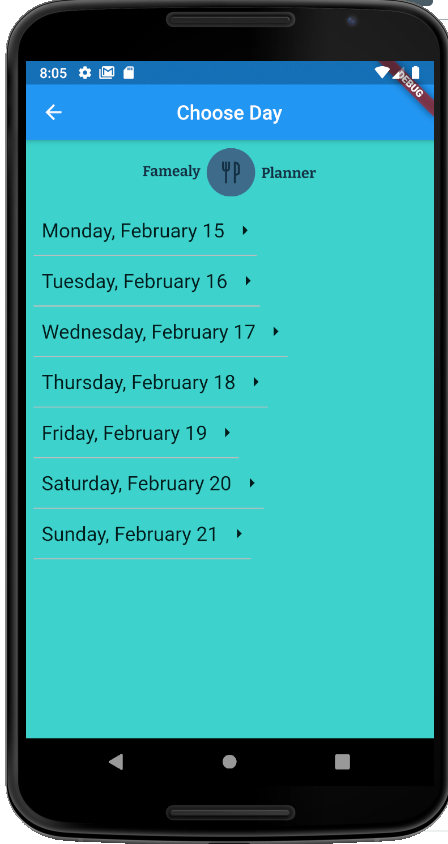
From the selected week you can view the meal plan for each individual day
-
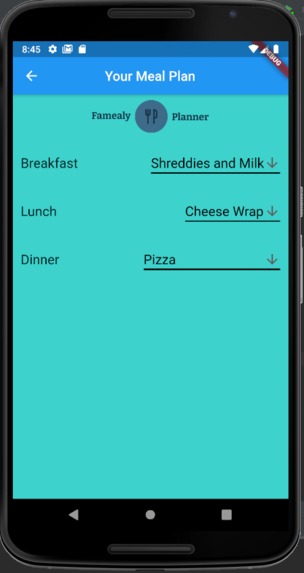
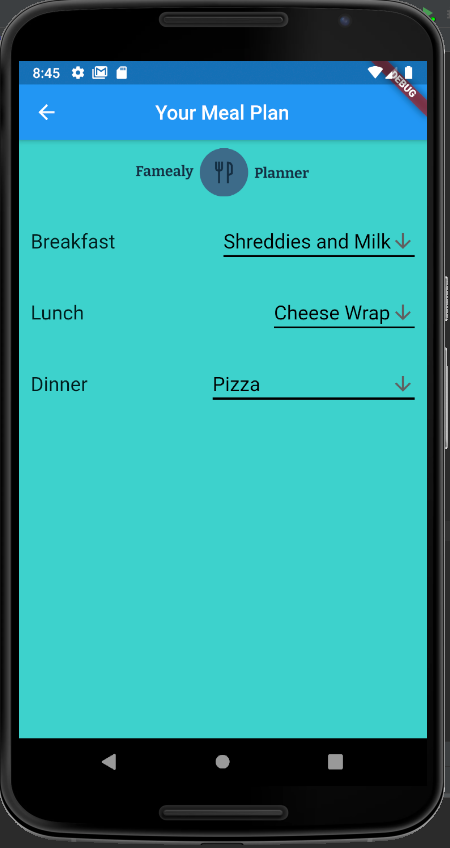
You can view the meals selected for you for the chosen day
-
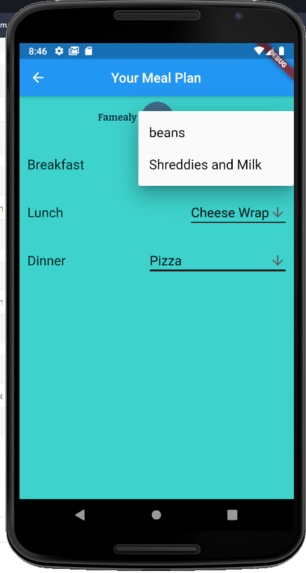
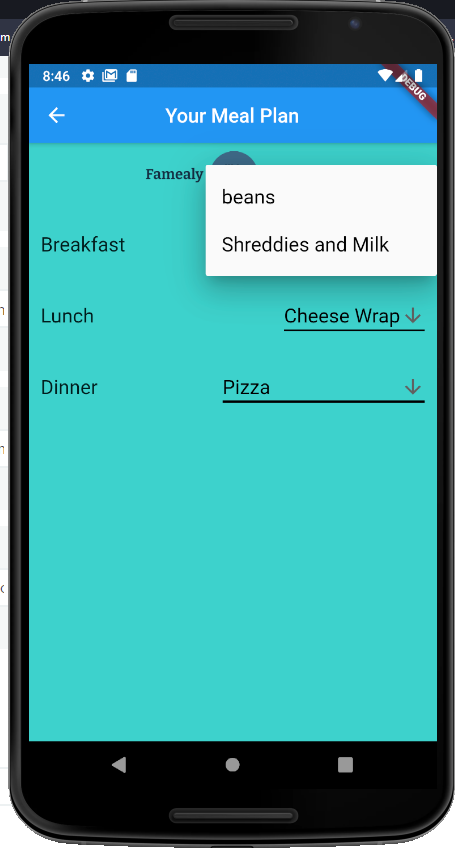
You can swap meals around if you are not happy with the choices shown to you.
-
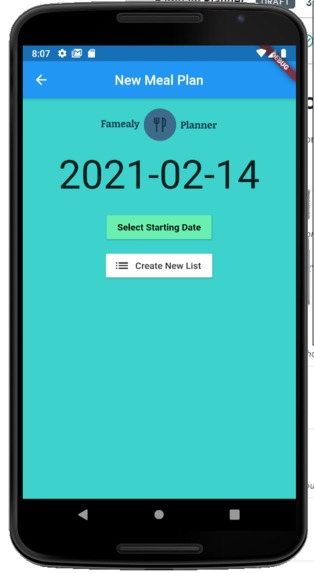
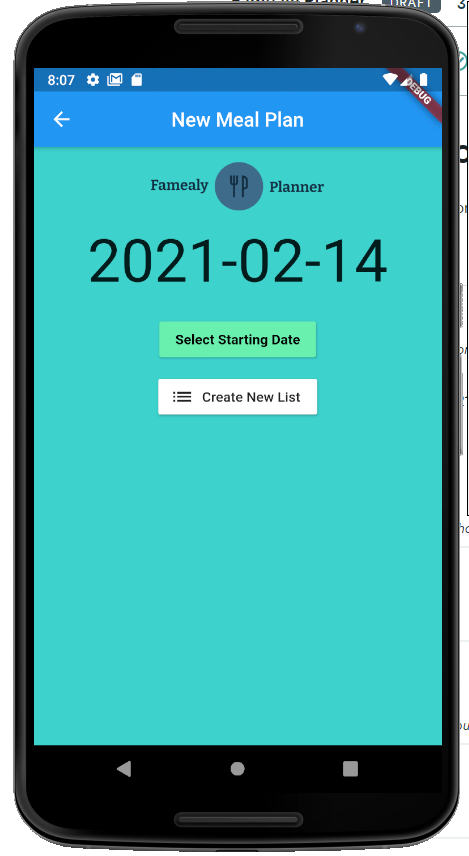
This is the page that loads when you click on the + to create a new meal plan
-
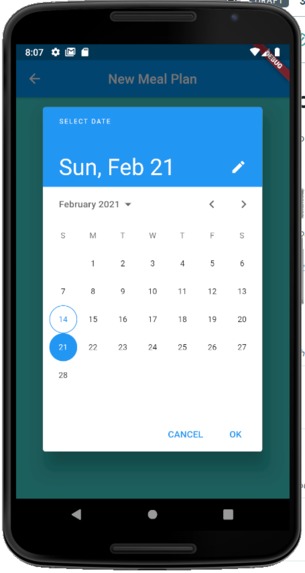
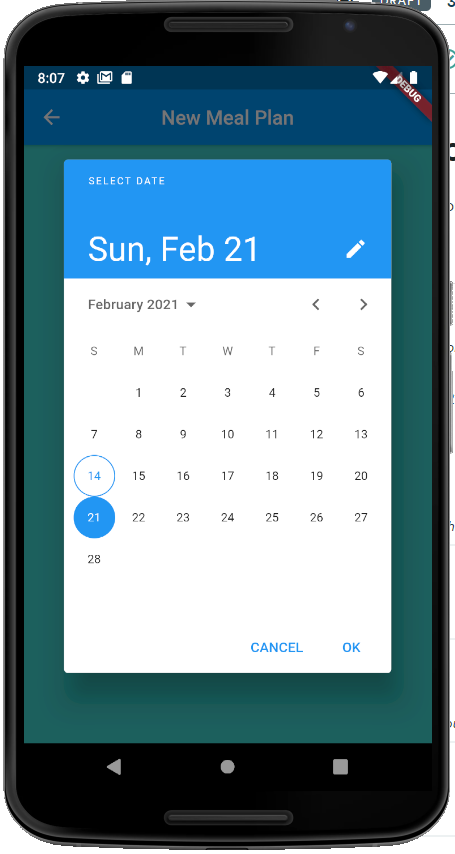
When creating a new plan you can select the day you would like it to begin on.
-
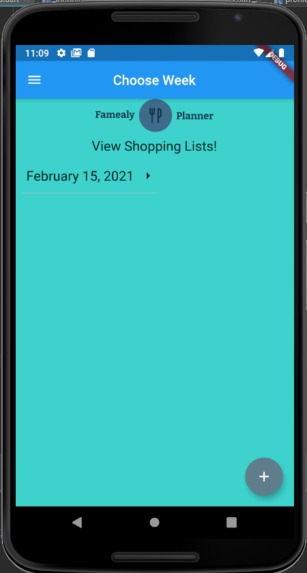
When you click the shopping list option in the drawer, this page loads and shows you all the available shopping lists to view
-
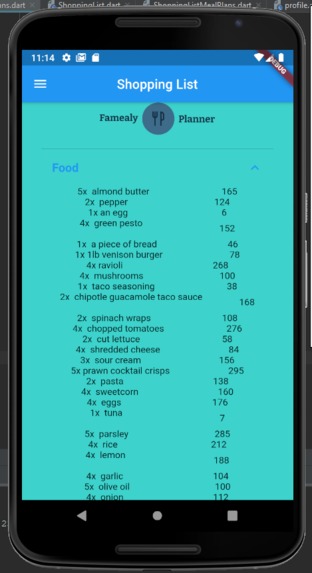
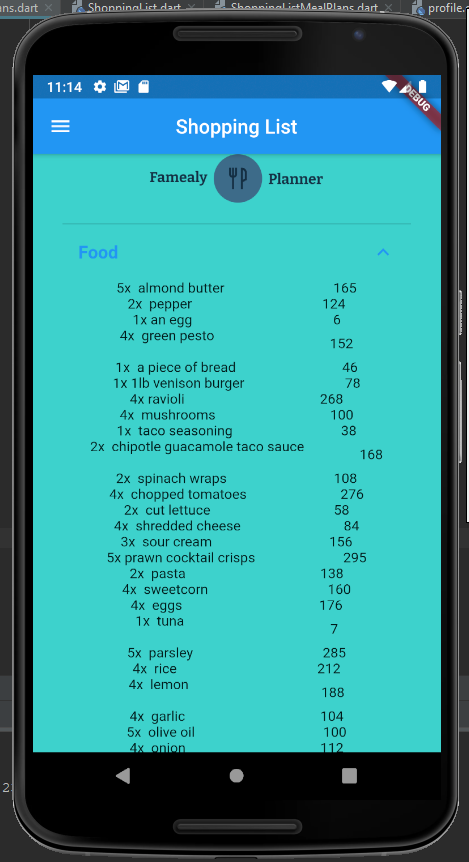
When you select a week, you can view the shopping list as seen on this screen.
-
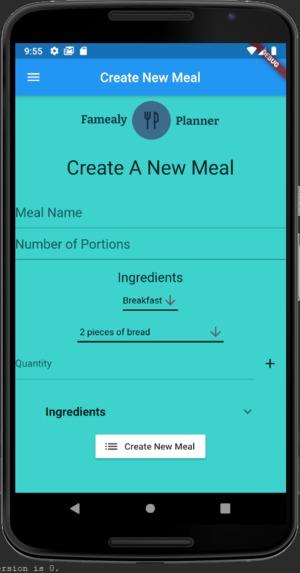
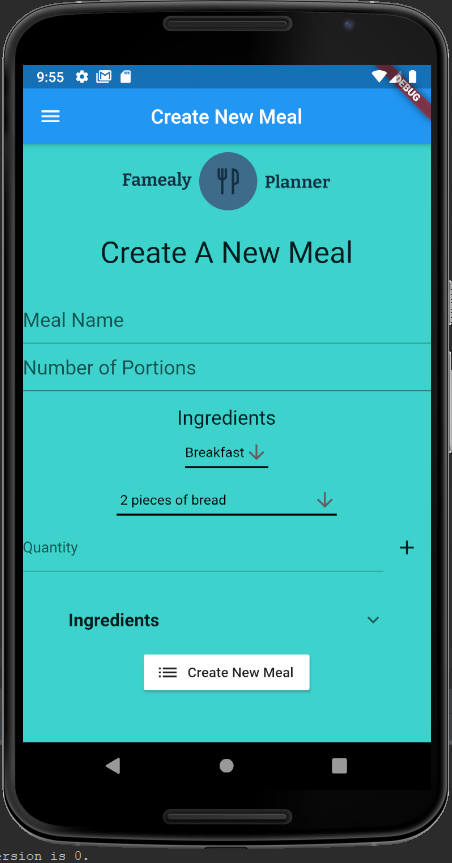
When you select the create new meal from the drawer, this empty form loads for users to fill in.
-
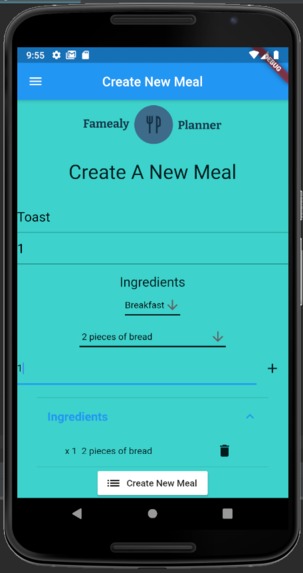
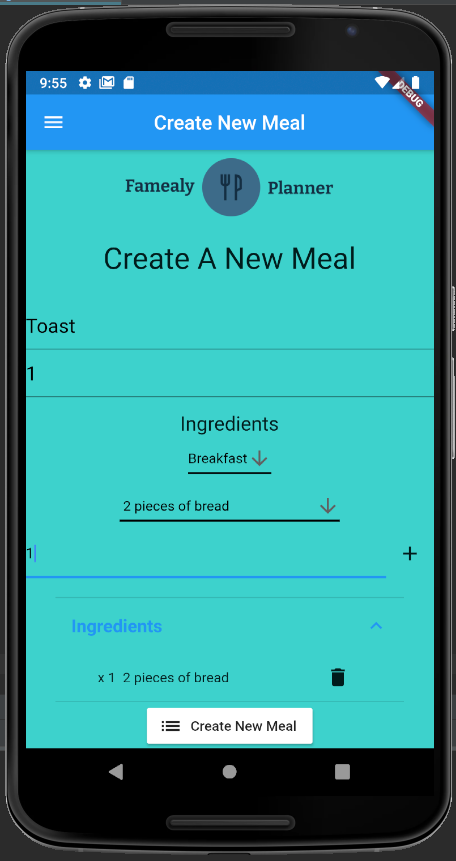
This is an example of a filled form. You can add ingredients and view them. They can also be deleted by selecting the bin icon.
-
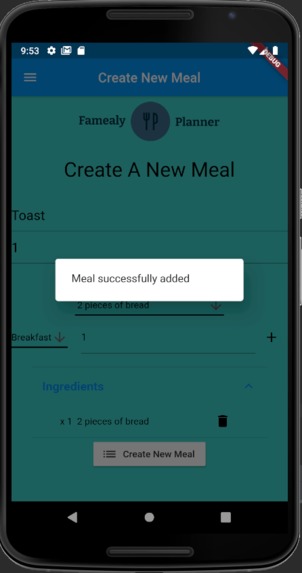
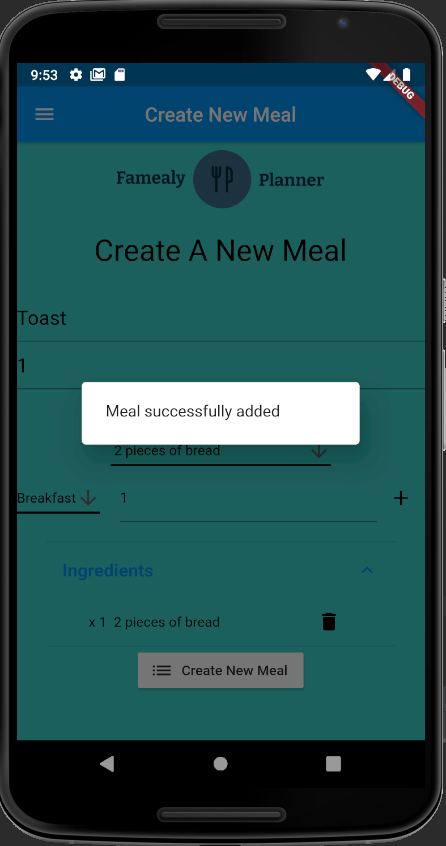
When you create a new meal, you are informed that the meal has been created.
Inspiration
-  The project managers Emma and Sam live together and are trying to avoid going to shops due to the global pandemic.
-  However, trying to order enough food for a single weekly delivery has been really difficult and we are often left ordering takeaways or having small meals towards the end of the week.
-  We wanted to create something as a hassle-free way to ensure we had enough food each week and that meals were varied.
What it does
-  Log in to the app using your Google account
-  You can personalise your account to state what dietary preferences and allergies you have to ensure the meals chosen for you are safe for you to eat.
-  You can set up / join a family and meals will be personalised to everyone's needs.
-  You can create weekly meal plans by starting a day you select and a meal plan will be generated for the next 7 days after that.
-  Meal plans include breakfast lunch and dinner and can be viewed on a day by day basis.
-  A range of meals have been pre generated and stored in the database hosted on google firebase.
-  Users can also create their own meals that are added to their family
-  Each meal has a set of ingredients and portion size so that a shopping list can be generated and displayed so that families can ensure they buy the correct about of food to last them an entire week.
-  You can leave a family at any point and join/create a new one if you wish.
-  You can view information about your profile and information about the family you are currently in from the relevant pages.
-  Users can also log out of their accounts.
How we built it
- The first thing we created was a prototype of the app using adobe XD and a diagram was created to note down the data that would be stored.
- The app has been built in flutter and Emma has developed most of the UI with Sam and Aaryan working together on the back end.
-  Sam set up the database on firebase and set up the google login.
-  Aaryan has an interest in data science so has focused on how the data can be used in the project to improve it. He created surveys to send out to people to get default meals to add to the app along with learning to code some of the front end UI. He filled out the template data based off of the survey.
- The approach taken mainly was for Emma to develop the UI for each page and have Sam integrate the backend development after that. We found this was the most efficient way to use our time.
Challenges we ran into
- One of the biggest issues was getting everyone set up on the android studio coding environment as we had members using both windows and mac. We learnt a lot from this as this is the first time working online with people we had never met before so helping people through screen share was challenging but we achieved it.
- Having never worked with flutter or firebase before, we had some issues working out how best to use/store and retrieve the relevant information for each action so Sam spent quite a while researching and learning the techniques needed.
- We also had a team member that joined our group and went away to code and never spoke to us again meaning we had to work on the areas we thought he had completed.
Accomplishments that we're proud of
- Having never created an app in flutter before, we are extremely proud that we have been able to plan and develop a minimal viable product in just under 48 hours after it took nearly 4 hours to get all our teammates set up on the correct coding environments.
- Sam is now confident working with Firebase
- Emma is confident in designing UIs using flutter
What we learnt
- None of the members of the team have ever used firebase or flutter together before so this has been a complete learning experience for us all.
- It has been especially useful for Emma as she plans to create an app in flutter for her dissertation
- Dart is also a new language to all of us and so we now have experience coding in another language.
- We were also unfamiliar with coding NoSQL database so this has been something that Sam in particular as developed knowledge on.
What's next for Famealy Planner
- Better implement calories into meals so that users can also use the app to ensure they are eating healthy.
-  Connect to a supermarket API for shopping lists to be exported to online carts to save even more time.
- Use data science to find users favourite meals and tailor the app to the individual user to provide a better experience.
- Add prices to meals/ingredients so that budget meal plans can also be made for people wanting to save money.
-  Add a tutorials page so that any users who are unsure of how to use the app can follow either a video tutorial or an image step by step tutorial.
- Implement the functionality to be able to add allergies and dietary requirements to your account to filter meal choices.
-  Ability to add your own ingredients to the app so you can make meals with your own ingredients


Log in or sign up for Devpost to join the conversation.