-
-

Step 1: The default UI when you first added the macro.
-
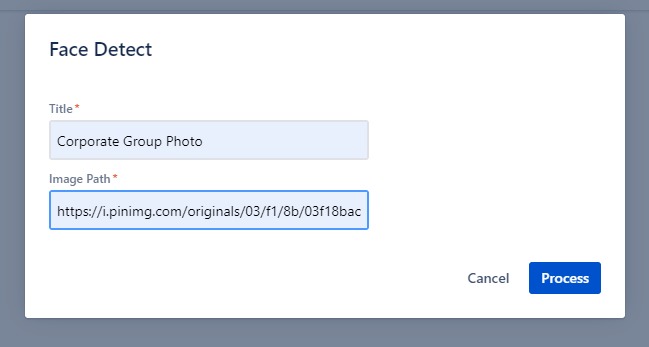
Step 2: The popup will appear when you click the `Select Image` button. It will require you to add title caption and image URL path.
-
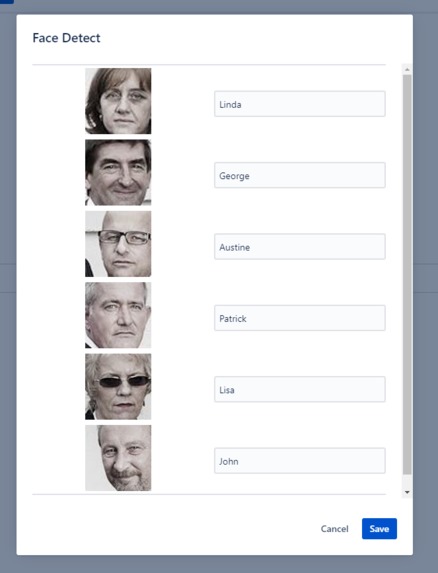
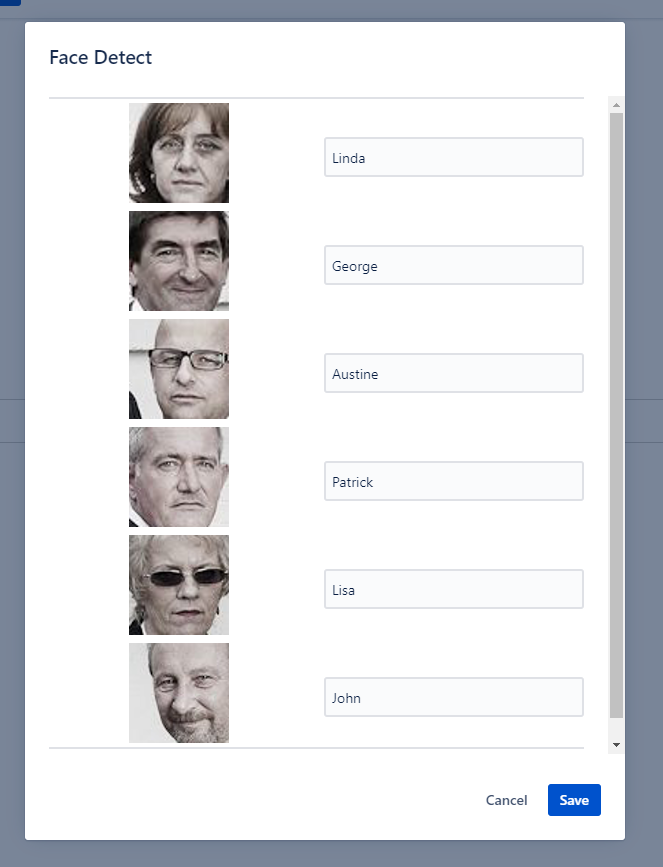
Step 3: After the image has been processed. It will display the list of faces. You are required to add some details for each image.
-
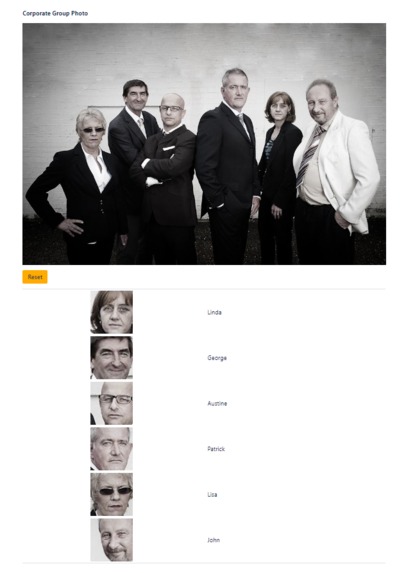
Step 4: End result will display on screen with the title caption, the original image and the extracted face images.



Inspiration
Have you imagined to add your individual team members photo on a confluence page without manually ask for it from your team members and upload it manually to your confluence page? Can you feel the how hustle is it right?
What it does
Face Detect lets you just upload a single image of your team and it will automatically handle the extraction of your team members' faces. Also, you have the option to add the name and some details about each of your member teams.
How I built it
The Forge App was built using Forge/Forge UI and the API was built using Azure Functions and Azure Face Cognitive Service. The API was deployed on Azure. The forge app was only works on Confluence.
Challenges I ran into
Since Forge is relatively new, the most challenging part is familiarizing Forge UI's full capabilties in a short matter of time.
Accomplishments that I'm proud of
I'm very proud of the fact that I made an app in just matter of hours compare to other development platform that would take me at least days or weeks. Also, it is my first time to make an app without worrying about the UI since it is fully handled by Forge.
What I learned
I learned a lot about different Atlassian development products. Without this hackathon, I wouldn't know that Atlassian allows other developer to make an app for their products and platform.
What's next for Face Detect
It depends on how far Forge will reach. Also, how the community will react with my work and hopefuly will receive some feedback that will make Face Detect a great app in the future.


Log in or sign up for Devpost to join the conversation.