-
-
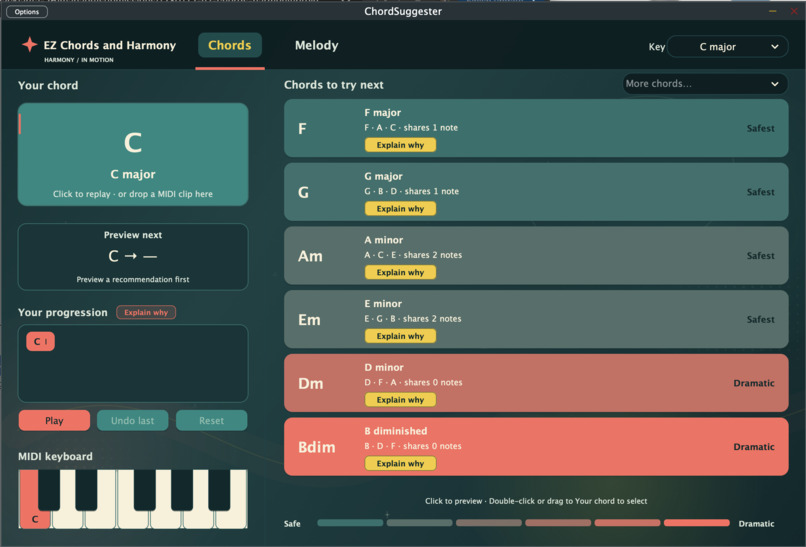
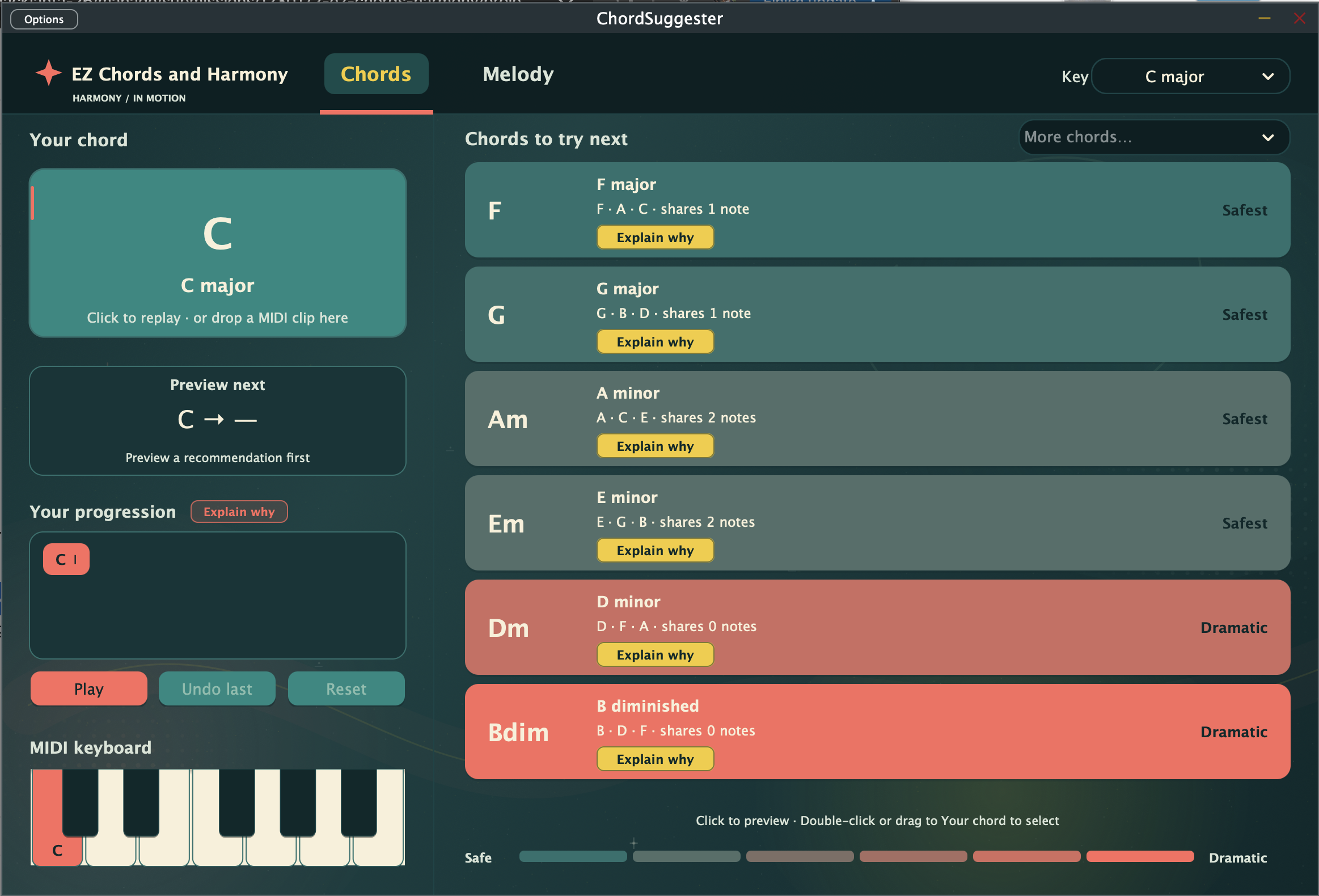
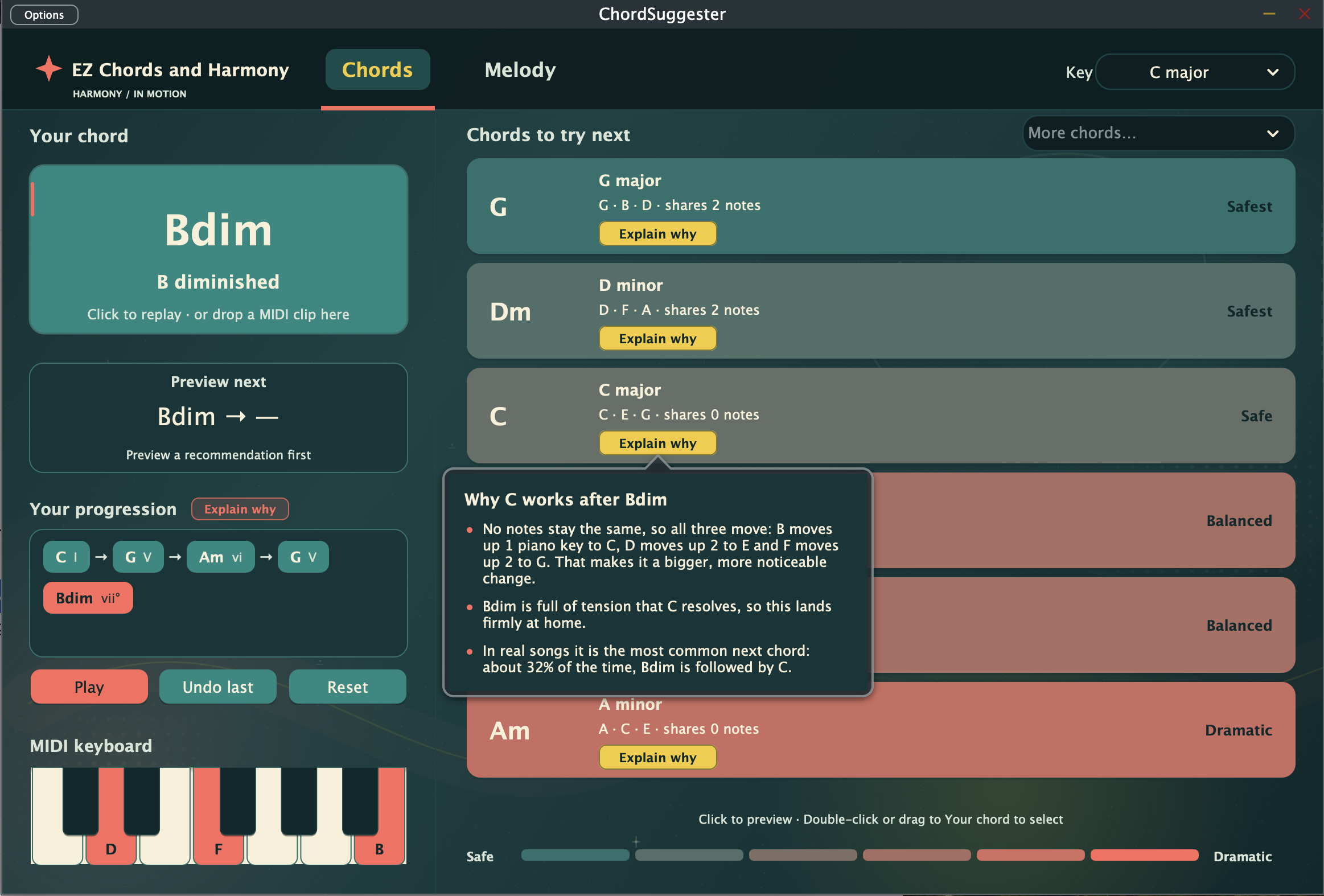
The interface the user is met with upon opening the plug-in.
-
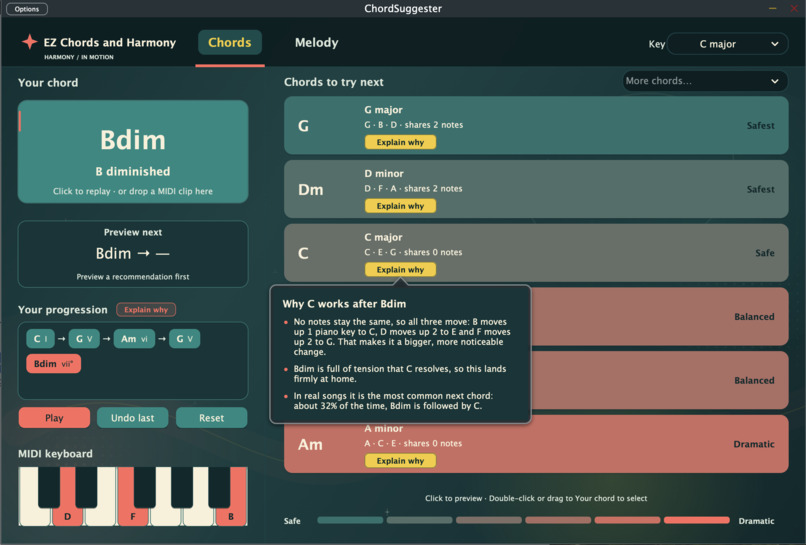
The plug in doesn't choose for the user, and it tells the user exactly why these notes sound good together.
-
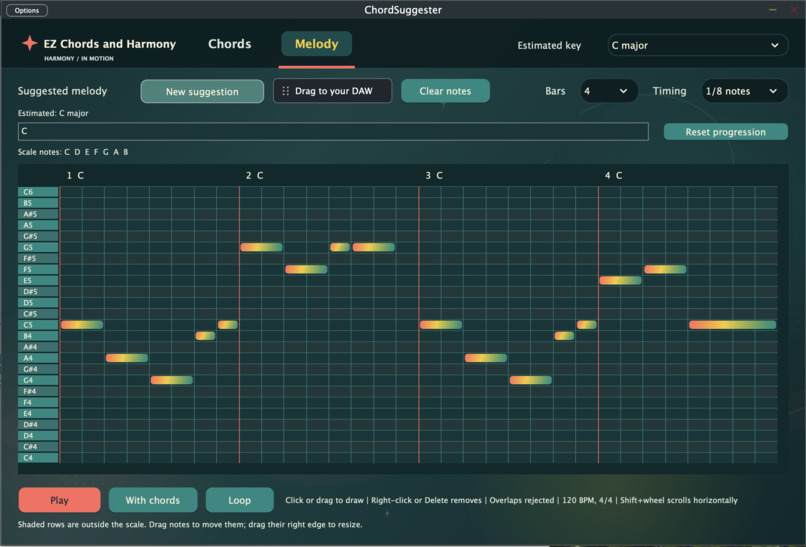
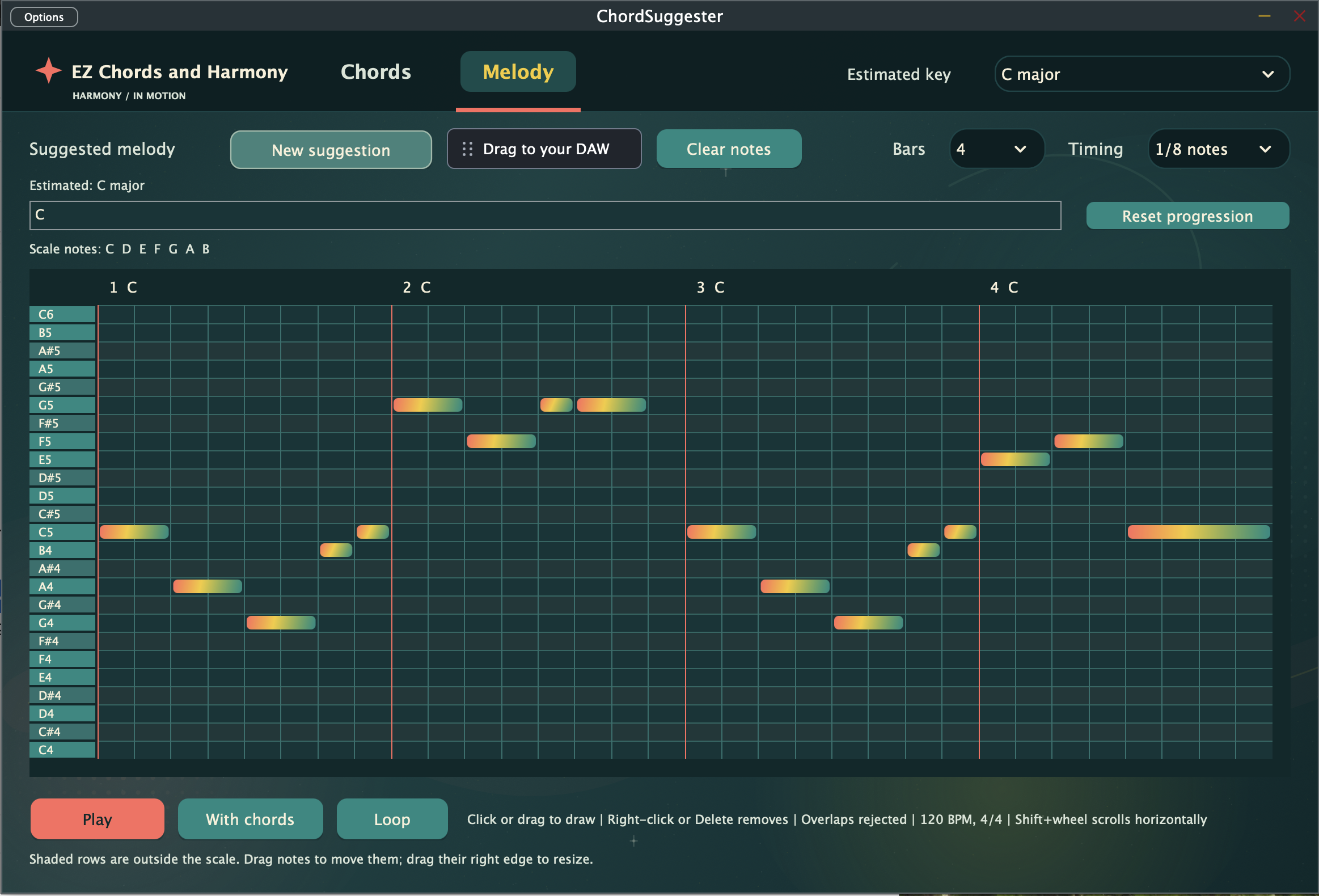
If a user has found their chords but has more trouble with their melody, they can generate an example melody that's simple and harmonic.
EZ Chords & Harmony
An audio plugin that suggests which chord to play next, for people who don't know music theory. You give it a chord, and it lists the other chords in the key, colored from blue (safe) to gray (dramatic).
Status: early prototype. It starts on C major in the key of C and includes built-in chord previews.
- Single-click a recommendation to hear its three notes together for one second. The current chord and recommendations stay unchanged.
- Double-click a recommendation to select it as the current chord and get fresh recommendations, without restarting the preview.
- Click Explain why on a recommendation to read, in plain language, why that chord works after the current one: which notes the two chords share and how the others move, the job the chord does in the key, and how often real songs make the same move. The wording comes from
chords::explaininSource/ChordExplain.h. - Drag the Drag chords to DAW handle (on the Chords tab, beside the MIDI keyboard heading) onto an instrument track in your DAW to copy Your progression there as a MIDI clip: one chord per bar, in order, following the song's tempo. The code is in
Source/MidiDragOut.h. - In Your progression, each chord shows its Roman numeral in the chosen key after its name (in C major: C is I, Am is vi, G is V). Capitals are major chords, small letters minor, and a degree sign diminished; a chord from outside the key gets a b or # in front (Bb is bVII). The numerals follow the Key menu and come from
chords::romanNumeralinSource/ChordEngine.h. The small Explain why tag beside the heading opens a short explanation of what the numerals mean, with examples from the chosen key. - Click the current chord to replay it.
- The small Preview next panel shows the current chord followed by the previewed chord. Click it to hear both chords back-to-back, one second each, without changing your selection. It is inactive until you preview a recommendation.
- Drag a MIDI file (
.mid) or a Studio One Musicloop (.musicloop) onto the plugin window to set the current chord. The plugin reads the first chord in the file (major, minor or diminished; extra notes such as a 7th are ignored) plays it, and lists the notes it read under the current chord. If those notes don't make a chord, or the file has no notes, it says so there instead. - Choose a major key from the header to refresh the recommendations for that key.
- Choose a built-in sound from the Sound menu under the title: Soft, Electric piano, Organ, Bright or Plucked. It applies to every chord and melody on both tabs, plays the current chord so you can hear it, and is saved with the DAW project. The sounds are made in
Source/PreviewPlayback.h. - Play notes on the on-screen MIDI keyboard with the mouse. It sends MIDI through the plugin; to hear those notes, route the plugin's MIDI output to an instrument in your host.
The preview label stays visible after the sound ends and clears when you confirm a chord. Starting another preview or transition smoothly replaces playback and cancels any remaining sequence. Soft built-in tones require no external instrument or samples; an active audio device or host processing is required. Existing audio and incoming MIDI pass through unchanged; notes played on the on-screen keyboard are added to the outgoing MIDI stream.
Melody prototype
The Chords and Melody tabs share the same plugin. The starting chord and every double-click confirmation form your progression; single-click previews do not add chords.
In Melody, review the estimated major or natural-minor scale and its notes. An alternative appears when the progression is ambiguous. Use the key/scale menu to override the estimate. The estimate uses the full confirmed history.
Choose Bars (1, 2, 3, or 4) and Timing (quarter, eighth, or sixteenth notes), then click New suggestion. Defaults are four bars and eighth notes. Short progressions repeat to fill the chosen length; longer histories use their most recent chords. Each bar corresponds to one chord in 4/4 at a fixed 120 BPM. Generated notes stay in scale and favor chord tones on beats one and three. Timing sets the shortest note: each bar mixes short notes, held notes and occasional rests of up to one beat. The bars follow a pattern: bar one states an idea and bar two answers it, later bars bring those back with the same rhythm and contour moved to fit the new chord, and the last bar leads to one long final note, which is the scale's home note when it belongs to the last chord and that chord's root otherwise.
The piano roll shows C4 through C6, with out-of-scale rows shaded. Click a note to select and hear it. Drag its body to move its pitch and start time; drag the right edge to change duration. Double-click empty space to add a note; Delete or Backspace removes the selection. Edits snap to Timing and stay within the phrase. Out-of-scale pitches are allowed, but overlapping notes are rejected to keep the melody monophonic. Gaps are rests. Use the scrollbars or mouse wheel to scroll; Shift+wheel scrolls horizontally. The window is resizable, and the playhead follows longer phrases horizontally.
Click Play to hear the melody; the button becomes Stop. Toggle With chords for quiet backing chords: backing fades in or out while the melody and playhead keep going, aligned to the current bar. Its setting also applies to the next playback. Enable Loop to repeat the whole phrase. Both options start off and can be used independently. Editing, a new suggestion, tab switching, and changing Loop stop playback with a short fade. Clicking a note auditions its pitch; chord previews replace melody playback.
Drag the Drag to your DAW handle (next to New suggestion) onto an instrument track in your DAW to copy the melody there as a MIDI clip, including any edits made in the piano roll. With With chords on, the chords are included under the melody. The clip has no tempo of its own, so it follows the song's tempo. The code is in Source/MidiDragOut.h.
Confirming another chord, changing the scale or bar count, or choosing Reset progression clears the phrase. Reset starts a fresh progression from the current chord. Changing Timing affects snapping and future suggestions without rewriting existing notes. New suggestion replaces manual edits. History survives tab switches but resets when the plugin editor is reopened.
This rule-based prototype does not analyze audio tracks, synchronize with the DAW, export MIDI, offer multiple melody tracks, or save progression history in sessions. The Melody scale override affects melody suggestions only; the Chords tab has its own major-key selector for chord recommendations.
What you need
On every platform you need:
- CMake 3.22 or later
- A C++ compiler (listed per platform below)
- JUCE (this project was set up with JUCE 9.0.3), downloaded from https://juce.com/get-juce or cloned with
git clone --branch 9.0.3 --depth 1 https://github.com/juce-framework/JUCE.git
Where to put JUCE
The build looks for JUCE at ~/Downloads/JUCE by default, so the simplest setup is to unzip JUCE into your Downloads folder and leave it there.
If your JUCE folder is somewhere else, pass its location when you configure:
cmake -B build -DCMAKE_BUILD_TYPE=Debug -DJUCE_PATH=/path/to/your/JUCE
On Windows you always need to pass -DJUCE_PATH (see below), because the default relies on the HOME variable, which Windows doesn't normally set.
Build and run
The first build takes several minutes. Later builds only need the build and run commands.
The Standalone app runs the plugin in its own window, so you can test without opening a DAW.
macOS
Install the tools:
xcode-select --install
brew install cmake
Then, from the project folder:
cmake -B build -DCMAKE_BUILD_TYPE=Debug
cmake --build build --target EZChordsAndHarmony_Standalone -j 8
open "build/EZChordsAndHarmony_artefacts/Debug/Standalone/EZ Chords & Harmony.app"
Linux
These steps are for Ubuntu and Debian. Install the compiler, CMake, and the libraries JUCE builds against:
sudo apt update
sudo apt install -y cmake build-essential pkg-config \
  libasound2-dev libfreetype-dev libfontconfig1-dev \
  libx11-dev libxrandr-dev libxinerama-dev libxcursor-dev libxext-dev \
  libgl1-mesa-dev libcurl4-openssl-dev libgtk-3-dev libwebkit2gtk-4.1-dev
Then, from the project folder:
cmake -B build -DCMAKE_BUILD_TYPE=Debug
cmake --build build --target EZChordsAndHarmony_Standalone -j 8
"./build/EZChordsAndHarmony_artefacts/Debug/Standalone/EZ Chords & Harmony"
A yellow "Audio input is muted to avoid feedback loop" bar is normal; chord previews still play. Use Settings... to pick an audio device.
Windows
Install the tools:
- Visual Studio 2022 (the free Community edition is fine) with the Desktop development with C++ workload. This includes a compiler and CMake.
- Optionally, Git for Windows, if you want to clone JUCE instead of downloading the zip.
Open the Developer PowerShell for VS 2022 from the Start menu, go to the project folder, and run:
cmake -B build -DJUCE_PATH="$env:USERPROFILE\Downloads\JUCE"
cmake --build build --config Debug --target EZChordsAndHarmony_Standalone
& ".\build\EZChordsAndHarmony_artefacts\Debug\Standalone\EZ Chords & Harmony.exe"
Change the JUCE_PATH value if you put JUCE somewhere other than your Downloads folder. Visual Studio picks the build type at build time, which is why --config Debug is on the build command instead of the configure command.
For a local VST3 build without copying into the system plugin folder, configure with -DEZCHORDSANDHARMONY_COPY_PLUGIN_AFTER_BUILD=OFF. Installation remains enabled by default.
Playback tests
Enable the optional tests when configuring, then build and run them:
cmake -B build -DEZCHORDSANDHARMONY_BUILD_TESTS=ON
cmake --build build --config Debug --target ChordPreviewTests MelodyTests PluginInteractionTests
ctest --test-dir build -C Debug --output-on-failure
These check simultaneous notes and root-position voicing, preview/transition duration, fades, interruption, and audio restart at 44.1, 48, and 96 kHz.
Melody tests also check scale estimates, bar filling, subdivisions, editing constraints, rests, backing chords, looping, all 128 sixteenth notes, and concurrent playback requests. Plugin interaction tests cover editing gestures, confirmation/history, tab switching, phrase invalidation, audio/MIDI passthrough, and render empty/four-bar/eight-bar piano-roll snapshots into the build folder.
Project layout
CMakeLists.txt: the build settings (plugin name, formats, MIDI options).Source/ChordEngine.h: the chord logic. Plain C++ with no JUCE, so it can be tested on its own. ThedataWeightsetting insuggestcontrols the mix: 0 is theory only, 1 is data only.Source/ChordTransitions.h: how often each chord follows each other chord in real songs. Generated, so don't edit it by hand.Source/MidiChordReader.h: reads a MIDI file or a Studio One Musicloop and finds its first chord.Source/PluginEditor.*: the plugin window.Source/PluginProcessor.*: notes in and out of the DAW.tools/build_chord_table.py: the script that generatesChordTransitions.hfrom the dataset.
The build/ folder is generated by CMake and is not kept in Git.
Using the engine from the interface
Everything is in Source/ChordEngine.h, in the chords namespace.
chords::suggest (currentChord, keyRoot): the main list. The other chords in the key, safest first.chords::chordFromNotes (notes, keyRoot, result): works out which chord a group of notes makes. Returnsfalseif they don't form one.chords::connectedChords (currentChord, keyRoot): the longer list for a "more chords" drop-down. Every chord in the key plus chords from outside the key that real songs do use after the current chord.
Both return a std::vector<chords::Suggestion>. The fields you'll want from each one:
chord.name("Bb") andchord.fullName("Bb major"): what to show.inKey:trueif the chord is in the key,falseif it's from outside it.safety: 0 to 1, where 1 is safest. This is what drives the blue-to-gray color.chance: how often real songs make this move (0.29 means 29%).
To switch to a chord the user picked, pass its chord to the editor's setCurrentChord.
Chord data
Source/ChordTransitions.h holds a table of how often each chord is followed by each other chord, counted from about 250,000 chord changes in real songs. There is one table for major keys and one for minor keys. For example, in major keys a C chord (in the key of C) is most often followed by F (29%) or G (26%).
You only need to rebuild the table if you change the script. To do that:
- Put
Hooktheory.json.gzin the project folder. If you don't have it, download it from thehooktheoryfolder of https://github.com/chrisdonahue/sheetsage-data - Run
python3 tools/build_chord_table.py
The script needs Python 3 and nothing else. It prints a summary and rewrites Source/ChordTransitions.h.
Data credit and licence
The chord table is derived from the Hooktheory dataset released with Sheet Sage (Chris Donahue, John Thickstun and Percy Liang, 2022), which is built from Hooktheory's TheoryTab database: https://github.com/chrisdonahue/sheetsage
That dataset is licensed under CC BY-NC-SA 3.0 (https://creativecommons.org/licenses/by-nc-sa/3.0/). The same terms apply to Hooktheory.json.gz and to Source/ChordTransitions.h: give credit, non-commercial use only, and share any changes under the same licence.


Log in or sign up for Devpost to join the conversation.