-
-
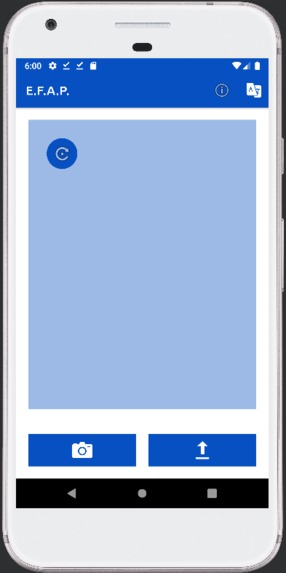
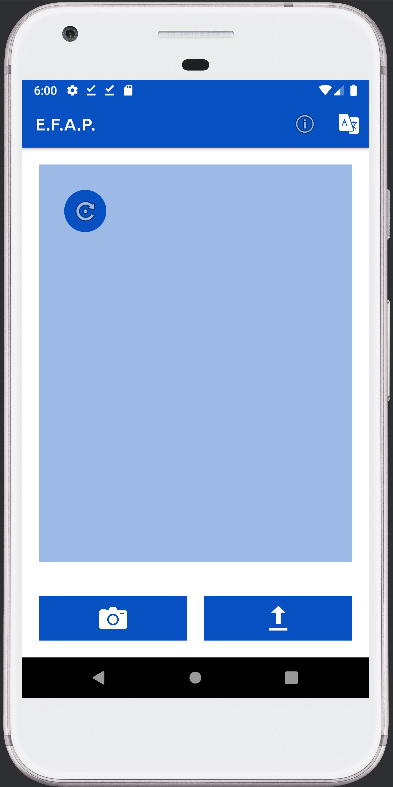
What the phone start screen looks like.
-
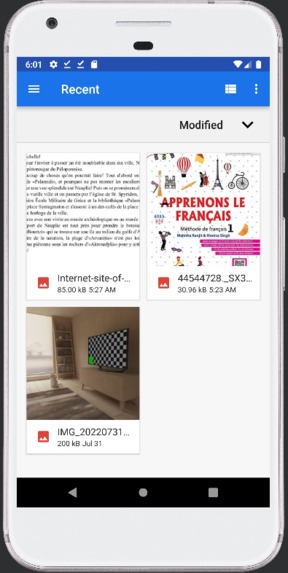
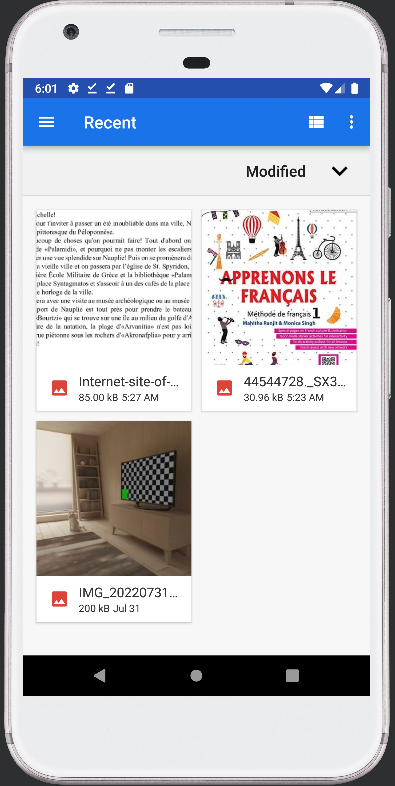
What shows up when uploading an image. (At least, in this emulator.)
-
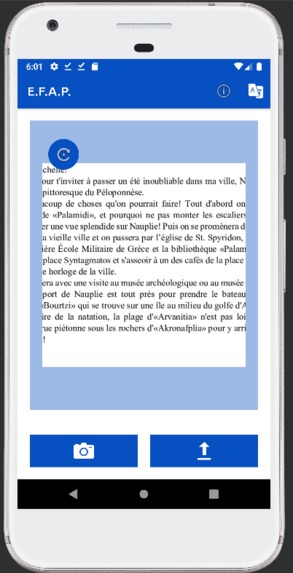
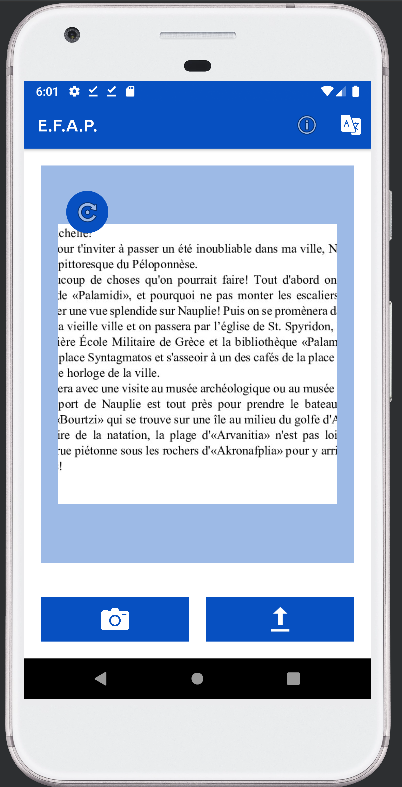
An image of a French story that is untranslated, such as if you were given this as homework to read.
-
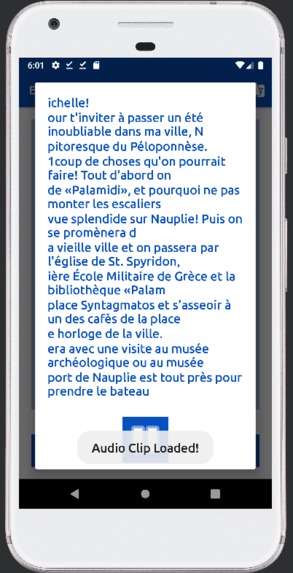
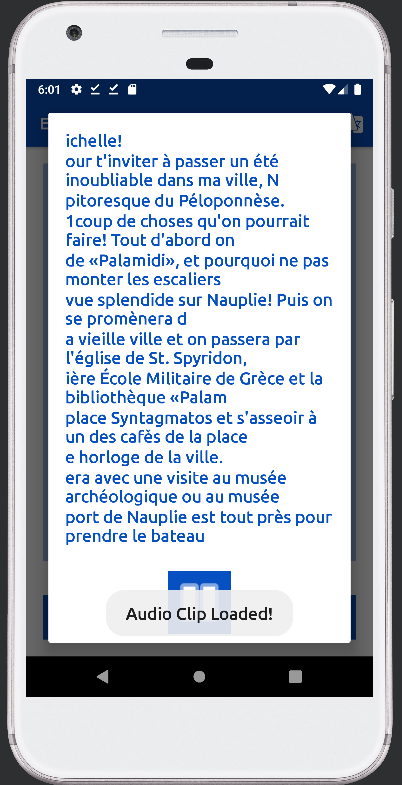
What a non-translated version of the story would look like, making it easier to read.
-
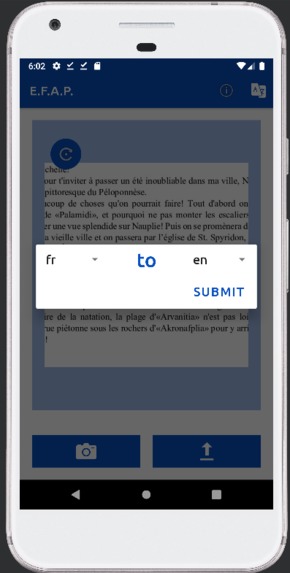
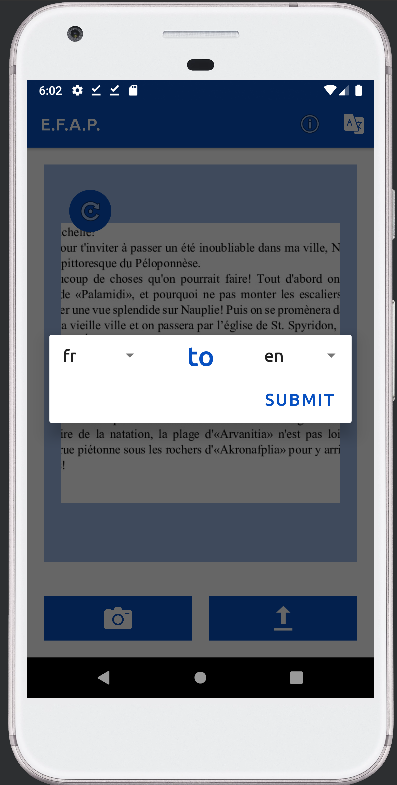
The translate screen, which goes from French to English as way to double check if your translations were right.
-
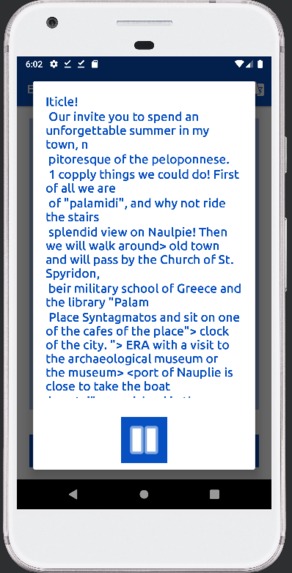
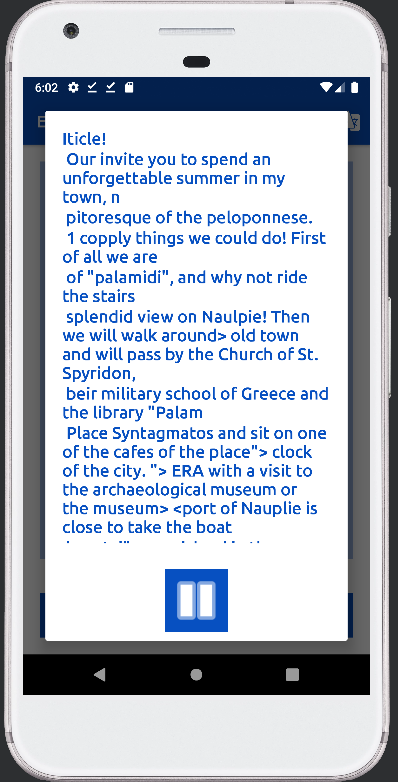
What the English-translated version looks like.
-
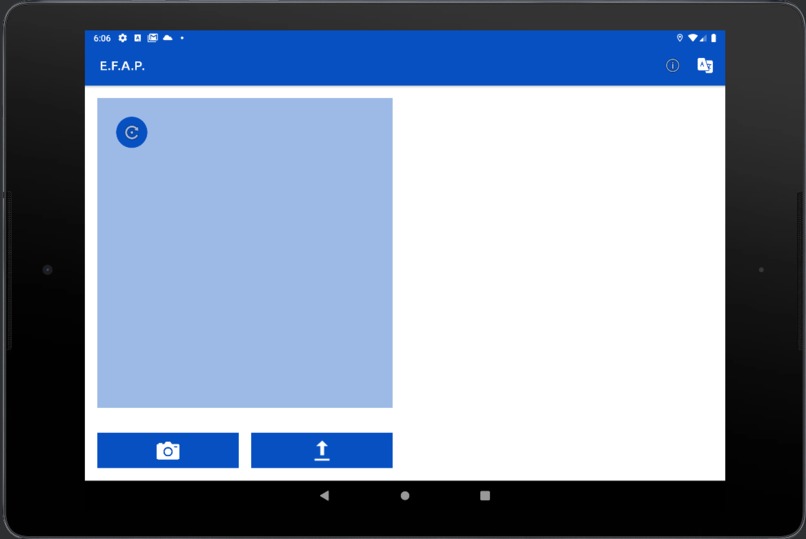
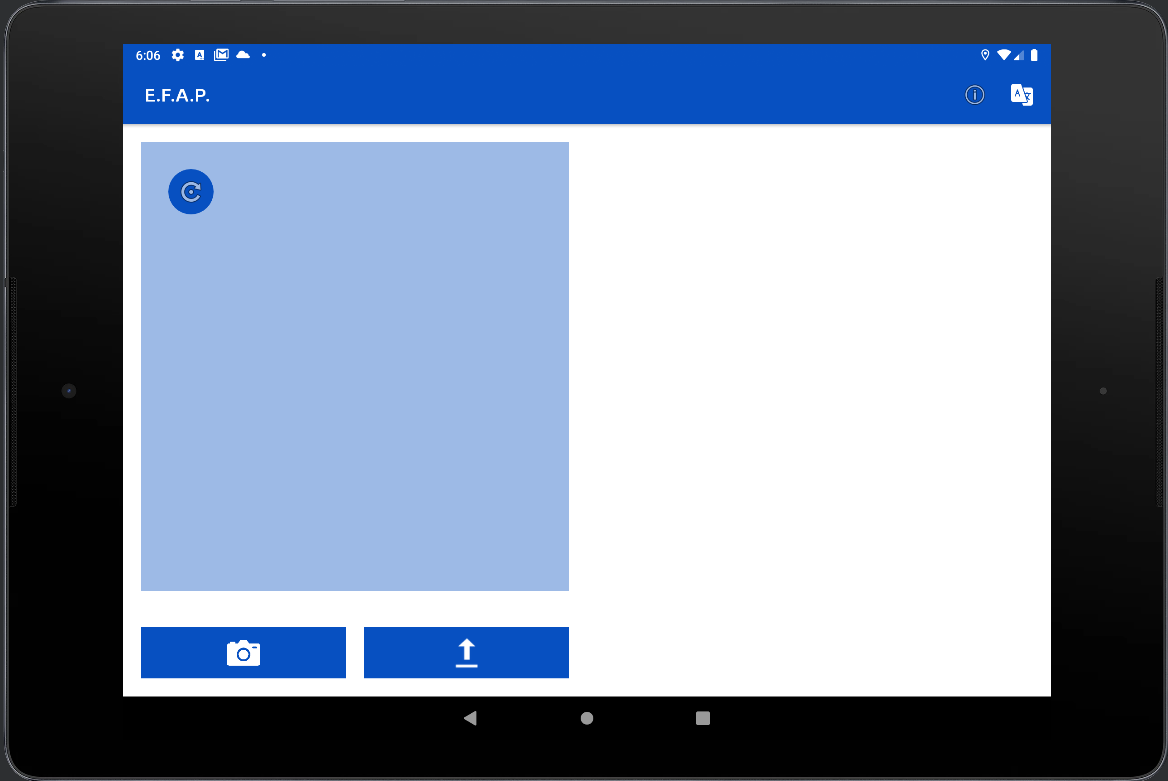
What the tablet start screen looks like.
-
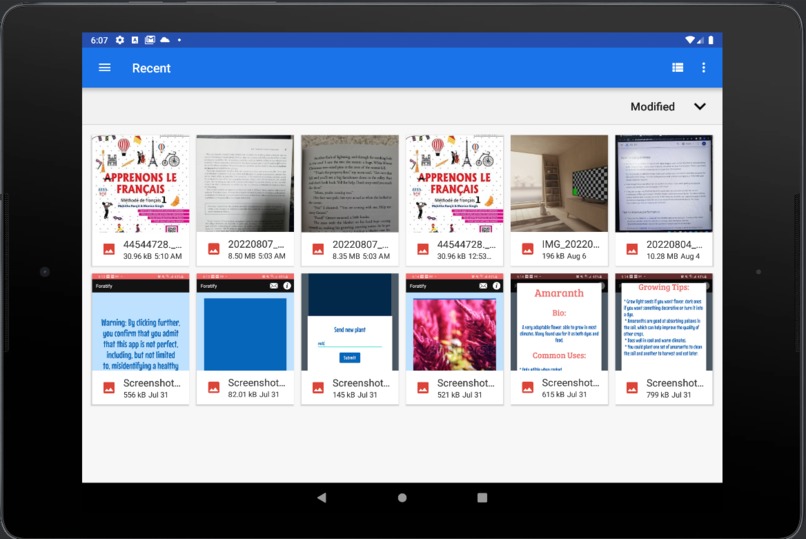
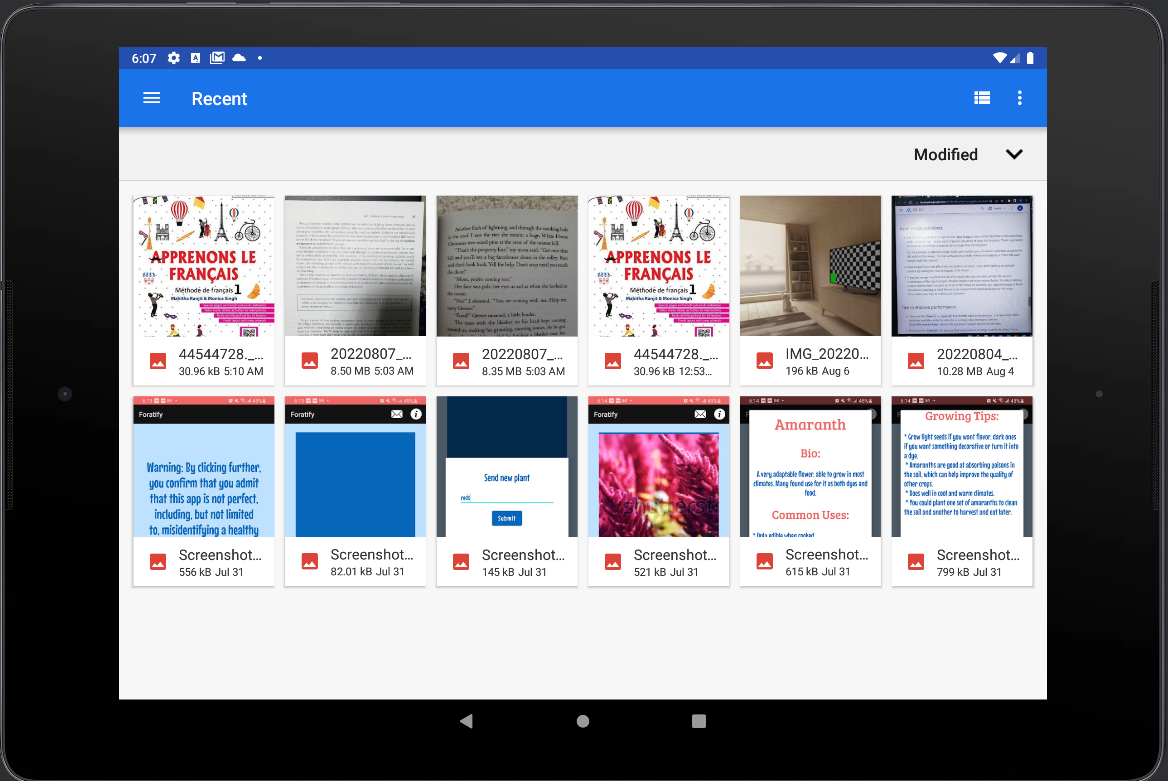
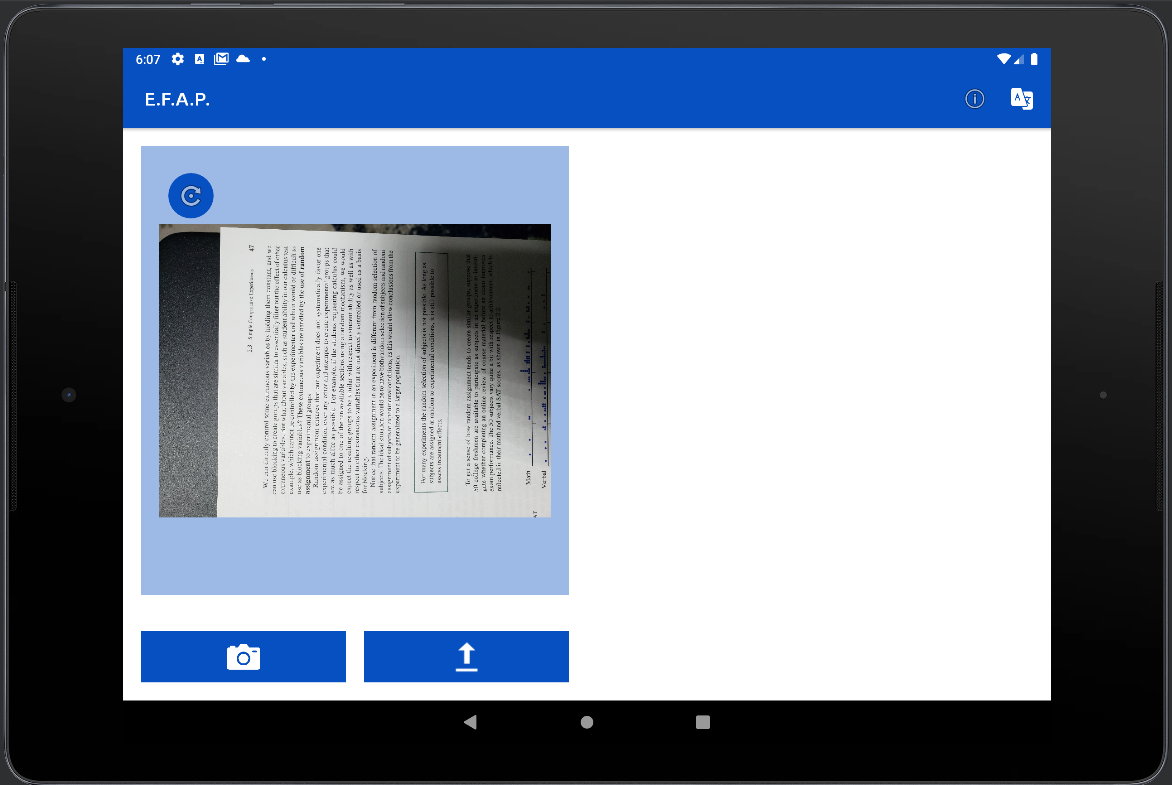
What this tablet's upload screen looks like.
-
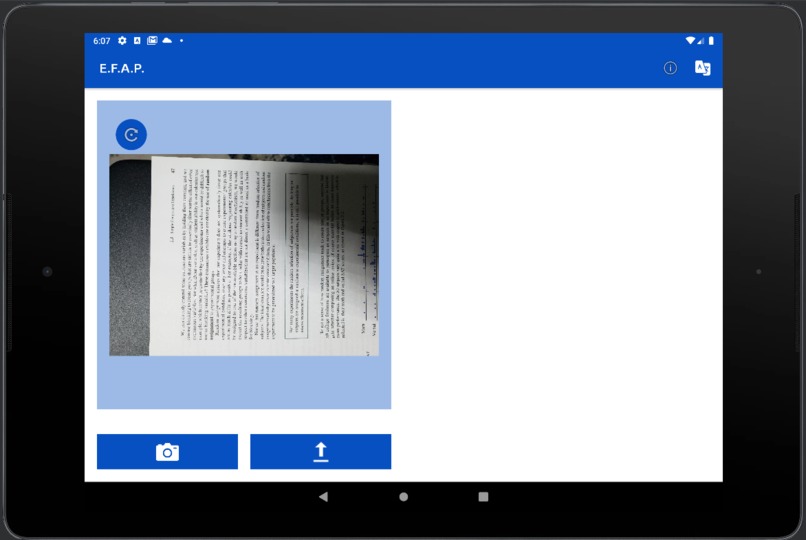
An unrotated image that can be rotated by tapping the button in the top left.
-
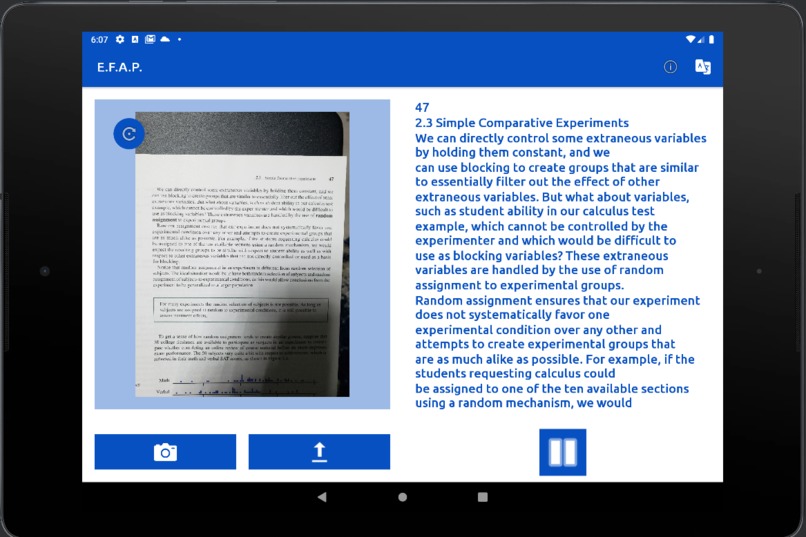
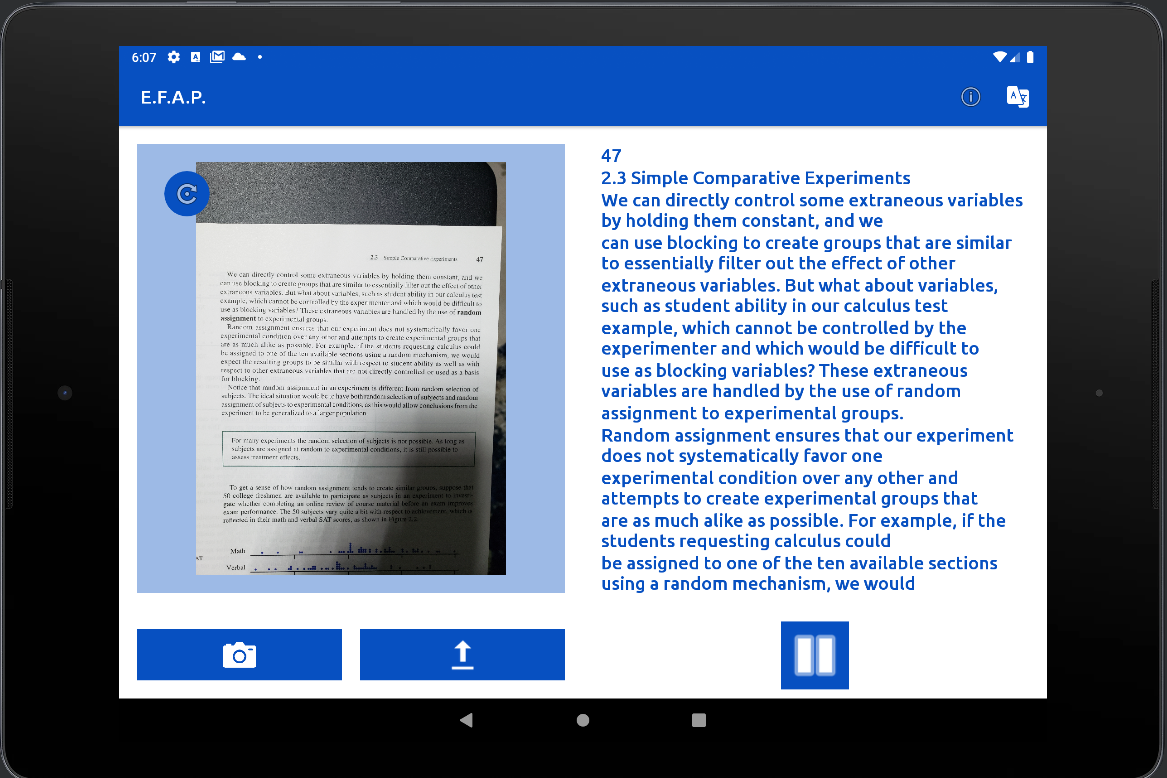
A page of a Statistics Textbooks, where the larger text makes it easier to read.
-
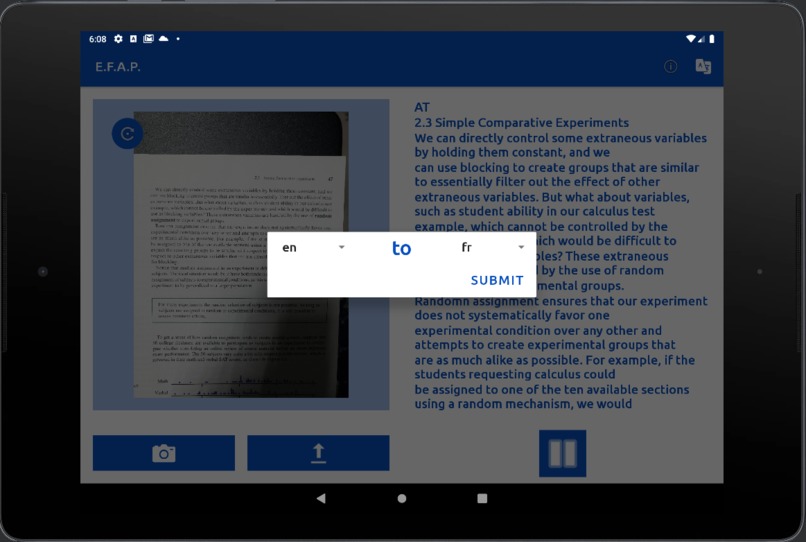
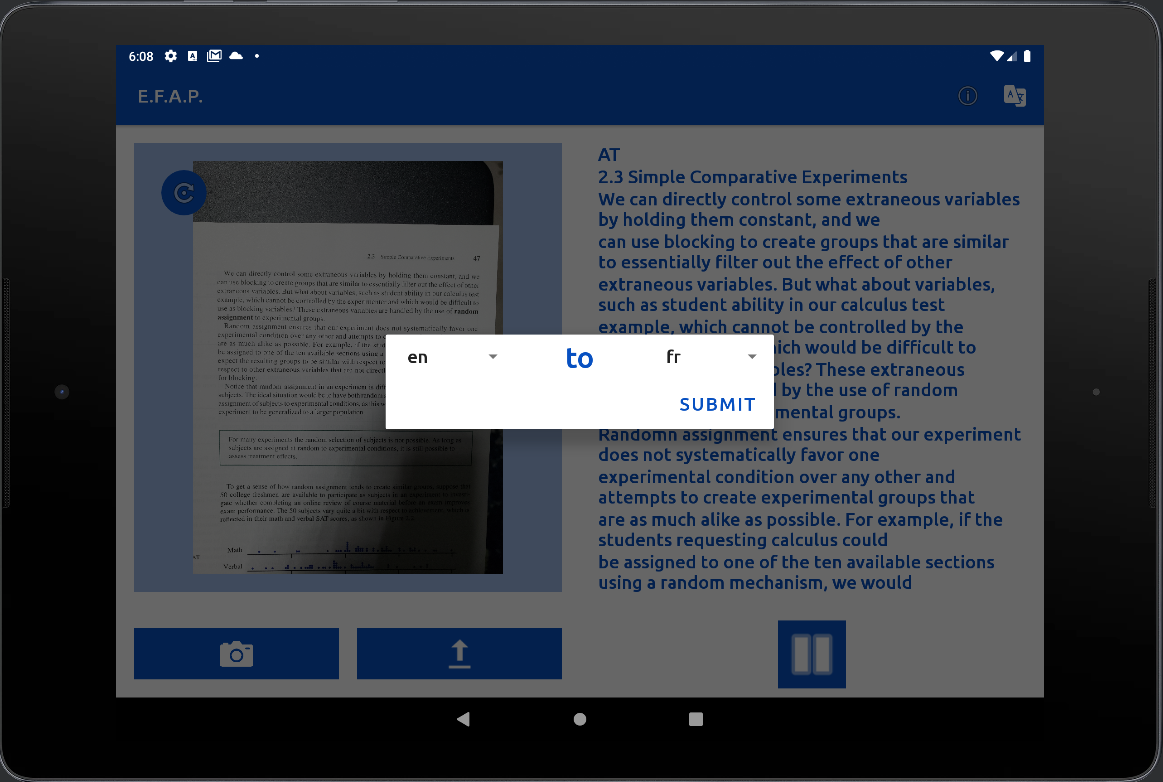
Translating from English to French, since some people can find French easier to read.
-
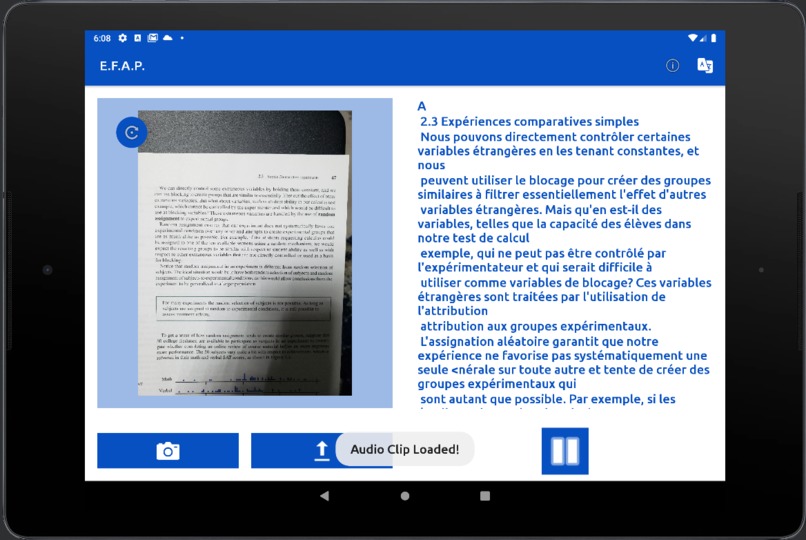
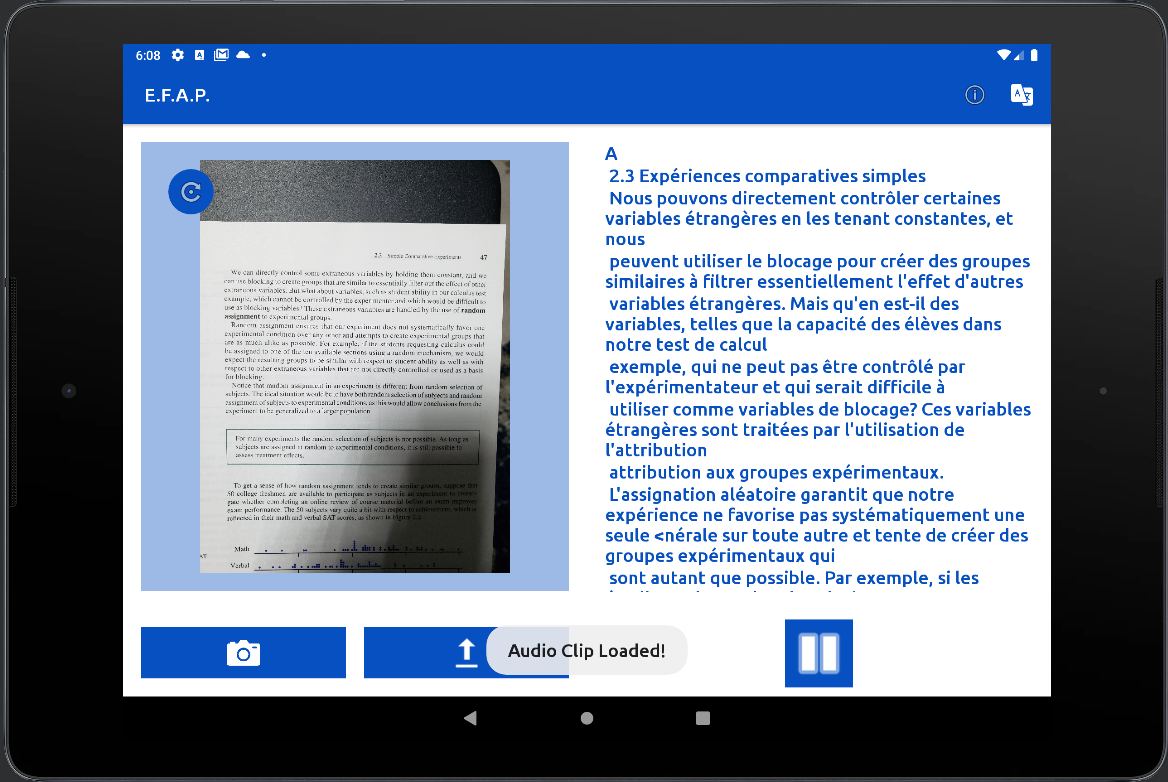
The page, now translated in French.
Inspiration
I realized that people sometimes have a hard time learning, whether through conditions like dyslexia or preferences like listening over reading or using a different language. As a result, I wanted to design an app that could do all of this.
What it does
It is an app where you are first directed to either take a picture using your camera or upload one from your phone. Due to the poor quality of the camera imported images, uploading them is suggested. A few moments should pass before a toast message displays, saying the text is able to be read. If you are using a large device like a tablet, then the text will appear on the side. On mobile devices however, it will only appear when clicking the information icon in the top right.
As a side note, there is a rotate button that allows you to rotate the image, just in case it isn't positioned properly.
This information display will show the text, but after more time has passed, there will be another toast message, saying the audio clip has loaded. You can then press the pause/play button at the bottom of the display, which starts the audio clip.
Lastly, there is the translation feature, hinted at through a menu button in the top right. Clicking on it reveals a pop-up that shows the language you are currently translating from, then the language you want to translate to. (Examples would include, “en” to “fr”, “en” to “en” [meaning no translation, just keep it in English], and “fr” to “it”.) Confirming your choices will cause the other texts and audio to be translated, though the API will still need some time to complete its task.
How I built it
I built the app in Android Studio, later publishing it in Github. When it came to translation and processing images, I used the free and pre-build Firebase Machine Learning Kit. As for getting the voice, I decided to use the site called “Voice RSS”.
Challenges I ran into
The main challenges came from learning the API’s. Because I wanted to use free ones, I had to do a bit of experimenting to not only find the right ones, but also ensure I knew how to use them.
Accomplishments that I’m proud of
I’m proud that I was able to learn so many API’s that I hadn’t used before and still being able to add most of the features I planned for.
What I learned
I learned about how to use several API’s in my program along with how to make my programs more user-accessible.
What's next for “Education For All Program” (E.F.A.P.)
I hope to improve some of the bugs and add some quality of life features, like a bar similar to what YouTube has on its videos rather than just using a pause button.
Built With
- android-studio
- java
- machine-learning
- okhttp
- pixel-scout
- text-recognition
- text-to-speech
- translate
- voice-rss

Log in or sign up for Devpost to join the conversation.