-
-
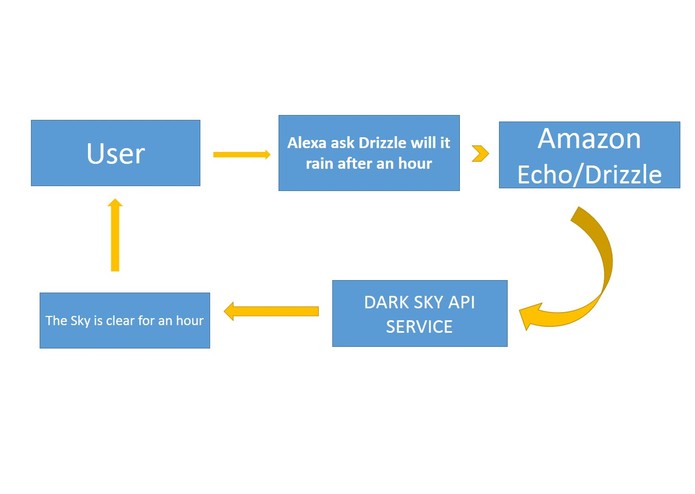
Schematic
-
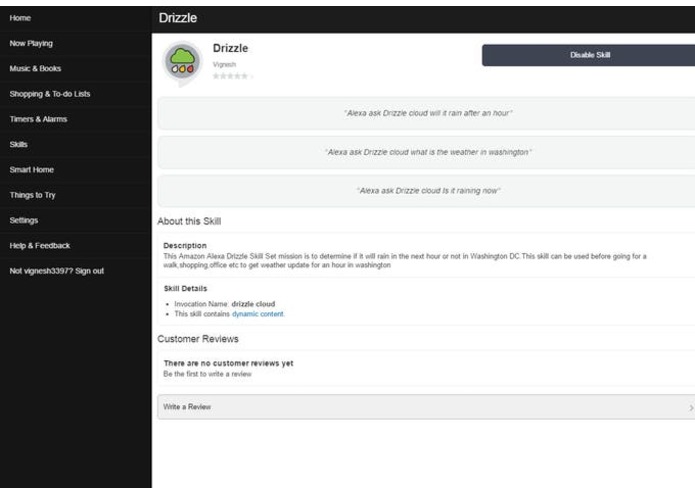
Alexa store listing
-
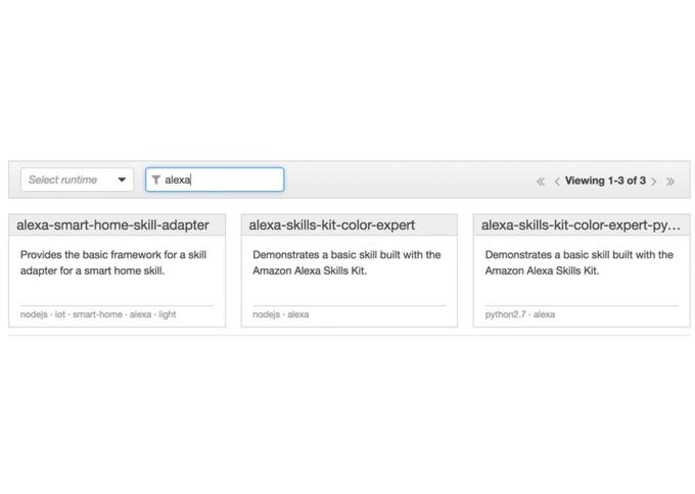
Amazon web service Configuration
-
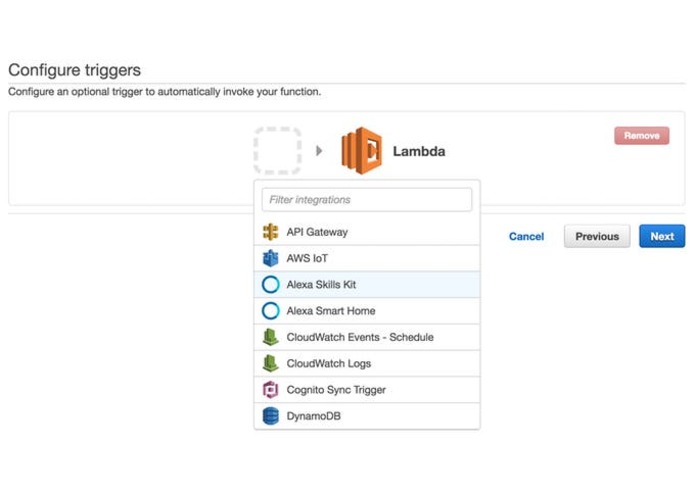
Amazon web service Configuration
-
Amazon web service Configuration
-
AMAZON DEVELOPER ACCOUNT TO CREATE SKILL
-
Interaction model
-
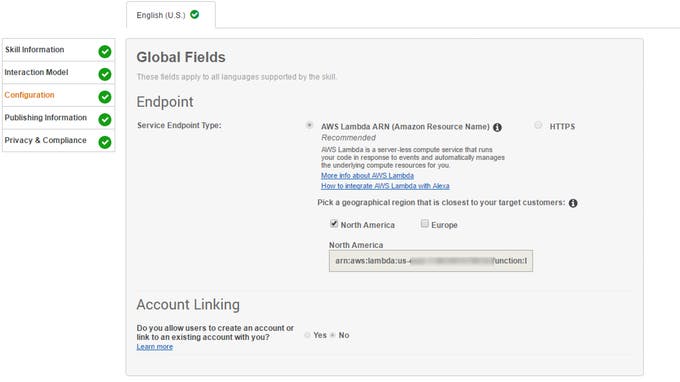
Configuration
-
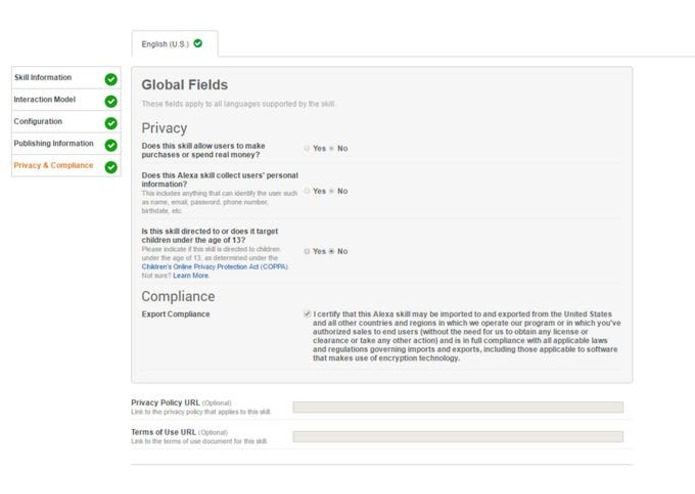
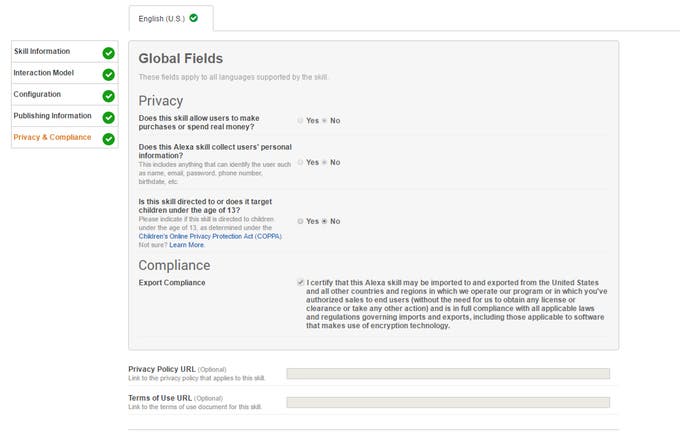
Privacy & Complaint
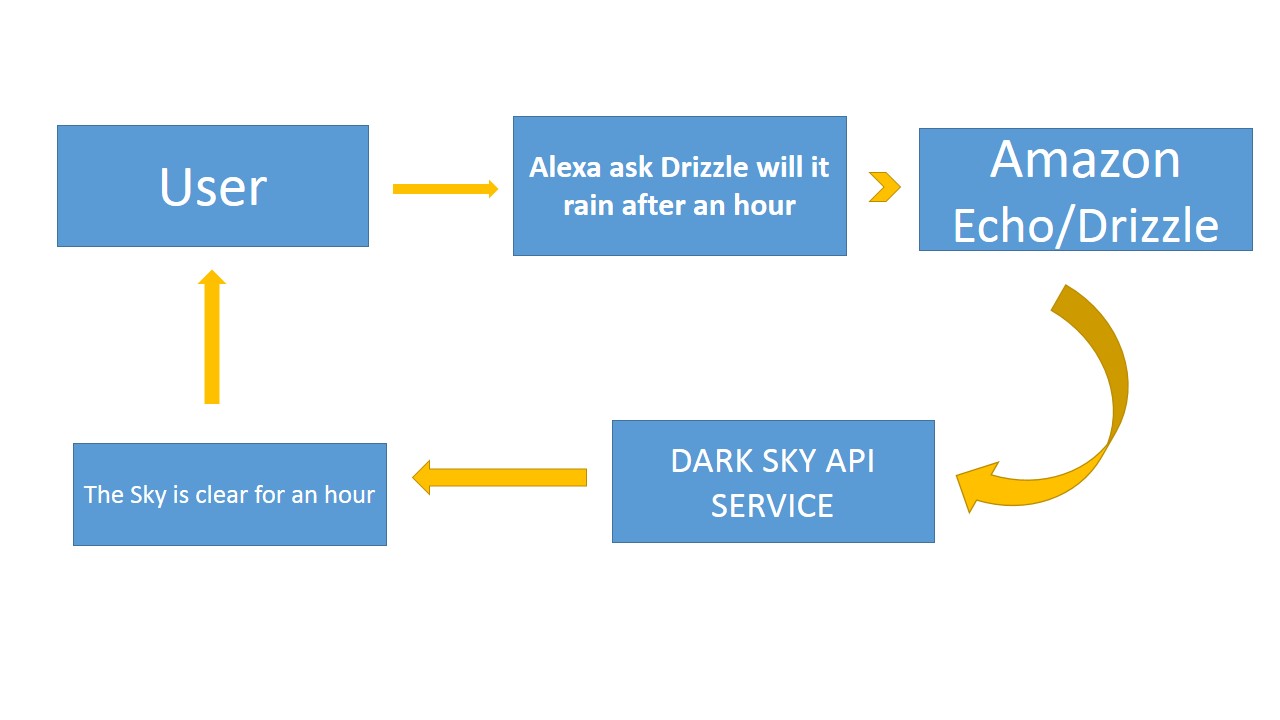
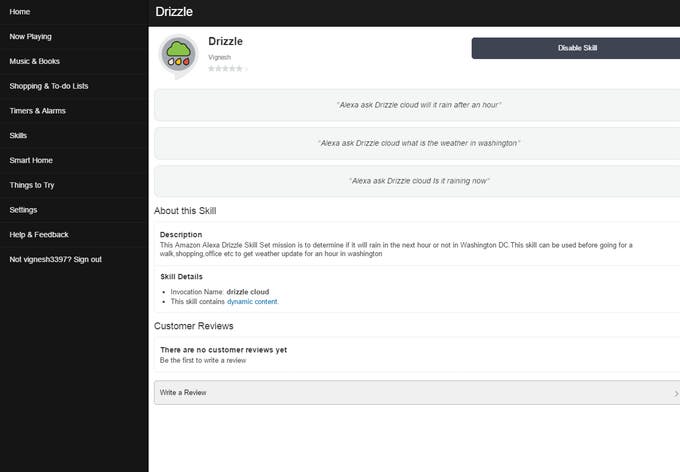
DRIZZLE CLOUD :
Link To Enable This Skill: http://alexa.amazon.com/spa/index.html#skills/dp/B01MG84QFZ/?ref=skill_dsk_skb_sr_0
THINGS USED IN THIS PROJECT
Hardware components:
*Amazon Alexa
- Amazon Echo
Software apps and online services:
*Amazon Web Services AWS Lambda *Dark Sky API *Amazon Alexa Alexa Skills Kit
A most use-full Alexa Skill to reports on sky condition which calls the Dark Sky API to determine weather in a specific city or location and also to say if it will rain in the next hour or not.This skill can be used to check weather before planning to go for a walk or a quick outing with friends or family to avoid getting struck in heavy rain's or bad weather.
REQUIREMENTS TO DEVELOP THIS SKILL :
*An Amazon developer and AWS account *An API key from Dark Sky, available at https://darksky.net/dev/ *The latitude and longitude of the region or city you want to fetch the weather
Steps To Build This Skill :
AMAZON WEB SERVICE CONFIGURATION
1.Create an Amazon Web Service account & Amazon Developer account
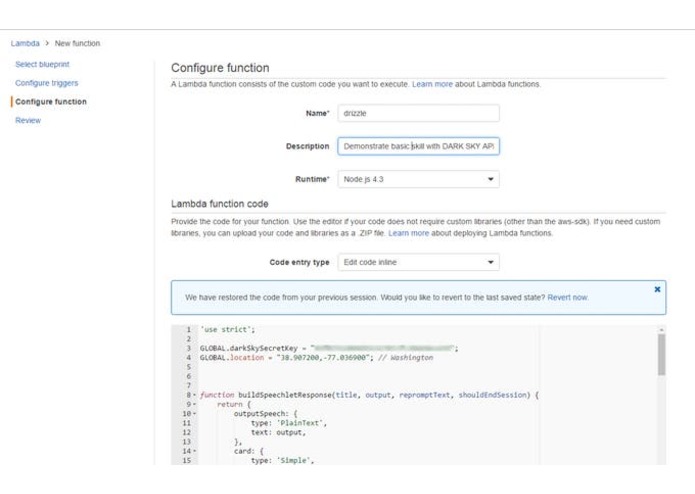
2.In AWS create a Lambda Function in compute section of Web service using the following Configuration.
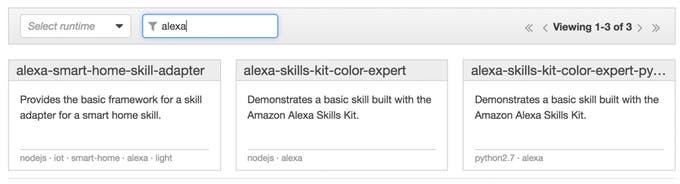
a.) Select Create Lambda Function & select blueprint.In this select runtime as node.js and search for alexa & Select 'alexa-skills-kit-color-expert' (this will create a template function for us to work from) from the search result or you can just skip this step
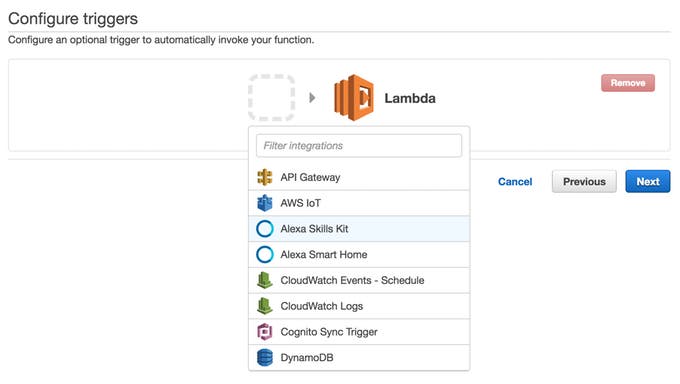
b.)Next Step is selecting Configure Triggers Click Plain square box left to Lambda Icon and Select Alexa Skill Set and Click Next
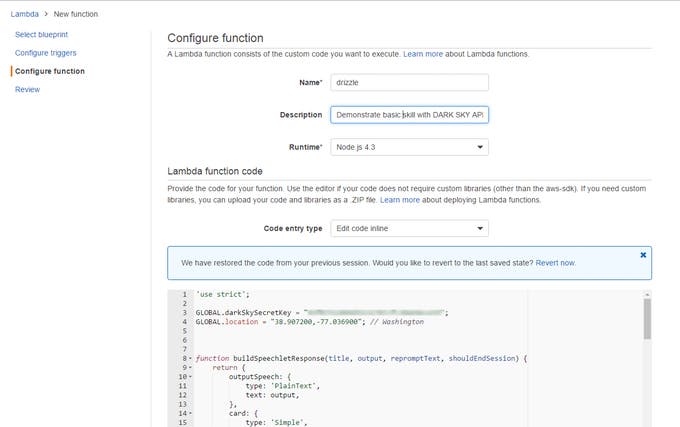
c.)Configure the function as given below and in EDIT CODE INLINE AREA just replace the template code with the Drizzle code given below.In Code just replace with your own DARK SKY API and location for which city you want to enable this skill
A summary of the configuration should be shown,check for any error and go ahead and click create function.Go to the function and just copy the ARN Code which will be used in Amazon Development account to create skill
AMAZON DEVELOPER ACCOUNT TO CREATE SKILL:
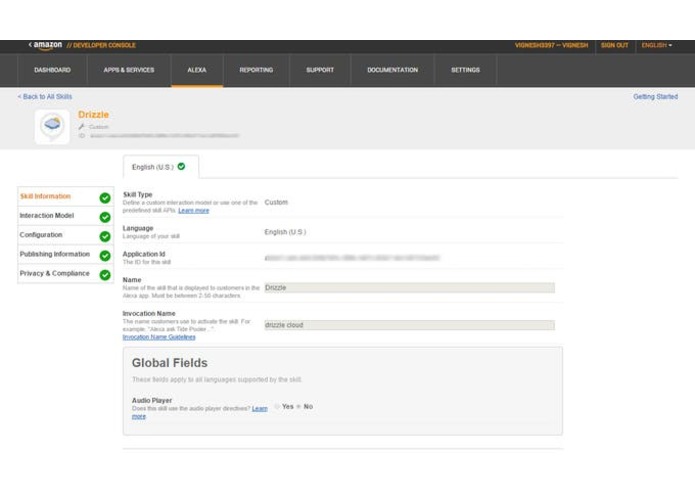
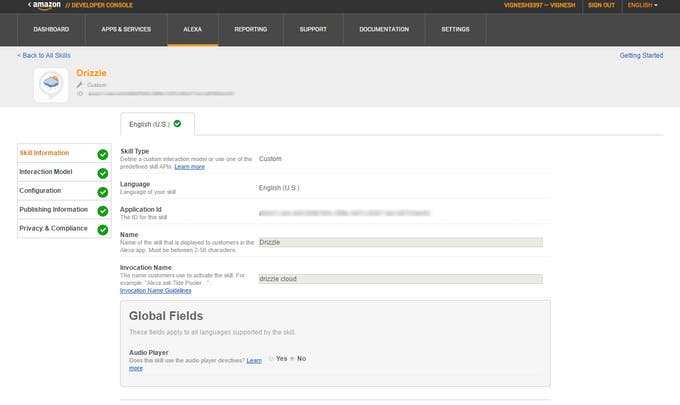
a.)Go to amazon developer site https://developer.amazon.com/ and sign in Select "Alexa" from the top navigation and select "Alexa Skill kit"->Add new Skill
b.)configure the skill as follows .I have chosen DRIZZLE CLOUD as my invocation name.Click Next
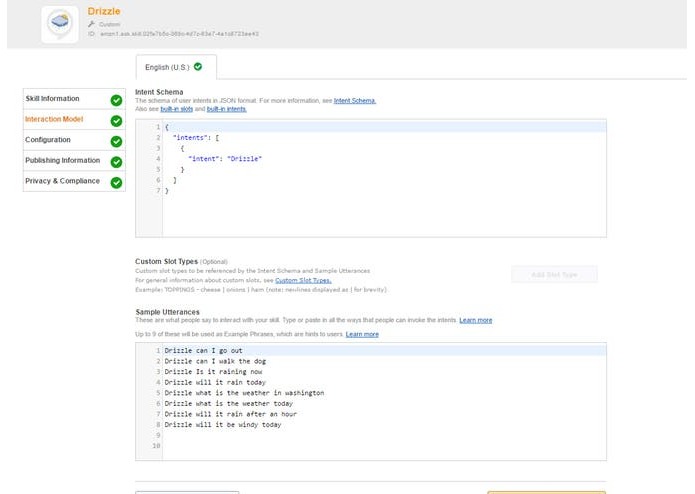
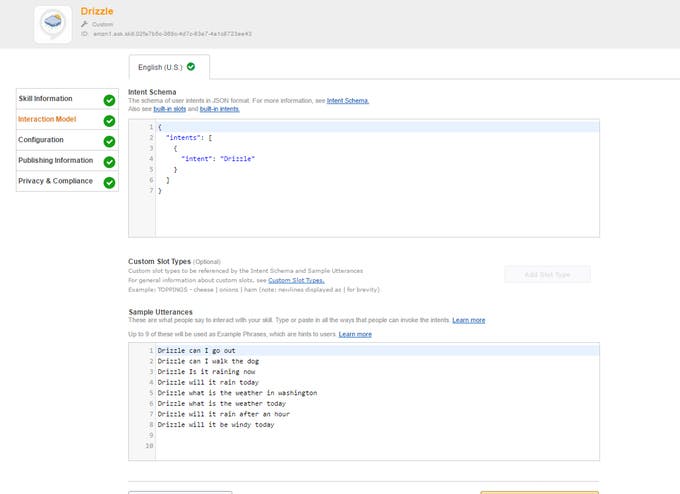
Set the interaction model as follows::
Intent schema:
{ "intents": [ { "intent": "Drizzle" } ] }
Sample Utterances:
*Drizzle Can I go out *Drizzle can i walk the dog *Drizzle is it raining *Drizzle what is the weather in washington
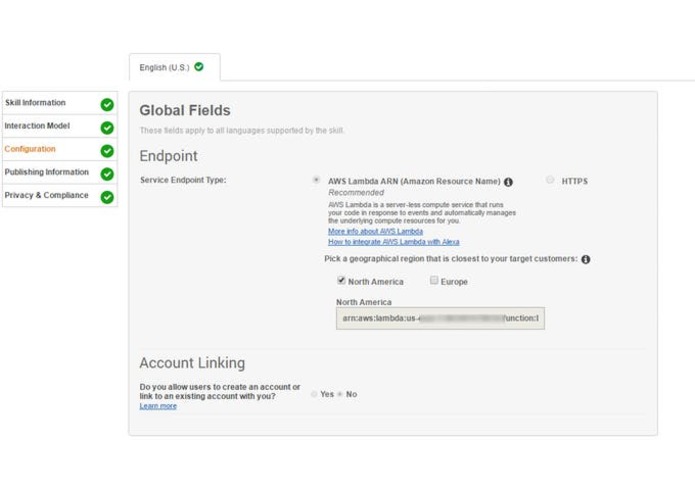
On the "Configuration" section add in the ARN of the Lambda function you created (you can find this at the top right of the Lambda page when editing the code of the function):
The Next step is testing.since i have published my skill i cant get images of testing the function.In simulator enter the Utterance as "will it rain after an hour" and click Ask Drizzle.You can see the output speech of alexa in service response d.)The next is publishing information.Here enter skill Description,example phrases,keywords,category,icon& testing informations.Click next and enter the Privacy details as show in image and click Submit for Certification
STEPS & LINK TO ENABLE THIS SKILL FOR YOUR AMAZON ALEXA/ECHO :
1.Go to alexa.amazon.com and login to your ECHO linked amazon account account .
2.Select Skill from next left tab and search for Drizzle and select Drizzle (by Vignesh) from search result and click Enable this skill.That it you amazon echo as got this skill and you ask weather updates in your city
Sample Phrases to ask for weather
Alexa ask Drizzle cloud will it rain after an hour Alexa ask Drizzle cloud what is the weather in washington Alexa ask Drizzle cloud Is it raining now
- Link to enable skill: http://alexa.amazon.com/spa/index.html#skills/dp/B01MG84QFZ/?ref=skill_dsk_skb_sr_0
4.Amazon Alexa Application I.D- amzn1.ask.skill.02fa7b5c-368c-4d7c-83e7-4a1c8723ee43
CODE::
Copy and Paste this code in Edit Codeline while creating LAMBDA function
'use strict';
GLOBAL.darkSkySecretKey = "YOUR DARK SKY API KEY HERE";
GLOBAL.location = "38.903741,-77.039107"; //Latiude and Longitude Co-ordinates of your city Eg: Washington DC
// Helpers that build all of the responses
function buildSpeechletResponse(title, output, repromptText, shouldEndSession) { return { outputSpeech: { type: 'PlainText', text: output, }, card: { type: 'Simple', title:"Drizzle", content:output, }, reprompt: { outputSpeech: { type: 'PlainText', text: repromptText, }, }, shouldEndSession, }; } function buildResponse(sessionAttributes, speechletResponse) { return { version: '1.0', sessionAttributes, response: speechletResponse, }; }
// --------------- Functions that control the skill's behavior -----------------
function getRainStatus(callback) {
const sessionAttributes = {};
const cardTitle = 'DRIZZLE CLOUD';
const httpTransport = require('https');
const responseEncoding = 'utf8';
const urlPath = '/forecast/' + darkSkySecretKey + '/' + location;

const httpOptions = {
    hostname: 'api.darksky.net',
    port: '443',
    path: urlPath,
    method: 'GET',
    headers: {}
};
httpOptions.headers['User-Agent'] = 'node ' + process.version;

const request = httpTransport.request(httpOptions, (res) => {
    let responseBufs = [];
    let responseStr = '';

    res.on('data', (chunk) => {
        if (Buffer.isBuffer(chunk)) {
            responseBufs.push(chunk);
        }
        else {
            responseStr = responseStr + chunk;
        }
    }).on('end', () => {
        responseStr = responseBufs.length > 0 ?
            Buffer.concat(responseBufs).toString(responseEncoding) : responseStr;
        var fbResponse = JSON.parse(responseStr);
        const speechOutput = fbResponse.minutely.summary;
        const repromptText = '';
        const shouldEndSession = true;
        callback(sessionAttributes,
            buildSpeechletResponse(cardTitle, speechOutput, repromptText, shouldEndSession));
    });

})
.setTimeout(0)
.on('error', (error) => {
    // callback(error);
    const speechOutput = 'Dark Sky is not available, you\'ll need to look outside';
    // If the user either does not reply to the welcome message or says something that is not
    // understood, they will be prompted again with this text.
    const repromptText = '';
    const shouldEndSession = true;
    callback(sessionAttributes,
        buildSpeechletResponse(cardTitle, speechOutput, repromptText, shouldEndSession));
});
request.write("")
request.end();
}
// Events
/* Called when the session starts */
function onSessionStarted(sessionStartedRequest, session) {
console.log(onSessionStarted requestId=${sessionStartedRequest.requestId}, sessionId=${session.sessionId});
}
/Called when the user launches the skill without specifying what they want./
function onLaunch(launchRequest, session, callback) {
console.log(onLaunch requestId=${launchRequest.requestId}, sessionId=${session.sessionId});
// Dispatch to your skill's launch.
getRainStatus(callback);
}
/Called when the user specifies an intent for this skill./
function onIntent(intentRequest, session, callback) {
console.log(onIntent requestId=${intentRequest.requestId}, sessionId=${session.sessionId});
// Do stuff...
getRainStatus(callback);
}
function onSessionEnded(sessionEndedRequest, session) {
console.log(onSessionEnded requestId=${sessionEndedRequest.requestId}, sessionId=${session.sessionId});
// Add cleanup logic here
}
// Main handler // Route the incoming request based on type (LaunchRequest, IntentRequest, // etc.) The JSON body of the request is provided in the event parameter.
exports.handler = (event, context, callback) => {
try {
console.log(event.session.application.applicationId=${event.session.application.applicationId});
    if (event.session.new) {
        onSessionStarted({ requestId: event.request.requestId }, event.session);
    }
    if (event.request.type === 'LaunchRequest') {
        onLaunch(event.request,
            event.session,
            (sessionAttributes, speechletResponse) => {
                callback(null, buildResponse(sessionAttributes, speechletResponse));
            });
    } else if (event.request.type === 'IntentRequest') {
        onIntent(event.request,
            event.session,
            (sessionAttributes, speechletResponse) => {
                callback(null, buildResponse(sessionAttributes, speechletResponse));
            });
    } else if (event.request.type === 'SessionEndedRequest') {
        onSessionEnded(event.request, event.session);
        callback();
    }
} catch (err) {
    callback(err);
}
};
Thanks for spending time on reading my steps to build this skill.If you like this skill press respect.Thanking you :)
Please find below schematics and images


Log in or sign up for Devpost to join the conversation.