-
-
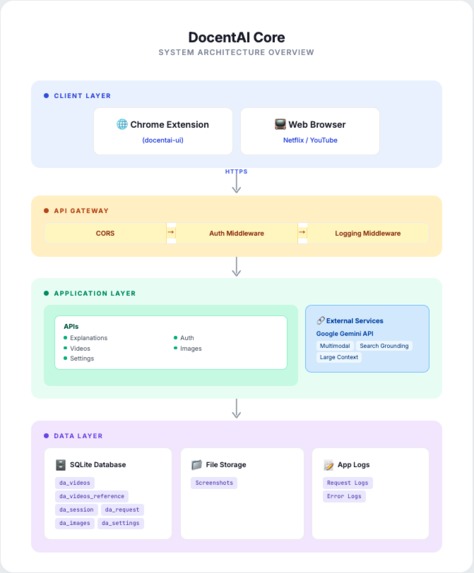
DocentAI's Architecture
-
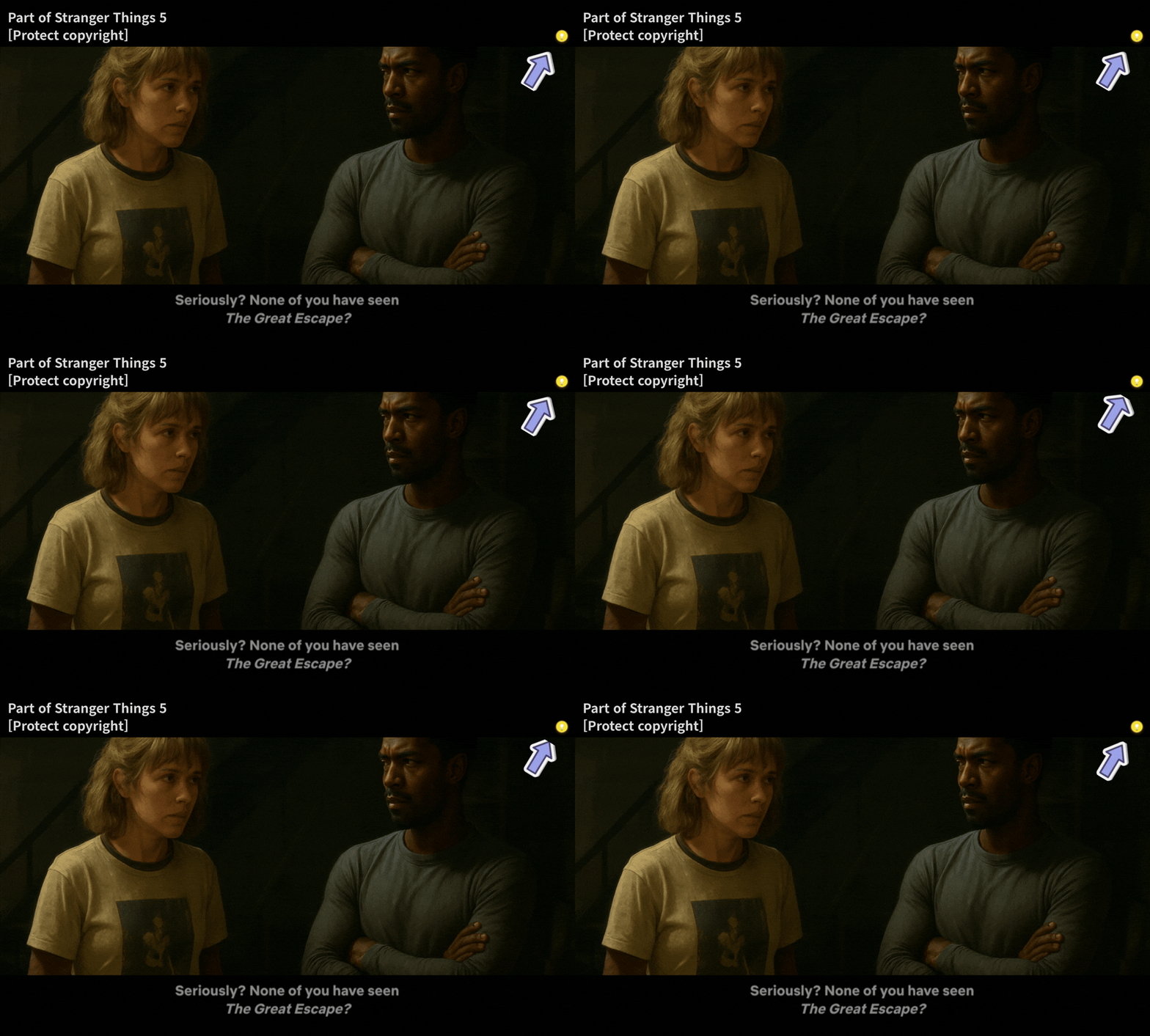
 GIF
GIF
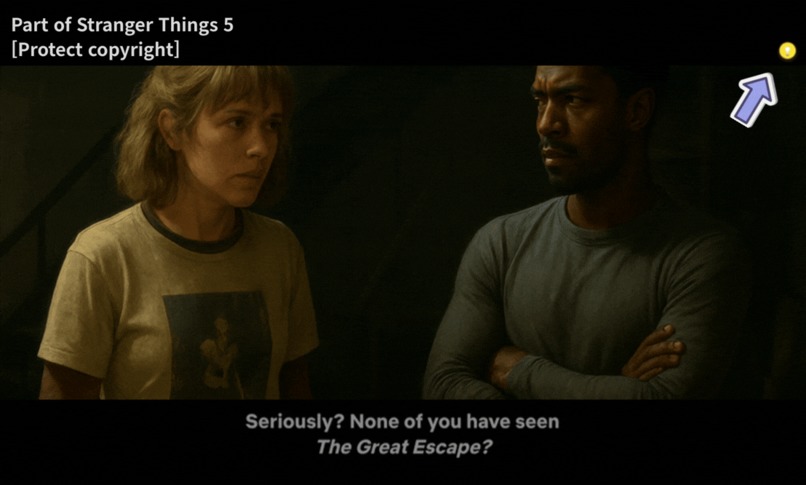
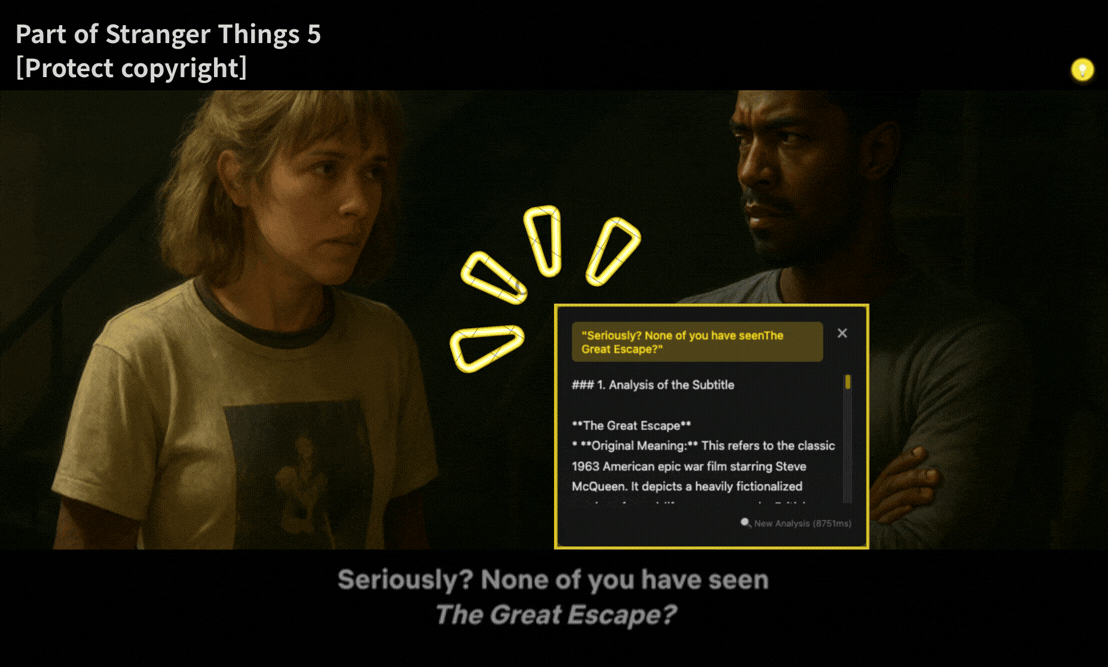
If you come across subtitles in a Netflix video that you don't understand, click the DosentAI floating button.
-
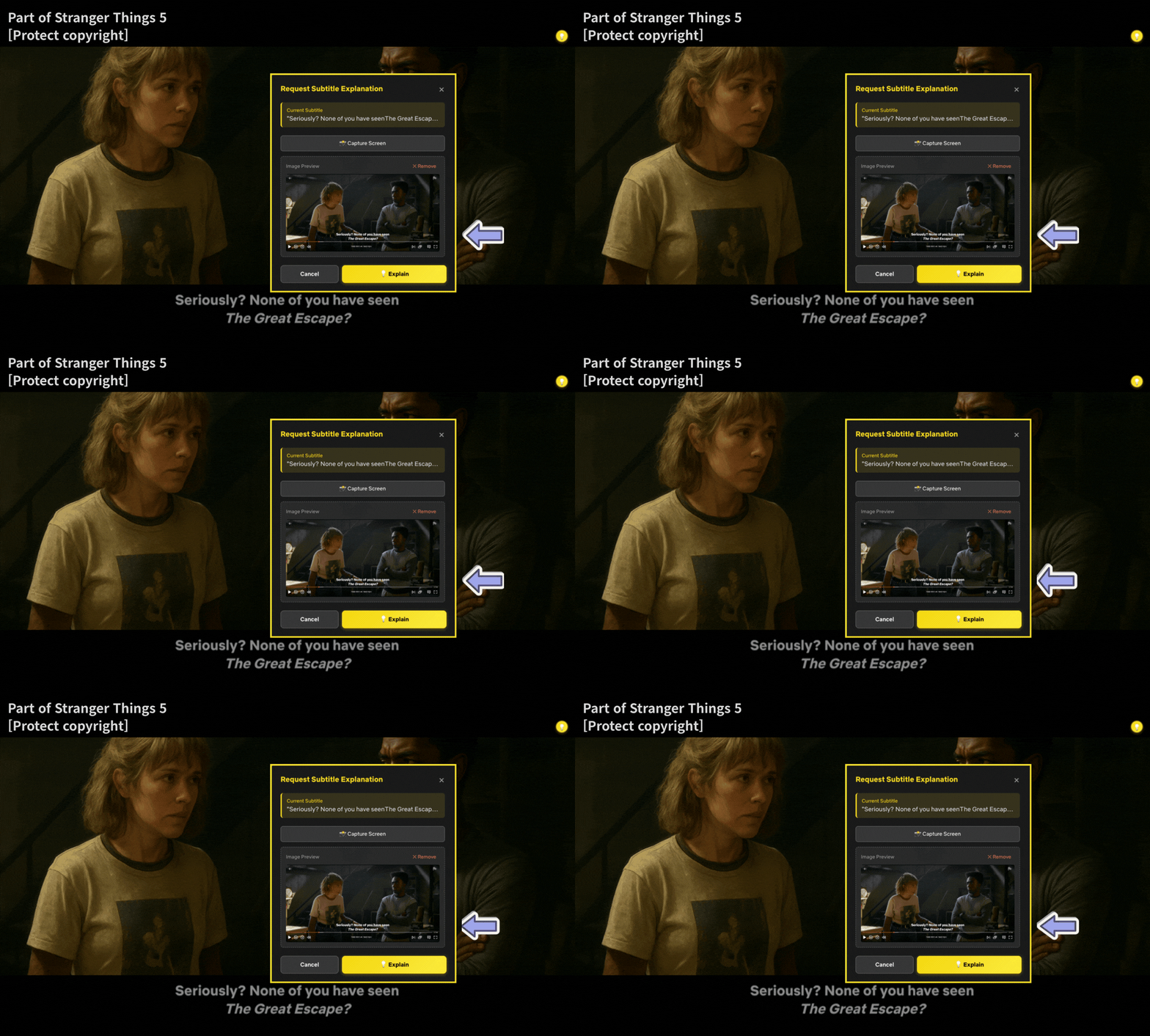
 GIF
GIF
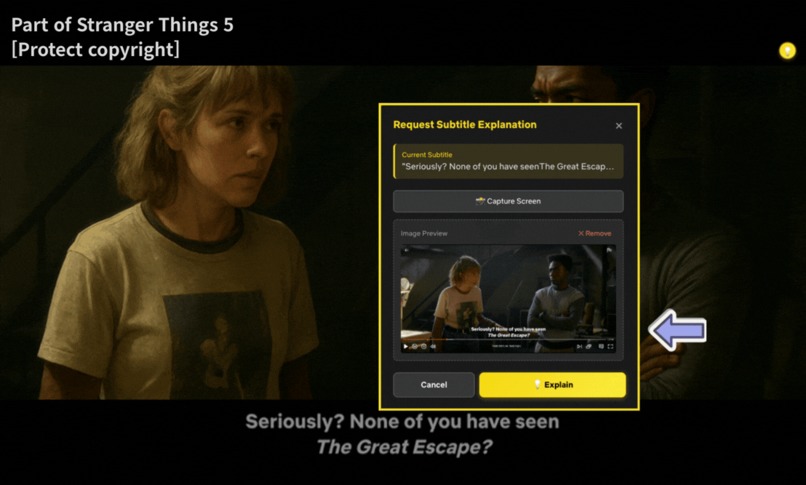
Capture the screen using the [Capture Screen] button and click the [Explain] button.
-
 GIF
GIF
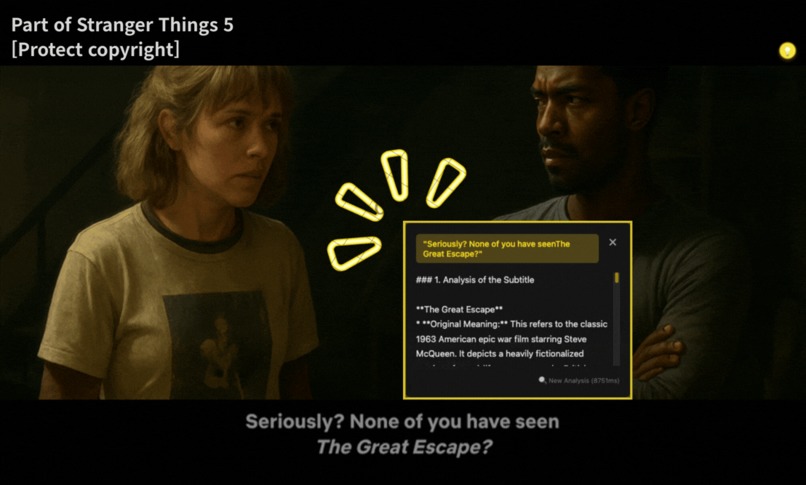
Read the explanation you received from DosentAI and understand the context.
-
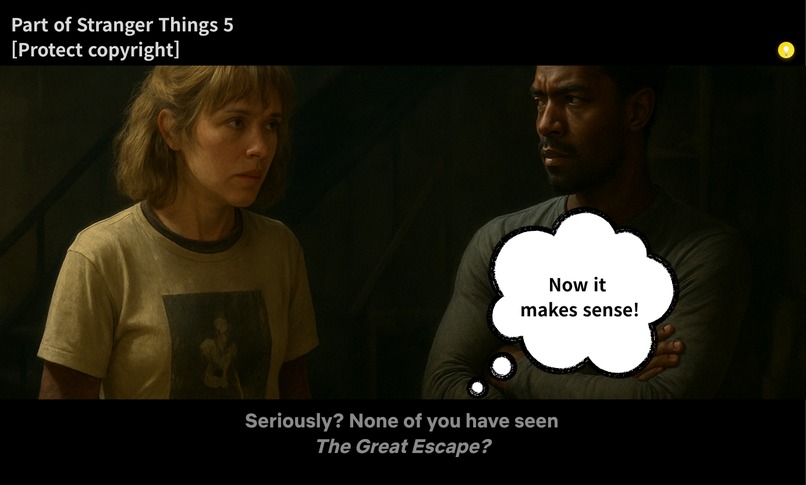
Enjoy watching the video again.
DocentAI
Visit Landing Page →
💡 Background
When watching movies and dramas on OTT platforms, I often encounter dialogue or scenes that don't quite make sense—not just in foreign content, but even in my own language(Korean)'s productions. In the past, I could simply turn to a friend or family member sitting next to me and ask, "What did they just say?" But with the rise of OTT platforms, viewing culture has changed. Content has exploded, and I now watch alone more often than together, each enjoying different shows. So what happens when you're watching alone and a subtitle or scene doesn't make sense? You might pause the video, open a search engine, and type in keywords—but the process is cumbersome. Eventually, you just move on with a nagging feeling: "That seemed important..." The immersion breaks, your understanding of the story suffers, and you end up not fully enjoying the content.
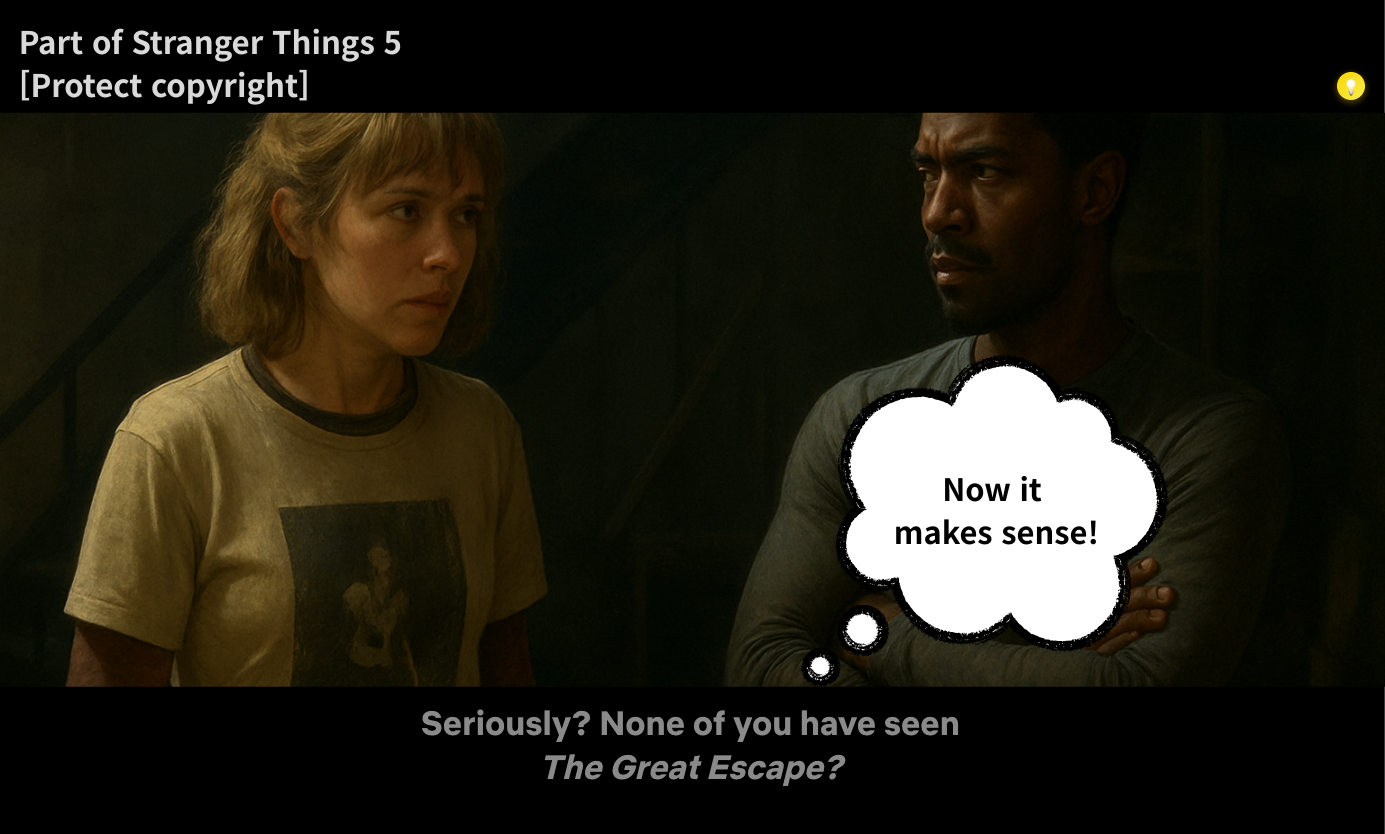
Then, in the age of AI, a thought struck me: "What if I could just ask an AI about confusing subtitles or scenes in real-time?" An experience where you don't need to pause the video or open a search engine—you simply ask and get an answer. Just like a museum docent explains artworks as you stand before them, what if Netflix had an AI docent to enrich your viewing experience?
This is how DocentAI came to be.
About the Name
DocentAI is pronounced 'Docentai' (not 'Docent-A-I'). Just like a museum docent flows naturally through their explanations, AI provides seamless, context-aware subtitle explanations without breaking your viewing experience. 🤗
What it does
DocentAI is a Chrome extension that instantly explains confusing subtitles or scenes while you watch Netflix. Like a museum docent, the AI provides real-time context and background knowledge about the content you're viewing.
How to Use
- Install: Add DocentAI as a Chrome extension.
- Watch: Enjoy Netflix as you normally would.
- Ask: When you encounter a confusing subtitle or scene, press
Ctrl+E(Mac:Cmd+E) or click the DocentAI icon in the top-right corner. - Learn: DocentAI analyzes the current subtitle, video information, and timeline to provide context-aware explanations.
- Continue: Your questions are answered without interrupting the viewing experience.
Key Features
1. Context-Aware Explanations
- DocentAI doesn't just look at the current subtitle—it considers the entire context: the show, episode, timestamp, and previous conversation history.
- When someone says "that person," DocentAI explains who they're referring to, when that character first appeared, and what their relationship is.
2. Screen Capture Integration
- The screen capture feature allows DocentAI to analyze visual context as well.
- Facial expressions, locations, objects, and other non-verbal cues are included in the explanations.
3. Non-Verbal Context Extraction
- Analyzes action descriptions in subtitles (e.g., [laughter], [sigh], [door closing]).
- Extracts timeline information from the video to provide temporal context, such as "this scene is a flashback."
4. Search Grounding
- Leverages Google Gemini's Grounding feature to retrieve the latest information about the content.
- Explains cultural backgrounds, historical facts, and show settings accurately.
5. Multilingual Support
- Ask questions and receive answers in multiple languages, including Korean and English.
- Especially useful when watching global content.
How I built it
DocentAI consists of two main repositories:
- docentai-ui: Chrome Extension (frontend)
- docentai-core: Python FastAPI backend server
Tech Stack
Frontend (docentai-ui)
- Chrome Extension Manifest V3
- JavaScript (Vanilla JS)
- Chrome APIs (tabs, storage, scripting)
- Content Script for Netflix DOM interaction
Backend (docentai-core)
- FastAPI (Python)
- Google Gemini 3 Flash API (including search grounding tool)
- SQLite (caching and session management)
- JWT authentication
- Google Cloud Run (deployment)
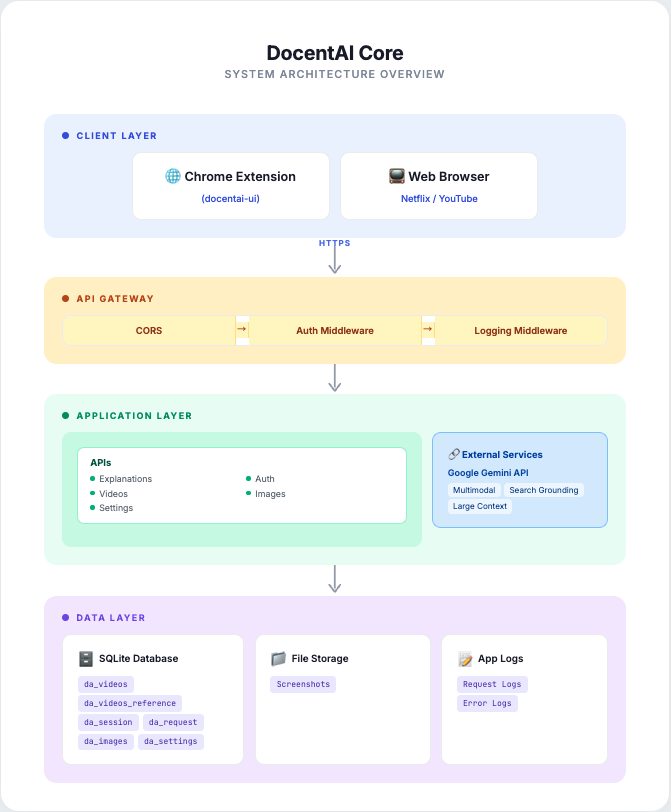
Architecture
[Netflix Page]
    ↓ (Extract subtitles and metadata)
[Chrome Extension]
    ↓ (API request)
[FastAPI Backend]
    ↓ (Prompt + context)
[Gemini 3 Flash API]
    ├─ Multimodal Processing
    ├─ Search Grounding
    └─ Function Calling
    ↓ (AI response)
[Display to User]
Key Implementation Points
Search Grounding
- Built-in web search powered by Gemini API - no separate Search API needed!
2-Step Architecture
- Smart reference caching for optimal performance and cost.
STEP 1: Video Registration
  └─> Gemini Search Grounding (once)
  └─> Store references in DB

STEP 2: Generate Explanations (many times)
  └─> Use stored references
  └─> Fast & cost-effective
- Multimodal Analysis
Understand beyond just text:
- Text: Subtitle + conversation history
- Image: Screenshots for visual context
- Audio cues: [Sound effects], ambient sounds
- Actions: (Character movements), (Facial expressions)
- External: Search Grounding results
Challenges I ran into
Answer Accuracy Problem
Problem: Initially, I constructed prompts using only the subtitle text and content title. However, this approach wasn't sufficient for accurate answers.
And I implemented Google Custom Search API to asynchronously collect background knowledge in the background when Netflix content started playing. But this method had its limitations.
Specific Case: There's a Netflix movie called "Cargo" from 2018, but there's also a 2013 film with the same name. The 2018 version is a remake, but Google Custom Search alone couldn't accurately distinguish between the two. Search results often mixed information from both films or provided incorrect details.
Solution: I switched from Google Custom Search API to Gemini's Search Grounding feature. Unlike simply listing search results, Search Grounding understands the context of the question and integrates the most relevant information. It also provides source URLs for each piece of information, enhancing credibility.
Additionally, to further improve accuracy, I modified the API specification to include previous subtitles along with the current one. This gave the AI more context about the conversation flow and narrative progression, significantly improving its understanding of who "that person" refers to or what event is being discussed.
Result: Accuracy improved. DocentAI could now shows better results than before..
Netflix Copyright Issues
Problem: My initial design featured multimodal analysis using screen captures (screenshots) as a core function. The idea was to have AI analyze visual information (expressions, locations, objects) that subtitles alone couldn't convey, providing richer explanations.
However, Netflix content is protected by copyright. While subtitle text could be extracted via scripts, transmitting and storing screenshot images on my backend server posed potential copyright issues.
Solution: I implemented two develop mode:
Chrome Web Store Version (Production)
- Screenshot feature excluded
- Uses only subtitles and metadata
- Safe for distribution without copyright concerns
Hackathon Submission Version (Demo)
- Includes screenshots
- Full multimodal functionality demonstration
Additional Improvements: Concerned that removing screenshots would weaken the multimodal aspect, I made several enhancements: I strengthened the non-verbal information extraction feature:
- Parsing non-verbal information in subtitles: Extract expressions like [laughter], [sigh], [door closing], [surprised expression]
- Timeline information extraction: Provide metadata about temporal position of the current scene, whether it's a flashback, etc.
This allowed me to richly convey the video's context even without images.
Result: I resolved copyright issues while finding a creative alternative that provides information volume comparable to multimodal analysis.
Accomplishments
1. Improved Accuracy Through Search Grounding
Initially, I used Google Custom Search API for information collection, but accuracy was low. After switching to Gemini's Search Grounding feature, accuracy improved significantly.
Most notably, I can now accurately distinguish between content with the same name, characters, and temporal contexts, providing users with relevant information for what they're currently watching.
2. Copyright Resolution and Alternative Design
I resolved Netflix content copyright issues while finding a solution that provides context comparable to multimodal analysis through non-verbal information extraction.
3. Fully Functional Prototype
This isn't just an idea—it's a fully working Chrome Extension that operates on Netflix. Users can install and use it right now.
What I learned
This was my first time building a service using Google Gemini 3, and it was far more enjoyable and powerful than expected.
1. Multimodal AI
Initially, it started with the simple idea: "Wouldn't sending images along with text provide better explanations?" But in practice, multimodal AI proved highly practical in several ways:
- Visual Context Understanding: Provides information about expressions, locations, and objects that subtitles alone cannot convey
- Non-Verbal Cue Interpretation: Accurately analyzes expressions like [surprised expression] and [sigh]
2. The Importance of Prompt Engineering
Even with the same AI model, the quality of answers varied greatly depending on how prompts were constructed. The order and format of delivering content information, timestamps, conversation history, and subtitles was crucial.
What's next for DocentAI
1. Expanded Multilingual Support
Currently supporting Korean and English, I plan to expand to Japanese, Chinese, Spanish, and more. This will make DocentAI even more useful for users enjoying global content.
2. Improved Response Speed
I aim to reduce the current average response time to under 5 second through:
- More aggressive caching strategies
3. Enhanced Answer Accuracy
To further improve accuracy, I'm considering:
- Specialized Dictionary Integration: Adding dictionaries for cultural terms, idioms, and technical terminology as tools
- Build a RAG system to support accurate search-based generation
4. Support for Other OTT Platforms
Currently limited to Netflix, I plan to expand to:
- Disney+
- YouTube
5. Genre-Specific Analysis
To improve accuracy, I plan to establish different analysis criteria based on video genres. For example,
- historical works will be analyzed based on era backgrounds and fact-based information,
- SF works will be analyzed based on world-building information.
I plan to add genre-specific prompts and reference data.
6. Official Chrome Web Store Release
I plan to officially release the current development version on the Chrome Web Store, making it easier for more users to access and use DocentAI.
Conclusion
DocentAI isn't just a tool that translates or searches for subtitles. It that helps you understand video content more deeply and enjoy it more richly.
Even in an era of solo viewing, it's like having a friend beside you explaining things. Like a museum docent telling hidden stories before a painting.

Log in or sign up for Devpost to join the conversation.