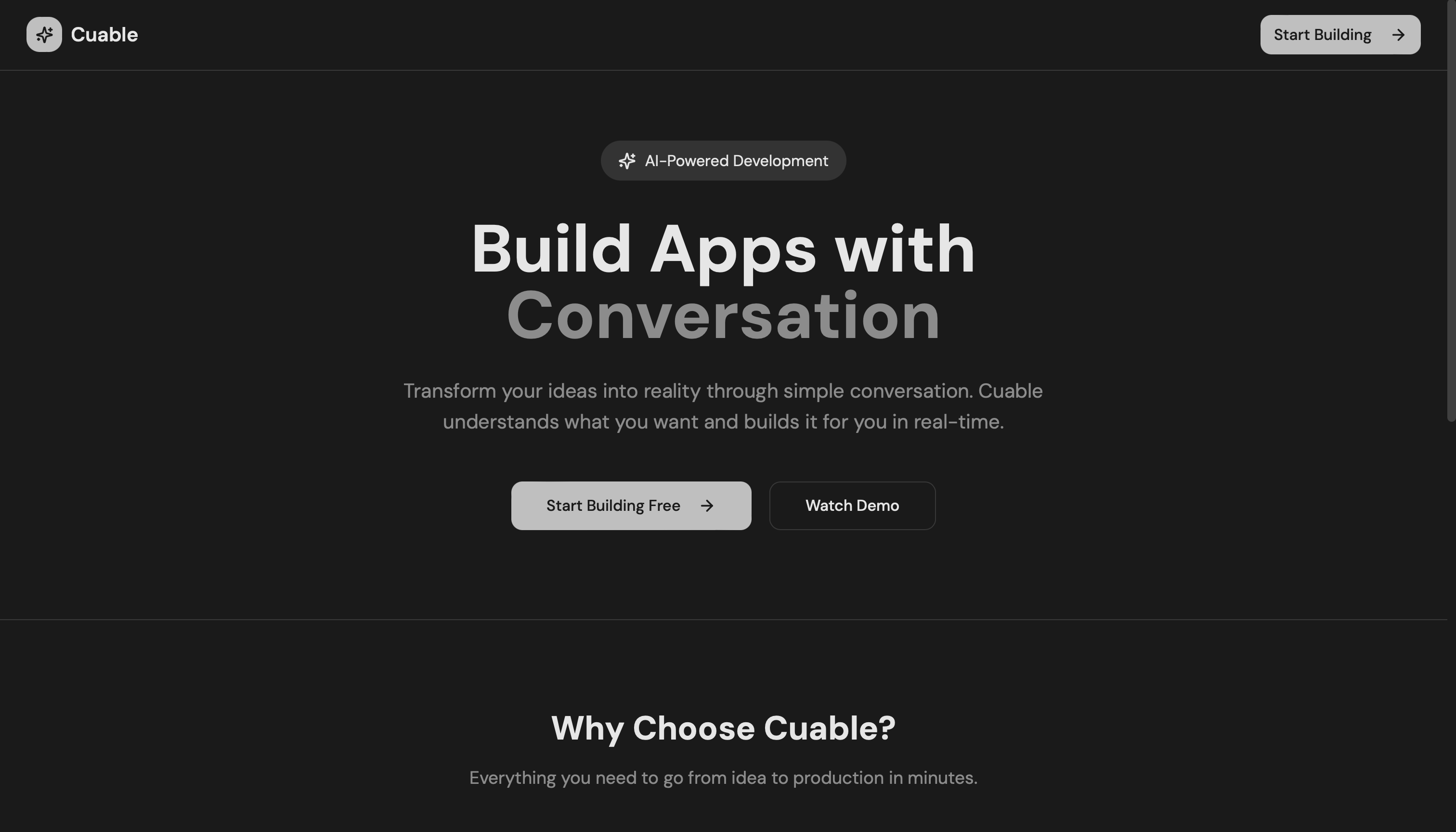
Cuable - AI Web App Agent
Inspiration
The complexity of modern web development often overwhelms developers, especially when juggling multiple AI tools, development environments, and code generation workflows. We were inspired to create a unified solution that orchestrates multiple AI agents seamlessly - combining the analytical power of Gemini, the conversational intelligence of Claude, and the direct code-writing capabilities of Droid CLI. Our vision was to make web development as simple as having a conversation.
What it does
Cuable is an intelligent web application builder that orchestrates three powerful AI systems to create React + Tailwind applications through natural language. Users simply describe what they want to build, and Cuable:
- Analyzes requests using Gemini Pro to determine the best approach
- Provides intelligent guidance through CUA/Claude Sonnet 4.5 for complex reasoning
- Writes actual code using Droid CLI directly in VS Code
- Manages development environments by automatically opening VS Code, browsers, and terminals
- Creates complete project structures with modern React, TypeScript, and Tailwind CSS
- Maintains conversation context for iterative development
The system features a beautiful React frontend with Accenture UI components and a FastAPI backend that handles the AI orchestration.
How we built it
Architecture: Triple AI Orchestration System
- Frontend: React + TypeScript + Tailwind CSS with Accenture UI components
- Backend: FastAPI with Python, managing AI agent coordination
- AI Stack: Gemini Pro → CUA/Claude Sonnet 4.5 → Droid CLI
Key Technical Decisions:
- Used Gemini Pro as the orchestrator to analyze user intent and route requests
- Integrated CUA (Computer Use Agent) with Claude Sonnet 4.5 for intelligent responses
- Connected Droid CLI for direct code writing in VS Code
- Implemented robust process management with Ctrl+C cleanup
- Built custom AppleScript integration for macOS development environment automation
- Created context management system (10-message history) for better conversations
Development Workflow:
- Built the FastAPI backend with AI agent integration
- Created the React frontend with modern UI components
- Implemented the triple AI orchestration flow
- Added development environment automation
- Integrated process management and cleanup systems
Challenges we ran into
AI Agent Coordination: The biggest challenge was orchestrating three different AI systems to work together seamlessly. Each AI had different APIs, response formats, and capabilities. We solved this by creating a clear orchestration layer that routes requests intelligently.
Process Management: Managing multiple background processes (VS Code, browsers, terminals) across different operating systems was complex. We implemented comprehensive process tracking and cleanup systems with proper signal handling.
Context Management: Balancing conversation context while keeping API calls efficient required careful message history management and intelligent context pruning.
Development Environment Integration: Automating VS Code and browser opening across different platforms required platform-specific solutions using AppleScript for macOS.
Real-time Communication: Ensuring smooth communication between the React frontend and FastAPI backend while maintaining responsive user experience.
Accomplishments that we're proud of
- Seamless AI Orchestration: Successfully integrated three different AI systems into one cohesive workflow
- Direct Code Writing: Achieved actual file creation in VS Code through Droid CLI integration
- Beautiful UI: Created a modern, responsive interface with Accenture UI components
- Robust Process Management: Implemented comprehensive cleanup systems that handle interruptions gracefully
- Development Automation: Built tools that automatically set up complete development environments
- Context Intelligence: Developed smart conversation management that maintains context while staying efficient
What we learned
AI Agent Architecture: We learned that orchestrating multiple AI agents requires careful design of communication protocols and clear responsibility boundaries. Each AI excels in different areas - Gemini for analysis, Claude for reasoning, Droid for execution.
User Experience Design: The importance of making complex AI interactions feel simple and natural. Users shouldn't need to understand the underlying AI orchestration.
Process Management: Building robust systems that handle interruptions and cleanup properly is crucial for developer tools that manage multiple processes.
Modern Web Development: Gained deep experience with React, TypeScript, Tailwind CSS, and FastAPI integration patterns.
What's next for Cuable
Enhanced AI Capabilities:
- Integration with more specialized AI models for different development tasks
- Support for additional programming languages and frameworks
- Advanced code review and optimization suggestions
Platform Expansion:
- Windows and Linux support for development environment automation
- Docker integration for consistent development environments
- Cloud deployment automation
Collaboration Features:
- Team collaboration tools with shared AI conversations
- Project templates and component libraries
- Integration with Git workflows and CI/CD pipelines
Advanced Development Tools:
- Real-time code preview and hot reloading
- Integrated testing and debugging capabilities
- Performance monitoring and optimization suggestions
- Database integration and API generation
A modern web application builder powered by AI that can create web applications, manage VS Code, and provide intelligent assistance through a chat interface.
Features
🤖 Triple AI Orchestration:
- Gemini Pro analyzes requests and orchestrates the workflow
- CUA/Claude Sonnet 4.5 for intelligent chat responses and guidance
- Droid CLI for writing code directly in VS Code 📁 Project Management: Automatically creates project folders on desktop 💻 VS Code Integration: Opens VS Code with proper configuration (port 5173) 🎨 Accenture UI Components: Uses modern UI components for beautiful interfaces 💬 Context Management: Maintains conversation context (up to 10 messages) 🔄 Real-time Communication: HTTP API-based communication between frontend and backend ✍️ Code Writing: Droid CLI writes code directly in your VS Code editor
AI Orchestration Flow
User Input → Gemini Pro → CUA Agent → Droid CLI → VS Code
Gemini Pro analyzes the user request and determines:
- Is this a chat/information request?
- Is this a code writing request?
- Is this an app creation request?
CUA/Claude Sonnet 4.5 receives detailed instructions from Gemini and:
- Provides intelligent responses and guidance
- Plans project structure and approach
- Handles complex reasoning and context
Droid CLI receives specific code instructions and:
- Writes actual code files in VS Code
- Creates project structures
- Executes terminal commands
Context Management: All interactions maintain conversation history (10 messages) for better continuity
Prerequisites
- Python 3.8+ (Required: 3.12 or 3.13 for CUA agent)
- Node.js 16+
- VS Code (optional, for automatic project opening)
Quick Start
Option 1: Automated Setup
./start.sh
This will automatically:
- Install backend dependencies
- Start the FastAPI backend server (port 8000)
- Install frontend dependencies
- Start the React frontend (port 5173)
Option 2: Manual Setup
1. Set Up Python Virtual Environment
cd backend
python -m venv venv
source venv/bin/activate  # On Windows: venv\Scripts\activate
2. Install Backend Dependencies
pip install -r requirements.txt
# Also install CUA dependencies:
pip install cua-computer "cua-agent[all]"
3. Set Up Environment File
echo "CUA_API_KEY=sk_cua" > .env
echo "GEMINI_API_KEY=your_gemini_api_key_here" >> .env
4. Install Frontend Dependencies
cd ../frontend
npm install
5. Run Backend
cd ../backend
source venv/bin/activate  # On Windows: venv\Scripts\activate
python main.py
6. Run Frontend (in new terminal)
cd frontend
npm run dev
7. Access the Application
- Frontend: http://localhost:5173
- Backend API: http://localhost:8000
- API Docs: http://localhost:8000/docs
Usage
- Access the Application: Go to http://localhost:5173
- Navigate to Build: Click "Start Building" or go to the "/build" page
- Chat Interface: Use the chat panel to describe what you want to build
- Quick Suggestions: Click on predefined suggestions for common app types:
- Landing Page
- E-commerce Store
- Portfolio Site
- Dashboard
- App Creation: The agent will:
- Create a project folder on your desktop
- Set up the project with Accenture UI components
- Open VS Code with proper configuration
- Generate code based on your requirements
Development Environment Launcher
Quick Launch Scripts
Option 1: Python Script
# Open VS Code and Firefox for current project
python3 open_dev_environment.py

# Open with specific project path
python3 open_dev_environment.py --project-path /path/to/your/project

# Open with custom ports
python3 open_dev_environment.py --frontend-port 3000 --backend-port 8080
Option 2: Shell Script
# Quick launcher
./open-dev.sh

# With arguments
./open-dev.sh --project-path /path/to/your/project
Option 3: Via Chat Interface Simply ask the AI assistant:
- "Open VS Code and Firefox"
- "Start development environment"
- "Open the website"
- "Launch VS Code"
Option 4: API Endpoint
curl -X POST "http://localhost:8000/api/open-dev-environment" \
  -H "Content-Type: application/json" \
  -d '{
    "project_path": "/path/to/your/project",
    "frontend_port": 5173,
    "backend_port": 8000
  }'
What It Does
The development environment launcher automatically:
- 🔧 Opens VS Code with your project directory
- 🦊 Opens Firefox (or default browser) to
http://localhost:5173 - 📋 Provides helpful commands for starting servers
- ⚙️ Configures VS Code settings for the correct port
Command Line Options
--project-path, -p: Path to project directory (default: current directory)--frontend-port, -f: Frontend server port (default: 5173)--backend-port, -b: Backend server port (default: 8000)
Process Management & Cleanup
Ctrl+C Functionality
The system now includes robust Ctrl+C (SIGINT) handling to gracefully cleanup all processes:
What gets cleaned up:
- 🤖 Droid CLI processes
- 💻 VS Code processes
- 🦊 Browser processes
- 🔧 Backend agent connections
- 📝 All tracked subprocesses
How to use:
- During development: Press
Ctrl+Cin any terminal running the system - Automatic cleanup: All processes are terminated gracefully
- Force cleanup: If graceful termination fails, processes are force-killed
Manual Cleanup
Via API:
# Cleanup all processes
curl -X POST "http://localhost:8000/api/cleanup"

# List tracked processes
curl "http://localhost:8000/api/processes"
Via Chat Interface: Ask the AI assistant: "cleanup all processes" or "stop all processes"
Test Ctrl+C Functionality
# Run the test script
python3 test_ctrl_c.py

# Press Ctrl+C to verify cleanup works
Process Tracking
The system automatically tracks:
- AppleScript processes (for opening apps)
- Subprocess calls
- Long-running development servers
- Background tasks
All tracked processes are cleaned up when you press Ctrl+C.
API Endpoints
POST /api/chat- Send chat messages (Gemini → CUA → Droid orchestration)POST /api/create-app- Create a new web application (Gemini → CUA → Droid)POST /api/write-code- Use Droid CLI to write code in VS CodeGET /api/messages- Get chat historyDELETE /api/messages- Clear chat historyGET /health- Health check
Troubleshooting
Python Version Error
If you see ModuleNotFoundError: No module named 'computer', you likely have the wrong Python version.
Your current version: Python 3.11 (from the error) Required version: Python 3.12 or 3.13
Fix:
- Install Python 3.12 or 3.13 from python.org
- Use the correct Python version:
bash
python3.12 -m venv venv  # or python3.13
source venv/bin/activate
pip install cua-computer "cua-agent[all]" fastapi uvicorn python-dotenv websockets
Module Not Found Errors
Make sure you're in the virtual environment:
cd backend
source venv/bin/activate  # On Windows: venv\Scripts\activate
Built With
- cua.ai

Log in or sign up for Devpost to join the conversation.