Inspiration
We wanted to build something for developers who love to code but don't always want to fire up a massive, resource-heavy desktop IDE just to test out a quick idea or prototype. CS Code Studio (Casual Code Workspace) came from the idea of creating a cozy, lightweight, and completely browser-based workspace. We wanted code creation to feel satisfying and immersive, whether you are sitting at a high-end desktop or hacking away on a phone or older mobile hardware.
What it does
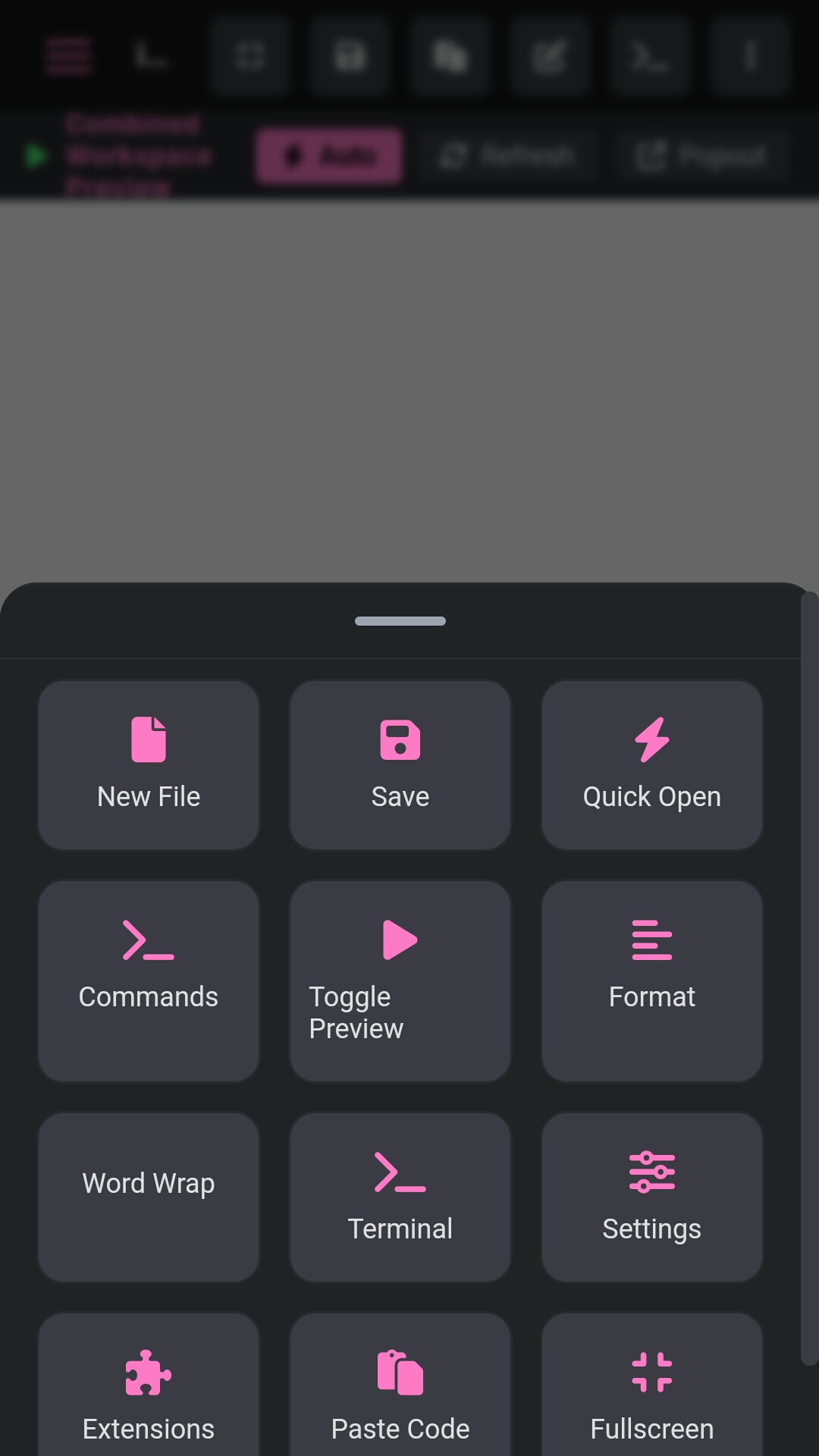
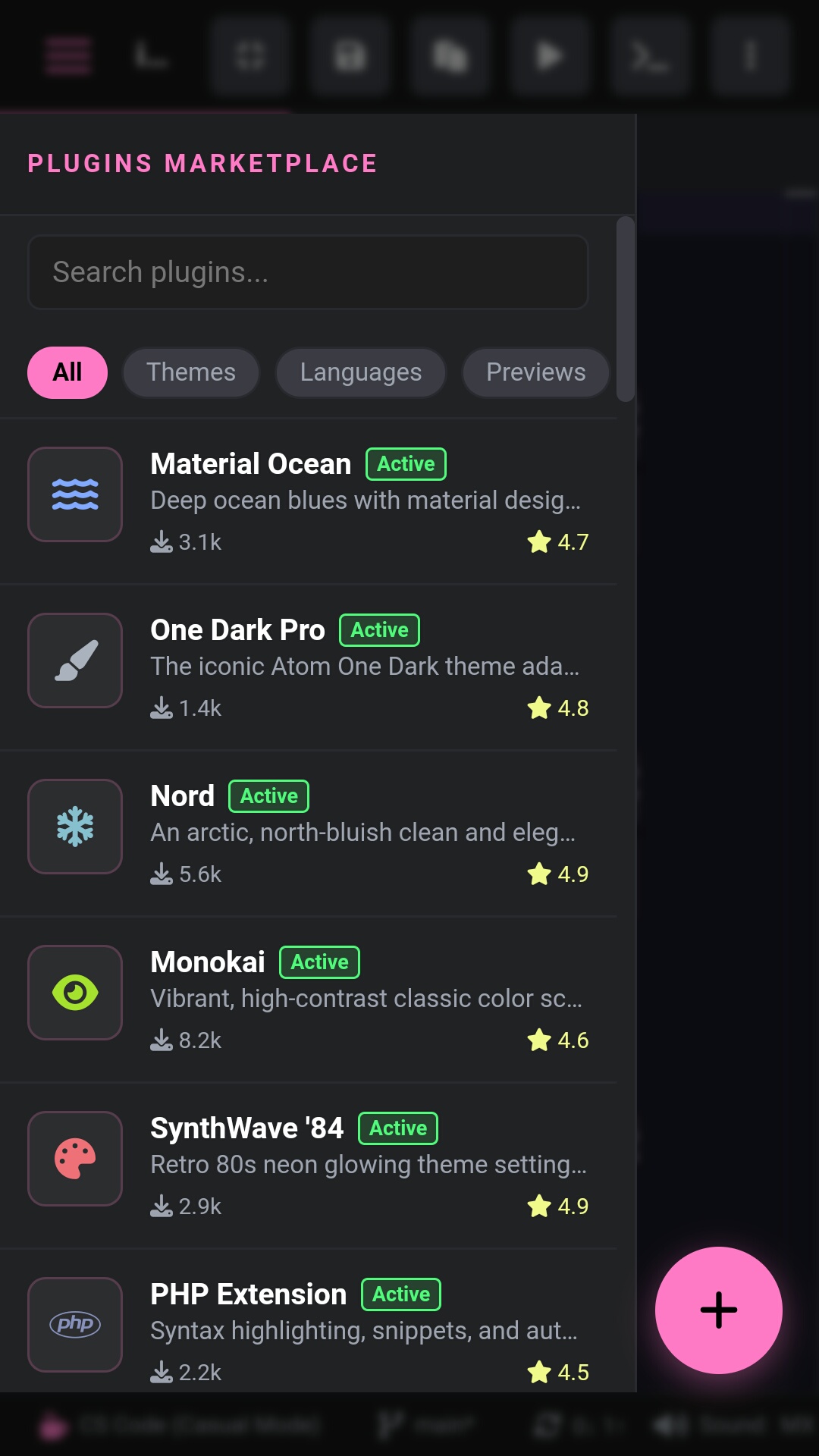
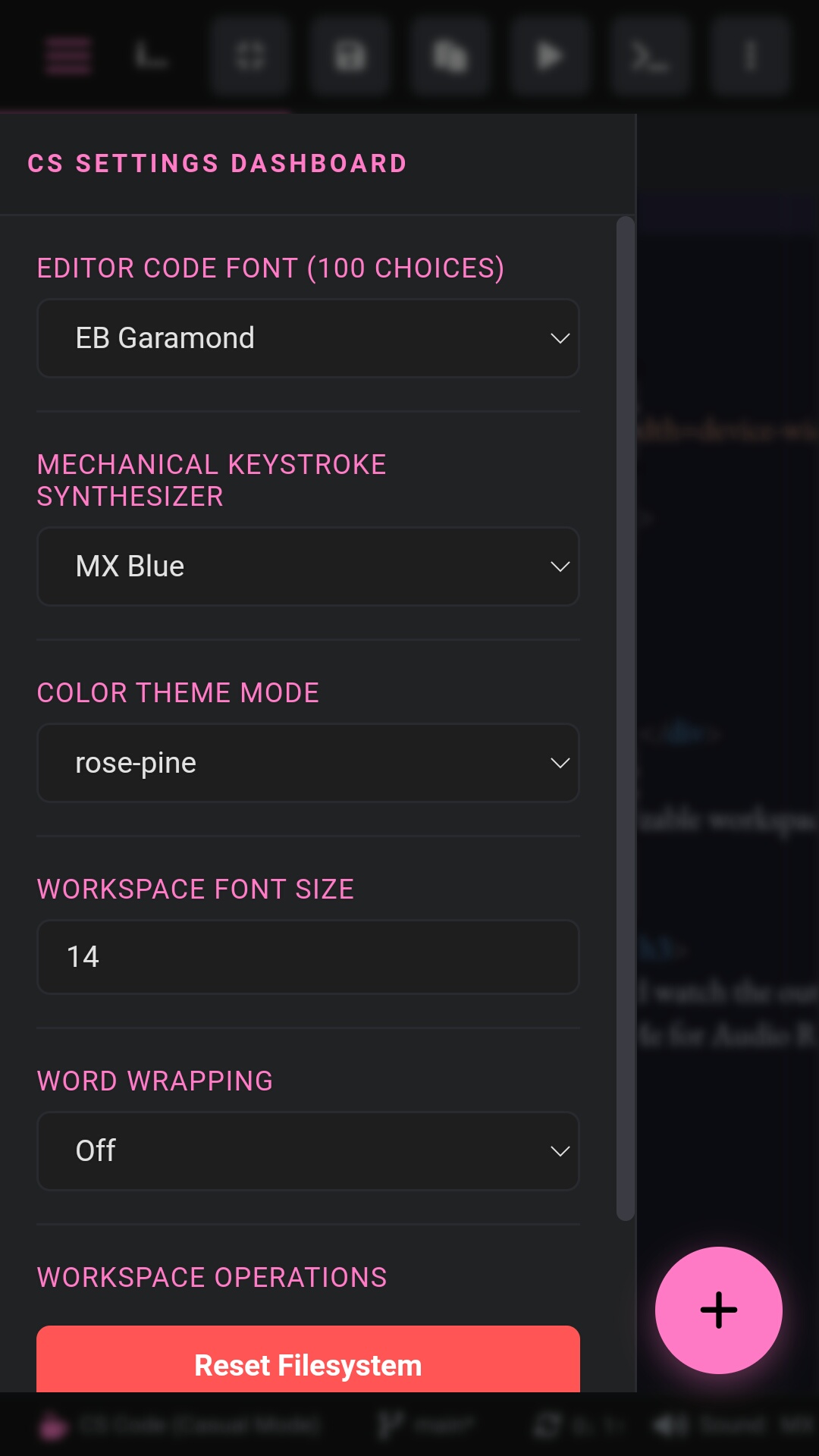
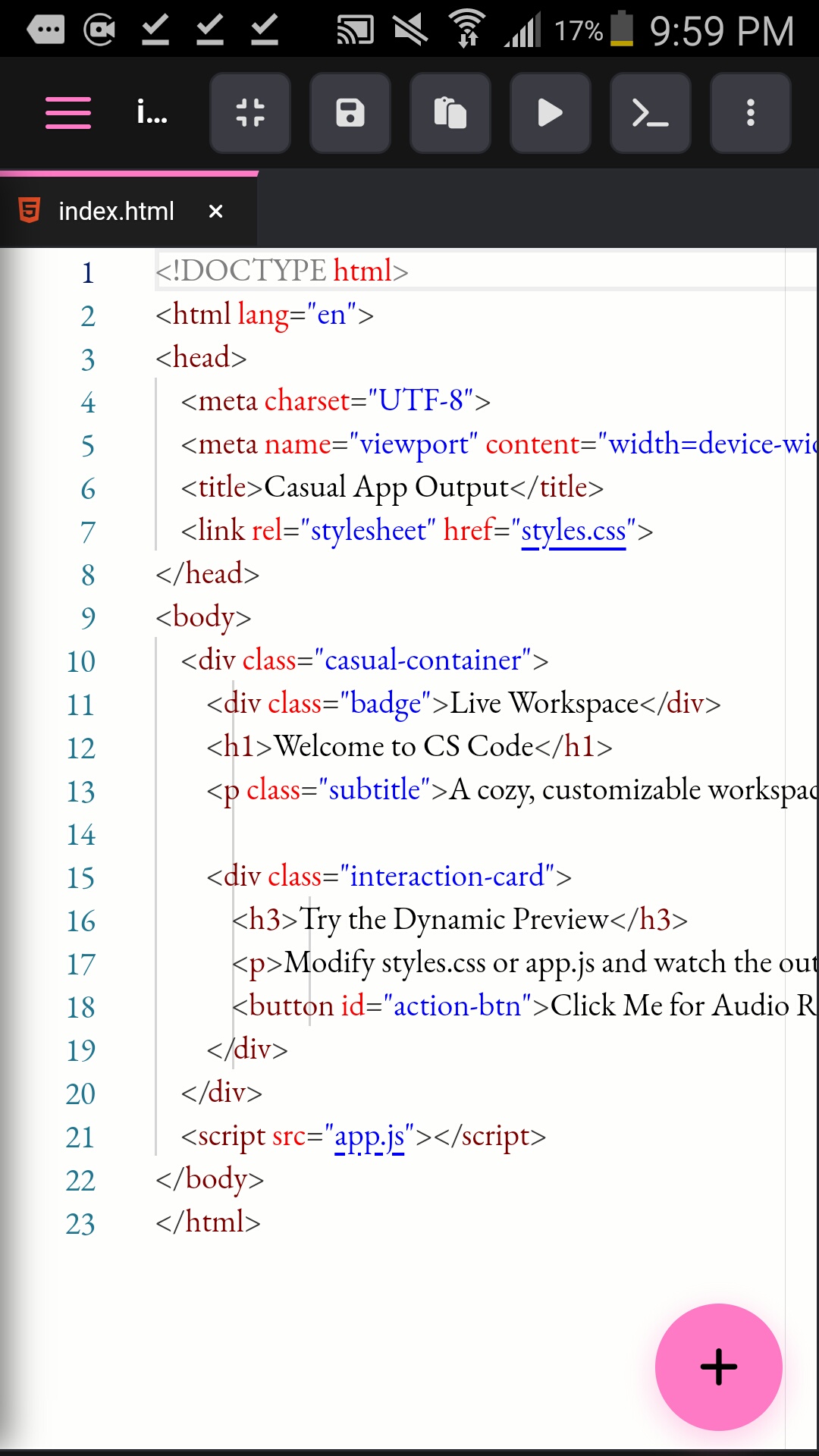
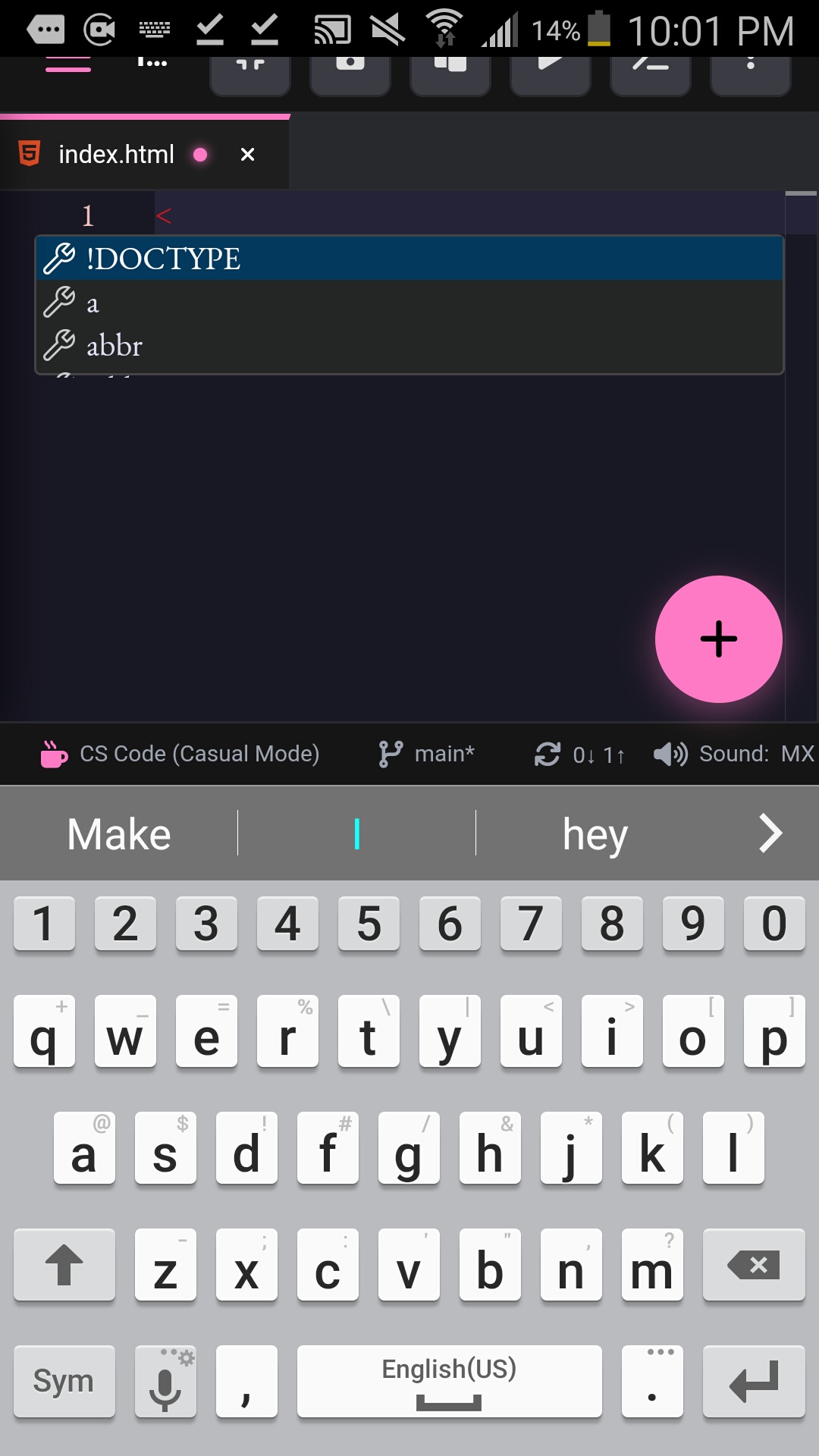
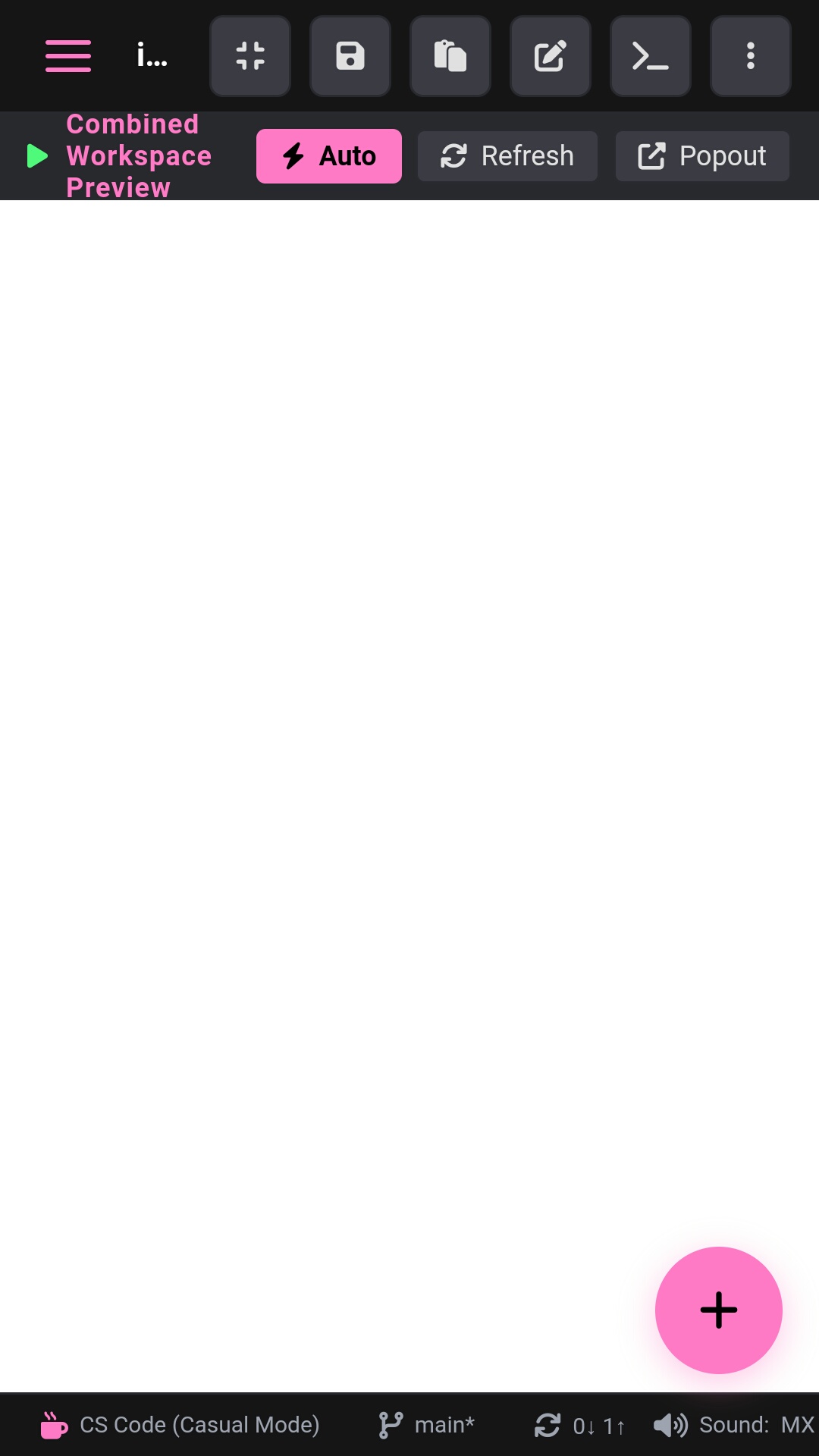
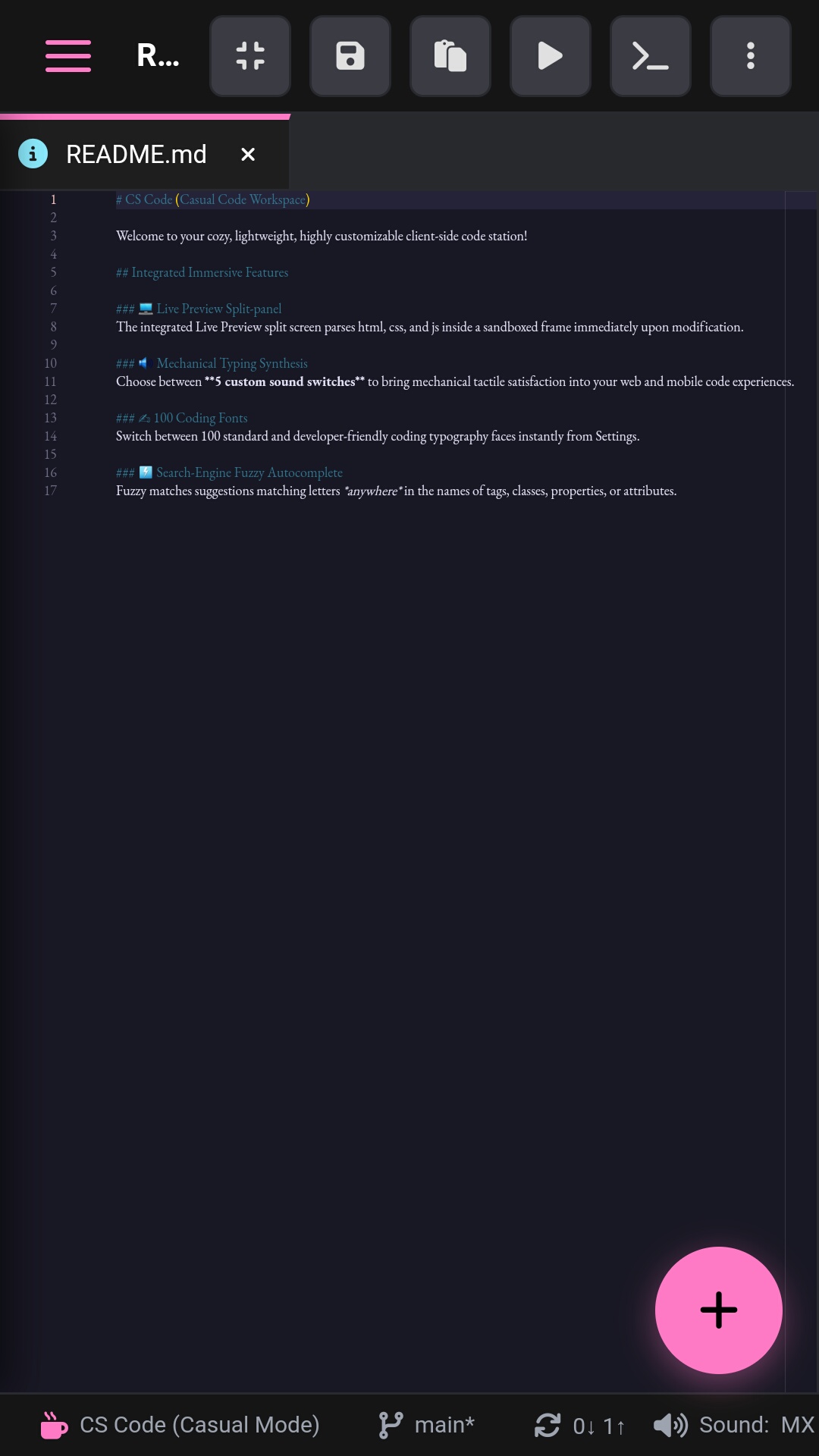
CS Code Studio is a fully functional, self-contained web-based coding environment. It gives you a clean, professional Monaco-powered code editor with syntax highlighting, autocomplete, and a live preview window that merges your HTML, CSS, and JavaScript instantly as you type. Beyond the editor, it features a built-in "Extension Marketplace" where you can switch themes (like Nord or SynthWave '84) and access utility tools like a regex tester, diff viewer, and markdown renderer. To make the workspace feel tactile and alive, we also built a custom audio engine that synthesizes mechanical keyboard click and "thock" sounds directly in your browser.
How we built it
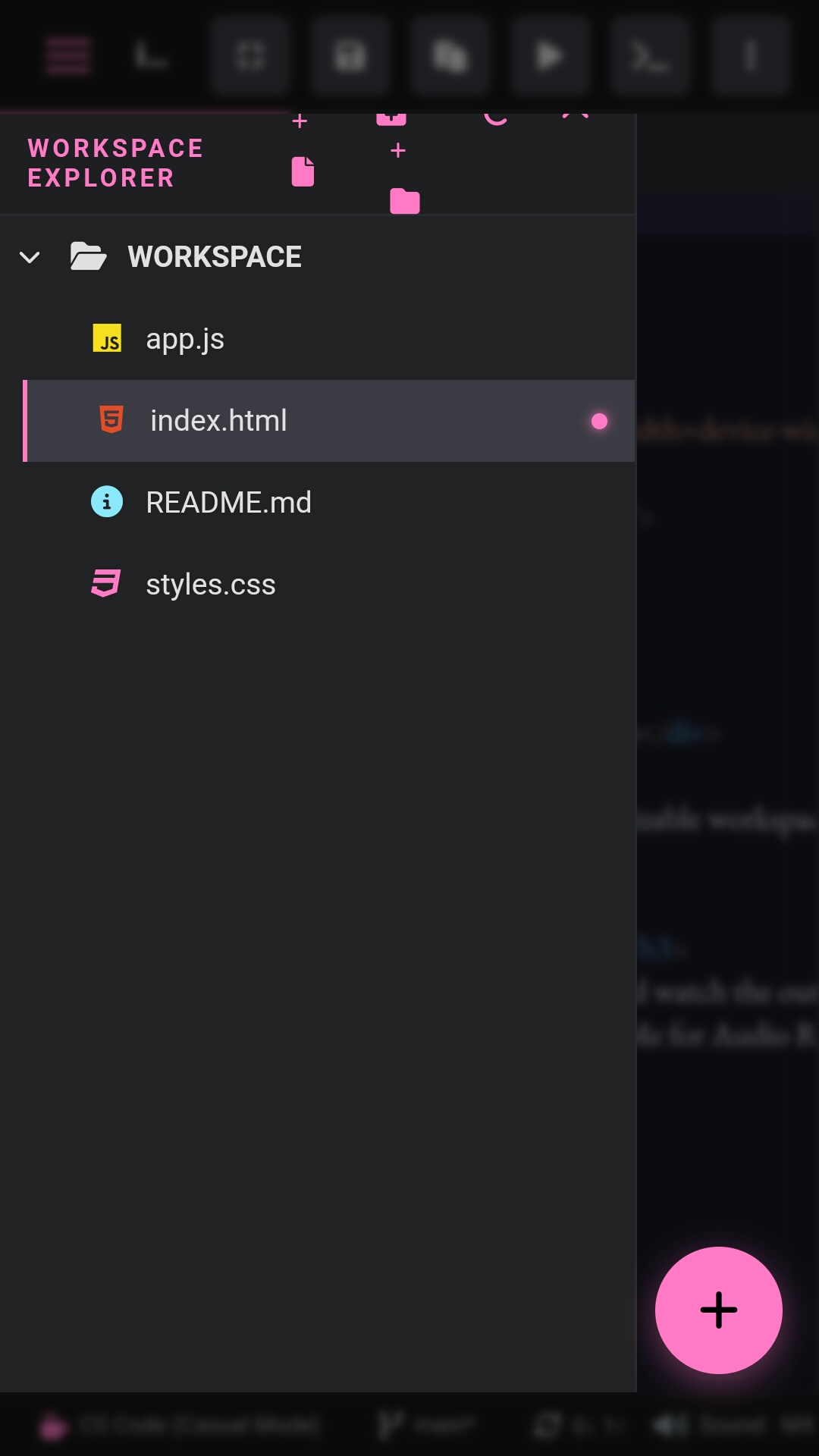
We built the entire application completely client-side using native web technologies: HTML5, CSS3, and Vanilla JavaScript. We deliberately avoided heavy framework dependencies to keep performance lightning-fast. The core editor is powered by the Monaco Editor engine loaded via CDN, while the live preview runs inside an isolated, sandboxed for safety. For the file system, we implemented an offline-first database using IndexedDB so that all user code auto-saves locally and instantly recovers even if the browser is refreshed or closed.</p> <h2 id="challenges-we-ran-into">Challenges we ran into</h2> <p>One of our biggest hurdles was ensuring the app stayed resilient without constant internet access or heavy local asset files. Relying purely on network CDNs can cause breaking failures if a connection drops, so we had to design a robust fallback loop to keep the editor usable. Another massive challenge was mobile optimization. Compiling code and rendering live previews simultaneously can easily freeze older mobile hardware, which forced us to spend a lot of time writing strict event debouncing and performance-throttling mechanisms to keep the interface smooth.</p> <h2 id="accomplishments-that-were-proud-of">Accomplishments that we're proud of</h2> <p>We are incredibly proud of the synthesized mechanical keyboard audio engine. Instead of forcing the browser to download massive audio files, we used the native Web Audio API to generate the sound frequencies from scratch with zero keystroke delay. We are also incredibly proud of the UI layout—we managed to steer completely clear of cartoonish designs and built a highly polished, professional dark-mode workspace that looks great on any screen.</p> <h2 id="what-we-learned">What we learned</h2> <p>This project taught us a massive amount about managing local storage lifecycles and dealing with async database fallbacks using IndexedDB. We also gained a much deeper understanding of mobile-first UI responsiveness, learning how to compress a multi-panel desktop development environment down into fluid, touch-friendly layouts without losing core functionality.</p> <h2 id="whats-next-for-cs-code-studio-casual-code-studio">What's next for CS Code Studio (casual code studio)</h2> <p>Next, we want to integrate the modern File System Access API so users can read and write files directly to their local device directories. We also plan to build a visual scripting component—introducing visual logic blocks that automatically compile down into clean JavaScript code—bridging the gap between visual programming and professional text environments.</p> <h2 id="how-to-play-on-the-first-time-instructions">How to play (on the first time instructions):</h2> <p>first click on the plus button and switch to fullscreen mode by clicking the fullscreen button. second delete all the files that the webapp already had. third save the files that you write so it remains for a long time. fourth if you want to see what you just built than click the > icon to see the preview but if the preview doesn't work then click the pop out button.</p>


Log in or sign up for Devpost to join the conversation.