-
-

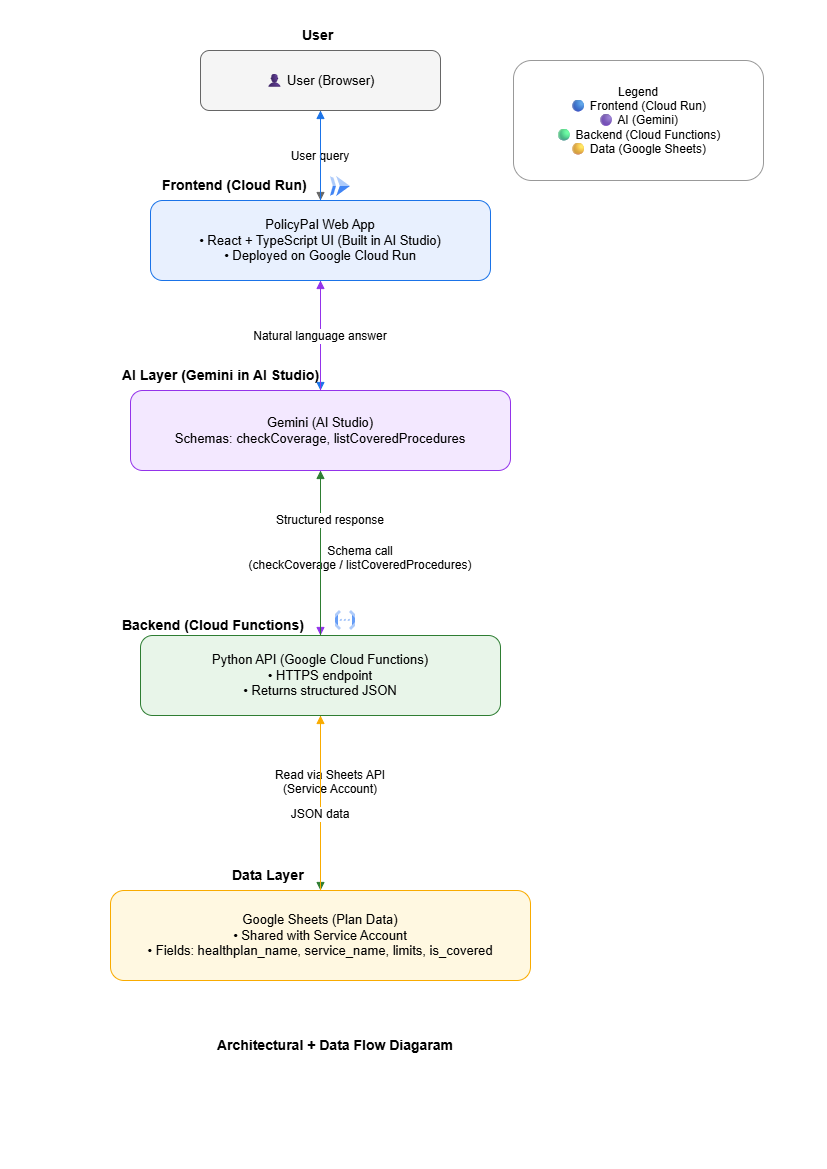
PolicyPal Architectural Diagram
-

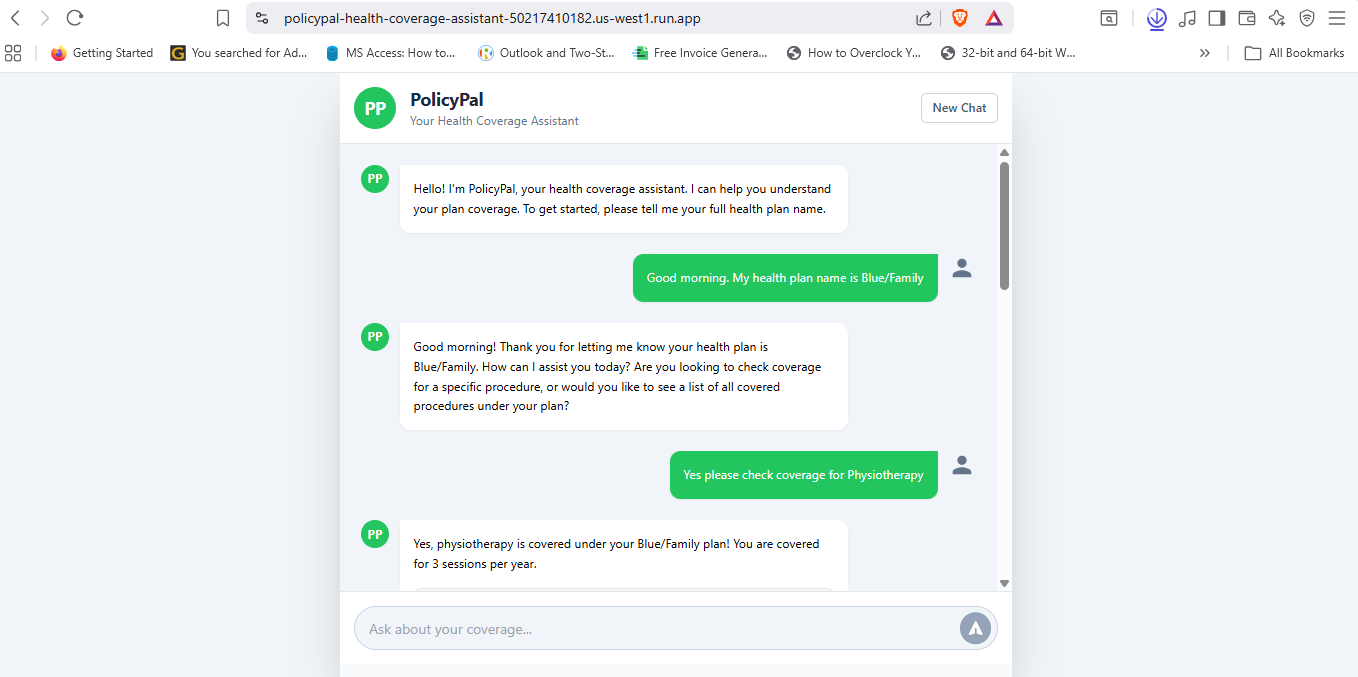
PolicyPal App Screenshot_01
-

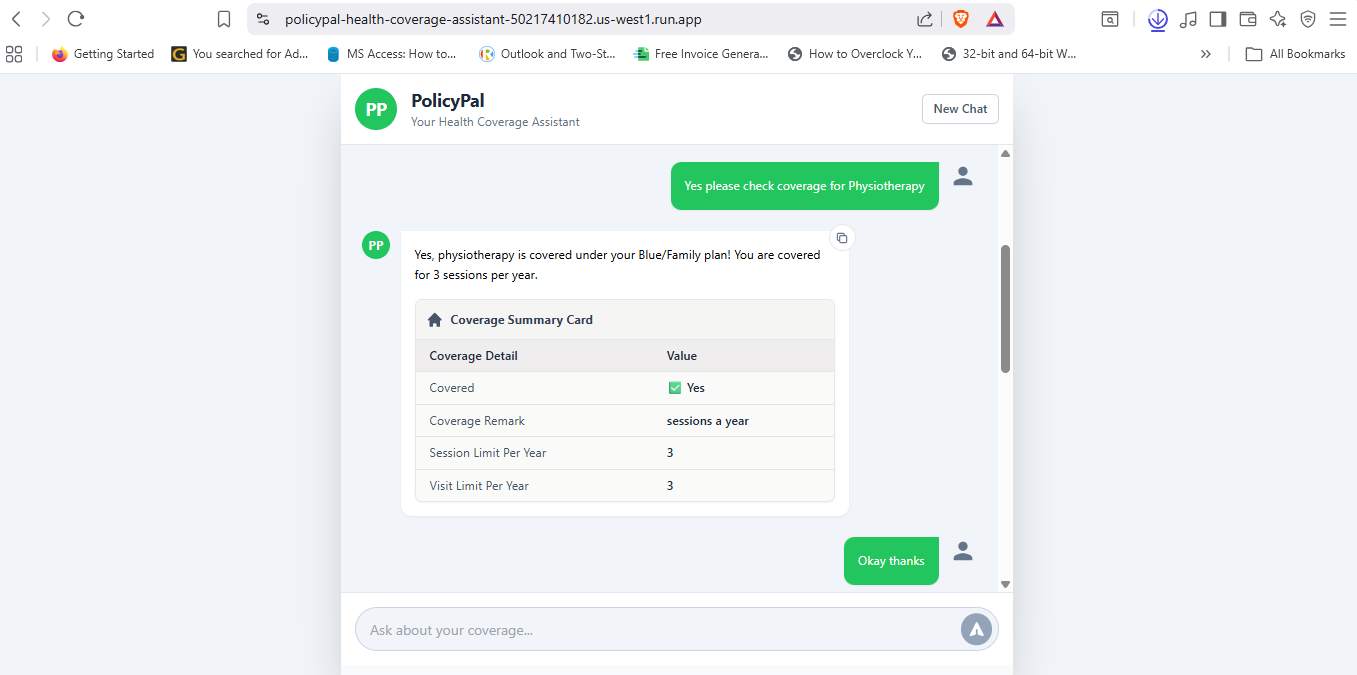
PolicyPal App Screenshot_02
-

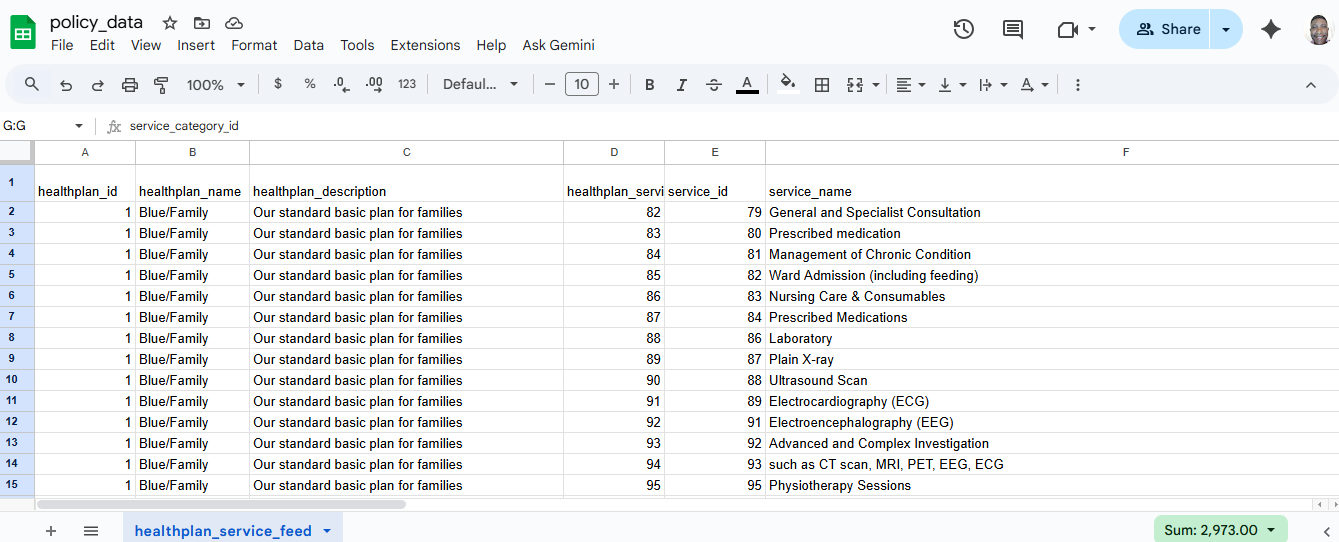
Google Sheet Data_01
-

Google Sheet Data_02
Inspiration
In Nigeria, understanding health insurance plans can be confusing, even for those who work in the industry. Over time, I’ve seen enrollees and healthcare providers struggle to interpret what their plans cover, leading to frustration and unnecessary claims disputes. That’s what inspired me to build PolicyPal, an intelligent assistant that helps users easily understand their health insurance coverage. Instead of reading through long benefit schedules or policy manuals, users can simply ask: “Does my Gold Plan cover dental surgery?” or “What procedures are included in the Silver Plan?” PolicyPal brings simplicity, transparency, and instant understanding to health plan information.
What it does
PolicyPal is a fullstack AI solution that helps users instantly understand their health insurance coverage. Built with Google Gemini in AI Studio, Cloud Functions, and Google Sheets, it delivers factual, real-time answers about health plan benefits in natural language. Deployed on Google Cloud Run, PolicyPal reimagines how people access transparent healthcare information. Here’s what’s under the hood:
- AI Layer – Google Gemini (via AI Studio) I used Google AI Studio to vibe code and design the conversational logic defining custom schemas; checkCoverage and listCoveredProcedures, that guide Gemini to access real structured data. These schemas help Gemini know where to fetch data and how to format its responses. Essentially, Gemini calls my backend through these definitions to get real plan data.
- Backend – Python on Google Cloud Functions A Python serverless API that queries Google Sheets and returns structured JSON responses. This backend handles requests from Gemini, fetches health plan data from Google Sheets, and sends structured JSON responses back to the model that Gemini turns into a natural-language answer. After deploying, Cloud Functions gave me a unique URL, https://us-central1-crested-idiom-305022.cloudfunctions.net/check_coverage, which I connected to the schemas in AI Studio, this is how Gemini calls the backend in real time.
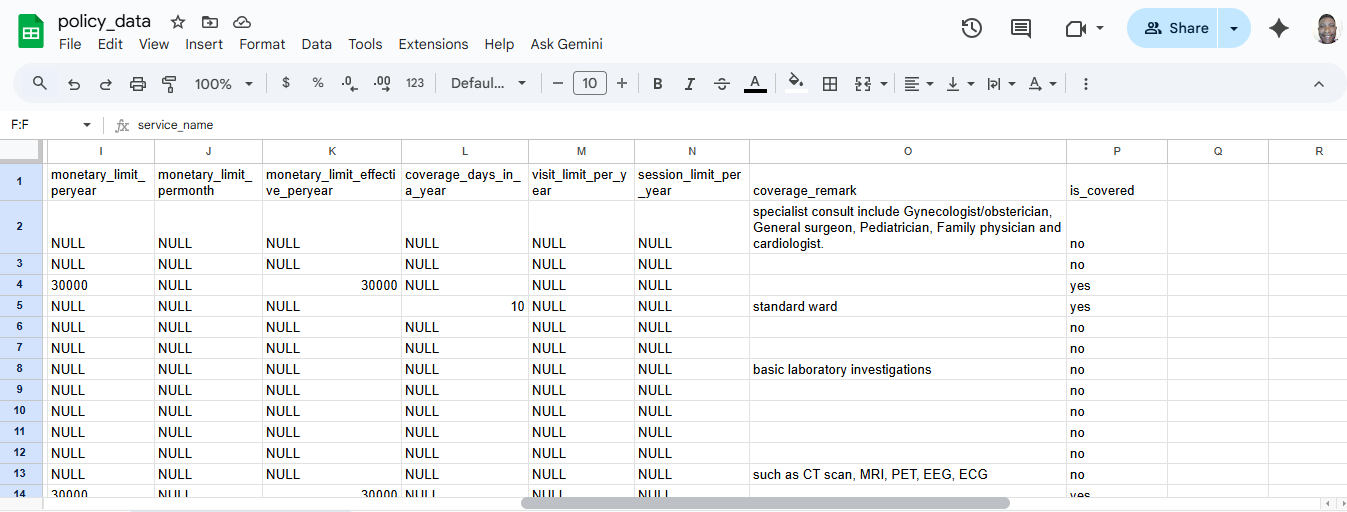
- Data Layer – Google Sheets I created a view on one of the databases I worked with locally that captures structured health plan data (in a de-identified form) and exported it to CSV which I then imported into Google Sheets to use as my data source. Each plan has structured fields like healthplan_name, service_name, monetary_limit_per_year, monetary_limit_per_month, coverage_days_in_a_year, and is_covered. The backend reads this data securely through a Google Cloud service account that has read access to the sheet.
- Frontend – Built in Google AI Studio (React + TypeScript) By vibe coding, I built the frontend directly inside Google AI Studio, using Gemini as the chat engine and connecting it to my backend endpoint. The frontend is safely deployed on Google Cloud Run and provides a simple chat interface where users can interact with the PolicyPal assistant.
How we built it
- Built the frontend interface and created AI logic in Google AI Studio, defining the schemas checkCoverage and listCoveredProcedures.
Schemas defined: checkCoverage
{
  "name": "checkCoverage",
  "description": "Checks if a specific procedure is covered under a health plan",
  "parameters": {
    "type": "object",
    "properties": {
      "plan": {
        "type": "string",
        "description": "The name of the health insurance plan"
      },
      "item": {
        "type": "string",
        "description": "The procedure or treatment to check"
      }
    },
    "required": ["plan", "item"]
  }
}
listCoveredProcedures
{
  "name": "listCoveredProcedures",
  "description": "Lists all procedures covered under a health plan",
  "parameters": {
    "type": "object",
    "properties": {
      "plan": {
        "type": "string",
        "description": "The name of the health insurance plan"
      }
    },
    "required": ["plan"]
  }
}
- Wrote the backend in Python to connect to Google Sheets and deployed it to Google Cloud Functions.
- Linked AI Studio to the backend via the Cloud Function URL.
- Tested the flow between Gemini, the schemas, and the backend.
Challenges we ran into
- Tool Communication Issues: Gemini required responses to be wrapped in a specific structure { message: [...] }. I pasted the errors back into the Google AI Studio prompt, asking it to diagnose and fix the error. It took about three trials, but the issue was finally corrected.
- TypeScript Compatibility: Adjusted type casting to satisfy SDK’s generic requirements.
- Service Account Permissions: Setting up the Google Service account correctly to share the Google Sheet with the service account email. This was my first time doing it, but with some research, I set it up successfully.
- Data Normalization: Cleaned and structured plan data for accurate interpretation by Gemini.
Accomplishments that we're proud of
- End-to-End Functionality: Built a fully working AI-powered health plan assistant integrating Google Gemini, Google Sheets, and a Python backend deployed on Google Cloud Functions, all communicating seamlessly through Google Cloud Run.
- Schema-Guided AI Logic: Defined tools and schemas used by Gemini (checkCoverage and listCoveredProcedures) to understand how to fetch and interpret structured data from the backend, enabling factual and context-aware responses.
- Error-Driven Development: Overcame multiple SDK and TypeScript integration challenges directly through Google AI Studio’s interactive debugging, allowing the system to self-correct response structures.
- Data Realism: Used de-identified data modeled after real HMO health plans, ensuring realistic, meaningful responses rather than fictional examples.
- AI Transparency in Healthcare: Demonstrated how conversational AI can make health insurance coverage easy to understand for everyone, a major step toward clarity in healthcare communication. This is something I have wanted to do for a while and it’s awesome seeing it actually work, and now I can only imagine the possibilities going forward.
What we learned
- How to deploy a Python API on Google Cloud Functions.
- Integrating Google Sheets as a lightweight live database using service accounts.
- How to structure health plan data for reliable AI retrieval.
- The importance of structured responses in AI workflows.
- How straightforward it is to create a Gemini API key in Google AI Studio.
- Deploying a project directly from Google AI studio to Cloud Run
- Troubleshooting: Learning to feed the errors generated back into the prompt, allowing Gemini to figure out what caused the error and fix it.
- Handling AI-to-API communication patterns (defining input/output schemas for structured reasoning).
- Becoming more familiar with Google Cloud Console, learning how to enable APIs like the Google Sheets API, Identity and Access Management (IAM) API, and the Cloud Functions API. This project reinforced a key design insight: AI Intelligence = Reasoning Power of LLMs + Access to Structured Knowledge.
What's next for PolicyPal
- User Login & Personalization: I plan to add secure user authentication so PolicyPal can tailor responses to each individual enrollee, not just based on the health plan but also their personal coverage details, dependants, hospital preferences, and claims history. This will transform PolicyPal from a general plan assistant into a personalized AI health companion.
- Direct Live Database Integration: The next step is to connect PolicyPal to a live database like MySQL or PostgreSQL, enabling real-time access to a larger and continually updated data set. This will allow it to provide comprehensive, context-aware insights for every user.
- Multilingual and Voice Support: I also intend to integrate multilingual and voice capabilities, making PolicyPal more inclusive and accessible to a wider audience regardless of language or literacy level.
Built With
- flask
- gemini
- google-ai-studio
- google-cloud-functions
- google-cloud-run
- google-sheets
- python
- react
- typescript


Log in or sign up for Devpost to join the conversation.