-
-
icon
-
-
-
-
-
-
-
-
-
-
-
-
Inspiration
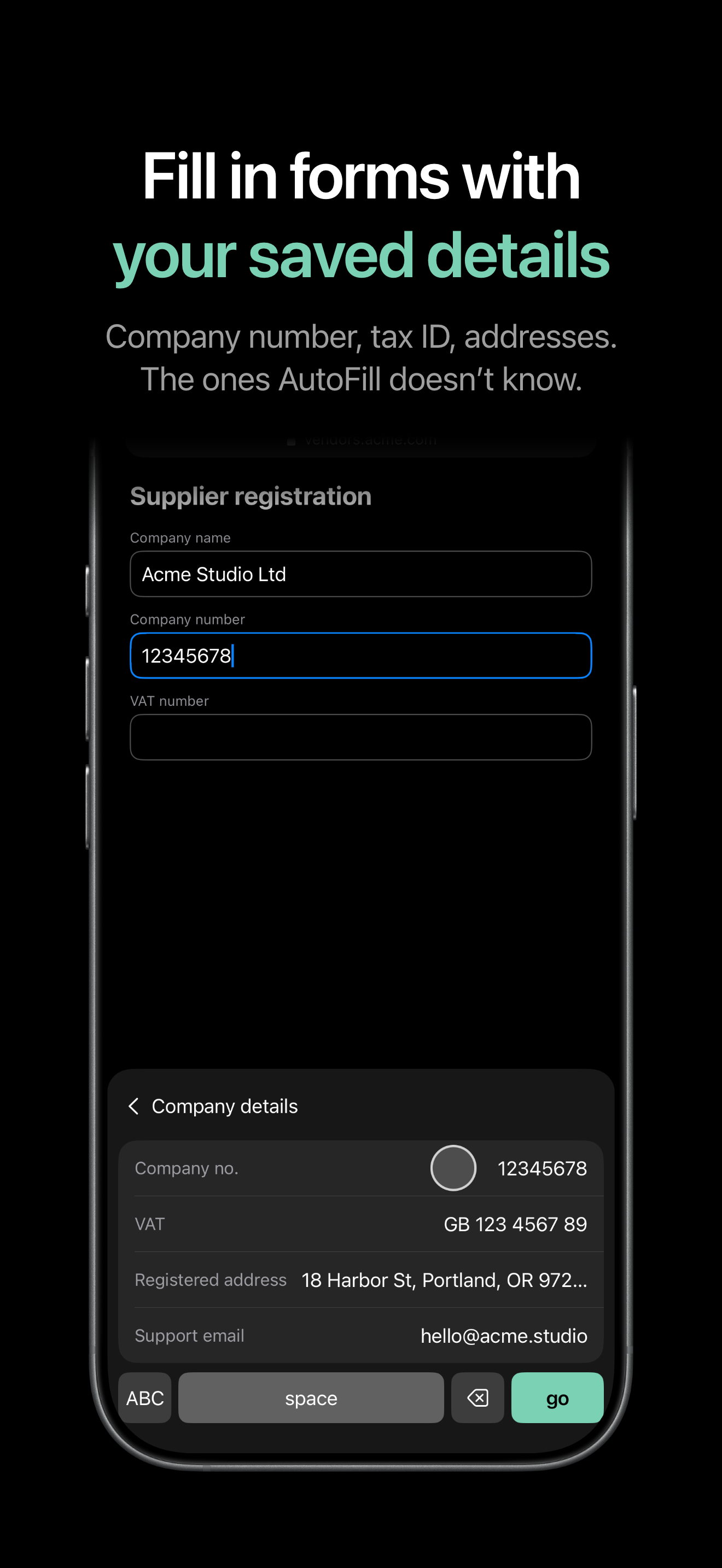
If you freelance, run your own business or create content, the same things go out every day: the booking link for a new client, the rate card PDF for a sponsor, an invoice reminder with a new name and amount, your company number on yet another form, the AI prompt you use every morning, your headshot and bio for the next podcast. On iPhone and iPad, each one means leaving the app, digging through Notes, Photos or Files, copying, switching back and pasting. Six steps, for something you've sent a hundred times. Text Replacement helps with short things like an email address, but only if you remember the shortcut, and it can't hold a full reply, a template with a name or date to fill in, a link with context, a PDF or a screenshot, let alone a reply and its PDF saved together as one item. We wanted one place for all of it, reachable from wherever you are typing.
What it does
Clip is a library of the things you reuse, on iPhone and iPad, with a keyboard that brings them into any app.
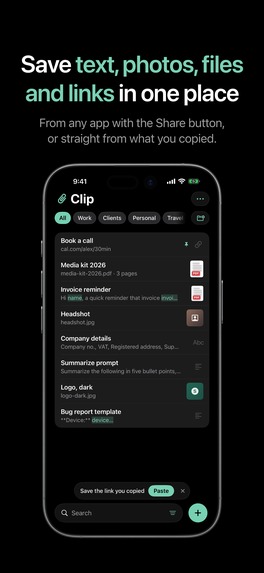
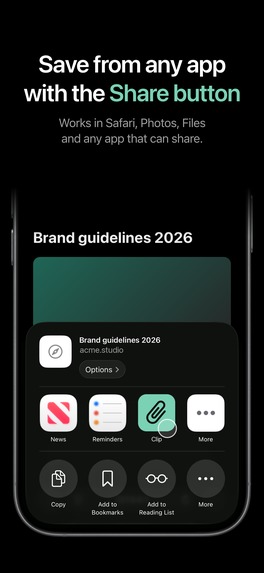
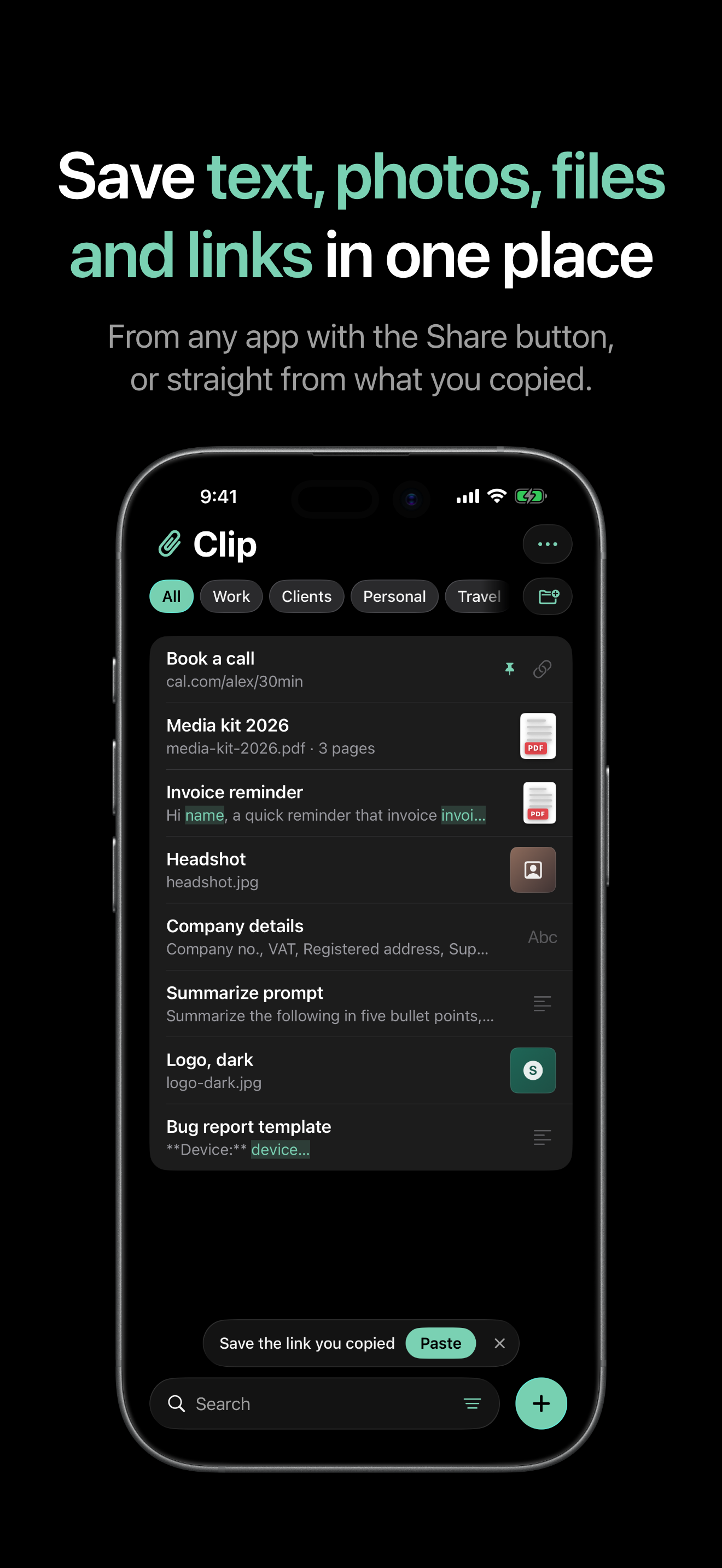
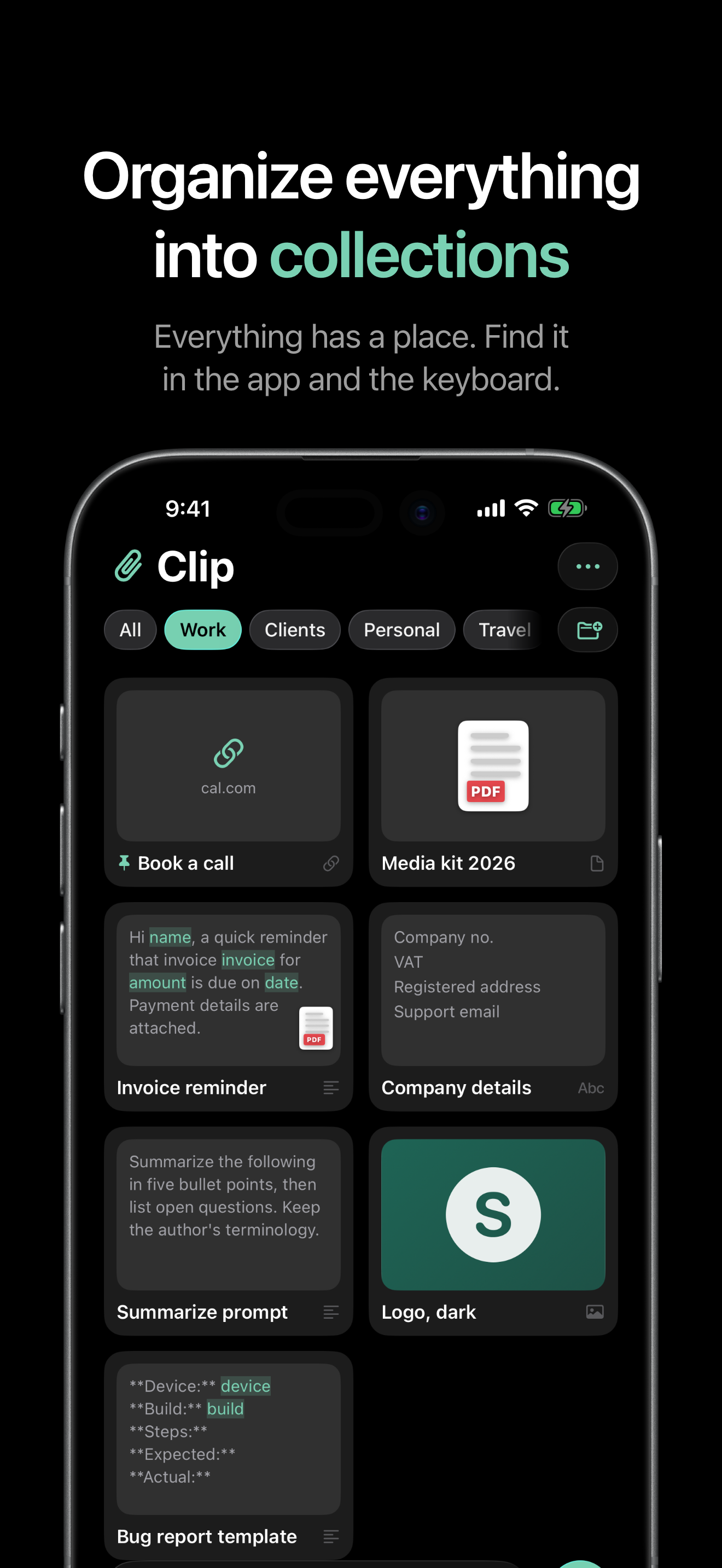
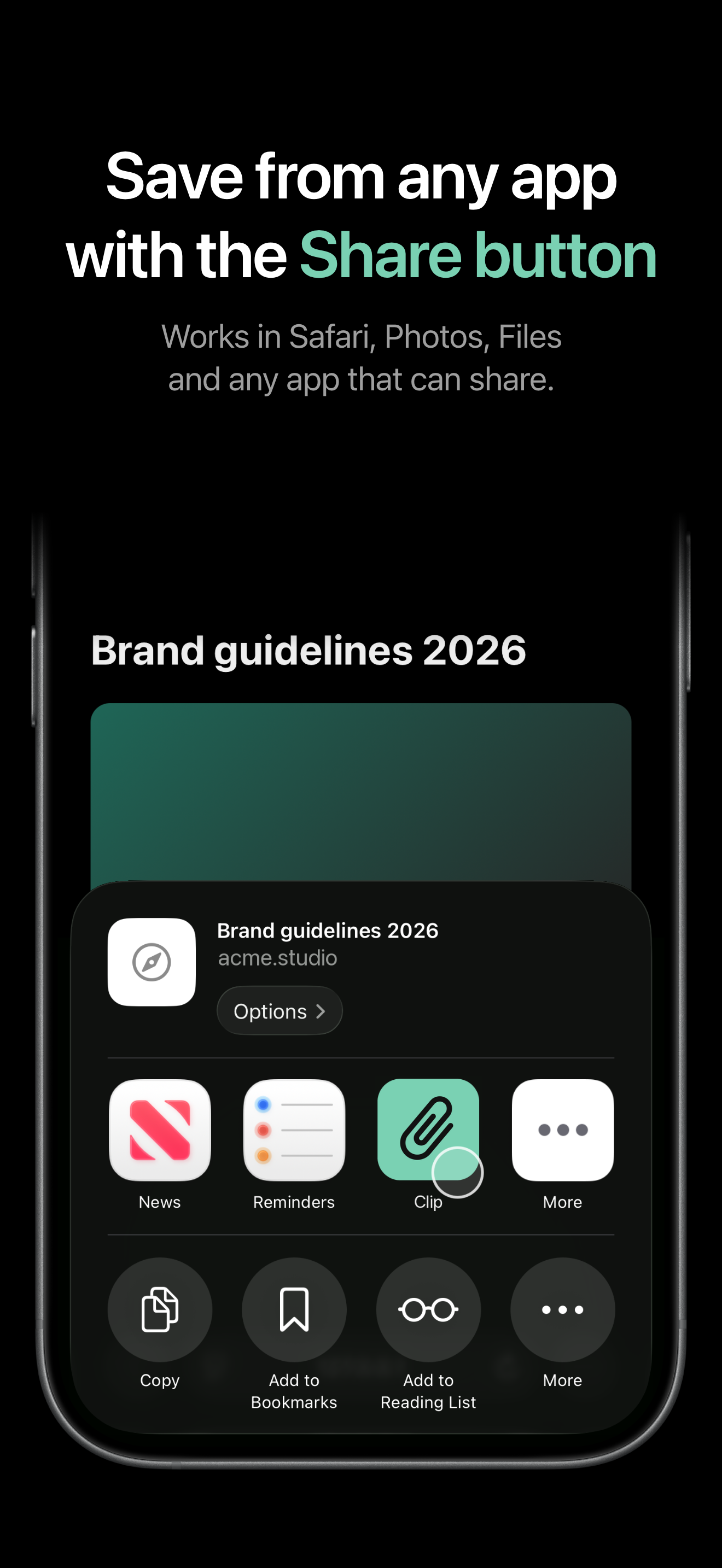
- Save what you reuse. Add text or links, save from any app's Share button, capture a photo or scan a document, or review something you just copied and save it with one tap. One item can hold text, links, photos and files together, like a reply and the PDF that goes with it, and they come back together when you reuse it.
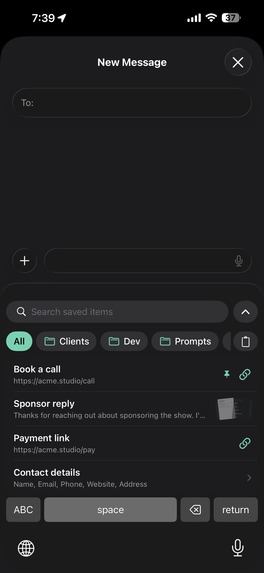
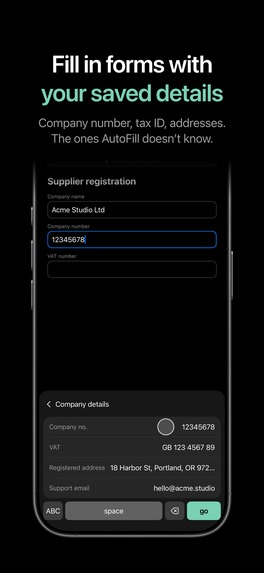
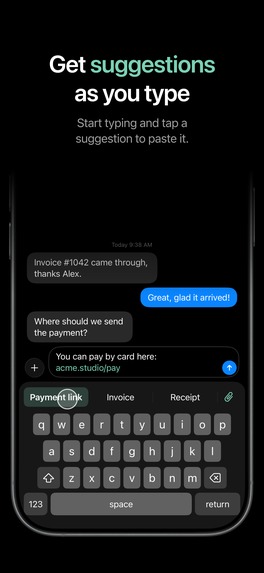
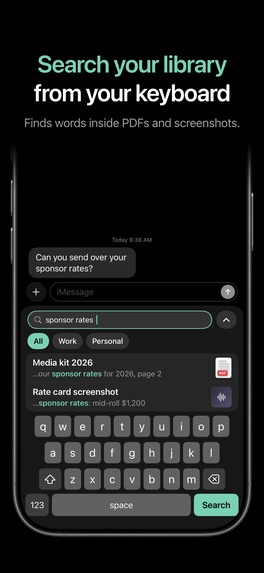
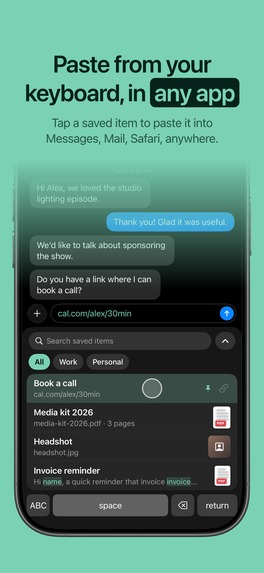
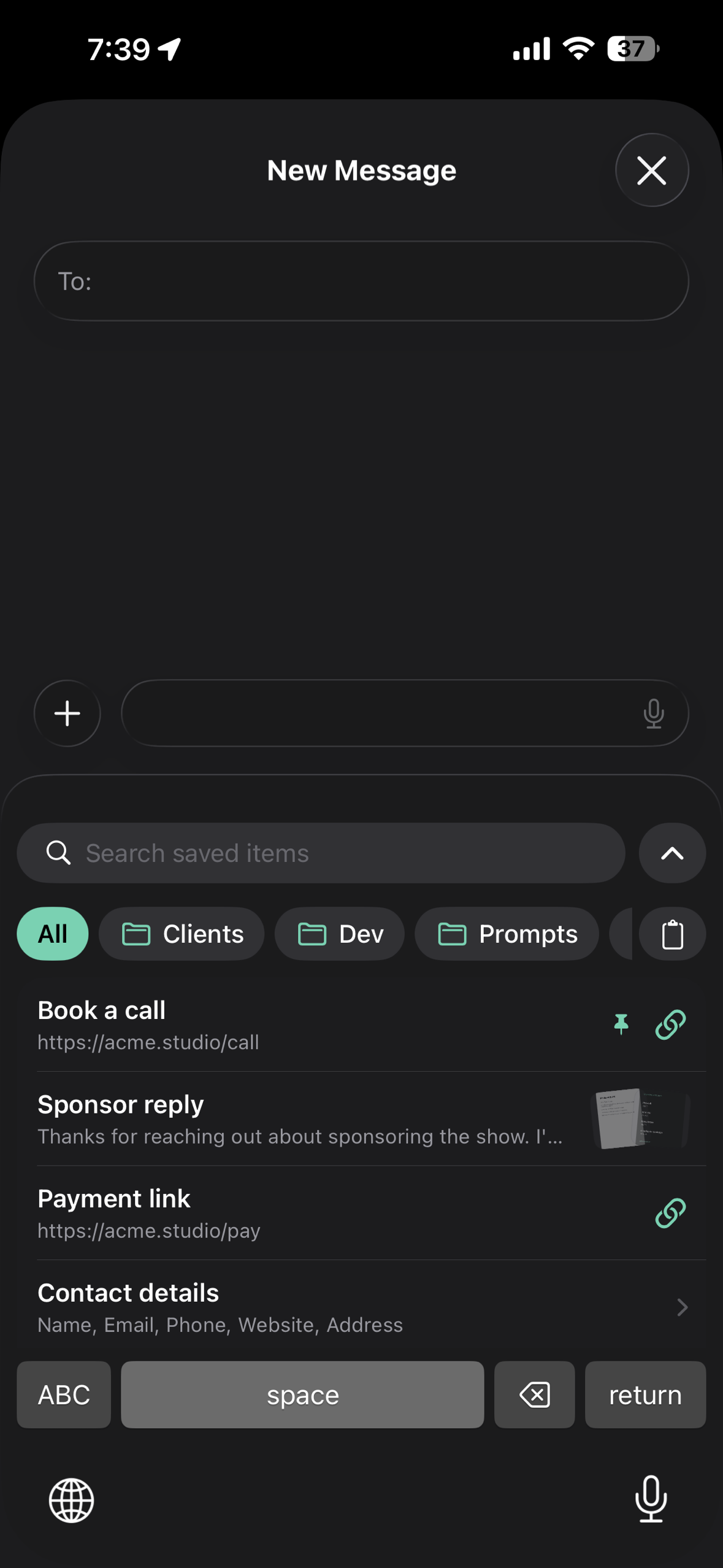
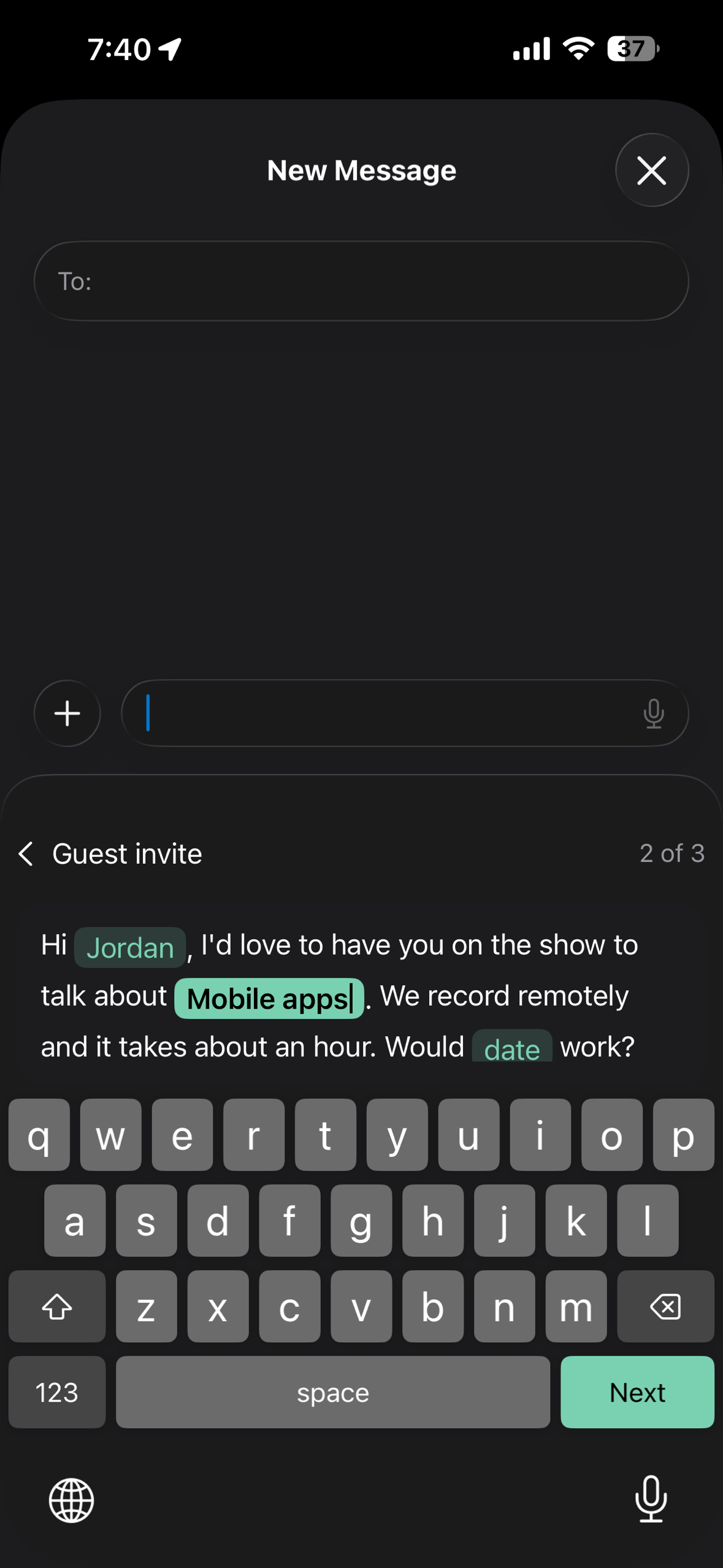
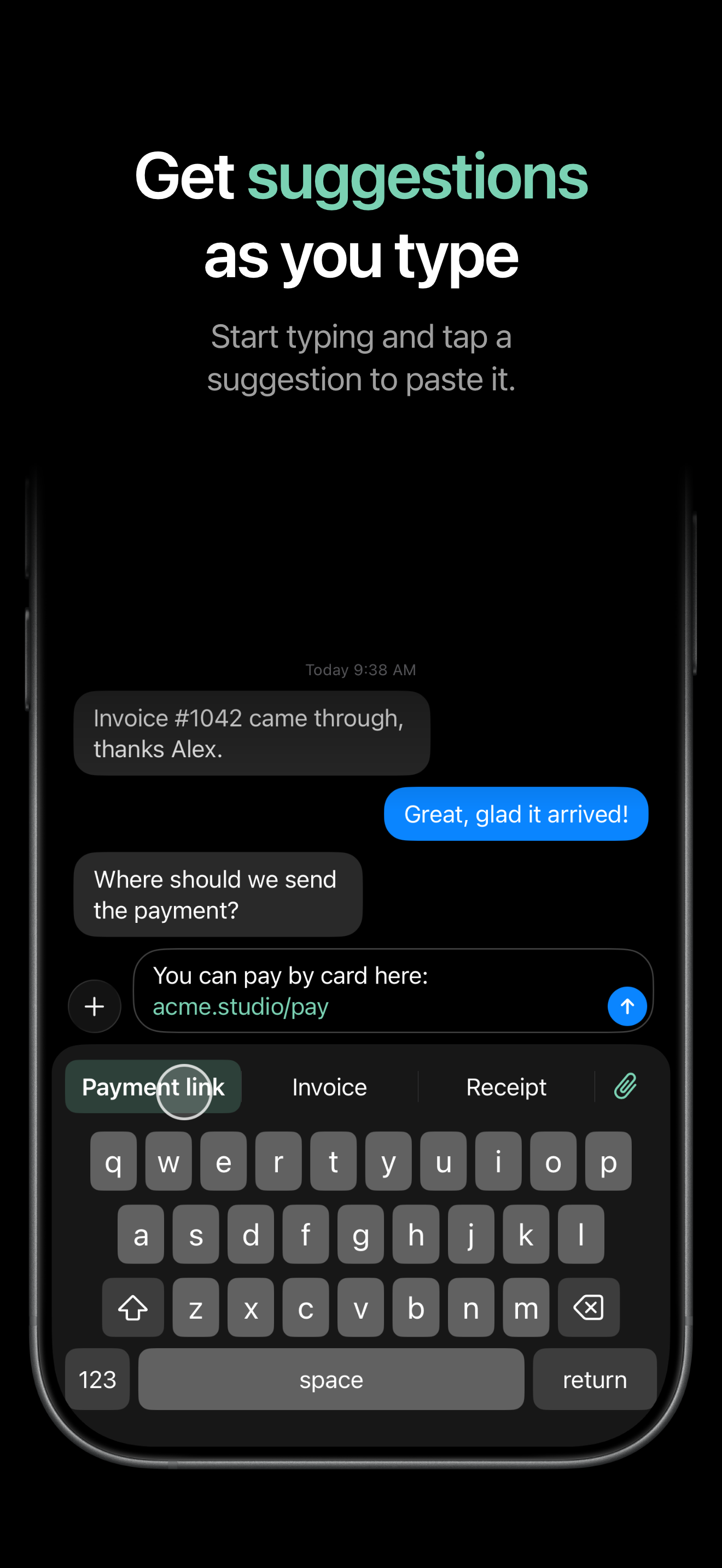
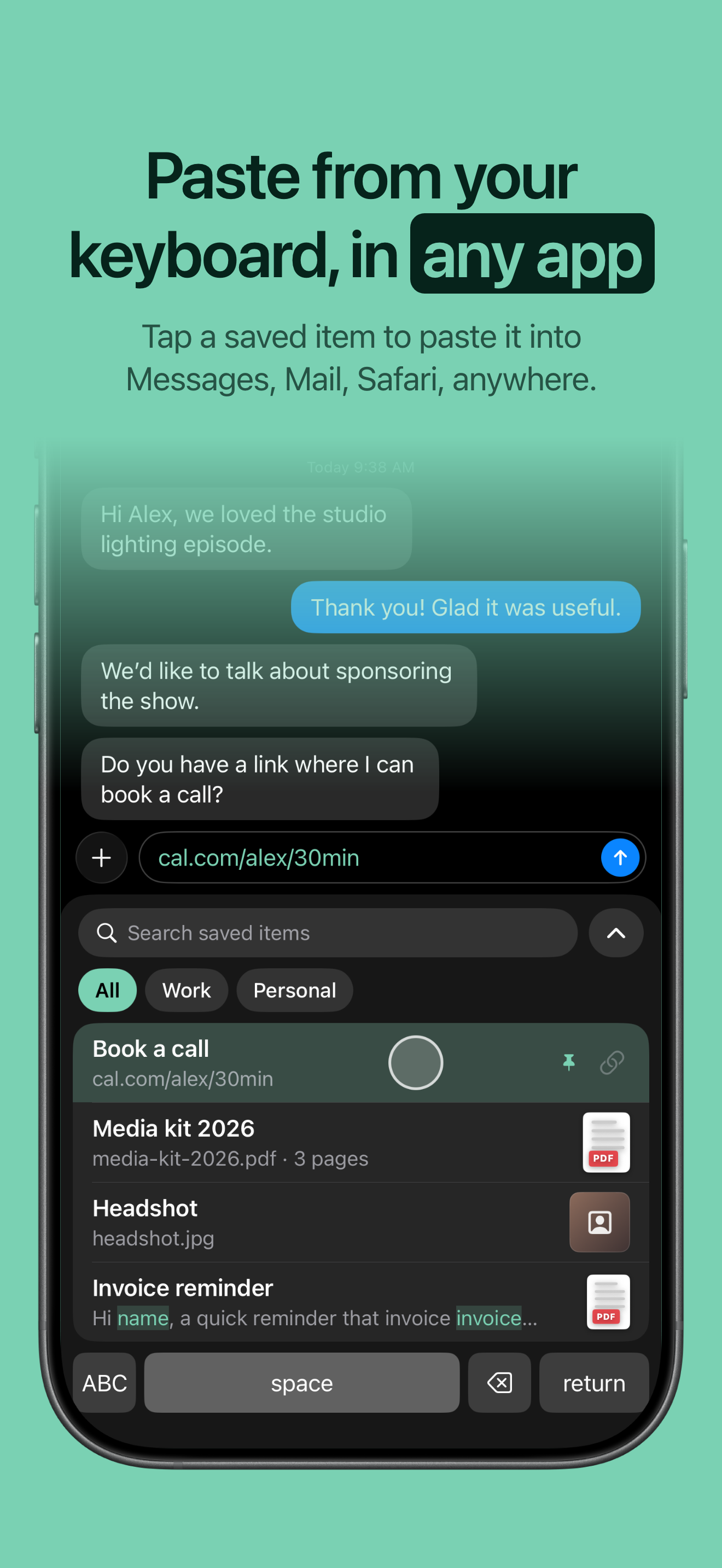
- Clip lives in your keyboard. Switch to the Clip keyboard while typing. Matching items appear above the keys as you type, or you can open the library, search, and filter by collection. Text and links insert straight into the field. Photos and files are copied so you can paste them into apps that accept them.
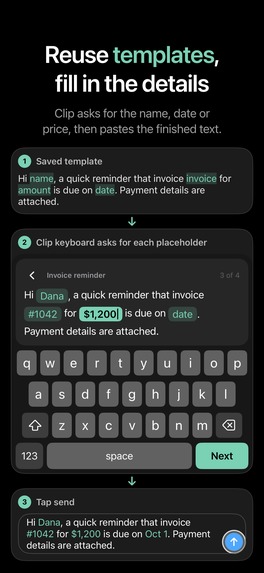
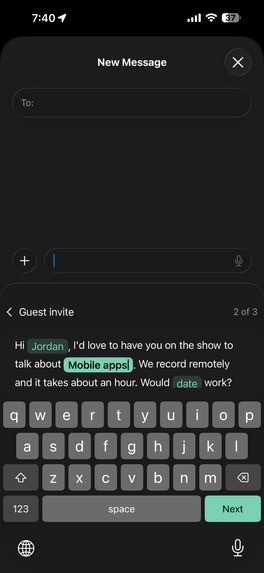
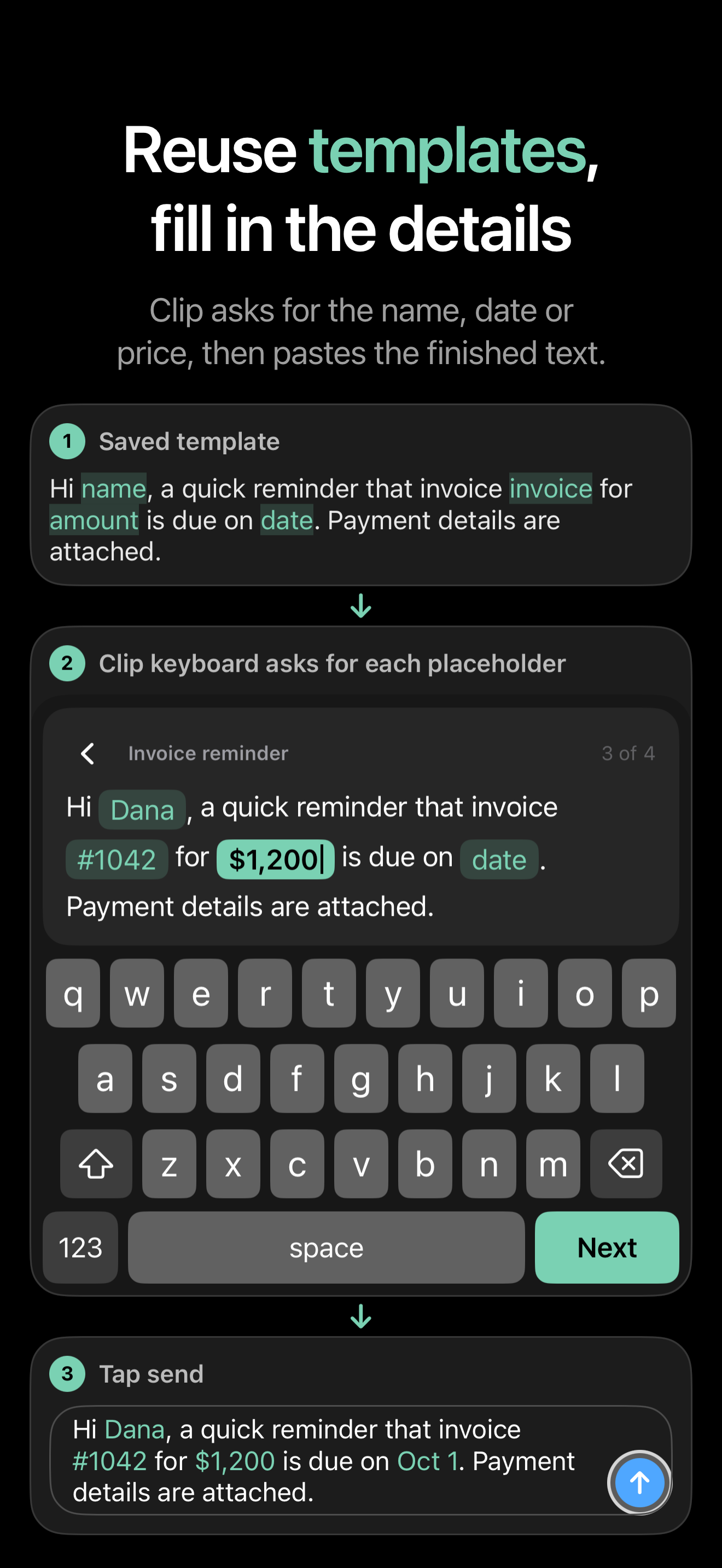
- Clip turns replies into templates. Mark a name, date or amount as a placeholder and fill it in each time you reuse the text. The saved original never changes. Clip spots names, dates, phone numbers, addresses and emails on the device and offers them as placeholders; it never converts anything on its own.
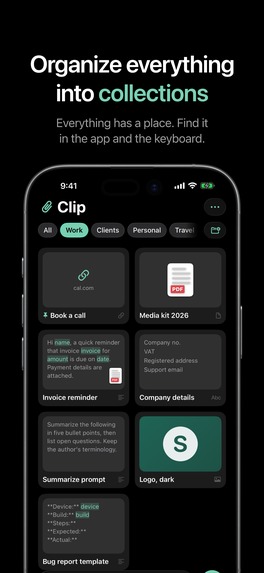
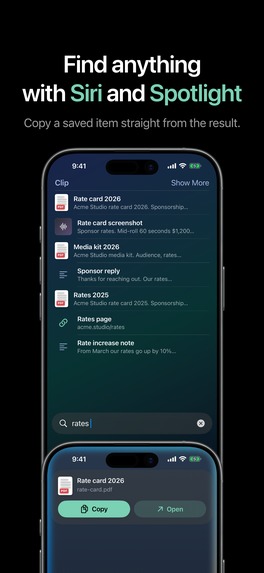
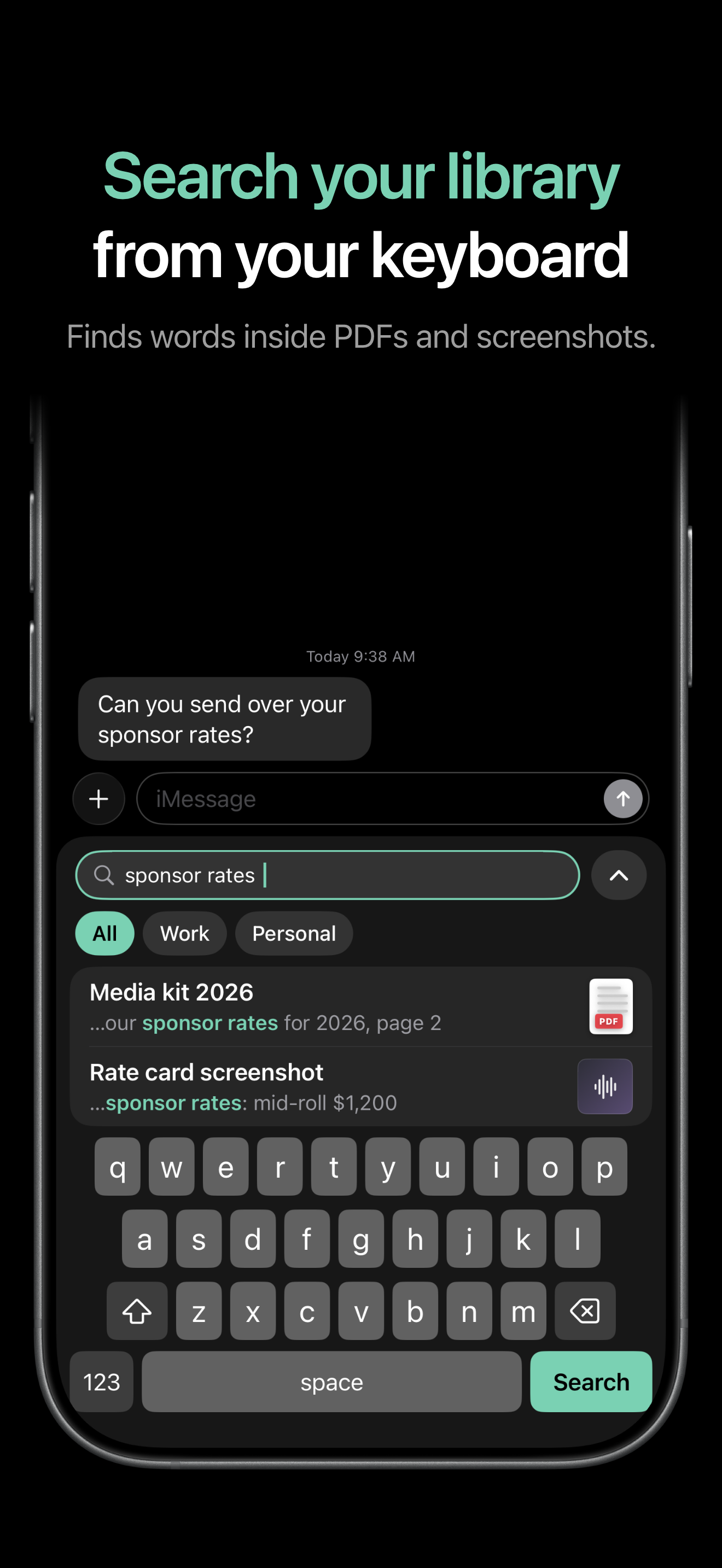
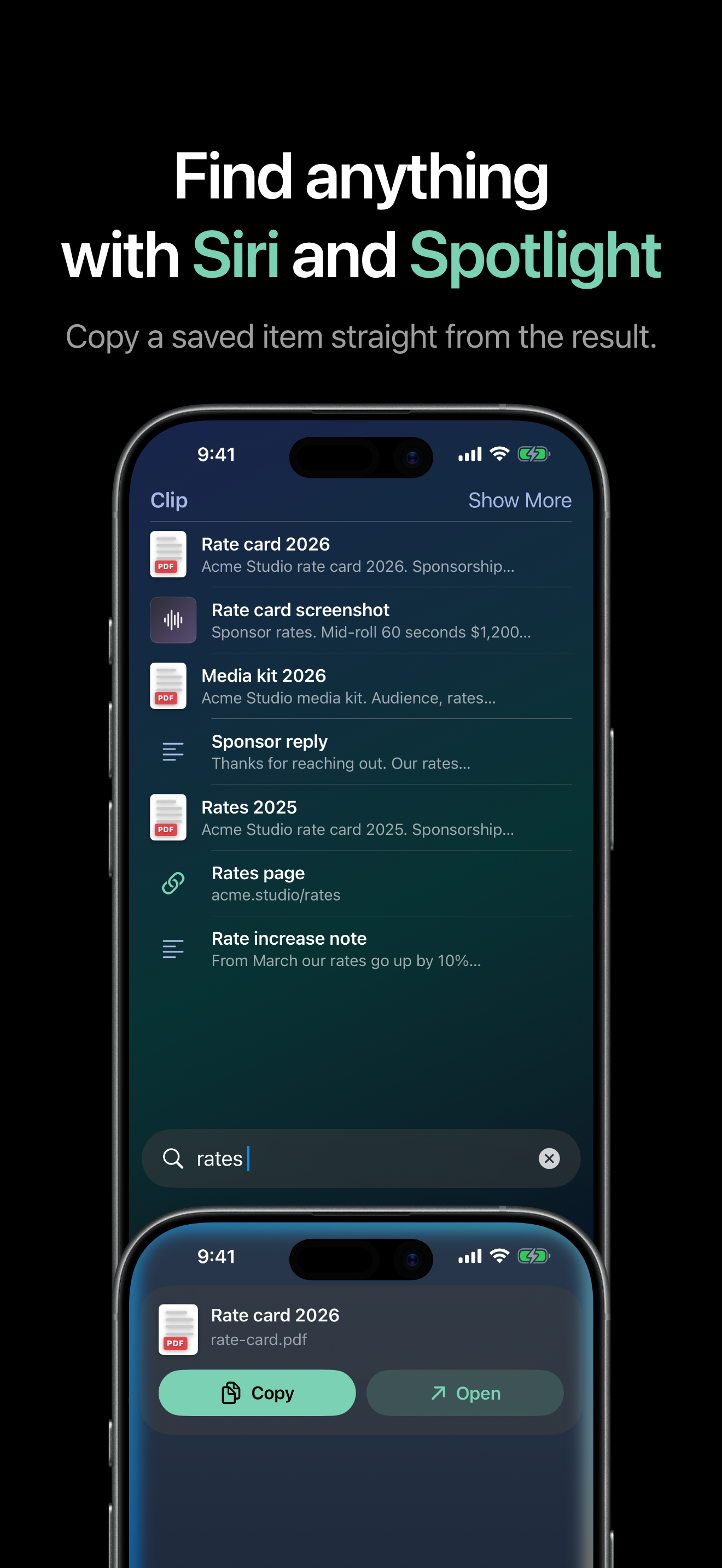
- Clip finds it for you. Search titles, saved words, and text recognized inside PDFs and images. Pin favorites, organize collections, and find items through Siri, Spotlight and Shortcuts.
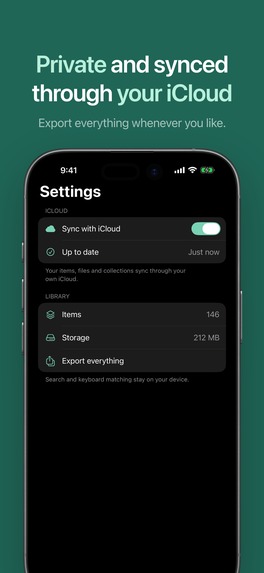
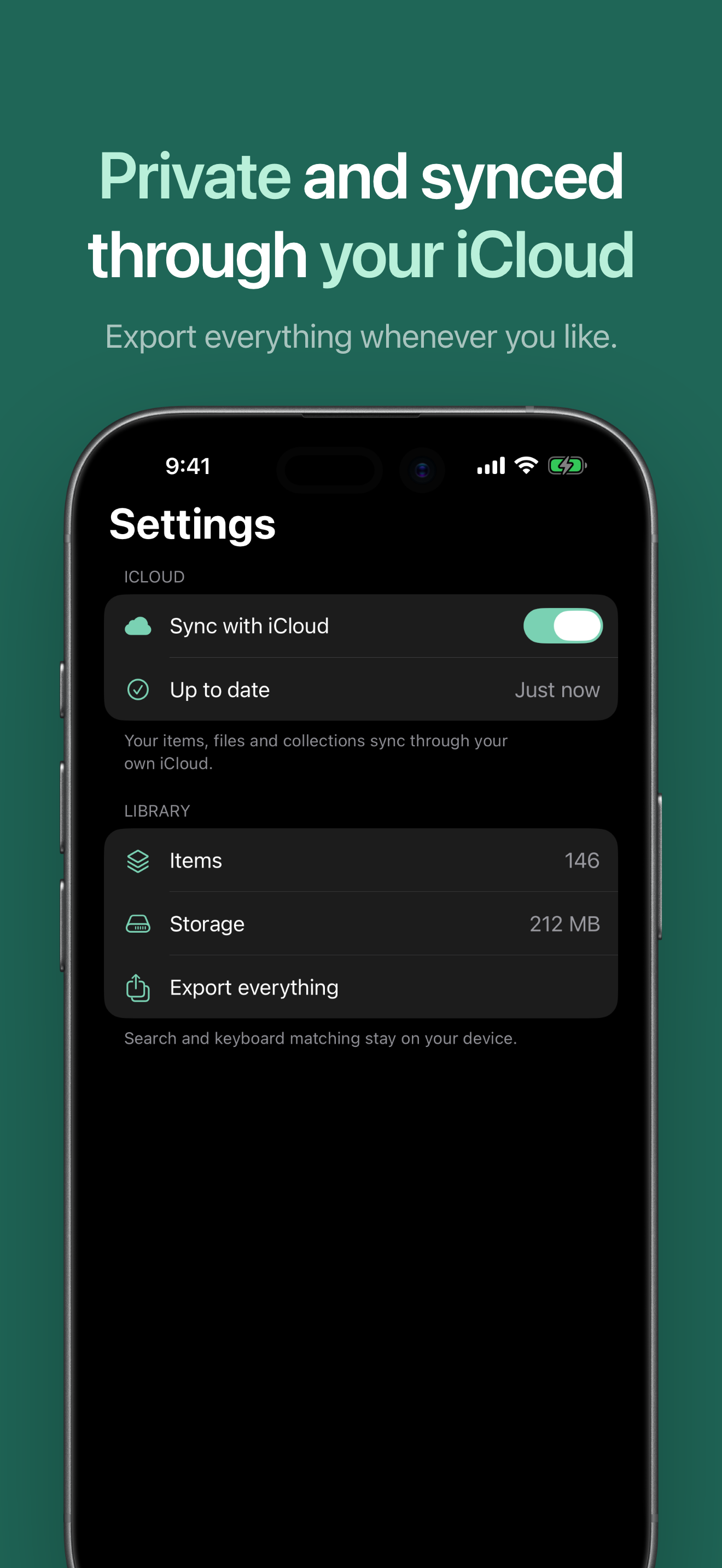
- You stay in control. Everything you save stays on your device and in your own iCloud. You decide what gets saved, and everything can be exported.
Clip Pro adds unlimited items and iCloud sync across devices. The first 10 items are free, and if a subscription ends, everything saved stays usable, exportable and deletable.
Everything you save, one tap away
Clip does one job and does it fast: save anything you might want again, then get it back into whatever you're typing in a tap. That includes the reply you send every week and the receipt, document or screenshot you might need once, months from now. Everything you save lands in one library, organized with collections and pins, and you reach it from the keyboard, the Share sheet, Control Center, Siri, Spotlight and Shortcuts. Suggestions appear above the keys as you type, search reaches the words inside screenshots and PDFs, and names, dates and amounts become placeholders you fill in at the moment you send. It is a native iOS 26 app with Liquid Glass and a complete typing keyboard, so it feels like part of iOS.
How judges can try it
Download Clip from the App Store. The first 10 items are free with no trial needed. To try unlimited items and iCloud sync, start the 7-day free trial from the end of onboarding or from Settings > Clip Pro. To use the keyboard, add it in iOS Settings > General > Keyboard > Keyboards; Full Access is only needed for copying photos and files. You can cancel any time in Settings > Apple Account > Subscriptions.
How we built it
Clip is a native Swift and SwiftUI app for iPhone and iPad on iOS 26. The app, the keyboard and the Share extension all read one library on the device, with fast full-text search, and iCloud keeps it in sync across devices. Apple's on-device text recognition model reads the words in photos and screenshots, PDFs are indexed by the text inside them, and document scanning (VisionKit) and placeholder detection also run on the device, so search finds things by what's inside them while saved content stays private. App Intents power the Siri, Shortcuts and Spotlight actions, and RevenueCat powers the subscription and paywall.
We found out about Shipaton late and gave ourselves one week to build Clip, without cutting corners on quality. We started with the product, the design and the brand: who reuses the same things every day, where they are when they need them, and how Clip should feel next to Apple's own apps. The technical work ran in parallel while the product took shape. The rest of the week went into testing every flow, fixing every issue we found, and polishing each screen until it felt finished. We worked alongside AI coding agents throughout, with automated tests keeping quality high while we moved fast.
Challenges we ran into
- Going native. We usually build with React Native and Expo. For Clip we chose native Swift and SwiftUI, because Clip lives inside iOS itself: the keyboard, the Share sheet, Control Center, Siri, Shortcuts and Spotlight. Building natively gave us the smoothest feel and direct access to every one of those system features, and it opens the door to Apple Intelligence next.
- Apple's keyboard rules. Apple's App Review Guidelines require a custom keyboard to type real characters and to keep working without Full Access. So the Clip keyboard is a complete typing keyboard first, with your library one tap away, and everything except copying photos and files works without Full Access.
- Attachments from a keyboard. iOS keyboards can only insert text. Photos and files go through a copy-then-paste step, designed so it takes one tap, and that step is the only reason Full Access exists in Clip.
- Speed inside a keyboard. iOS gives keyboards very little memory. We rebuilt storage so the keyboard can search the whole library instantly without loading it.
- One library everywhere. The app, the keyboard, the Share sheet, Control Center, Siri, Spotlight and Shortcuts all read and write the same library, and iCloud keeps it the same on every device.
- Smart without guessing. Clip finds names, dates, phone numbers and addresses in saved text and offers them as placeholders, and reads the text inside photos and PDFs so they are searchable. All of it runs on the device and nothing changes without the user's tap.
- Privacy by design. Everything stays on the device and in the user's own iCloud, with no account and no server of ours in between. The user decides what gets saved, and everything can be exported.
- Holding back AI until it's good enough. We built generated titles, collection suggestions, summaries and related search to run entirely on the device with Apple's own models, so nothing you save is sent to an AI service. We then held them back from 1.0 because the results weren't useful enough yet. Everything that shipped is exact and dependable: search, text recognition and placeholder detection.
Accomplishments that we're proud of
- Designed, built and submitted to the App Store in one week, natively in Swift and SwiftUI.
- A full typing keyboard that searches the whole library instantly within iOS's tight keyboard memory limit.
- One library shared by the app, the keyboard, the Share sheet, Control Center, Siri, Spotlight and Shortcuts, kept in sync by iCloud.
- The words inside screenshots and PDFs are searchable, recognized privately on the device.
- Templates you fill in at the moment you send, without leaving the conversation.
What we learned
For this audience, speed and trust matter more than cleverness. Every feature we kept either removes a step between "I need that thing" and "it's pasted", or makes sure nothing is saved without the user's say.
What's next for Clip: Paste Anything, Anywhere
- Smarter suggestions. Clip will suggest a title and a collection for everything you save, using Apple Intelligence entirely on the device so your content stays private, and get even better at offering the right item above the keys as you type.
- Save from the keyboard. Turn the message you just typed into a saved item or a template without leaving the app, with names, dates and amounts already marked as placeholders.
- Smarter retrieval. Find things by describing them ("the invoice template", "that screenshot of the floor plan"), not only by the exact words inside.
- Automatic organization. New items sort themselves into the right collections, so the library stays tidy without any filing.
- More for iPad, and a Mac app. Drag and drop and a hardware-keyboard launcher on iPad, and a Mac companion.
Built With
- app-intents
- icloud
- revenuecat
- swift
- swiftui

Log in or sign up for Devpost to join the conversation.