-
-
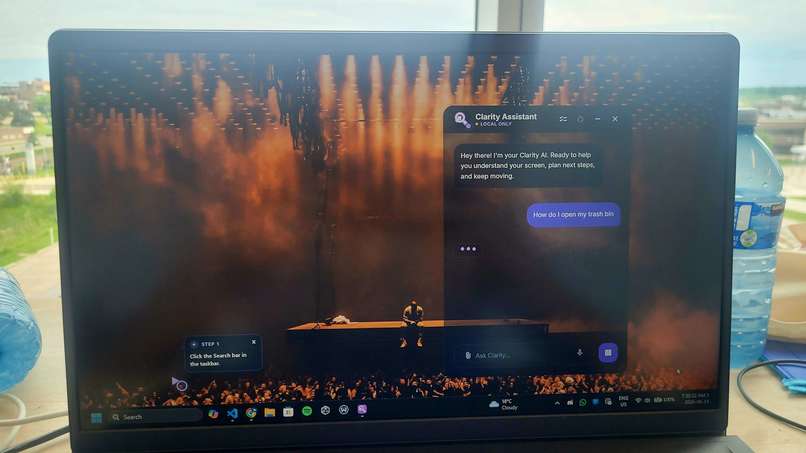
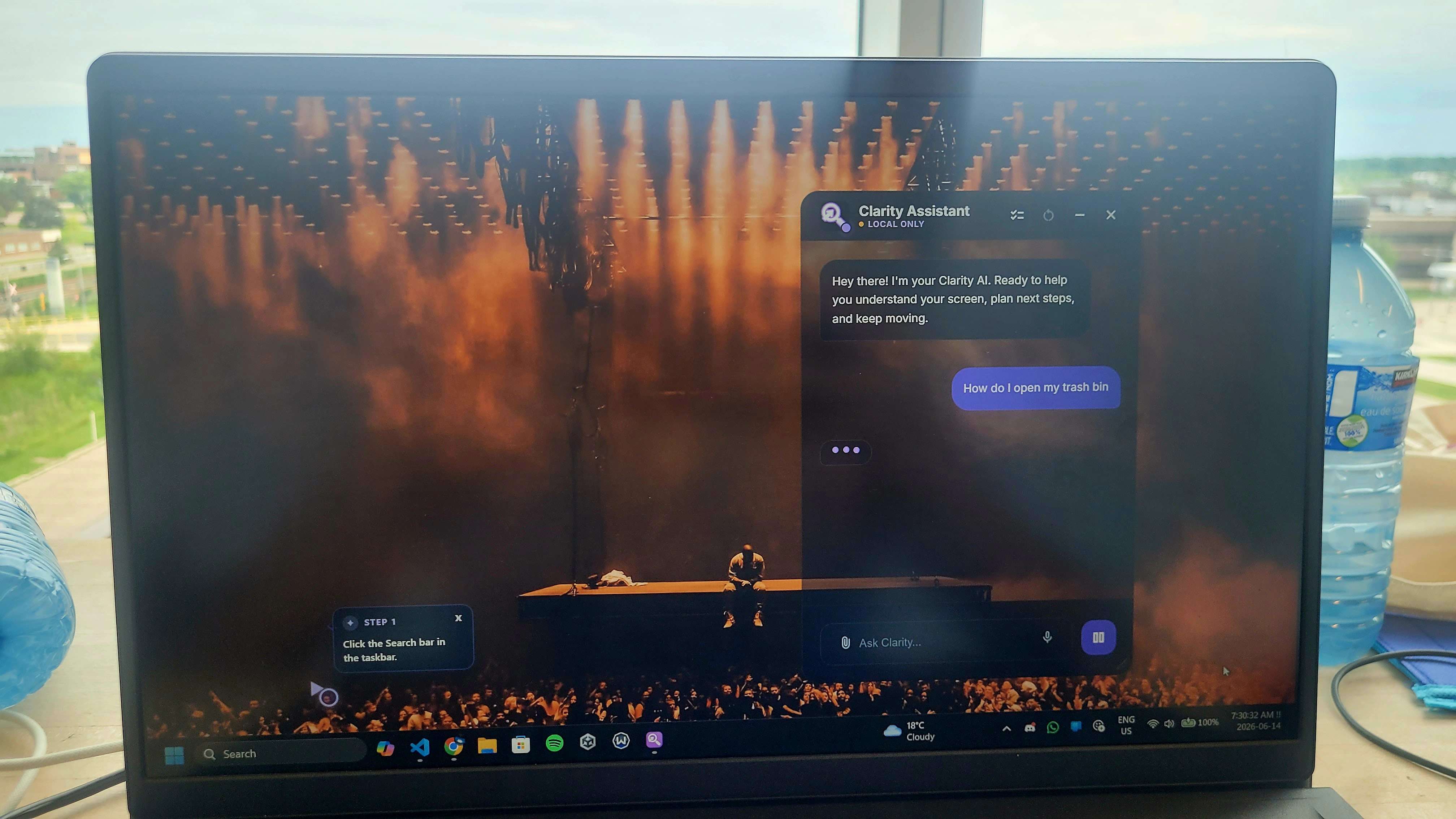
Chat overlay on the home screen
-
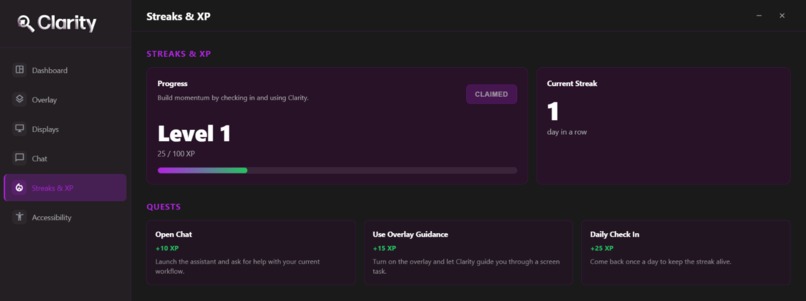
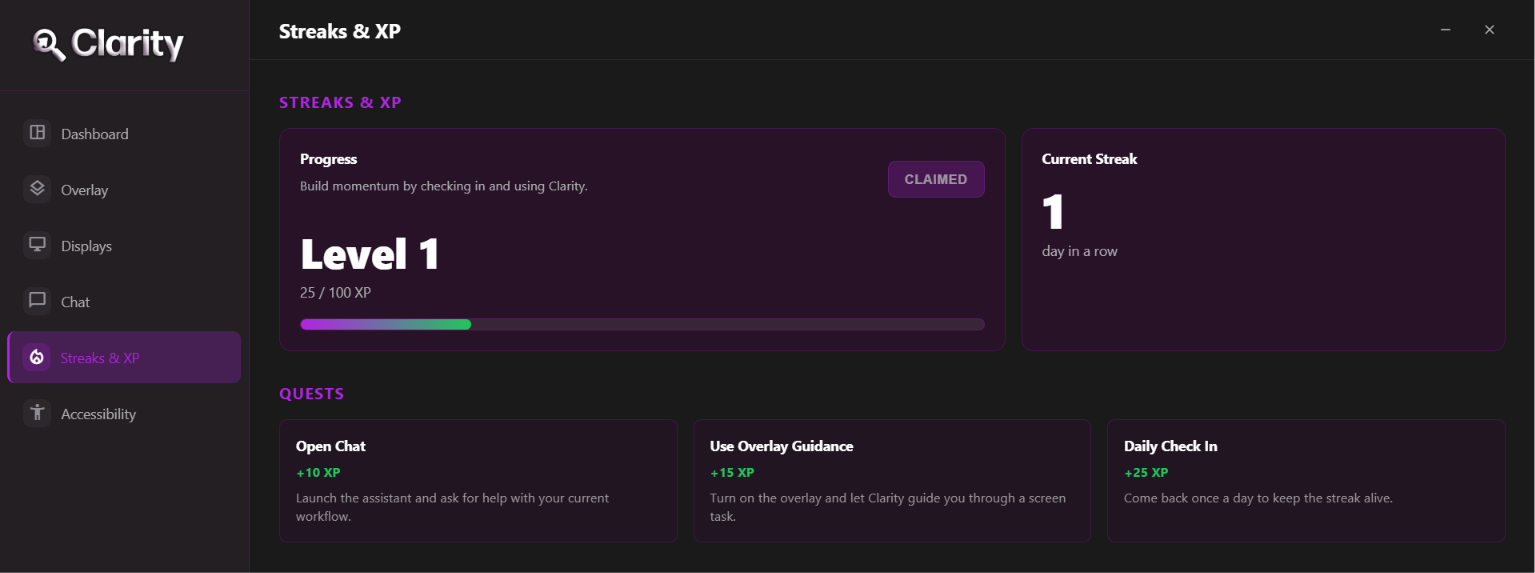
Streaks & XP dashboard
-
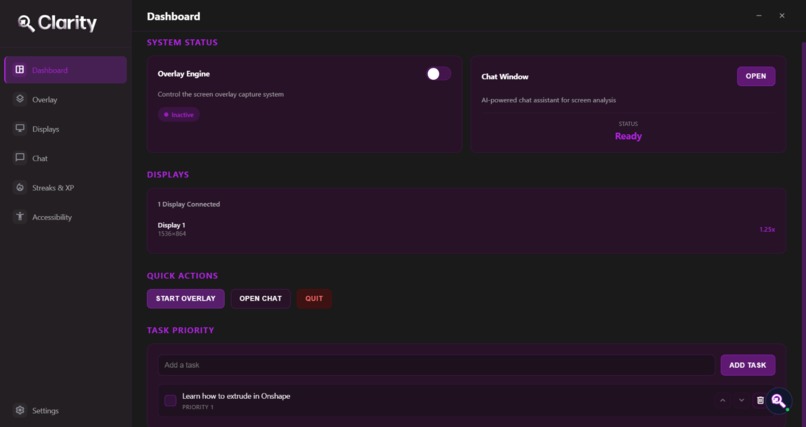
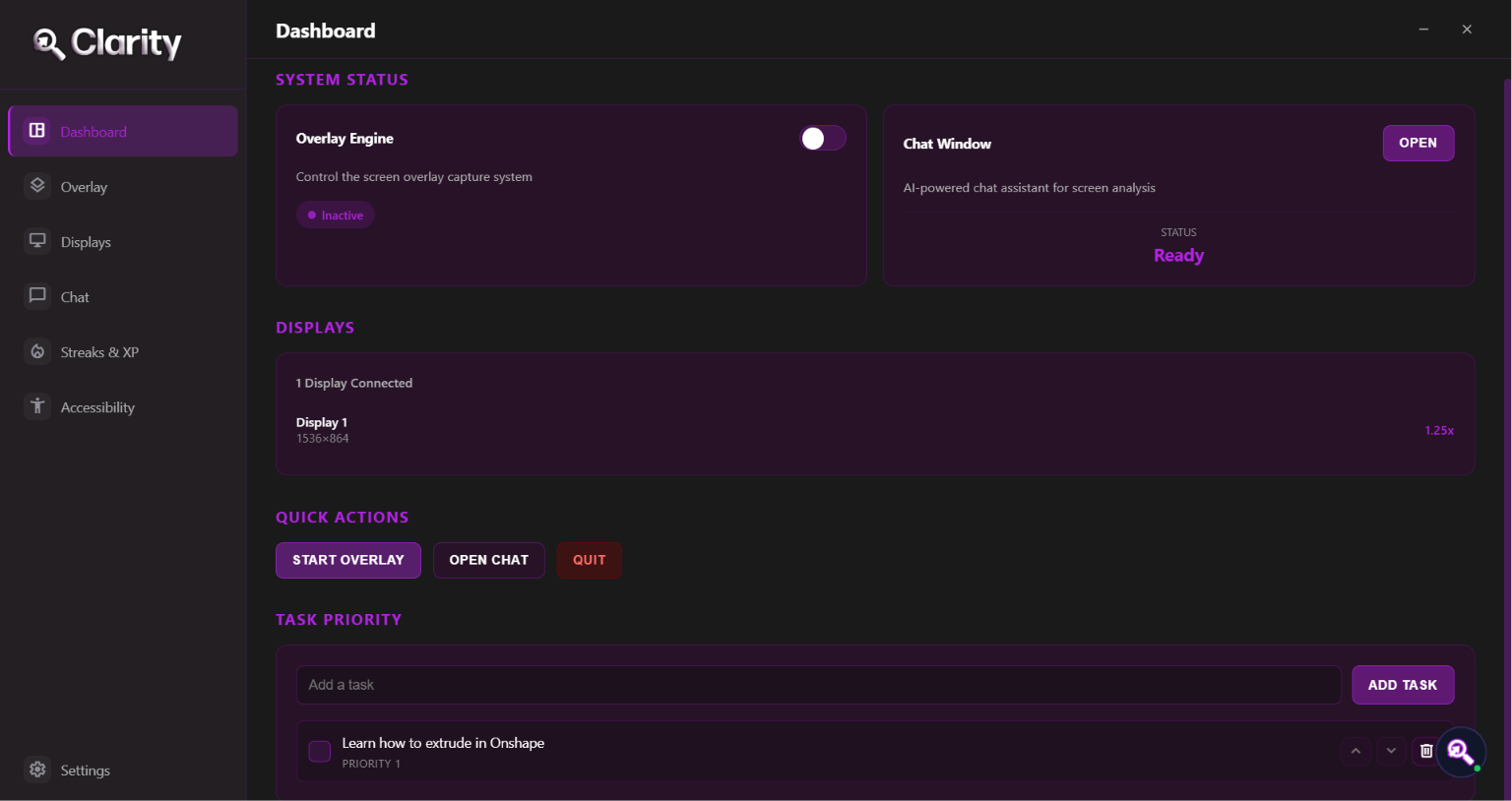
Main dashboard
-
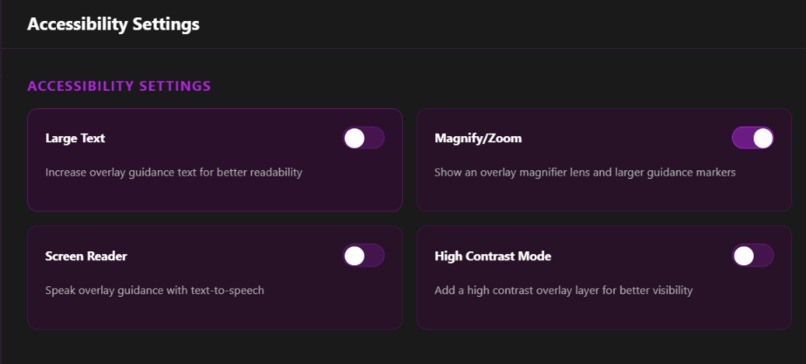
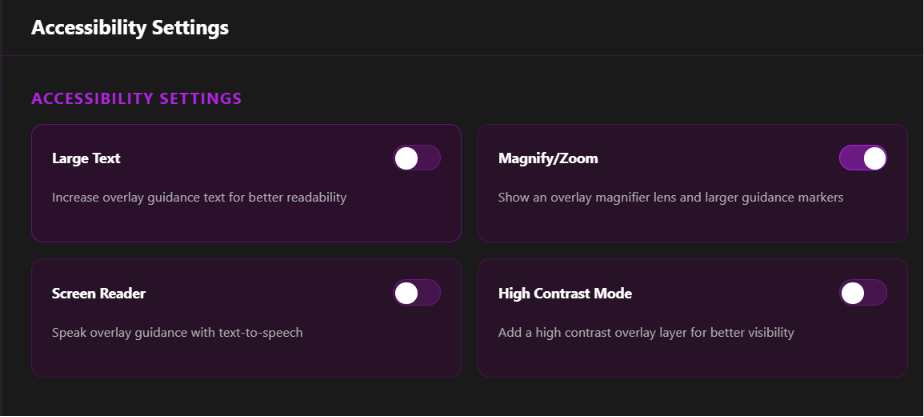
Accessibility features
Inspiration
Right now, most AI assistants live in a browser tab. You're trying to do something on your computer, you get stuck, and to get help, you have to stop, open ChatGPT, explain what's on your screen, and switch back and forth between windows. For most people, that's just annoying. But for seniors, or people with ADHD, autism, or a learning disability, that friction is often enough to make them give up entirely. We didn't want to build another assistant you have to go to. We wanted one that's already there, looking at the same screen you are.
What it does
Clarity is a transparent AI overlay that sits on top of your desktop and can actually see what you're doing. It works in two modes.
In Navigation Mode, it reads your screen and walks you through a task step by step. If you're lost in some complicated piece of software, it doesn't just describe where the button is — it draws a cursor and a highlight right on top of the real button and points you to it.
In Tutor Mode, it builds things for you instead of dumping text on you. It generates interactive widgets and diagrams directly on top of your workspace, so if you're trying to learn something, you get something visual to actually engage with instead of pages of paragraphs.
The whole thing is built around accessibility. It has voice control, text-to-speech through ElevenLabs, a screen magnifier, screen reading, and highlighting. We also added an XP and leveling system because staying motivated is half the battle, especially for people who do better with structured feedback.
How we built it
The app runs on Electron and React, with a few different AI models being assigned different tasks. Gemini handles the vision and reasoning, Groq runs Whisper for fast voice transcription, and Moondream does the close-up pointing on cropped screenshots. We paired that with Windows OCR for speed, so we get both fast text detection and accurate visual targeting.
For knowledge, we built a hybrid RAG setup: local vector search with LanceDB plus remote sources like Context7 and web search, so Clarity can pull real documentation when it needs to. User data is stored locally in JSONL and synced to MongoDB Atlas. The overlay itself is a click-through, borderless, transparent window, which is what lets us draw cursors and highlights over whatever app you're actually using.
Challenges we ran into
The hardest part was getting the screen pointing to actually be accurate. The vision model gives you coordinates on a normalized scale, and turning that back into the exact pixel on someone's real screen — across different monitor sizes and resolutions — took a lot of trial and error before it stopped missing buttons. The overlay layer fought us too. We had bugs where the background wouldn't clear when you switched tabs, where the "listening" prompt showed up twice, and where text flashed on and off. And running multiple AI models in one pipeline meant we were constantly fighting to keep it fast enough that it still felt instant.
Accomplishments that we're proud of
The thing we're most proud of is that the whole loop actually works end to end. You hold a hotkey, talk, and Clarity transcribes you, looks at your screen, figures out what you need, and physically points your cursor to it. Getting that to feel smooth was not easy. We're also proud of how much real accessibility we managed to fit into one tool — voice control, TTS, magnification, and screen reading all in the same overlay, not as separate features bolted on. And Tutor Mode, where the assistant builds live interactive widgets right onto your desktop, ended up being something we hadn't really seen done before.
What we learned
We learned a lot about how messy desktop overlays actually are — getting a transparent, click-through window to behave across processes is harder than it sounds. On the AI side, the biggest lesson was to stop trusting free text. Forcing the model into a strict JSON schema instead of parsing its output with regex made everything way more reliable, and we wished we'd done it from the start. We also learned that cutting scope is a skill by itself. There were features we wanted that we had to drop in order to ship something working by the deadline, and making those calls was most of the battle.
What's next for Clarity
We want to push the accessibility features further: better text-to-speech on selected text, proper screen reader support, and high-contrast modes. A lot of what's currently faked or hardcoded for the demo, like the leaderboard and the energy-level picker, we want to make real and driven by actual usage data from MongoDB. Longer term, we want Clarity to run on more than just Windows, and we want Tutor Mode to grow into something that actually notices what you keep getting stuck on and brings up help before you even ask.


Log in or sign up for Devpost to join the conversation.