-
-
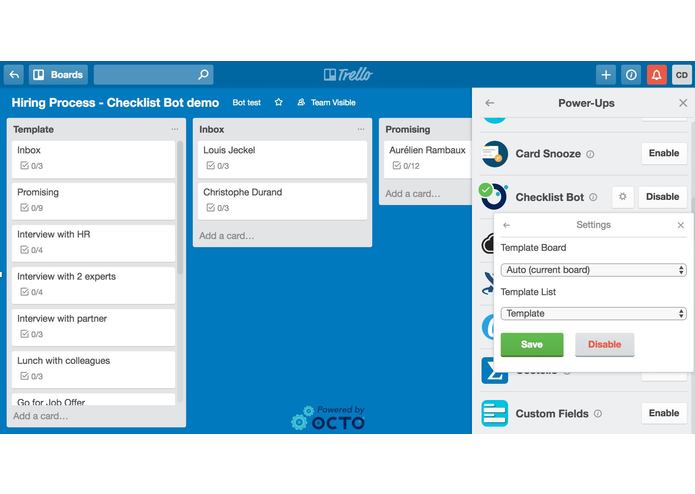
Checklist Bot setup : choose the location of the templates - in this case, the first list called "Template" stores the checklists templates
-
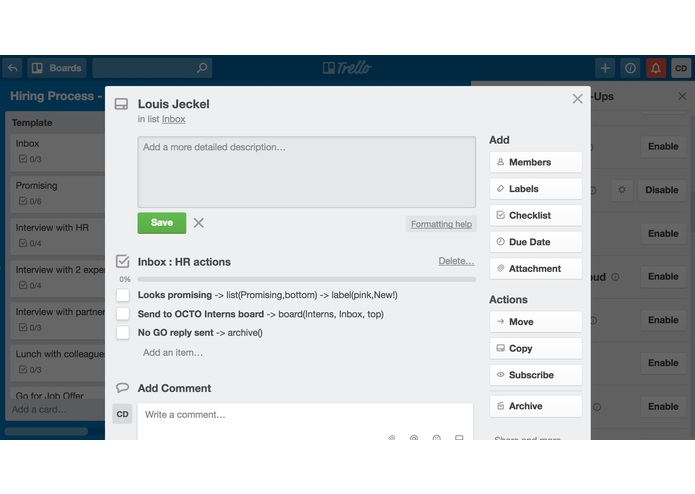
When a card is created in the Inbox list, the bot automatically adds the Inbox checklist. Actions such as move, archive card or add label
-
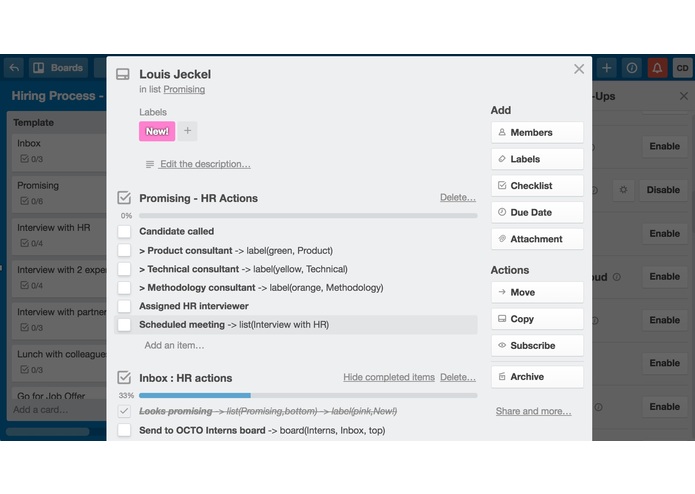
The first item has been checked. Checklist Bot moves the card tp "Promising", adds a label and adds the checklist of the "Promising" list
-
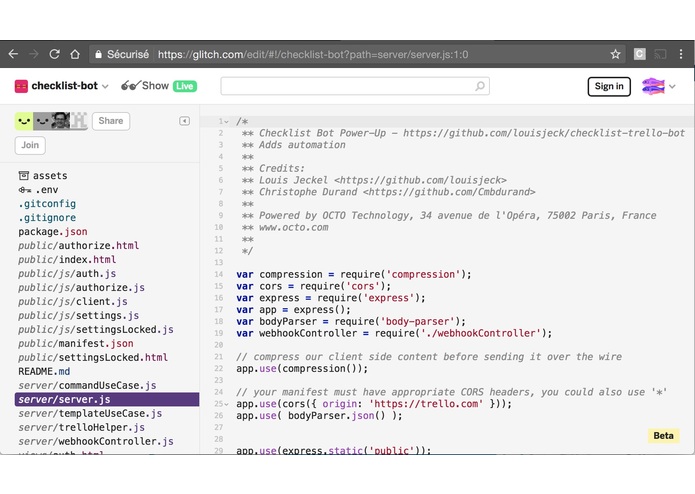
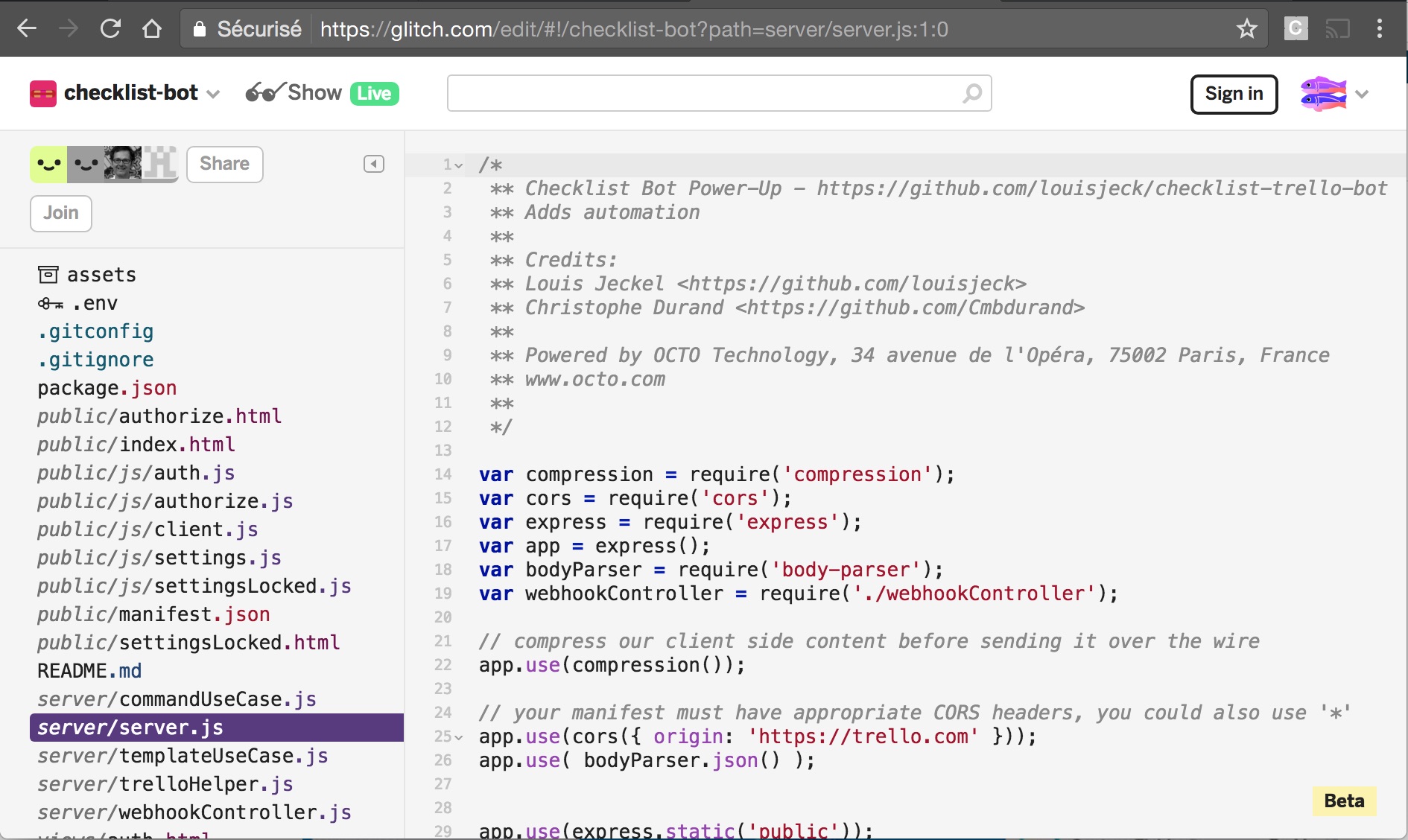
Checklist Bot is served from Glitch. The code is open source and available on Glitch and Github (see links below)
-

The team at work : Aurélien, Christophe and Louis (from left)



Inspiration
We have developed this power-up for internal use @ OCTO Technology and for our customers (factory workshops management, administrative processes) and share it with you!
If you use Trello for process management, check it out!
Features
Checklist Bot adds to a Trello board:
- Checklist templating
- assign a checklist template to each list
- automatically add the template's checklists to any card added or moved to the list
- Automated actions on check when an item is checked in a checklist such as:
- Move the card to another list in the board
- Move the card to another board
- Assign a label
- Archive the card

Screenshot 1: Checklist Bot setup : choose the location of the templates - in this case, the first list called "Template" stores the checklists templates cards. Each template card bears the name of the list it is associated with.
Why use checklist templates?
- For users:
- Checklists are added only when needed as the card moves in the process
- New checklists are added on top and clearly show the required actions
- For process designers:
- Templates can be stored in the board or grouped in a separate board
- It is a great way to setup and document your process
- Changes are available immediately
Why automate actions when an item is checked?
- For users:
- It is simpler than using the move or archive card buttons
- No need to think about what to do next
- For process designers:
- You can easily embed some process logic in the cards and avoid using Zapier integrations
- It works when items are checked via the API

Screenshot 2: When a card is created in the Inbox list, the bot automatically adds the Inbox checklist. Actions such as move, archive card or add label are available
Why call it a bot?
Automatic actions are performed by the Trello user who authorized the Checklist bot power-up. Once properly configured, the "bot" acts in the background until desactived.
How do templates work?
A checklist template is simply a card bearing the name of a list and containing one or more checklists. Card templates are usually stored in a list containing all the templates associated a board.
Once you've told Checklist Bot where to look for the template you are all set.
How do you program the bot actions?
Checklist Bot detects actions after the keyword -> in text associated to checklist items. The following actions can be detected and launched:
| Action | Description | Syntax |
|---|---|---|
| list | Move the card to a list | -> list(listName, position) |
| listName: name of the target list | ||
| position (optional): location in the list the card will move. Possible values are **top* and bottom (default)* | ||
| board | Move the card to a list in another board | -> board(boardName, listName, position) |
| boardName: name of the target board | ||
| listName: name of the target list | ||
| position (optional): location in the list the card will move. Possible values are **top* and bottom (default)* | ||
| archive | Archive a card. This action is reversible | -> archive() |
| label | Add a label to the card. This action is reversible | -> label(color, labelName) |
| color: one of Trello standard colors (blue, green, orange, purple, red, yellow, sky, lime, pink, black) | ||
| labelName: a text to display in the label |
Check out our demo board!
If you want to try it, please make a copy of Hiring Process board.
Then proceed with the following steps:
- Install the Checklist Bot power-up
- Add Checklist Bot to the board
- Authorize the power-up
- Configure the template locations
1. Install the Checklist Bot power-up
Checklist Bot will soon be available directly from Trello. Meanwhile you can add the power-up for your team using the administration site
Select the team you want to assign the bot to and enter the following values in the Power-Up creation form:
| Entry | Value |
|---|---|
| Power-Up Name | Checklist Bot |
| Manifest URL | https://checklist-bot.glitch.me/manifest.json |
A custom install is also possible for administrators: you are free to remix the Glitch project and use your own manifest or serve the power-up from your own NodeJs server.
See Trello documentation on Power-ups and their administration
2. Add Checklist Bot to the board
Just select it in Trello power-up menu
3. Authorize the power-up
Sign-on with the Trello account you want to start the bot with and press the "tool" icon associated to the Checklist power-up. Authorize the power-up. Watch out, the popup screen might be blocked by your browser and you need to authorize popups originating from www.trello.com.
4. Configure the location of the checklist templates
Select "Edit Power-Up settings" and choose the location of the template board and the template list.
By default, the template board is located in the current board. You can also select one of the boards visible to the bot user as the source of the templates.
By default, the bot looks for the template list whose name is the same as the board name. If you select another list from the template board in the drop down menu, Checklist Bot will look there for cards bearing the name of the target lists.
How did we build it?
Using standard Javascript and guidelines provided by Trello for the client.
The back-end is coded in NodeJs with Trello webhooks and hosted on Glitch. What happens on this side should be trusted. That's why we have chosen to make the code public and open-source.
Security topics
We have designed the Checklist Bot Power-Up with security in mind. The bot can be started by any member of the board. It then acts on behalf of this user and inherits her°his access rights. Any unauthorized access to a board or an action will simply be discarded.
When the user grants the authorization, the token is stored in the private settings of the power-up and is not available to other users on the client side.
An open-source project
Checklist Bot Power-Up is an internship project of Louis Jeckel. The code is open-source and available on Github and Glitch
We have chosen to open-source it for many reasons:
- use it as a source of education for other students and pros
- give visibility to Louis (who's looking for an internship next summer in Southern California) and to OCTO Technology
- help detect and solve potential security leaks
We welcome future contributors. Please contact us or send us pull requests ;-)
Challenges we ran into
Most of the challenges were related to security and properly managing the power-up settings and the associated Trello webhooks.
Accomplishments that we are proud of
- Checklist Bot is simple to tune, fast and works well ;-)
- It is live @OCTO and in the factory of one of our customers to organize the workshops. All the templates are stored in a single board which describes and programs (at the same time) the factory standard processes.
- Releasing the code in open-source is fun!
- Participating to Codegeist is fun and we are proud to present this product!
What we've learned
- We've discovered Glitch - a great platform for testing NodeJs code - and maybe for hosting this power-up (time will tell)
- Padawan Louis learned a lot about writing clean code. He keeps on improving tests and code quality with the help of his software craftsmanship jedi Aurélien.
What's next for Checklist Bot?
- Collect feedback from new users.
- Add new skills to the bot with a set of new actions: mail, http requests, create card, chat (it's a bot after all!) but we need to check first that it would not turn it into a bad bot.
- Write a post on OCTO blog to describe how we use Checklist Bot in real life
- Attract new contributors
Credits
Powered by OCTO Technology, 2017 www.octo.com
Design & code by Louis Jeckel, Christophe Durand and Aurélien Rambaux
The concept of checklist templates was inspired by Iain Brown' s Little Blue Monkey Pimp Your Trello Cards implemented on Google sheet.
Thanks Iain for making it available and open source back in 2013!


Log in or sign up for Devpost to join the conversation.