What it does
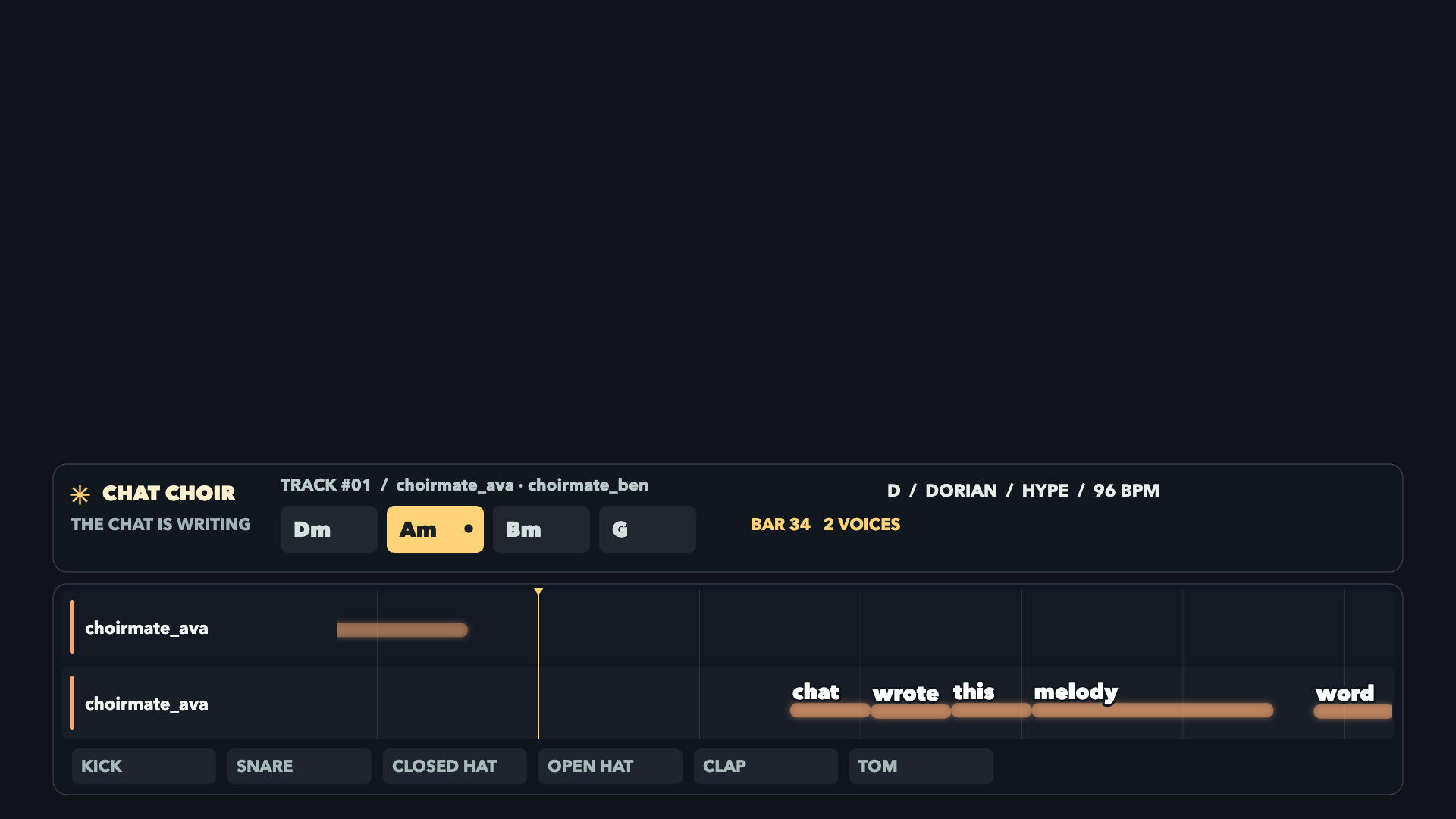
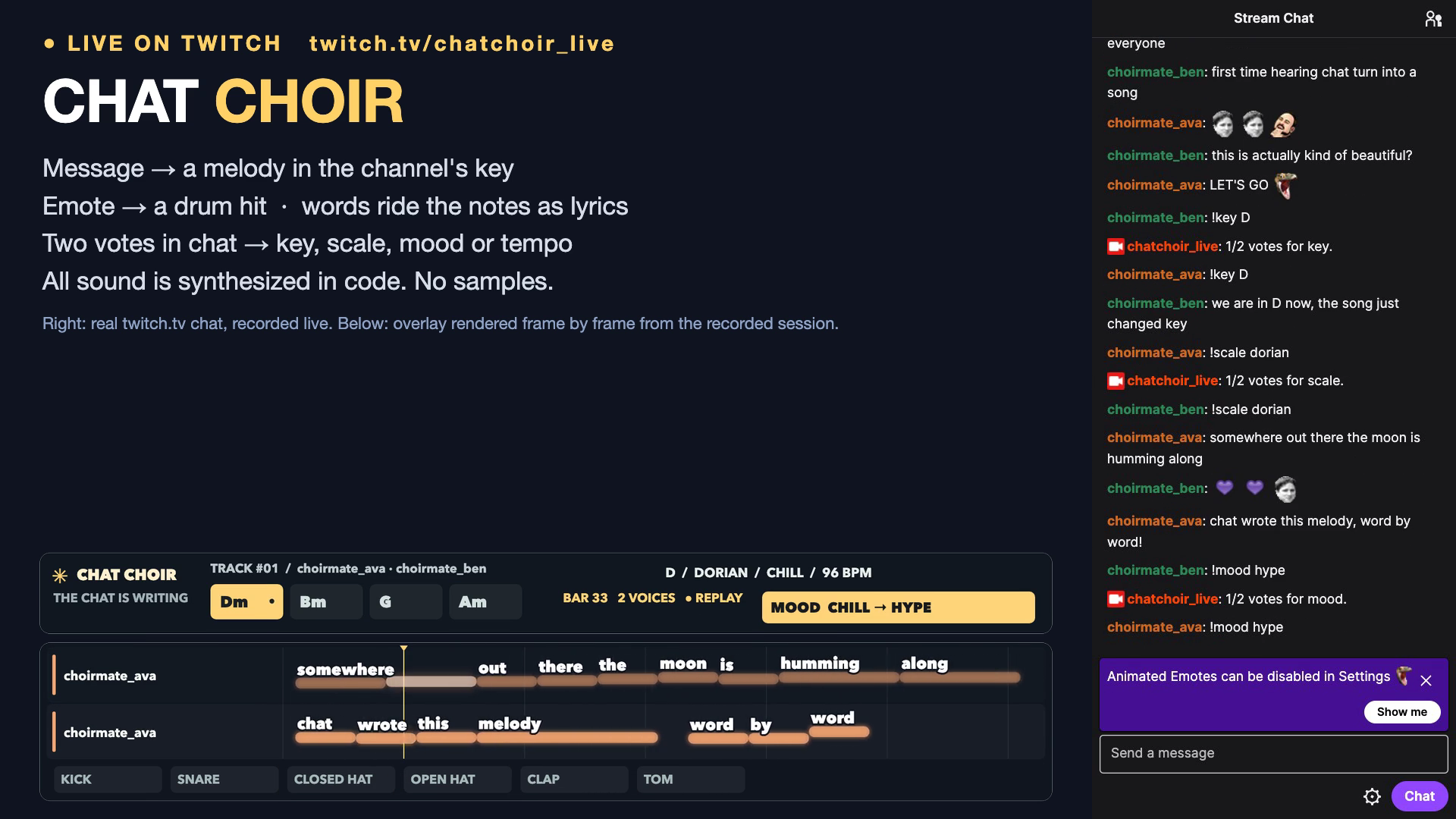
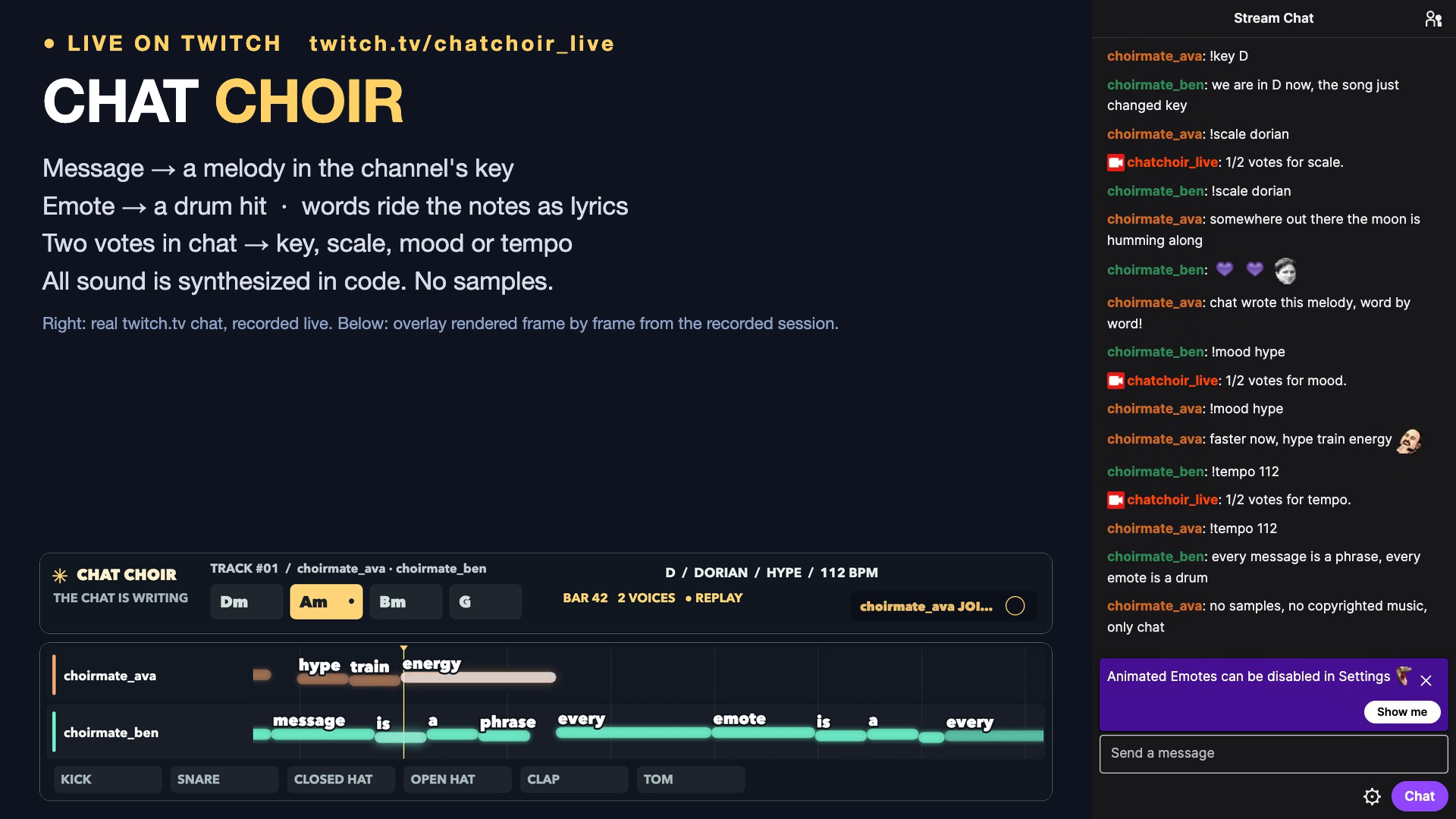
Chat Choir turns a Twitch channel's chat into a band. Every chat message becomes a short melody that is locked to the channel's current key, scale and chord progression, so any text sounds musical. Emote names become drum hits. The words of each message ride on their notes as lyrics in a browser-source overlay, with one lane per chatter. Phrases loop, layer and fade, so the amount and rhythm of chat decides how full the song gets.
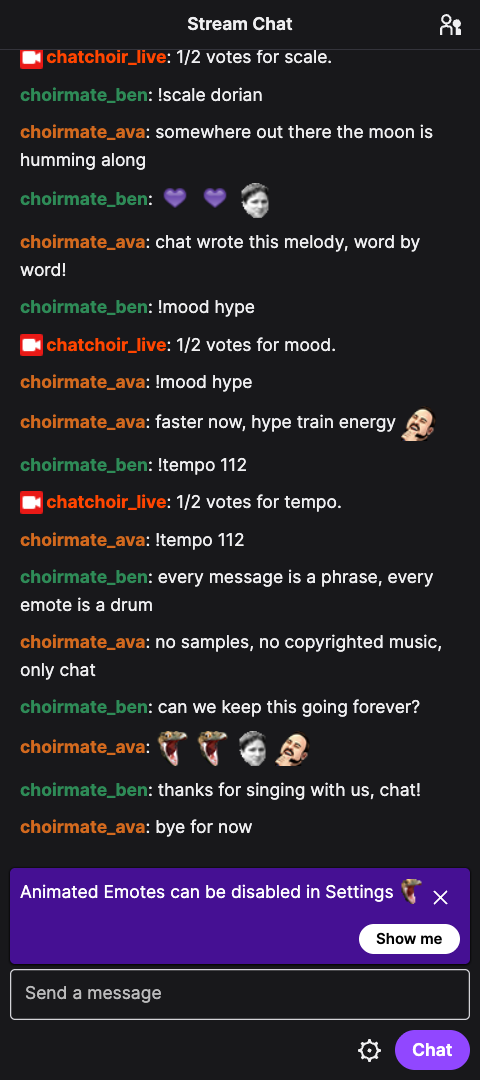
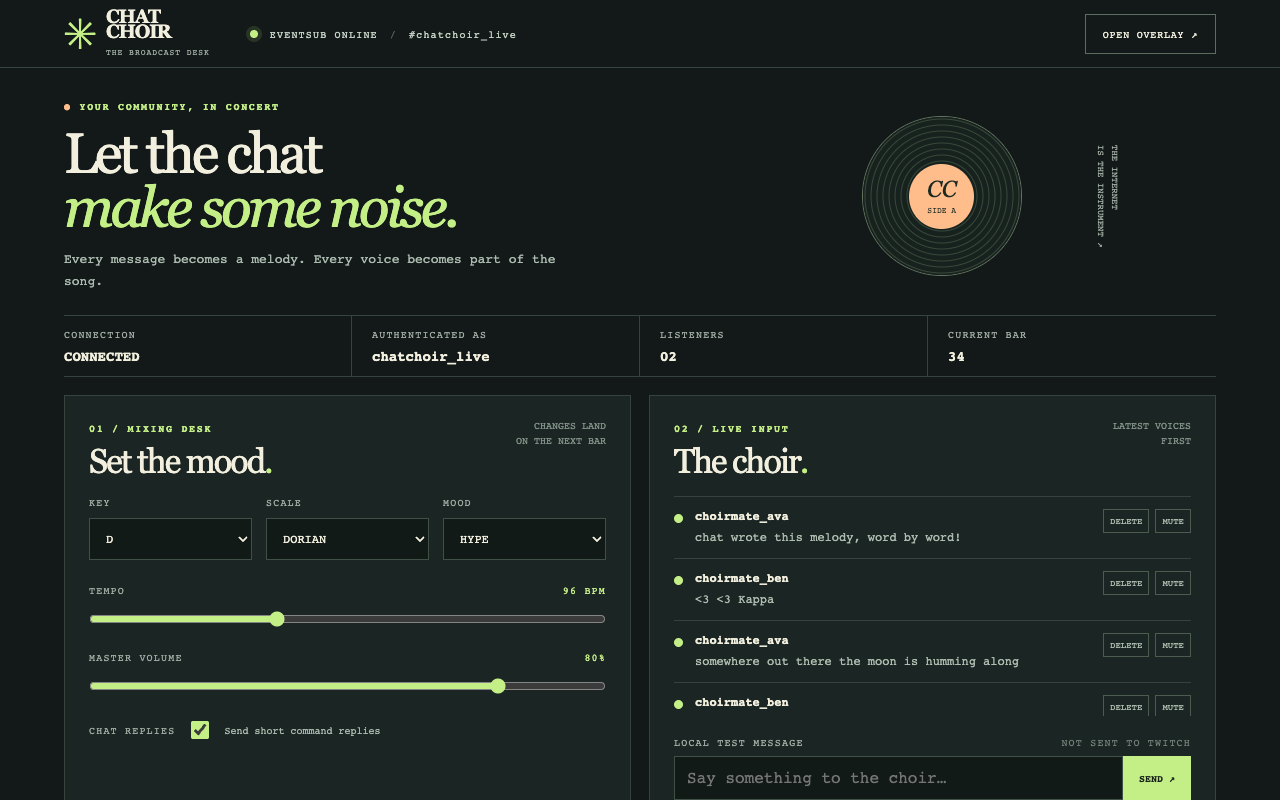
Chat also conducts. The broadcaster and moderators can change the key, scale, mood and tempo with commands such as !key D, !scale dorian, !mood hype and !tempo 112, and everyone else can vote for the same change. A change applies on the next bar and the overlay announces it. The broadcaster gets a local dashboard with controls, a live feed with delete and mute buttons, and exports of the song chat wrote (a Standard MIDI file and a lyric sheet that credits each chatter).
Every sound is synthesized by our own code from chat text, with no samples and no third-party recordings. For streamers that makes it a source of background music that does not depend on licensed tracks, which matters because copyrighted music can get VODs muted. This is a prototype and not a legal guarantee.
How it connects to Twitch
The app logs in with the OAuth device code flow for a public client, so there is no client secret. It listens to chat through EventSub over WebSocket (channel.chat.message, plus subscriptions for message deletes, chat clears, chat notifications, follows and hype trains) and sends short command replies through Helix Send Chat Message. When a moderator deletes a message on Twitch, that chatter's phrase fades out of the song. The overlay is an ordinary browser source for OBS.
What is real in the demo
The demo video shows a real Twitch channel, chatchoir_live. Two test accounts that I created (choirmate_ava and choirmate_ben) sent 16 chat messages through the Twitch API. EventSub delivered them to the app, four votes (two votes each) changed the key, scale, mood and tempo, and the bot's vote replies appear in the real Twitch chat. The right side of the video is the real twitch.tv chat window recorded during the run. The overlay in the video is rendered frame by frame from the recorded session log with the repository's own capture command, and the soundtrack is the repository's offline renderer playing that same log. The session log, MIDI file and lyric sheet are in the demo folder.
How we used Codex
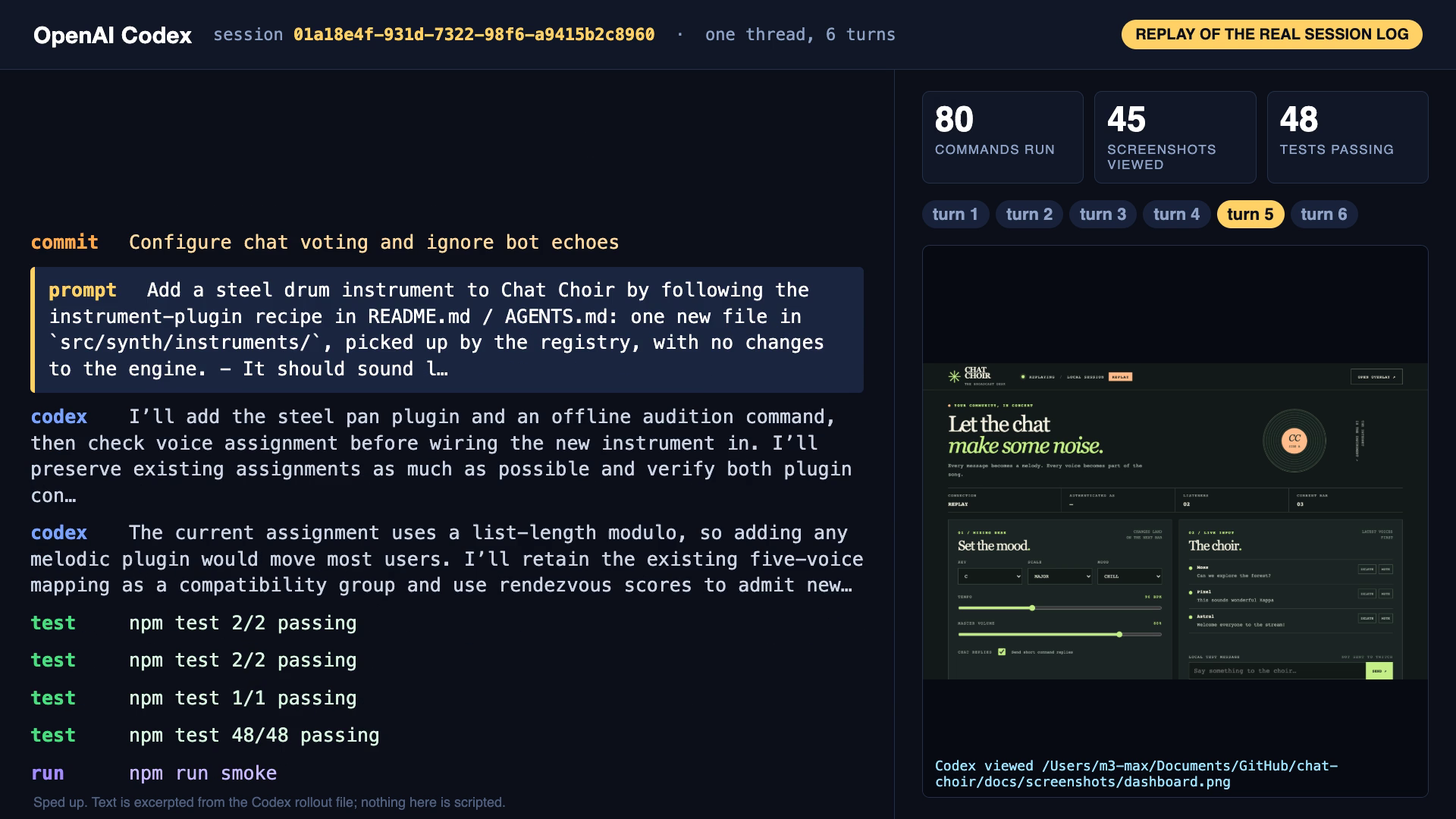
Everything under src/, public/, scripts/ and docs/ was written by OpenAI Codex in one thread (session ID above). I started it with a written spec through codex exec and continued the same session with codex exec resume for six follow-up prompts.
- The first prompt asked for the offline core: music theory helpers, the text-to-phrase mapping, a deterministic arrangement engine, chat commands, a shared synth where instruments are plugins, a MIDI exporter and a WAV renderer, with tests beside every module.
- The second prompt connected it to Twitch: device code login, an EventSub client that handles welcome, keepalive, reconnect and revocation messages, Helix replies, a local server with a session log, a replay mode, the overlay and the dashboard. Codex tested the Twitch parts against fake local servers it wrote itself.
- The third prompt had Codex run the overlay in headless Chromium, take screenshots, open them with its image viewer and fix what it saw. It also added a manual clock so the overlay can be rendered frame by frame, which is how the demo video was made.
- After a real Twitch run I gave Codex the recorded log and it fixed truncated names, similar colours, thin lanes and missing setting-change banners by looking at frames rendered from that log.
- Smaller prompts added configurable vote thresholds and ignored the bot's own replies, then added a steel pan instrument to test the plugin recipe, and finished with a secrets and path audit and a clean-clone install and test run.
By the end of the session Codex had made 17 commits, run 137 shell commands, viewed 85 screenshots and left 56 passing tests, including a conformance test that checks every instrument plugin. The README includes a recipe that lets a streamer ask Codex for a new instrument. The video's Codex section is a sped-up replay of the real session log, with text excerpted from it. The demo video, narration and the scripts that assemble them were made outside Codex.
Challenges
- Keeping the music deterministic so a recorded chat session renders to the same audio and the same frames every time, and so the browser and the offline renderer share one synth.
- Making arbitrary chat text sound acceptable. Notes follow word and syllable rhythm, move mostly by step, land on chord tones on strong beats, and resolve or lift depending on the final punctuation.
- Twitch details such as EventSub reconnects, token refresh for a public client and rate limits on chat replies.
What we are proud of
A moderation action, a vote and a new chat message all change the song within a bar, and the whole thing runs locally with Node and no paid services. Adding an instrument takes one file and the conformance test picks it up.
Limitations
The demo used two test accounts, not a live crowd. Audio levels, clipping and non-silence were checked programmatically in headless Chromium, and I have not listened to it through OBS. Chat messages and follows, hype trains and message deletes were handled in tests and replay, but only chat messages and vote replies were exercised on live Twitch. The dashboard has no authentication beyond listening on localhost.
What is next
Per-channel presets for key and mood, more instrument plugins, a section that reacts to hype trains and raids, and a short clip export of the best minute of each stream.
How to run it (for judges)
git clone https://github.com/rishabhcli/chat-choir
cd chat-choir
npm install
npm test
npm run replay -- demo/live-session.jsonl   # no Twitch account needed; open http://127.0.0.1:3000/ and /overlay.html?autostart=1
For live Twitch, register a Public client app at dev.twitch.tv, copy .env.example to .env, set TWITCH_CLIENT_ID, run npm run login, then npm start. The README has the OBS browser source settings.
Codex session ID: 01a18e4f-931d-7322-98f6-a9415b2c8960
Built With
- eventsub
- javascript
- node.js
- openai-codex
- twitch
- web-audio-api
- websocket
