-
-
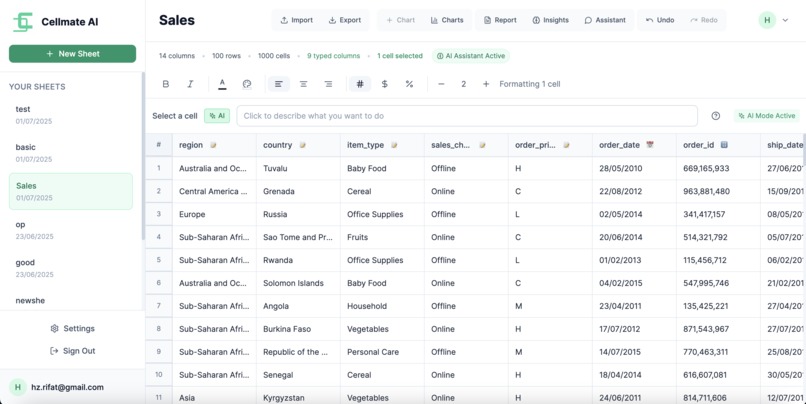
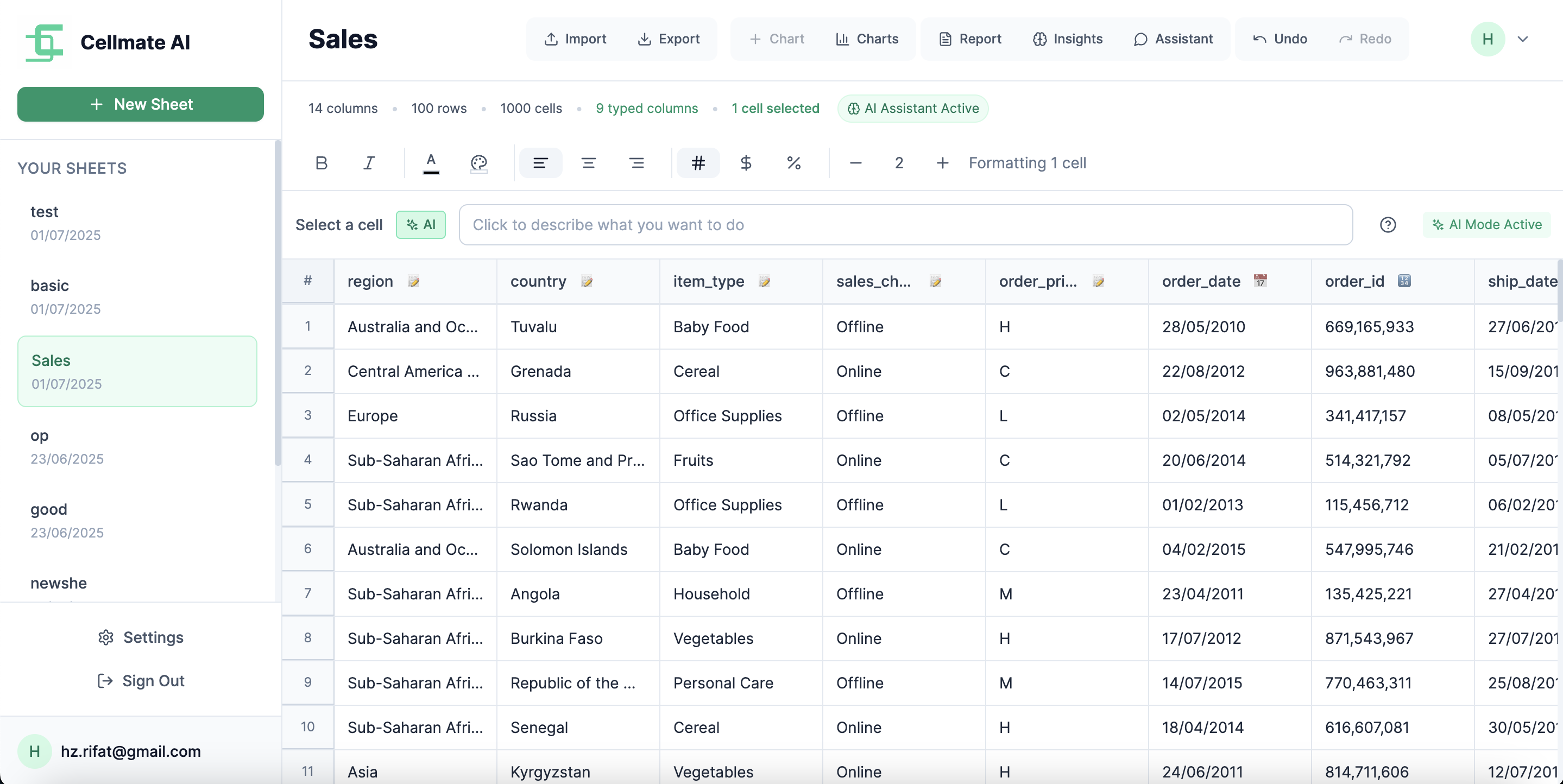
Application Sheets View
-
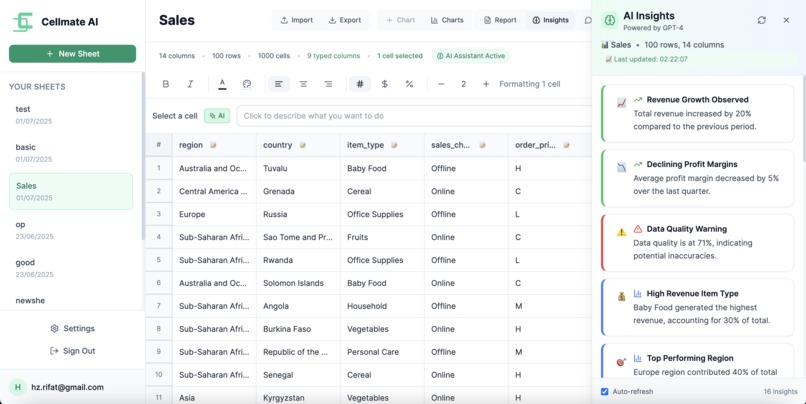
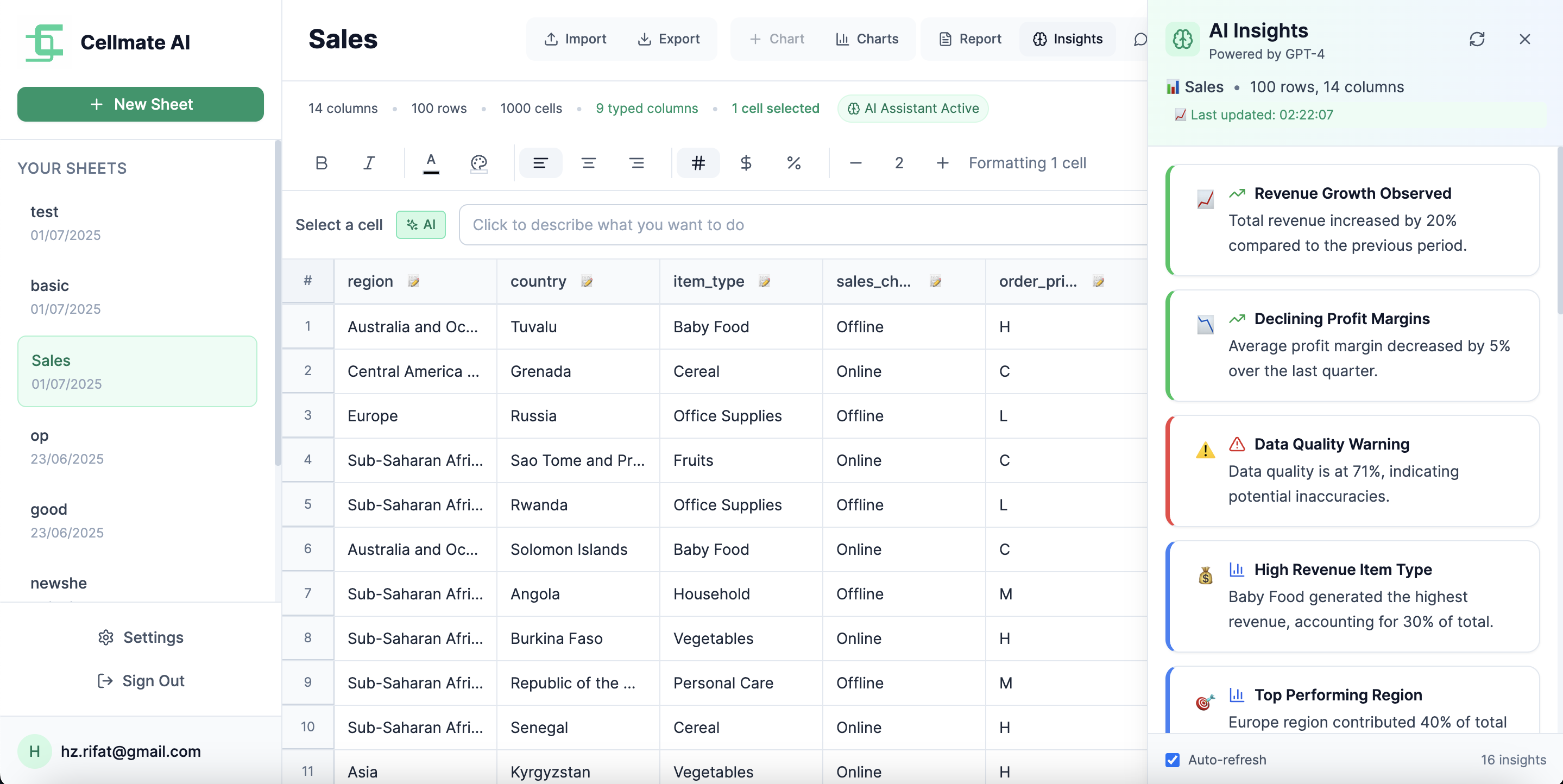
Data Insights View
-
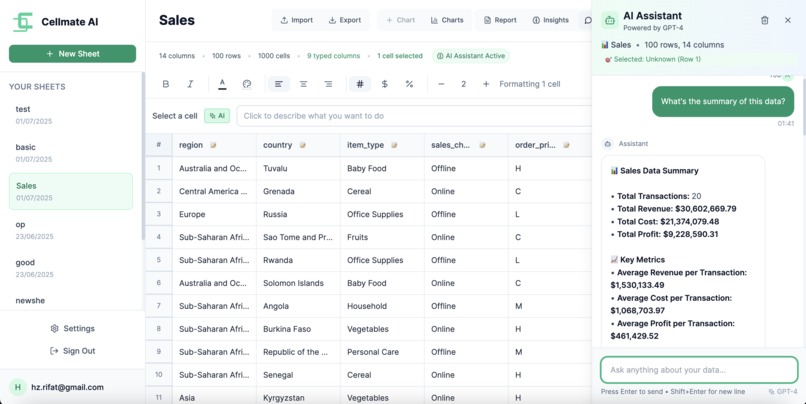
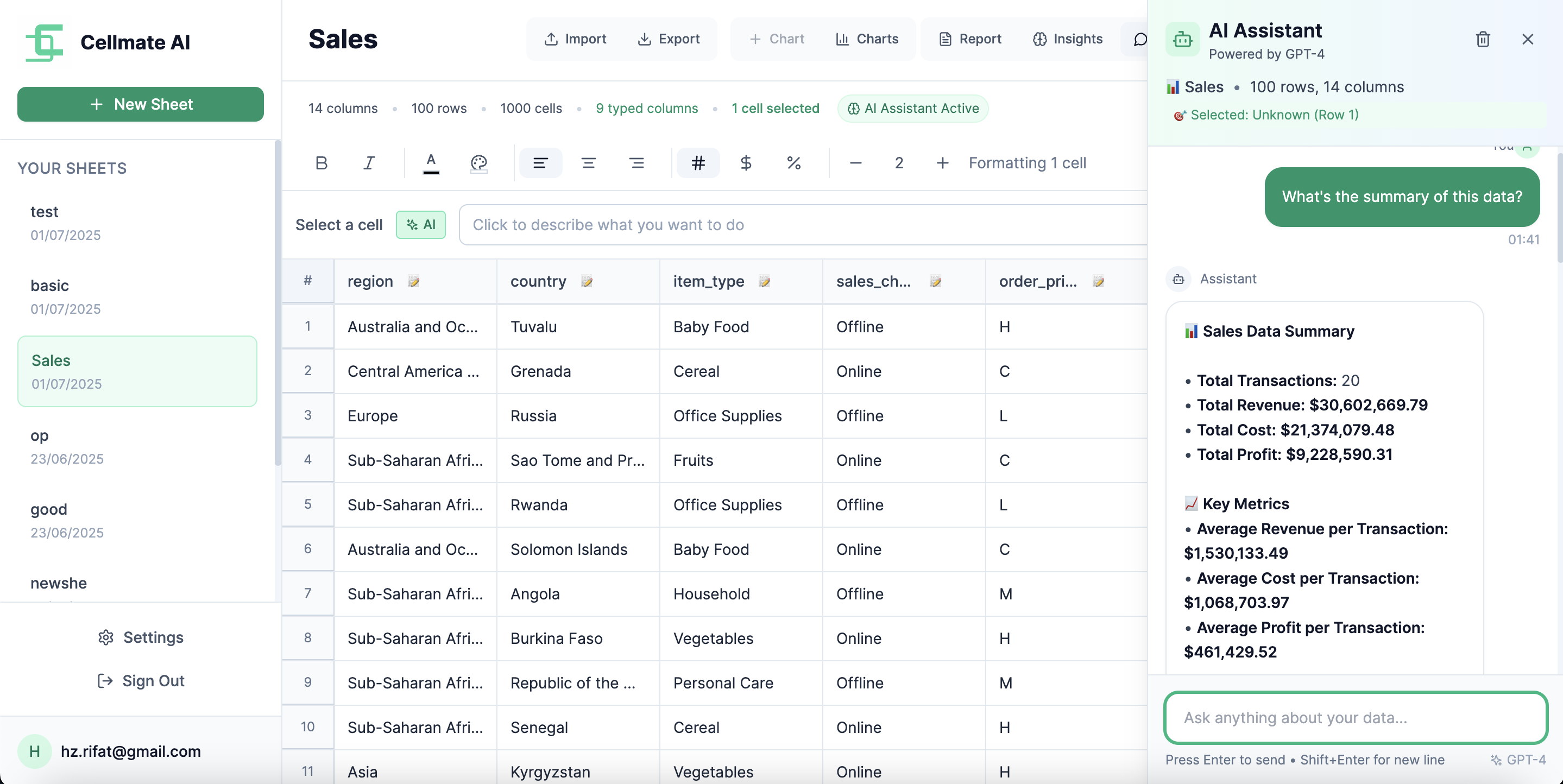
Chat with Data View
-
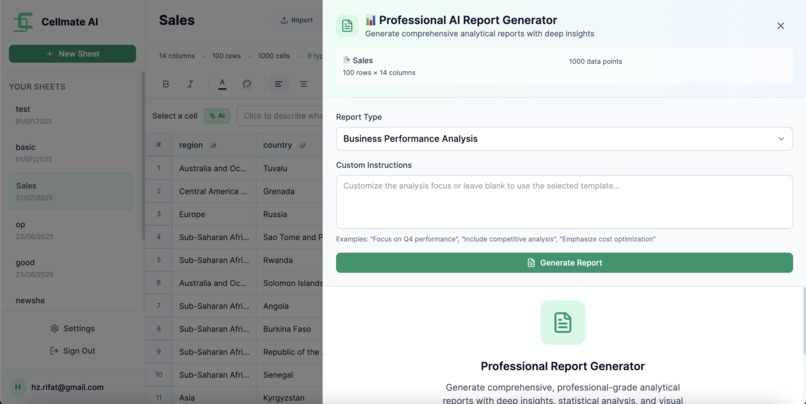
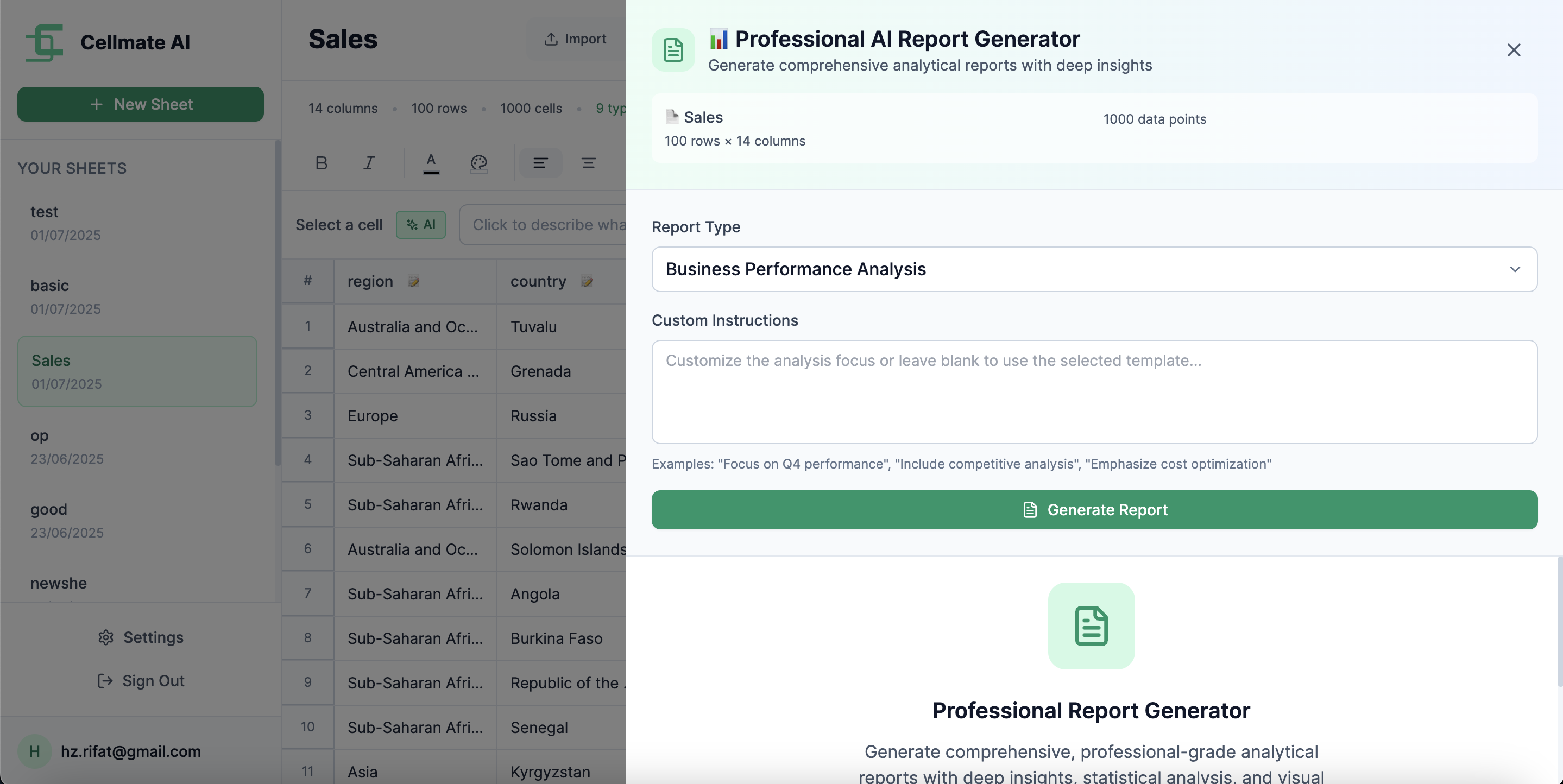
Generate Report View
Inspiration
I’ve always admired tools that use AI not just for hype but to make the experience smoother and more practical. Cursor, the VS Code fork, really stood out to me for that. It kept everything familiar but layered AI in a way that actually helped.
I manage a side project with a live customer base, and I’ve been using Google Sheets to keep track of things. But after a while, doing the same stuff over and over — writing formulas, cleaning up tables, calculating revenue — started to get annoying. I realized there had to be a better way.
That’s where the idea for Cellmate AI came from. I wanted to build a spreadsheet that I could just talk to in plain language. One that could calculate things, organize tables, give me insights, and generate reports without needing to dig around or remember formula syntax. Basically, I wanted a spreadsheet that works like an assistant, and that’s what I set out to build.
What it does
Cellmate AI is a smart spreadsheet that understands human language and turns it into real spreadsheet actions.
Here’s what it can do:
- Calculate revenue or other formulas and place the result into the correct column just by asking.
- Perform sheet-level changes like adding or deleting rows and columns through simple commands.
- Clean up data or manipulate cells without needing to write a single formula.
- Provide deep insights based on the data, like how many downvotes there are or which product performed worst.
- Let me chat with the spreadsheet to ask questions like “Which product had the highest revenue?” or “How many users signed up last week?”
- Generate full summary reports based on the sheet content with a single prompt.
All of this happens inside a clean, fast, and simple spreadsheet interface. There’s no need to switch tools, no clutter, and no formula knowledge required.
How I built it
I built this solo and iterated almost every feature using Bolt prompts. Except for a few small bug fixes and final touches, Bolt helped me shape the entire product.
Here’s the step-by-step process I followed:
- Set up the spreadsheet grid system and structure from scratch using React.
- Built a custom formula engine with relative reference support and autofill logic.
- Integrated Supabase for authentication and persistent storage.
- Connected OpenAI to handle natural language interpretation and generate formulas, insights, or actions.
- Mapped user intent to actual spreadsheet functions like “delete this row” or “sum this column.”
- Added a chat interface so I could talk directly to the spreadsheet and get answers.
- Focused on a clean and minimal UI to make the AI features feel natural and helpful.
The goal was to make something useful, fast, and actually enjoyable to use.
Challenges I ran into
- Building the formula engine and getting relative references right took time.
- Making the AI understand context and return accurate results based on the data in the sheet.
- Merging structural sheet edits with data-level insights in a smooth way.
- Keeping everything responsive and reliable even while AI logic ran in the background.
- Syncing user data correctly with Supabase and avoiding edge case issues.
Accomplishments that I'm proud of
- I built the entire spreadsheet engine with AI features in under a week, and it works well.
- Natural language can control both data and sheet structure, which feels powerful.
- I made a spreadsheet that feels more like an assistant than just a table.
- The chat feature works and gives real answers about the data.
- Everything persists through Supabase, so it’s not just a prototype — it’s usable.
What I learned
- Keeping things simple makes the tool more valuable and fun to use.
- AI works best when it feels like a part of the workflow, not an extra feature.
- People want to ask real questions about their data instead of fighting formulas.
- Building something around a real use case helped me avoid feature bloat.
- Bolt was extremely helpful in shipping fast and staying focused on core features.
What's next for Cellmate AI
- Add support for importing and exporting Excel or CSV files.
- AI-powered chart generation from selected cells or columns.
- Smart summaries and auto-generated dashboards.
- Better insight tools for deeper data analysis.
- Team sharing and real-time collaboration features.
[NOTE] this credentials can be used for ease of access: Email: [email protected] Password: password

Log in or sign up for Devpost to join the conversation.