-
Web Scraper
Cate Blanchett Event Scraper
This project scrapes various websites to find events (talks, screenings, Q&As, etc.) in London and beyond that involve Cate Blanchett. If new relevant events are found, it sends an email notification to a list of recipients.
Features
- Multi-Website Scraping: Configured to scrape event listings from several websites (e.g., Barbican, BFI, National Theatre, and more).
- Dynamic Content Handling: Uses Selenium for websites that require JavaScript rendering or user interactions (like clicking through menus) to load event data.
- Static Content Handling: Uses
requestsandBeautifulSoupfor simpler, static HTML pages. - NLP for Relevance: Employs spaCy for Natural Language Processing to analyze event titles and descriptions, aiming to determine if Cate Blanchett is actively involved (e.g., hosting, presenting, participating) rather than just mentioned.
- Email Notifications: Uses
yagmailto send email alerts for newly found relevant events. - Duplicate Prevention: Keeps track of already notified events in
notified_event_urls.jsonto avoid sending redundant emails. - Persistent Event Log: Saves all currently relevant events found during a run to
cate_blanchett_events.json. - Configurable: Target websites, CSS selectors, and email recipients can be configured.
Project Structure
web_scraper/
├── main.py                # Main application script
├── email_notification.py  # Handles email sending
├── scraper.py             # Handles event scraping and NLP
├── data_storage.py        # Handles data storage
├── notified_event_urls.json      # Stores URLs of events already notified (created/updated by the script)
├── cate_blanchett_events.json    # Stores all relevant events found in the last run (created/updated by the script)
├── recipients.json               # (User-created) List of recipient email addresses in JSON format
│   OR
├── recipients.txt                # (User-created) List of recipient email addresses, one per line
├── web_scraper_old.py            # An older version of the scraper
└── test.py                       # A test script or earlier simplified scraper
-
web_scraper.py: The core script that handles fetching, parsing, NLP analysis, and email notifications. -
notified_event_urls.json: Tracks events for which notifications have been sent to prevent duplicates. -
cate_blanchett_events.json: A log of all events deemed relevant in the most recent scan. -
recipients.json/recipients.txt: You need to create one of these files to list the email addresses for notifications.
Setup
Prerequisites:
- Python 3.7+
-
pip(Python package installer) - A web browser (e.g., Chrome) and its corresponding WebDriver if not already managed by
selenium. Selenium 4+ often handles this automatically.
Clone the Repository (Optional): If this project were in a Git repository:
git clone <repository-url>
cd web_scraper
Install Dependencies: It's recommended to use a virtual environment:
python -m venv venv
source venv/bin/activate  # On Windows: venv\Scripts\activate
Install the required Python packages:
pip install requests beautifulsoup4 spacy selenium yagmailDownload spaCy NLP Model:
python -m spacy download en_core_web_smConfigure Email Sender:
- The script uses
yagmail. You'll need a Gmail account (or another provider supported byyagmail). - It's highly recommended to use an App Password for Gmail if you have 2-Step Verification enabled. See Google's documentation on "Sign in with App Passwords".
-
yagmailwill prompt for your email password the first time it's run and can store it in your system's keyring for future use. Alternatively, you can set environment variablesYAGMAIL_USERandYAGMAIL_PASSWORD.
- The script uses
Create Recipient List File: Create a file named
recipients.jsonin the same directory asweb_scraper.pywith a list of email addresses:[ "recipient1@example.com", "recipient2@example.com" ]Alternatively, create
recipients.txtwith one email per line:recipient1@example.com recipient2@example.comThe script will look for
recipients.jsonby default (as perrecipient_file_path = "recipients.json"inweb_scraper.py).
Usage
Run the main script from the project's root directory:
python web_scraper.py
Output:
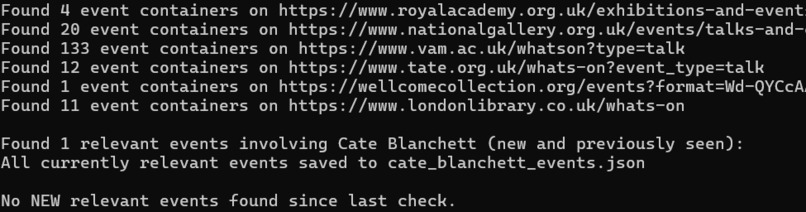
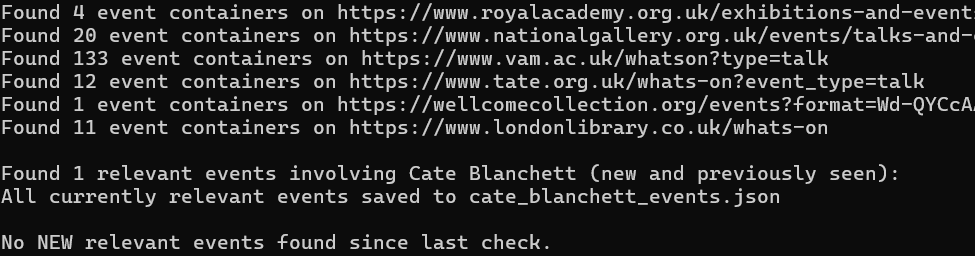
- Console: The script will print logs to the console, indicating which URLs are being scraped, how many event containers are found, any errors encountered, and a summary of relevant and new events.
-
cate_blanchett_events.json: This file will be created/updated with details of all events found in the current run that are deemed to involve Cate Blanchett. -
notified_event_urls.json: This file will be created/updated with the URLs of events for which notifications have been sent. - Email: If new, relevant events are found that haven't been notified before, an email will be sent to the recipients listed in your
recipients.jsonorrecipients.txtfile.
Configuration
Most configurations are done directly within web_scraper.py:
Target Websites & Selectors: The
start_urls_with_selectorslist inmain()defines the websites to scrape. Each entry is a tuple containing:- The URL of the event listing page.
- CSS selector for the main container of each event.
- CSS selector for the event title within the container.
- CSS selector for the event description within the container.
- CSS selector for the link to the event's detail page.
- The base URL (if links are relative). You can add or modify these entries to change or expand the scraping targets. This requires knowledge of HTML and CSS selectors.
NLP Logic: The
is_cate_blanchett_involvedfunction contains the NLP rules (action verbs, reporting verbs, specific phrases, event nouns) used to determine relevance. This can be fine-tuned for better accuracy.Email Settings:
-
sender_email: Change the sender's email address inmain(). -
recipient_file_path: Change the path to your recipients file inmain().
-
File Paths:
-
NOTIFIED_EVENTS_FILE: Defines the name of the JSON file for tracking notified events.
-
How It Works
- Initialization: Loads the spaCy NLP model and the list of previously notified event URLs.
- Scraping Loop: Iterates through
start_urls_with_selectors.- For each URL, it fetches the HTML content.
- If the site is known to require dynamic loading (e.g., BFI, National Theatre), it uses
seleniumto control a headless browser, perform necessary clicks, and wait for content to load. - Otherwise, it uses the
requestslibrary for a direct HTTP GET.
- If the site is known to require dynamic loading (e.g., BFI, National Theatre), it uses
-
BeautifulSoupparses the HTML. - It finds all event containers based on the provided CSS selector.
- For each event, it extracts the title, description, and URL.
- For each URL, it fetches the HTML content.
- NLP Analysis: For each extracted event, the
is_cate_blanchett_involvedfunction processes the title and description with spaCy to check for active involvement by Cate Blanchett. - Filtering New Events: Compares the URLs of relevant events found against the
previously_notified_urls. - Reporting & Saving:
- Saves all currently relevant events (new and old) to
cate_blanchett_events.json. - If new relevant events are found:
- An email is composed with details of these new events.
-
yagmailsends the email to the configured recipients. - The URLs of the newly notified events are added to
previously_notified_urlsand saved back tonotified_event_urls.json.
- Saves all currently relevant events (new and old) to
Troubleshooting
- SpaCy Model Not Found: If you see an error like "Can't find model 'en_core_web_sm'", ensure you've run
python -m spacy download en_core_web_sm. - Selenium WebDriver Errors:
- Ensure you have Google Chrome (or the browser you configure Selenium for) installed.
- Selenium 4+ attempts to manage WebDriver automatically. If you encounter issues (e.g., "WebDriverException: 'chromedriver' executable needs to be in PATH"), you might need to manually download the correct ChromeDriver version for your Chrome browser and place it in your system's PATH, or specify its location in the Selenium options.
- Email Sending Issues:
- Double-check your
sender_emailand ensureyagmailis correctly set up with your credentials (preferably an App Password for Gmail). - Check for typos in
recipients.jsonorrecipients.txt.
- Double-check your
- Incorrect Scraping Results: If events are missed or data is incorrect, the CSS selectors in
start_urls_with_selectorsfor the problematic website likely need to be updated. Websites frequently change their layout. Use browser developer tools to inspect the HTML structure and find the correct selectors.

Log in or sign up for Devpost to join the conversation.