-
-
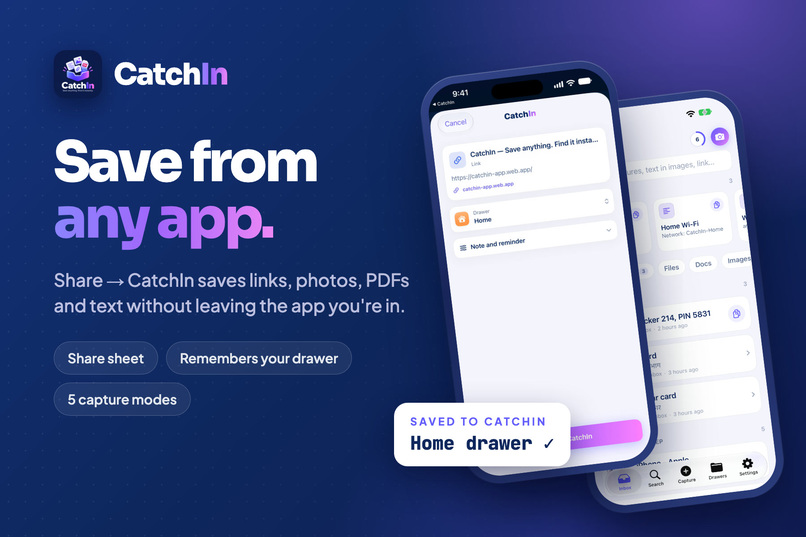
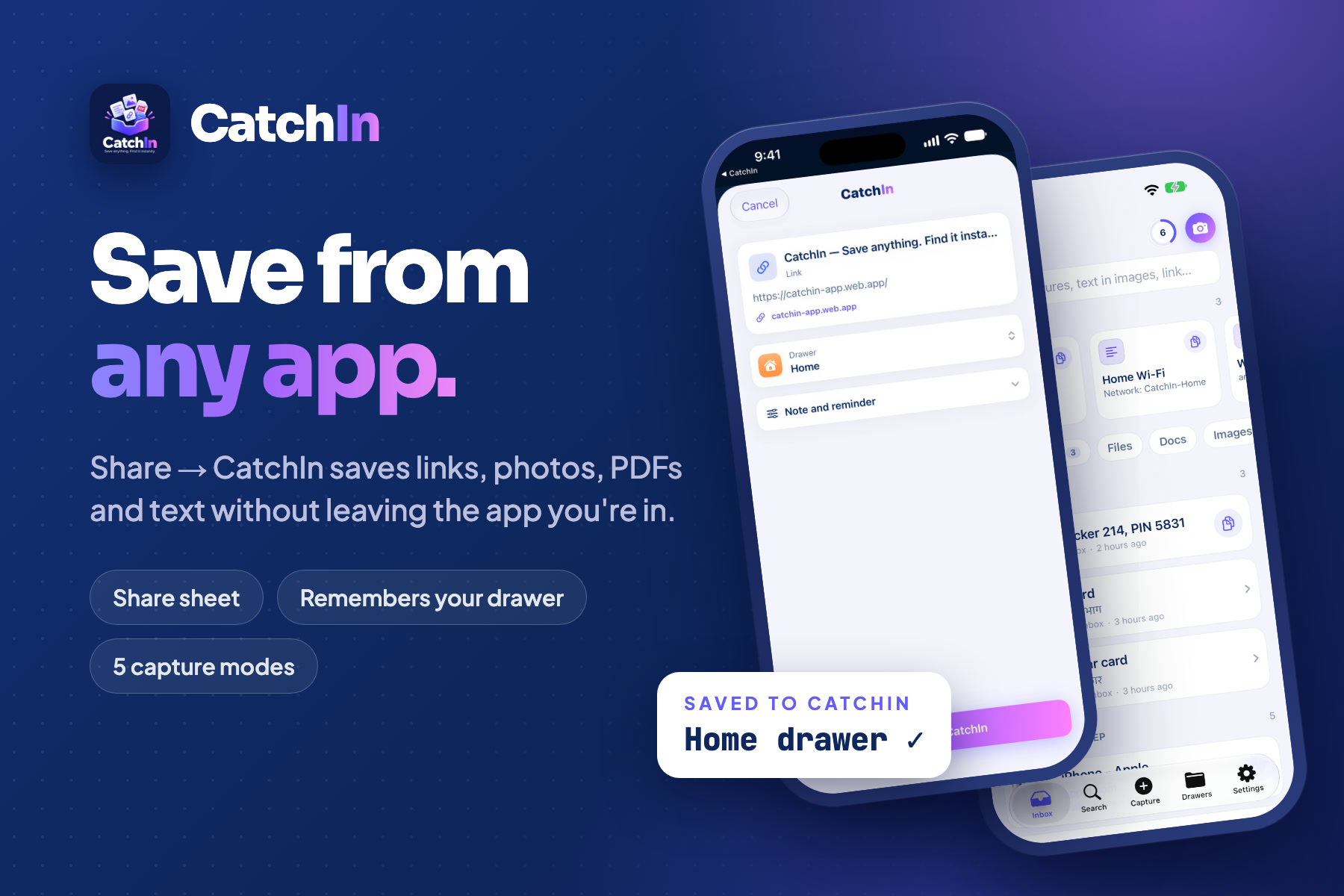
Save from any app: Share → CatchIn saves links, photos, PDFs and text on iPhone without leaving the app you're in.
-
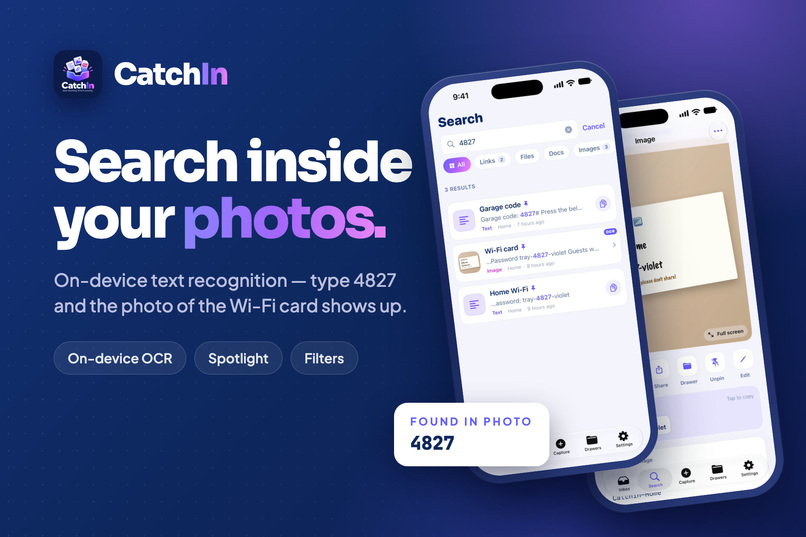
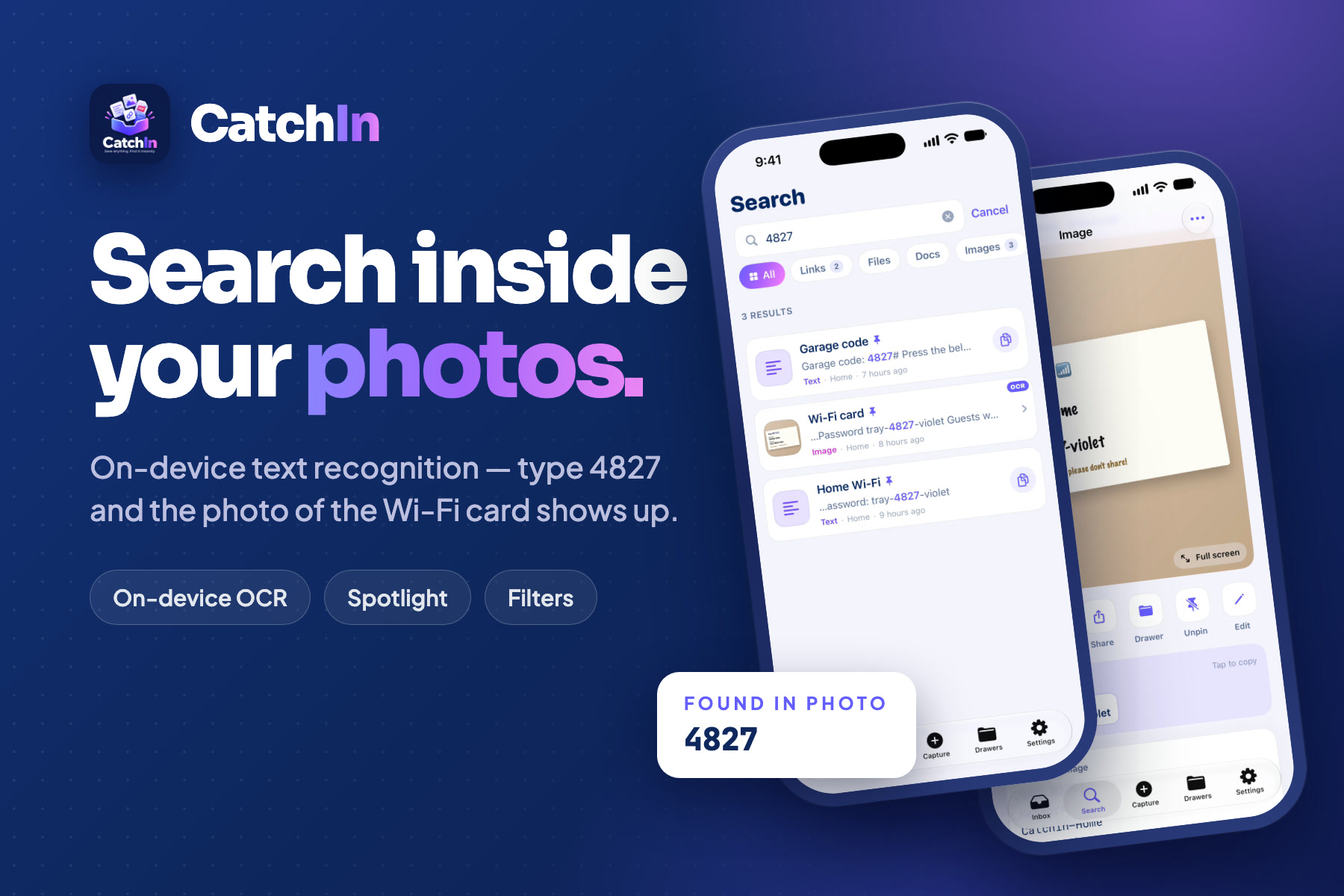
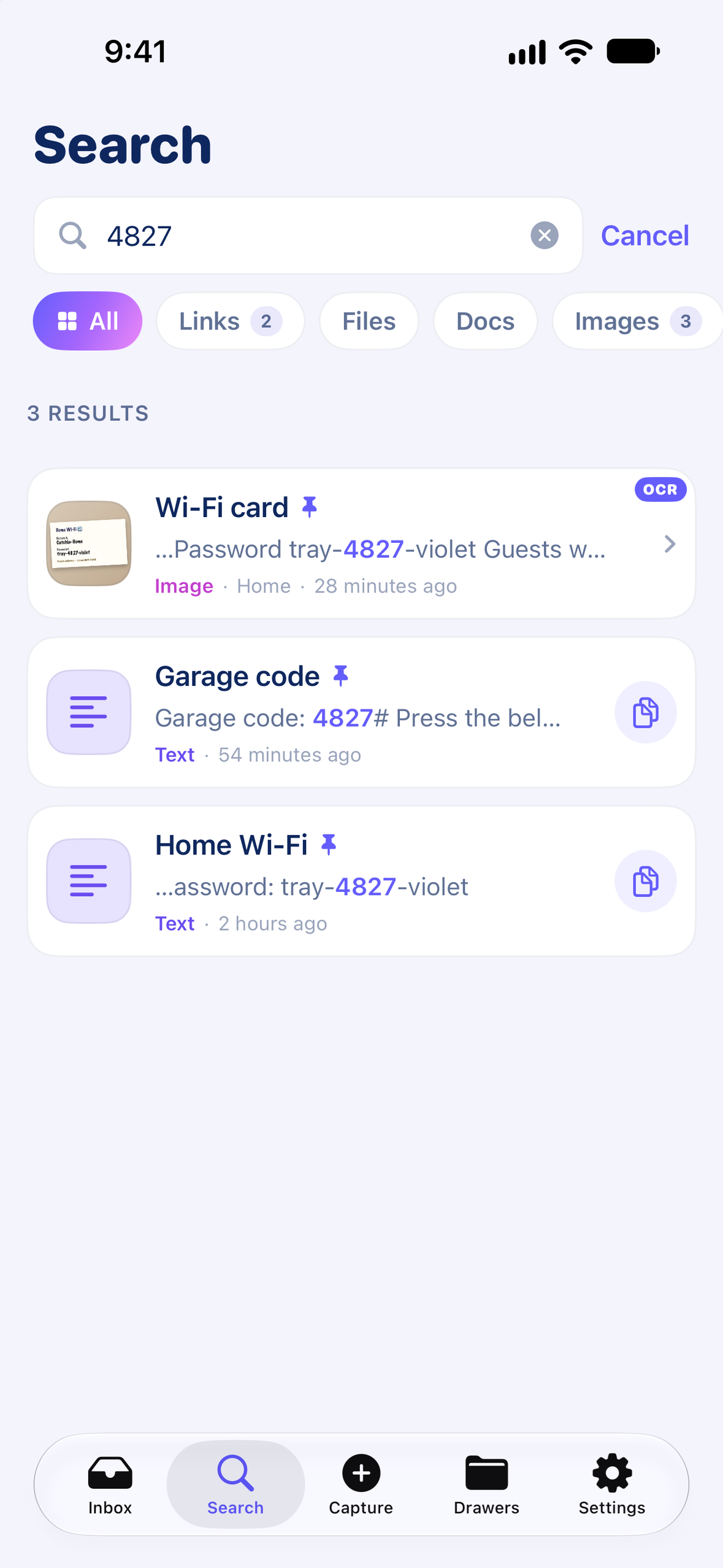
Search the text inside your photos and screenshots: on-device OCR finds the Wi-Fi card photo when you type 4827.
-
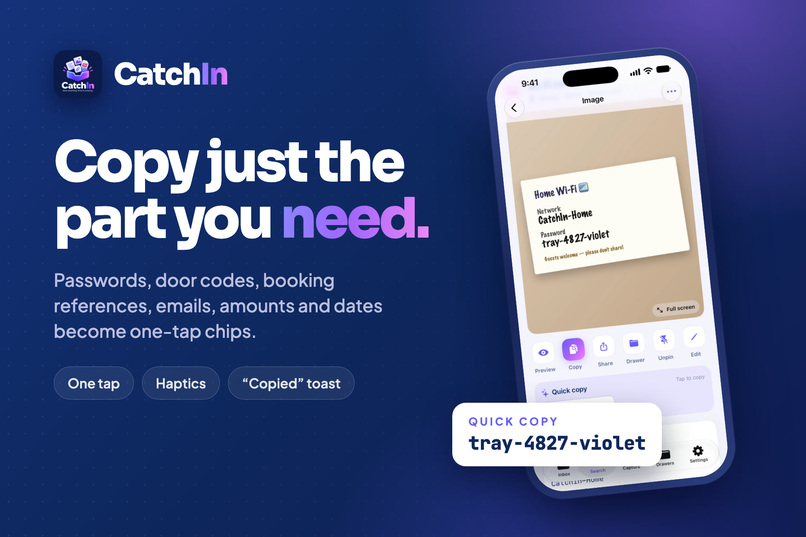
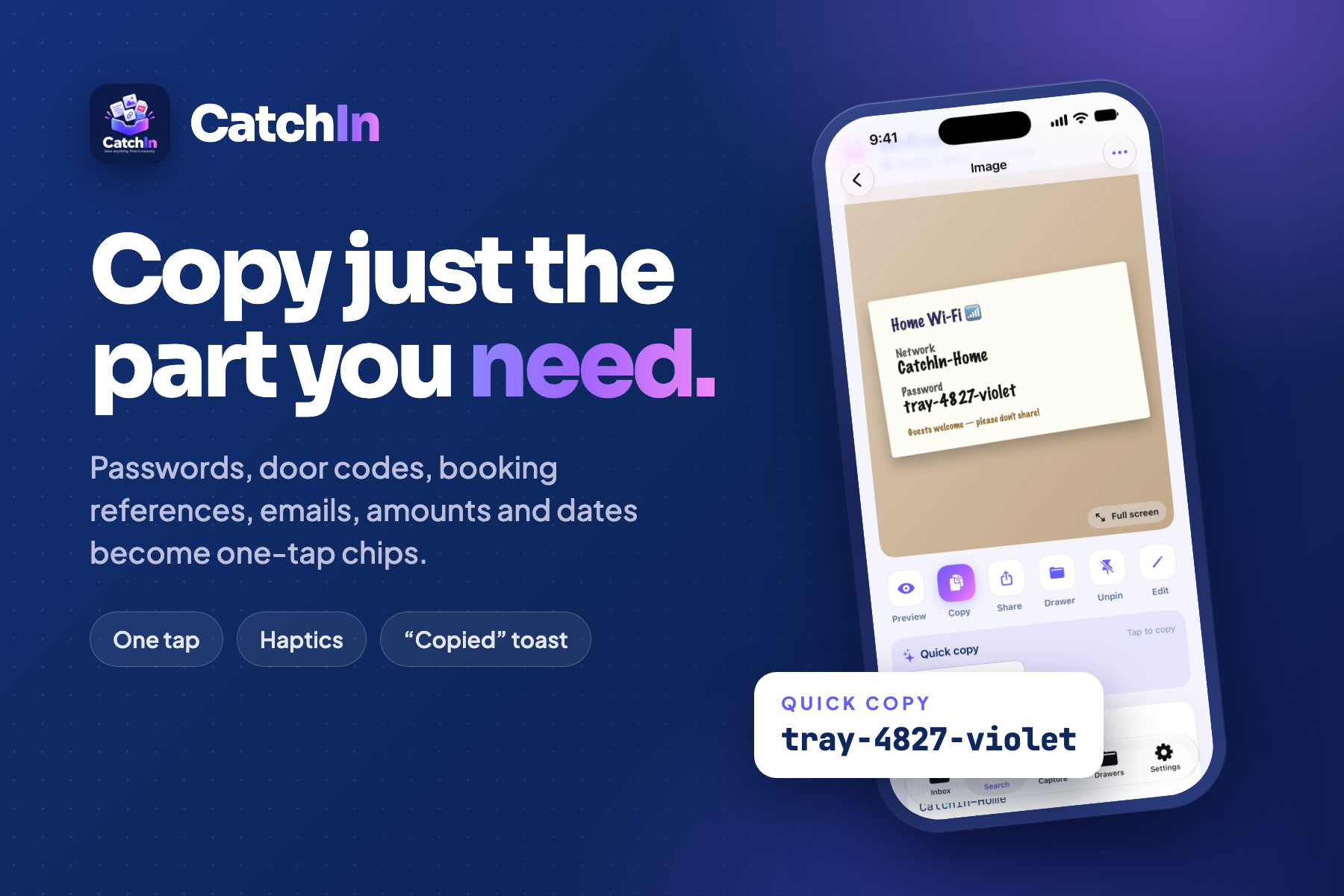
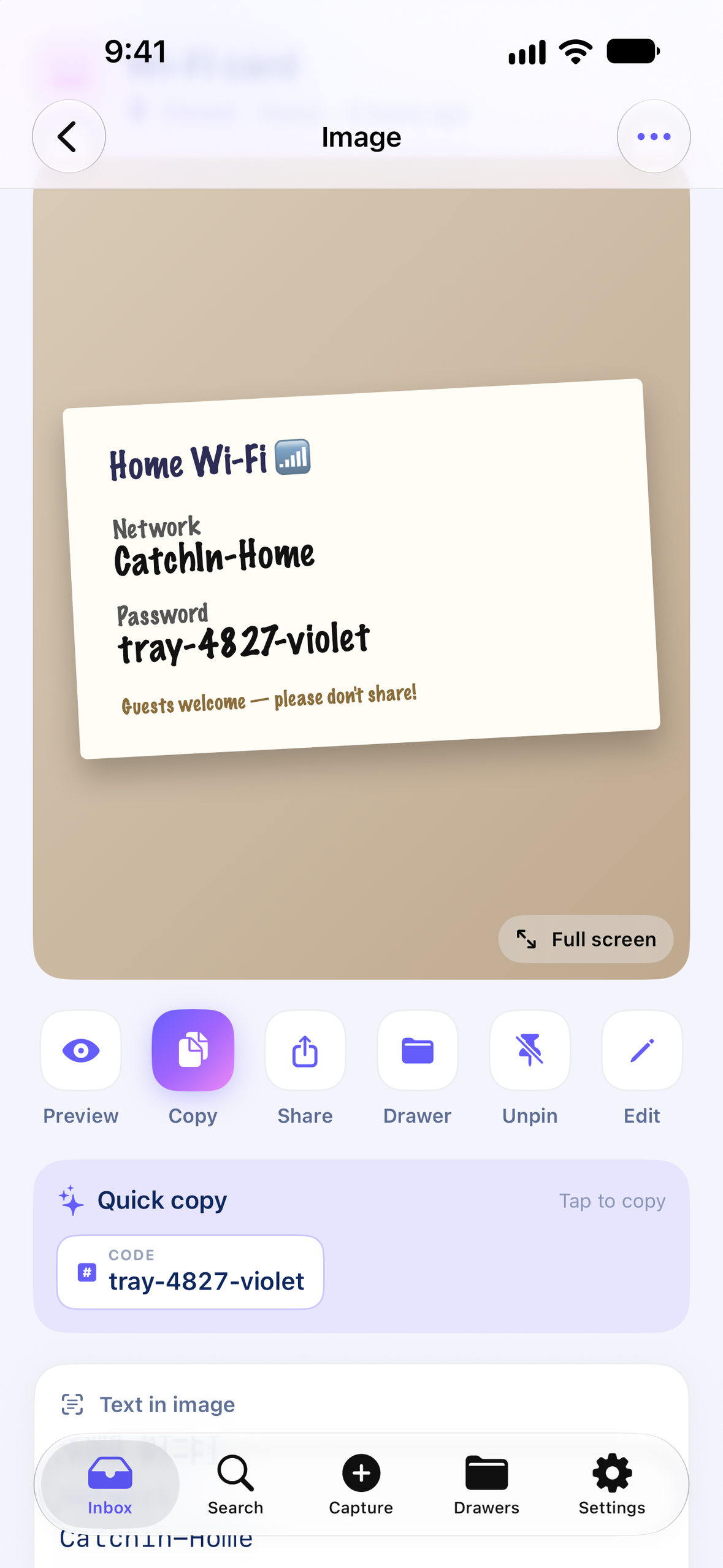
Quick copy: passwords, door codes, booking references, emails and dates become one-tap chips in CatchIn.
-
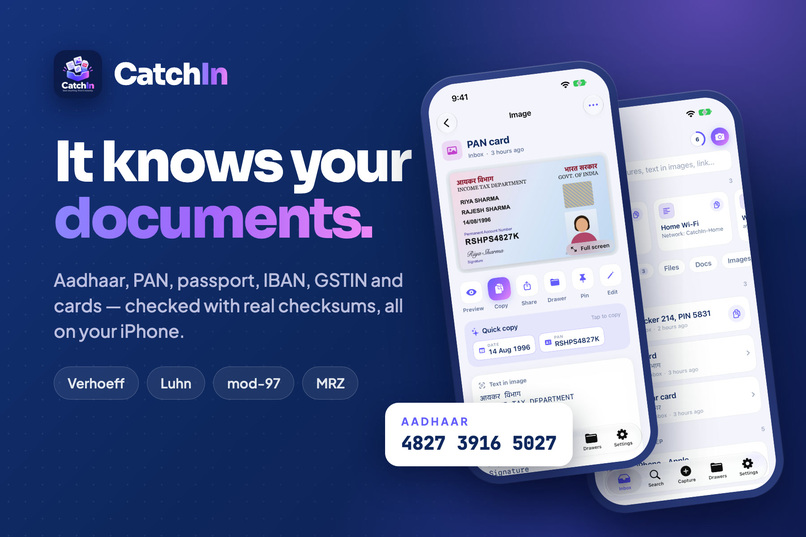
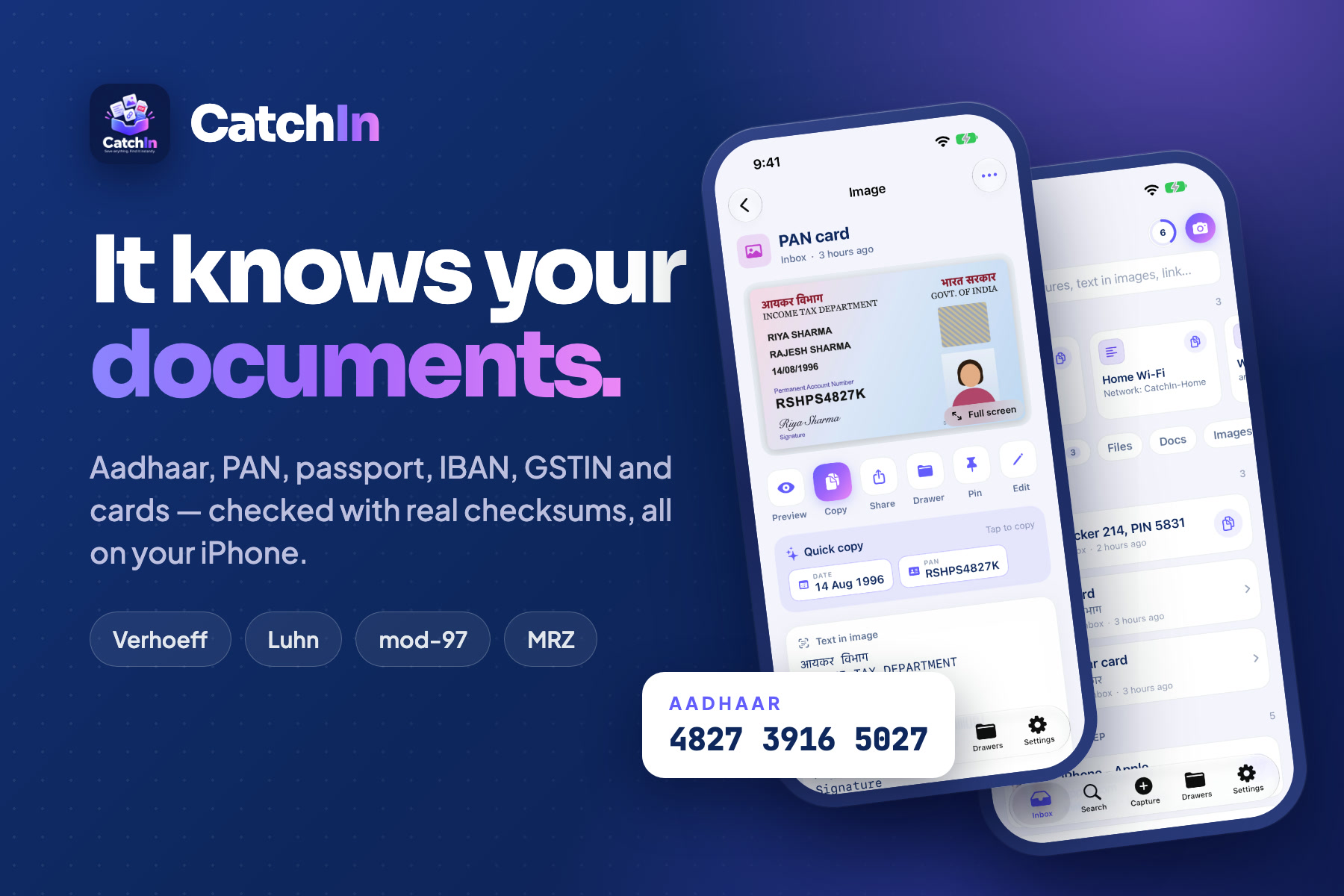
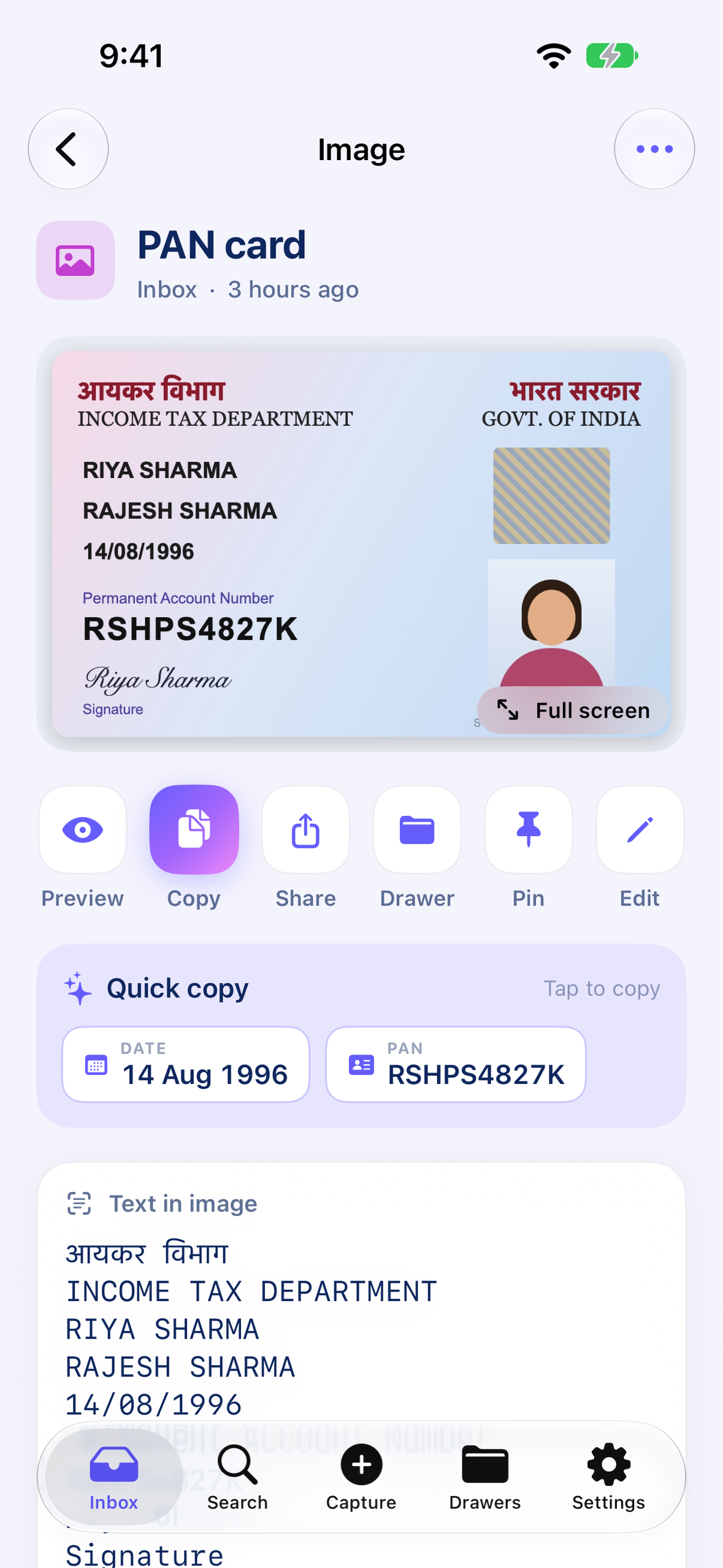
Smart document detection: Aadhaar, PAN, passport, IBAN, GSTIN and card numbers checked with real checksums, on-device.
-
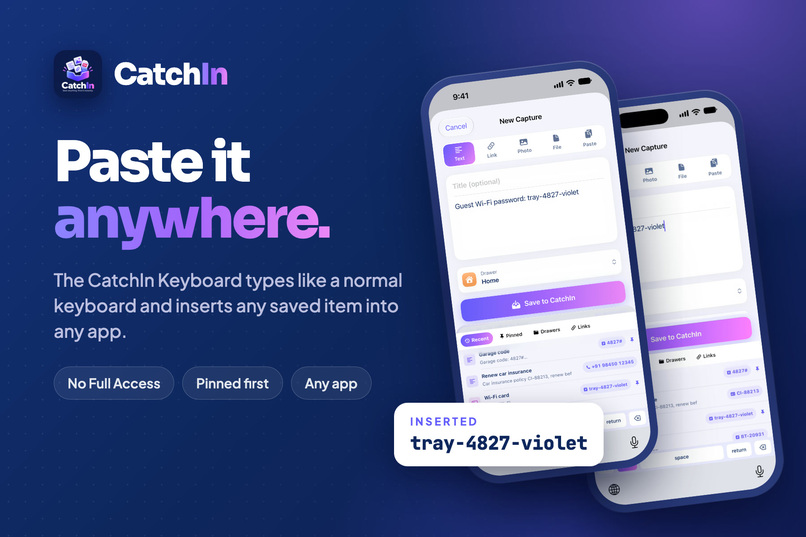
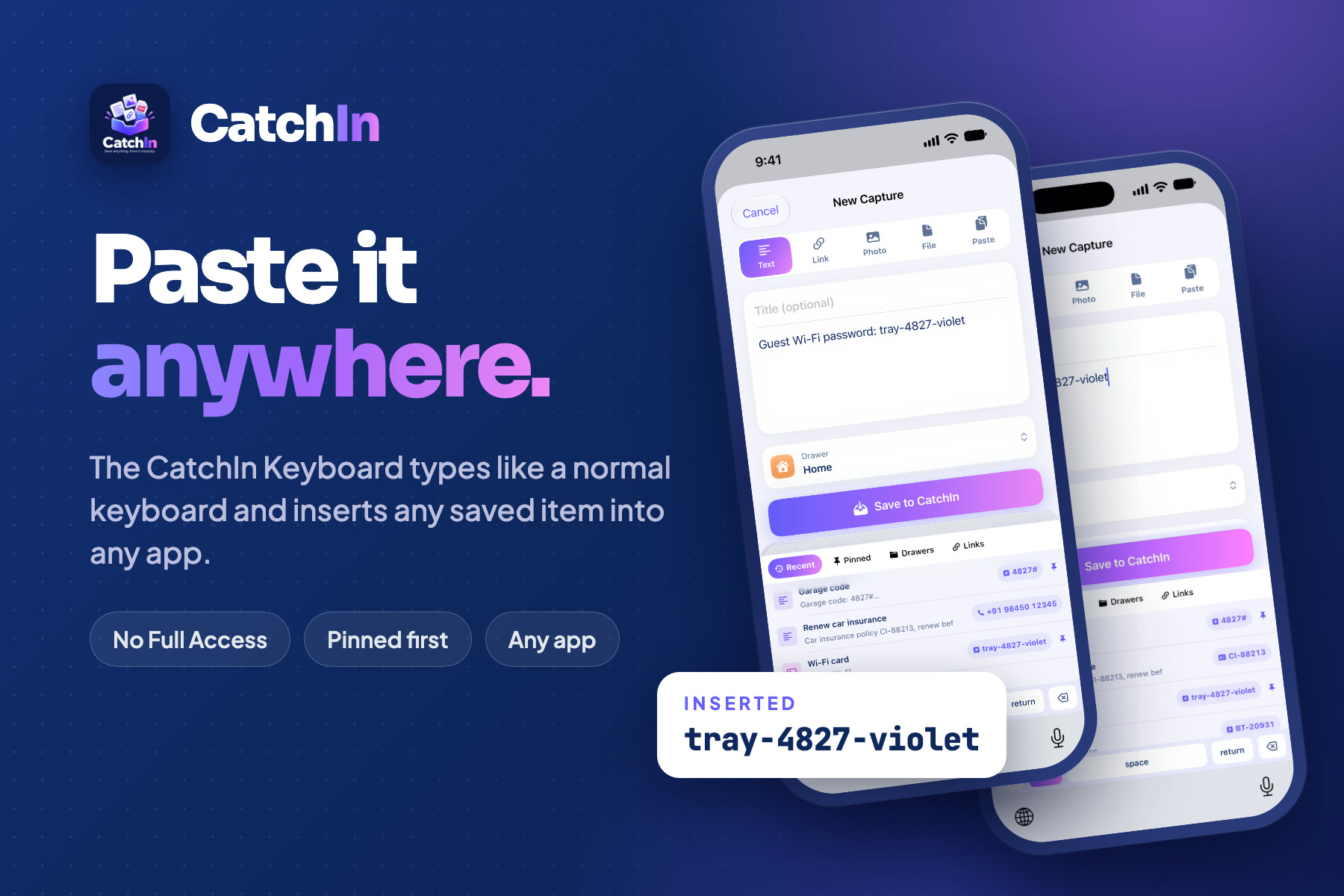
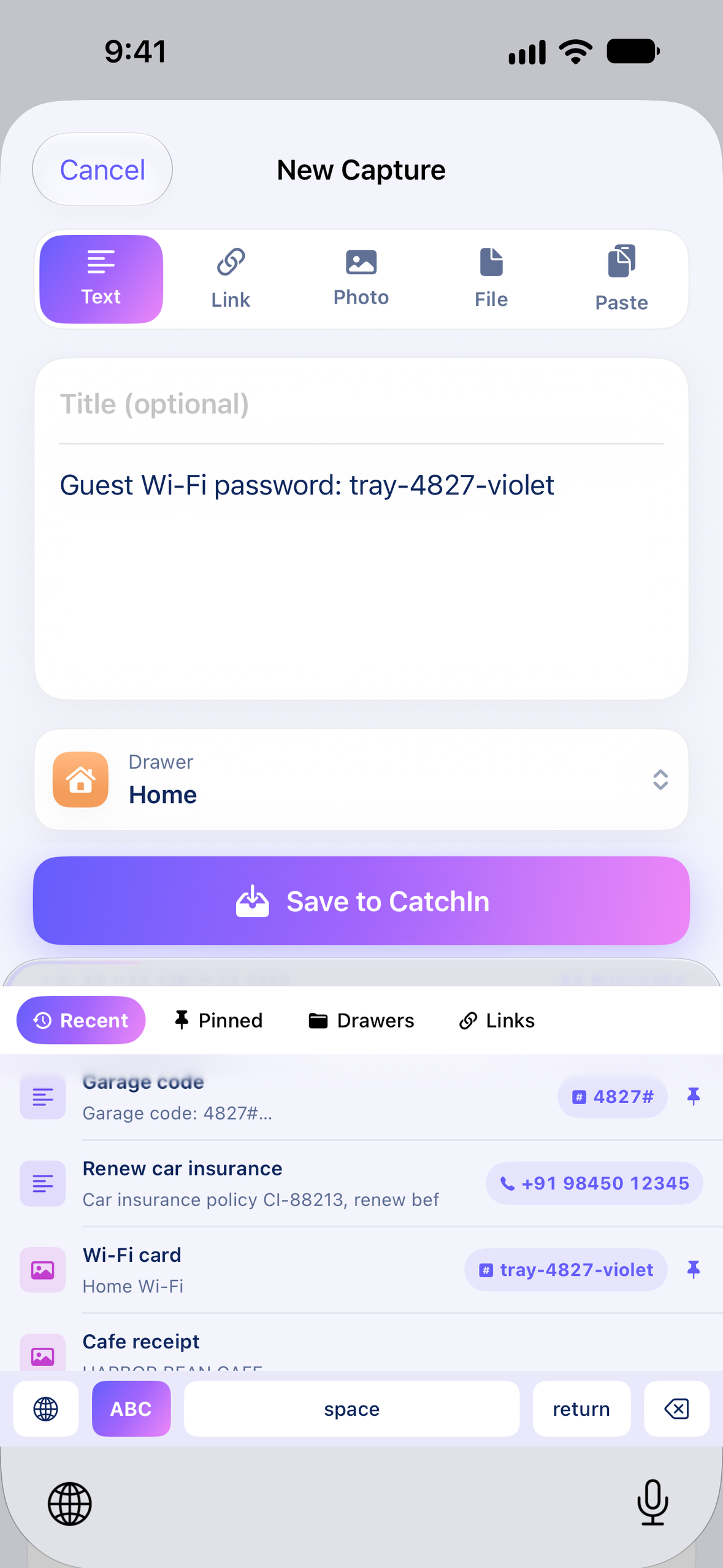
CatchIn Keyboard: insert any saved code, password or link into any iPhone app, no Full Access needed.
-
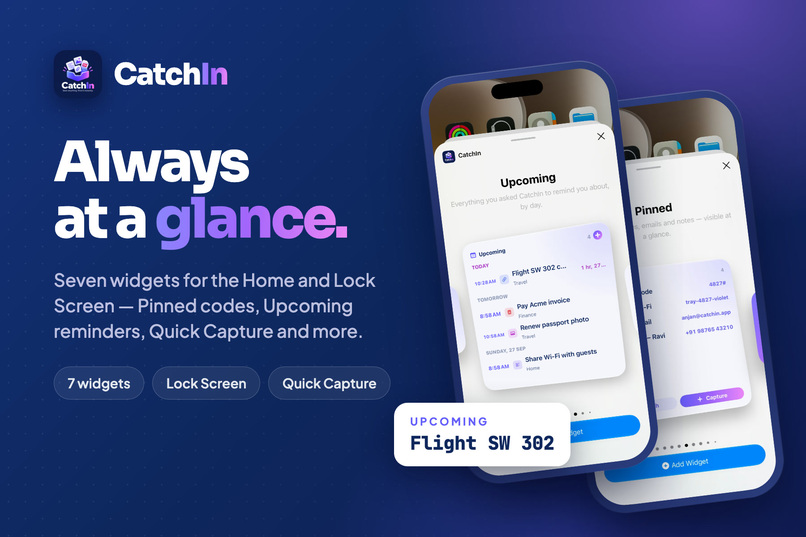
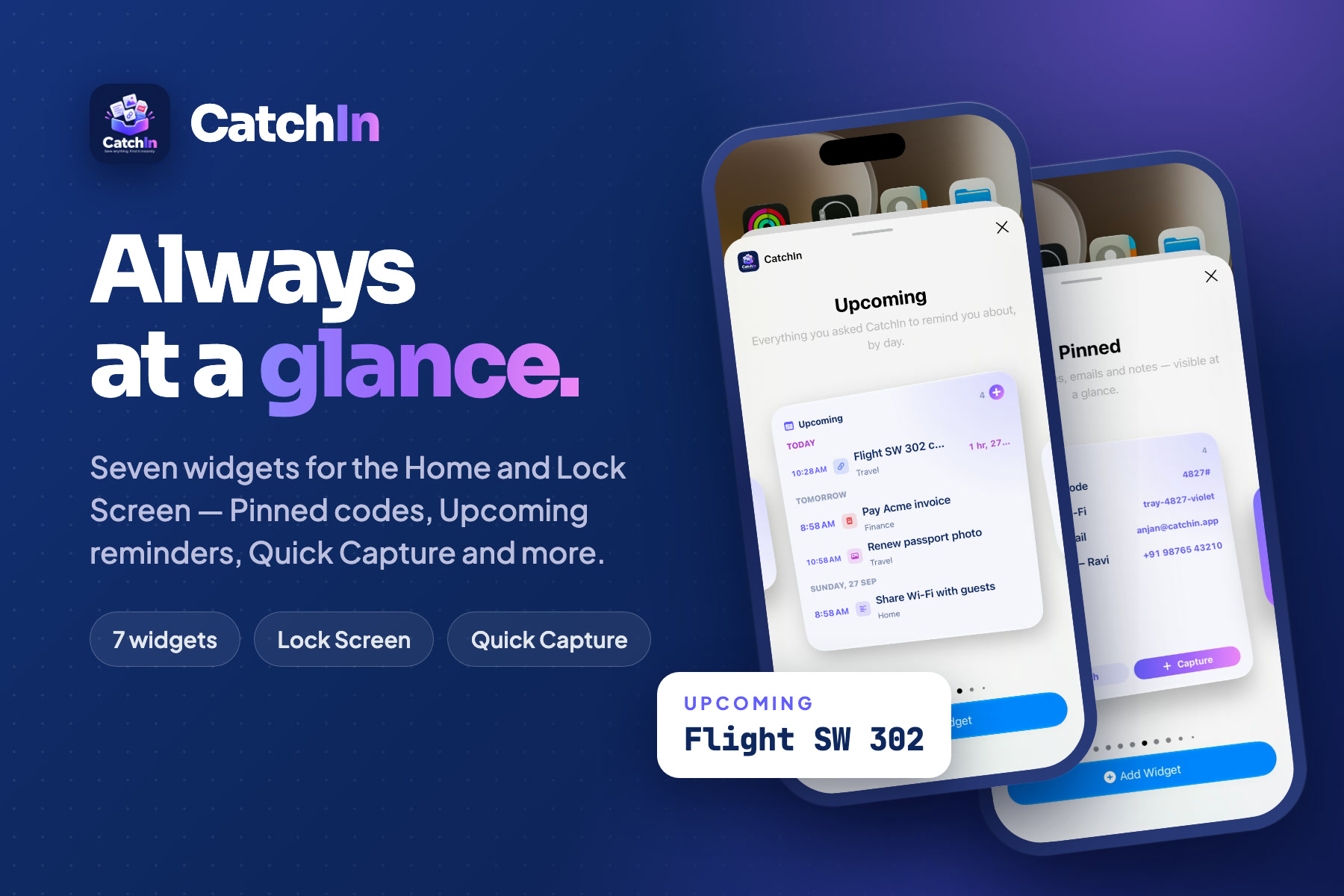
Seven iPhone widgets: pinned codes, upcoming reminders and Quick Capture on the Home Screen and Lock Screen.
-
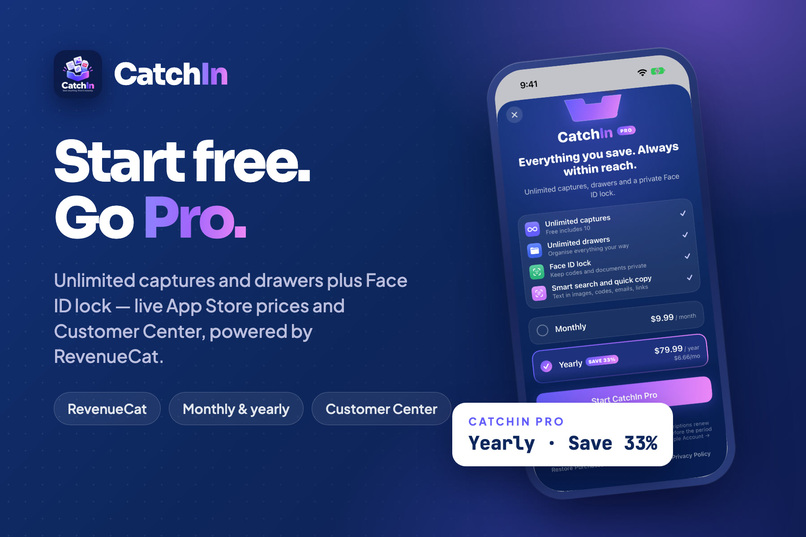
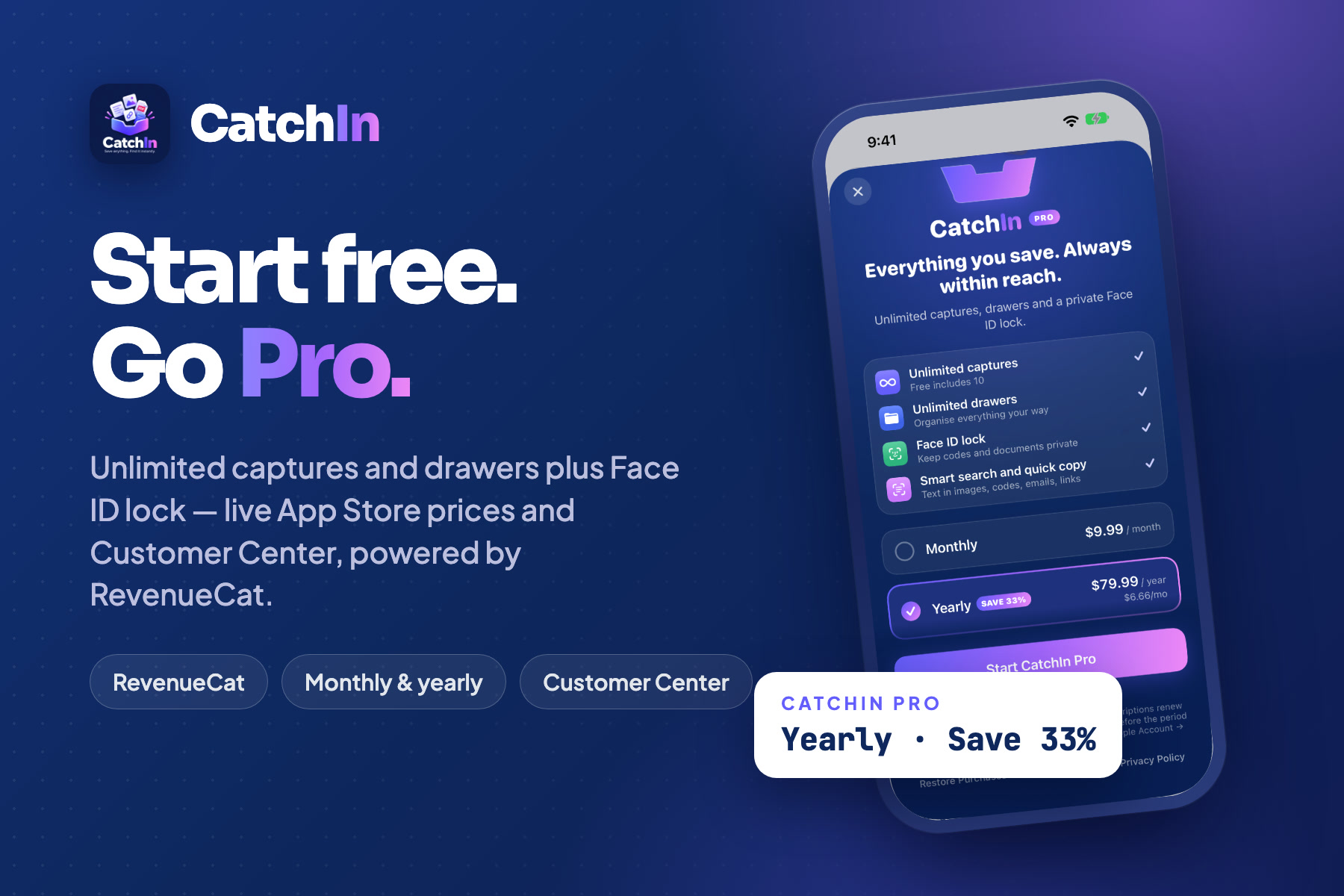
CatchIn Pro via RevenueCat: unlimited captures and drawers plus Face ID lock, with live App Store prices.
-
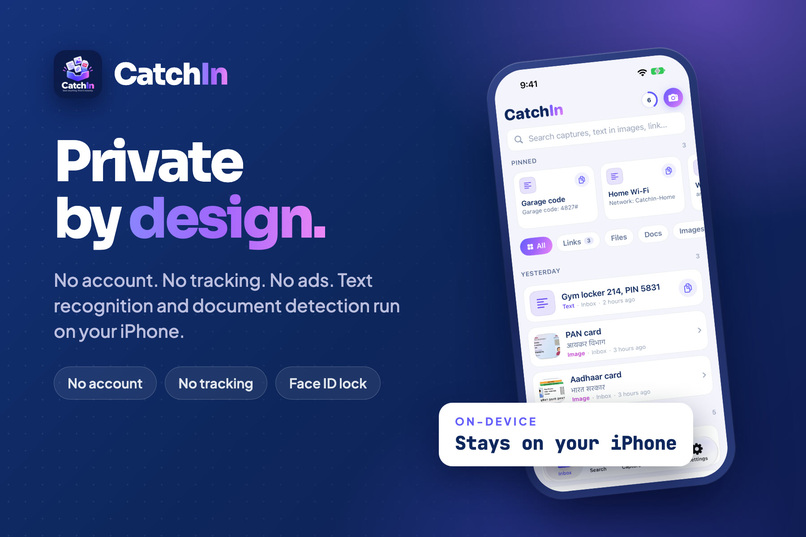
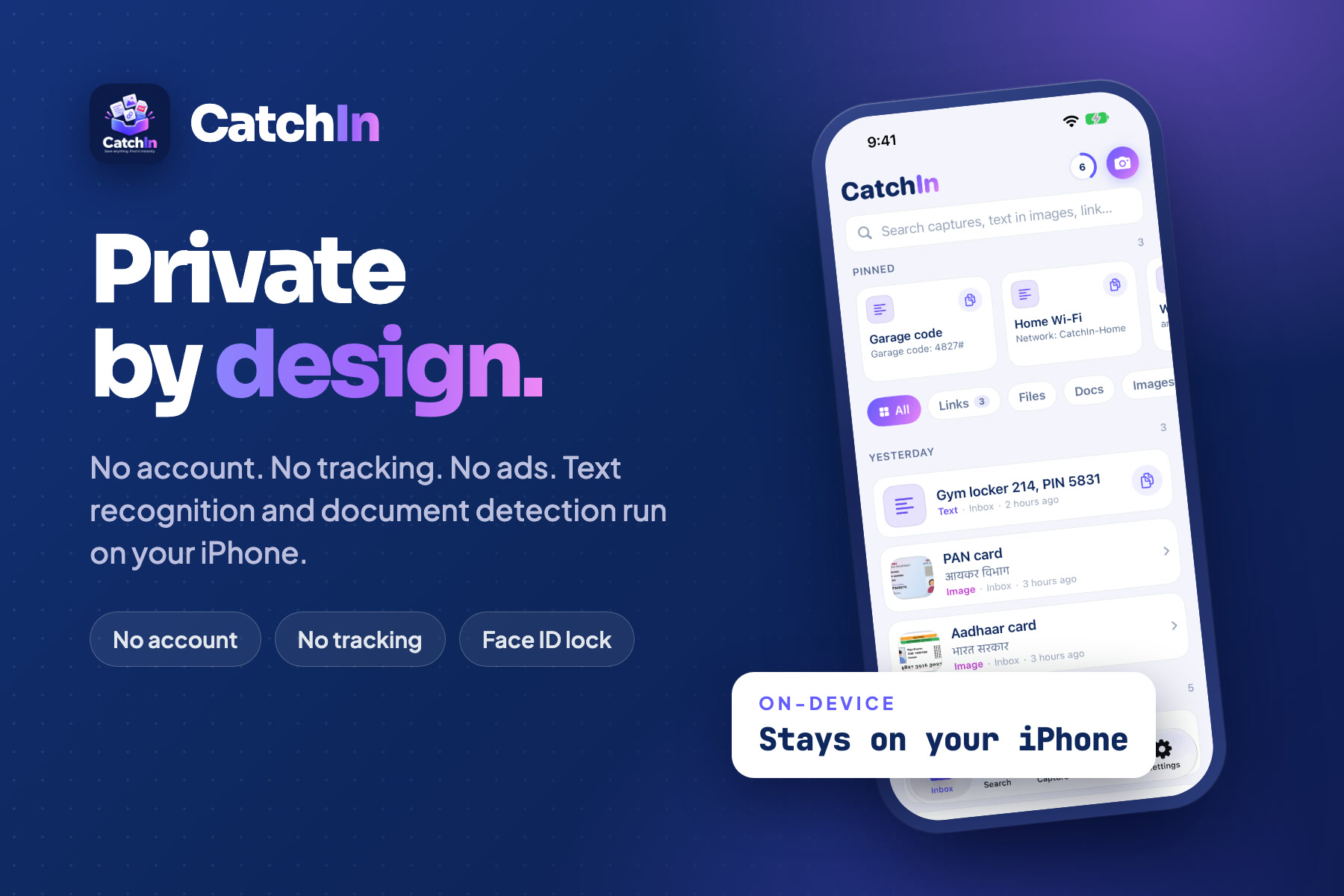
Private by design: no account, no tracking, no ads. Text recognition and ID detection run on your iPhone.
-
CatchIn app icon: the open tray that catches every link, screenshot, code and document you save.
-
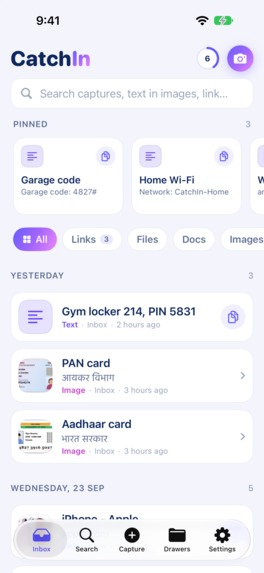
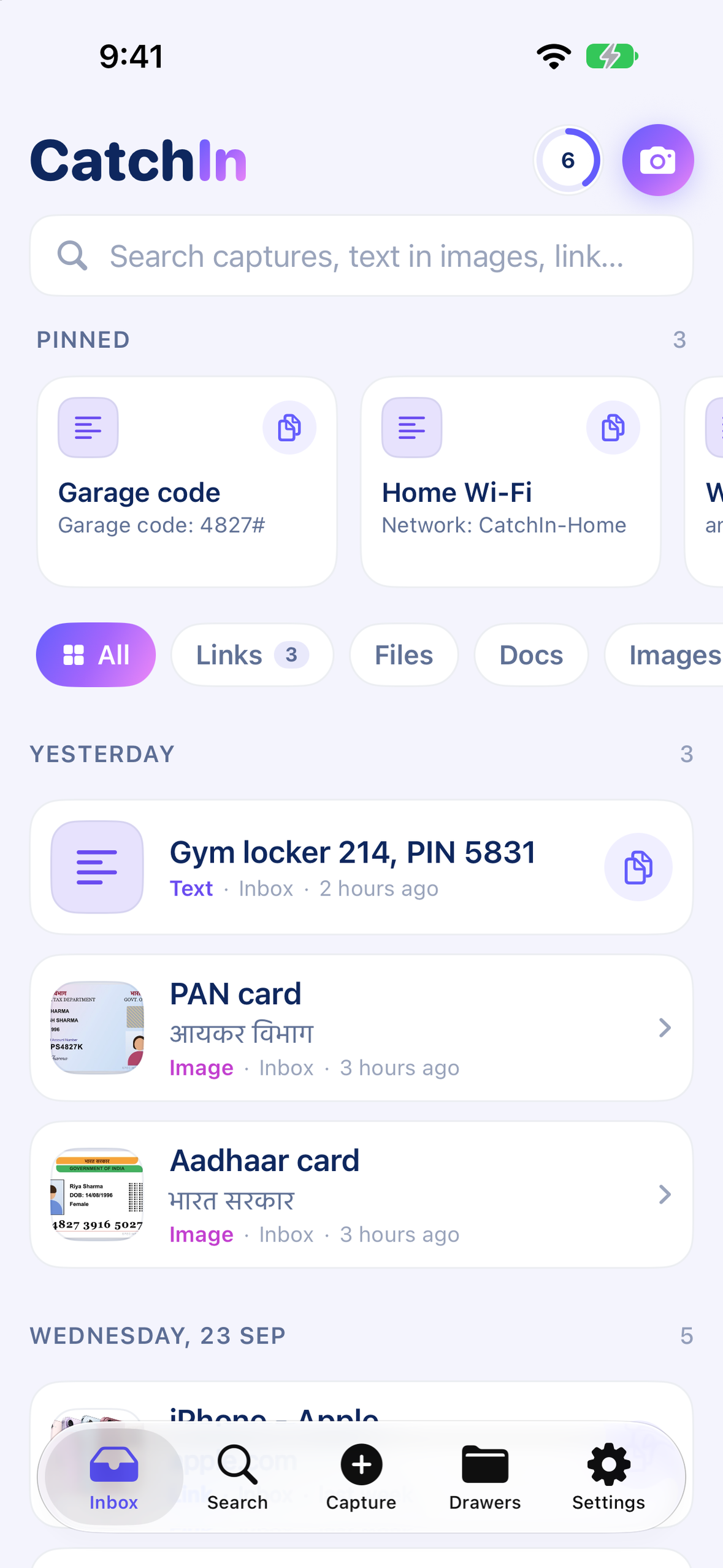
CatchIn Inbox on iPhone: pinned codes, filters and recent captures, including Aadhaar and PAN card photos.
-
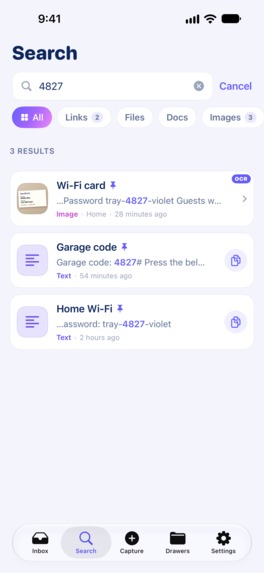
CatchIn Search on iPhone: typing 4827 finds the Wi-Fi card photo by the text inside the image, recognised on-device.
-
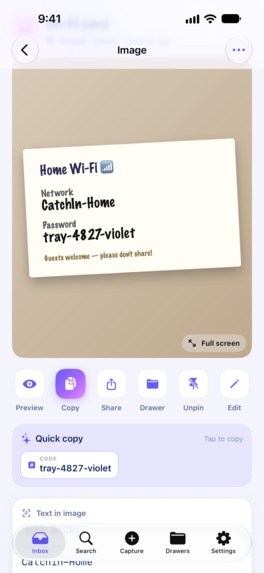
Quick copy on iPhone: CatchIn reads a photographed Wi-Fi card and offers the password as a one-tap chip.
-
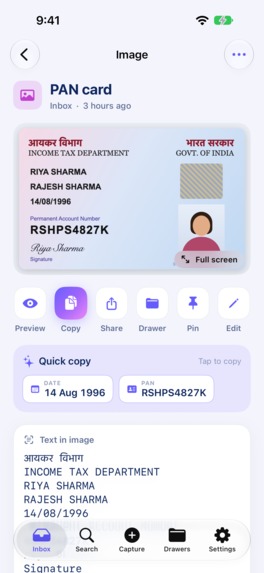
PAN card detection on iPhone: CatchIn names the photo and offers the PAN and date as one-tap chips (specimen card).
-
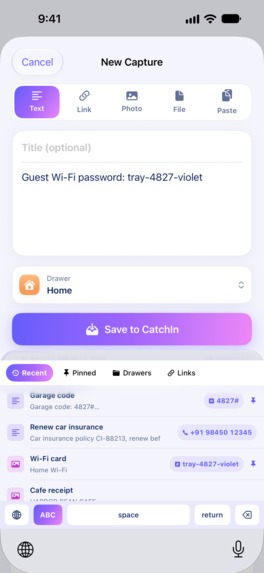
CatchIn Keyboard on iPhone: saved codes, links and passwords one tap away in any text field, no Full Access needed.
-
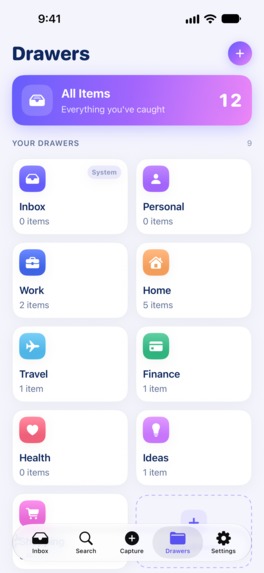
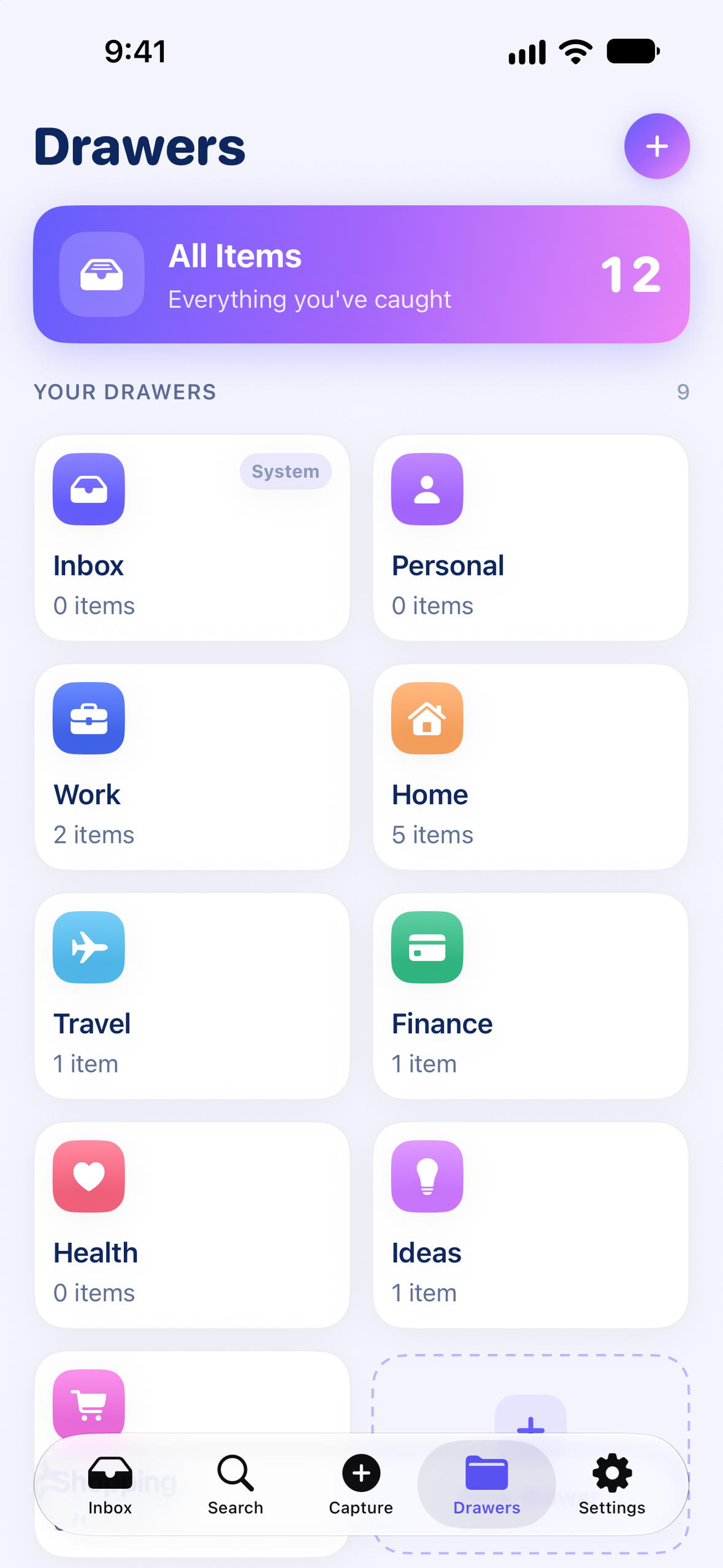
CatchIn Drawers on iPhone: Home, Work, Travel, Finance, Health and Ideas keep every capture organised.

Inspiration
Last month, at an airport gate, security asked for my booking reference. I knew I had it — in an email, a screenshot, or a PDF — and I scrolled through six apps while the queue waited behind me.
Everything we save "for later" ends up scattered: Wi-Fi passwords in Photos, door codes in Notes, tickets in Mail, ID numbers in a screenshot, links in Messages. iOS has great places to store things, but no single place that makes them findable and reusable in one tap. So I built CatchIn — first for myself, then for everyone.
What it does
CatchIn is one private inbox for everything you'll need again. One share, one search, one insert.
- One share — from any app, Share → CatchIn saves links, text, photos, PDFs and files without leaving the app you're in, and remembers the drawer you used last. Quick Capture adds Text, Link, Photo, File and Paste modes.
- One search — on-device text recognition reads the text inside screenshots and photos. Type
4827and the photo of your Wi-Fi card shows up. - Quick copy — CatchIn pulls out exactly what you need — the password, the door code, the booking reference, an email, an amount, a date — as one-tap chips. Just the password, not the whole note.
- Smart document detection — Aadhaar, PAN, GSTIN, IFSC, UPI, passport (ICAO MRZ), IBAN, payment cards, US SSN and routing numbers and several EU IDs are recognised and validated with real checksums (Verhoeff, Luhn, mod-97, GSTIN, ABA, DNI, NIR…). It knows a PAN from an IBAN. Photograph an ID card and CatchIn names it "Aadhaar card" or "PAN card" and hands you the number. Card and SSN values are masked.
- One insert — the CatchIn Keyboard types like a normal keyboard and drops any saved item into any app, with no Full Access required.
- At a glance — seven widgets (Pinned, Recent, Upcoming reminders, Quick Capture and more) for the Home Screen and Lock Screen, plus Spotlight search and Siri & Shortcuts.
- Stay organised — drawers, pins, reminders on any capture, dark mode, and a Face ID lock for sensitive items.
- Private by design — no account, no tracking, no ads. Text recognition and detection run on the iPhone.
How RevenueCat powers CatchIn Pro
- RevenueCat SDK (StoreKit 2) with one entitlement,
catchin_pro, and adefaultoffering with monthly and yearly packages. - Live prices, zero hard-coding — the paywall renders whatever the current offering contains, so pricing and packaging can change from the RevenueCat dashboard without an app update. If a RevenueCat Paywall is attached to the offering, CatchIn shows it via RevenueCatUI; otherwise a native SwiftUI paywall in the app's own design is used.
- Customer Center for manage / cancel / restore from Settings.
- Pro everywhere, instantly — entitlement state is cached in the shared App Group, so the Share extension, the keyboard and the widgets all respect Pro the moment you subscribe.
- Fair freemium — the free plan is genuinely useful: 10 captures with search inside photos, Quick copy, the keyboard and widgets. Both Pro plans start with a 2-week free trial for new subscribers. The paywall appears once after onboarding, then at most every three days while you're on the free plan, when you approach the free limit, and from Settings — never in the middle of a task. The app never shows RevenueCat's developer error text to users; failed offerings fall back to a friendly retry.
How I built it
- Swift + SwiftUI, with SwiftData in an App Group shared by four targets: the app, the Share extension, the keyboard extension and the WidgetKit widgets.
- A local Swift package, CatchInCore, holds the models, storage, detection engine, OCR helpers and the design system, so every target renders the same brand.
- Vision for on-device OCR, LinkPresentation for link previews, App Intents for Siri & Shortcuts, Core Spotlight for system search, LocalAuthentication for Face ID.
- 56 unit tests covering checksums, document and chip detection, plan limits, usage metering and prompt timing.
- Project generated with XcodeGen; website and legal pages on Firebase Hosting; the launch film was built in Remotion from real screen recordings, with an original soundtrack synthesised in code.
Challenges I ran into
- Extensions are tiny. Share extensions have strict memory limits, so the extension saves instantly and the app runs OCR and preview fetching in the background — and retries anything interrupted.
- A keyboard must type. App Review requires custom keyboards to provide real input, so CatchIn's keyboard has a full QWERTY / numbers / symbols layer next to the captures panel — still without Full Access.
- Previews that hide. Instagram and other sites hide preview images from ordinary requests; CatchIn falls back to crawler headers and Apple's LinkPresentation, then stores the image locally so it never expires.
- No false positives. A 12-digit number isn't automatically an Aadhaar number. Every document type is checked with its real checksum or structure, not just a regex.
Accomplishments that I'm proud of
- A genuinely native iOS app: share sheet, keyboard, widgets, Spotlight and Siri all working from one private store.
- Quick-copy that works on photos of real-world documents and cards — validated, masked where sensitive, and one tap away.
- Shipped end to end during Shipaton: v1.0 live on the App Store on 29 September and v1.1 live the next day, plus the website, privacy policy and terms, App Store screenshots and preview, and a launch film.
What I learned
StoreKit 2 and RevenueCat entitlements across app extensions; what App Review expects from keyboards and subscriptions; and that speed is the feature — the best capture flow is the one that never makes you leave the app you're in.
What's next for CatchIn
- iCloud sync across devices (built, hidden until it's rock-solid)
- iPad and Mac apps
- More document types and countries
- Smarter reminders from detected dates, boarding times and expiry dates
For judges
- Download: CatchIn on the App Store · Website: catchin-app.web.app
- Version: CatchIn 1.1 is live on the App Store and matches the demo video (10 free captures).
- Try this in 60 seconds: share any link or photo to CatchIn → search a word that only appears inside a photo → open it and tap a Quick-copy chip → enable the CatchIn Keyboard and insert that item into Messages → add the Pinned widget.
- Unlock Pro for free: both CatchIn Pro plans include a 2-week free trial — Settings → Upgrade to Pro → start the trial, then test everything (cancel anytime in Settings → Apple Account → Subscriptions).
Design — what to look for
- One brand system from the logo: the palette, gradients and the open "tray" illustration all come straight from the app icon and repeat across the app, extensions, widgets, website and film.
- Motion with purpose: the tray that catches cards on the paywall and onboarding, spring-animated Quick-copy chips with haptics and a "Copied" toast, and the Share sheet that confirms "Saved to CatchIn" in place.
- Details: the keyboard's two layers (captures and typing), widgets designed to their line budgets, full dark mode, and a paywall that brings the recommended plan into view on every iPhone size.
Growth since launch
CatchIn 1.0 went live on the App Store on 29 September 2026, and 1.1 went live on 30 September, a day later. It brought 10 free captures, a first-open paywall, Apple's rating prompt after good moments, ID photos named automatically and the widget-tap fix, and both Pro plans now start with a 2-week free trial. Since launch I've also published the website with SEO/Open Graph metadata, captioned App Store screenshots and an app preview, a narrated launch film on YouTube, and build-in-public launch posts on X and Instagram. Download and revenue numbers will be added here as they come in.


Log in or sign up for Devpost to join the conversation.