Inspiration
A while back, Faiz injured his wrist, and suddenly, even simple tasks like using the computer became a real challenge. This experience led to a conversation about how difficult web navigation can be for people with physical disabilities. That's when the idea for BumbleBee was born—a voice assistant designed to make web navigation easier through conversational commands.
What We Learned As we dove deeper into the project, we uncovered some eye-opening statistics:
- In the United States, up to 27% of adults have some form of disability, including mobility impairments.
- Yet, over 96% of the world's top one million web pages are not accessible. However, making websites accessible isn't just about helping one person; it benefits everyone. Consider these statistics:
- 76% of consumers with disabilities remain loyal to companies that offer accessible options.
- On the other hand, 70% of disabled online shoppers leave websites they find difficult to navigate, leading to significant revenue losses for businesses.
What it does
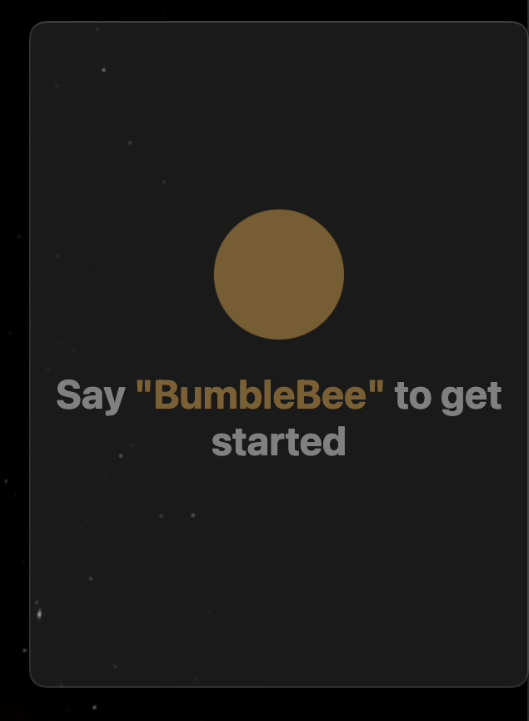
BumbleBee is a desktop app that waits for you to call it (BumbleBee). Once activated, it browses the web based on your conversational instructions. There's no need to follow strict commands—just talk to it like a personal assistant, and it will navigate the web for you.
You can do things like book flight tickets, shop on Amazon, or scroll through Facebook—all with simple, conversational requests.
How we built it
The entire system uses AI agents. AI agents use the browser, and the person interacts with the AI agents through voice.
Step 1: Listening to the User's Instructions
The BumbleBee app uses a voice recognition system that listens for a specific wake word ("bumblebee") to activate. Once the wake word is detected, the system begins recording and transcribing audio for user commands. The process included the following:
- Wake Word Detection: The system employs Porcupine (a speech-to-text engine by Picovoice) to continuously listen for the wake word. Using PyAudio to capture the audio, the system processes audio frames and checks if the wake word "bumblebee" has been spoken. The wake word detection runs in a loop, listening to audio streams until the keyword is recognized.
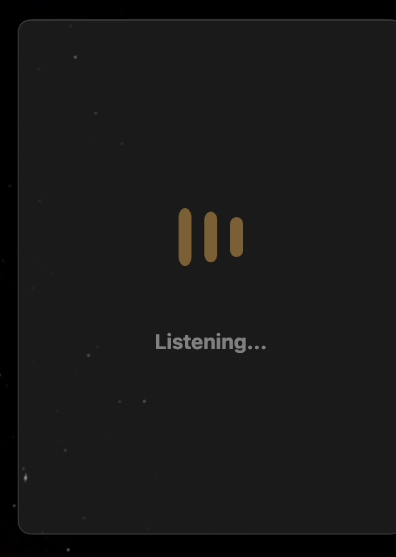
- Audio Recording: After detecting the wake word, the system records audio until there’s a natural pause (silence) in the user's speech. We track the audio in real-time using RMS (Root Mean Square) to measure audio volume. If the audio level falls below a defined threshold (indicating silence), the system considers it the end of the user’s command. This ensures that only the command portion of the speech is captured, and any silence or background noise after the command is ignored.
- Transcription: Once the audio recording is complete, we use OpenAI's Whisper API to transcribe the recorded audio into text. This allows BumbleBee to understand and process the user's natural language instructions. The recorded audio is saved as a .wav file.
Step 2: AI Agents Interact with the Browser
Here, we use AI agents to interact with the browser by leveraging a tool called Web-Use, which creates boundaries around all interactable HTML elements. The process included the following:
- Creating Boundaries around HTML Elements: The web-use library identifies and creates boundaries around all interactive elements on a webpage, such as buttons, links, text fields, and menus. This process enables the AI agent to know which elements it can interact with.
- Passing the Web Image to the LLM: After defining the boundaries, the entire webpage is passed as an image to the Large Language Model (LLM). The LLM uses its embedded knowledge to understand the structure of the website and how to interact with it effectively.
- Interaction with Web Elements: The agent can then perform actions like clicking buttons, filling forms, or navigating through links based on the user’s voice instructions.
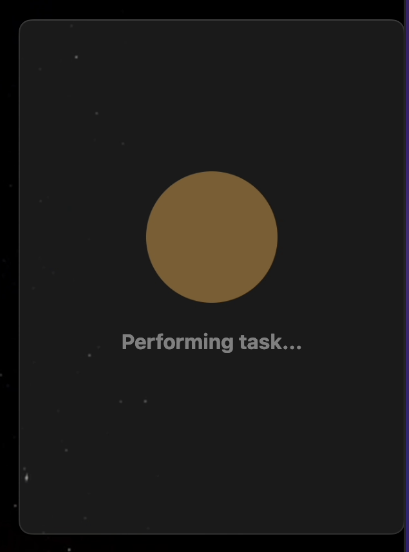
- Integration with Browser: The system integrates with the browser through BrowserUse and LangChain’s OpenAI API to perform actions on the webpage. An Agent is initialized, taking user input (transcribed from speech) and executing corresponding browser actions. The agent works asynchronously to ensure smooth real-time interaction with the browser.
Step 3: Building the Frontend
We used Electron to create a Desktop app
Challenges we ran into
- Fine-Tuning LLM Prompts for Web Interaction
Since the AI agent interacts with the browser, we had to carefully engineer system prompts to ensure effective navigation. This took a lot of trial and error, and we iterated through multiple versions of the prompts to improve accuracy in understanding and executing user commands on different websites. - Optimizing for Real-Time Processing
Our transcription models had latency issues, and many of our experiments were either too slow or inaccurate. We tested different setups, tweaking chunk sizes, and eventually, OpenAI’s Whisper turned out to be the best option. It wasn’t truly real-time, but it was fast enough to feel seamless. - Recognizing Silence for Natural Pauses
Initially, we experimented with a fixed timeout to detect when a user had finished speaking. However, since the interactions were conversational and variable in length, a static timer often cut off user instructions too early or introduced long waits before any actionable output. To address this, we explored using Root Mean Square (RMS) amplitude to analyze the background noise level dynamically. This allowed us to detect natural pauses rather than relying on arbitrary time limits. - Implementing a Reliable Wake Word System
We needed a way for the application to "wake up" on command, similar to Siri or Alexa. While we successfully developed the wake word detection, we faced many issues when trying to integrate it with our silence detection module. - WebSocket Communication Between Backend & Frontend
Ensuring real-time communication between our Python backend and Electron-based frontend was another major hurdle. We ran into numerous debugging challenges while setting up WebSockets, leading to delays before we could establish a stable, low-latency connection for seamless user interaction.
Accomplishments that we're proud of
- Building this application was a constant cycle of experimenting, breaking things, and refining until everything finally clicked. Seeing the fully working system—where a user could simply say a command, and the AI would navigate the web seamlessly—was an incredibly proud moment for us.
- Getting the system to wake up on command and listen only when needed was much harder than expected. Using the RMS-based silence detection was a game-changer—it allowed for natural pauses while still knowing when a command was complete.
- Finally, connecting our Python AI system with an Electron frontend using WebSockets was a real challenge. Getting that work was another huge win for us.
What we learned
- Accessibility is More Than Just Compliance
When we started, we thought of accessibility as something nice to have, but through research and testing, we realized it’s essential. We saw firsthand how even small barriers—like needing a mouse to navigate—can completely lock people out of online spaces. - Real-Time Audio Processing is Harder Than It Looks!
We initially assumed detecting silence and transcribing in real time would be straightforward. Turns out, it's not. Latency issues and silence detection taught us a lot about speech processing constraints. - Experimentation is Everything
We tried so many things that didn’t work before landing on the solutions that did. Debugging felt like being stuck in an endless loop of "It works on my machine." But after all the setbacks, the feeling of seeing a working product is unmatched!
What's next for BumbleBee
- Integrate local LLMs for performance
- Finetune LLms
- Include interruptibility
- Extend use to computer
- Implement real-time transcription.


Log in or sign up for Devpost to join the conversation.