-
-
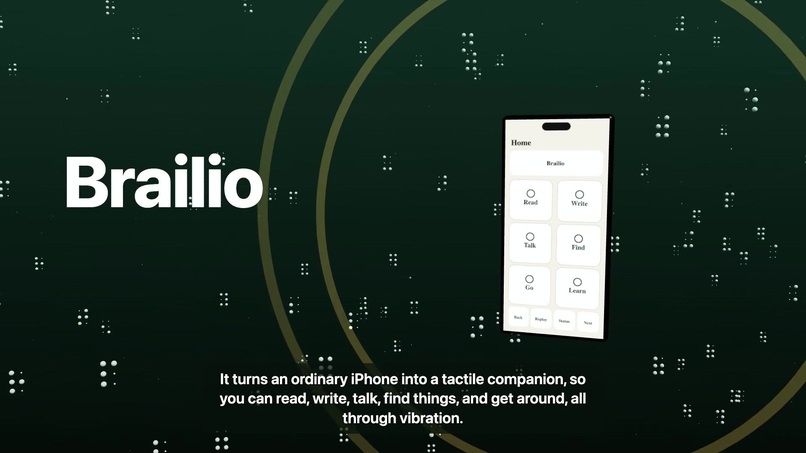
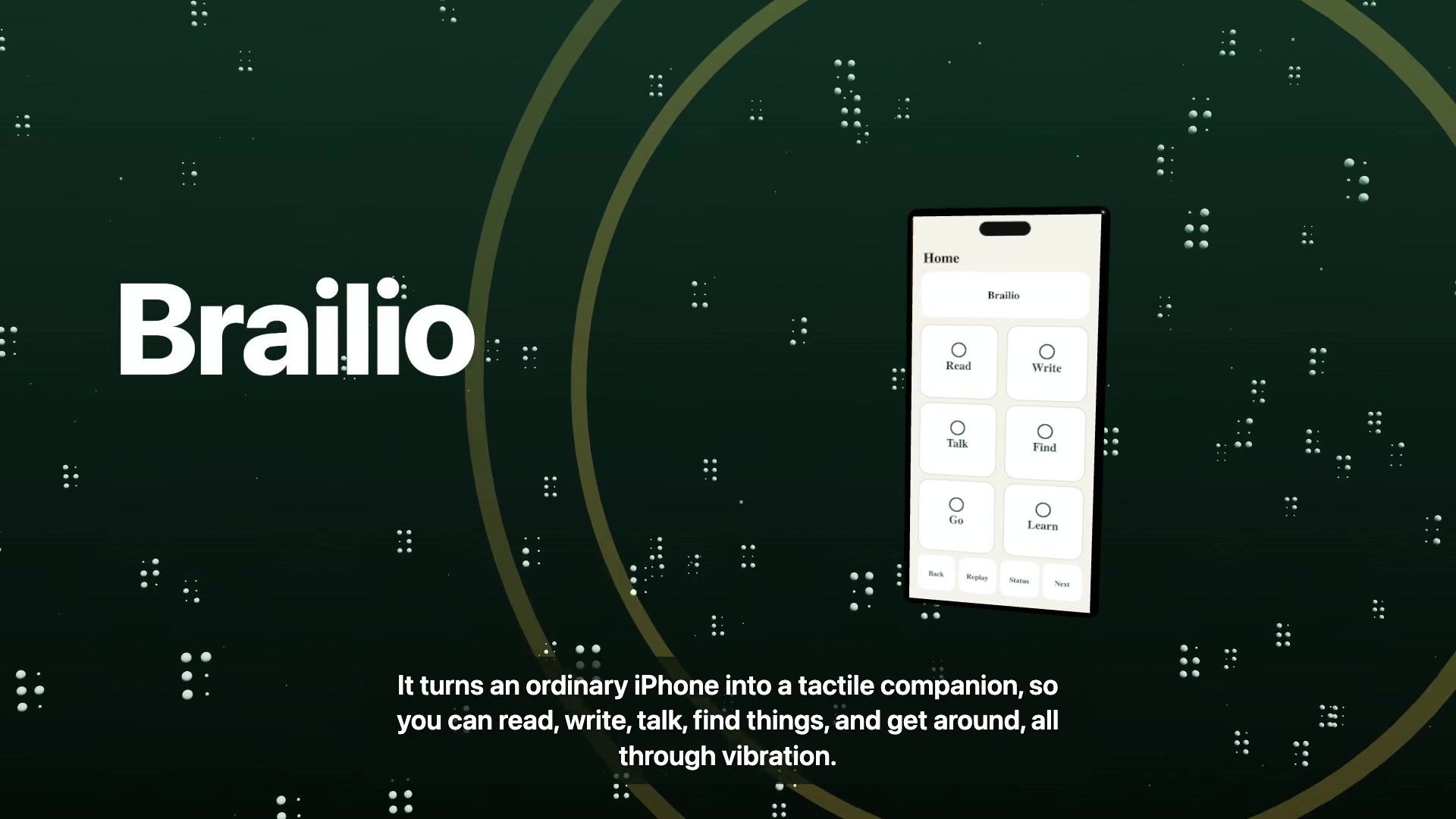
Brailio: a tactile-first iPhone companion to read, write, talk, find things and get around, all through vibration.
-
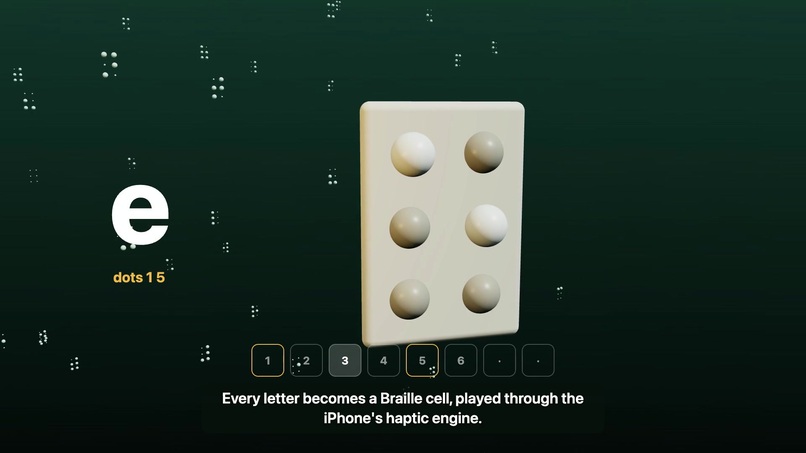
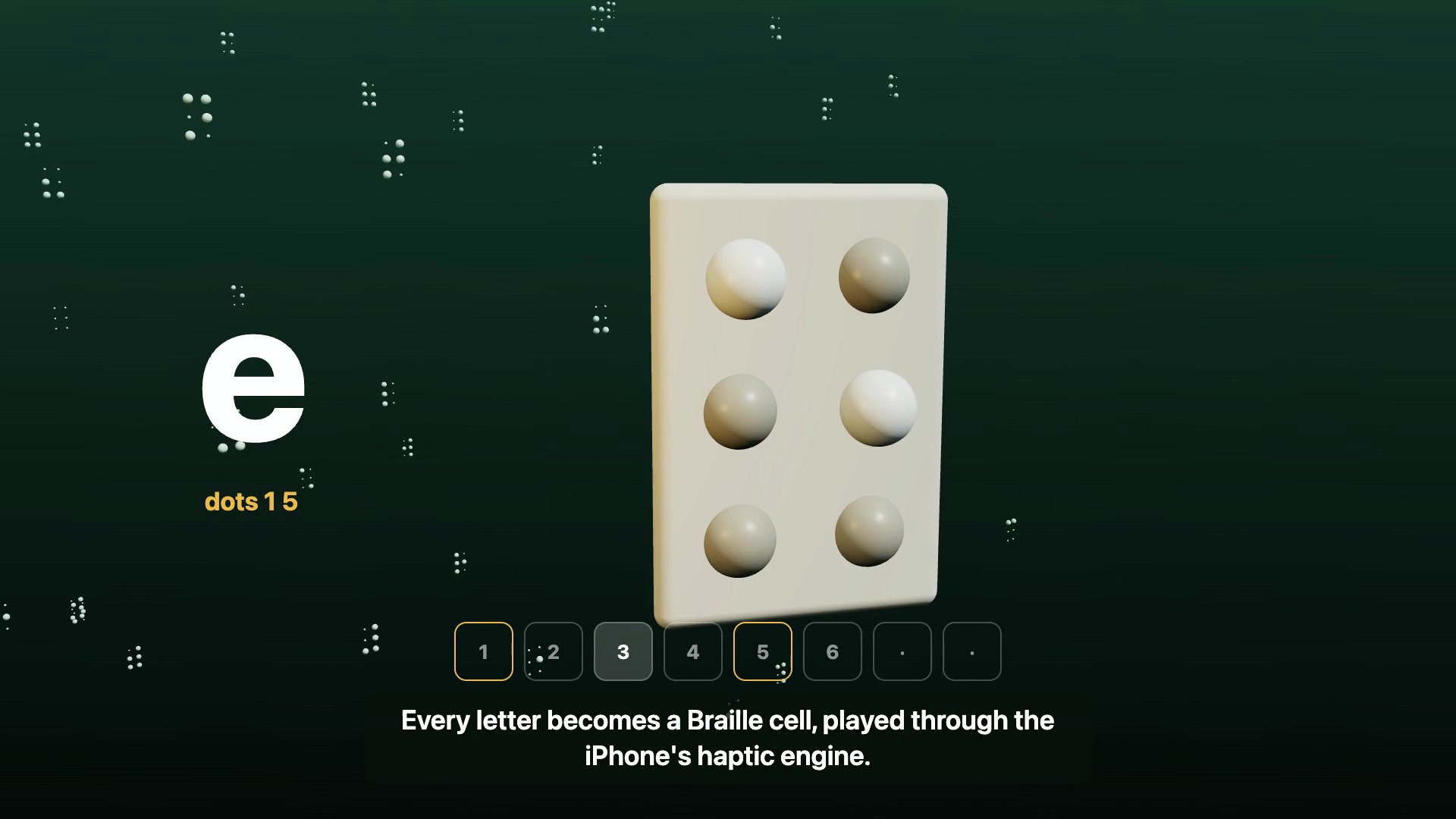
Braille through haptics: each letter is a 6-dot cell played on the Taptic Engine. Firm tap = raised dot, pause = flat.
-
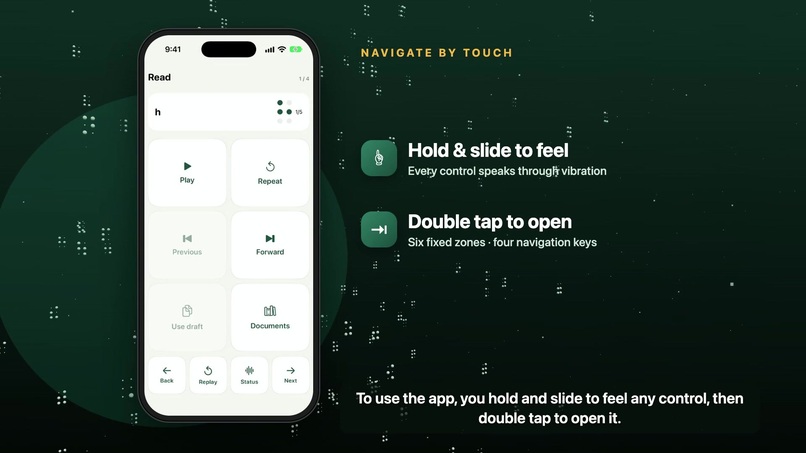
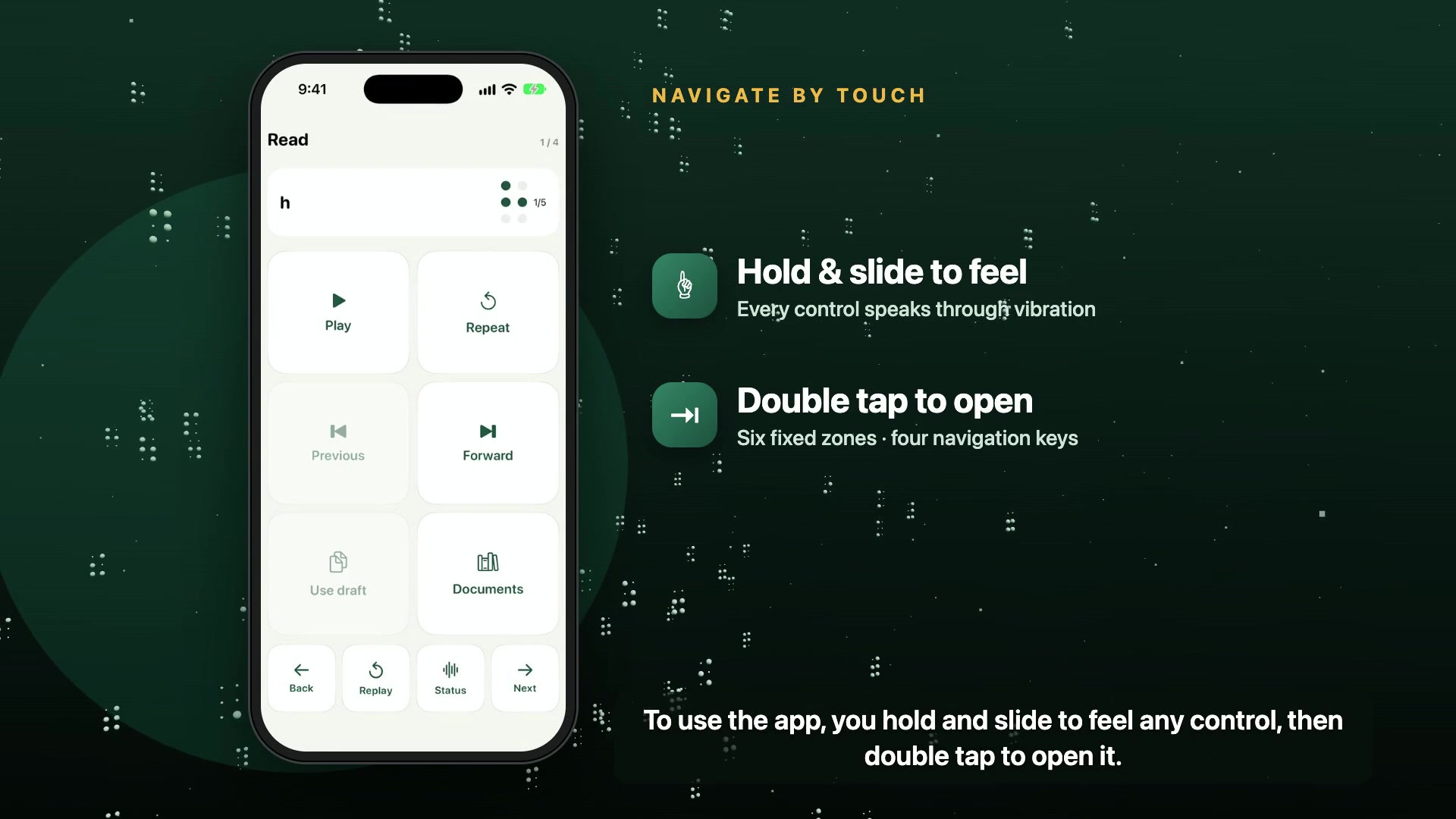
Navigate by touch: hold and slide to feel any control, double tap to open. Six fixed zones, no scrolling.
-
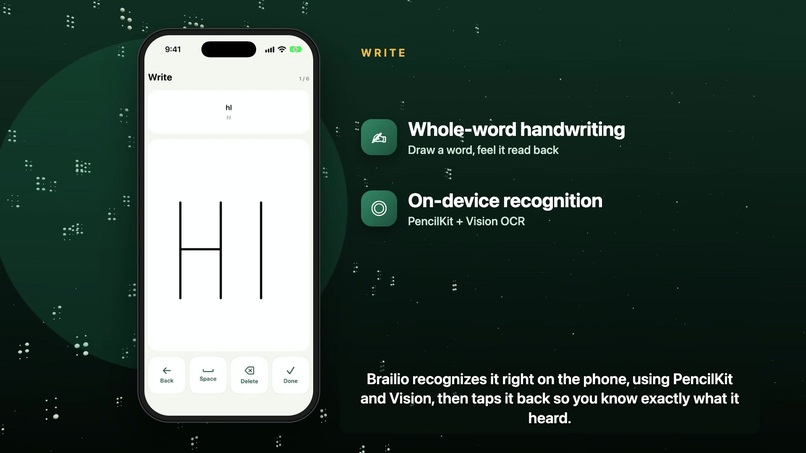
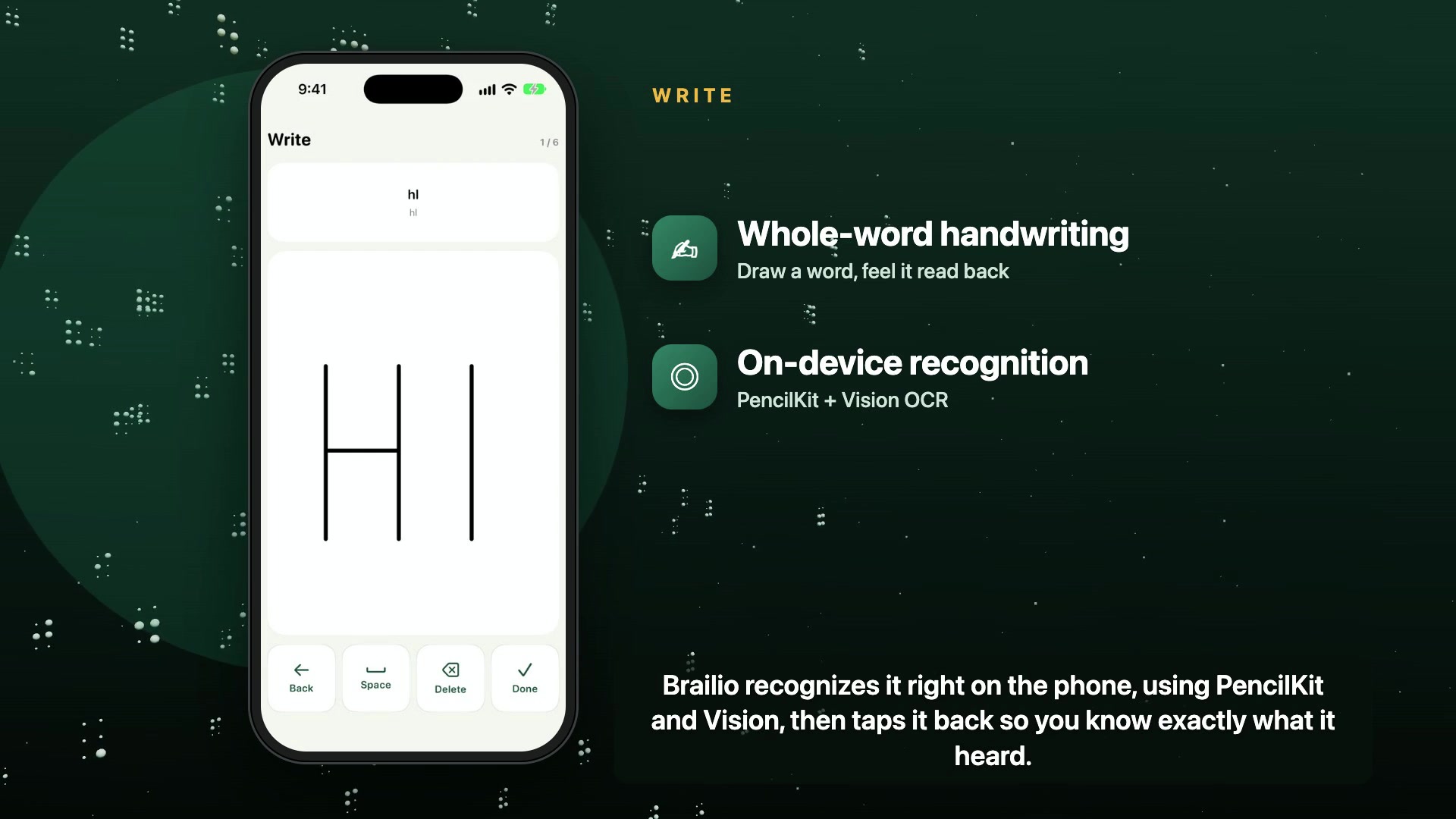
Write: draw whole words with a finger. PencilKit + Vision recognize them on device and tap them back.
-
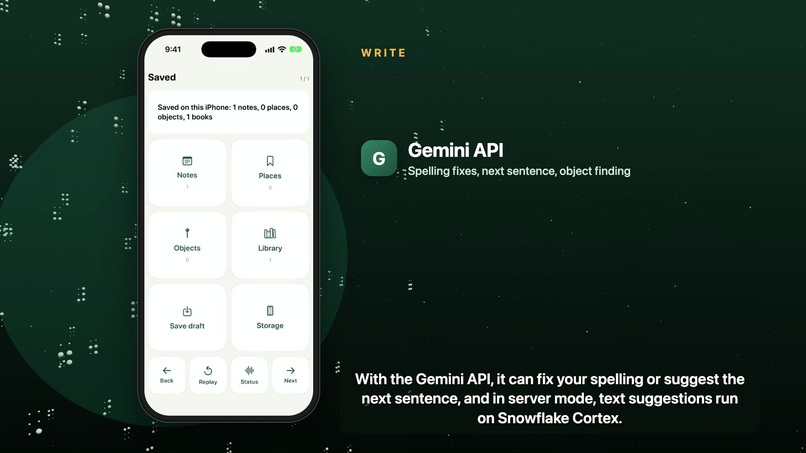
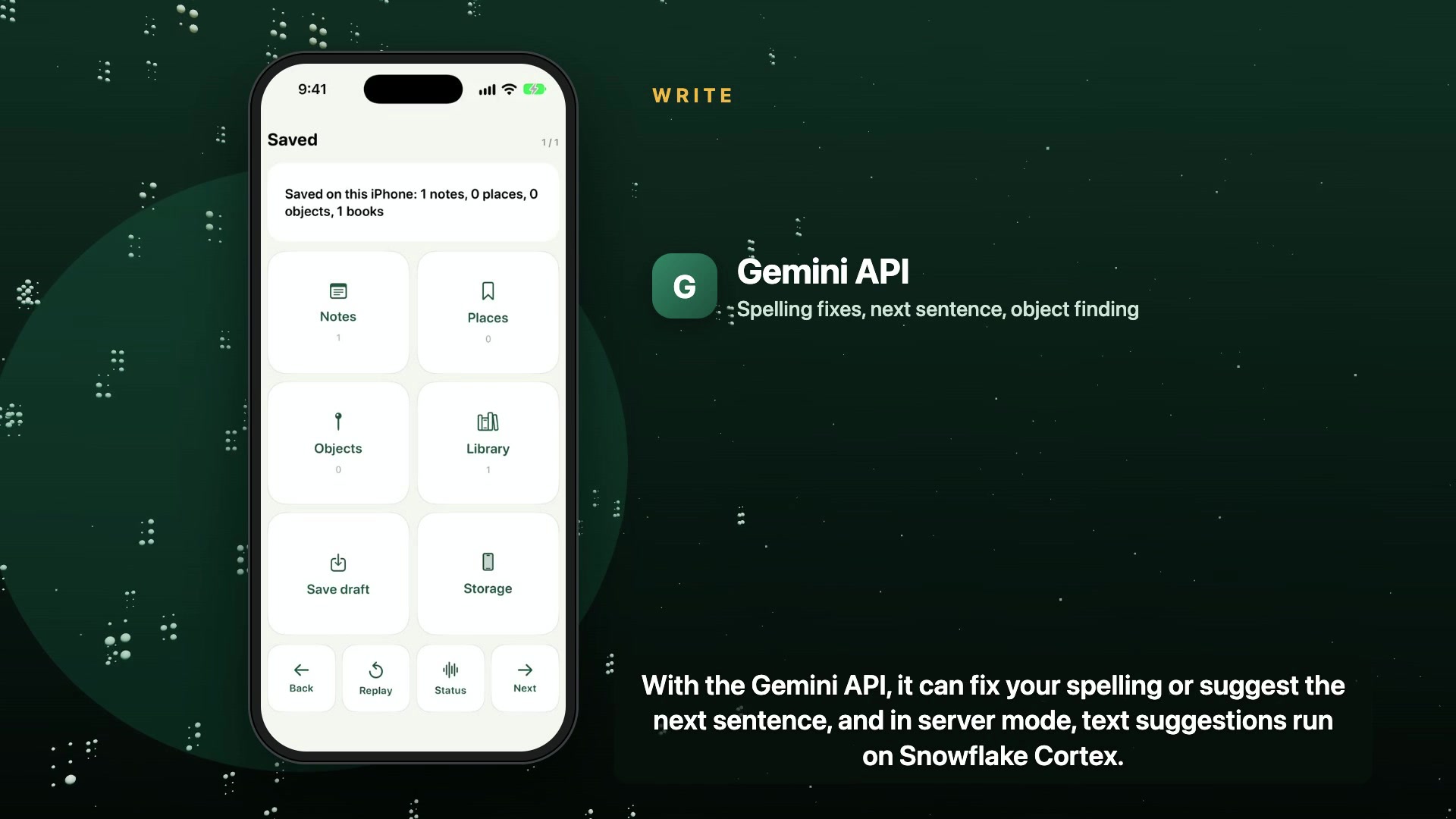
AI help: Gemini API fixes spelling and suggests the next sentence; Snowflake Cortex LLM handles suggestions in server mode.
-
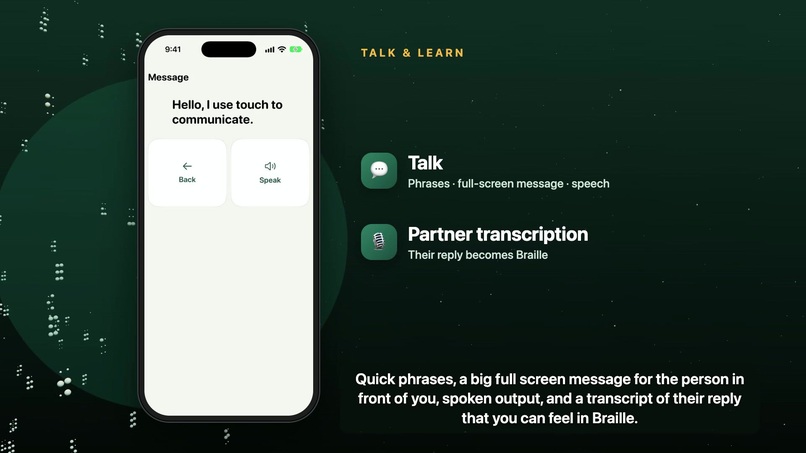
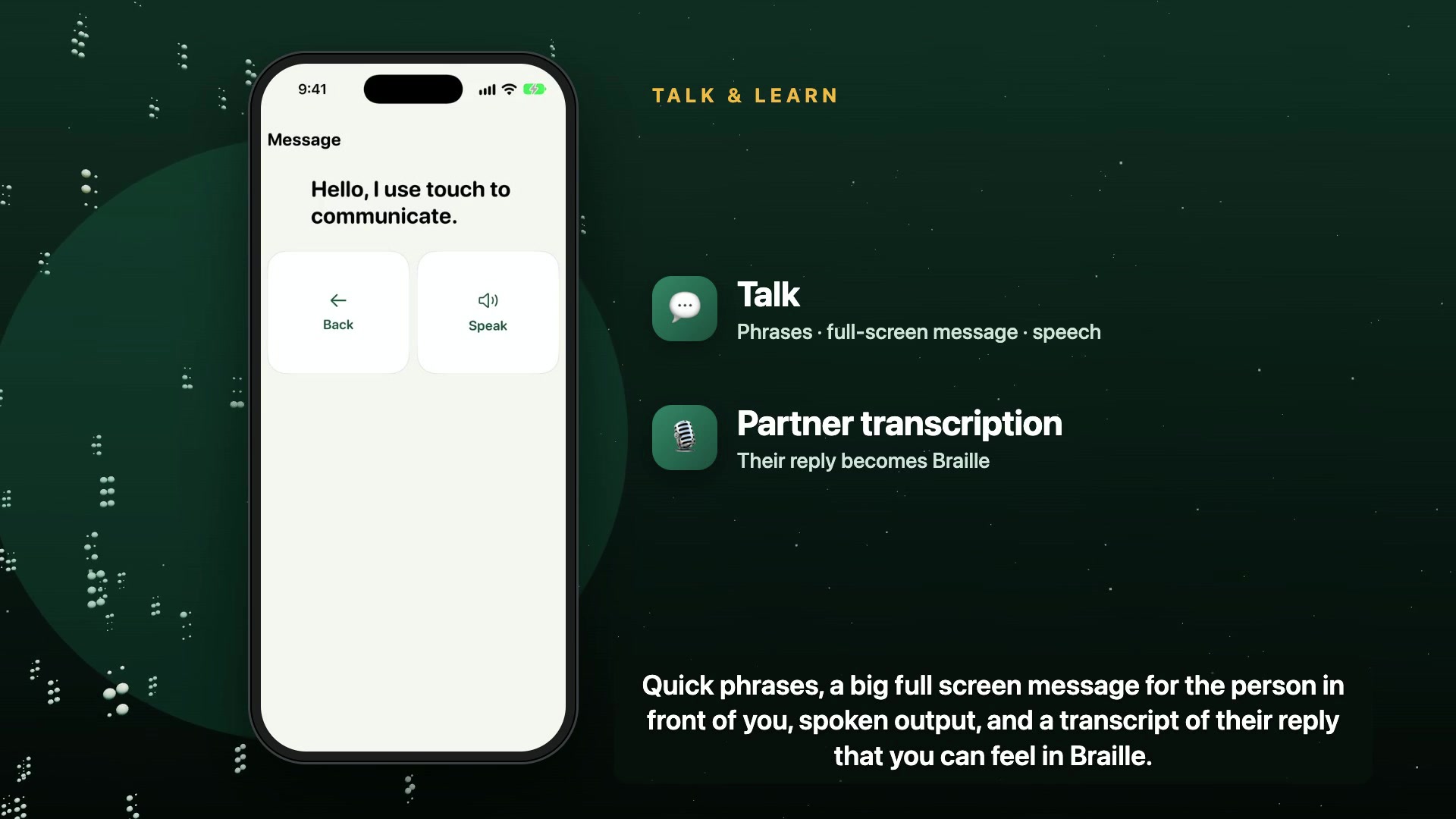
Talk: quick phrases, full-screen messages and spoken output; the partner's reply is transcribed and felt in Braille.
-
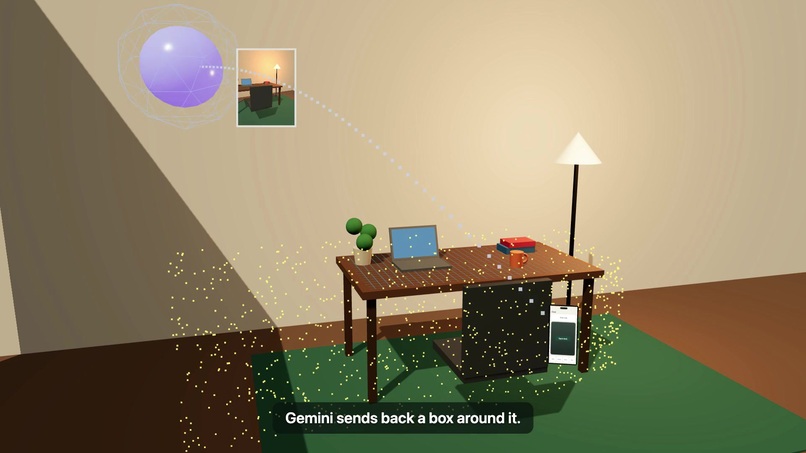
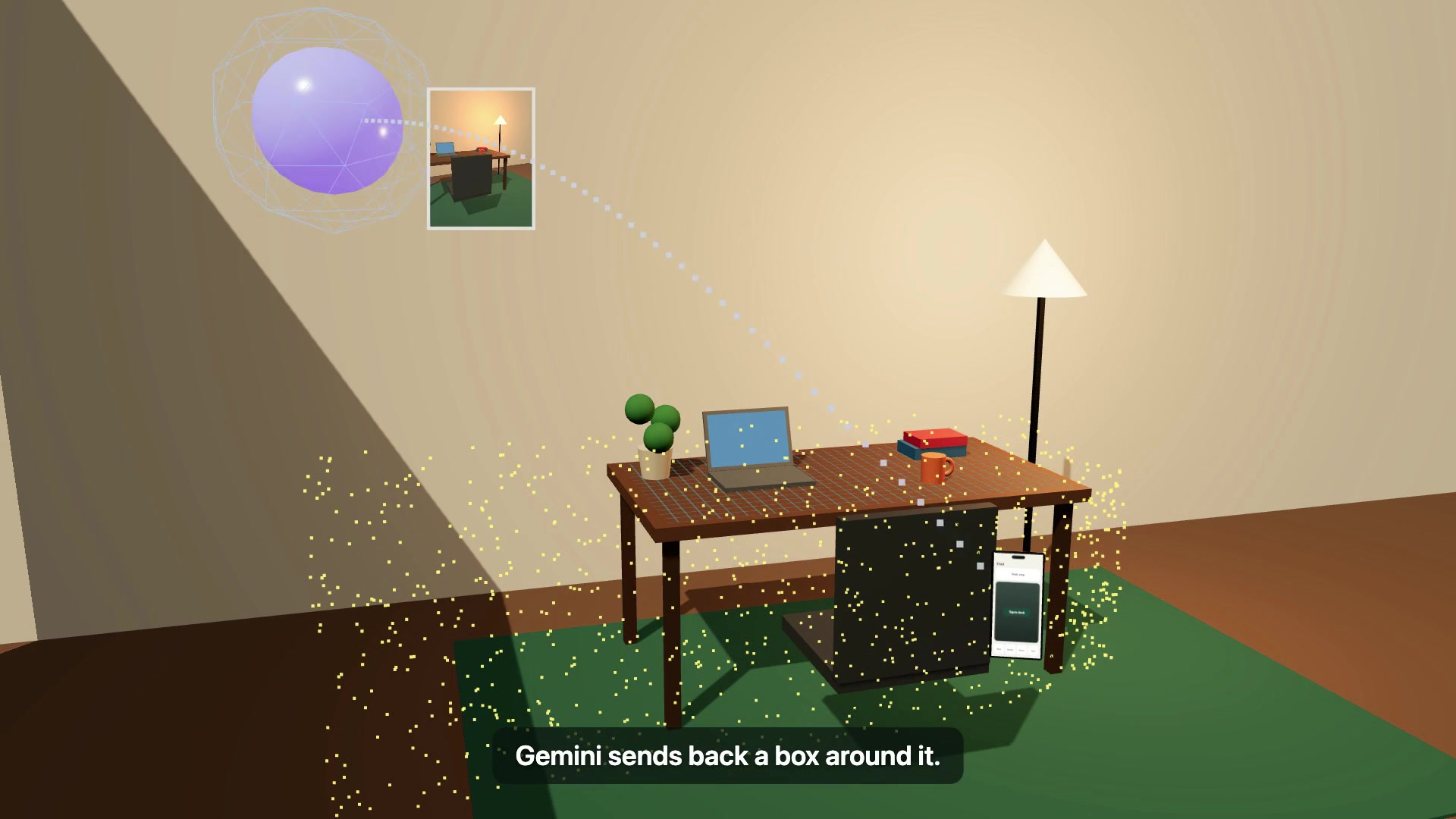
Find (1/3): hold to scan the room. Gemini API locates the named object in a snapshot and returns a bounding box.
-
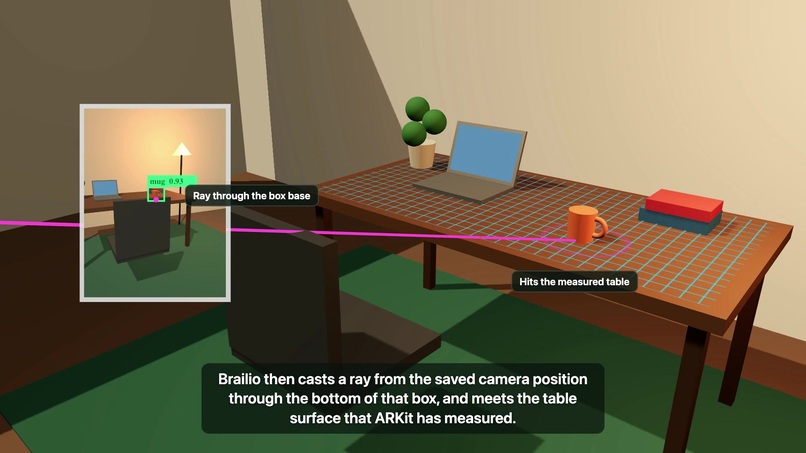
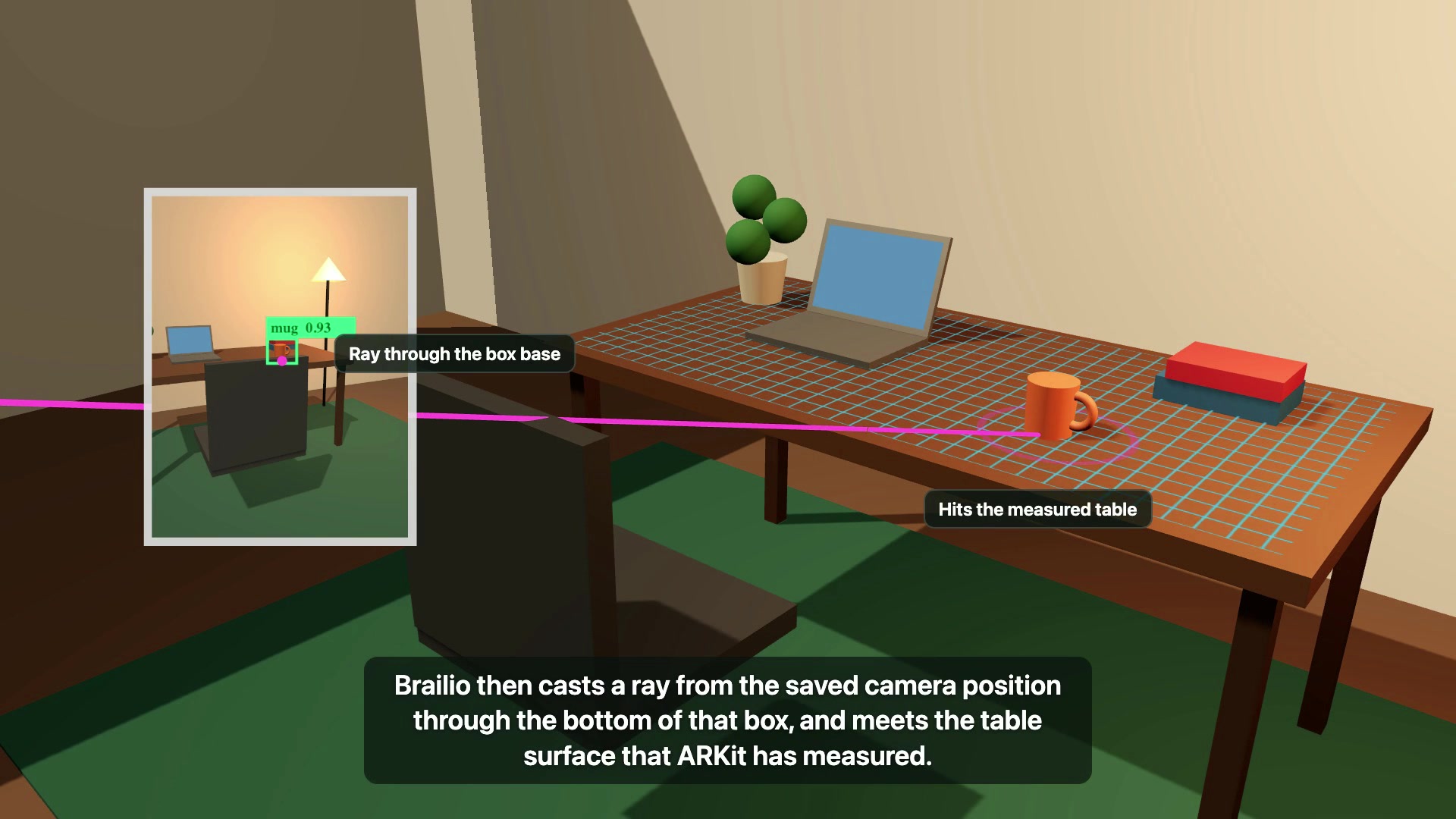
Find (2/3): a ray from the saved camera pose through the box base hits the ARKit-measured table: a 3D anchor.
-
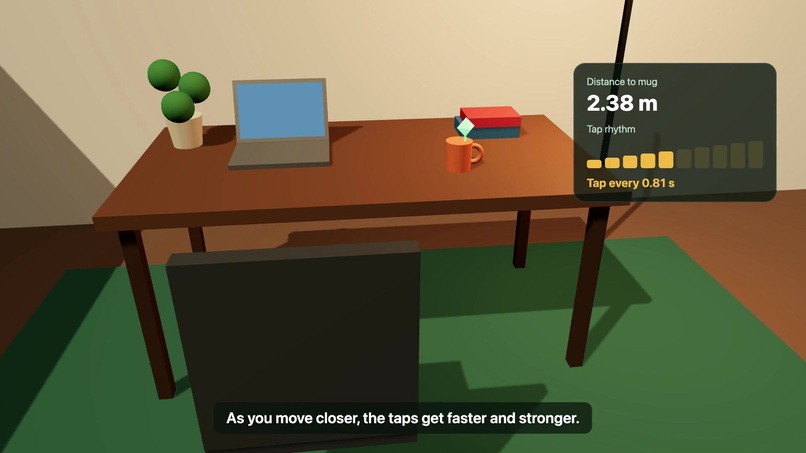
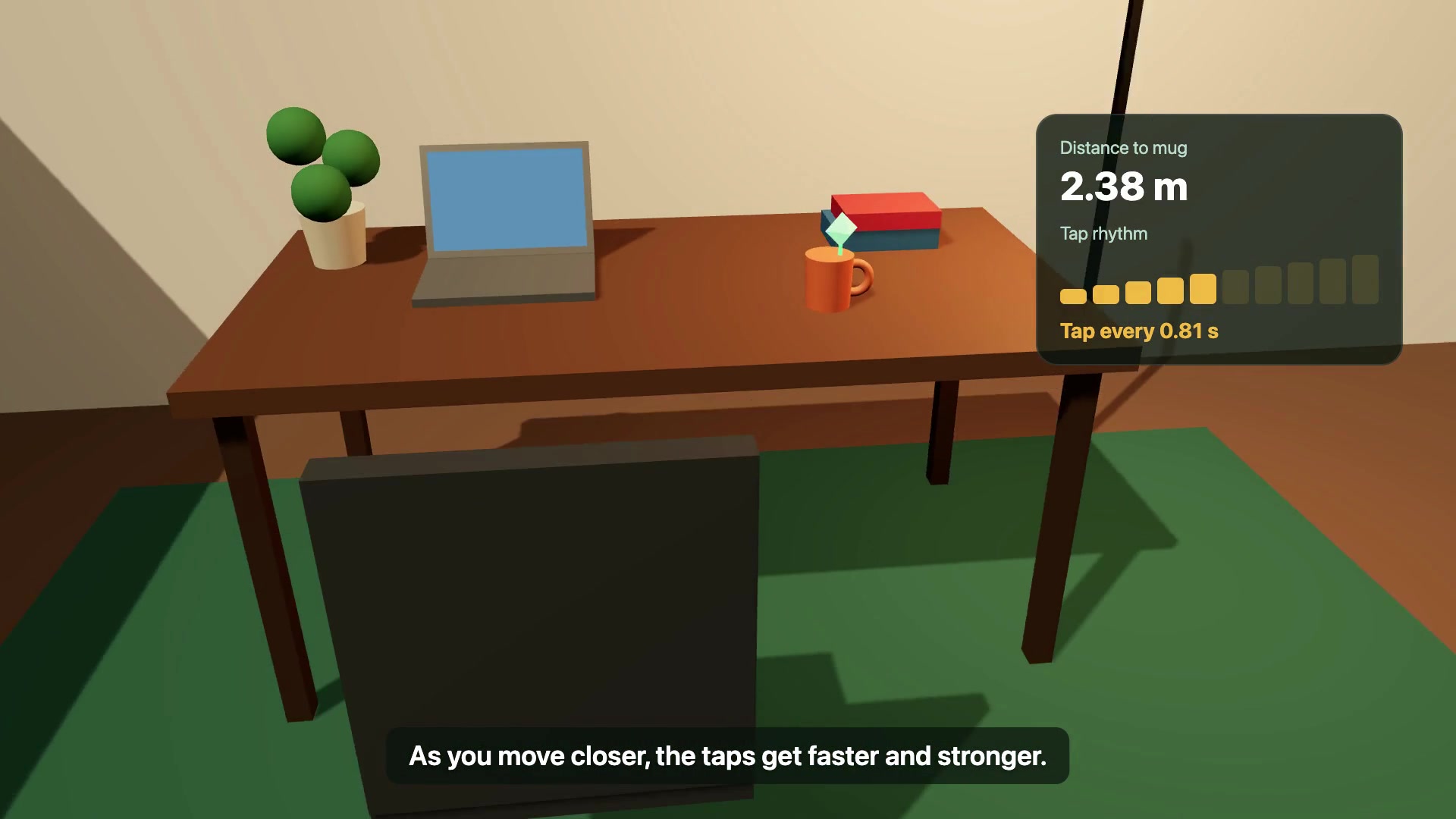
Find (3/3): taps get faster and stronger as you approach; a soft double tap tells you you're facing away.
-
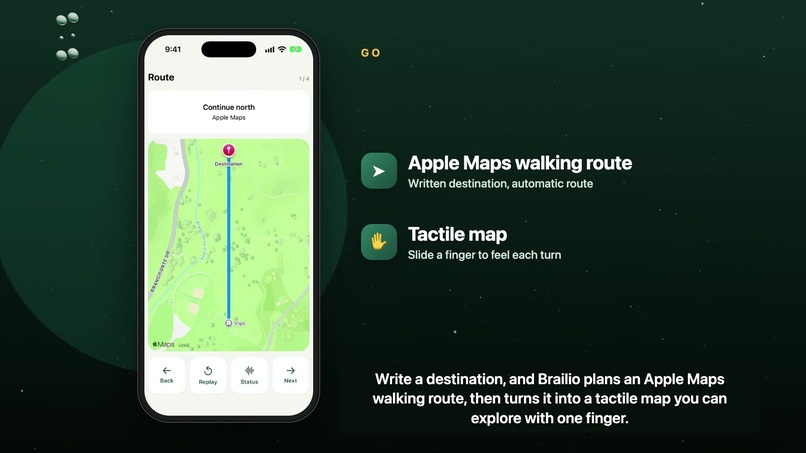
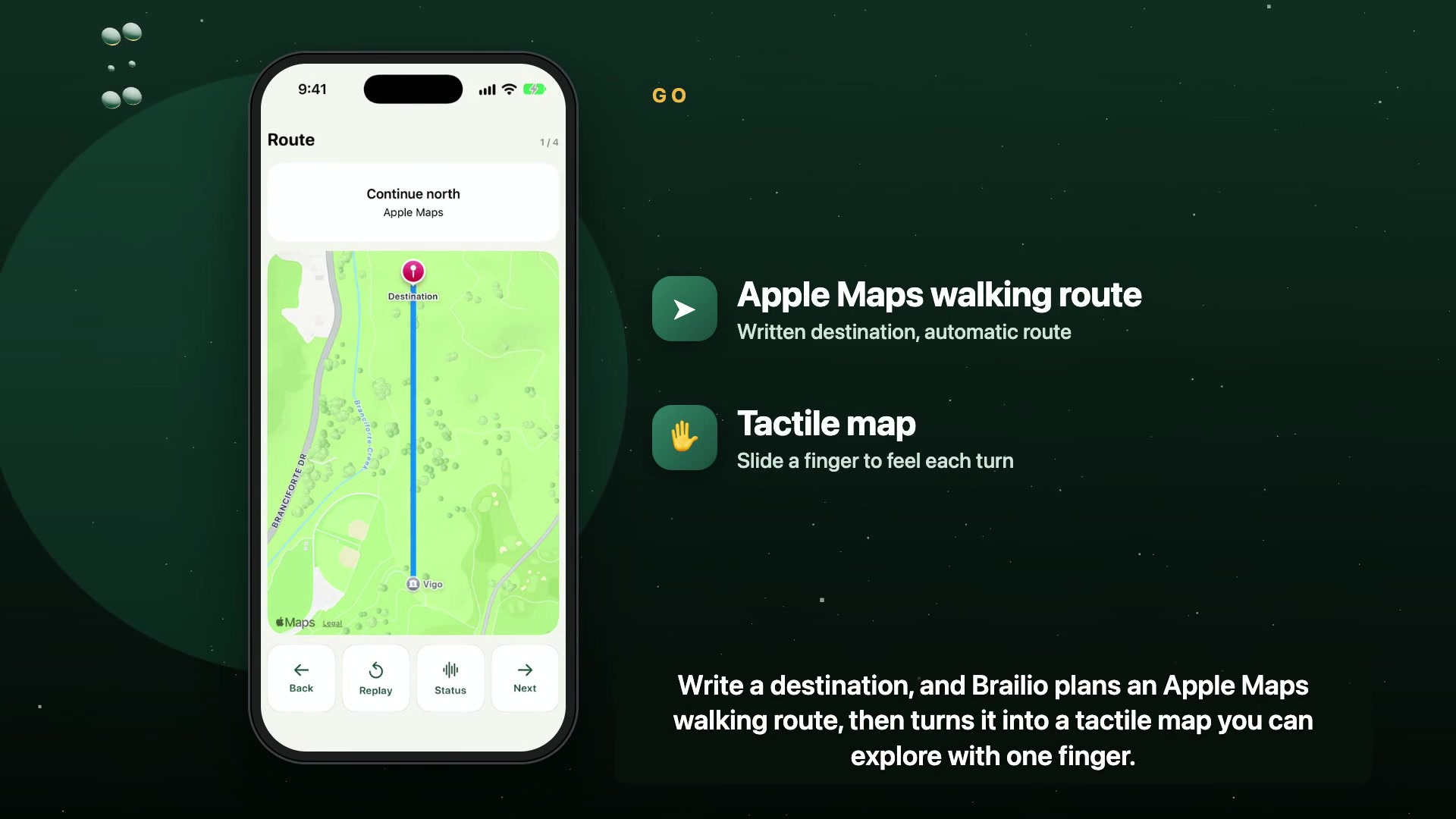
Go: write a destination; Apple Maps plans a walking route and turns it into a tactile map you explore with a finger.
-
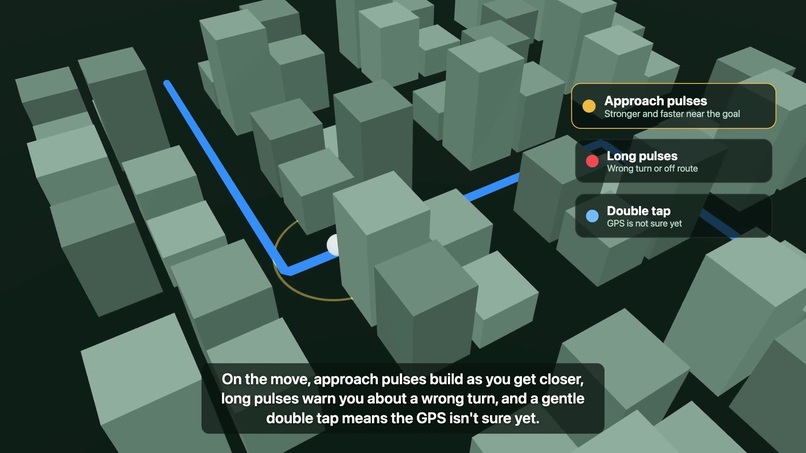
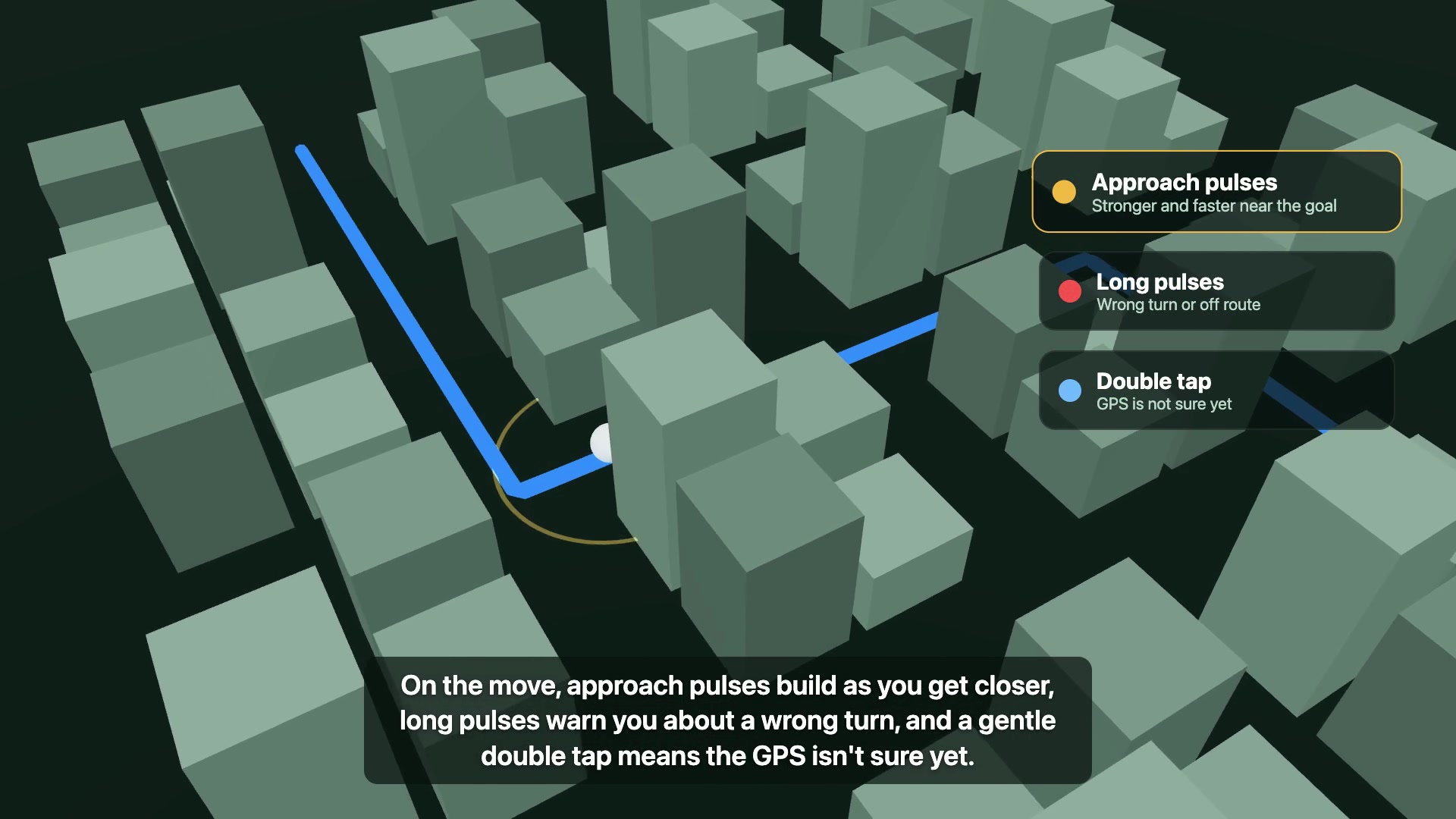
Go guidance: approach pulses near the goal, long pulses for a wrong turn, and a double tap when GPS is unsure.
Inspiration
What if someone could read a message, write a reply, find a belonging and explore a route using touch?
Brailio grew from that question. Audio-based interfaces can leave DeafBlind people behind, while voice input does not suit everyone who is nonspeaking. We wanted one iPhone companion built around tactile interaction from the start. Inspired by the blog Vibraille (https://www.jamesdysonaward.org/en-SG/2020/project/vibraille/), we brought reading, writing, conversations, object finding and navigation into one platform.
What it does
Explore by touch. Hold a finger on a control or slide between controls to feel its label. Lift, then double-tap to activate it. Six fixed action zones and a consistent Back, Replay, Status and Next row replace scrolling through app menus. Large text, clear icons and VoiceOver also support residual vision and companions.
Choose Morse or Braille. Morse is the default tactile code. In Settings, choose Morse or Braille; the preference is saved and applies to menu labels, text reading, handwriting read-back, conversations and documents. Morse uses short dots and long dashes: a dot is one beat, a dash is three, with one-beat gaps inside letters, three between letters and seven between words. Braille mode retains six timed dot slots per cell, with a pulse for a raised dot and quiet for an empty dot. Both are learned tactile codes. Learn provides letter practice, Morse Dot/Dash examples and an SOS sample; Settings includes Test SOS and adjustable pace and strength. Navigation and proximity warnings retain their distinct patterns.
Write whole words. Draw a print word with a finger, lifting between strokes and letters. A pause previews the recognition and reads it back through vibration without clearing the ink. Space commits the word; Done completes the task. A six-dot writer is also included. AI can suggest corrections and continuations for the user to review and accept.
Have a two-way conversation. Write a response and display it full-screen or have the phone speak it. A partner can type, or their speech can be transcribed into text for tactile reading. The user does not need to speak.
Read documents and books. Import PDFs and text through Apple's Files picker, open a direct HTTPS document link, or search imported titles followed by Internet Archive's public PDF catalog. Scanned pages use on-device OCR. The reader supports page controls, continuous book playback and saved reading positions.
Ask questions about your documents. Import one or multiple PDFs or text files, select the documents, then write a question with a finger and choose Done. Brailio searches those files locally, sends up to twelve matching passages to the selected AI provider, and plays the answer in Morse or Braille. Sources lets the user feel each cited document title, page and original passage. Answers can be replayed, stopped or saved as notes. Ask this book narrows the question to the open document.
Questions support up to ten documents, six hundred total pages and two million extracted characters, with a one-thousand-character question limit. Scanned pages use local OCR. This is retrieval over selected excerpts, not a guarantee that the model reads every sentence of a long collection. Missing evidence produces a could-not-find response. Source IDs are checked against the submitted passages; users still need to review the evidence because citations do not guarantee factual accuracy.
Find an object. Hold the center control to scan the surroundings, release, then write a name such as “laptop.” Brailio checks a fresh camera snapshot first and can consult temporary scan snapshots. The selected AI provider locates the object in an image; ARKit estimates its position. Short approach taps become stronger and faster nearby. Facing away or uncertain tracking produces a separate double-tap cue. A tap checks proximity to the measured position, while the user confirms the actual item.
Go somewhere. Write a destination and choose Done. Apple Maps resolves the place, calculates a walking route and opens tactile guidance; ambiguous places require a choice. Hold and slide over the map to explore route instructions. Approach pulses strengthen near the destination, long pulses indicate sustained deviation or a wrong turn, and double taps indicate uncertain GPS. Optional silent alignment is available.
Keep useful things together. Saved brings local notes, places, object names with last-seen information, and documents into one hub.
How we built it
Brailio is a native SwiftUI iOS app, with UIKit touch surfaces where direct interaction is needed.
Core Haptics plays Morse dots/dashes, timed Braille cells, approach rhythms and navigation cues. PencilKit and Vision capture handwriting and handle recognition and OCR on device. ARKit provides world tracking, plane estimation and raycasting, with scene depth on supported LiDAR devices. MapKit and Core Location provide Apple place search, walking routes and location feedback. PDFKit handles page-based PDF reading. Apple Speech and speech synthesis support optional conversation transcription and spoken replies. Baseten Model API is the default provider for document questions, writing assistance and object detection, using GLM-5.3-Flash. Gemini API remains a direct integration. It is used only when explicitly selected and configured with its own key; requests sent is also sent to snowflake cortex for understanding the write up. The optional authenticated Node backend routes all server-side AI tasks to Cortex. Node.js and Vercel support the optional authenticated backend and privacy/terms pages.
The object finder adapts the spatial flow from of finding a object and keep the data in the app itself. We preserve the snapshot's camera pose and intrinsics, then use depth where available or cast a ray through the object's base onto a detected or estimated surface. The resulting position is tied to the current AR session. We do not invent a fixed distance when geometry is missing.
Handwriting, OCR, Morse/Braille playback and saved content stay on the phone. AI requests send selected text, retrieved document passages with source titles/pages, or images to the configured provider. Demo credentials are entered by the owner and stored in Keychain; provider keys are not bundled in the repository.
Challenges we ran into
The hardest spatial problem was turning a two-dimensional detection into a useful three-dimensional position, especially without LiDAR. Keeping tracking active while the user writes, using the captured camera pose and rejecting uncertain placements all matter.
The tactile challenge was sharing one actuator between labels, Morse/Braille reading, approach taps and warnings. Timing, pauses and distinct patterns help separate those meanings.
Whole-word handwriting also needs room for late dots, crossbars and pauses. We retain the ink until the user commits it so recognition can be reviewed and corrected.
Accomplishments that we're proud of
We brought selectable Morse and Braille reading, whole-word writing, conversations, spatial finding, walking-route feedback and saved content into one tactile-first iPhone interface. The same touch-to-explore and double-tap interaction connects the core workflows, while local recognition and storage reduce dependence on cloud processing.
What we learned
A tactile interface needs predictable locations and timing as much as visual interfaces need clear layout. Recognition must be reviewable, and uncertainty must have its own feedback.
Object identity, a measured room position and a safe path are different problems. Brailio can guide toward an approximate position, but a proximity tap cannot prove the object is correct or the way is clear.
Current scope
Brailio is an working prototype. Morse does not distinguish letter case, and neither tactile mode is assumed to be easier for every user. Switching codes preserves a document's page and restarts its character position. Its English Braille teaching code does not yet cover full UEB contractions, multilingual text or complex mathematics. Recognition, AI detections, AR positions and GPS can be wrong. Room positions can drift, do not follow moved objects and need a fresh search in a new camera session. No room movie is saved, but camera and motion tracking remain active during object guidance.
Walking guidance runs in the foreground and supplements the user's usual mobility aid. A route endpoint is not confirmation of a safe entrance or crossing. Real-room accuracy and independent tactile usability require further testing with intended users.
The connected iPhone passed a live Baseten question against a synthetic document with a valid source reference and tactile playback, as well as a separate Morse SOS hardware test. UI tests use an explicit synthetic AI response fixture. These checks do not establish comprehension or independent usability for intended users.
What's next for Brailio
Co-design and supervised testing with DeafBlind users and orientation-and-mobility instructors; full UEB and multilingual Braille; refreshable Braille display support; stronger indoor relocalization; and per-user backend authentication and quotas for wider release.

Log in or sign up for Devpost to join the conversation.