-
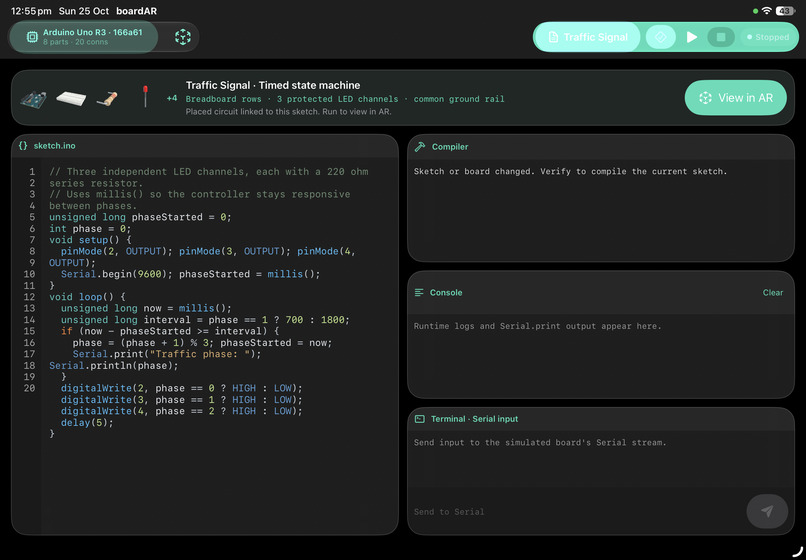
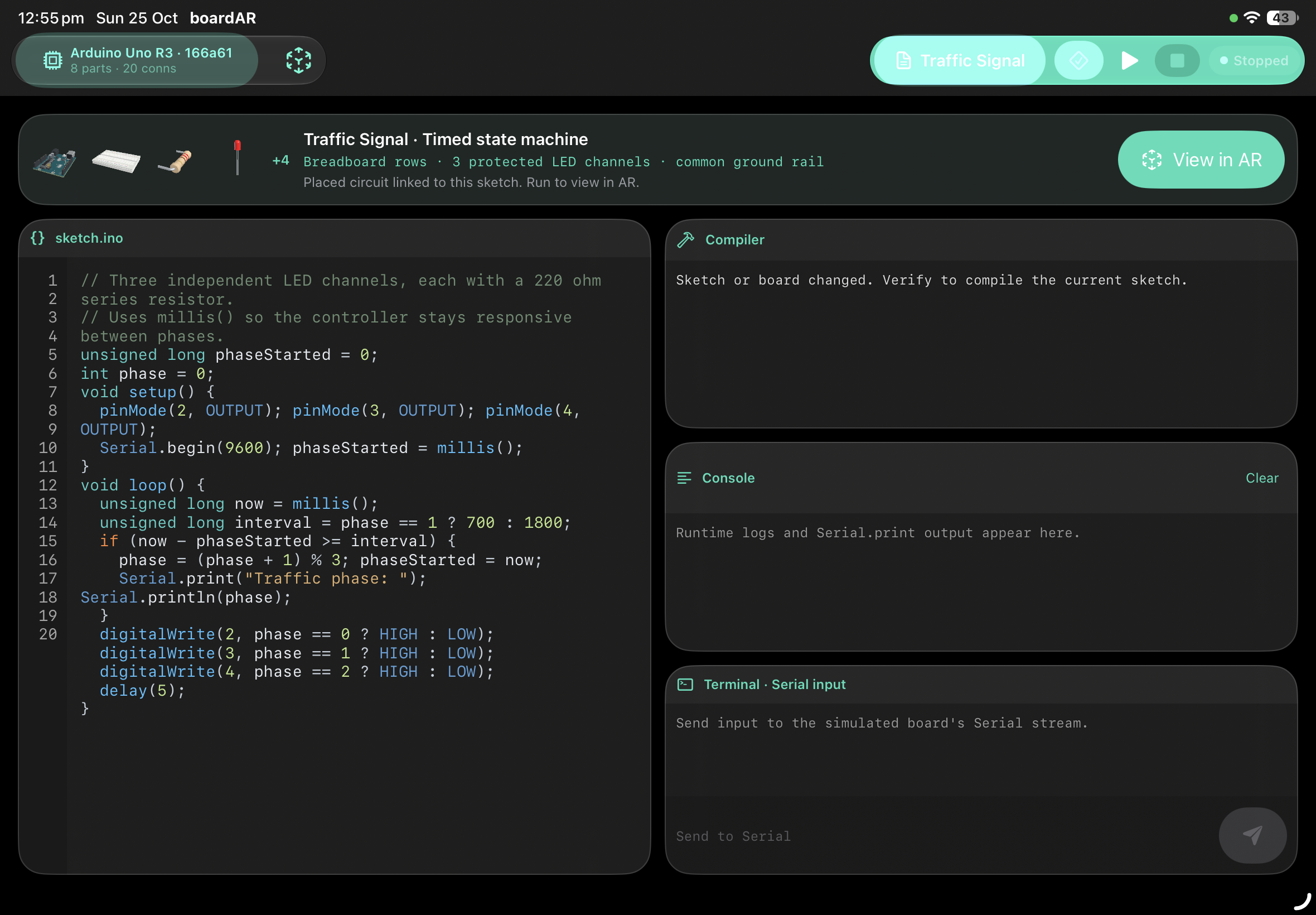
Arduino compiler
-
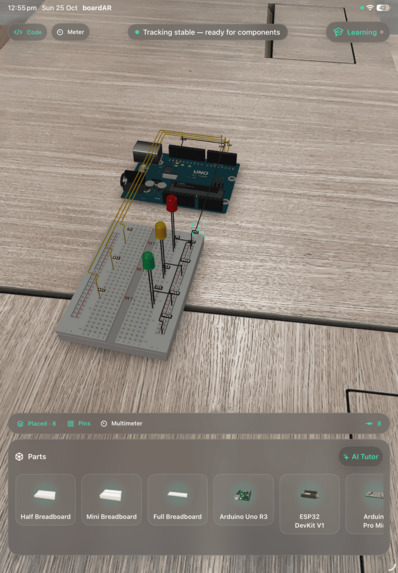
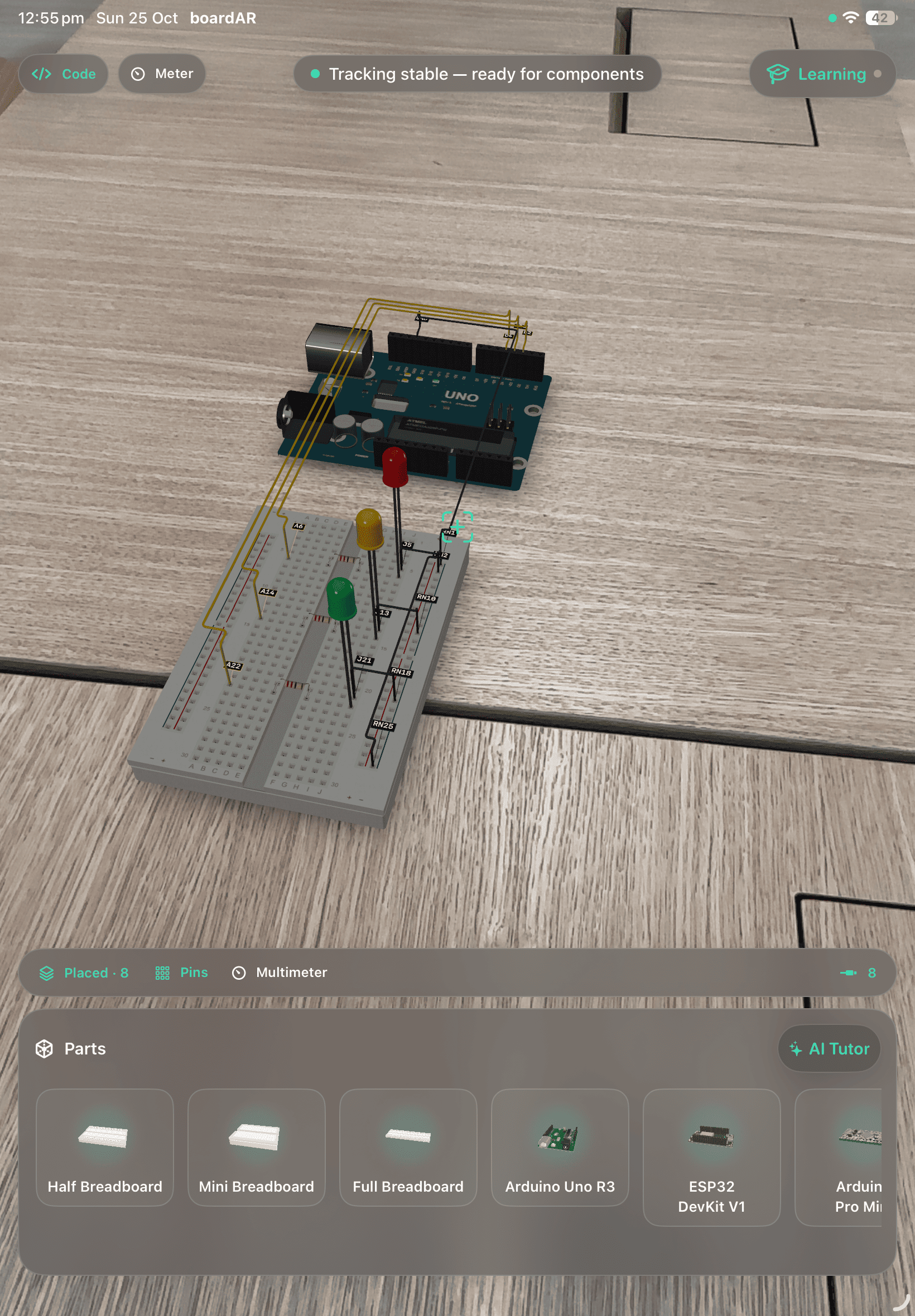
Board in AR
-
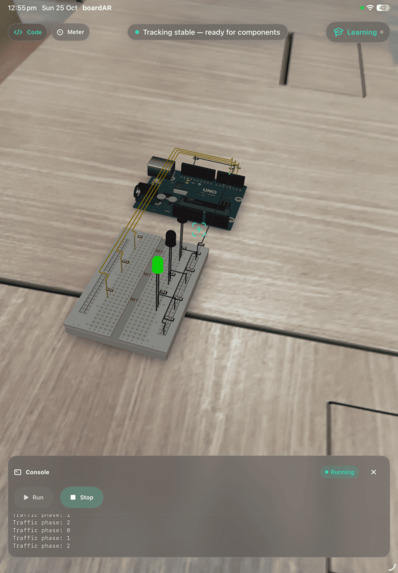
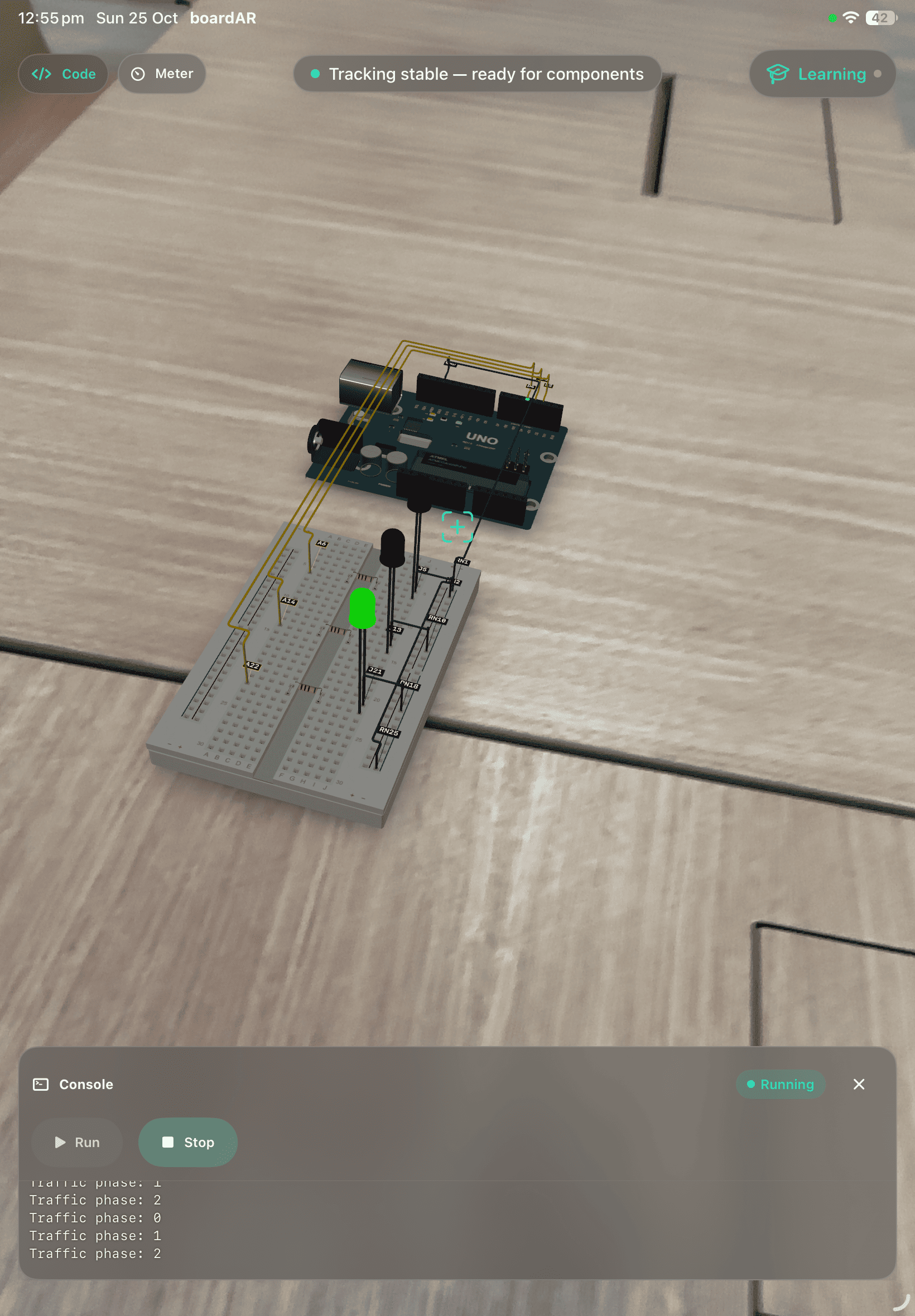
Running circuit
-
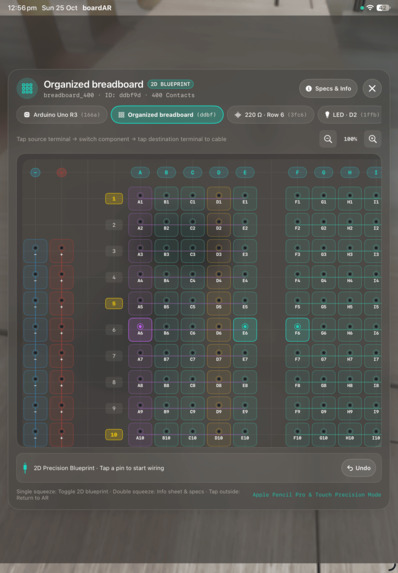
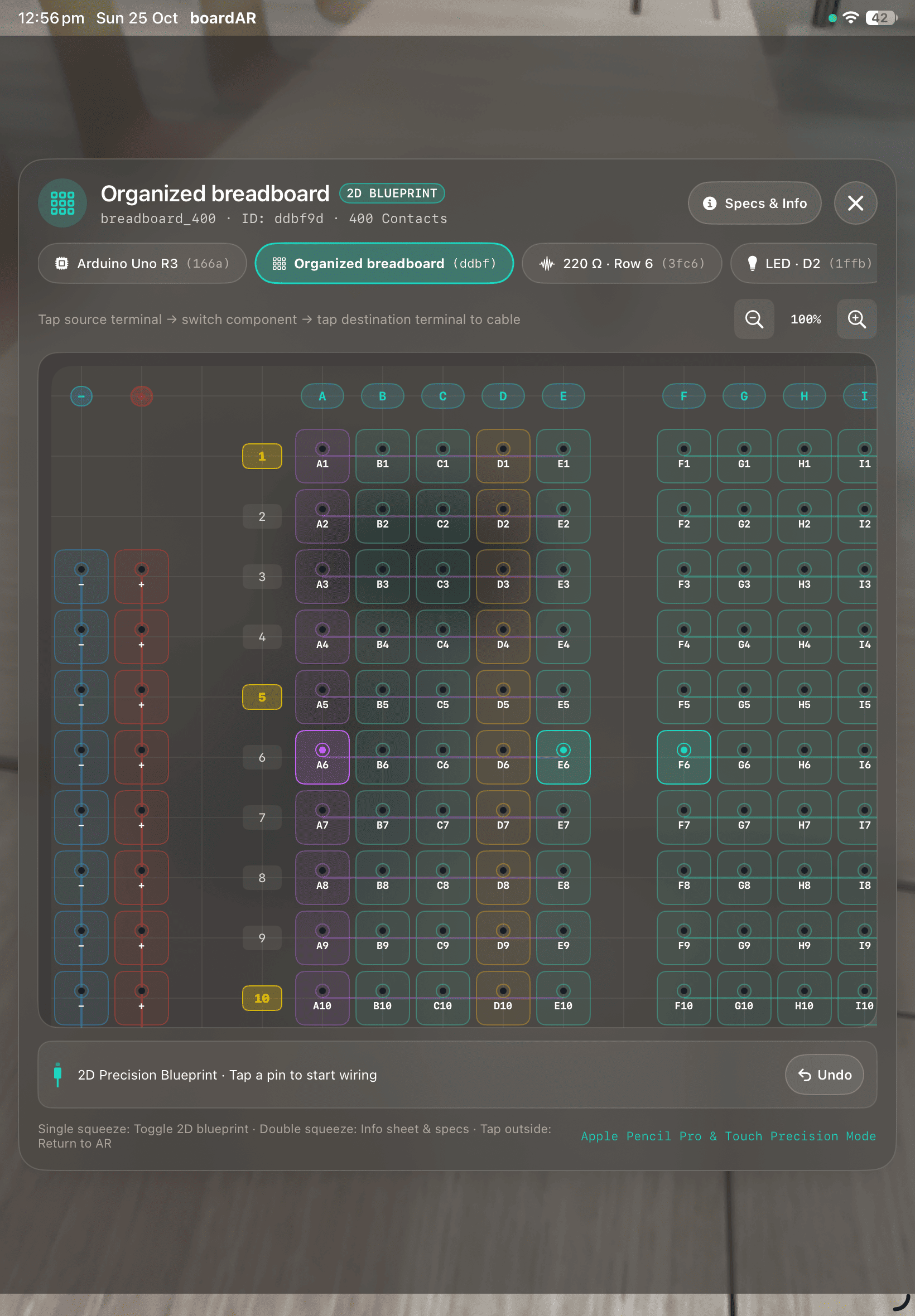
Make connections across the components
-
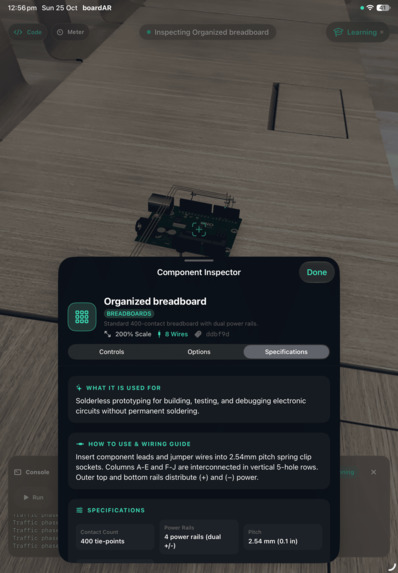
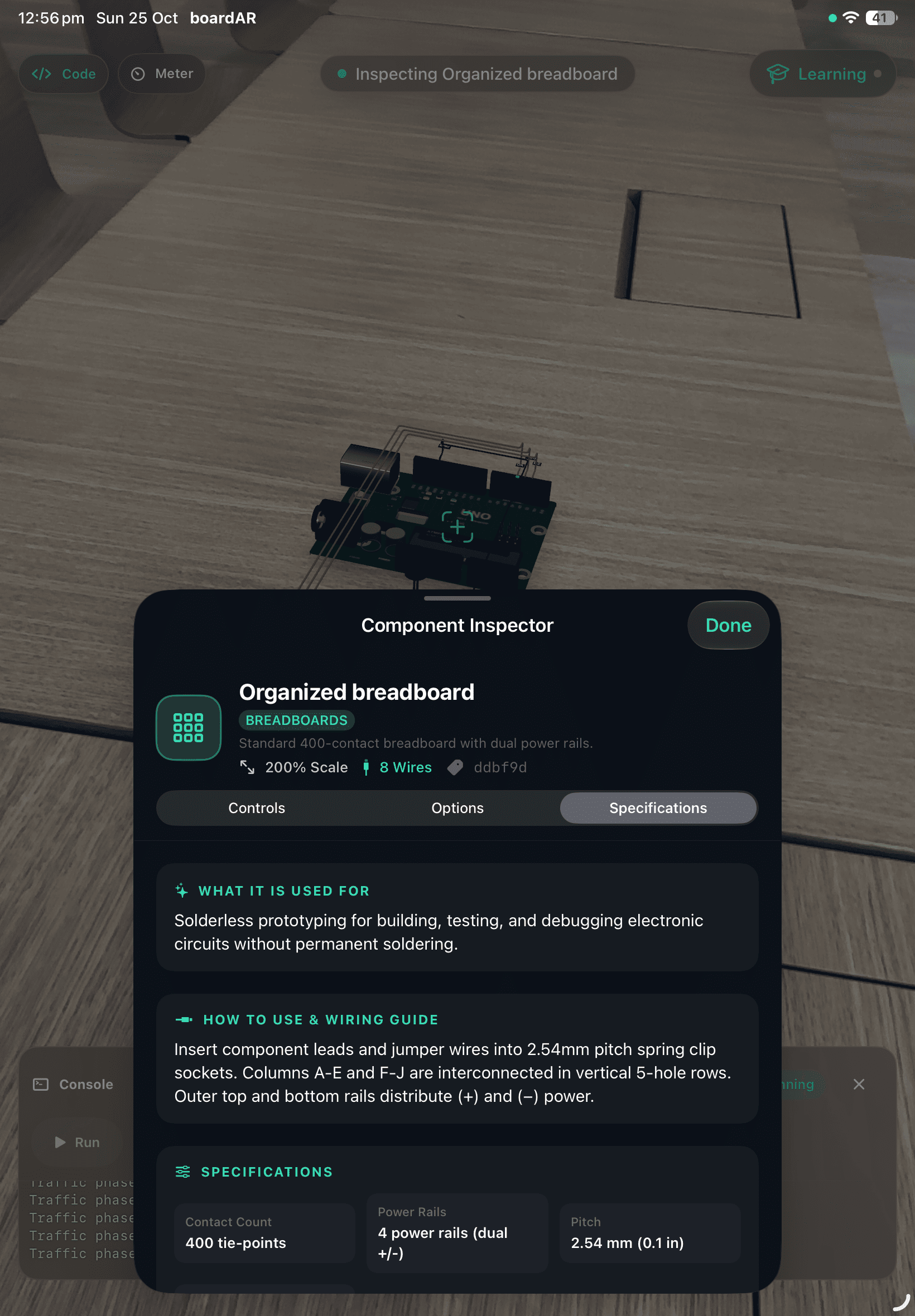
Component specification
Inspiration
When I started exploring electronics, even blinking a single LED came with a shopping list: an Arduino, a breadboard, resistors, wires, and the LED itself. Every new experiment meant more components. Learning on my own also meant worrying that a wiring mistake would damage the kit I had just bought.
Simulators make electronics more accessible, but I wanted the spatial experience of working with a breadboard: finding a pin, tracing a connection, and seeing how the parts fit together.
That became boardAR: an electronics workbench that fits on your desk without needing a box of hardware.
What it does
boardAR is an augmented reality circuit workbench for schools and people taking their first steps in electronics.
Place a virtual breadboard on your desk through an iPhone or iPad. Add components, connect their pins, and write Arduino code. On iPad, use the Apple Pencil to draw connections directly between terminals. Press Run, and watch the connected LEDs respond in the space in front of you.
The app includes 32 3D components to explore, 11 starter projects, and a tutor that uses the current circuit, code, and execution state to provide relevant guidance.
You can build, change, and repeat an experiment without buying components or finding a lab.
How we built it
I built boardAR with SwiftUI, ARKit, and RealityKit. A custom on-device compiler translates supported Arduino code into instructions that a local runtime executes. Those instructions drive pin states, which flow through the circuit’s connections to control its visible behavior.
That connection matters: an LED responds to the running sketch and its wiring. Changing the code or breaking a connection changes the result.
Apple’s on-device Foundation Models interpret circuit requests and generate supported designs locally. When additional context is needed, SCX provides focused technical advice and Parallel’s Search MCP retrieves reference material. Circuit generation, compilation, and simulation happen on the device; external services supply supporting context.
Challenges
Keeping the circuit anchored was a central challenge. Small tracking shifts make precise wiring difficult, especially while the device is moving around the table. The 3D view also needed to remain useful when AR tracking was unavailable.
Another challenge was connecting code execution to circuit behavior. Supporting compilation, timing, wiring changes, and runtime errors required a shared model of what was connected and what the program was doing.
The tutor needed restraint, too. Advice has to reflect the current build, stay concise, and avoid repeating itself while someone is experimenting.
What we learned
Spatial interaction gives AR its purpose here. Seeing a component’s leads, choosing a terminal, and following a wire makes the connection itself part of the learning experience.
A focused demonstration also communicates more clearly. One circuit that can be built, edited, and run shows the workbench’s depth better than quickly cycling through every preset.
Device availability shaped the design. AI generation requires iOS 26 or later and a compatible, ready Apple Intelligence device. Starter projects and built-in guidance provide a path when that model is unavailable.
What’s next
The next step is school pilots: testing whether boardAR helps beginners understand connections and move from guided examples to their own circuits.
From there, I want to expand supported component behavior, adapt hints to different learning levels, and build a teacher view that shows where students need help.
The goal is to make a first electronics experiment easier to start—and easier to try again.

Log in or sign up for Devpost to join the conversation.