-
-
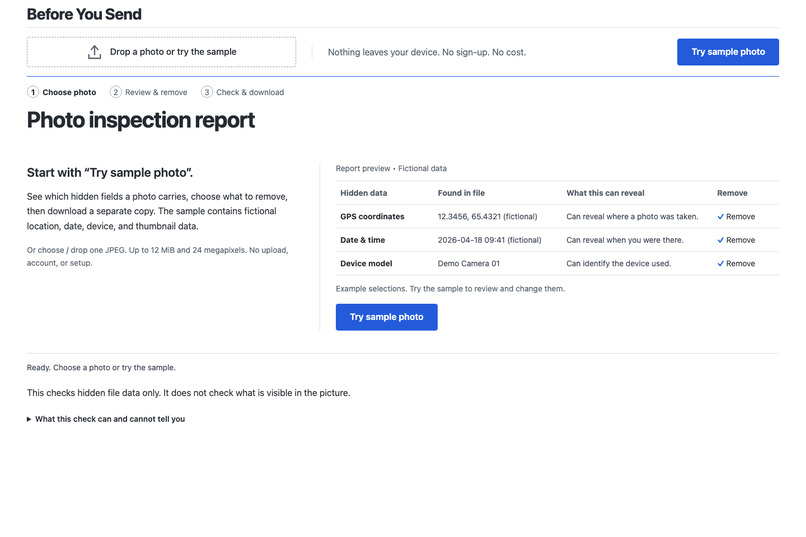
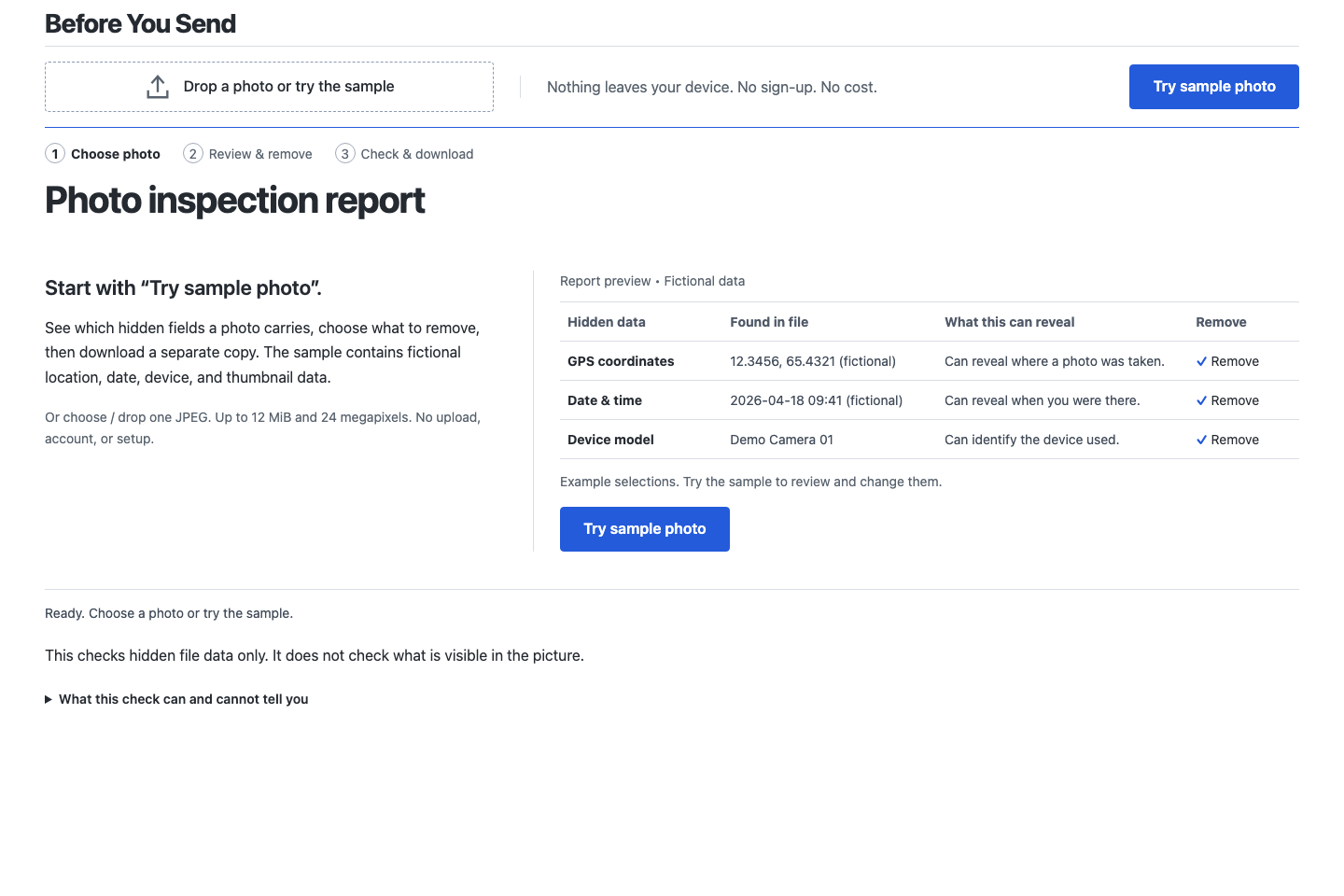
The first screen previews a fictional report. Choose “Try sample photo” or drop in a JPEG; the photo stays in the browser tab.
-
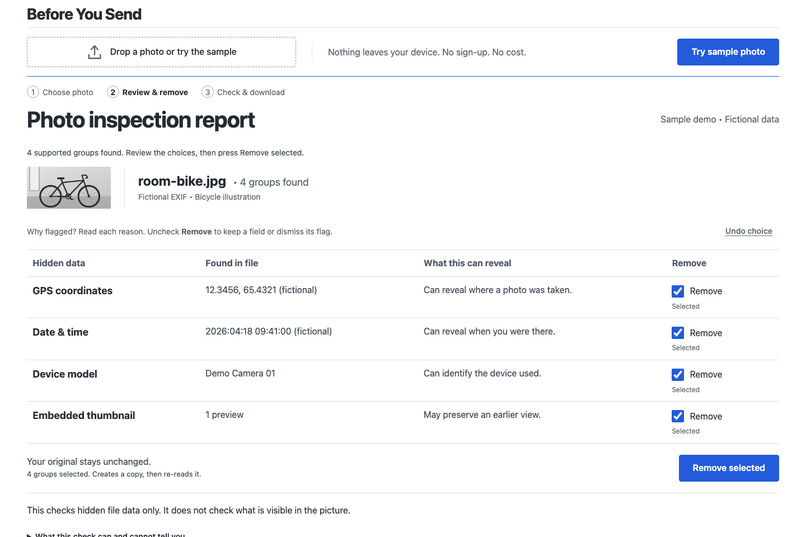
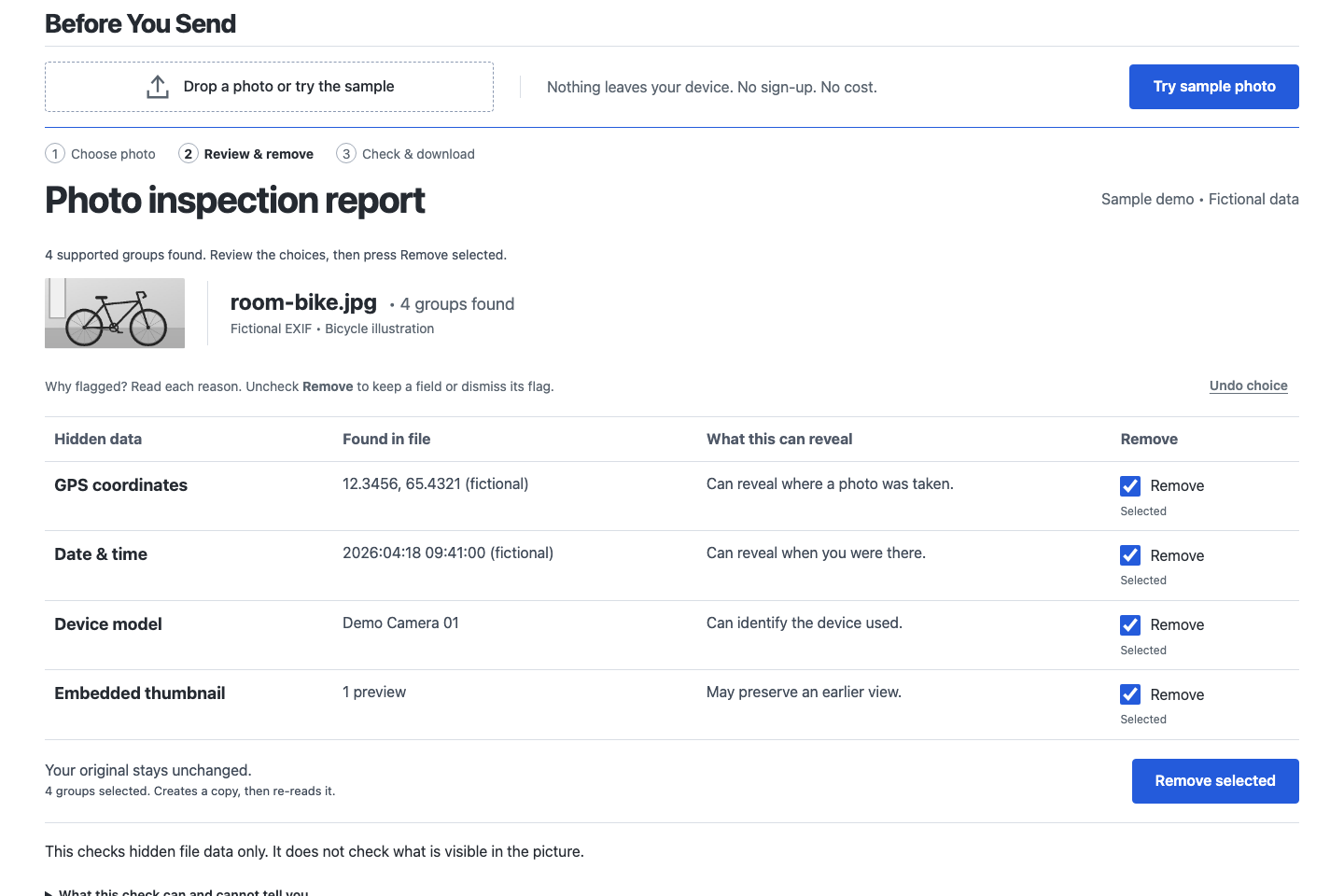
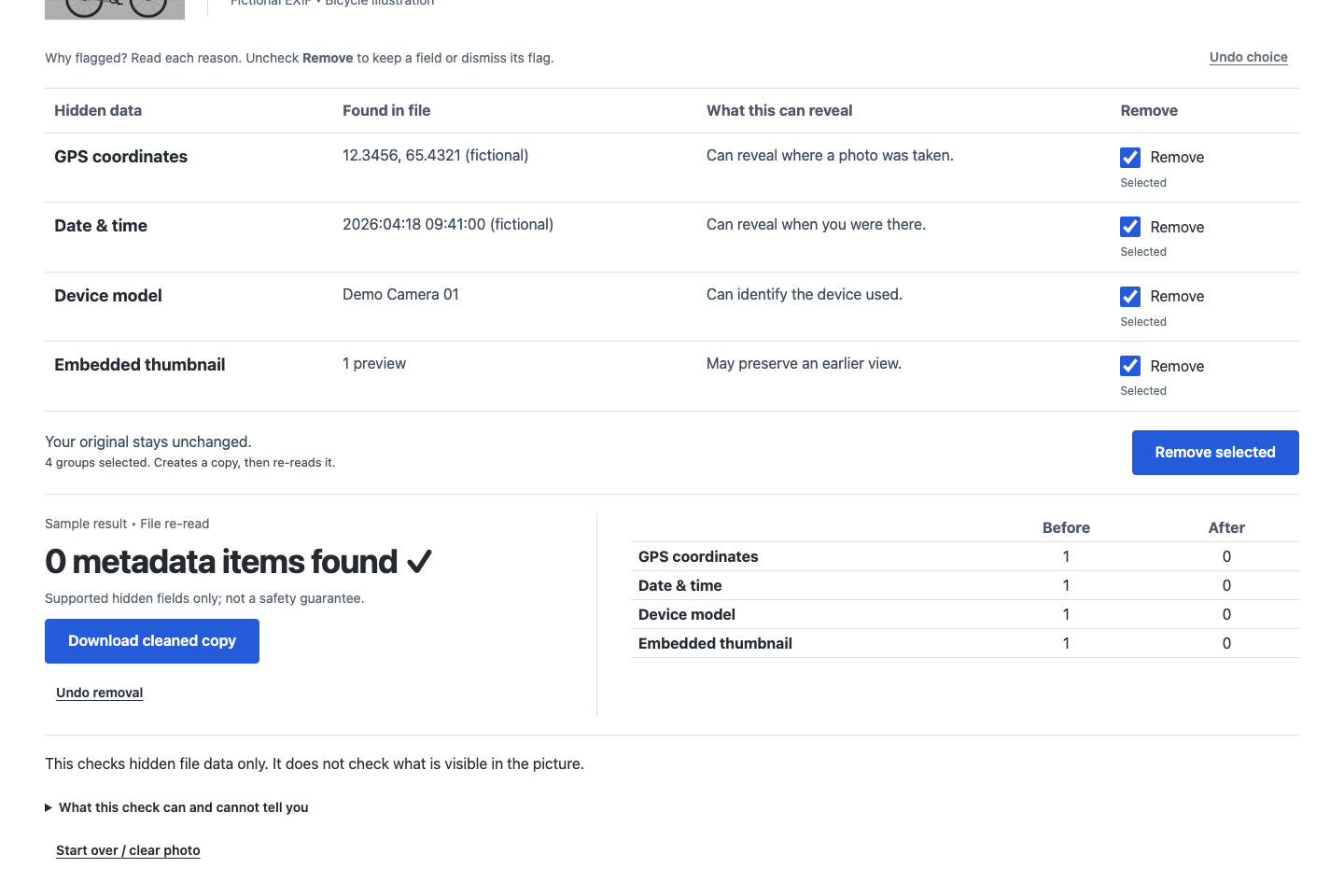
The fictional sample carries four hidden groups: GPS coordinates, date and time, device model and an embedded thumbnail.
-
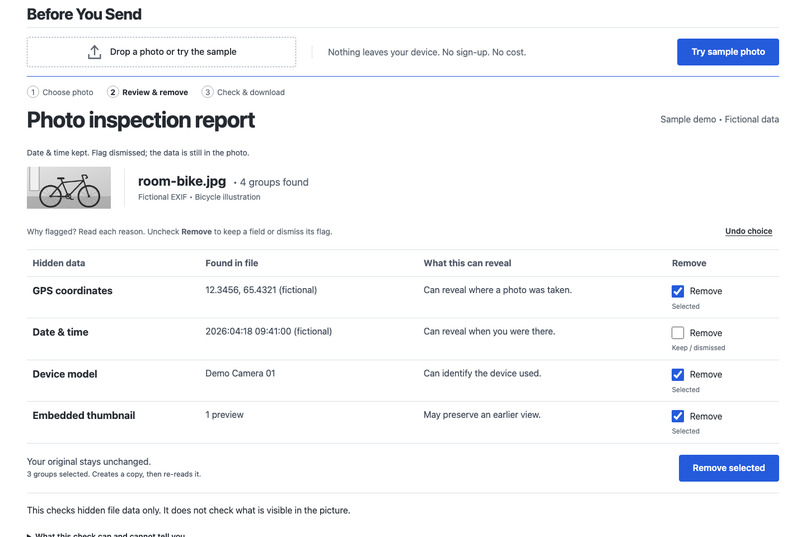
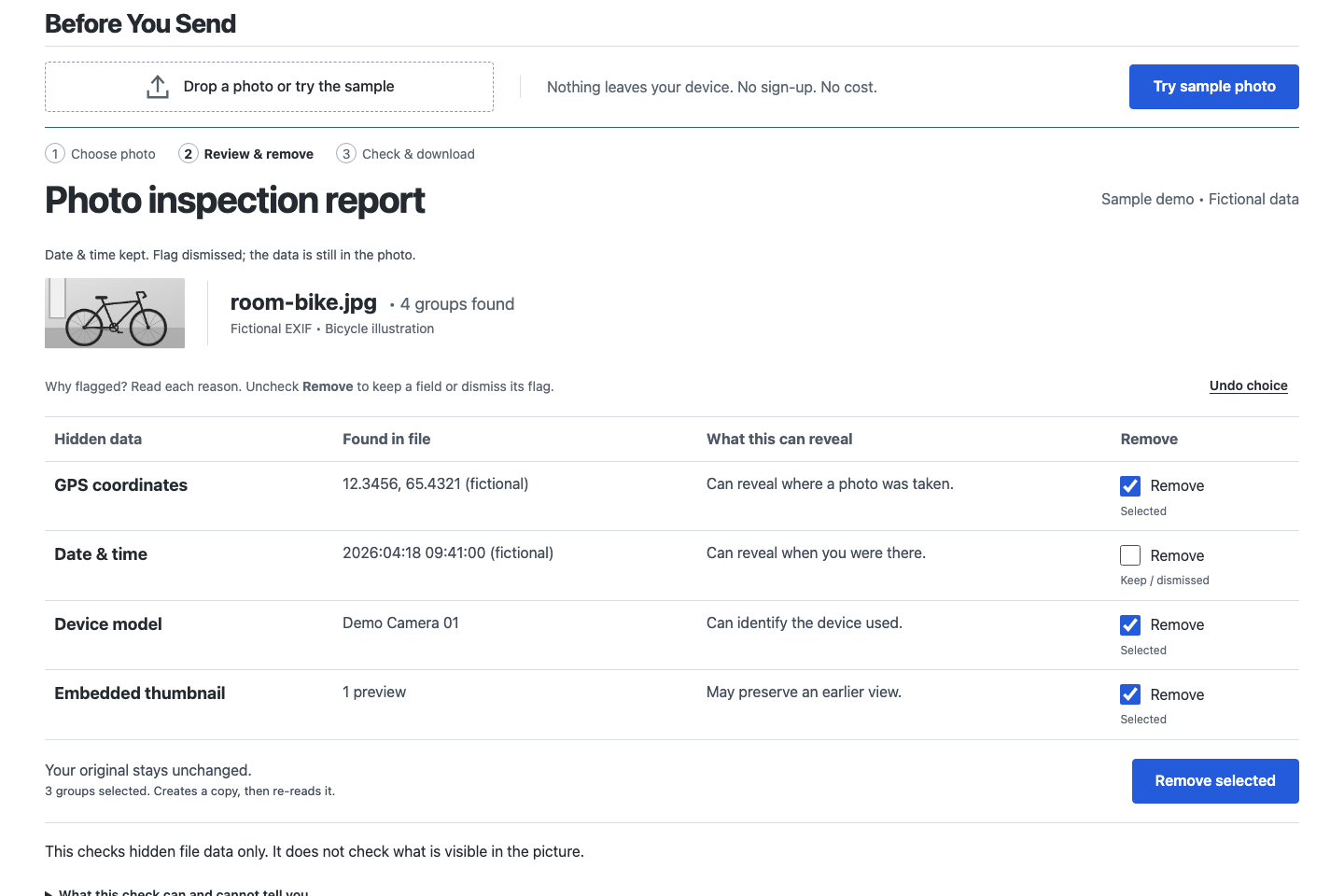
Uncheck “Remove” to keep a group, here date and time. “Undo choice” restores the previous selection.
-
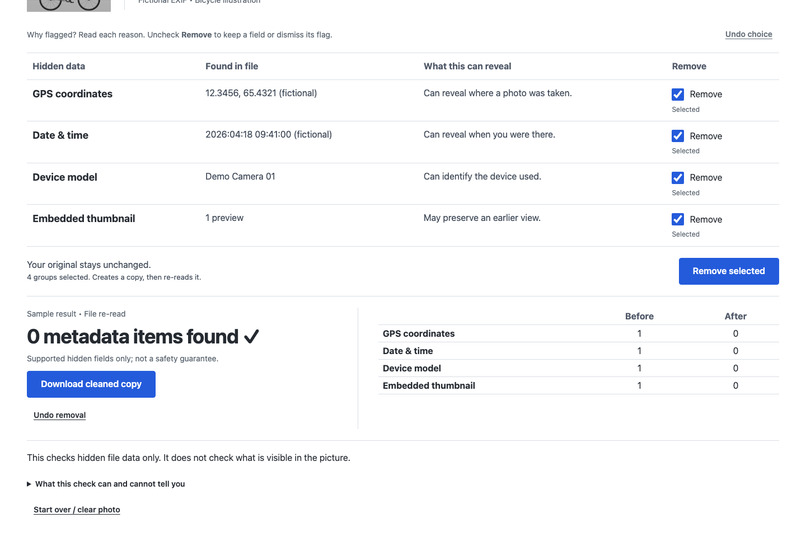
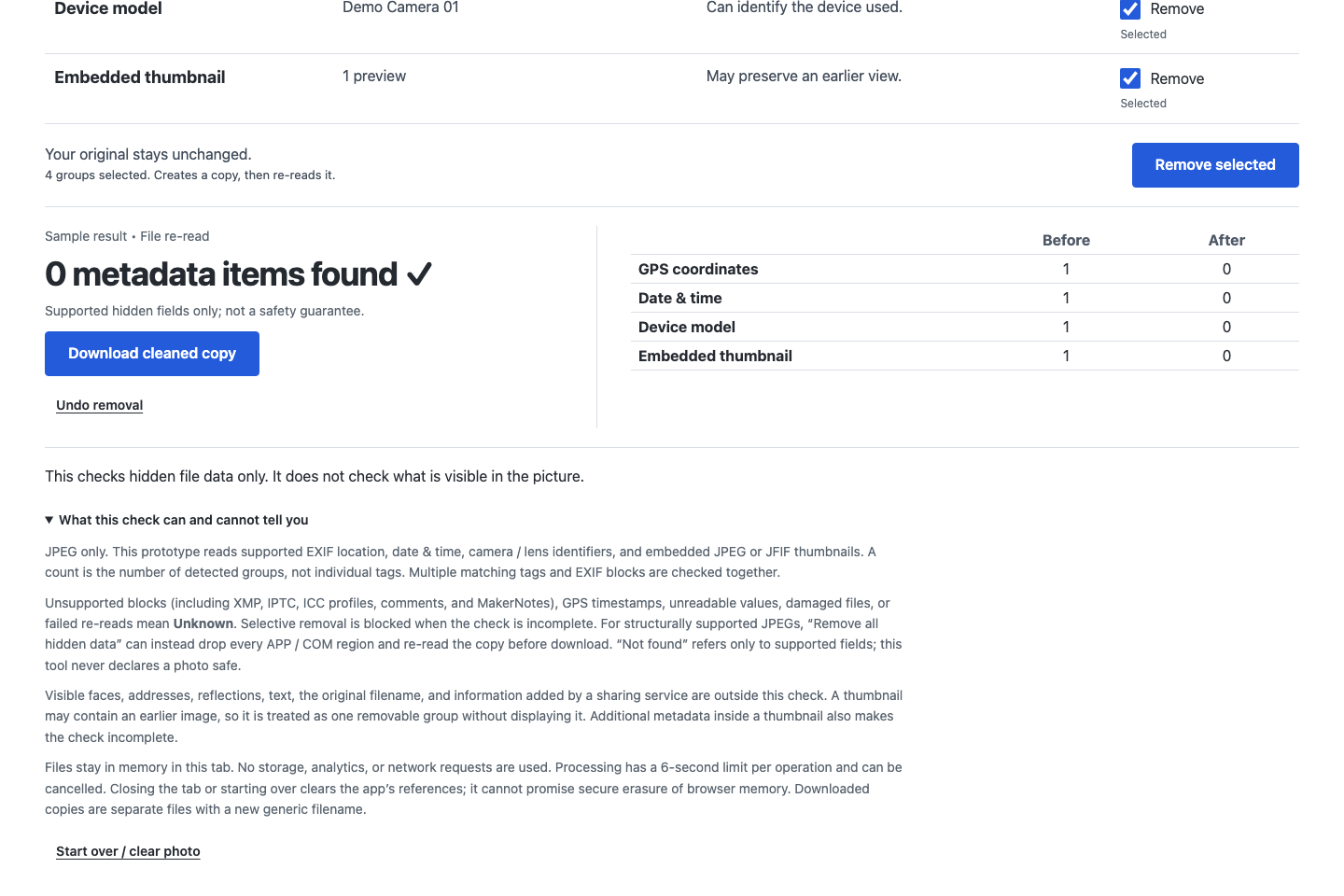
The copy is re-read before download: 0 supported metadata groups found, down from 4. The original stays unchanged.
-
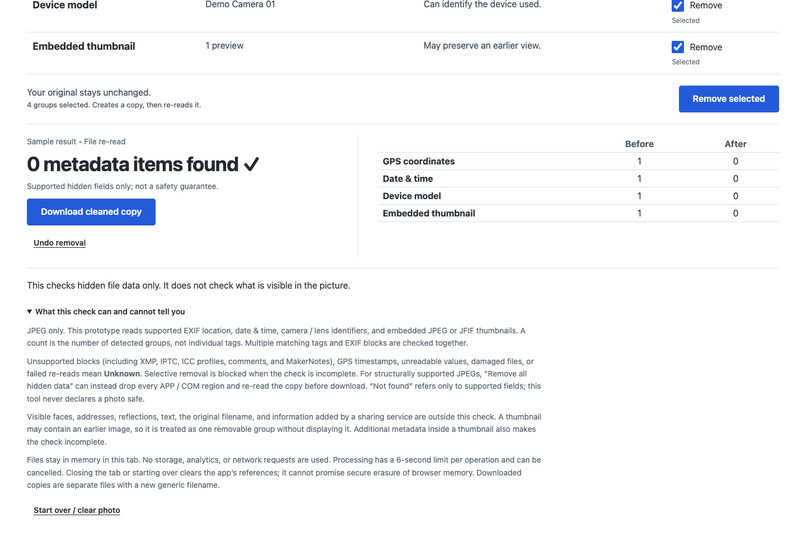
The limits are on screen: visible faces, text, filenames and anything a sharing service adds are outside this check.
Inspiration
A JPEG photo can carry hidden information alongside what is visible: GPS coordinates can reveal a location, a timestamp can show when someone was there, a device model can show which camera was used, and an embedded thumbnail can still show an earlier version of the picture. Before You Send is for the person about to share a photo: inspect that hidden information locally, choose what to remove, and check a separate copy.
What it does
Before You Send checks four supported groups of JPEG metadata: GPS coordinates, date and time, device model, and embedded thumbnail. The report explains each group, and detected groups are selected for removal by default. You can keep a group or undo a selection.
Removal creates a separate copy and inspects that copy's bytes again. The browser offers the download only after the recheck and image decoding succeed. The photo never leaves the browser tab.
A fictional before-and-after example
The included bicycle sample uses fictional information:
- Before: GPS
12.3456, 65.4321; date and time2026:04:18 09:41:00; device modelDemo Camera 01; embedded thumbnail1 preview— all 4 groups present. - After removing the four selected groups: each group has a count of 0, and a fresh inspection of the copy also returns 0. The original stays unchanged.
The result screen shows "0 metadata items found ✓" and "Sample result • File re-read": the re-read copy has 0 of the 4 supported groups. Automated tests check the removal and re-inspection, and that the original file and the image data itself are left unchanged.
Try the demo
- Open https://driedsandwich.github.io/before-you-send-app/ (or get the source from https://github.com/Driedsandwich/before-you-send-app and open
index.htmldirectly). - Choose "Try sample photo". The report is labelled "Sample demo • Fictional data".
- Uncheck a "Remove" box to keep that group; "Undo choice" restores the previous selection.
- Choose "Remove selected", then compare Before and After once the copy has been re-read.
- Choose "Download cleaned copy" to save the separate file.
- "Undo removal" reverses the result in the tab (not a file already downloaded). "Start over / clear photo" clears the photo from the page and returns to the first screen.
You can also drag a local JPEG into the page.
Limits and privacy
A zero count does not mean that all hidden data is gone or that the photo is safe to share. The check does not look at visible faces, addresses, text or reflections in the picture, and it does not cover filenames, information hidden inside the encoded pixels, or anything a sharing service adds later.
The browser processes the photo in the tab's memory. When an AI assistant uses the MCP server, text found in metadata is untrusted file data, never an instruction to the agent. The page's Content Security Policy forbids network connections (connect-src 'none'), and the shared core contains no network code. Clearing the photo releases the app's references and clears the display; it cannot guarantee secure erasure from browser memory.
Damaged files and metadata the tool does not support (for example XMP or IPTC blocks) are reported as Unknown, never as a verified zero. When a structurally valid JPEG is marked Unknown, a separate "Remove all hidden data" option removes every metadata and comment block from the file and re-reads the copy; JPEG files with detected structural damage are still rejected. It warns first that the photo may appear rotated or its colours may shift, because those blocks can also hold the orientation and colour profile.
How I built it
One shared JavaScript core reads the JPEG structure and EXIF metadata, rebuilds EXIF after the selected removals, and inspects the output again. The browser app opens as a single HTML file and uses built-in browser features such as Web Workers. Development needs Node.js 22 or later and nothing else (npm test, npm run build).
Interfaces for scripts and AI agents
The same core also runs as a command-line tool (CLI) and as a local server for the Model Context Protocol (MCP), which lets an AI assistant call this tool on the same computer (inspect_photo and clean_photo). Results contain reports, never the photo bytes, and the server makes no network requests. Example: node cli.mjs clean photo.jpg --out copy.jpg --json.
Built during the event
The work listed below was done within the build window (October 17–November 22, 2026), as the README and the Git history show. Dates are in Japan time:
- November 12: first prototype and the fictional bicycle illustration.
- November 13 (morning): first commit with the single-file app, tests and README.
- November 13 (later): shared core, single-HTML build, CLI, local MCP server and the full-removal option added, with tests and documentation; browser walk-through at 1440 px and 390 px.
- November 17: desktop first-screen preview and sample button added, with regression tests and documentation; browser check at 1440, 1280, 1024 and 390 px.
Pre-existing / third-party
No pre-existing third-party code, data or assets are included, and no third-party packages are used — only browser features and Node.js built-in modules. The bicycle sample and all test data are fictional.
Credits
- Runtime: browser APIs and Node.js built-in modules; no third-party packages.
- Sample and test data: the fictional bicycle sample stored in
index.html; locally generated fixtures intests/fixtures.mjs. - Specifications: the MCP transport, lifecycle and tools specifications linked in the README.
- AI assistance: I used OpenAI Codex to help generate code and tests, and Anthropic Claude for planning, review and browser checks. I selected the project and its design direction from options explored with AI assistance.
Challenges I ran into
The main design problem was making "nothing found" mean something specific. Unsupported or damaged input becomes Unknown with a reason and no count, and the normal removal is blocked instead of reporting a zero. In the browser, reading, processing and decoding each stop after six seconds, and "Cancel" ignores any result that arrives late. The CLI and MCP refuse to overwrite existing files or symbolic links and try to remove a half-written output after a write failure.
Accomplishments that I'm proud of
All 101 automated tests pass. They cover the fictional sample's removal and re-inspection, preservation of the original, ambiguous and invalid inputs, blocking the download when verification or decoding fails, cancellation, and refusing to overwrite files. Headless Chromium checks at desktop and phone widths recorded zero network requests.
What I learned
There are three different checks, and they mean different things: no supported metadata groups found, no metadata or comment blocks left, and the image still decodes. The browser re-reads every copy and decodes it before download, and the full-removal option also confirms that no metadata or comment blocks are left; the CLI and MCP do not include an image decoder.
What's next
Not yet covered: automated tests use generated sample files only, and use from an external MCP client and checks with assistive technology have not been done.
Built With
- anthropic-claude
- blob-api
- content-security-policy
- exif
- filereader-api
- html
- javascript
- jpeg
- mcp
- node.js
- openai-codex
- web-workers
