-
-
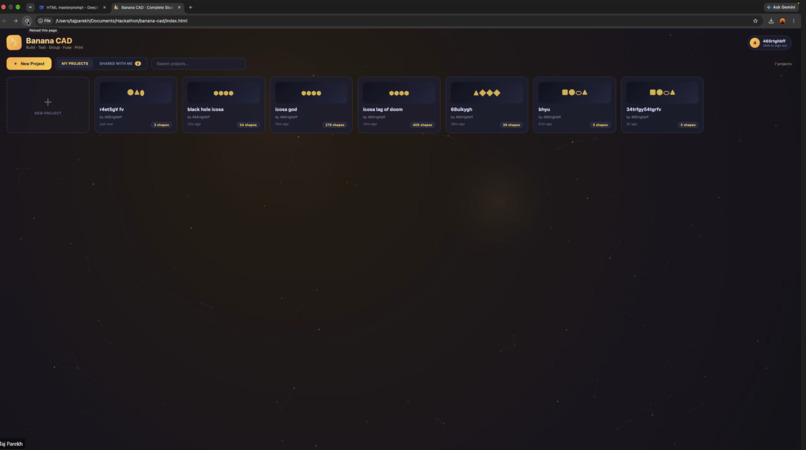
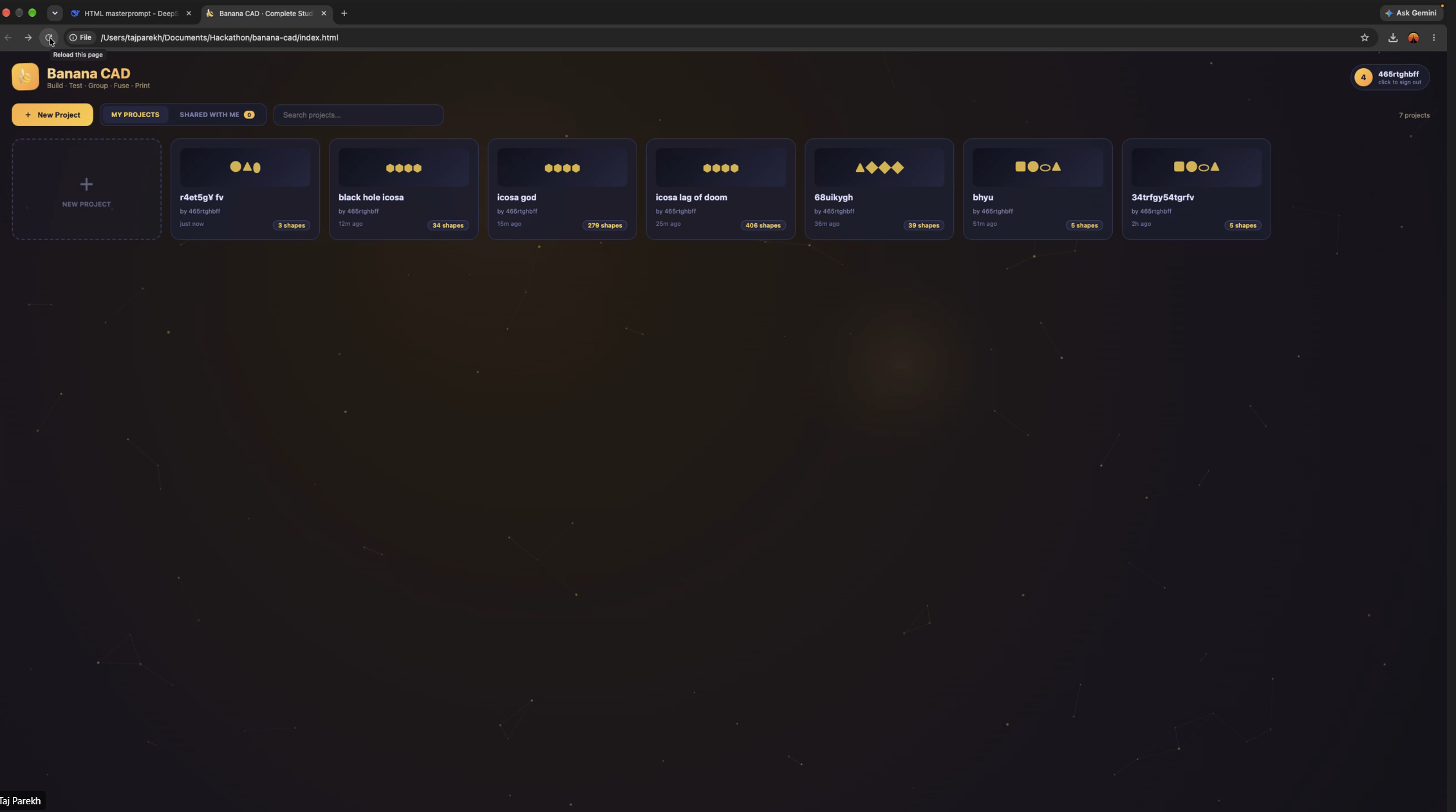
Project dashboard: start a new design, open your saved projects, or see what teammates shared with you.
-
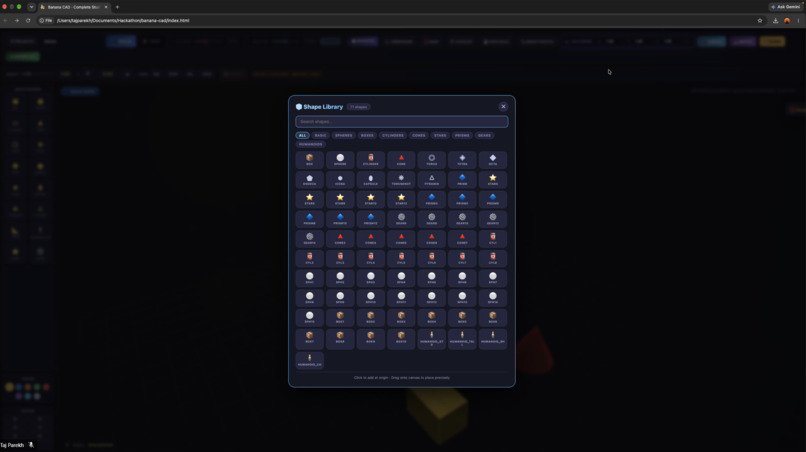
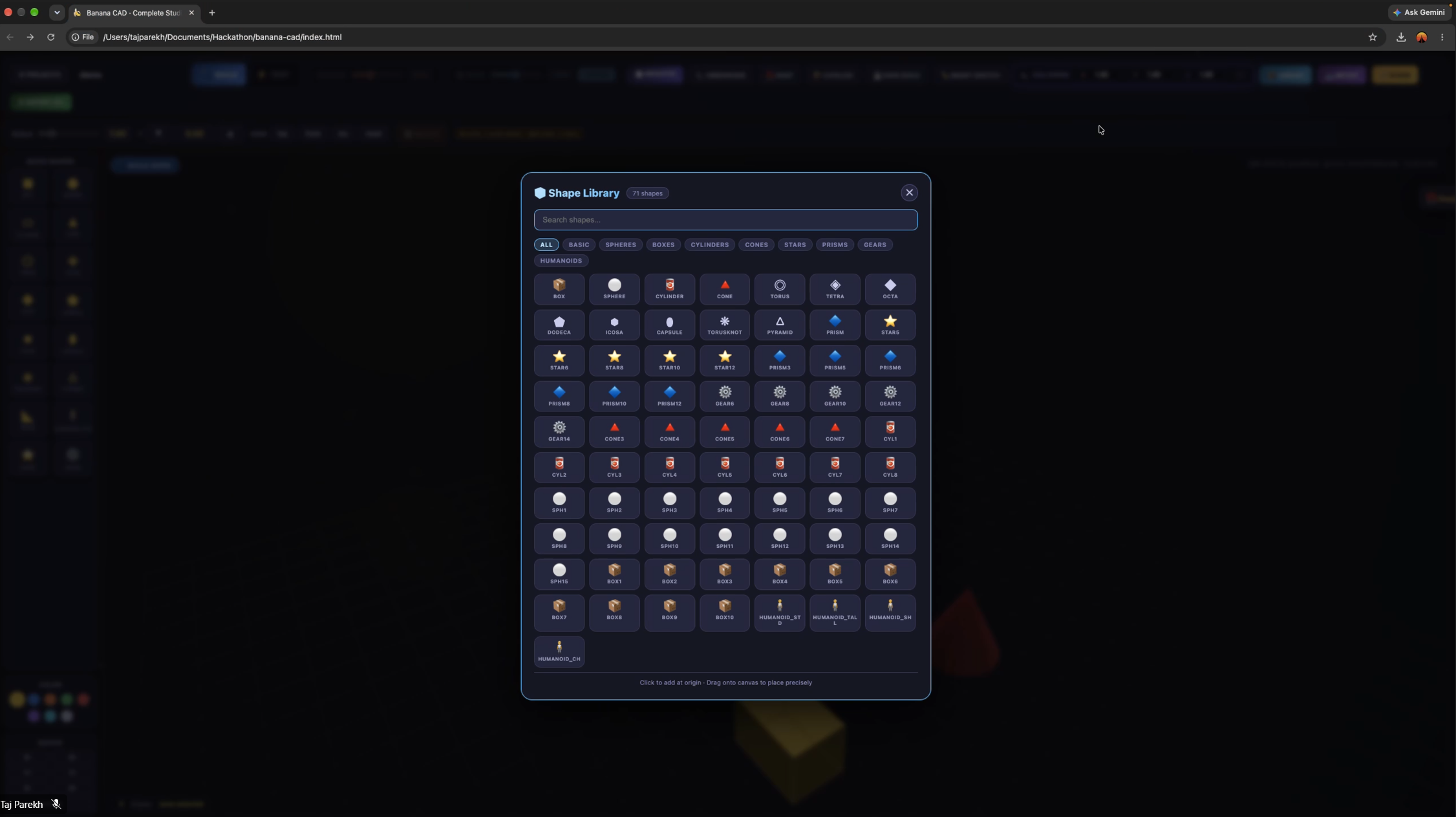
Shapes library: search shapes by category, then drag them straight onto the canvas to start building.
-
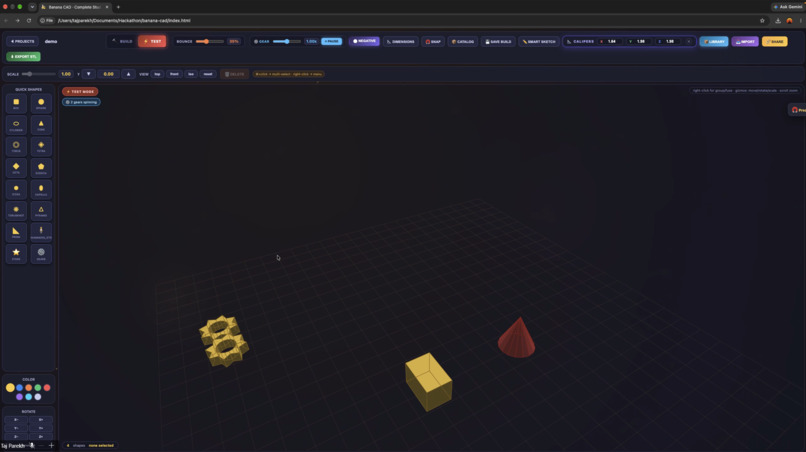
Gear meshing: place gears that lock together and spin in sync, so you can design working mechanisms.
-
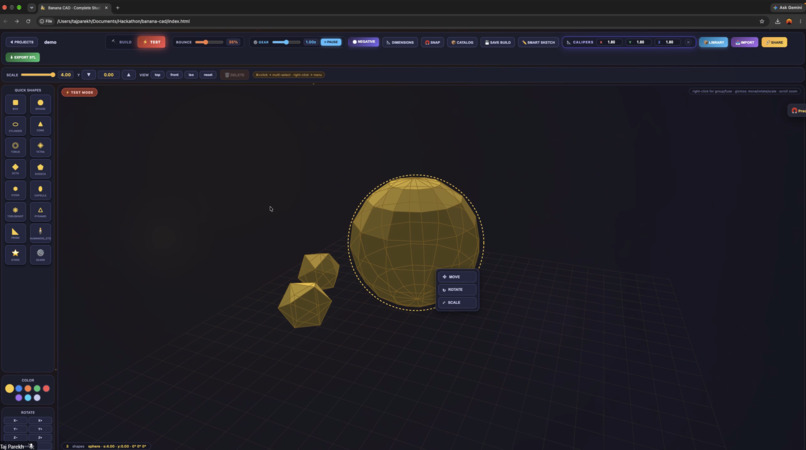
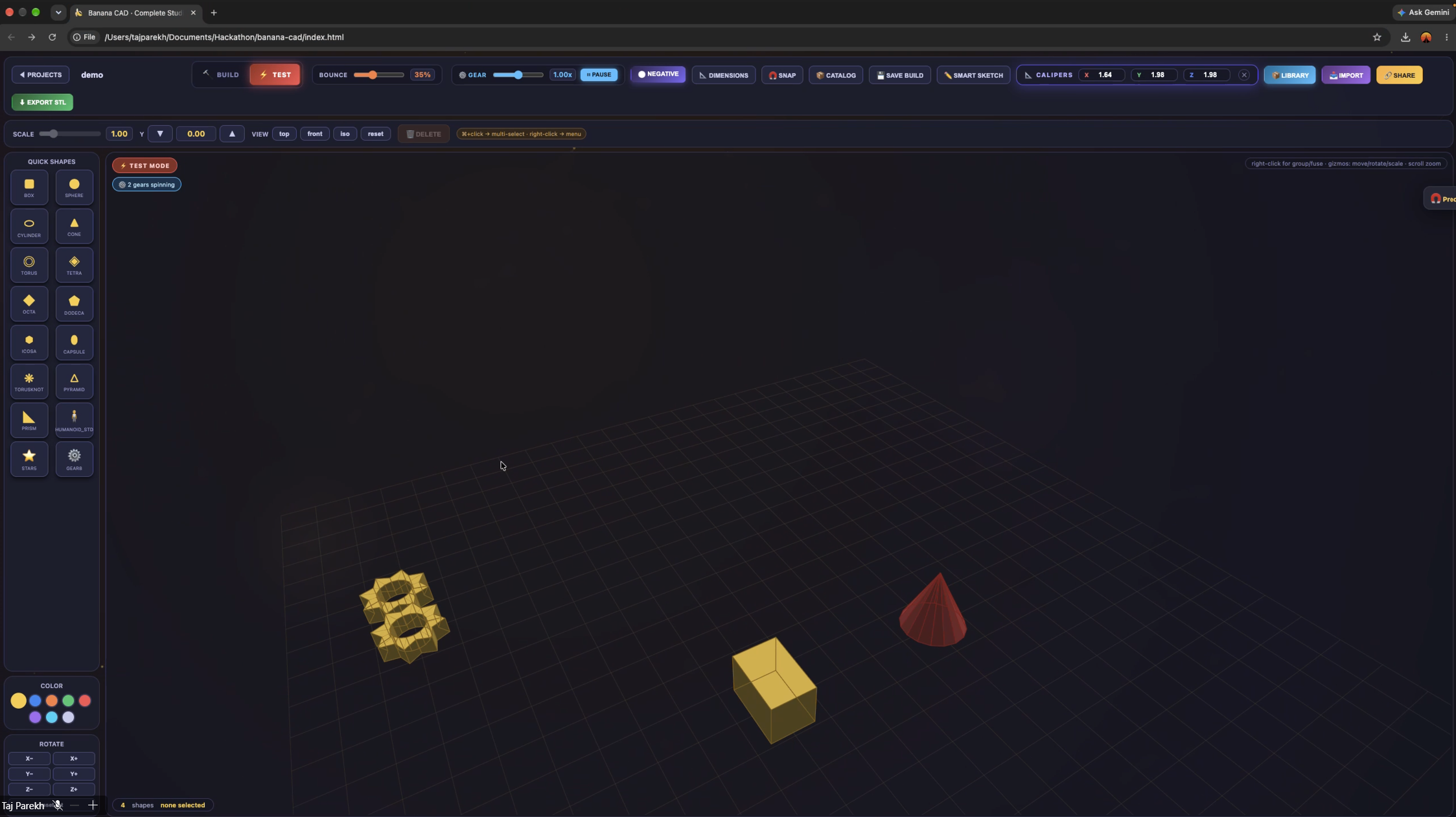
Test mode: switch from Build to Test and adjust the bounce setting to see how your design behaves.
-
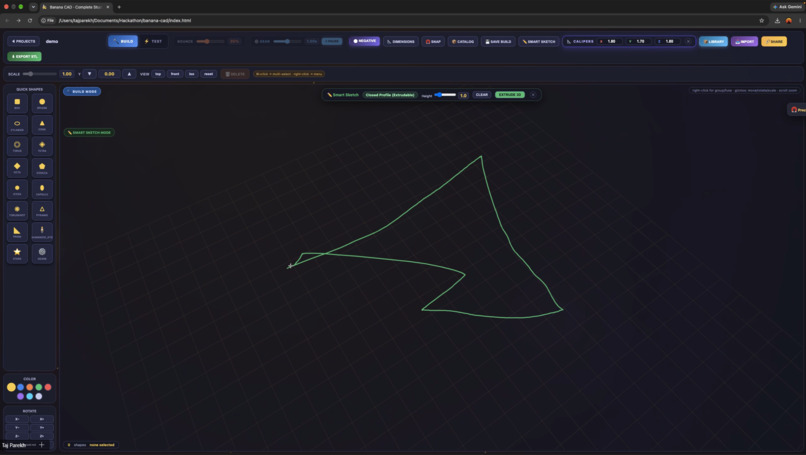
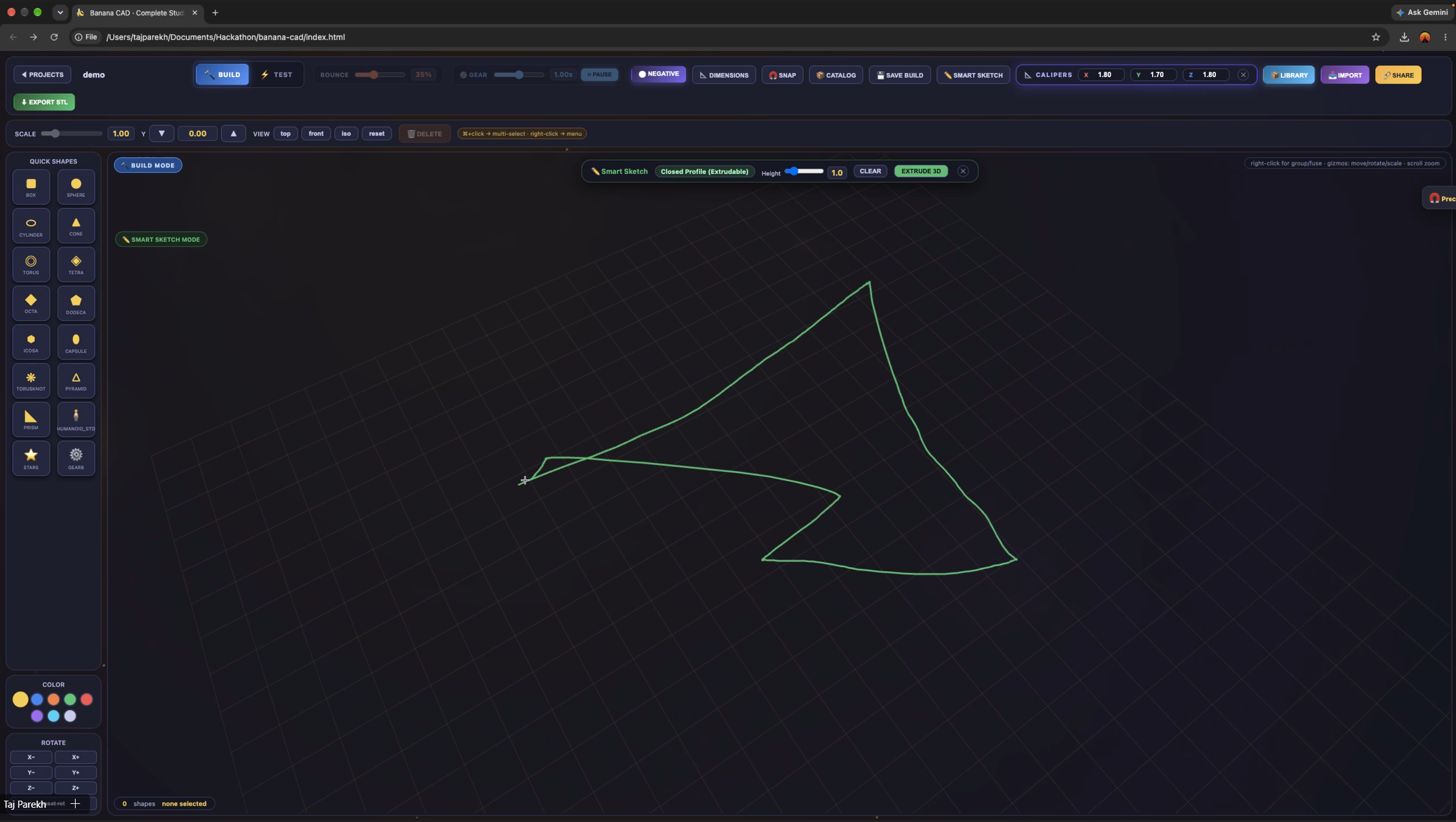
Smart Sketch: draw any closed shape by hand, set its height, and hit Extrude 3D.
-
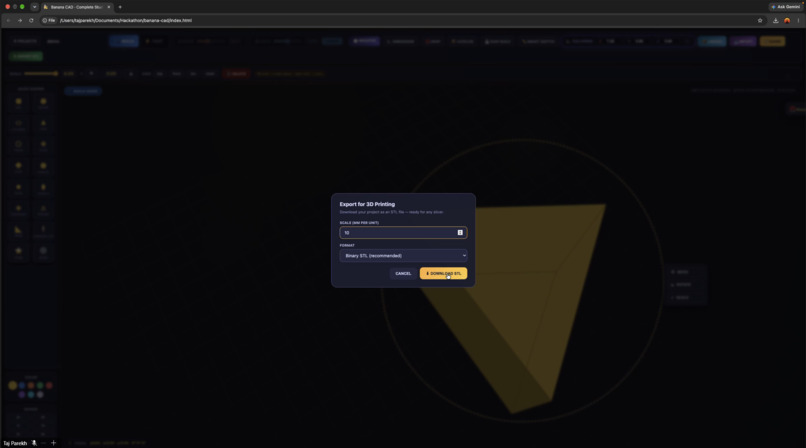
The messy sketch becomes a clean, solid 3D part, ready to measure with calipers and export as STL.
Inspiration
One of us designs and 3D prints toys to sell at kids' fairs. Every time the rest of us tried to help, we got stuck in professional CAD tools: too many buttons, too many menus, too much to install. So we asked: what if CAD felt like building with blocks, but still made real parts you can print? That's Banana CAD.
What it does
Banana CAD is a full 3D design studio in one web page. Open it in any browser and start building:
- Shapes & catalog: 20+ shapes, including gears, stars and a humanoid
- Smart Sketch: draw any closed shape freehand, pick a height, and extrude it into a solid 3D part
- Precision tools: type exact sizes with Dimensions, measure with Calipers, and snap parts to a grid
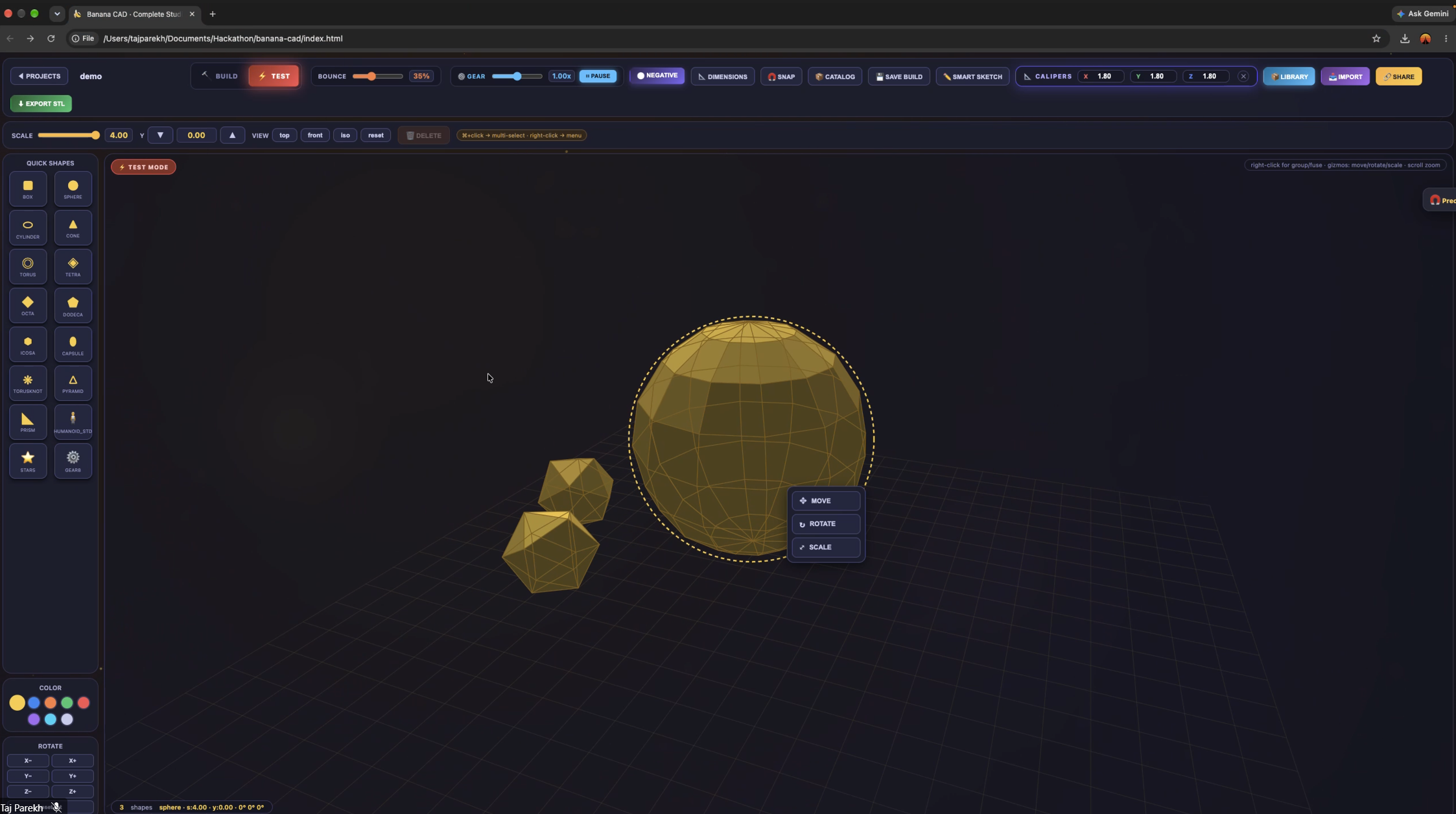
- Cut holes: turn any shape "Negative" and fuse it into a solid to carve it out
- Fuse & Save Build: combine parts into one object and reuse your creations from the catalog
- Gear physics: put gears side by side and watch them spin against each other with real gear ratios
- Test mode: turn on gravity and bounce to see how your design behaves
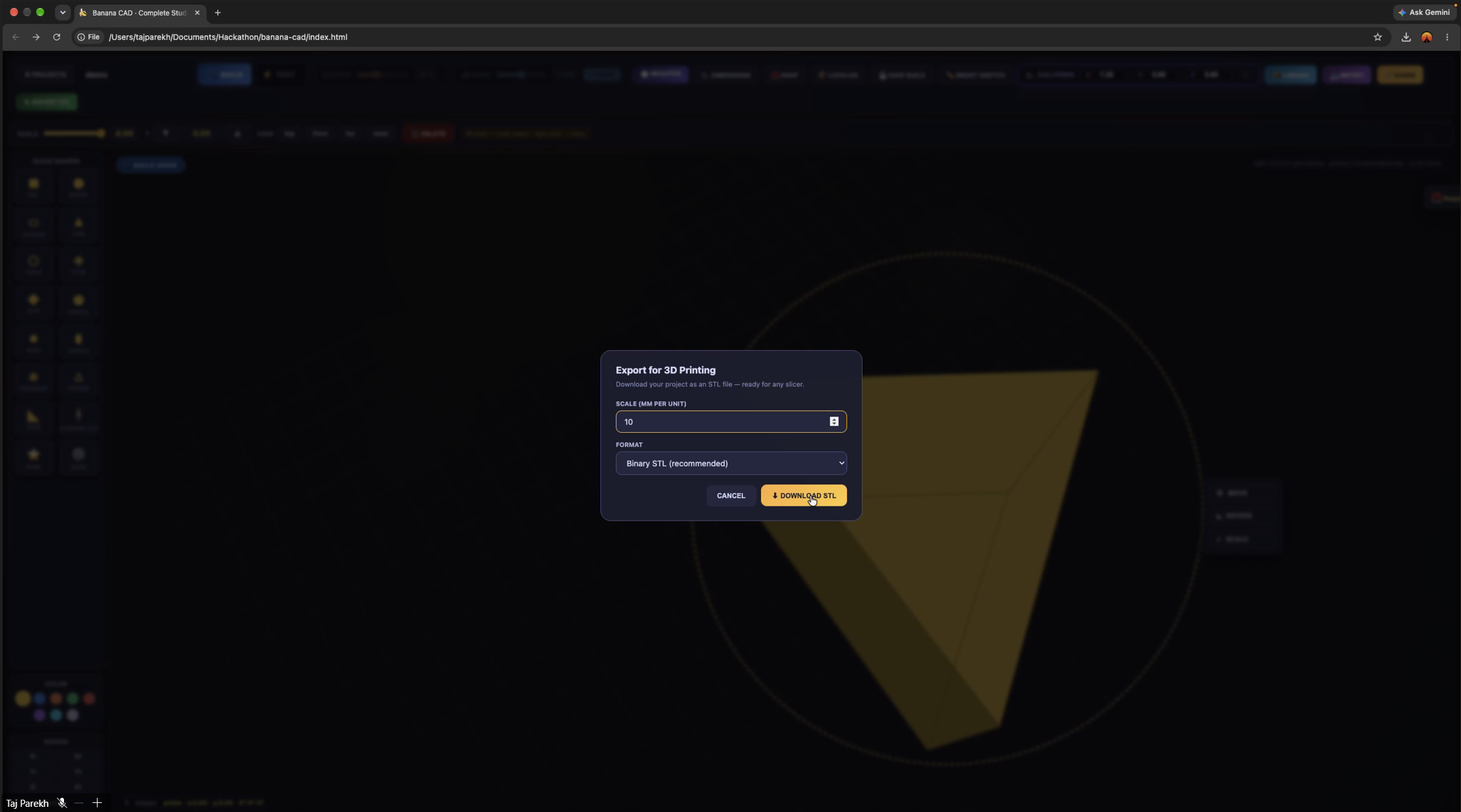
- Export STL: download your design and print it in Bambu Studio, Cura or PrusaSlicer
It works offline, and your projects save automatically in your browser.
How we built it
Banana CAD is a single index.html file: HTML, CSS and JavaScript running 3D right in the browser. No installs, no servers. We used AI coding assistants to write and fix code, but we tested every change ourselves and only kept what actually worked. We went through five versions, from a simple shape canvas to working gears, before combining everything into one file.
Challenges we ran into
- Gears: getting the teeth to line up and spin the right way took a lot of tries
- Messy sketches: real hand drawings cross over themselves, so we had to turn scribbles into clean shapes
- One giant file: every new feature risked breaking an old one
- Teamwork: four people changing the same project means merging carefully
- AI surprises: AI code didn't always do what we meant, so we learned to test after every single change
Accomplishments that we're proud of
We built a real 3D CAD tool in one weekend that exports files you can actually 3D print, and it's simple enough that the youngest kids on our team can use it.
What we learned
How to plan features as a team, use Git and GitHub, write clear prompts for AI tools, and test before moving on. Most of all: shipping something that works beats a perfect plan.
What's next
- Turn a photo of an object into 3D shapes with image AI
- More gear types and moving mechanisms like levers and pulleys
- Building together live on shared projects
Team
Runtime: Taj, Mantavya, Rahm, Rudransh
AI tools used
DeepSeek and Gemini helped us write and debug code.

Log in or sign up for Devpost to join the conversation.