-
-
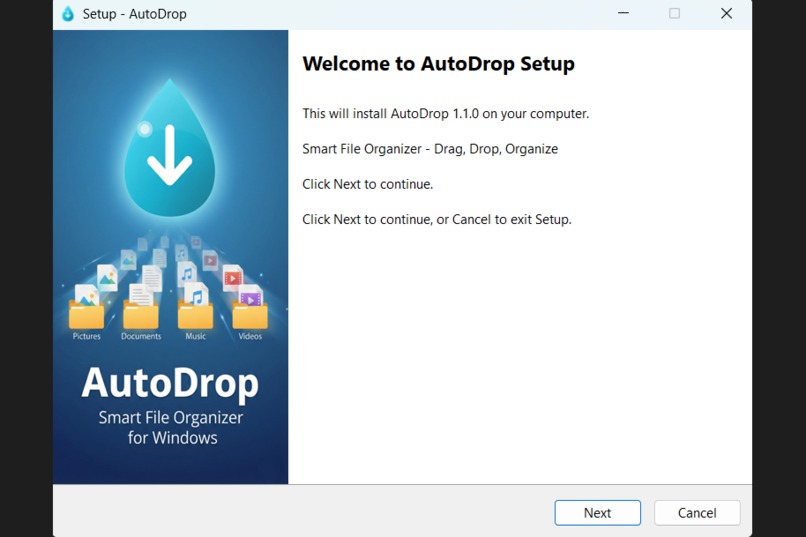
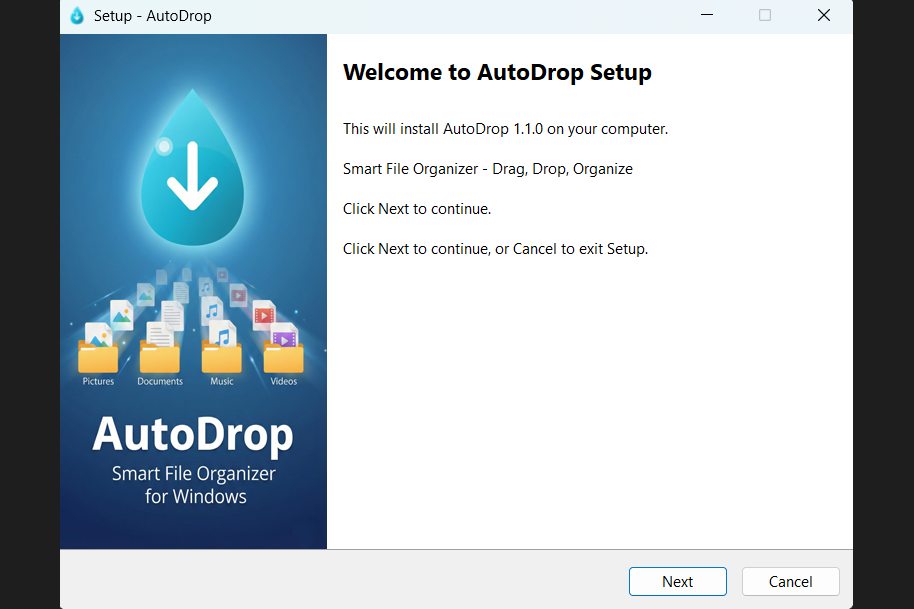
One-click installer with shortcuts and clean uninstall
-
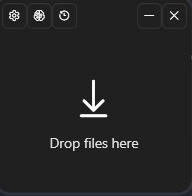
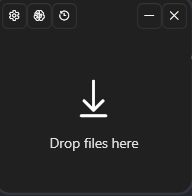
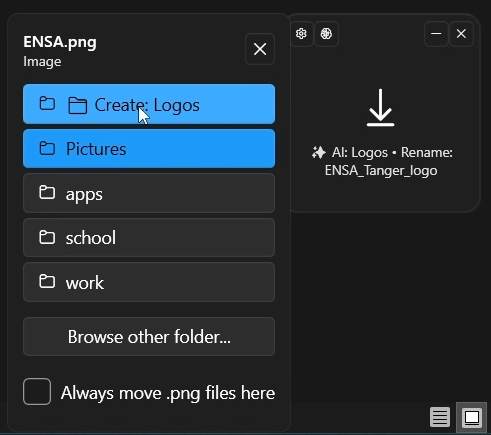
Always-on-top drop zone — drag any file to start AI analysis
-
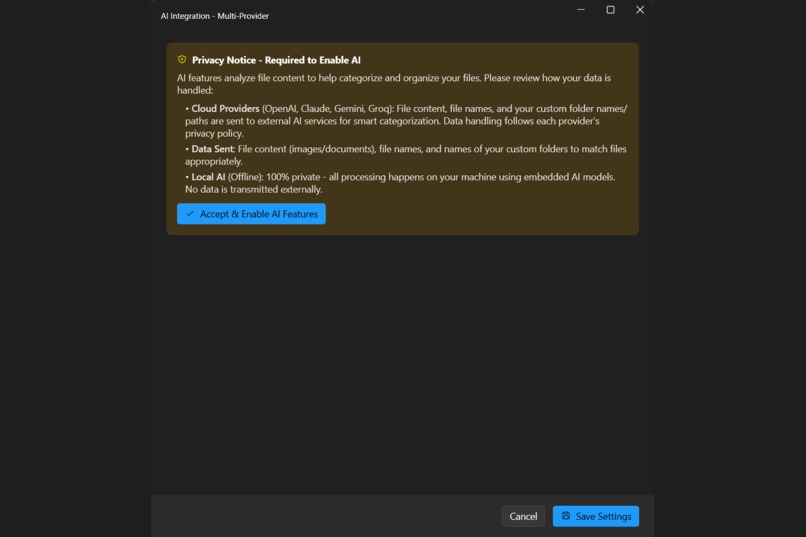
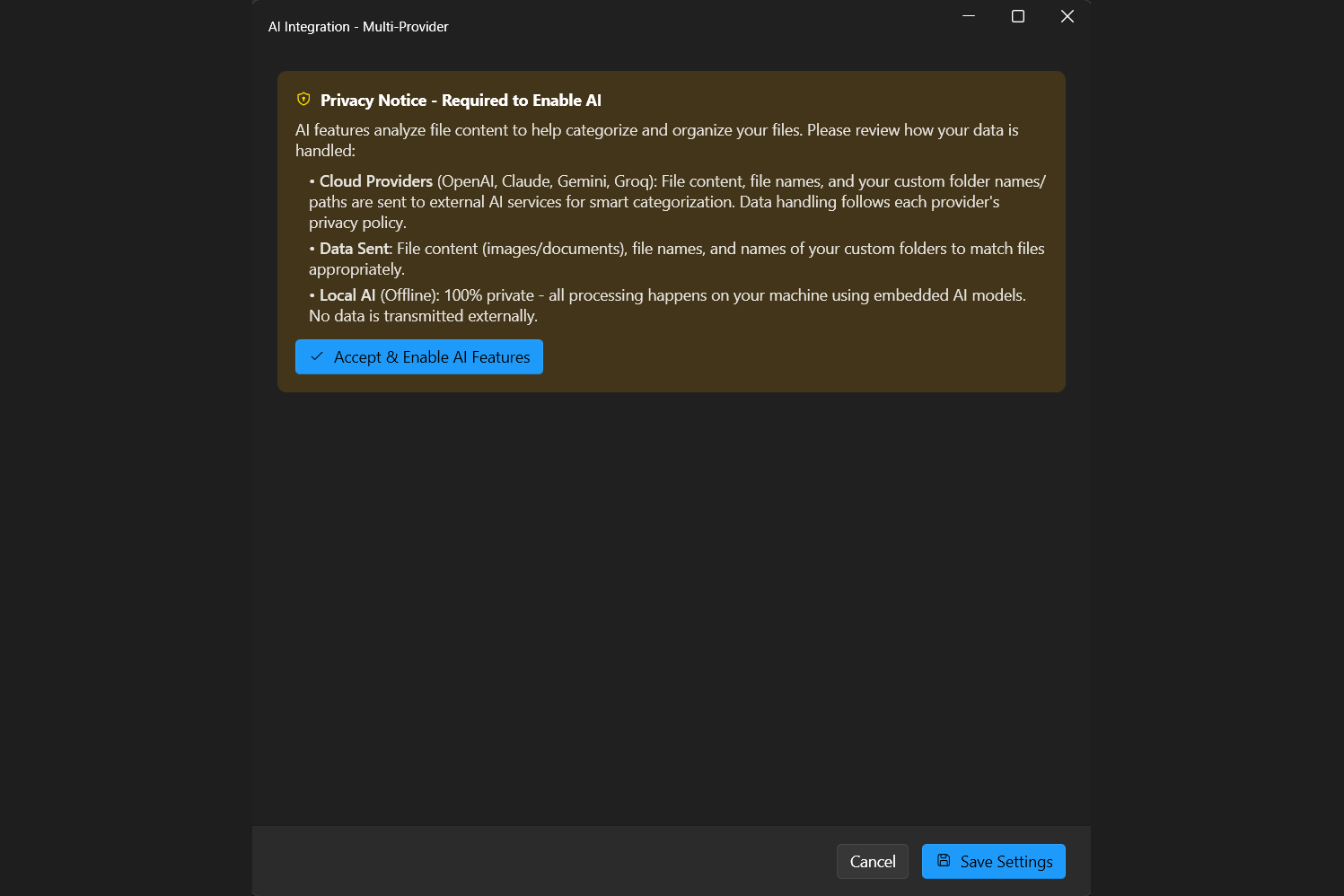
Privacy-first — run AI 100% locally, no data leaves your PC
-
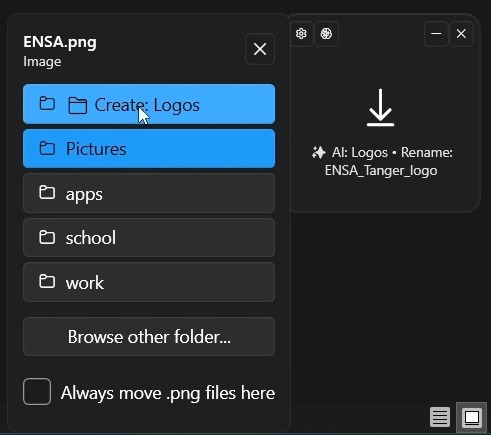
AI suggests folder and smart rename based on file content
-
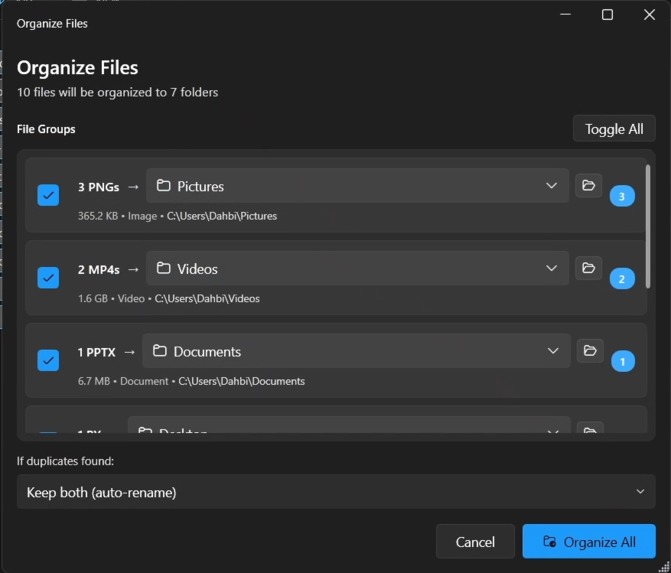
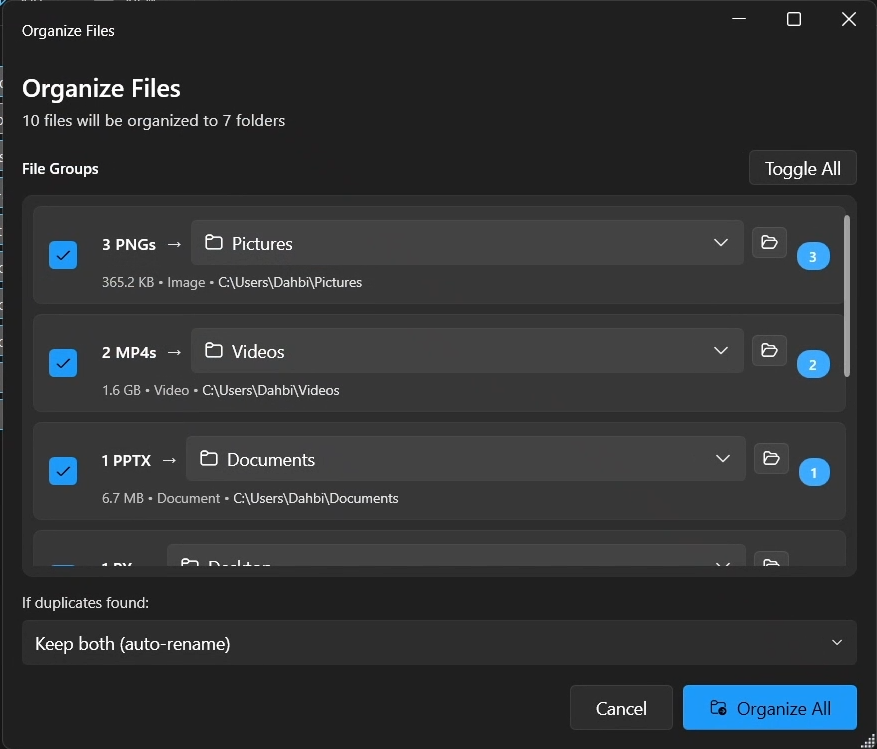
Batch mode — 10 files sorted to 7 folders in one click
-
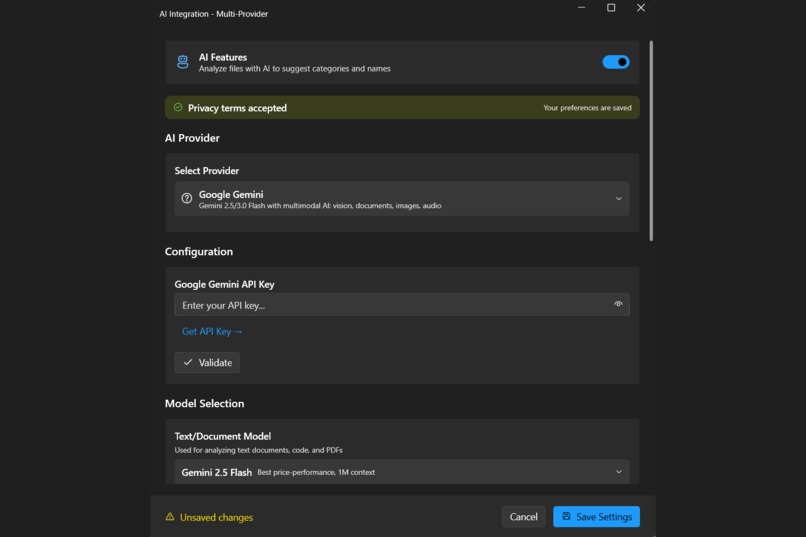
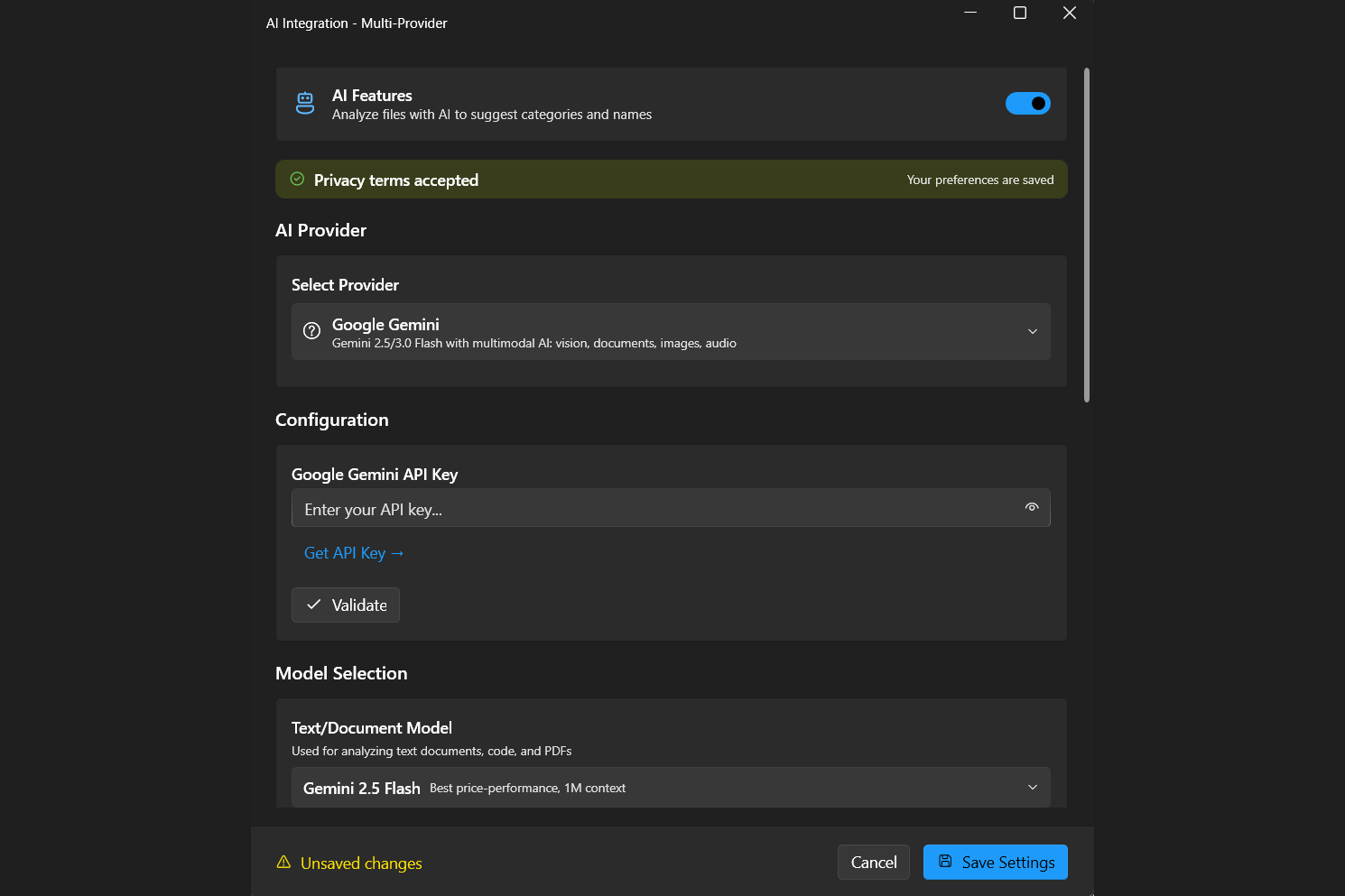
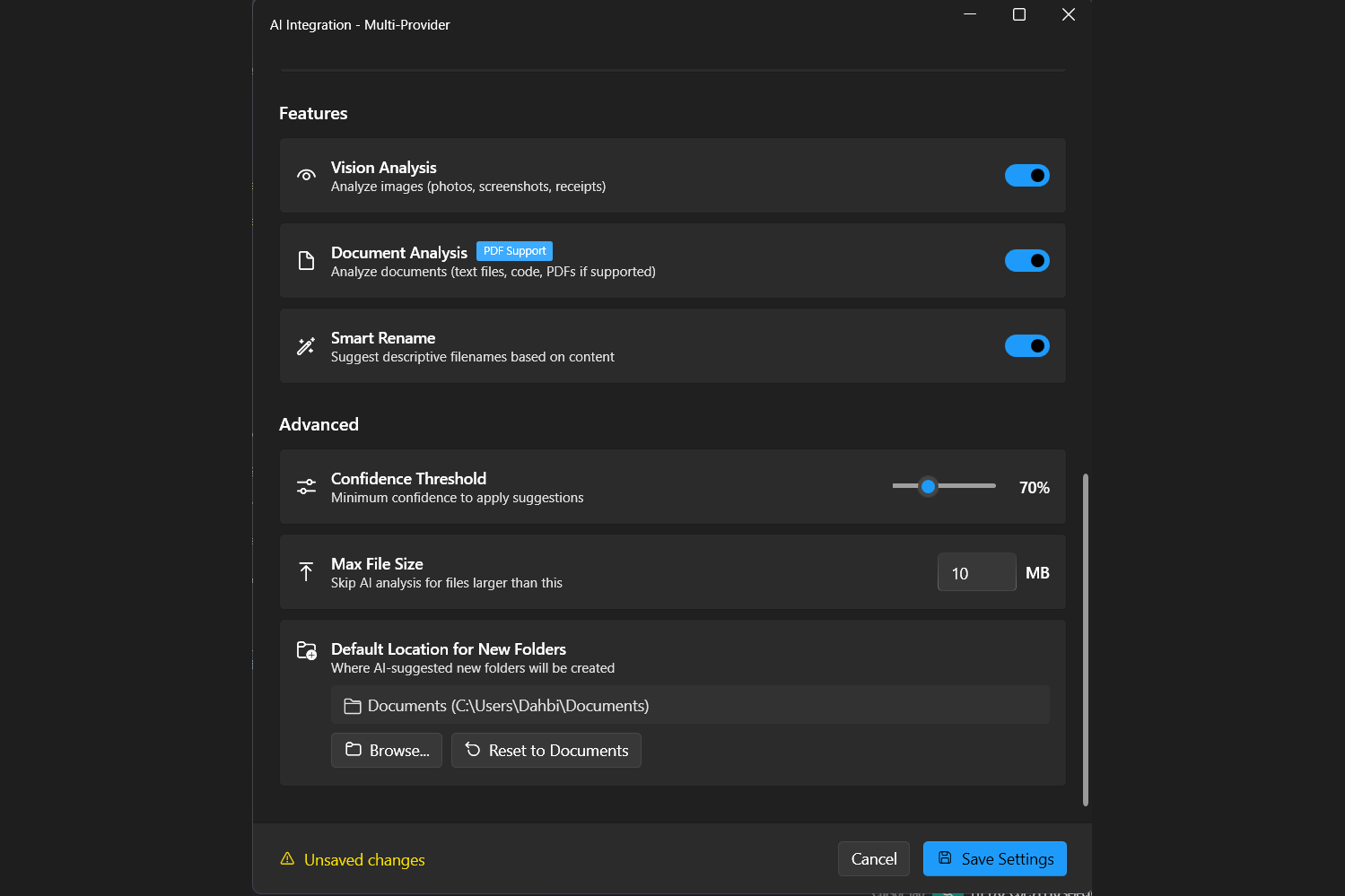
Select your AI provider, configure API keys, and choose models
-
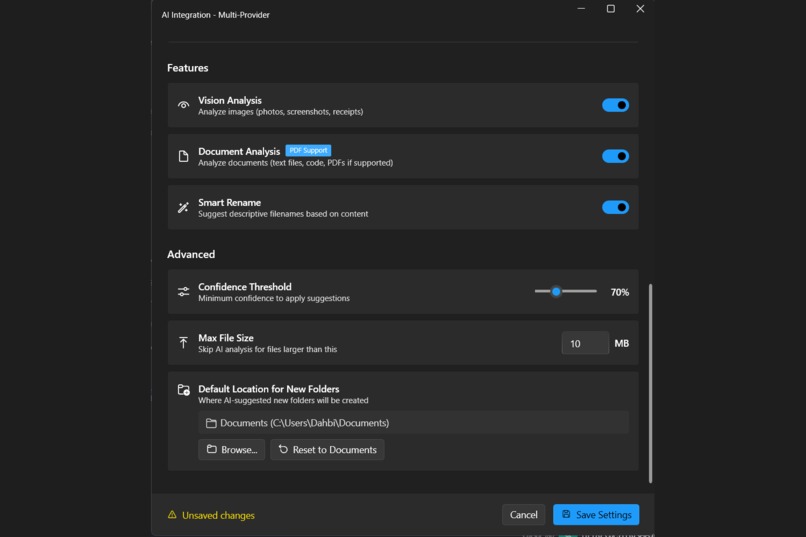
Fine-tune vision, document analysis, and confidence thresholds
-
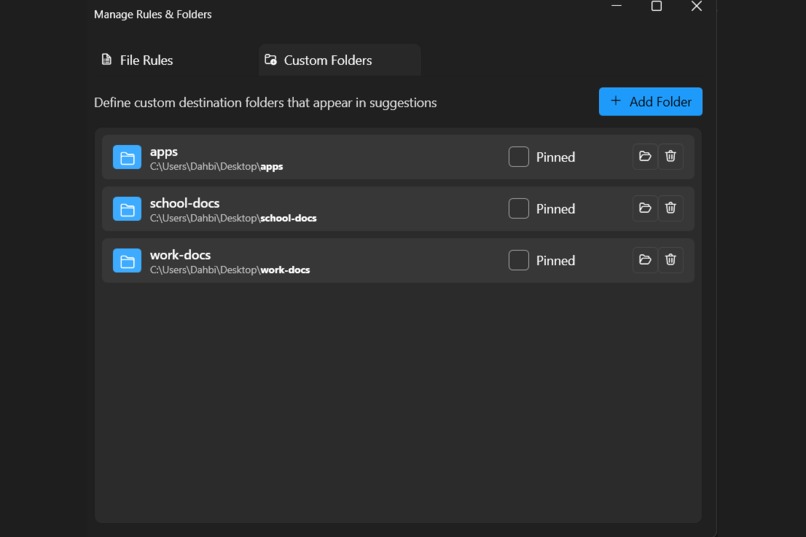
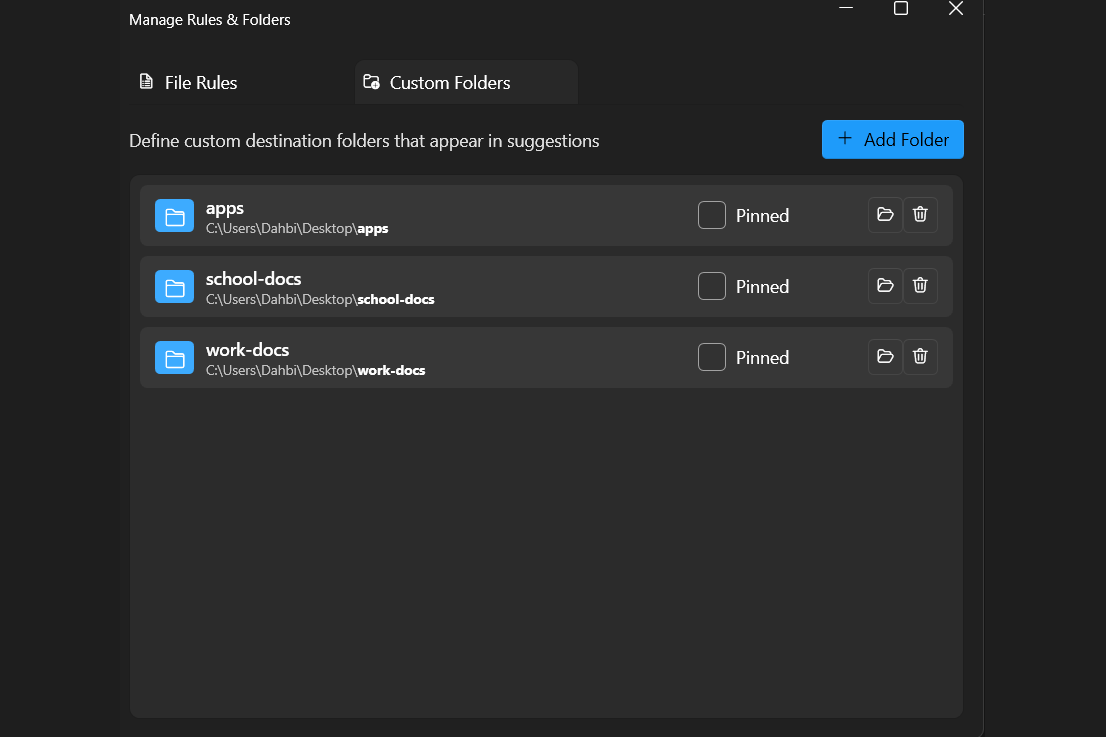
Custom folder destinations — AI routes files automatically
-
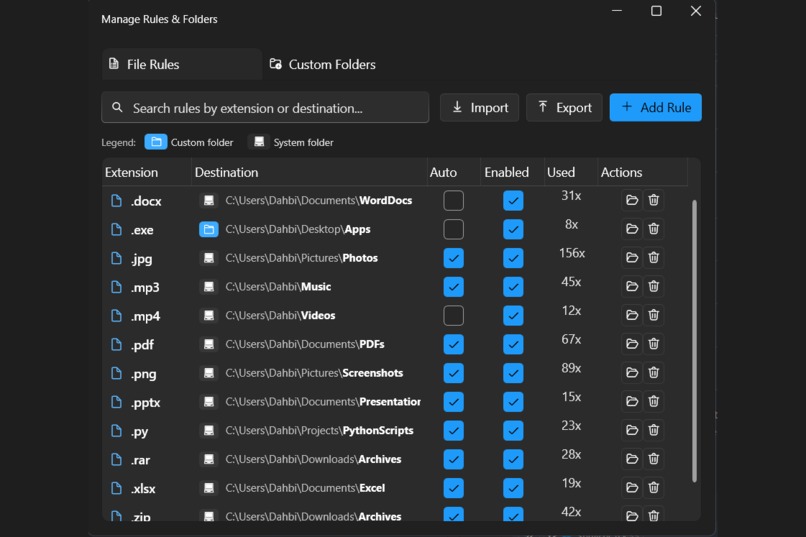
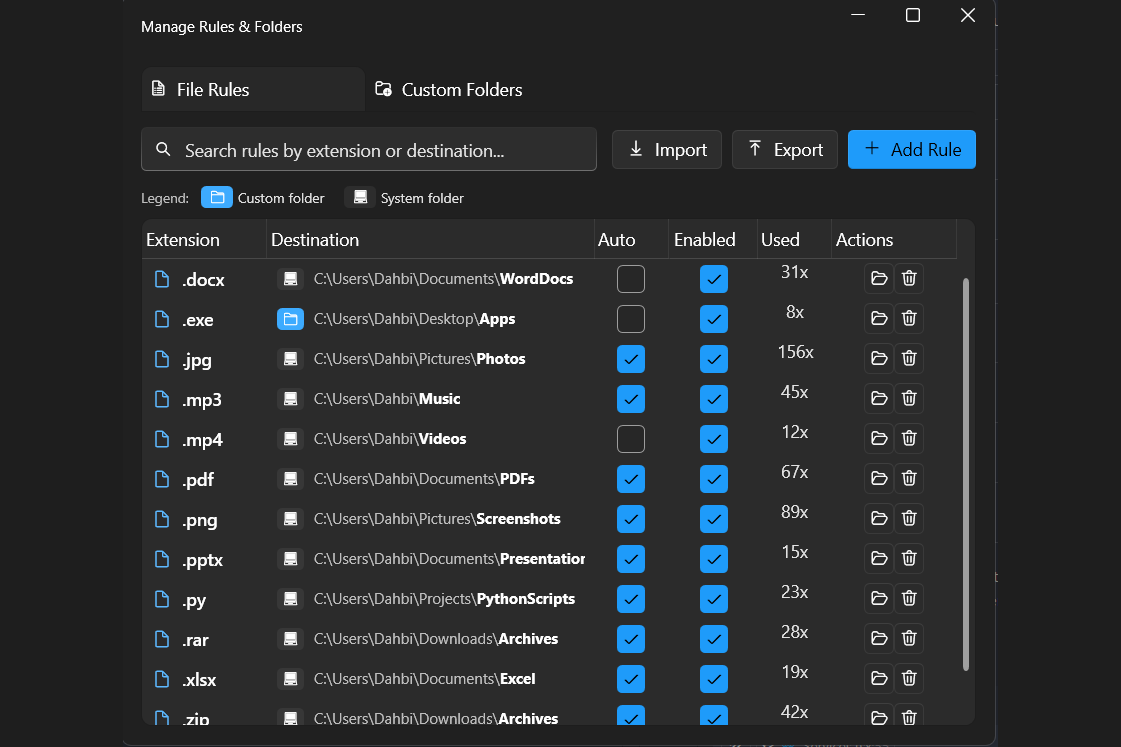
Flexible rules by extension
-
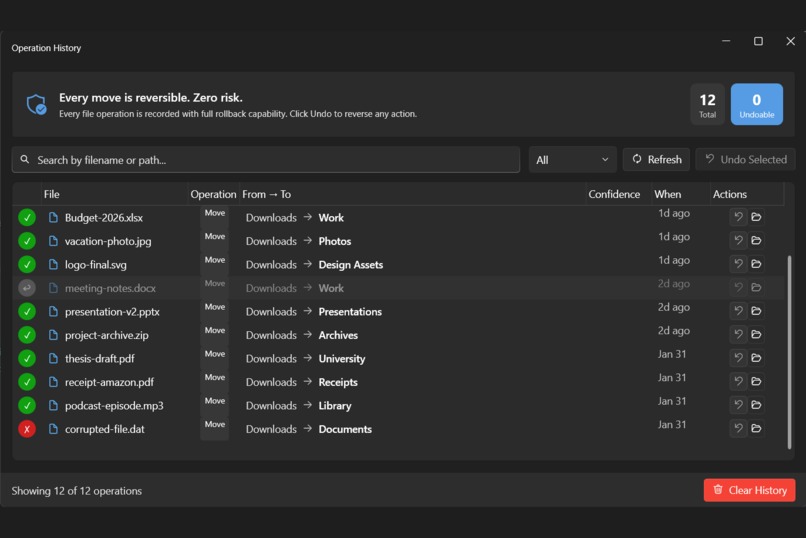
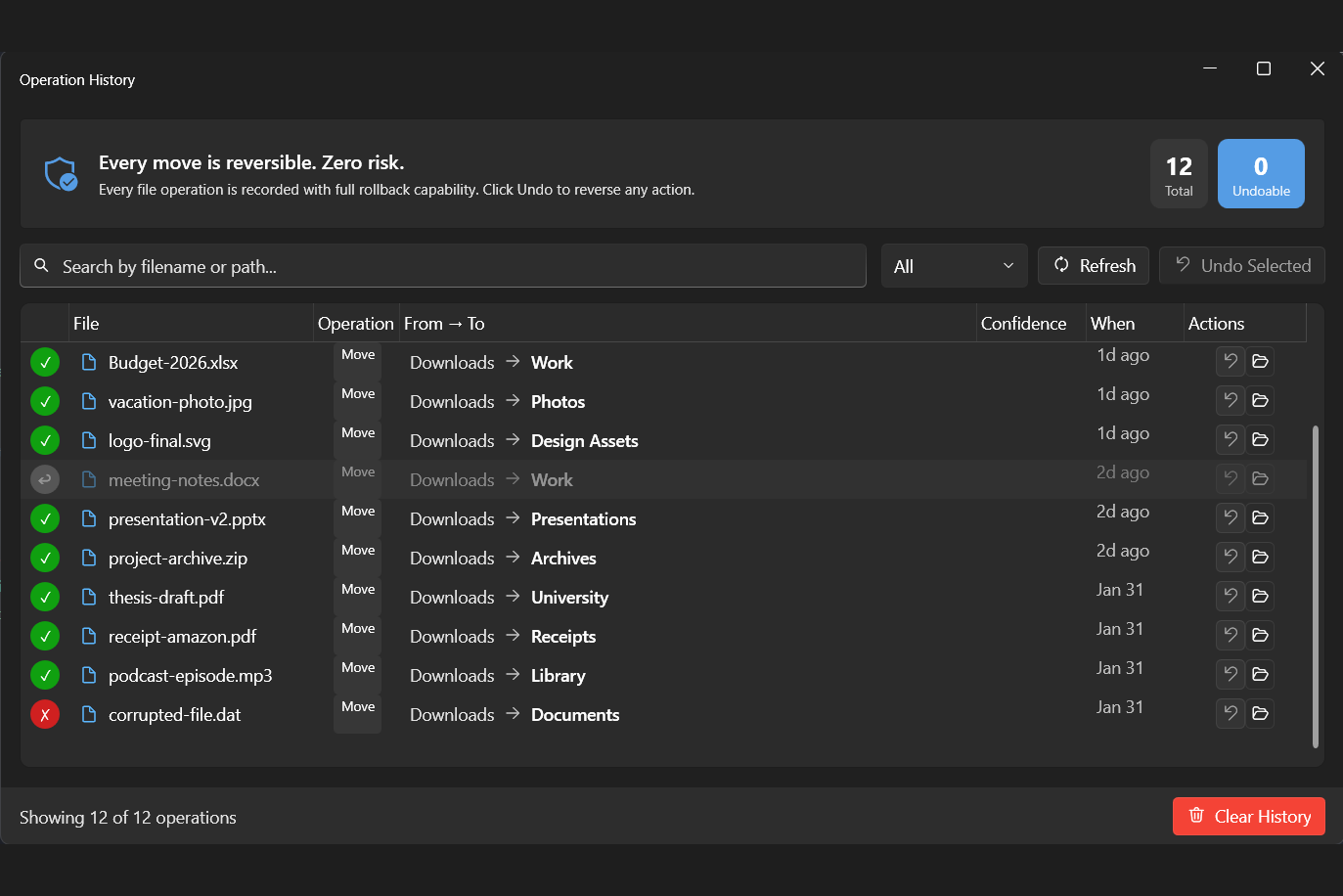
Full history with instant one-click undo
Inspiration
Every day, we waste hours organizing files. Downloads pile up. Screenshots scatter. Important documents get lost. I built AutoDrop to solve my own digital chaos.
The idea: What if AI could understand what's IN a file—not just its extension—and instantly organize it to the right place?
What it does
AutoDrop is a Windows desktop app with a floating drop zone. Drag files onto it, and Google Gemini AI analyzes the content:
- Images: Gemini Vision identifies screenshots, receipts, photos, diagrams
- Documents: Gemini reads PDFs and text files to understand context
- Smart Suggestions: AI recommends the perfect folder based on content
- One-Click Organization: Select a destination, file moves instantly
- Full Undo History: Every operation is reversible
How I built it
Architecture:
- WPF (.NET 8) with Fluent Design UI
- MVVM pattern with dependency injection
- Multi-provider AI architecture (Strategy Pattern)
Gemini Integration:
- Gemini 3 as primary AI
- Vision API for image content analysis
- Text API with structured JSON output for categorization
- Prompt engineering for consistent, actionable responses
Key Technical Decisions:
- SOLID principles throughout
- Interface-based services for testability
- Secure API key storage with Windows DPAPI
- Local AI fallback for privacy-first users
Challenges I ran into
Multimodal Prompts: Getting Gemini to return consistent JSON for both images and documents required careful prompt engineering
Rate Limiting: Implemented request queuing for batch file operations
File Type Detection: Some files (screenshots vs photos) needed content analysis, not just extension checks
Balancing Speed & Accuracy: Used Gemini Flash for speed while maintaining high accuracy
Accomplishments that I'm proud of
- Gemini 3 Integration: Successfully using the latest Gemini models to "see" and "read" files locally on the desktop.
- Professional Polish: The app has a full installer (Inno Setup) and a settings manager that rivals commercial software.
- Privacy First: I implemented a "Local AI" fallback using ONNX models for users who want offline organization, alongside the cloud-powered Gemini integration.
What I learned
- Gemini's vision capabilities are exceptional for real-world image categorization
- Structured JSON responses from LLMs require explicit prompting
- The importance of fallback strategies (local AI when cloud unavailable)
- How to architect a system for multiple AI providers
What's next
- Folder monitoring for automatic organization
- Cloud sync support
- Microsoft Store distribution

Log in or sign up for Devpost to join the conversation.