-
-
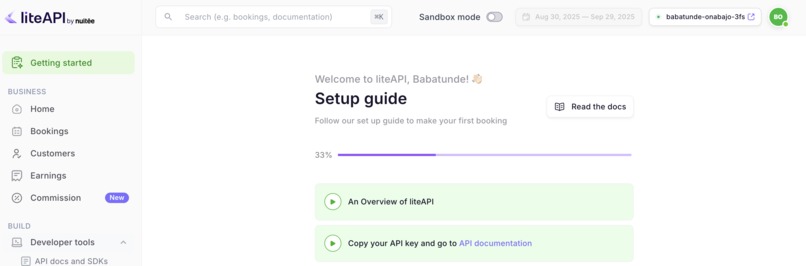
Dashboard of LiteAPI
-
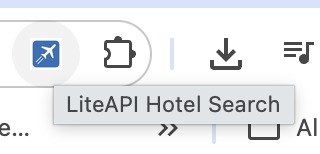
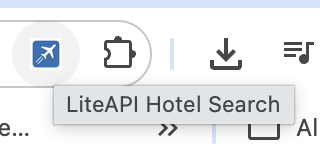
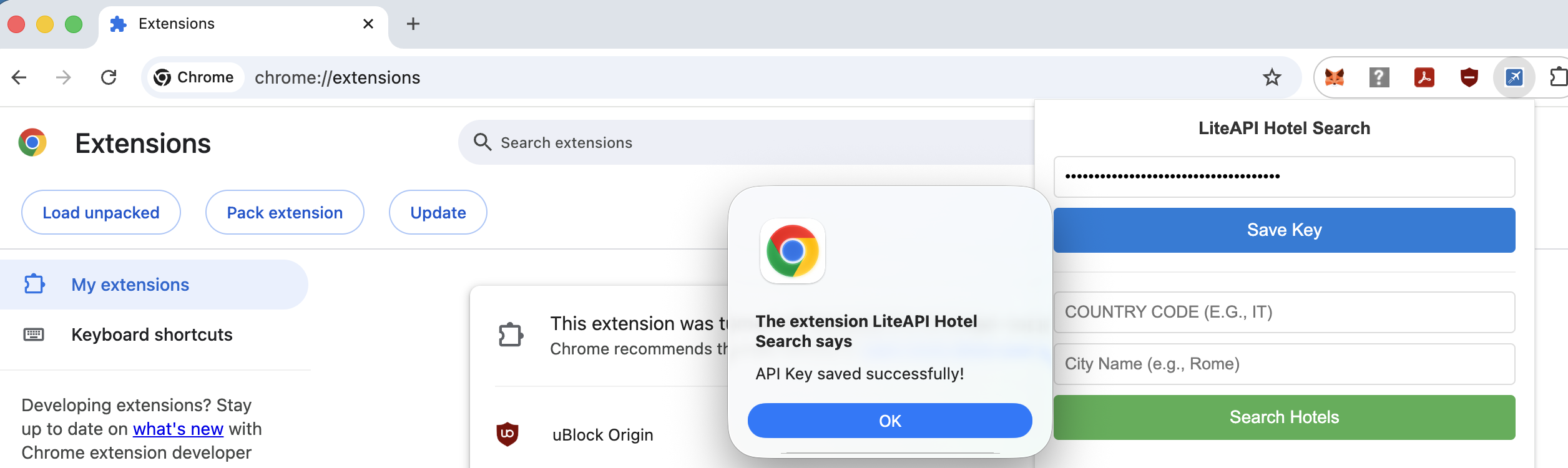
The Chrome extension should look like this in your toolbar.
-
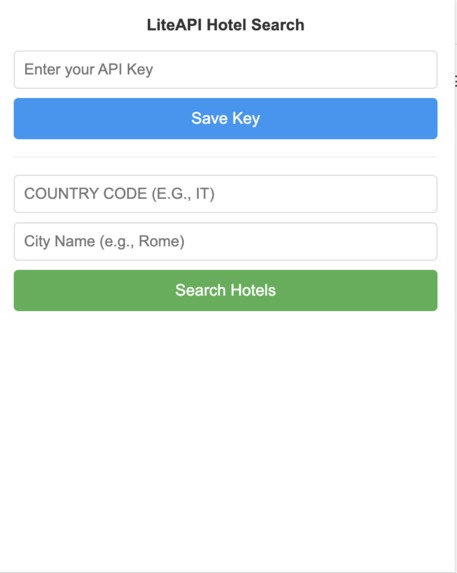
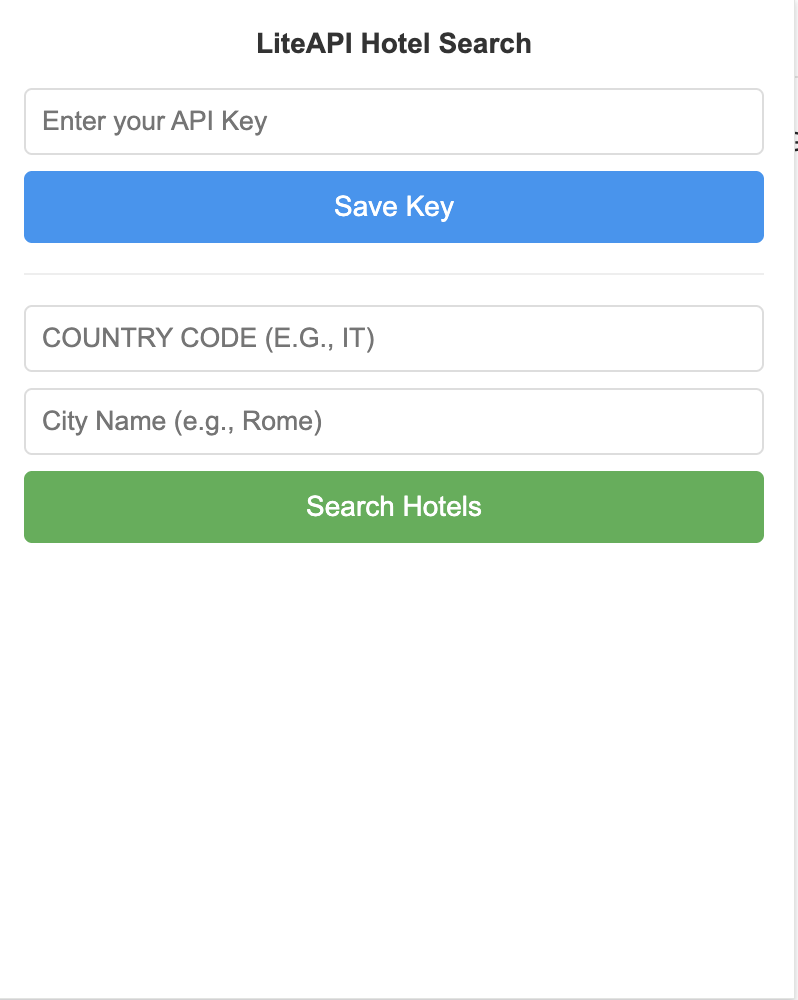
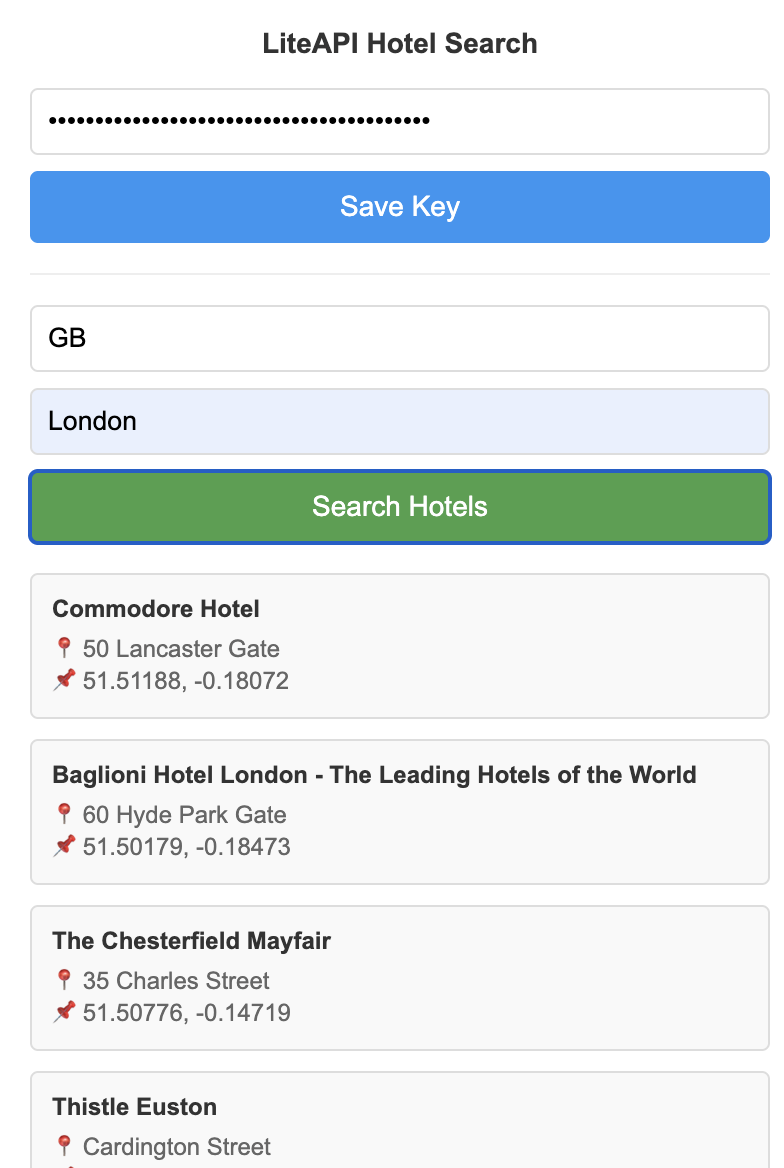
You can enter your details in the extension here.
-
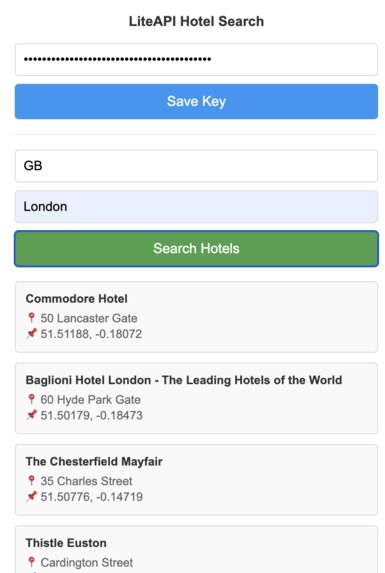
When you search for a country and city, you can retrieve a list of hotels.
-
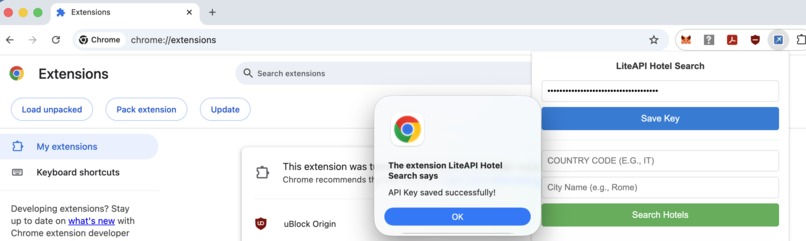
When you enter your API key, you will get a popup box stating that the key has been successfully loaded.
-
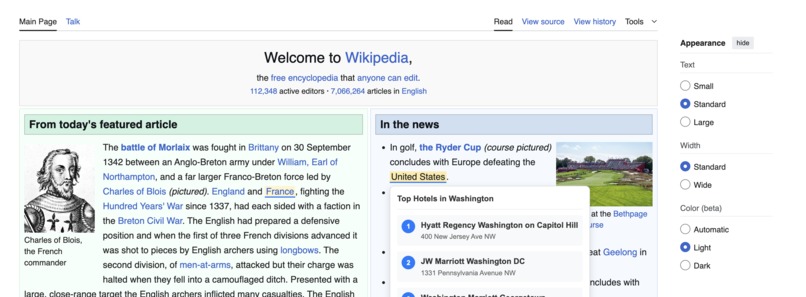
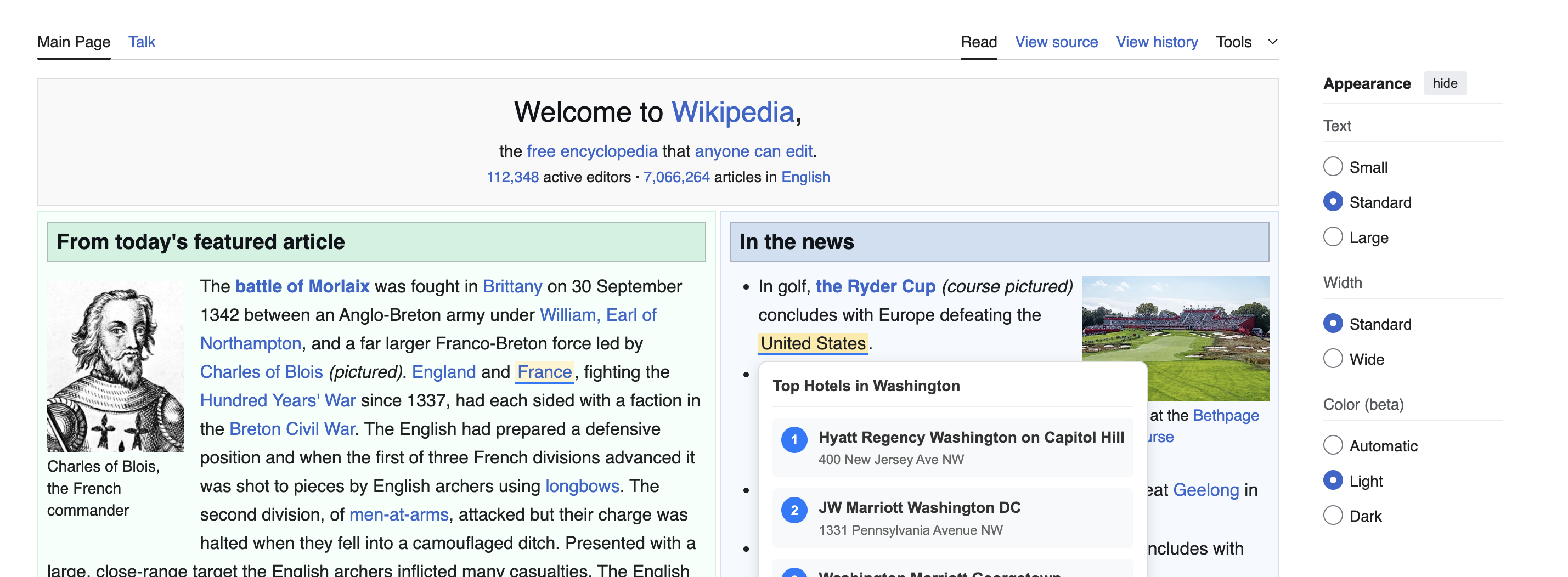
This is a Wikipedia page that shows how the extension can dynamically detect country names & cities, so when you hover over you get hotels.
-

This is the Pin to toolbar section.


Overview
This extension for Google Chrome provides customers with a list of hotels around the world provided by the LiteAPI offered by Nuitee. It is very lightweight and easy to use. You can see hotels around the world with the LiteAPI by searching within the extension as well as browsing websites that reference the names of countries and cities.
Behind the scenes
This project was actually "vibe coded", a term referring to the use of Large Language Models (LLMs) to generate computer code. I am actually a critic of vibe coding but believe it can serve a purpose where the programmer knows about what it is he/she wants to do also has a strong understanding of cybersecurity principles; in those instances, as here, vibe coding can lead to significant productivity gains. In this case, the code was primarily generated with the help of Claude Opus 4 in the Amazon Web Services (AWS) Bedrock platform.
Countries covered in this extension, and accompanying major cities *
The following countries are covered in this extension, together with their capital cities in brackets: Great Britain (London) 🇬🇧 , France (Paris) 🇫🇷 , Italy (Rome) 🇮🇹 , Germany (Berlin) 🇩🇪 , Spain (Madrid) 🇪🇸 , The Netherlands (Amsterdam) 🇳🇱 , Austria (Vienna) 🇦🇹 , Czech Republic (Prague) 🇨🇿 , Hungary (Budapest) 🇭🇺 , Japan (Tokyo) 🇯🇵 , United States (Washington) 🇺🇸 (** see disclaimer below), Australia (Sydney) 🇦🇺 , United Arab Emirates (Dubai) 🇦🇪 , Singapore (SIngapore) 🇸🇬 , Hong Kong (Hong Kong) 🇭🇰 , Thailand (Bangkok) 🇹🇭 , India (Delhi) 🇮🇳 , Canada (Toronto) 🇨🇦 .
You can easily customise the API to include more countries by adjusting the code in content.js file.
Requirements
To use this extension, you need to have the following:
- An API key from LiteAPI
- Google Chrome installed
- An active internet connection
Instructions
In order to run this extension, please follow the instructions below:
- Download all the files (including the icon) on the Github link below in the "Try it out" section.
- Open Google Chrome.
- Type
chrome://extensions - Turn on "Developer Mode". This enables you to load an extension and test it out.
- Press "Load Unpacked" and find the location of where you downloaded the files. Make sure it is a folder that is selected and not a specific file. If you have a zipped file after downloading it from Github, be sure to unzip it first and then select the file.
- Once you have pressed "Load Unpacked", you should see the extension in your Extensions area.
- You may see the extension in the toolbar. If you don't, you can press "Details" and then press "Pin to toolbar".
- Once the extension is shown, you can enter your API key and the two-letter code of the country you want to see together with a given city. The default options are shown above but you can also amend the extension further by amending content.js.
- The list of hotels should appear within the extension.
My review of the LiteAPI
My review of the LiteAPI is extremely positive. The API is easy to integrate and the website has many examples in a myriad of programming languages include JavaScript, PHP and Python from which you can choose from. The account dashboard is also very informative and easy to use (see screenshot).
Recommendation for the LiteAPI
One recommendation I would give to the LiteAPI team is to offer more guidance on the difference between the Sandbox Public Key and the Sandbox Key - Private API Key. I initially used the incorrect API key and as a result was unable to properly use the Chrome extension.
Another recommendation is an area in the portal where you can see the number and frequency of your API calls. It doesn't seem as if the portal includes this.
Security precaution
Always keep your API key private. Because the API key is used within the context of a JavaScript file, it is advisable to not use this particular Chrome extension if you are sharing your desktop or laptop with other people.
Troubleshooting
- When you hover over some locations
- This extension might not work well in the circumstances you use Markdown and mention a given country or city's name. This is because of the nature of what the Tooltip facility does. In these situations, you can amend the manifest.json file such that the extension won't operate on a given website.
- When you first install the extension, it's possible that it may not appear in your toolbar on Google Chrome. Don't worry! It's definitely working. To ensure that the extension appears on the toolbar, head to chrome://extensions and click on the extension. Click "Details" and then click "Pin to toolbar". A screenshot of this is provided down below.
Possible adaptation for the future
A possible adaptation for the future is to integrate Google's "built-in" AI into the extension. These are a set of tools that enable you to leverage Google's AI within the context of the browser. However, the tools themselves are currently experimental, and so have not been included here. Furthermore, you need to be part of the Early Preview program to try it out.
Disclaimer
- The vibe-coded output referred to these cities as "capitals". This is not strictly correct: the capital city of Australia 🇦🇺 , for example, is Canberra, not Sydney. Sydney is just more well-known. Similarly, the capital city for Canada 🇨🇦 is Ottawa, not Toronto. This is why it is important to always check and review the output of vibe code. Funnily enough, the average person would also make the same mistake here.
**The more astute of you will know if you read this that it is odd that "Washington" appears in brackets as the capital for the United States. This was generated by the vibe coded output, but it touches upon a deeper problem in a field called Natural Language Processing (NLP) called "Name Entity Recognition". This is the difficulty of how to identify names of individuals, places and other things in text. This is not a trivial problem, and a lot has been written on this subject. In this particular context, there is obviously an issue: "Washington" isn't the capital city for the United States. The capital city of the United States is Washington, D.C. . What's more, there is an entire state (on the other end of the country!) called Washington. Teaching a program how to distinguish between the two is exponentially difficult, and requires the use of artificial intelligence (in this context, using a technique called attention). For the purposes of this hackathon, it seems a bit overkill to include this because there are extra hurdles that have to be overcome when it comes to using AI within the context of a browser.
Built With
- css
- html
- javascript
- liteapi

Log in or sign up for Devpost to join the conversation.