-
-
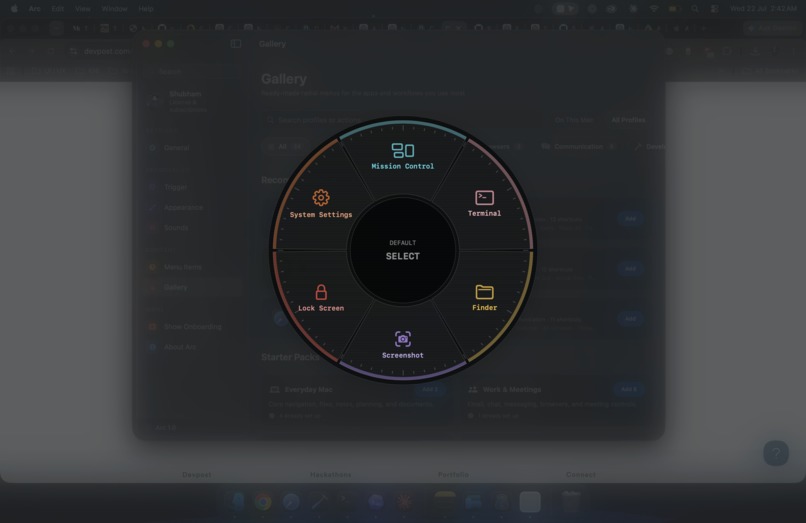
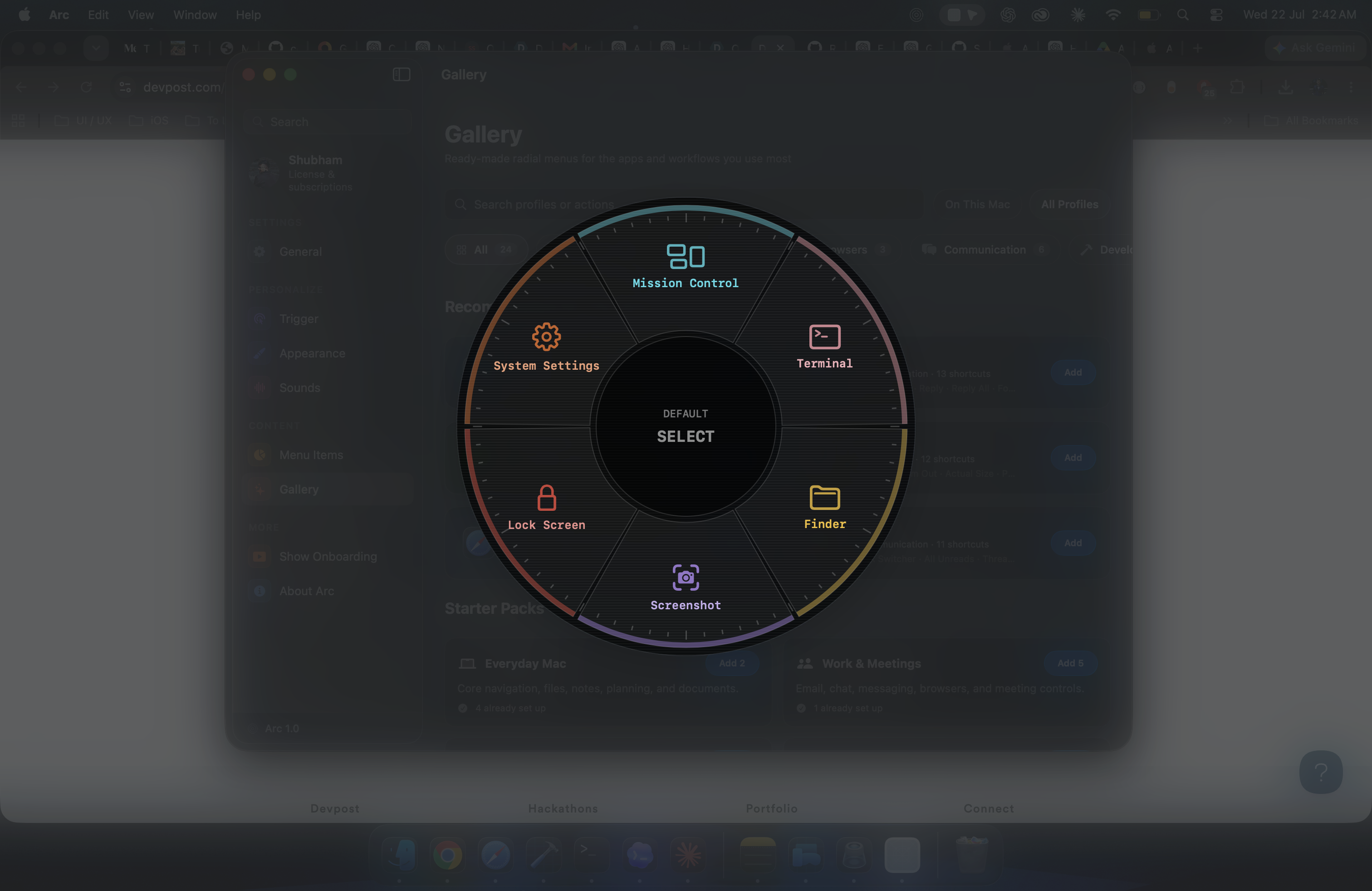
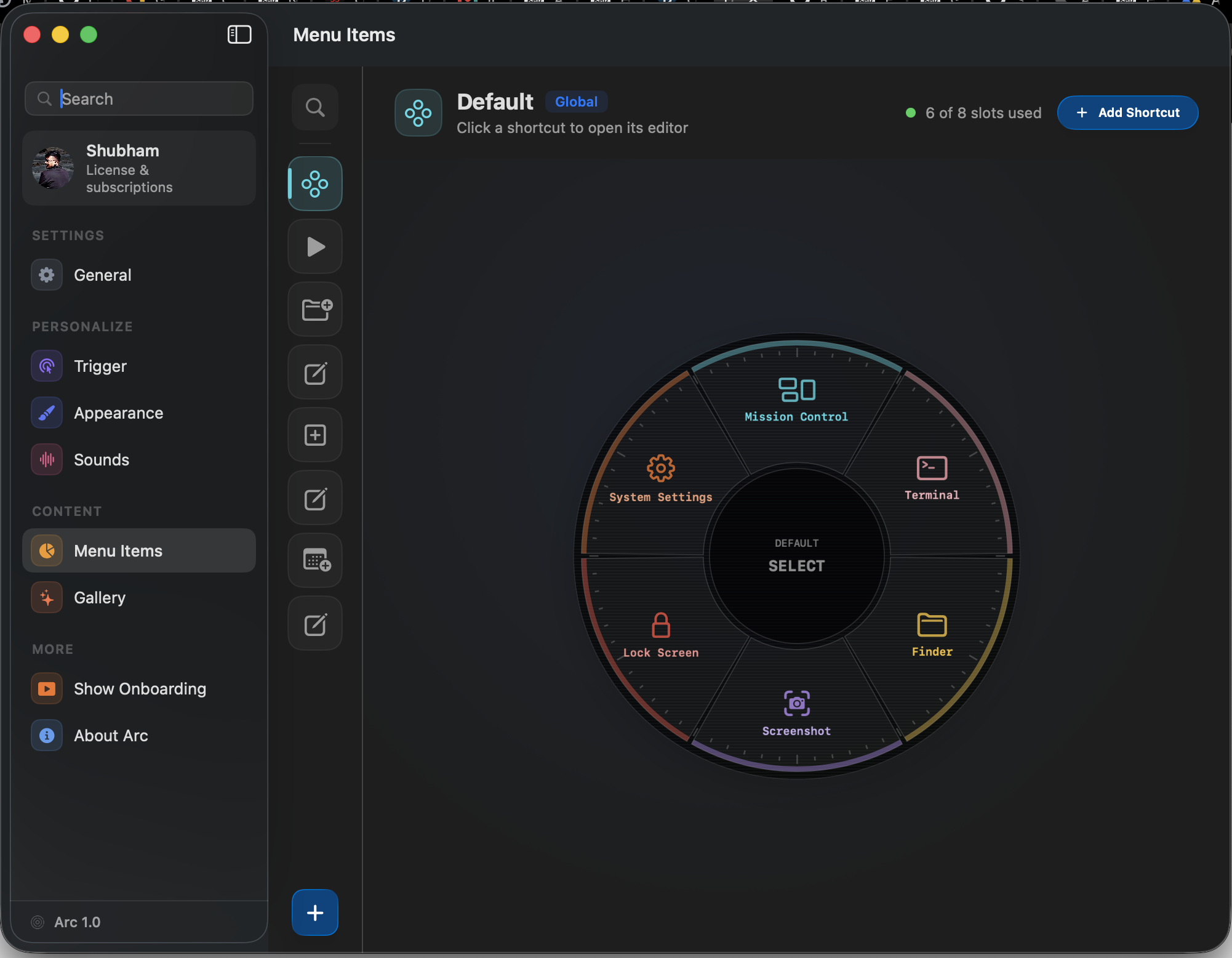
Arc's Radial Menu - When Triggered from a key press
-
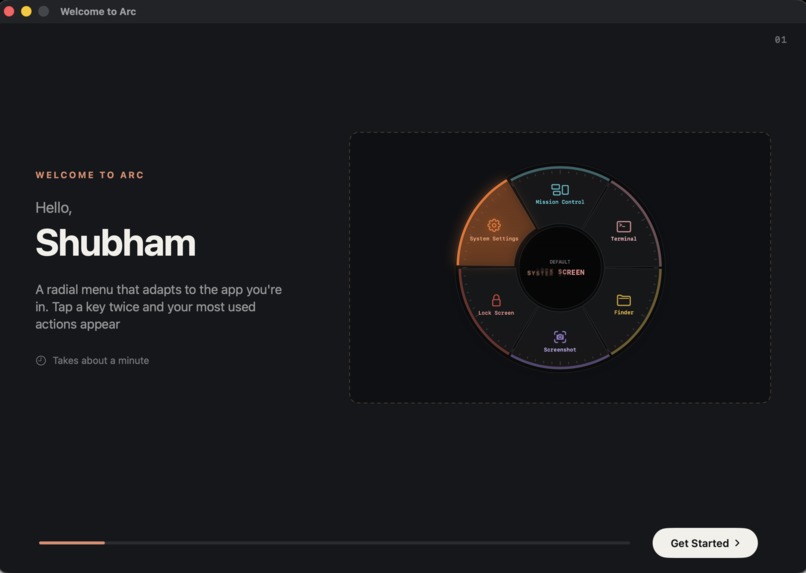
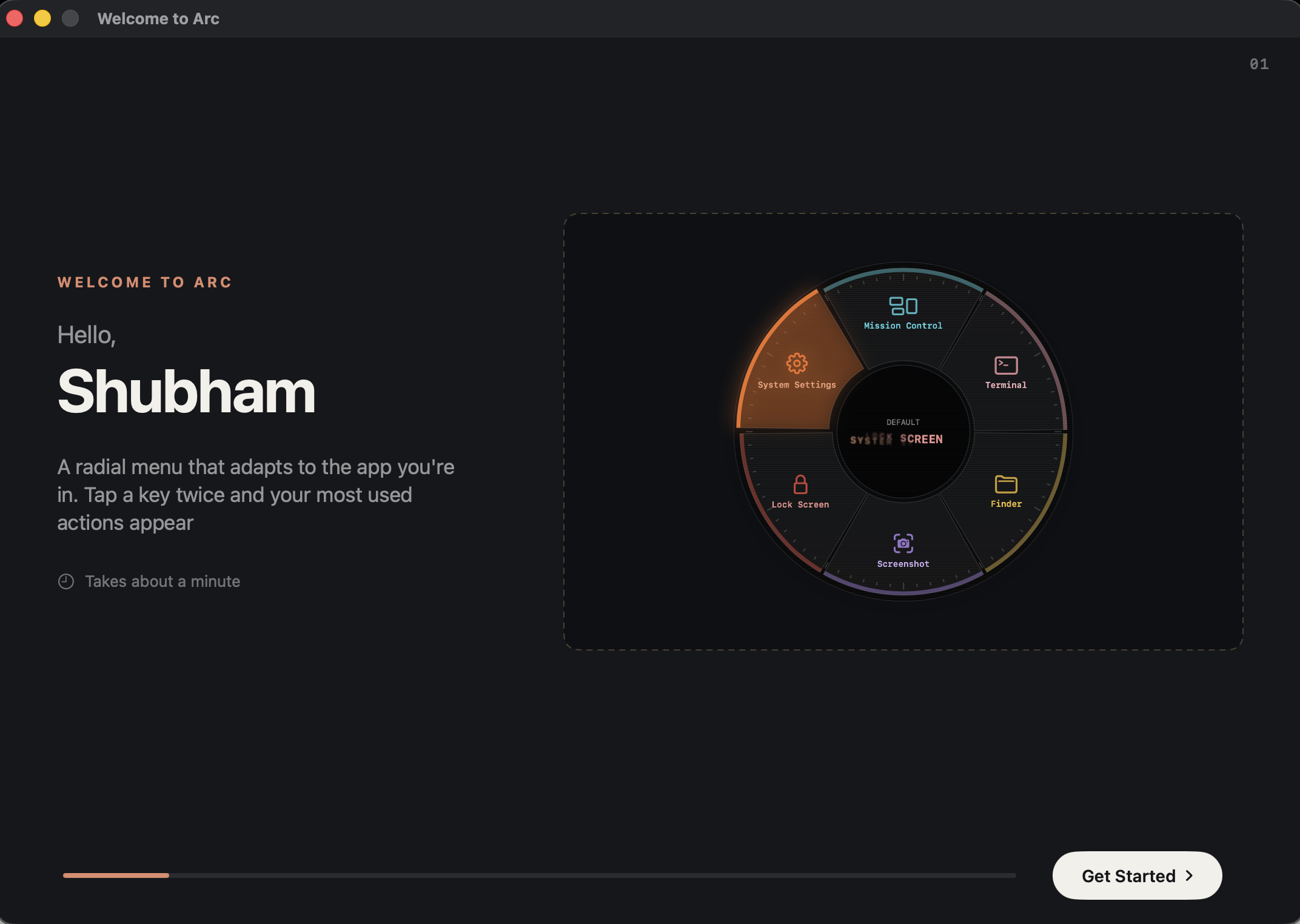
Onboarding Flow
-
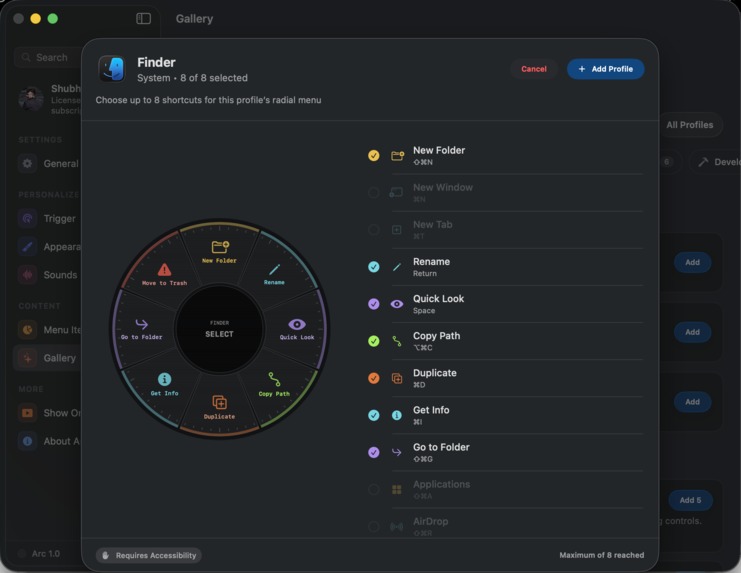
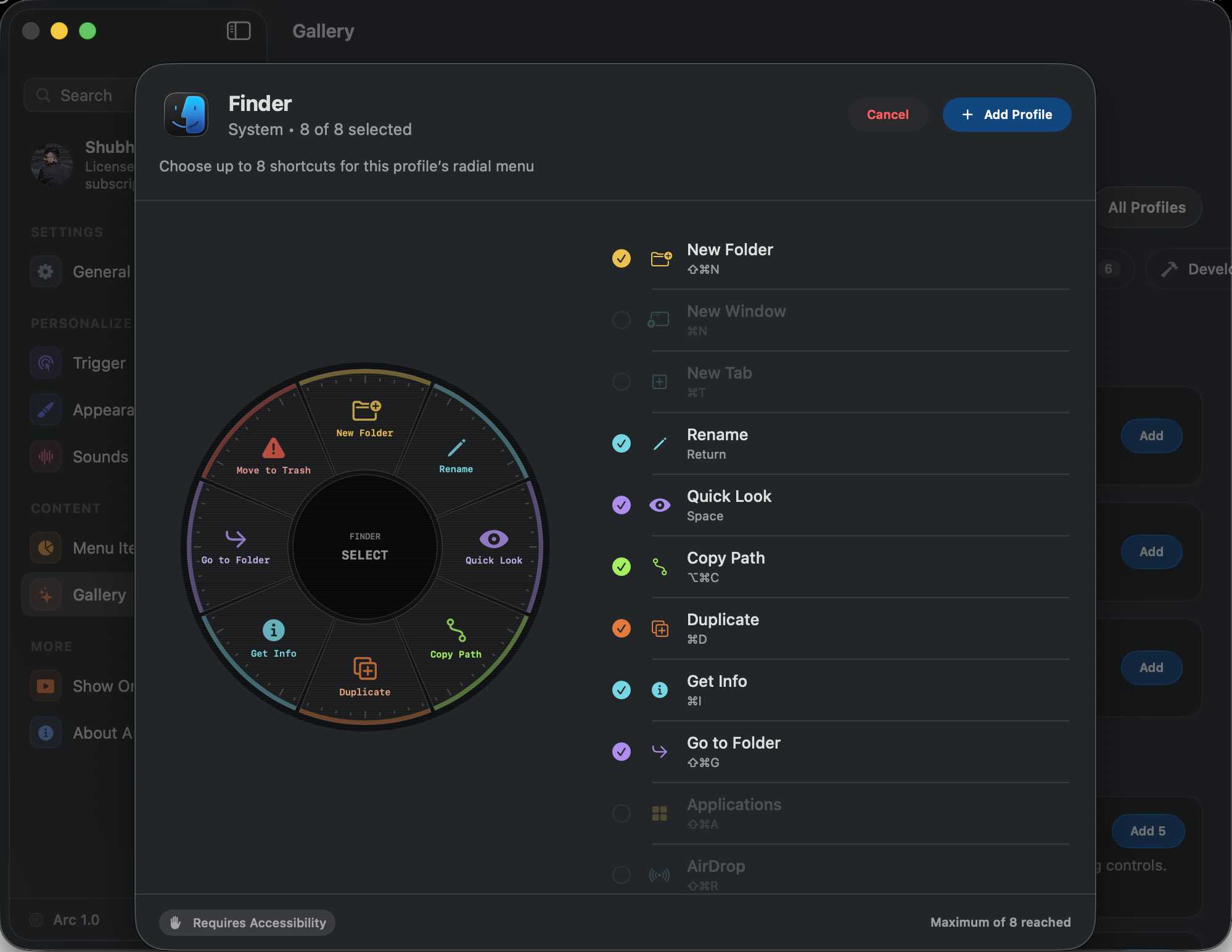
Shortcuts Editor flow - for Finder App
-
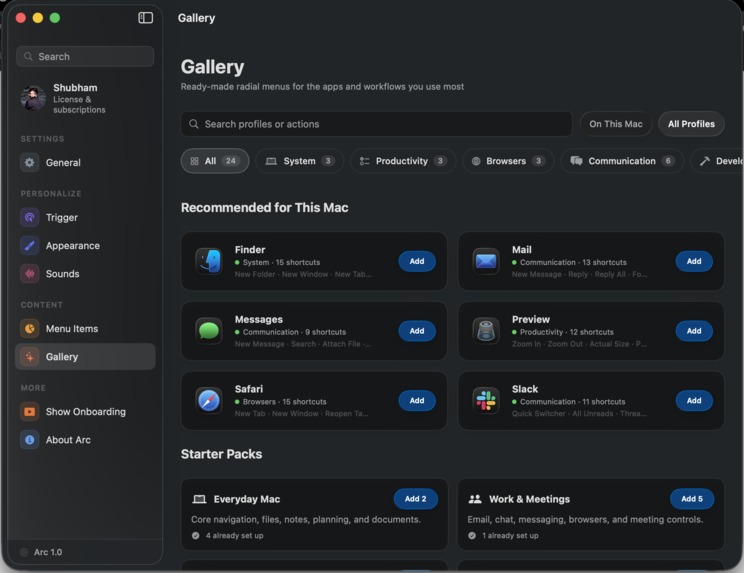
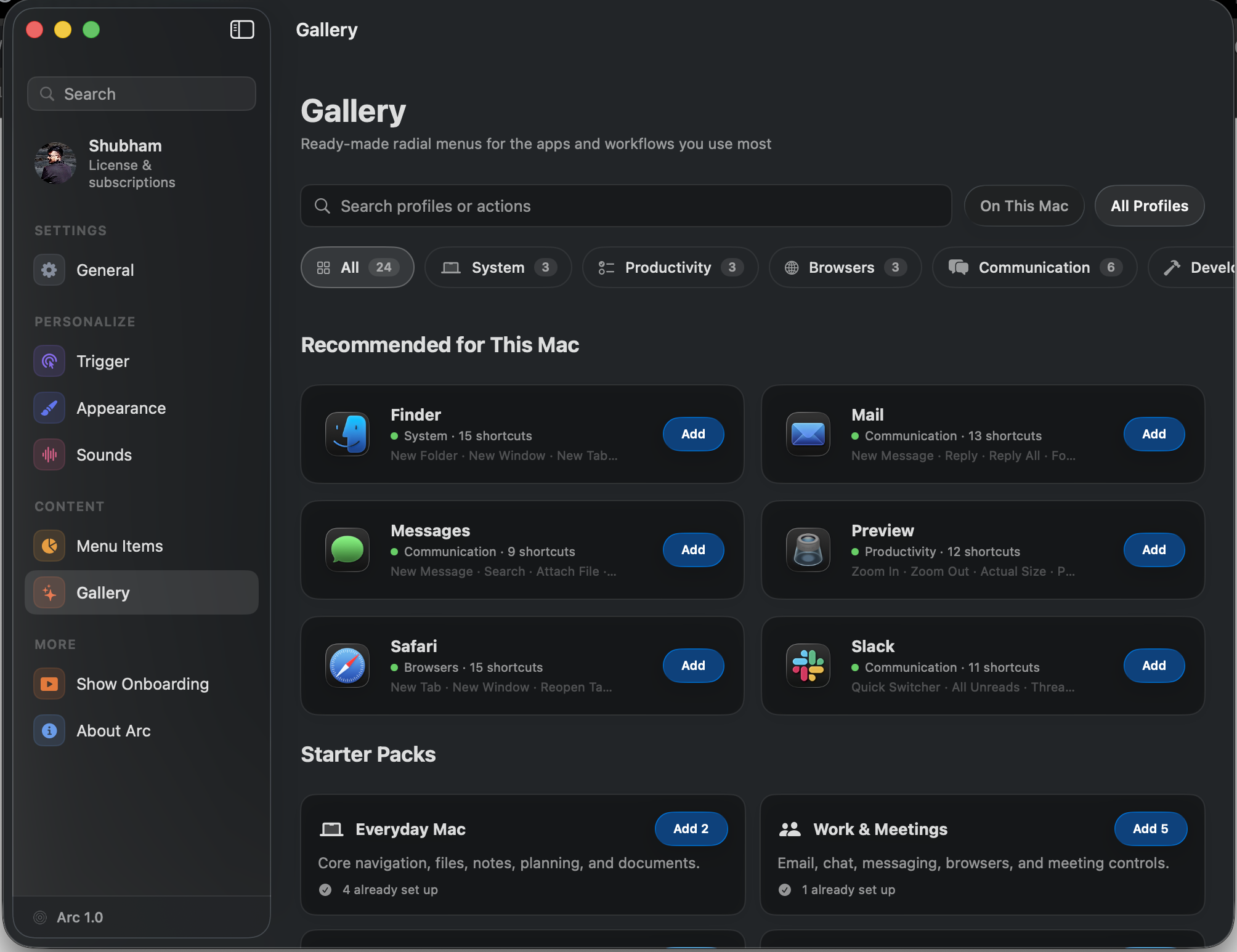
Pre-Built App Profiles with shortcuts, that the user can directly add
-
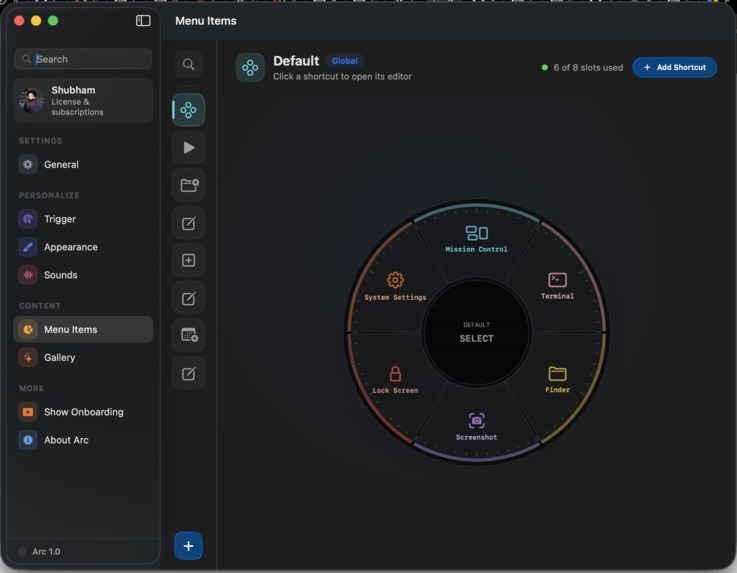
Shortcuts Customisation Flow
-
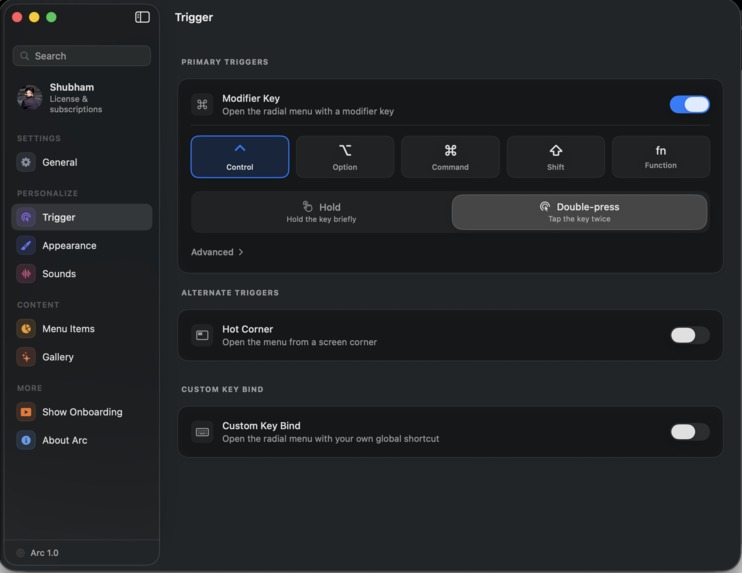
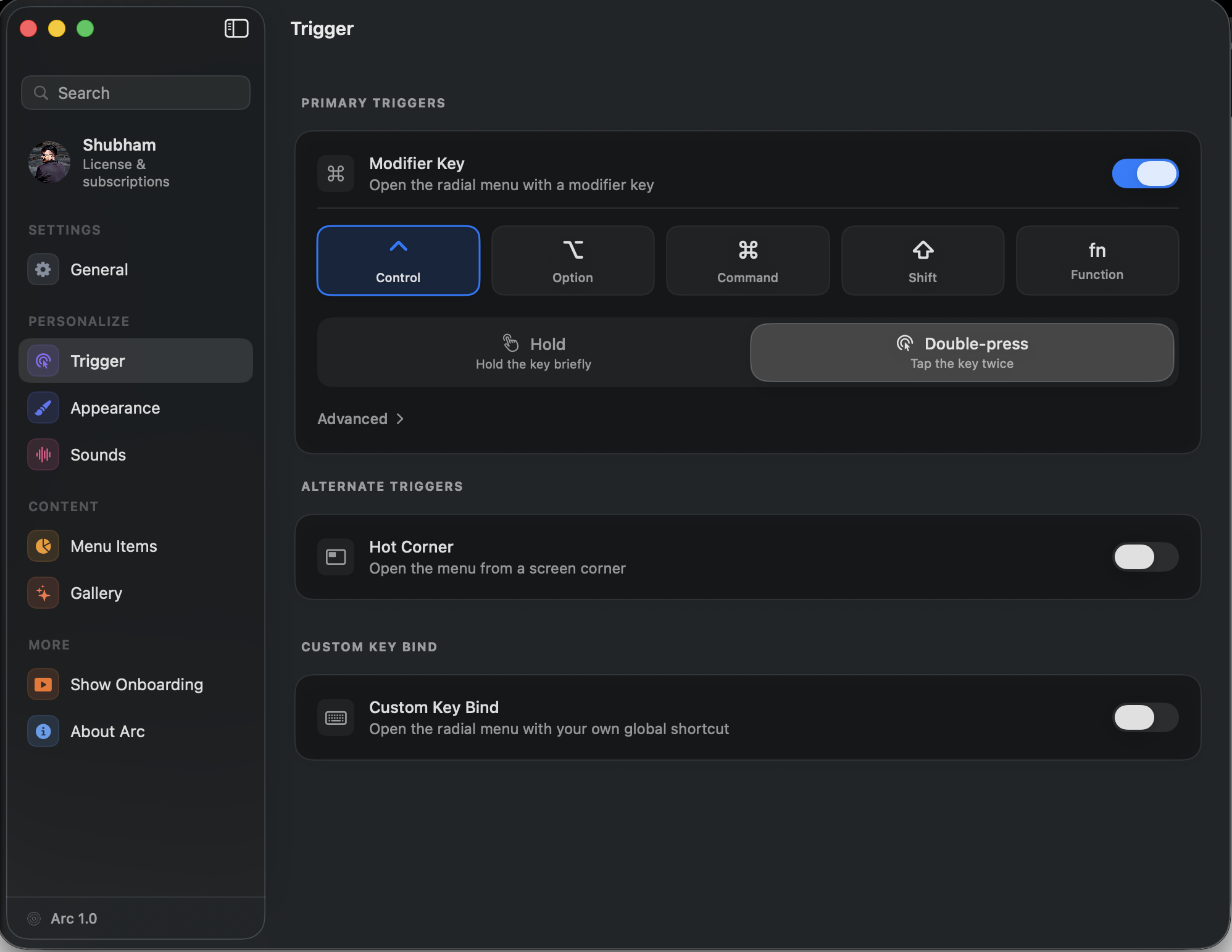
Radial Menu Trigger point customisation
Inspiration
I’m someone who relies heavily on keyboard shortcuts. They save me a lot of time and help me stay productive without constantly switching between the keyboard and mouse.
I use shortcuts across apps like Xcode, Notes, GitHub, Finder, and many others. Over time, a lot of people have asked me how I remember so many shortcuts, how they can learn them, and which useful shortcuts they should know.
When I came across the OpenAI Hackathon, I immediately thought of building a radial menu app for macOS that could show useful actions based on the app or window currently in focus.
The idea was simple: users should not have to memorise every shortcut to work faster. Arc would bring those actions directly in front of them and make them easy to discover and run.
What it does
Arc is a macOS menu bar app that stays available alongside controls like Wi-Fi, sound, and battery.
Users can activate Arc using a keyboard shortcut of their choice. It then shows a radial menu in the centre of the screen with actions configured for the app they are currently using.
These actions can do much more than trigger keyboard shortcuts. Arc can open URLs, launch apps, run shell commands, copy text, paste content, and perform multiple actions together.
I have also added built-in profiles and ready-to-use shortcuts, so users do not have to start from scratch. They can add an existing profile and then customise it based on their own workflow.
Each profile can contain up to eight actions and can automatically appear depending on the currently focused app.
How I built it
I built Arc using Swift and SwiftUI as a native macOS menu bar app.
I used Codex and GPT-5.6 Sol heavily during the planning and development process. They helped me think through the profile system, app-specific context, data structure, action execution, and the overall architecture of the app.
Once the core system was working, I applied my own UI and interaction design experience to shape how Arc should look and feel.
I also used GPT-5.6 Terra while refining the radial menu animations, transitions, interactions, and smaller visual details that made the app feel more polished.
Challenges I ran into
The biggest challenge was making Arc context-aware.
The first version only showed the same default radial menu everywhere. Moving from that to detecting the currently focused app, assigning profiles to it, handling different types of actions, and making the whole system easy to configure was much more difficult than I expected.
I spent a lot of time ideating with GPT-5.6, breaking the problem into smaller parts, and understanding how the profile and context system should work before implementing it.
The second major challenge was designing the radial menu itself.
I had to think about different types of users, accessibility, keyboard and mouse interaction, different ways to open the menu, and how users would add or customise shortcuts without the setup becoming overwhelming.
The radial menu had to feel quick and simple, but the configuration behind it still needed to be powerful.
Accomplishments that I am proud of
I’m extremely proud of how Arc has turned out.
It started as a simple radial menu for triggering keyboard shortcuts, but through continuous ideation and experimentation, it has grown into a context-aware productivity app that can run shortcuts, macros, shell commands, launch apps, open links, copy text, and combine multiple actions into one flow.
I’m especially proud of the profile system and how Arc automatically adapts to the app the user is currently working in.
A large part of the challenge was not just adding more actions, but making them easy to configure. Arc would not be useful if setting up profiles felt difficult, so I spent a lot of time improving that experience.
What I learned
This was a fantastic learning experience for me. Arc is only my second macOS app and my first app that lives completely in the menu bar.
While building it, I learned how to create a menu bar app that can be invoked from anywhere, detect the currently focused application, listen for global keyboard shortcuts, find installed apps, launch applications, run shell commands, and execute different types of actions.
I also learned a lot about radial menu geometry, positioning items around a circle, handling hover and selection states, and making the interaction feel natural.
More than anything, this project taught me how many small systems need to work together to make a utility app feel simple.
What’s next for Arc
The next major step for Arc is an iPhone companion app.
It will allow users to securely connect their iPhone to their Mac and trigger Arc actions directly from their phone. I was inspired by the connection between the Codex desktop and iOS apps and wanted to explore a similar experience for Arc.
The second major feature I want to build is AI-generated profiles and shortcuts.
Users will be able to describe a problem, repetitive task, or workflow, and Arc will automatically suggest or create the right actions and profiles for them.
The long-term goal is to make Arc useful even for people who do not know which shortcuts, commands, or automations they need. They should only have to explain what they want to achieve.

Log in or sign up for Devpost to join the conversation.