
Aperture
A Slack accessibility agent that turns images, charts, and screenshots into information everyone can use.
Inspiration
For most people, a chart, screenshot, or design mockup shared in Slack takes only a second to understand.
For someone using a screen reader, that same message may be announced simply as:
“image.png”
The revenue trend in the chart, the error in the screenshot, and the decision captured on the whiteboard are all missing.
Blind and low-vision professionals often navigate their entire workday through screen readers, yet Slack has become increasingly visual. Teams communicate through:
- Dashboards
- Revenue charts
- Product mockups
- Error screenshots
- Diagrams
- Whiteboard photos
Most of these images are posted without meaningful alternative text.
This creates more than an inconvenience. It can prevent someone from independently:
- Following a conversation
- Understanding a decision
- Reviewing important data
- Identifying a technical issue
- Contributing at the same speed as their colleagues
Slack allows people to add alt text when uploading their own images, but this depends on every sender remembering to do it. Users also cannot add alt text to another person’s upload, leaving thousands of historical images inaccessible unless someone manually explains them.
I built Aperture to close that gap without requiring teams to change how they already work.
What it does
Aperture is a Slack-native accessibility agent that turns images, charts, and screenshots into clear, screen-reader-friendly information.
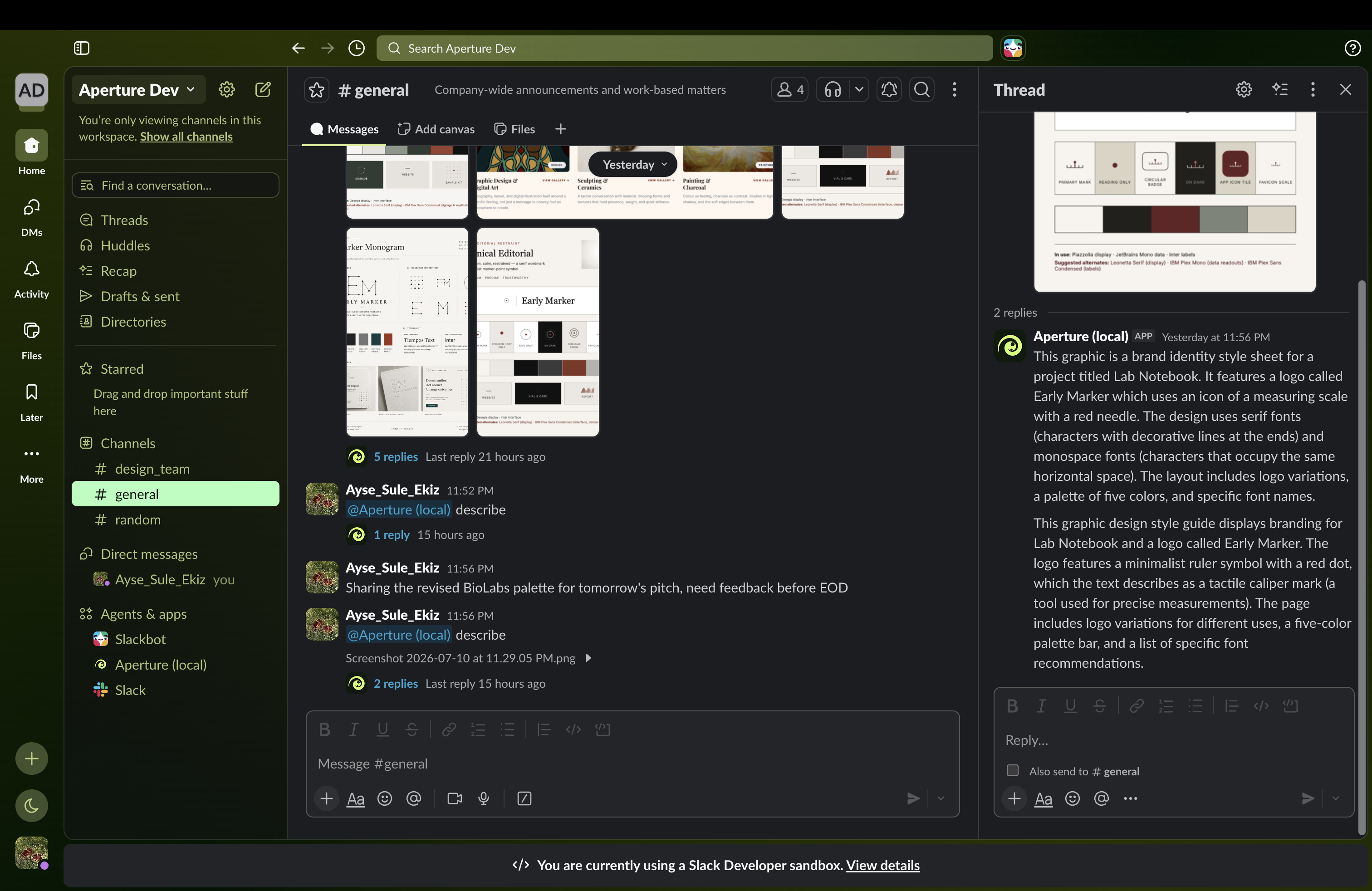
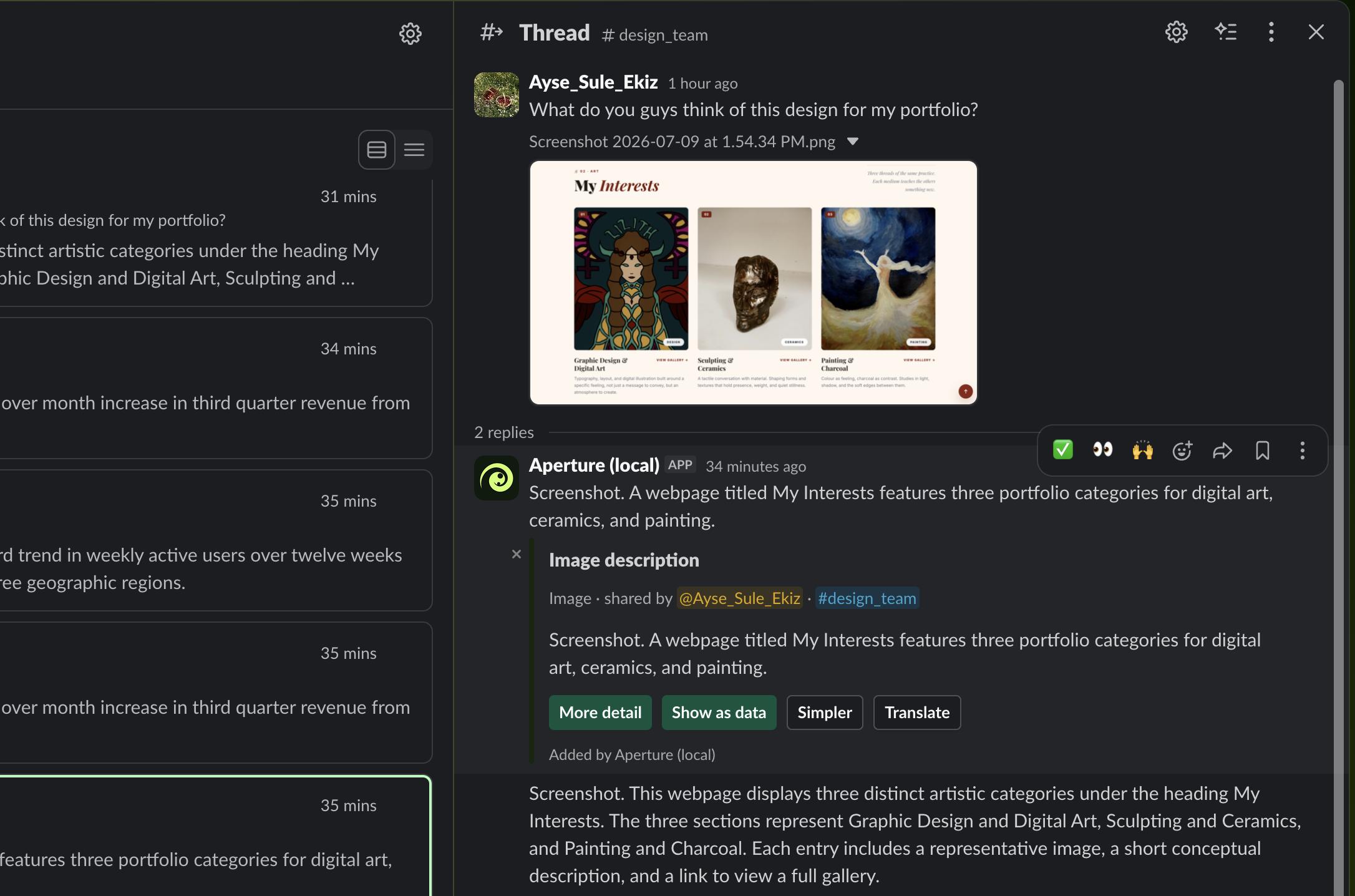
When someone shares an image, Aperture can automatically reply in the image’s thread with a concise description. The explanation stays attached to the original content, allowing anyone using a screen reader to access it within the natural flow of the conversation.
Aperture does more than generate generic captions. It recognizes the type of visual information being shared and responds in the most useful format.
Images and screenshots
Aperture explains the most important visual content clearly and concisely.
Charts and dashboards
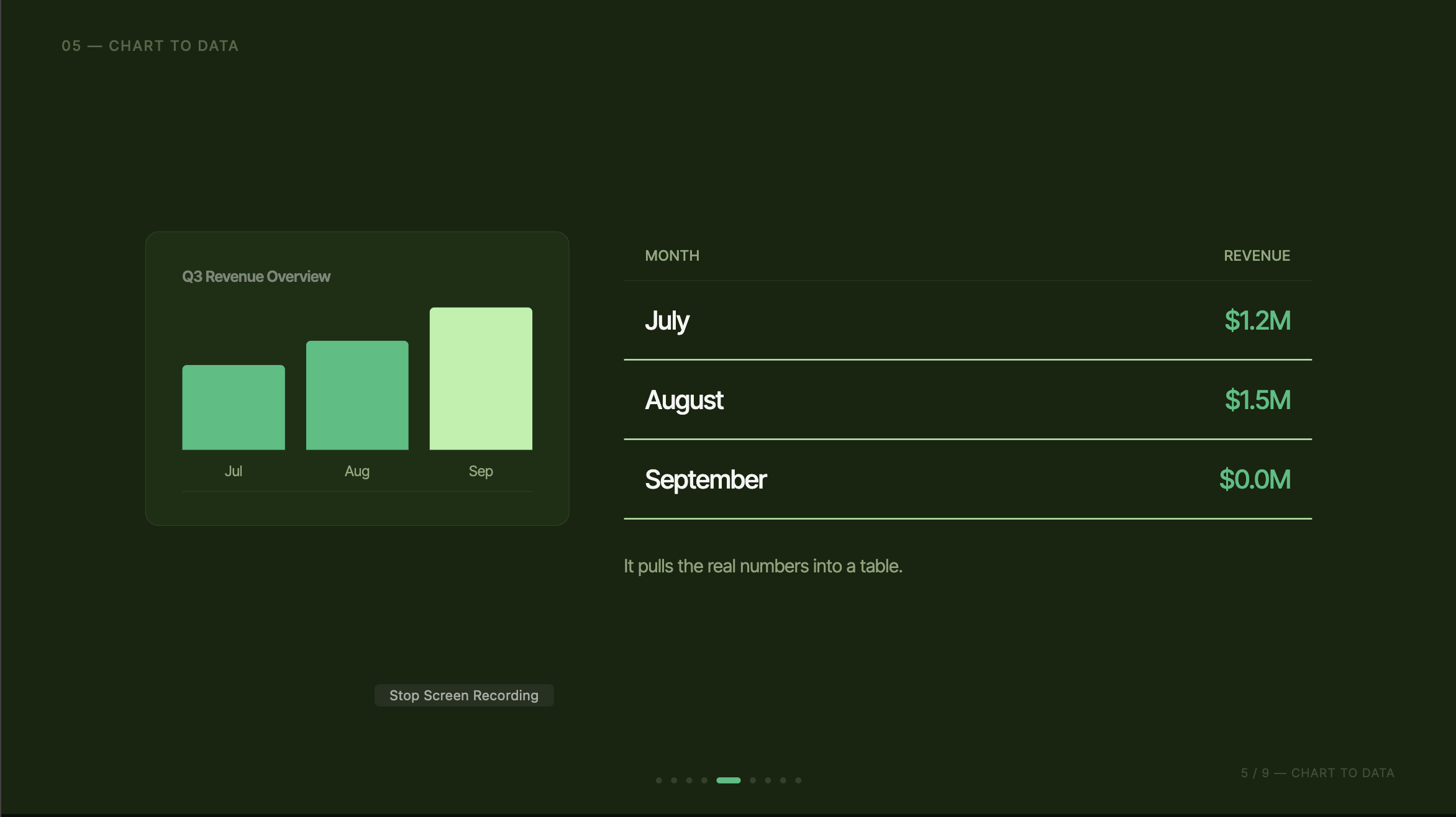
Aperture extracts labels and values into a structured, screen-reader-friendly data table.
A blind analyst does not just hear:
“A bar chart.”
They can review the actual numbers represented in the chart.
Context-aware descriptions
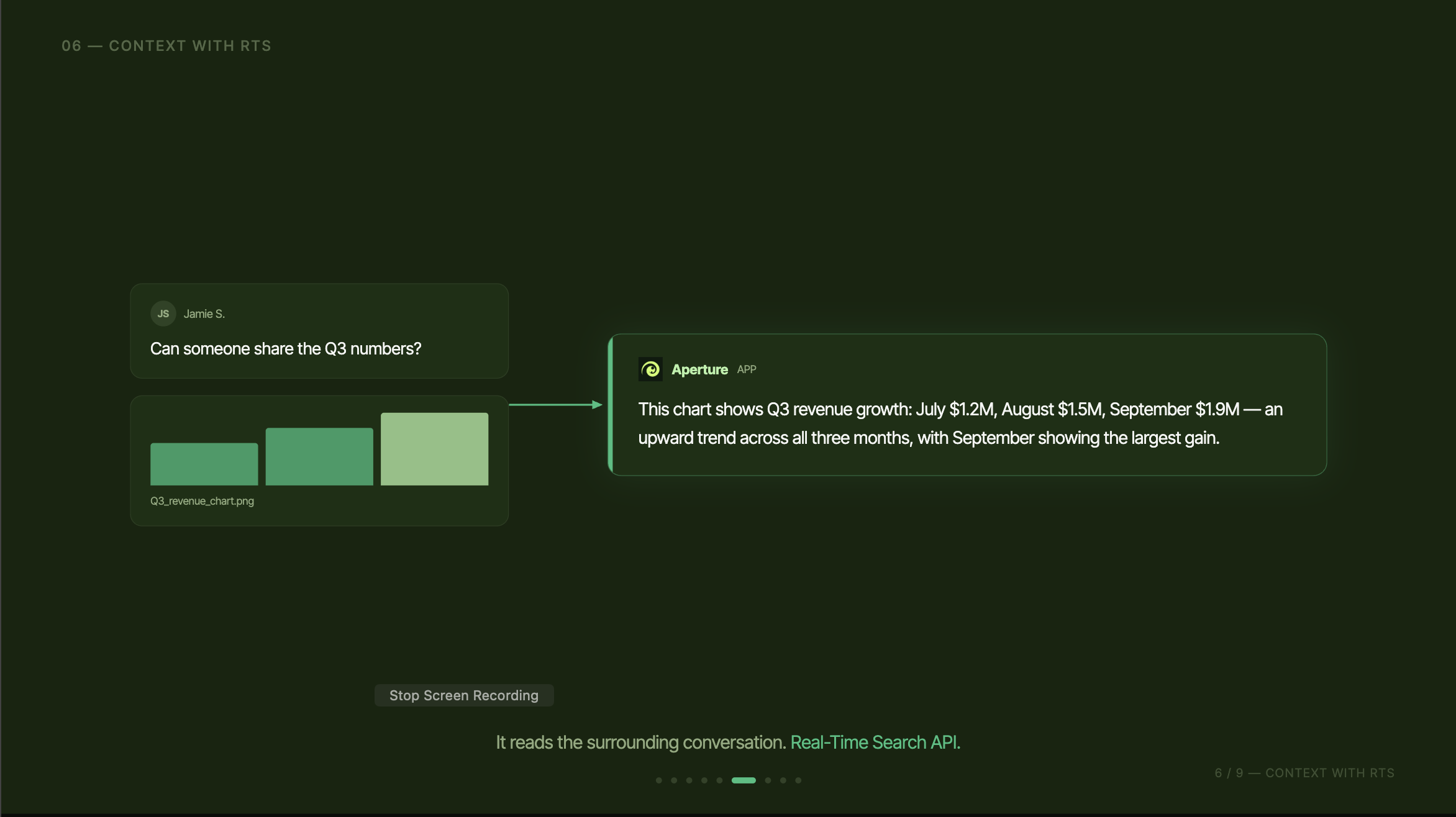
Aperture uses the surrounding Slack conversation to explain not only what an image contains, but also why it matters to the discussion.
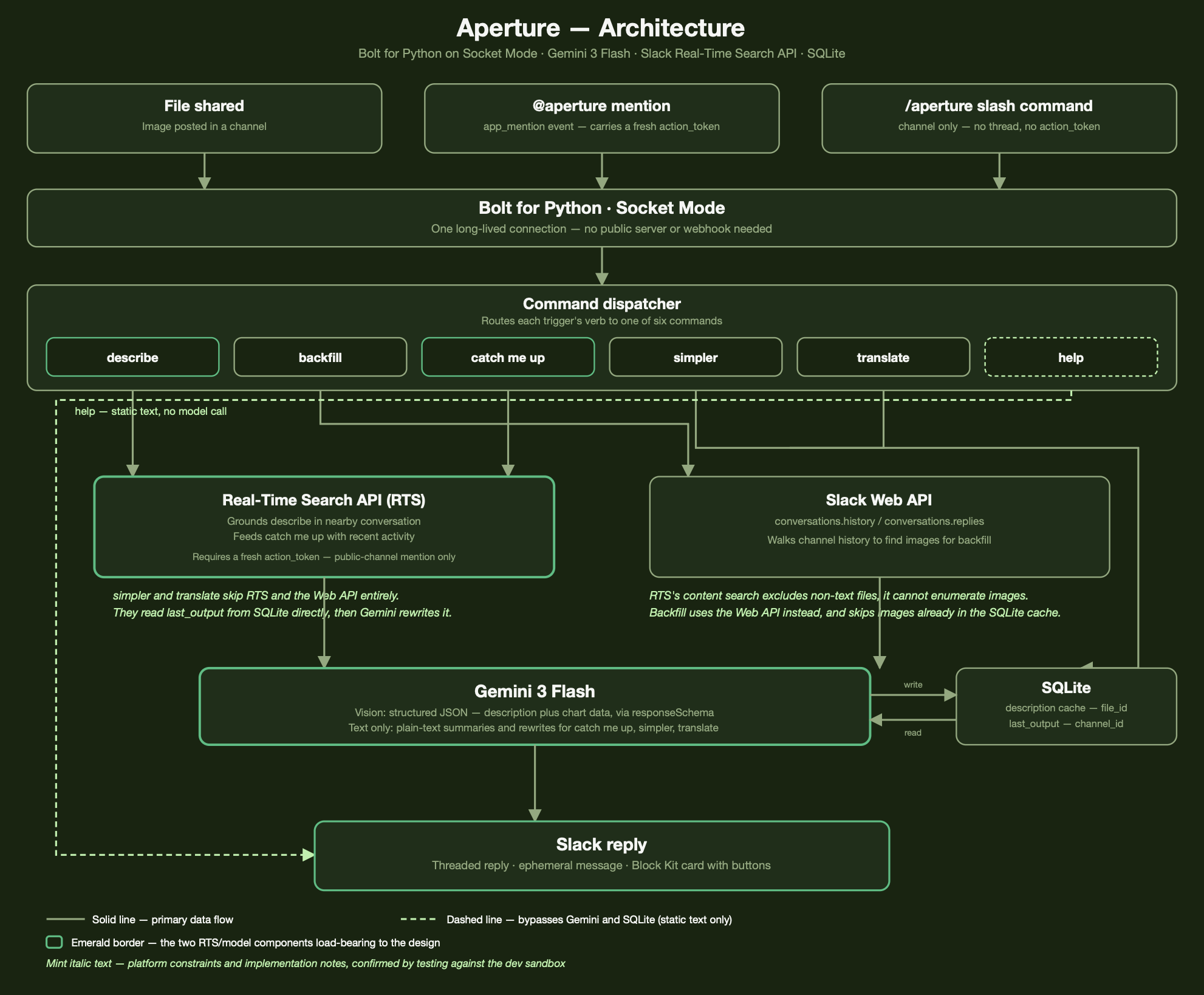
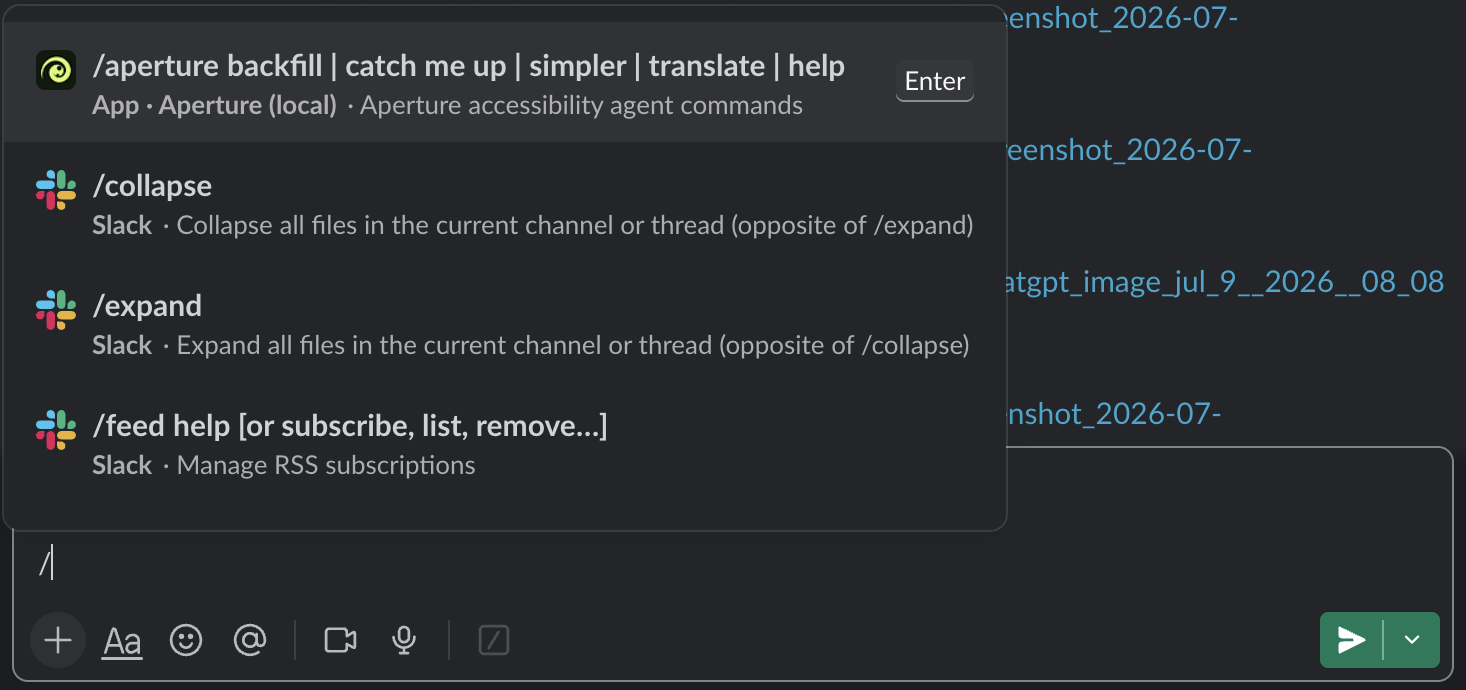
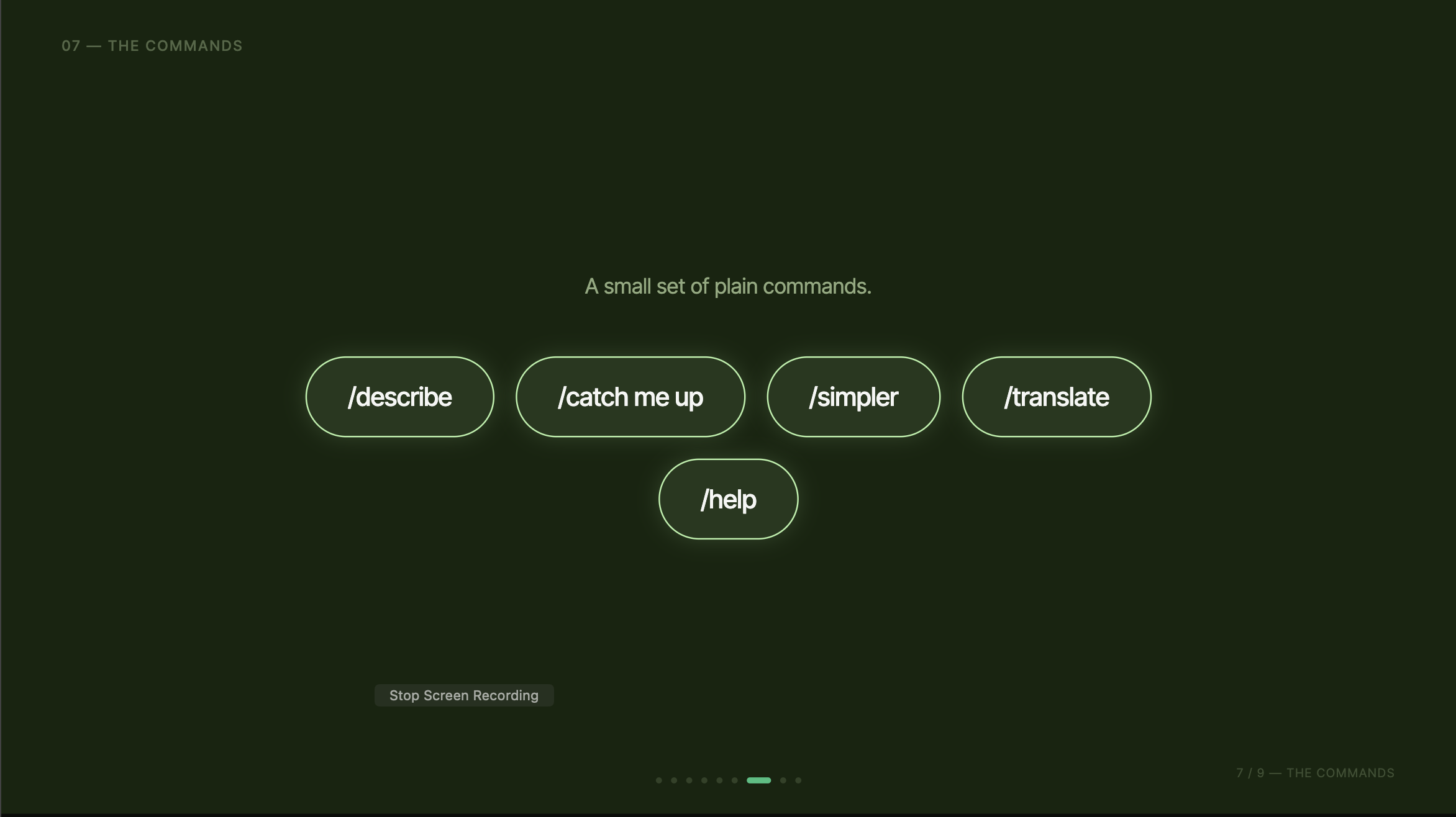
Aperture’s six commands
Aperture is controlled through a small, learnable set of commands available through a bot mention or slash command.
Describe
Describes the image in the current thread and uses the surrounding conversation to explain its relevance.
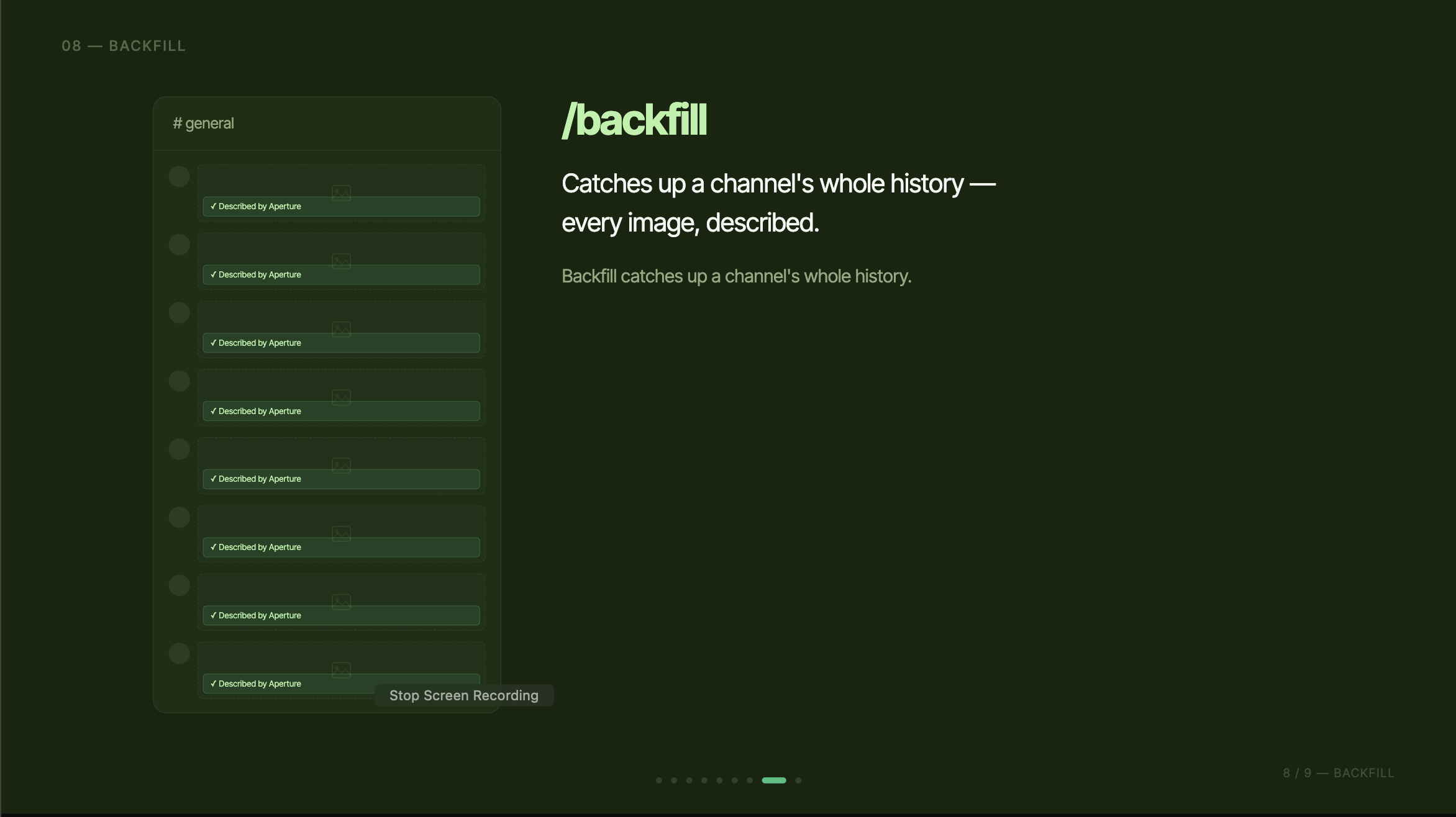
Backfill
Finds undescribed images in a channel’s history and creates accessible descriptions for them.
Catch me up
Summarizes recent channel activity, including:
- Important updates
- Decisions that were made
- Open questions
- Messages directed at the user
Simpler
Rewrites the latest description or summary using shorter, clearer language.
Translate
Translates the latest description or summary into another language.
Help
Displays a straightforward list of available actions, because discoverability is also an accessibility requirement.
The goal is simple:
A blind user should never need to navigate through a wall of inaccessible images or depend on a colleague to explain what everyone else can already see.
They ask Aperture, and Aperture responds in words their screen reader can communicate clearly.
How I built it
Aperture is built with Bolt for Python and runs through Slack Socket Mode, removing the need for a publicly exposed web server during development.
AI and image understanding
Image understanding and text generation are powered by Gemini Flash through Google AI Studio.
Aperture uses structured model outputs for:
- Image descriptions
- Chart recognition
- Label extraction
- Numerical data extraction
Plain-text generation supports:
- Channel summaries
- Simpler explanations
- Translations
- Contextual rewrites
Slack context
Slack’s Real-Time Search API provides conversational grounding.
For the describe command, Aperture retrieves relevant surrounding messages so it can explain why an image matters in context.
For catch me up, it gathers recent channel activity and identifies:
- Decisions
- Open questions
- Important updates
- Personally relevant messages
Historical image discovery
Historical images are discovered through Slack’s Web API because Real-Time Search focuses on text content and does not enumerate non-text files.
This separation allows each API to handle the task it does best:
- Web API: discovers images and files
- Real-Time Search API: retrieves conversational context
Caching and state
A local SQLite database caches every description using the Slack file ID.
This prevents Aperture from processing the same image more than once.
SQLite also stores the most recent Aperture output in each channel so commands such as simpler and translate can work naturally without requiring the user to repeat the content.
Interface
The interface is built with Slack Block Kit.
Descriptions appear as threaded replies with clearly labeled actions for requesting:
- More detail
- Raw chart data
- Simpler wording
- Translation
Every response is designed for screen-reader use first:
- Brief by default
- Logically structured
- Independent of visual styling
- Clear when spoken aloud
- Honest when information cannot be determined
Challenges I ran into
The most important challenges came from understanding Slack’s real platform boundaries.
Real-Time Search does not discover images
Slack’s Real-Time Search content search excludes non-text files, so it could not power historical image backfilling.
I separated the responsibilities instead:
- The Web API discovers images.
- Real-Time Search provides the surrounding conversation.
This made the architecture more reliable and allowed each system to focus on what it handles best.
Authentication in Socket Mode
Real-Time Search requires user-scoped authorization, while Aperture operates through Socket Mode without a traditional public OAuth redirect server.
I structured contextual search around the authorization available through supported Slack interactions, allowing the prototype to work without introducing a separate hosted OAuth service.
Block Kit styling limitations
Slack apps cannot control custom fonts, colors, or themes because messages render according to each user’s Slack preferences.
That initially felt limiting, but it pushed the interface toward what actually improves accessibility:
- Semantic structure
- Concise language
- Clear labels
- Predictable actions
- Readable content order
Testing with a real screen reader
The first thing I validated was the delivery experience itself.
A technically accurate description can still be exhausting or confusing when spoken aloud. I tested Aperture with a real screen reader before building the full feature set.
That early testing influenced:
- Description length
- Sentence structure
- Labels
- Button wording
- Error messages
- Response ordering
A description that reads awkwardly aloud can become another barrier rather than a solution.
Accomplishments that I’m proud of
I am proud that Aperture focuses on a specific accessibility problem that is easy to overlook but deeply affects how people participate at work.
Every product decision supports the same goal:
Independent and equal access to workplace information.
Descriptions:
- Begin with a clear content label
- Stay concise to reduce listening fatigue
- Never rely on color alone
- Avoid unnecessary visual details
- Fail with one understandable sentence instead of technical errors or silence
Chart-to-data extraction
The chart-to-data feature is especially meaningful.
It transforms information previously locked inside pixels into labeled values that a screen-reader user can:
- Inspect
- Compare
- Search
- Review
- Reference independently
Historical accessibility
The backfill command makes Aperture more than a solution for future messages.
It begins repairing the accessibility gap already embedded in a workspace’s history.
Measurable impact
Aperture’s impact can be measured through:
- The percentage of visual content with usable descriptions
- The number of historical images made accessible
- The number of charts converted into readable data
- The number of descriptions simplified or translated
- The frequency with which users independently retrieve visual information
Aperture may be a small agent, but its impact is concrete:
- Fewer inaccessible images
- More independently usable information
- Faster access to workplace context
- More equal participation for blind and low-vision employees
What I learned
Building for accessibility is often less about adding more features and more about practicing restraint.
A long description is not automatically a useful description.
A visually polished interface is not necessarily an accessible interface.
A confident answer is not helpful when the model cannot reliably understand the content.
I learned to prioritize:
- Clarity
- Predictable structure
- Concise language
- Honest uncertainty
- Screen-reader behavior
- User independence
I also learned to test the most important assumption first.
Before investing in complex commands or historical processing, I needed to know whether Aperture’s responses would actually sound clear when read aloud.
That validation shaped the product more than any individual technical decision.
The platform’s limitations ultimately improved the design:
- The lack of custom styling placed the focus on semantic structure.
- The inability to edit another user’s alt text made threaded descriptions the most practical delivery method.
- The search API’s text-only scope encouraged a cleaner separation between file discovery and conversational grounding.
Each constraint brought Aperture closer to what a screen-reader user genuinely needs.
What’s next for Aperture
Personalized accessibility preferences
Users will be able to choose their preferred:
- Description length
- Level of detail
- Default language
- Reading complexity
- Chart format
This will allow Aperture to adapt to different screen-reader habits, language needs, and cognitive preferences.
A living Image Index
I plan to create an Image Index that turns a backfilled Slack channel into a searchable archive of accessible visual content.
Users could browse:
- Image descriptions
- Extracted chart data
- Upload dates
- Authors
- Related discussions
- Channel context
Instead of repeatedly navigating through message history, users would have one accessible place to review visual knowledge.
Enterprise privacy
For enterprise environments, I want to support self-hosted vision models such as Qwen-VL or Moondream.
This would allow sensitive screenshots, dashboards, and internal documents to remain within an organization’s own infrastructure.
Workspace accessibility reporting
Longer term, Aperture could provide workspace-level accessibility reporting, including:
- How many images have usable descriptions
- How quickly new visual content becomes accessible
- Which channels contain the largest historical accessibility gaps
- How many charts have been converted into readable data
- How accessibility coverage improves over time
Why Aperture matters
Accessibility should not depend on every employee remembering to write alt text every time they share an image.
Blind and low-vision employees should not have to ask colleagues to explain information that everyone else can access immediately.
They should be able to participate in the same conversations, review the same data, and make decisions on the same timeline as everyone else.
Aperture makes accessible communication part of how Slack works.


Log in or sign up for Devpost to join the conversation.