Animated Invention (Unity3D-practice) Rolly-Ball
About
A simple game based on the tutorial in Unity's website, but improved because it has:
- an intro screen with instructions on how the game controls work (WASD or arrow keys).
- options to replay the game or quit the game.
In this game, you roll a ball to pick up little spinny-cubes. You win the game if all the spinny-cubes are picked up.
This README also contains:
- things that I wish I knew when I started in terms of version control (that are not in the tutorials).
- how to download and install Unity3D natively on Ubuntu (without using WinE)!!
Download The Demo!!!!! ^__^
They are in .zip file. Please unzip them to enjoy the game:
- Linux Build
- Once unzipped, please click on the file named 'RollyBall(Linux).x86_64' to play the game.
- Windows Build
- Once unzipped, please click on the file named 'RollyBall(Windows).exe' to play the game.
- Mac Build
How did the name of this project come about?
I was starting a GitHub repo for this Unity3D project, and GitHub recommended the name. It seems fitting, so I just stuck with it.
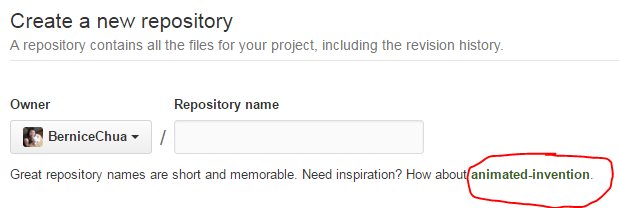 https://twitter.com/ChuaBernice/status/714891605136637952
Technologies Used
- Unity3D
- C#
- git
- GitHub
Contributor List - Who Made This?
Contributing
I welcome any pull requests people might have.
Feedback
I welcome any and all the feedbacks! ^_^ You can use the above links to contact me.
Issues
How To Download & Install Unity3D Natively On Ubuntu (without WinE)!!
Source To Download .deb file:
http://blogs.unity3d.com/2015/08/26/unity-comes-to-linux-experimental-build-now-available/
Download the .deb file.
After downloading, in the CLI:
cd to the dir where you downloaded the file, then run this.
$ sudo dpkg -i unity-editor-[version-number].deb
example:
$ sudo dpkg -i unity-editor-5.1.0f3+2015082501_amd64.deb
It will give you error messages of dependencies that need to be installed:
bernice@Little-Panda-Ubuntu:~/Downloads$ sudo dpkg -i unity-editor-5.1.0f3+2015082501_amd64.deb
Selecting previously unselected package unity-editor.
(Reading database ... 212058 files and directories currently installed.)
Preparing to unpack unity-editor-5.1.0f3+2015082501_amd64.deb ...
Unpacking unity-editor (5.1.0f3) ...
dpkg: dependency problems prevent configuration of unity-editor:
 unity-editor depends on lib32gcc1 (>= 1:4.1.1); however:
  Package lib32gcc1 is not installed.
 unity-editor depends on lib32stdc++6 (>= 4.6); however:
  Package lib32stdc++6 is not installed.
 unity-editor depends on libc6-i386 (>= 2.15); however:
  Package libc6-i386 is not installed.

dpkg: error processing package unity-editor (--install):
 dependency problems - leaving unconfigured
Processing triggers for gnome-menus (3.10.1-0ubuntu2) ...
Processing triggers for desktop-file-utils (0.22-1ubuntu1) ...
Processing triggers for bamfdaemon (0.5.1+14.04.20140409-0ubuntu1) ...
Rebuilding /usr/share/applications/bamf-2.index...
Processing triggers for mime-support (3.54ubuntu1.1) ...
Processing triggers for hicolor-icon-theme (0.13-1) ...
Errors were encountered while processing:
 unity-editor
If you try to sudo apt-get -f install lib32gcc1, lib32stdc++6, & libc6-i386, you will get these error messages:
bernice@Little-Panda-Ubuntu:~/Downloads$ sudo apt-get -f install lib32stdc++6
Reading package lists... Done
Building dependency tree
Reading state information... Done
You might want to run 'apt-get -f install' to correct these:
The following packages have unmet dependencies:
 lib32stdc++6 : Depends: lib32gcc1 (>= 1:4.1.1) but it is not going to be installed
                Depends: libc6-i386 (>= 2.18) but it is not going to be installed
 unity-editor : Depends: lib32gcc1 (>= 1:4.1.1) but it is not going to be installed
                Depends: libc6-i386 (>= 2.15) but it is not going to be installed
                Recommends: ffmpeg but it is not installable or
                            libav-tools but it is not going to be installed
                Recommends: java6-runtime
                Recommends: monodevelop but it is not going to be installed
                Recommends: java7-jdk
E: Unmet dependencies. Try 'apt-get -f install' with no packages (or specify a solution).
bernice@Little-Panda-Ubuntu:~/Downloads$ sudo apt-get -f install libc6-i386
Reading package lists... Done
Building dependency tree
Reading state information... Done
You might want to run 'apt-get -f install' to correct these:
The following packages have unmet dependencies:
 unity-editor : Depends: lib32gcc1 (>= 1:4.1.1) but it is not going to be installed
                Depends: lib32stdc++6 (>= 4.6) but it is not going to be installed
                Recommends: ffmpeg but it is not installable or
                            libav-tools but it is not going to be installed
                Recommends: java6-runtime
                Recommends: monodevelop but it is not going to be installed
                Recommends: java7-jdk
E: Unmet dependencies. Try 'apt-get -f install' with no packages (or specify a solution).
So the first thing you need to do is install libav-tools (if you use this, no need for ffmpeg)
After installing libav-tools, re-do:
$ sudo dpkg -i unity-editor-5.1.0f3+2015082501_amd64.deb
(Reading database ... 219384 files and directories currently installed.)
Preparing to unpack unity-editor-5.1.0f3+2015082501_amd64.deb ...
Unpacking unity-editor (5.1.0f3) over (5.1.0f3) ...
Setting up unity-editor (5.1.0f3) ...
Setting permissions on chrome-sandbox...
Done.
Processing triggers for gnome-menus (3.10.1-0ubuntu2) ...
Processing triggers for desktop-file-utils (0.22-1ubuntu1) ...
Processing triggers for bamfdaemon (0.5.1+14.04.20140409-0ubuntu1) ...
Rebuilding /usr/share/applications/bamf-2.index...
Processing triggers for mime-support (3.54ubuntu1.1) ...
Processing triggers for hicolor-icon-theme (0.13-1) ...
Processing triggers for libc-bin (2.19-0ubuntu6.7) ...
bernice@Little-Panda-Ubuntu:~/Downloads$

$ sudo apt-get install gdebi-core
$ sudo apt-get -f install
Unity3D should install correctly now! ^__^
(Don't forget to also install MonoDevelop, so that you can write scripts for your game.)
Things That I Wish I Knew When I Started In Terms Of Version Control (that are not included in the tutorials).
Like any good developer, I like to use version control. Plus, I work on my laptop when I'm not at home (I spend most of my time not-at home); and I work on my desktop when I'm at home (which I prefer to use because my desktop is more powerful).
Unity's website has amazing tutorials http://unity3d.com/learn/tutorials/topics/interface-essentials for beginners, but unfortunately if you want to look for anything about version control, you'd have to hunt for it. So here's everything all in one place -- all the problems that I encountered, so that you won't repeat the same mistakes as me!!!!!! >______<
These are the things I wish I knew, because I could have avoided a lot of delays and headaches had I known these before:
Setting Up For Version Control:
The problem:
I started creating this project on my desktop, and put everything in GitHub so I could work on it on my laptop when I was away from home. On my laptop, I made a lot of changes, then I pushed my changes to GitHub. Back on my desktop, I pulled the changes to my local repo, and when I tried to turn on Unity and selected this project, Unity would just crash.
How to avoid this:
a. When you start your project, change these settings in Unity:
(This guide assumes version 5 & higher:)
- Edit > Project Settings > Editor
- Enable "Visible Meta files"
- Edit > Project Settings > Editor
- Version Control > Mode should be "Visible Meta Files"
- Asset Serialization > Mode should be "Force Text"
Save your "scene", and exit Unity. In your project's root directory, please delete Library/ & Temp\.
b. Put these in your .gitignore
# =============== #
# Unity generated #
# =============== #
Temp/
Obj/
UnityGenerated/
Library/
Assets/AssetStoreTools*

# ===================================== #
# Visual Studio / MonoDevelop generated #
# ===================================== #
ExportedObj/
*.svd
*.userprefs
*.csproj
*.pidb
*.suo
*.sln
*.user
*.unityproj
*.booproj
After completing both, you should now be able to safely push to your external repo.
Working With Large Files And Version Control:
Projects like these would create large files, especially the "Builds" of your game (as mentioned here: http://unity4d.com/learn/tutorials/projects/roll-ball-tutorial/building-game?playlist=17141).
When you create a large file, for all that is good and holy, do NOT -- I repeat -- DO NOT do git add and git commit UNTIL you have done the proper precautions. You will have problems pushing your code to GitHub. For example, if you've created a large file that's bigger than 100 Mb, then you've git add-ed & git commit-ed, then make changes like do the precautions for large files in git, then did git add & git commit a second time, you will still have problems pushing to GitHub. This is because the large files are already there in your older commit history.
The problem:
You will not be able to push these large files into GitHub because there is a filesize limit:
You will get this error message:
remote: error: GH001: Large files detected.
remote: error: File player_win_x64.pdb is 110.1 MB; this exceeds GitHub's file size limit of 100.00 MB
To https://github.com/BerniceChua/animated-invention-unity3d-pr.git
 ! [remote rejected] feature/branch -> feature/branch (pre-receive hook declined)
error: failed to push some refs to 'https://github.com/BerniceChua/animated-invention-unity3d-practice-rolly-ball.git'
How to avoid this:
There are 2 options:
For either option to work, when you have generated a large file, you MUST do these BEFORE doing git add & git commit.
- Add the
Builds/directory, and any file that's a.pdbinto your.gitignorefile. (.pdbfiles are the main culprits, but you cannot delete them because they are necessary for the Windows builds of the game to run.)- Then after this, I put each build that I make into a .zip file, and upload them in my hosting service. OR:
- Use Git Large File Storage: https://git-lfs.github.com/
Again, I cannot emphasize enough how important it is to do these 2 precautions first for large files FIRST before doing ANY git add & git commit. Basically, if you see that error message above, see the solution below to fix it:
The problem:
You've already did several git adds & git commits BEFORE doing the precautions for large files.
How to fix this:
Step 1: $ git log to see which commit was done BEFORE your large file was commited to git.
Step 2: copy the salted hash (that random string of characters) of the commit. (Example: commit e855f68b52cf5ec901dd22c976d651502565632e, copy "e855f68b52cf5ec901dd22c976d651502565632e")
- If you cannot remember which one is the commit that you made with the large files, do
git log -p -#, wherein -p gives the contents of each commit, and -# limits how many commits backwards that you need to go. Example, if you want to see only up to 5 commits ago, usegit log -p -5.
Step 3: in your CLI - git reset [salted hash] (Example: git reset e855f68b52cf5ec901dd22c976d651502565632e)
Step 4: do your precautions (either put Builds\ or .pdb files into your .gitignore, or follow the instructions in https://git-lfs.github.com).
Step 5: do your git add, git commit, and you should now be able to push into your remote repo without any problems now! ^_^
To-Do:
- Add testing.
- Add instructions on how to do testing using:

Log in or sign up for Devpost to join the conversation.