Inspiration
Inspiration is courser AI and other famous AI tool despite all the web based AI tool this is so special
What it does
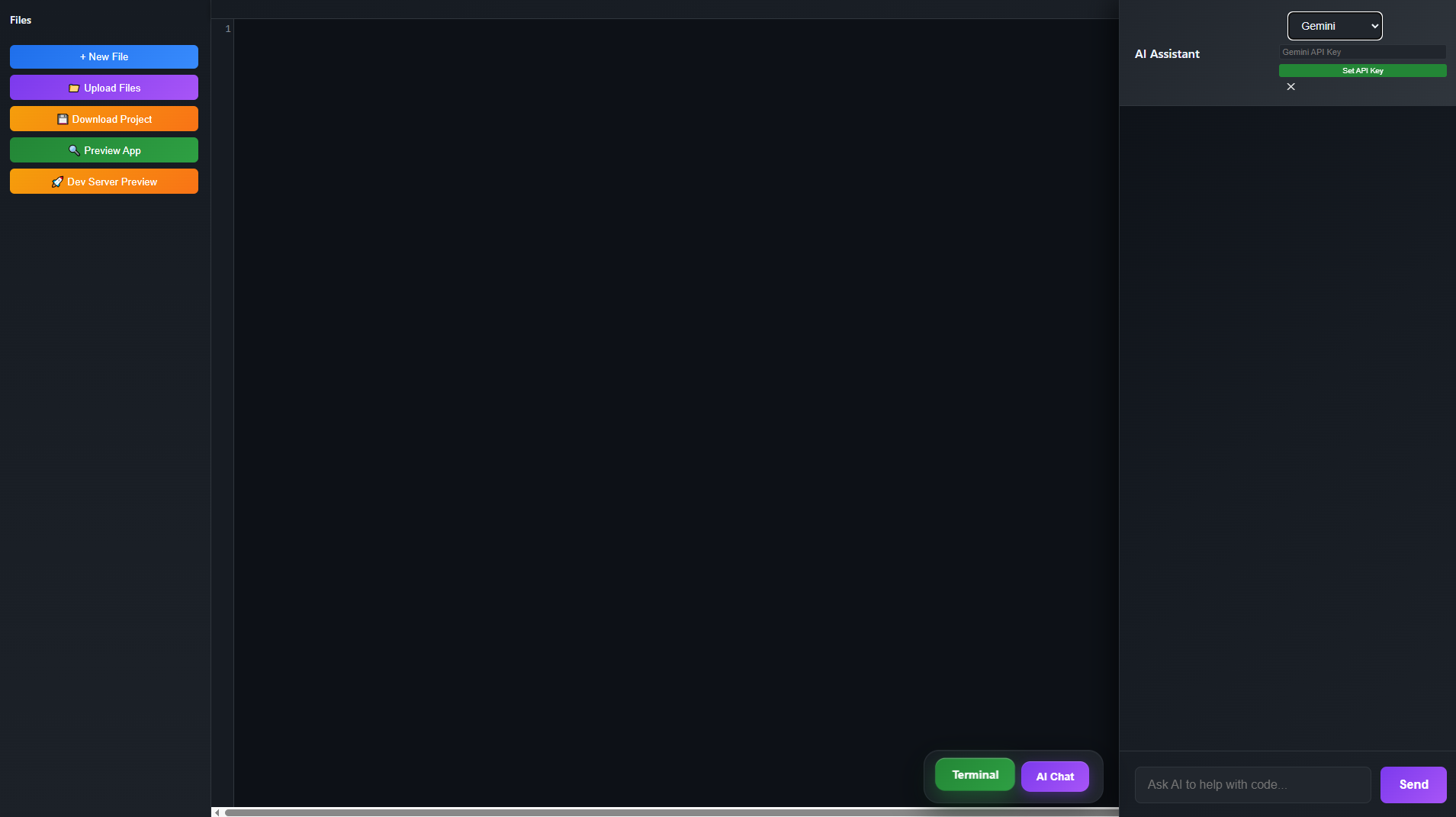
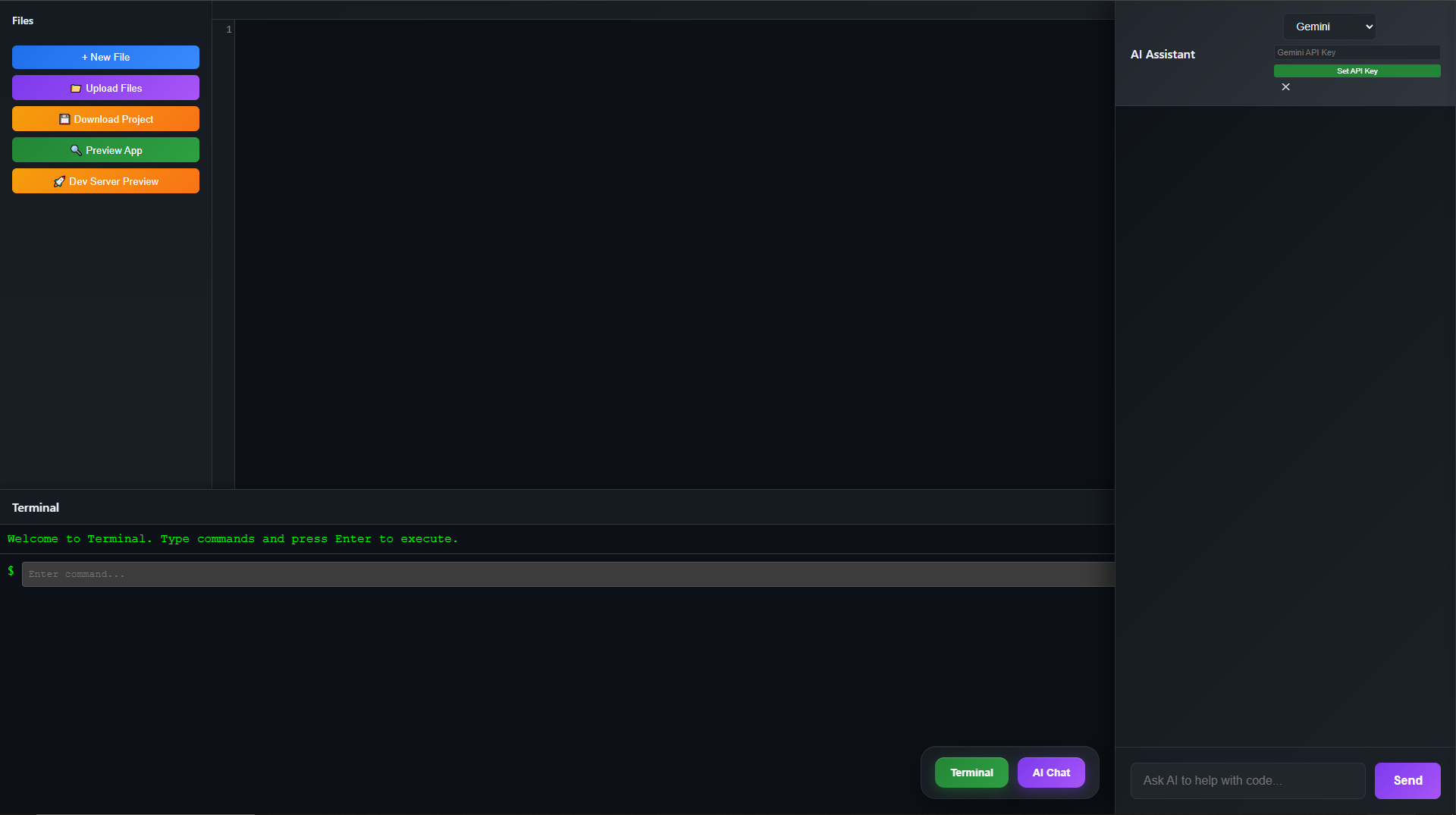
i-coder
A powerful web-based IDE with AI assistance and MCP integration, built for modern development workflows.
Features
🤖 AI-Powered Development
- Multiple AI Models: Gemini, OpenRouter, Custom (any OpenAI-compatible API)
- Smart Code Generation: AI creates and modifies files automatically
- Targeted Code Editing: Edit specific parts of files without rewriting
- Code Search: Semantic search across entire codebase
- Auto Dev Server: AI starts servers on port 3002 with auto-open
- Command Execution: AI can run terminal commands
🔧 MCP (Model Context Protocol) Integration
- HTTP-based MCP Server: Expose tools via REST API
- Real-time Tool Tracking: See which MCP tools AI uses
- 5 Core Tools:
create_file- Create new filesedit_file- Targeted file editing (search & replace)read_file- Read file contentssearch_code- Search across all filesexecute_command- Run shell commands
- MCP Endpoints:
GET /api/mcp/tools- List available toolsPOST /api/mcp/call- Execute a toolGET /api/mcp/resources- Get workspace resources
📁 File Management
- File Explorer: Tree view with folder dropdown
- Upload Files: Drag & drop or select multiple files
- Download Project: Export workspace as ZIP
- File Tabs: Multi-file editing with close buttons
- Auto-save: Changes saved automatically
💻 Code Editor
- Syntax Highlighting: JavaScript, Python, HTML, CSS support
- CodeMirror Integration: Professional editing experience
- Live Preview: Built-in app preview panel
- Responsive Design: Works on desktop and mobile
🖥️ Terminal & Chat
- Integrated Terminal: Execute commands directly
- WebContainer Support: Run dev servers in browser
- Full-height Chat: Enhanced AI chat panel with tool tracking
- Smart UI: Buttons move when panels open
Quick Start
Install Dependencies
npm installStart Server
npm startOpen IDE Navigate to
http://localhost:8080
Usage
AI Chat
- Click "AI Chat" button to open chat panel
- Select AI model: Gemini, OpenRouter, or Custom
- Configure API key and model settings
- Ask AI to create files, run commands, or build apps
- Watch MCP tools panel to see AI actions in real-time
Custom Model Setup
- Select "Custom" from model dropdown
- Enter Base URL (e.g.,
https://api.openai.com/v1) - Enter API Key
- Enter Model Name (e.g.,
gpt-4) - Click "Configure"
File Operations
- New File: Click "+ New File" button
- Upload: Click "📁 Upload Files" to add existing files
- Download: Click "💾 Download Project" to export as ZIP
- Edit: Click any file to open in editor
- Close: Click "×" on file tabs to close
Terminal
- Click "Terminal" button to open terminal
- Run any command (npm, git, etc.)
- Dev servers auto-open in new tabs
- WebContainer support for browser-based execution
Preview
- Click "🔍 Preview App" to see your app
- Opens in side panel or new tab
- Live updates as you edit files
API Endpoints
Core Endpoints
GET /- Main IDE interfacePOST /api/chat- AI chat interactionsGET /api/files- List workspace filesPOST /api/files- Create/update filesDELETE /api/files/*- Delete filesPOST /api/terminal- Execute terminal commandsGET /api/download-project- Download workspace as ZIP
MCP Endpoints
GET /api/mcp/tools- List MCP toolsPOST /api/mcp/call- Call MCP toolGET /api/mcp/resources- Get workspace resources
Model Management
POST /api/switch-model- Switch AI modelGET /api/current-model- Get current model
Tech Stack
- Backend: Node.js, Express
- Frontend: Vanilla JavaScript, CodeMirror
- AI: Gemini, OpenRouter, Custom OpenAI-compatible APIs
- MCP: Model Context Protocol integration
- Containerization: WebContainer API
- Styling: CSS with gradients and glassmorphism
Project Structure
i-coder/
├── frontend/
│   └── index.html          # Main UI with MCP tools panel
├── workspace/              # User project files
├── server.js              # Main server with MCP integration
├── mcp-server.js          # Standalone MCP server (stdio)
├── mcp-config.json        # MCP client configuration
├── package.json           # Dependencies
└── .env                   # Environment variables
MCP Integration
Using MCP Tools in Your App
The AI automatically uses MCP tools when you chat. Tools are displayed in real-time in the MCP panel.
External MCP Access
Other AI applications can connect to your workspace:
# List tools
curl http://localhost:8080/api/mcp/tools

# Call a tool
curl -X POST http://localhost:8080/api/mcp/call \
  -H "Content-Type: application/json" \
  -d '{"name":"read_file","arguments":{"filename":"index.html"}}'

# Get resources
curl http://localhost:8080/api/mcp/resources
Standalone MCP Server
Run as stdio-based MCP server for Claude Desktop:
npm run mcp
Configure in Claude Desktop (claude_desktop_config.json):
{
  "mcpServers": {
    "i-coder": {
      "command": "node",
      "args": ["/path/to/i-coder/mcp-server.js"]
    }
  }
}
i-coder is a powerful web-based IDE that combines traditional code editing with AI assistance. It allows developers to:
Code with AI:
Chat with multiple AI models (Groq, Codestral, OpenRouter(your fav model)) that can create files, run commands, and build entire applications
Manage Projects:
Upload files, organize in folders, download projects as ZIP, and edit multiple files with tabbed interface
Run Applications:
Execute terminal commands, start dev servers that auto-open in new tabs, and preview apps in real-time
Develop Anywhere:
Full-featured IDE that runs entirely in the browser
How I built it
Backend Architecture:
Node.js + Express server with OpenAI-compatible API integration
File system management with dynamic directory trees
Command execution with automatic port management (AI uses 3002, IDE uses 8080)
ZIP generation for project downloads
Frontend Design:
Vanilla JavaScript with CodeMirror for professional code editing
Glassmorphism UI with gradient backgrounds and blur effects
Responsive design with sliding panels and adaptive layouts
Server-side terminal integration with real-time command execution
AI Integration:
Multi-model support with seamless switching
Tool-based architecture allowing AI to create files and execute commands
Smart dev server detection with automatic new tab opening
Context-aware responses with file and project awareness
Challenges I ran into
Port Conflicts:
Managing multiple servers (IDE on 8080, user projects on 3000, AI projects on 3002) without conflicts required careful port management and automatic detection.
AI Tool Integration:
Getting AI models to reliably use function tools for file creation and command execution required extensive prompt engineering and error handling.
Server-Side Execution:
Implementing secure command execution while preventing system access issues and managing multiple concurrent processes.
UI State Management:
Coordinating multiple panels (chat, terminal, preview) with smooth animations and responsive behavior without a framework was complex.
File Upload Handling:
Supporting multiple file uploads while maintaining the existing file structure and editor state required careful state synchronization.
Accomplishments that I'm proud of
Seamless AI Integration:
Created an IDE where AI feels like a natural coding partner - it can build entire applications, start servers, and handle complex development workflows automatically.
Zero-Setup Development:
Users can start coding immediately without installing anything - the entire development environment runs in the browser with server-side execution.
Professional UX:
Built a polished interface with glassmorphism design, smooth animations, and intuitive interactions that rivals commercial IDEs.
Smart Automation:
Implemented intelligent features like automatic port management, dev server detection, and new tab opening that eliminate common developer friction.
Multi-Model Flexibility:
Supporting multiple AI providers (Groq, Codestral, OpenRouter) gives users choice and redundancy for their AI-assisted development needs.
What I learned
I learned how to execute commands in web based app and real time app building and executing
What's next for Ai agent
To build it multi model support for one prompt and auto error removing.
Built With
- ai
- api
- express.js
- javascript
- node.js
- openrouter


Log in or sign up for Devpost to join the conversation.