-
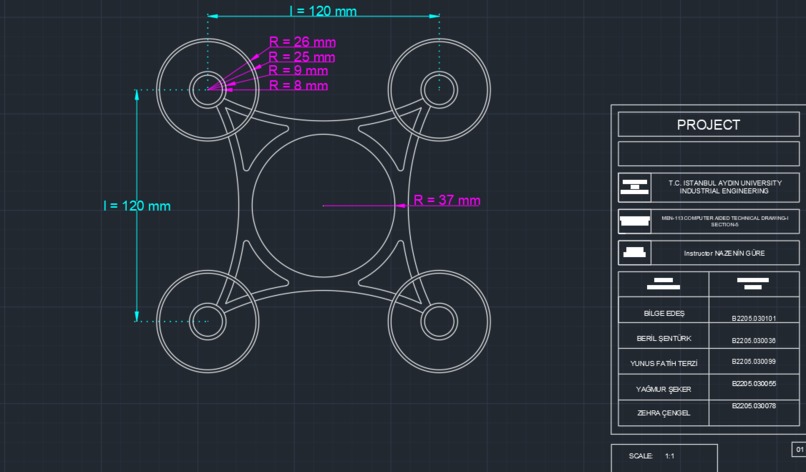
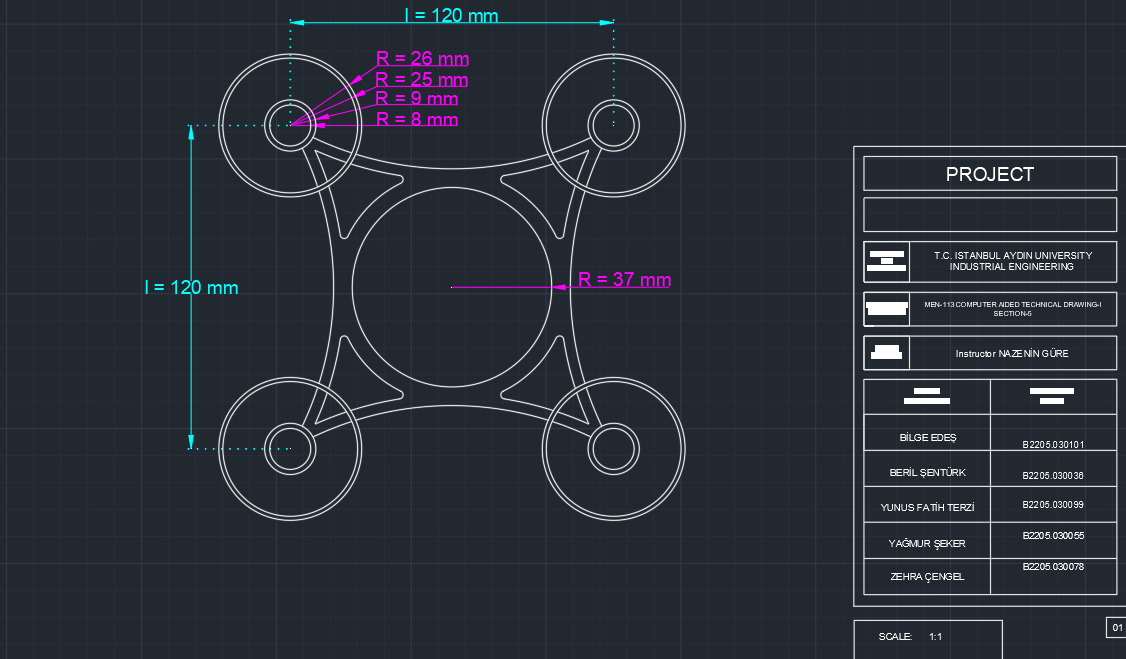
THE MAIN BODY OF THE DRONE
-
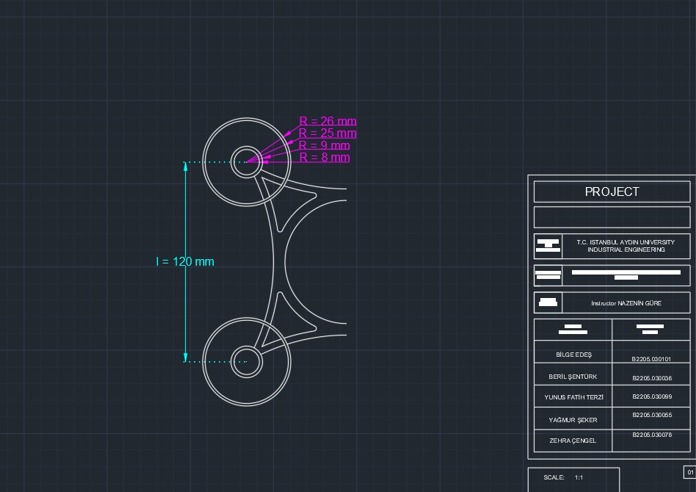
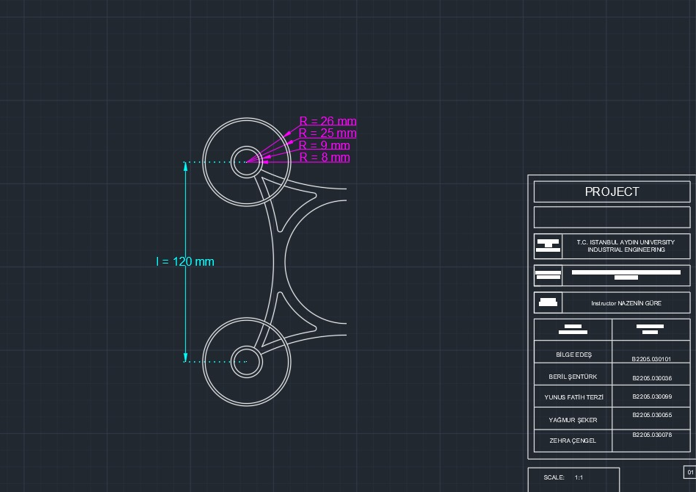
LONGITUDIONAL SECTION OF THE DRONE
Inspiration
Drones, also known as Unmanned Aerial Vehicles (UAVs) or Unmanned Aircraft Systems (UAS), have indeed become increasingly popular and accessible in recent years. They have found applications in various fields, including photography, videography, agriculture, surveillance, and even recreational activities. Let's take a closer look at what drones are and how they work:
What is a Drone?
A drone is an unmanned aircraft that can be remotely controlled or operate autonomously using onboard sensors and computing systems. They come in various sizes and configurations, from small consumer drones to larger industrial and military-grade UAVs.
Components of a Drone:
Frame: The physical structure that holds all the components together.
Propellers and Motors: These provide the necessary lift and control for the drone to move in different directions.
Battery: Power source for the drone's motors and electronics.
Sensors: Various sensors, such as gyroscopes, accelerometers, GPS, and cameras, provide information about the drone's orientation, position, and surroundings.
Flight Controller: The central processing unit that interprets data from sensors and adjusts the drone's motors to maintain stability and control.
Remote Controller or App: Allows the operator to control the drone's movements and functions.
Communication System: Enables communication between the drone and the remote controller or other devices.
Onboard Computer: In more advanced drones, there may be an onboard computer that processes data, enables autonomous navigation, and executes tasks.
How Drones Work:
Takeoff: The operator launches the drone either manually or using an automated takeoff feature.
Control: The operator controls the drone's movements using the remote controller or a mobile app.
Stabilization: The drone's flight controller continuously adjusts the speed of individual motors to maintain stability and control.
Navigation: GPS and other sensors help the drone navigate and maintain its position. Advanced drones can use obstacle avoidance systems to navigate around objects.
Task Execution: Drones can be programmed to follow specific flight paths, capture photos or videos, or perform other tasks based on their capabilities.
Landing: The operator manually lands the drone or uses an automated landing feature.
Future Developments:
Autonomy: Advances in artificial intelligence and machine learning are expected to lead to more autonomous drones capable of making decisions and navigating complex environments.
Beyond Visual Line of Sight (BVLOS): Regulatory changes may allow drones to operate beyond the operator's visual line of sight, opening up new possibilities for applications like long-range delivery.
Integration with Urban Air Mobility: Some envision drones playing a role in urban air mobility, transporting people and goods in urban environments.
While flying cars and hoverboards remain in the realm of imagination for now, drones represent a tangible and rapidly evolving technology with a wide range of practical applications.
; AutoCAD Drawing Details
; Define Parameters RoomRadius = 10 FurnitureCount = 6 FurnitureSpacing = 2
; AutoCAD Commands CIRCLE Center point: (0, 0) Radius: RoomRadius
ARRAY Select objects: (Select the furniture object) Enter type of array [Rectangular/Polar] : Rectangular Enter the number of rows: 2 Enter the number of columns: FurnitureCount Enter the distance between rows: FurnitureSpacing Enter the distance between columns: FurnitureSpacing
OFFSET Select object to offset: (Select the circle representing the room) Specify offset distance: 2
ARC Center: (Pick the midpoint of the offset circle) Start angle: 45 End angle: 315 Radius: 2
MIRROR Select objects: (Select the furniture array) Specify first point of mirror line: (Pick a point to define the mirror line) Specify second point of mirror line: (Pick another point)
FILLET Select first object or [Undo/Polyline/Radius/Trim/Multiple]: (Select the corners of the room) Specify fillet radius: 1
TRIM Select cutting edges: (Select the circle representing the room) Select objects to trim: (Select the part of the circle outside the arc)
; End of AutoCAD Commands
Built With
- autocad
- chrome
- english


Log in or sign up for Devpost to join the conversation.