-
-
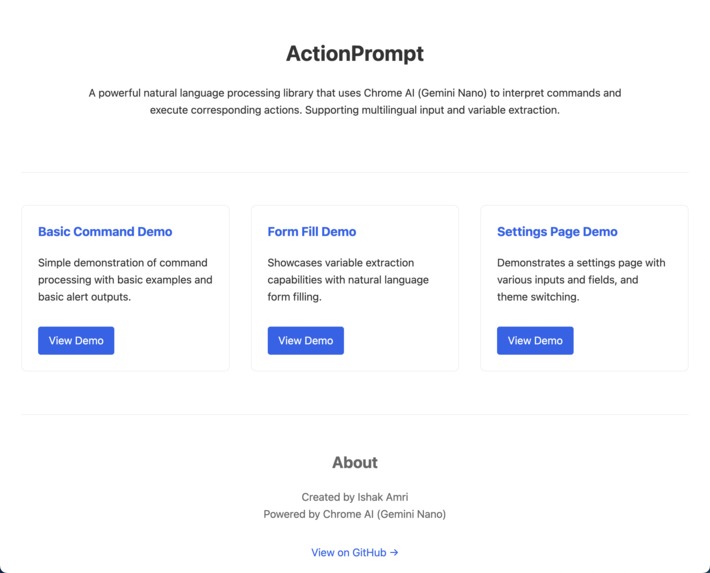
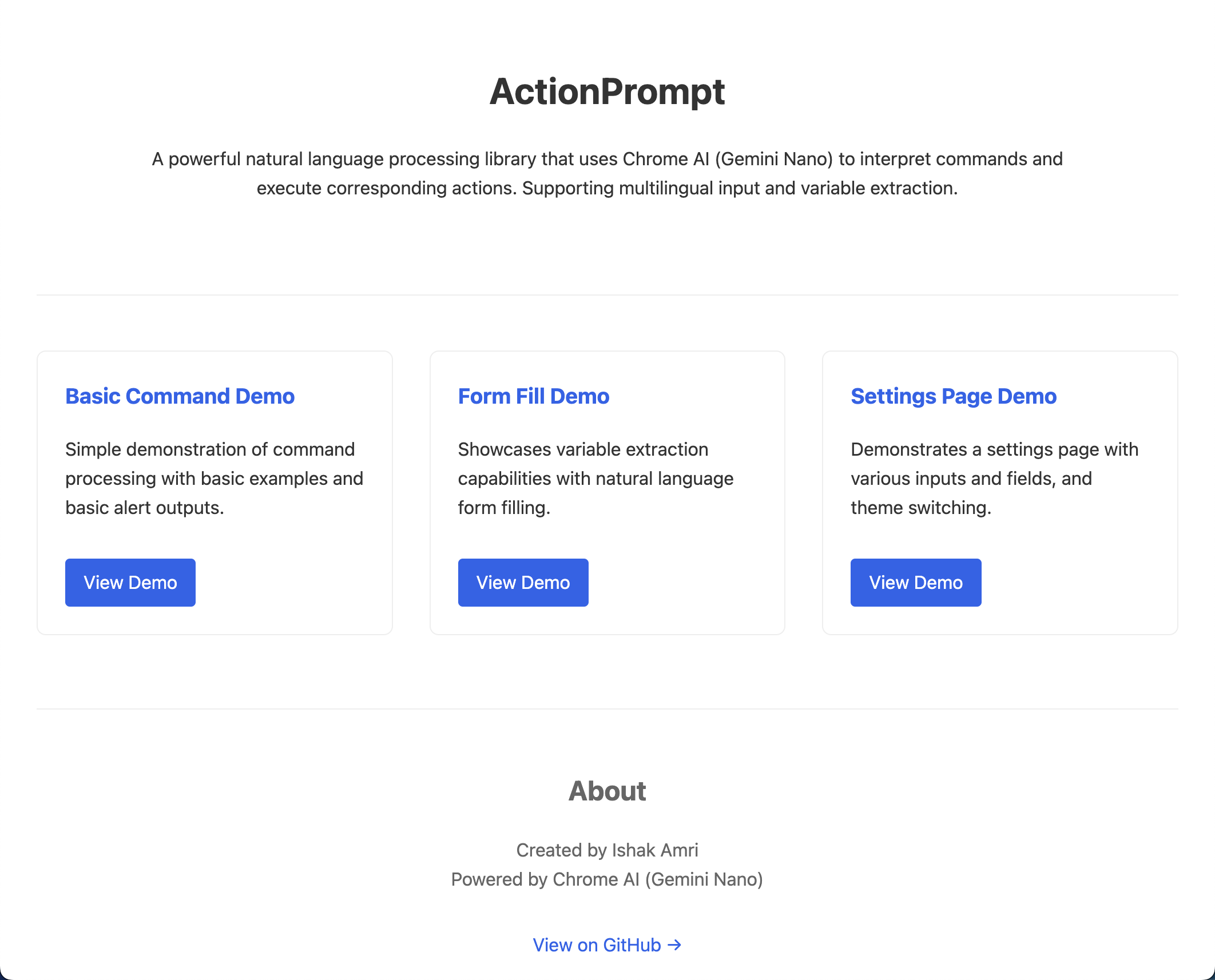
ActionPrompt main page
-
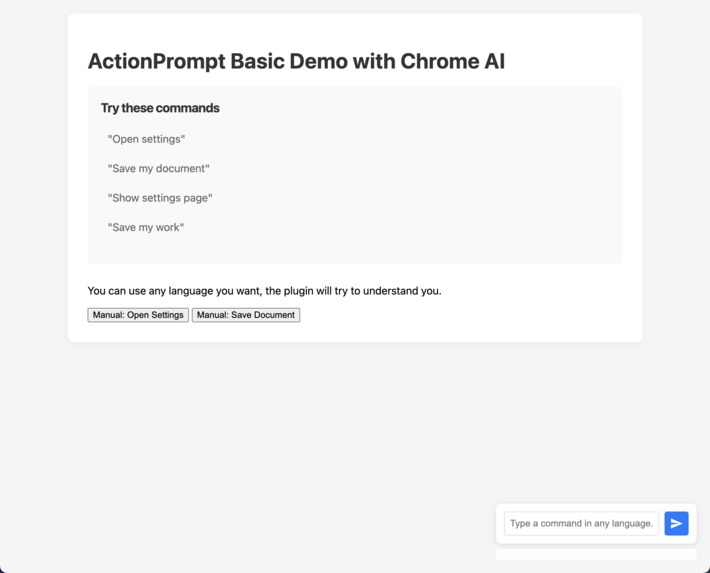
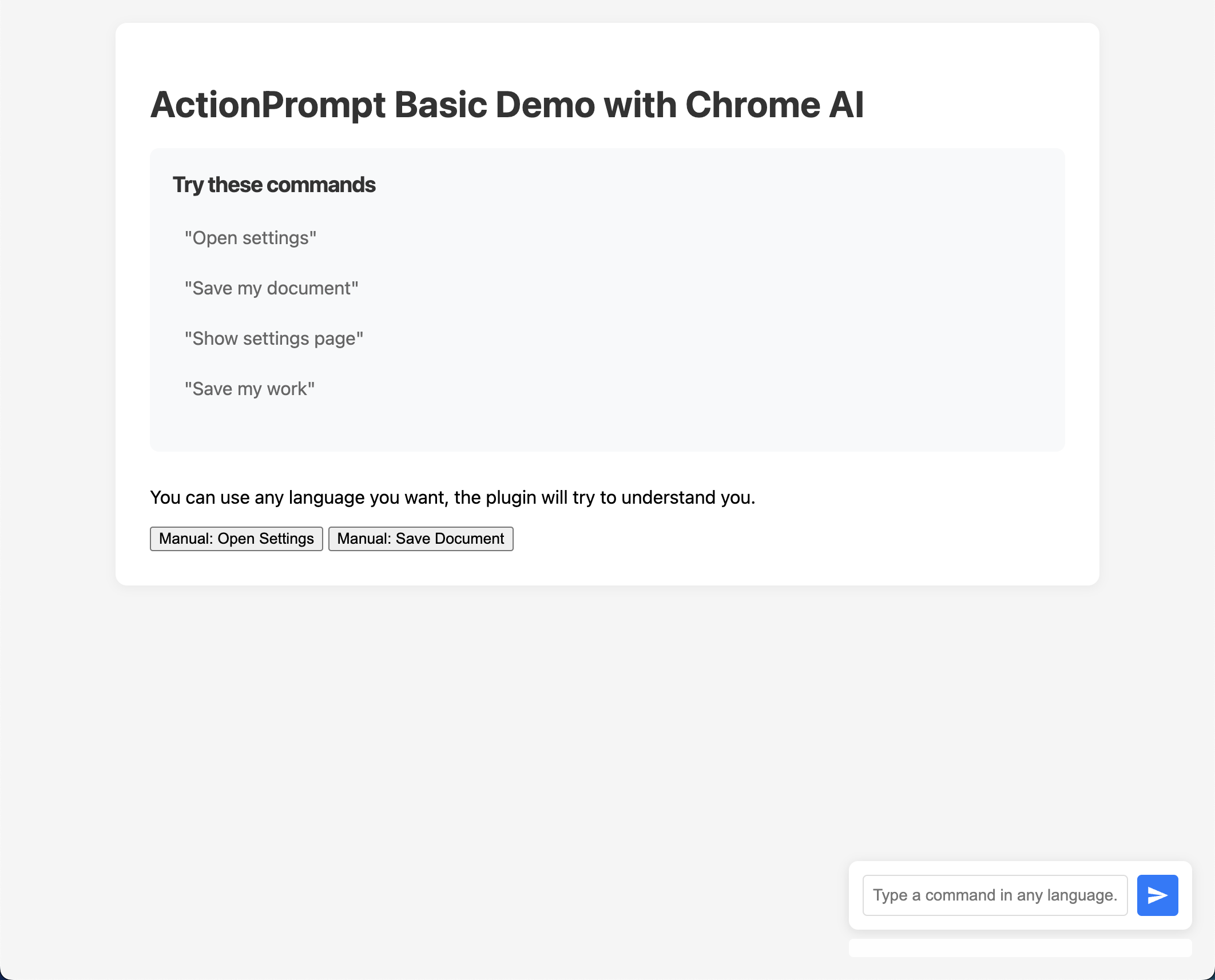
ActionPrompt demo-1 basic usage
-
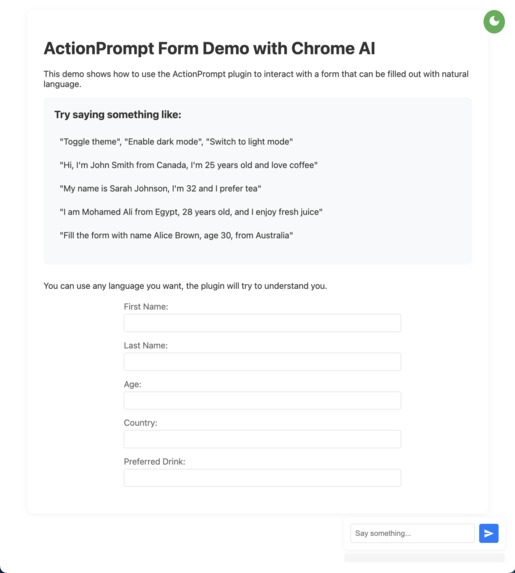
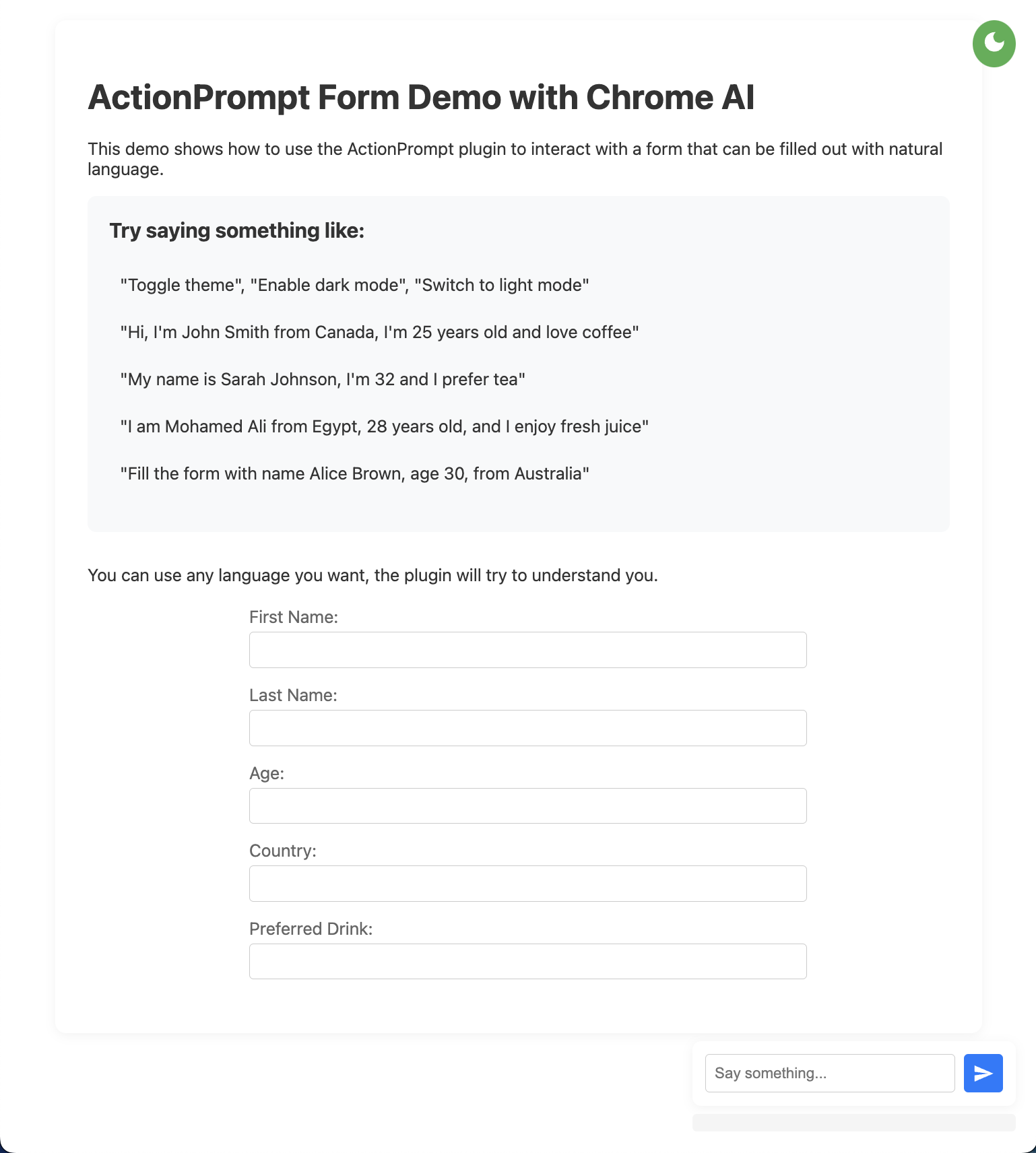
ActionPrompt demo-2 Form Fill (light)
-
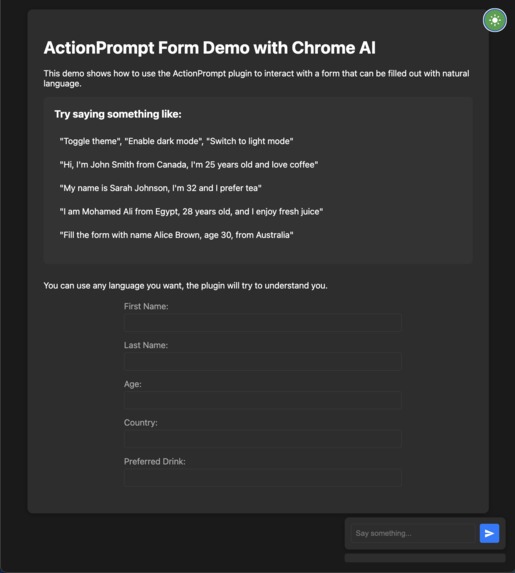
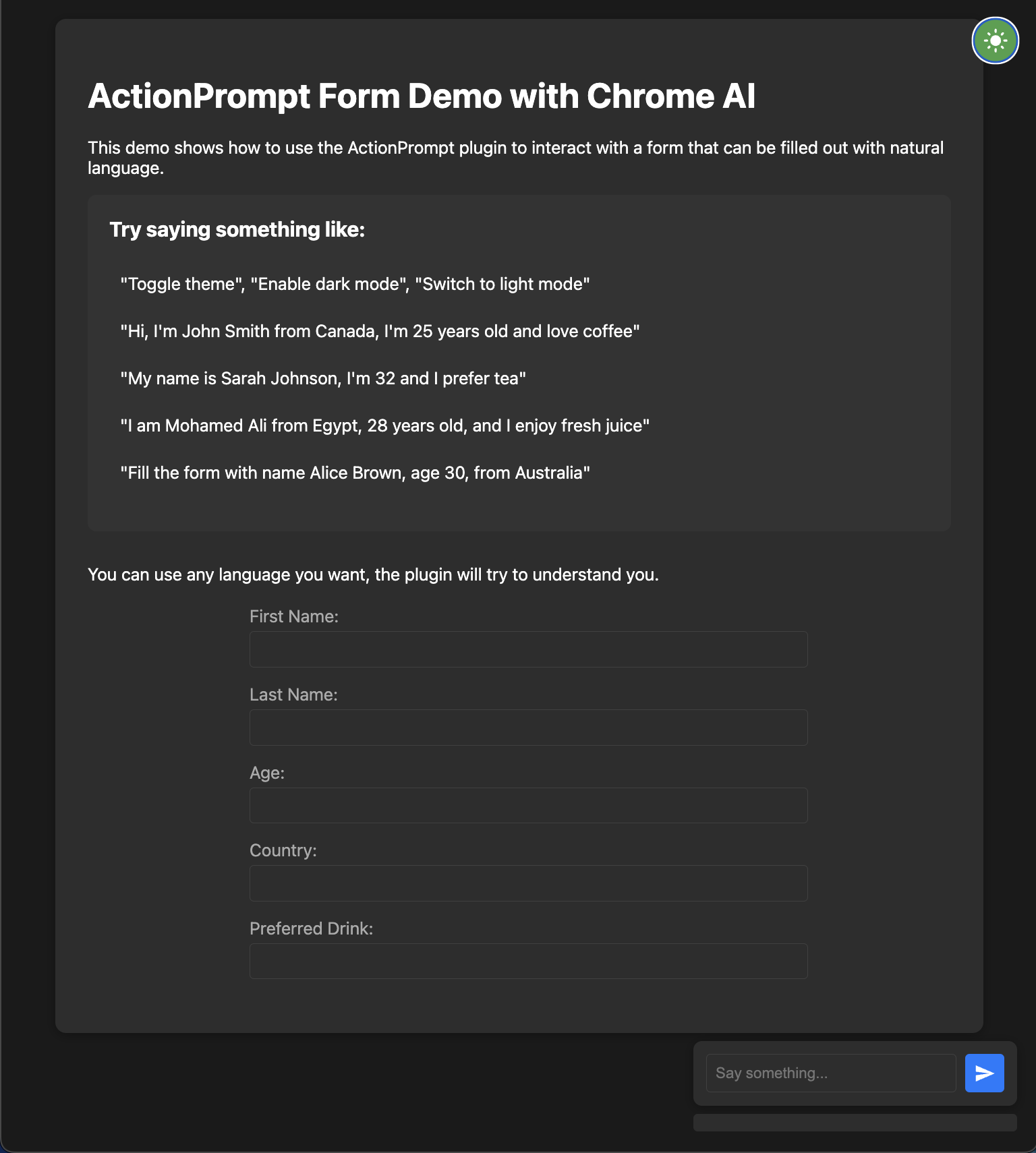
ActionPrompt demo-2 Form Fill (dark)
-
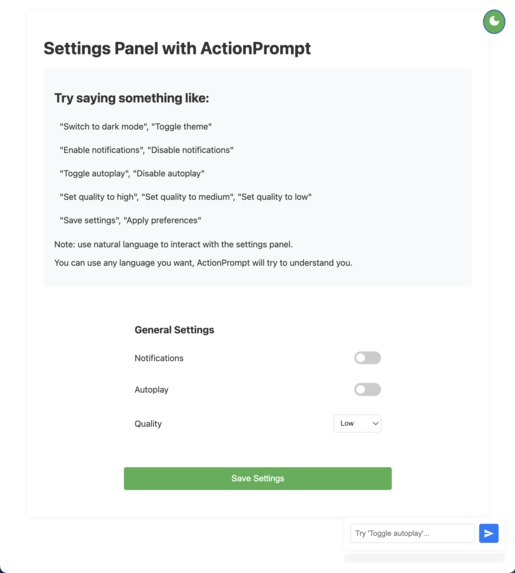
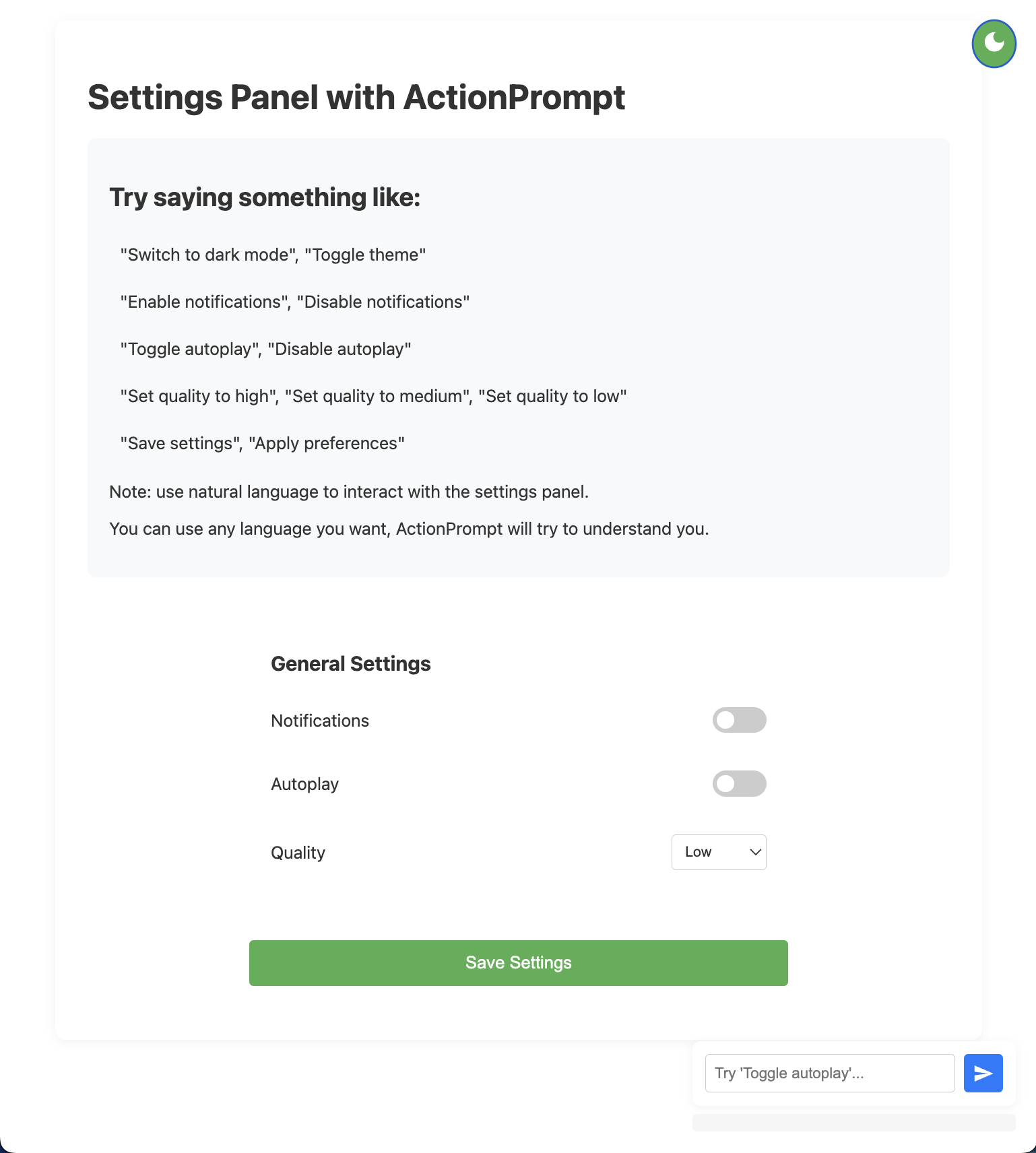
ActionPrompt demo-3 Settings page (light)
-
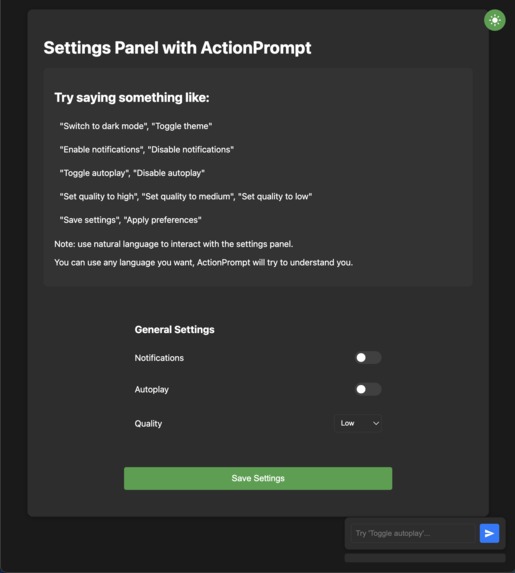
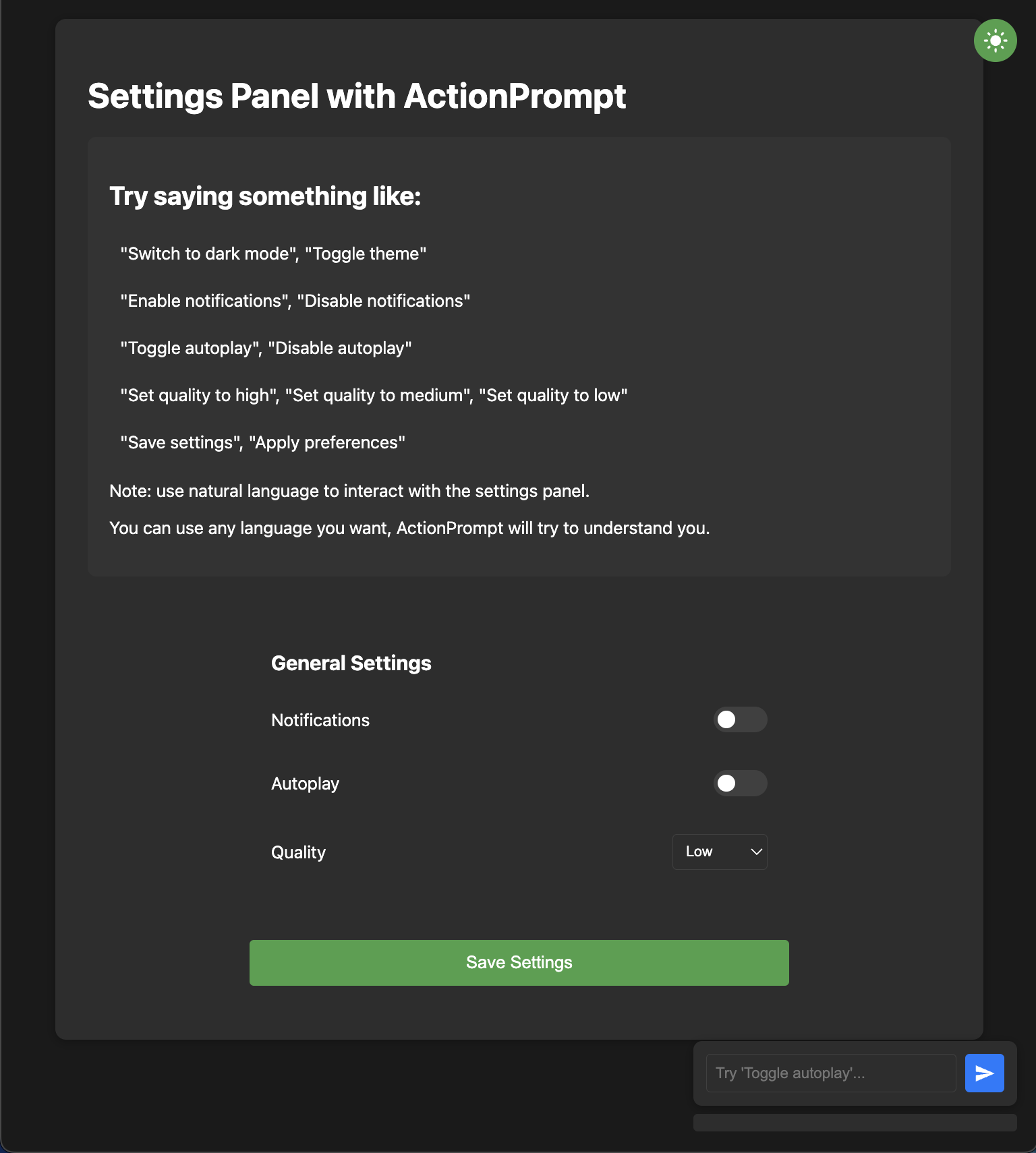
ActionPrompt demo-3 Settings page (dark)
Inspiration
AI has made tremendous progress in understanding natural language, but it still struggles to interact seamlessly with web applications. There’s a gap between AI capabilities and the interfaces of web applications. ActionPrompt bridges this gap by providing developers with an easy-to-configure tool that enables natural language interactions. This solution empowers developers to define flexible, intuitive interfaces that allow AI and users to engage with their applications effectively.
What it does
ActionPrompt is a lightweight javascript library that enables developers to integrate natural language interactions into their web applications effortlessly. Using a simple key-action mapping system, developers can define commands in natural language to interact with their app's functionality. Additionally, they can extend this capability to end users, enabling them to navigate or perform tasks in the app using natural language.
How we built it
We designed ActionPrompt with developers in mind:
- JavaScript was used to create a lightweight and easy-to-integrate plugin.
- Chrome’s AI APIs provide robust natural language processing, enabling accurate interpretation of commands.
- A flexible mapping system allows developers to configure and extend the plugin for diverse use cases.
Challenges we ran into
- Designing a developer-friendly API that remains flexible and intuitive.
- Leveraging AI to accurately interpret natural language while maintaining performance.
- Creating a solution that adapts to various applications and workflows without requiring significant customization.
Accomplishments that we're proud of
- Developing a seamless setup process that minimizes developer effort. The library can be integrated into any web-based JavaScript project—whether it's a vanilla JavaScript project or a framework-based project (React, Vue, Svelte, etc.). Developers can simply import the library and map natural language commands to their desired actions, making integration quick and straightforward.
- Successfully abstracting complex AI functionality into a simple, reusable tool.
- Creating a prototype that demonstrates real-world use cases effectively.
What we learned
- The importance of creating tools that simplify AI integration for developers.
- Natural language interaction has vast potential, not just for end users but also as a tool for developers to streamline interactions with their applications.
- How to optimize the use of Chrome’s AI APIs to process and match natural language commands efficiently.
What's next for ActionPrompt
- Supporting more complex workflows, such as chaining commands or conditional actions.
- Exploring integrations with popular development frameworks to expand usability.
- Expanding capabilities to include voice commands and contextual learning for enhanced interactivity.
ActionPrompt Plugin Developer Guide
A natural language processing plugin that uses Chrome AI (Gemini Nano) to interpret commands and execute corresponding actions. This plugin supports multilingual input and variable extraction.
Note: this library can be integrated into any web based JavaScript project - whether it's a vanilla JavaScript project or a Framework based project (React, Vue, Svelte, etc.). Simply import the library and map natural language commands to your desired actions!
How It Works
Core Components
AI Model Integration
- Uses Chrome's built-in Gemini Nano AI model
- Initializes with a system prompt that configures the AI as a multilingual command interpreter
Command Registry
- Stores commands in a Map structure where each entry contains:
- Command key (identifier)
- Example phrases
- Callback function
- Expected variables (optional)
- Stores commands in a Map structure where each entry contains:
Processing Flow
Input Processing
// When user input is received:
const result = await actionPrompt.processInput("my name is John Smith and I'm 30");
AI Analysis
- Constructs a prompt containing:
- User's input
- Available commands and their example phrases
- Expected variables (if any)
- Sends to AI for interpretation
- Example internal prompt:
- Constructs a prompt containing:
   USER INPUT: "my name is John Smith and I'm 30"

   AVAILABLE COMMANDS:
   - Command "fill_form": Similar phrases: "my name is John Doe and I'm 25"...
     Expected variables: firstName, lastName, age
   - Command "toggle_theme": Similar phrases: "toggle theme"...
     No variables expected

   TASK:
   1. Compare user input against commands
   2. Find closest matching command
   3. Extract variables if required
Variable Extraction
- If the matched command expects variables:
- First attempt: Extracts variables from initial AI response
- If variables are missing: Performs a second AI call specifically for variable extraction
- Returns structured JSON with command and variables:
javascript
{
action: "fill_form",
variables: {
firstName: "John",
lastName: "Smith",
age: "30"
}
}
- If the matched command expects variables:
Action Execution
- Retrieves the registered callback for the matched command
- Executes callback with extracted variables (if any)
javascript
actionPrompt.executeAction(result);
Multilingual Support
- AI model inherently understands multiple languages
- System prompt configured to:
- Accept input in any language
- Normalize responses to English
- Maintain consistent command matching
Prerequisites
- Chrome browser with Gemini Nano enabled
- Chrome AI flags enabled
Basic Usage
1. Initialize the library after import
import { ActionPrompt } from './action-prompt.js';

const actionPrompt = new ActionPrompt();
await actionPrompt.init();
2. Adding Commands
Commands can be added with or without variable extraction:
// Simple command without variables
actionPrompt.addCommand(
    "light_mode", // Command key
    [ // Example phrases
        "switch to light mode",
        "turn on light mode",
        "enable light mode"
    ],
    () => handleLightMode() // Callback function
);

// Command with variable extraction
actionPrompt.addCommand(
    "fill_form", // Command key
    [ // Example phrases
        "my name is John Doe and I'm 25",
        "I am Jane Smith, 30 years old from Italy"
    ],
    (variables) => handleFormFill(variables), // Callback with variables
    ["firstName", "lastName", "age", "country"] // Expected variables
);
3. Processing User Input
const result = await actionPrompt.processInput("switch to dark mode");
if (result) {
    actionPrompt.executeAction(result);
}
Command Management
// Remove a specific command
actionPrompt.removeCommand("command_key");

// Clear all commands
actionPrompt.clearCommands();
Error Handling
try {
    const result = await actionPrompt.processInput(userInput);
    if (result) {
        actionPrompt.executeAction(result);
    } else {
        console.log("Command not recognized");
    }
} catch (error) {
    console.error("Error processing input:", error);
}
Complete Example
class MyApp {
    constructor() {
        this.actionPrompt = new ActionPrompt();
        this.setupCommands();
    }

    setupCommands() {
        // Form filling command
        this.actionPrompt.addCommand(
            "fill_form",
            [
                "my name is John Doe and I'm 25",
                "I am Jane Smith, 30 years old from Italy"
            ],
            (variables) => this.fillForm(variables),
            ["firstName", "lastName", "age", "country"]
        );

        // Theme switching command
        this.actionPrompt.addCommand(
            "toggle_theme",
            ["toggle theme", "switch theme"],
            () => this.handleThemeSwitch()
        );
    }

    async handleUserInput(input) {
        try {
            const result = await this.actionPrompt.processInput(input);
            if (result) {
                this.actionPrompt.executeAction(result);
            }
        } catch (error) {
            console.error("Error:", error);
        }
    }
}
Best Practices
- Example Phrases: Provide diverse example phrases for better command matching
- Variable Names: Use clear, descriptive names for variables
- Error Handling: Always implement proper error handling
- Initialization: Wait for the plugin to initialize before processing input
- Command Keys: Use lowercase, underscore-separated strings for command keys
Limitations
- Requires Chrome browser with Gemini Nano enabled
- Internet connection required for AI processing
- Variable extraction accuracy depends on input clarity
Browser Support
- Chrome (with AI flags enabled)
- Other browsers: Not supported


Log in or sign up for Devpost to join the conversation.