-
-
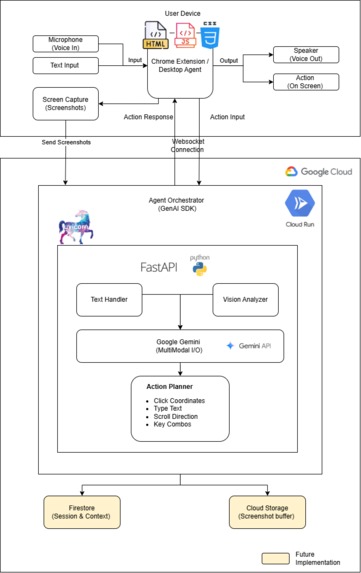
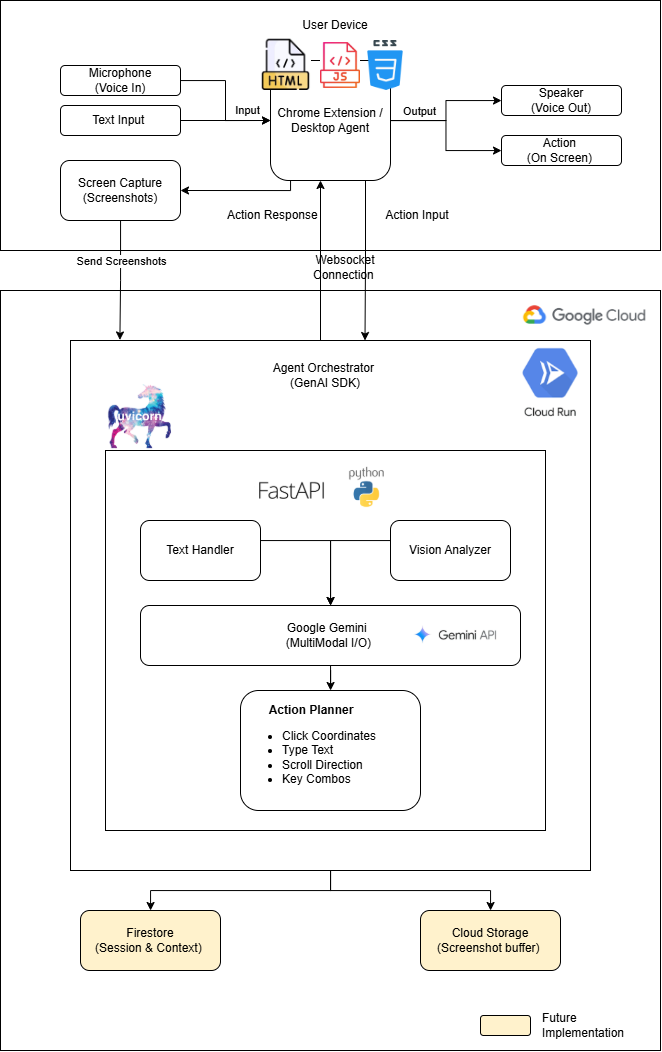
Architecture Diagram
Inspiration
We started with a simple question: why do accessibility tools still depend on app developers doing the right thing? Screen readers need ARIA labels. Switch access needs proper focus management. If even one button is missing a label, the user is stuck. Over 800 million people worldwide have motor disabilities, and they're locked out of apps every day, not because the technology to help them doesn't exist, but because the apps they need to use were never built to support it.
Then we saw what Gemini Flash models could do with screenshots, it can look at any UI and understand every button, link and text field visually. That's when it clicked: what if we stopped asking developers to make their apps accessible and instead built an agent that could make any app accessible by simply watching the screen? A sighted AI assistant that becomes the user's hands which is further enhanced with audio capture leveraging browser capability.
What it does
Accessibility Autopilot is a voice-controlled browser agent for users with motor disabilities. The user speaks naturally - "open my latest email," "reply to Alex," "type: I'll review this by Monday," "send it" and the agent watches their screen through real-time screenshots, identifies the right UI elements using Gemini's vision, and performs clicks, typing and scrolling on their behalf.
It will work on any web application without needing APIs, DOM access or accessibility markup. Our demo targets Microsoft Outlook 365 in the browser, one of the most complex and commonly used enterprise apps where users can navigate their inbox, read emails, compose replies and manage folders entirely hands-free.
How we built it
The architecture has three components: a Chrome Extension, a Python backend on Cloud Run, and Gemini as the intelligence layer.
The Chrome Extension captures the active tab as a JPEG screenshot every few seconds and executes actions (clicks, typing, scrolling) through Chrome's Debugger Protocol. Voice input uses the browser's Web Speech API to convert speech to text locally only the transcribed text is sent to the backend, not raw audio. Responses are spoken back to the user via Chrome's TTS API, keeping the entire audio pipeline on-device. The Python backend (FastAPI) receives screenshots and text commands over a WebSocket, preprocesses each screenshot with a numbered grid overlay for coordinate accuracy, forwards everything to the Gemini API, parses the structured JSON action response, and sends it back to the extension for execution. Gemini Flash Model handles the hard parts - visual UI understanding, text recognition, action planning, and confirmation generation in a single multimodal API call.
The system prompt provides Gemini with detailed Outlook UI knowledge: layout regions, icon-to-label mappings (curved arrow = Reply, trash can = Delete), and element positions (Send button is top-left of compose, not bottom). This domain context dramatically improved reliability.
Challenges we ran into
Pixel coordinate accuracy was the biggest hurdle. Gemini identifies the correct UI element nearly every time, but its raw pixel coordinate estimates can be off by 20–50px. On Outlook's compact ribbon with small icon-only buttons, that's enough to miss the target entirely. The grid overlay strategy solved this, but it took several iterations to find the right grid cell size (40px) that balanced precision with visual clutter.
Chrome Manifest V3 audio limitations caught us off guard. Service workers can't access navigator.mediaDevices, so we couldn't capture microphone audio in background.js. We had to route speech recognition through popup.html using the Web Speech API and forward transcribed text via messaging which means the popup must stay open. Not ideal, but functional for the hackathon.
TTS feedback loops were an unexpected problem. Chrome's TTS output was being picked up by the microphone and re-processed as a new voice command, creating a loop. We solved this by pausing the speech recognizer before every TTS utterance and resuming it after playback completes.
Outlook's icon-only buttons were harder to identify than labeled buttons. Gemini correctly identified icons like the Reply arrow about 60-70% of the time without help. Adding explicit icon-shape descriptions in the system prompt ("Eg. Reply = curved left arrow icon") pushed this bit higher accuracy.
Click target accuracy in Outlook's DOM proved tricky. Outlook uses React/Fluent UI components where the visible element and the clickable element don't always align — clicking on a sender name might hit an avatar button or a toolbar element instead of the email row. Getting clicks to land on the right element required multiple iterations of DOM traversal and candidate filtering strategies.
Latency optimization required balancing screenshot quality against speed. High-quality screenshots (90% JPEG) give better accuracy but take longer to process. We found that combining smart deduplication (skip frames when the screen hasn't changed) with on-demand capture (capture immediately after an action for verification) kept the experience responsive at 1.5–3 seconds per interaction.
Accomplishments that we're proud of
We made it work on Outlook. Though we chose one of the hardest targets - a dense, enterprise-grade UI with icon-only buttons, ribbons, split panes, and flyout menus and the agent handles it reliably for mainly core workflows.
The grid overlay technique. This simple idea — overlaying a numbered grid on screenshots for Gemini to reference, turned unreliable 40px-error clicks into consistently accurate targeting.
Fully on-device audio pipeline. Speech-to-text and text-to-speech both run entirely in the browser using native APIs, with no audio ever leaving the device. This keeps latency low and avoids privacy concerns around streaming voice data to external services.
Multi-step task execution. The agent doesn't just handle single commands, it can chain actions autonomously. "Reply saying I'll be there Monday" triggers click Reply, type the message, and click Send, with screenshot verification between each step.
What we learned
The system prompt is the product. We wrote maybe around 300-500 lines of actual code, but spent more time crafting and iterating the system prompt than everything else combined. The difference between a vague prompt and a detailed, Outlook-specific prompt was the difference for higher action accuracy. For vision-based agents, domain context in the prompt matters more than architectural complexity.
Dense enterprise UIs push vision models to their limits. Outlook's compact layout, with tightly packed icons, overlapping panes, and visually similar elements — made consistent behavior hard to achieve. We went through many rounds of prompt tuning, DOM traversal strategies, and candidate filtering approaches to get clicks landing on the right elements. Even then, model responses were sometimes unpredictable: the same command on a similar screen could produce a correct action one time and a completely off-target response the next. For the hackathon we got core scenarios working reliably, but full coverage across every screen state and element type would need improvements in how vision models handle dense, information-rich UIs.
Vision AI has crossed the accessibility threshold. Gemini can parse complex UIs from screenshots alone, reading text, identifying icons, understanding spatial relationships, and mapping natural language descriptions to specific elements to a good extent. That said, there is room for improvement: the model occasionally misidentifies elements in cluttered regions or invents actions that weren't requested, which suggests this capability is promising but not yet production-grade without significant guardrails.
Screenshot quality beats screenshot frequency. We initially tried high-frequency, low-quality captures. Reducing to 1–2 FPS at 90% quality with smart deduplication produced far better results at lower cost.
Conservative agents build trust. Always confirming before destructive actions, always speaking what you're about to do, and always verifying the result after acting made users trust the agent far more than a fast but error-prone approach.
What's next for Accessibility Autopilot
Improving model reliability on dense UIs: Our biggest near-term priority. The current experience works for core Outlook workflows, but inconsistent responses on cluttered screens misidentified elements, unpredictable action choices need to be addressed through better prompt engineering, response validation, and potentially fine-tuning or switching to more capable vision models as they improve.
Desktop-level support: Extend beyond Chrome to capture the full desktop screen using a native Python agent, enabling voice control of any application not just web apps.
User preference learning: Store interaction patterns so the agent learns that "the top box" means the search bar, or that the user always replies to their manager formally. Personalization over time.
Multi-application support: Expand beyond Outlook to other productivity tools - Teams, Calendar, OneDrive, SharePoint using the same screenshot-and-act architecture with application-specific system prompts.
Offscreen audio capture: Replace the popup-based microphone workaround with a Chrome offscreen document for persistent speech recognition even when the popup is closed. Or choose a model which can accept audio as well.
Multi-language support: Leverage Gemini's multilingual capabilities to support voice commands in any language, making the tool accessible globally.
Built With
- chrome
- chrome-debugger-protocol
- chrome-extension-(manifest-v3)-**ai/ml:**-gemini-2.0-flash
- chrome-tts-api-**tools:**-docker
- chromedebuggerprotocol
- chrometabcaptureapi
- css
- css-**frameworks:**-fastapi
- docker
- fastapi
- gemini-2.5-flash-lite
- gemini-live-api
- google-cloud
- google-cloud-logging-**libraries:**-pillow-(image-processing)
- google-cloud-run
- google-genai-sdk
- googlecloudrun
- googlegenisdk
- html
- javascript
- mediarecorder-api
- pillow
- python
- python-dotenv-**apis:**-chrome-tabcapture-api
- uvicorn
- uvicorn-(asgi-server)
- web-audio-api
- webaudioapi
- websockets

Log in or sign up for Devpost to join the conversation.