-
-
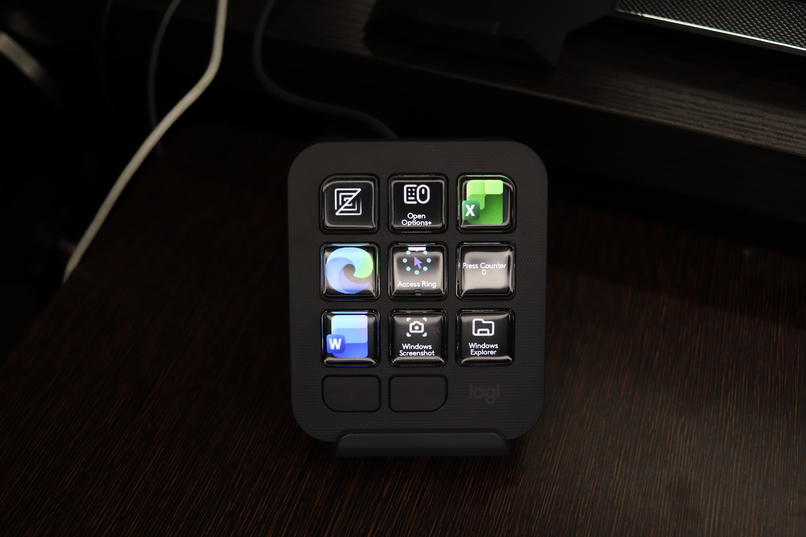
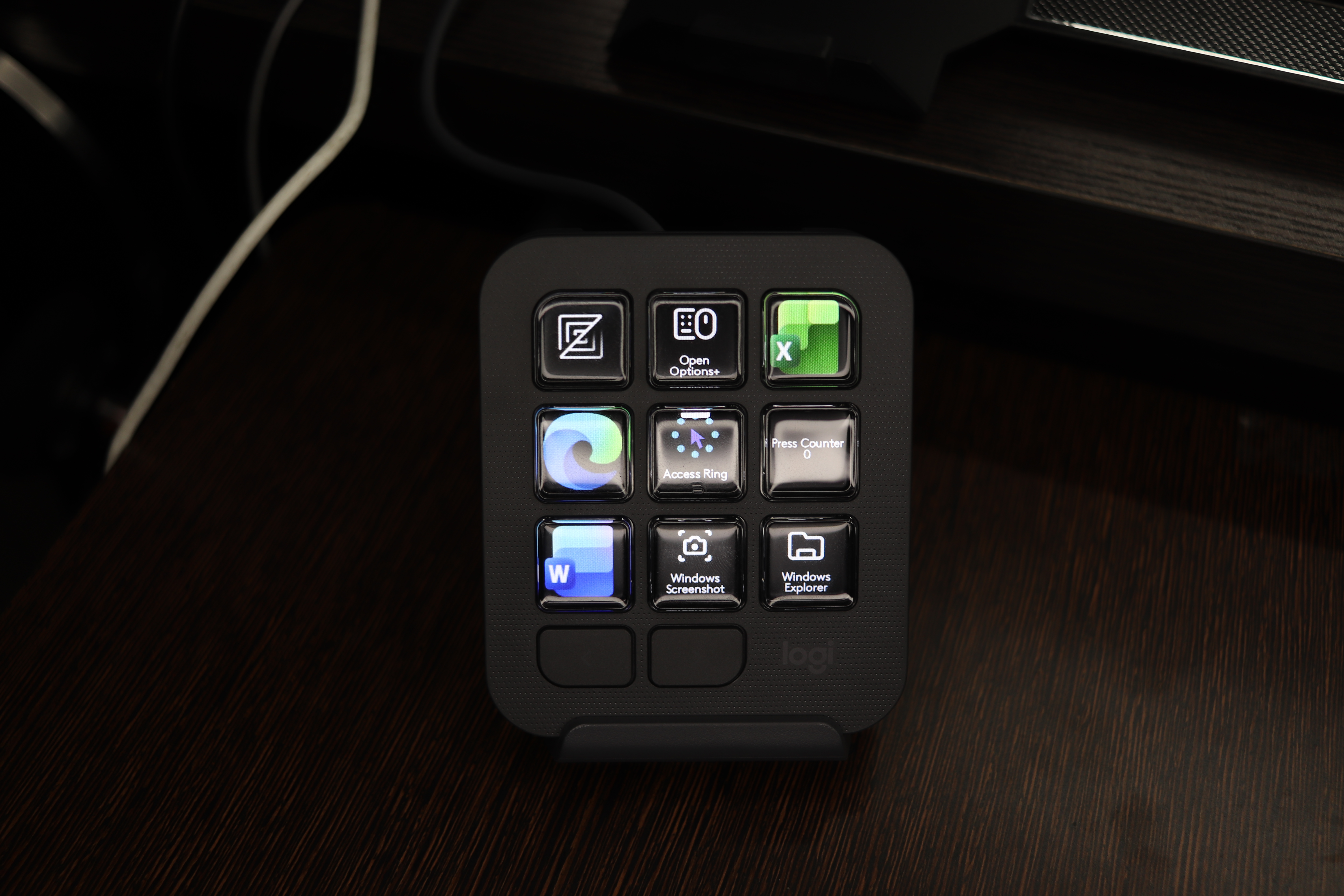
Creative Console Keypad showing the Access Ring dynamic folder (click for better resolution)
-
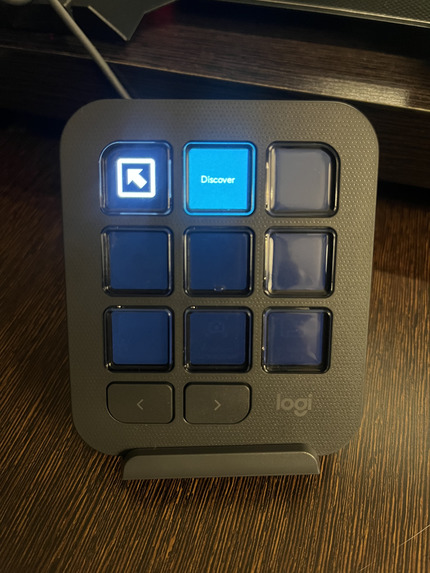
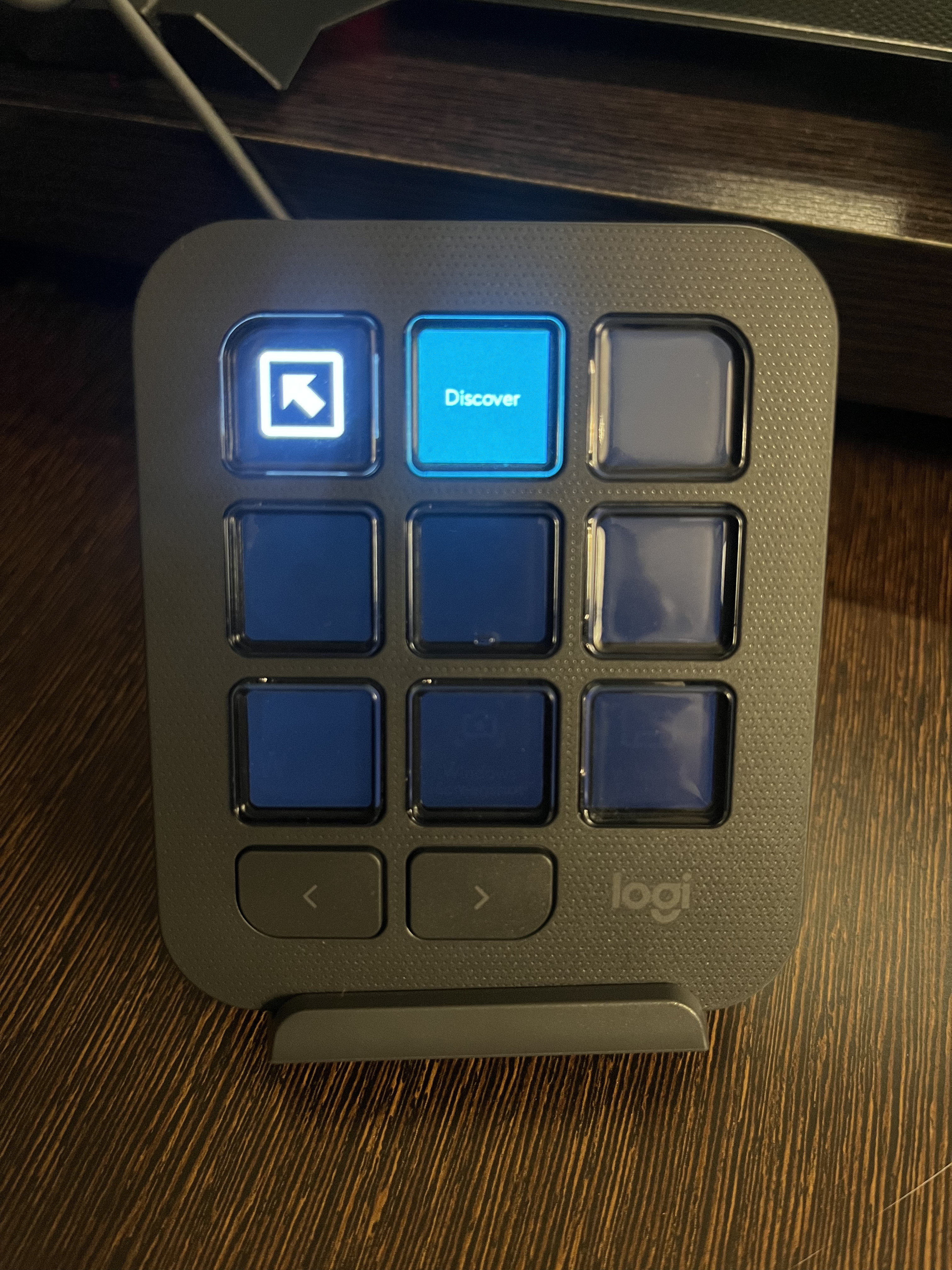
CC Keypad showing the discover button (click for better resolution)
-
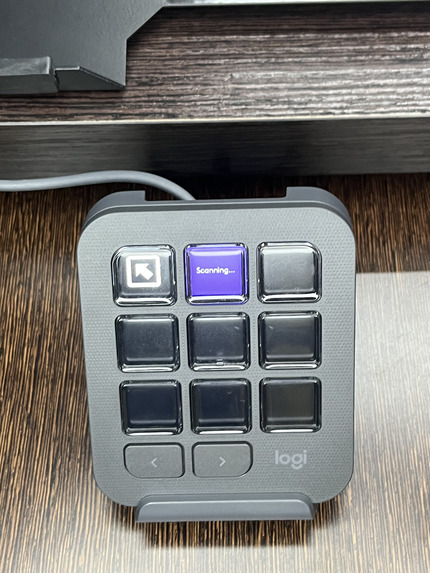
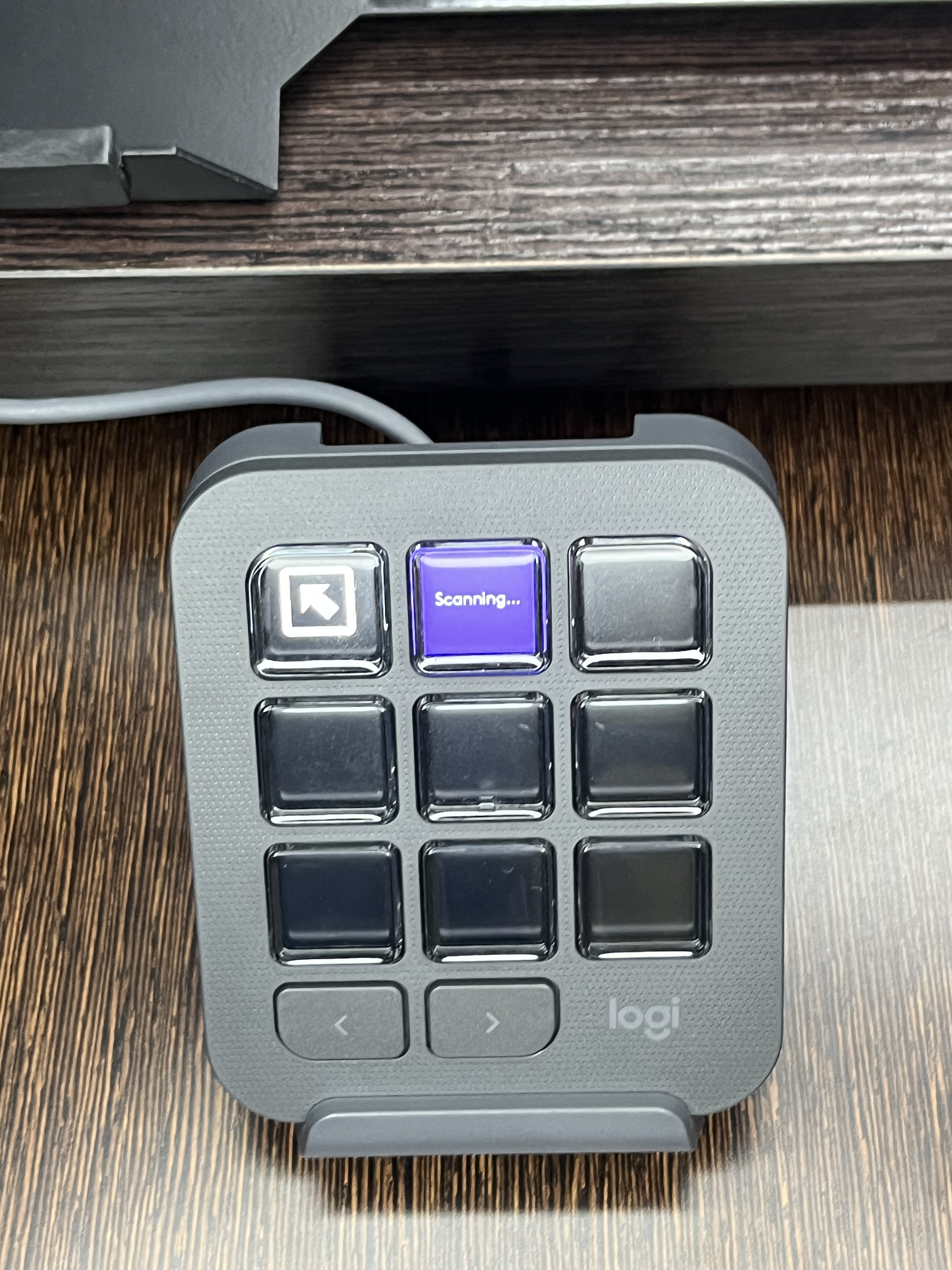
CC Keypad scanning for the clickable UI elements (click for better resolution)
-
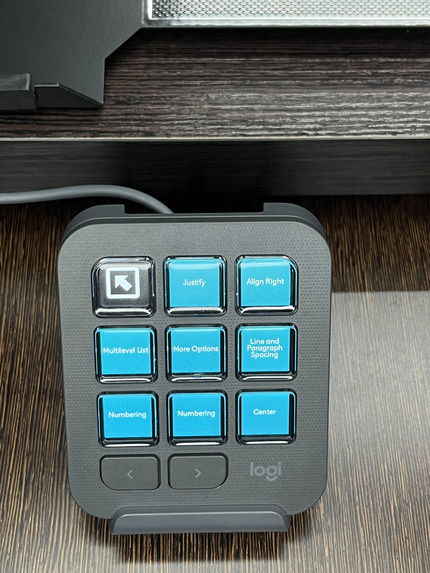
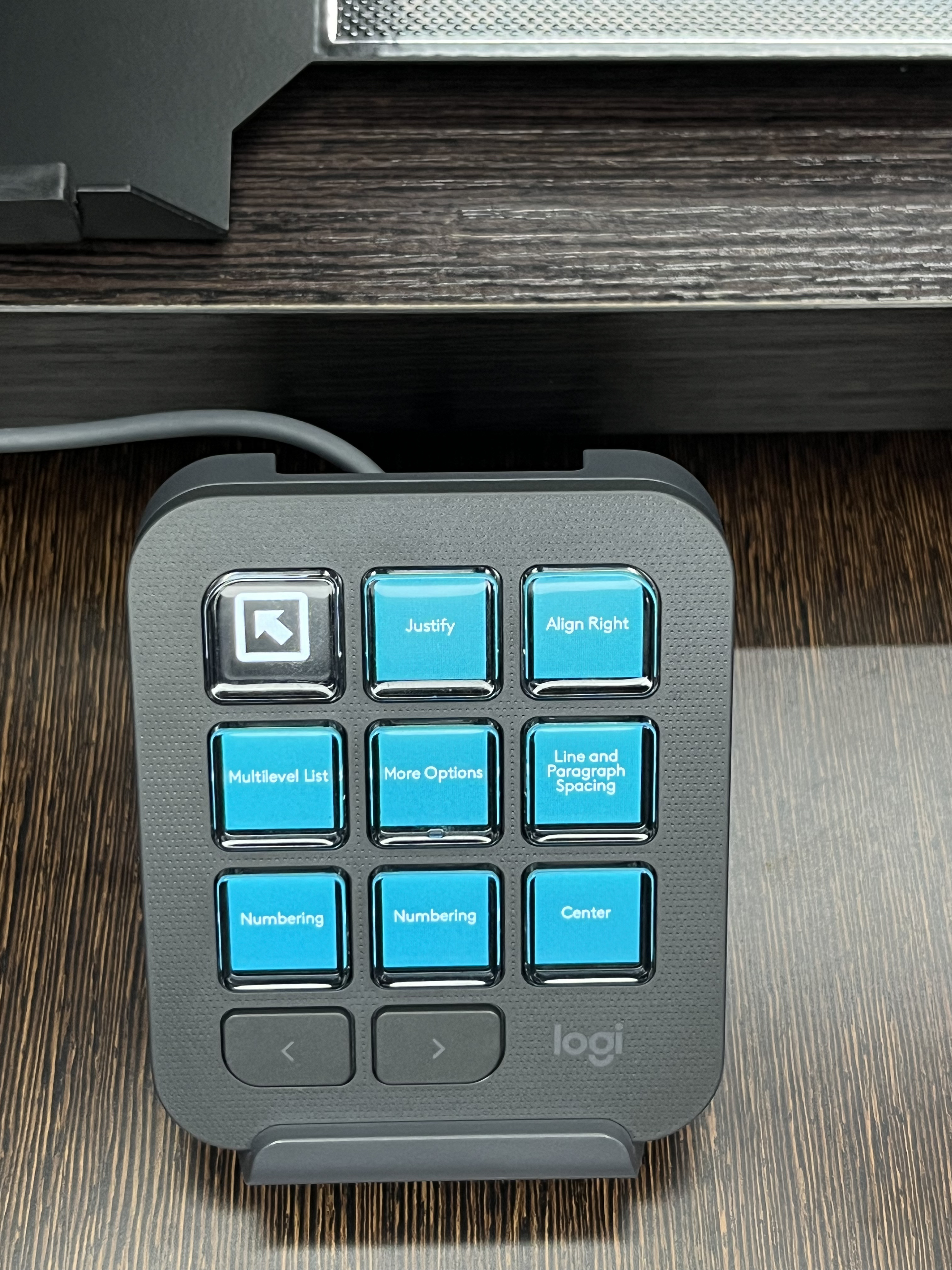
CC Keypad showing the discovered elements from MS Word (click for better resolution)
-
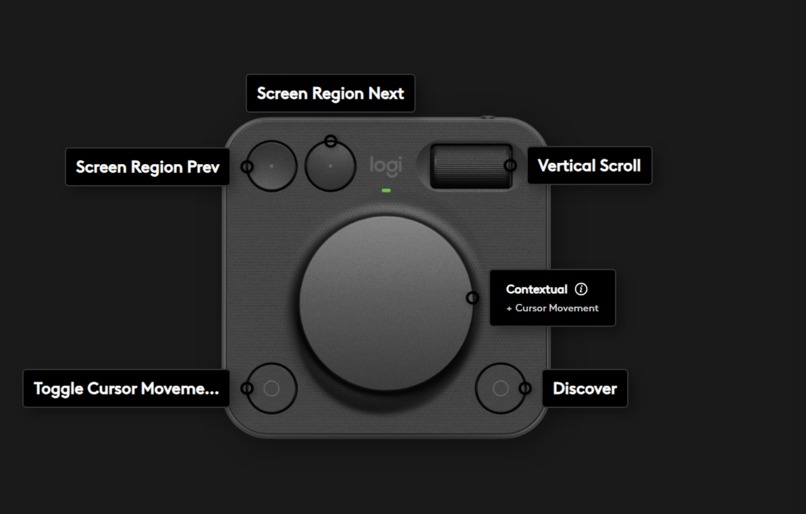
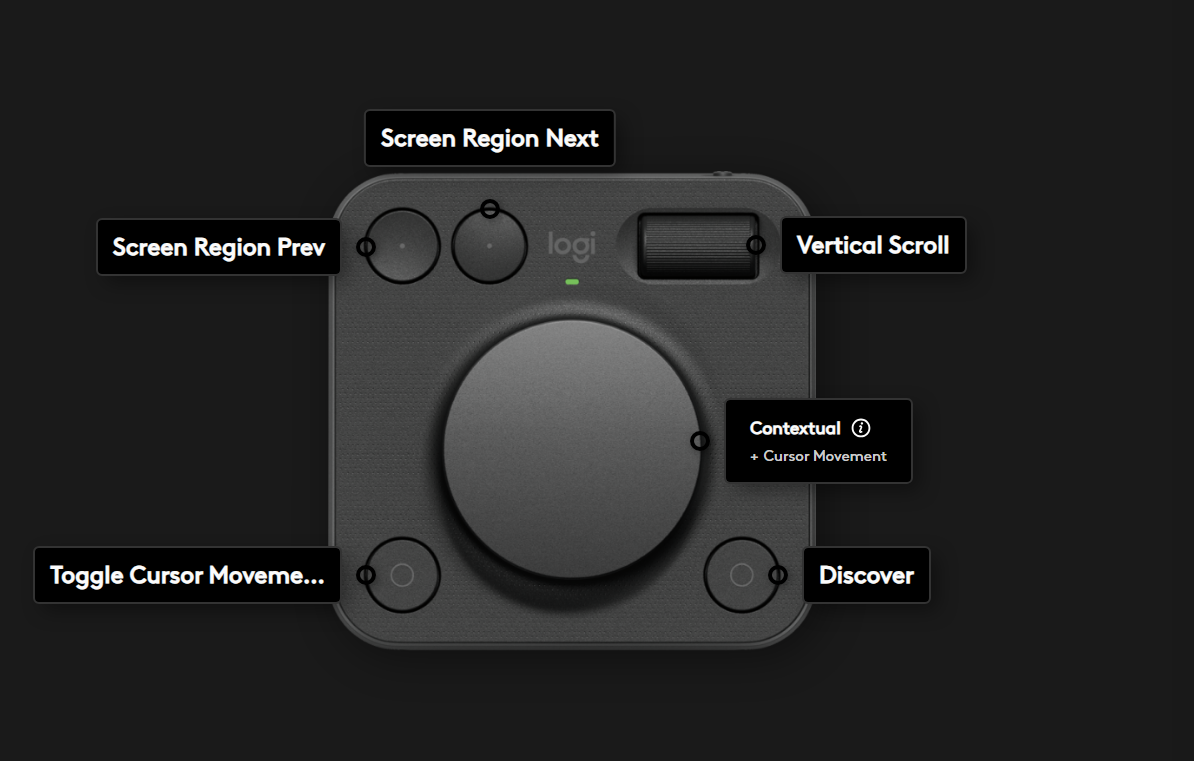
CC dialpad assignment for Access Ring (click for better resolution)
-
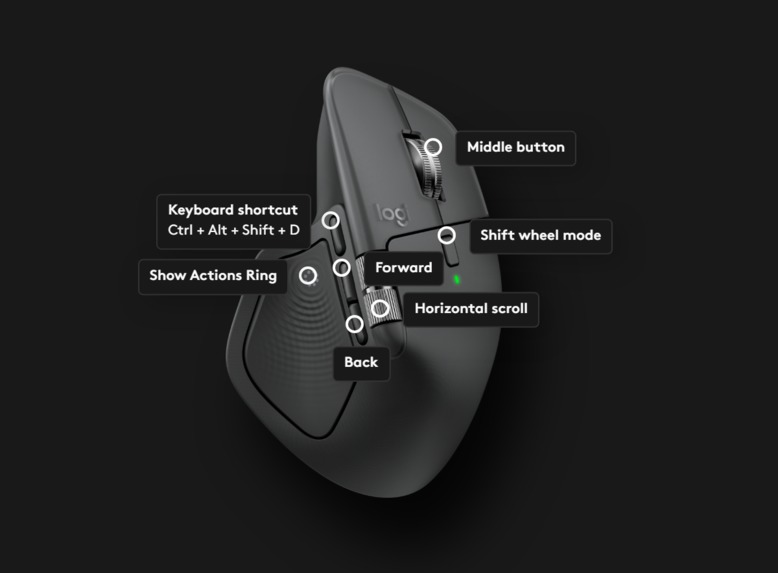
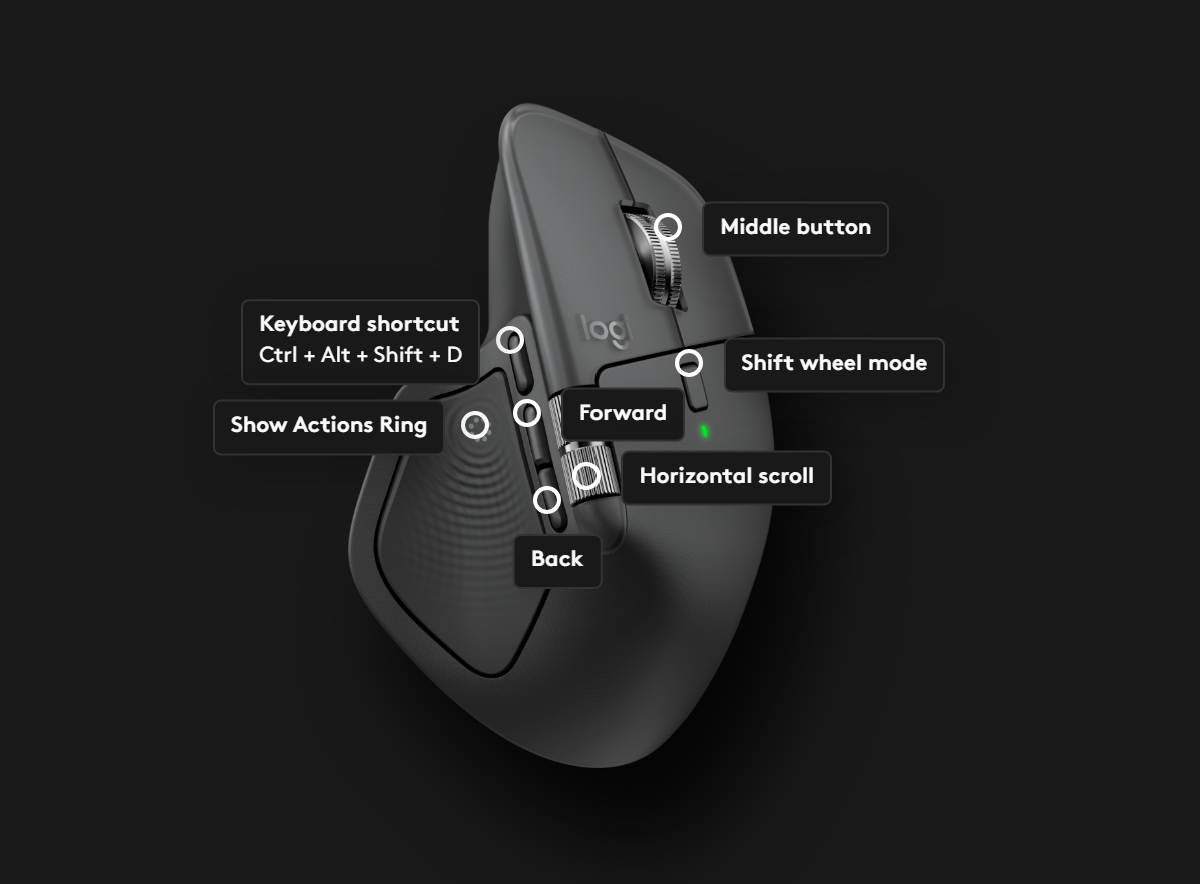
MX Master 4 Discover hotkey(Ctrl+Alt+Shift+D) for Access Ring (click for better resolution)
-
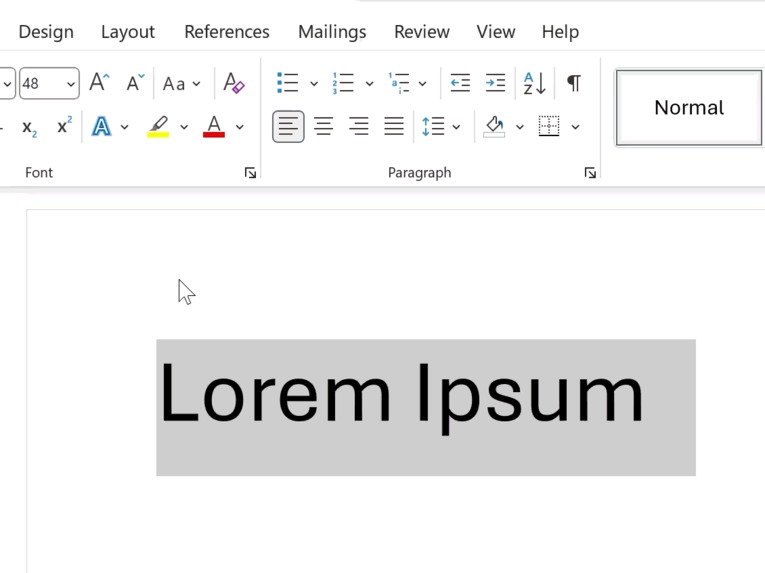 GIF
GIF
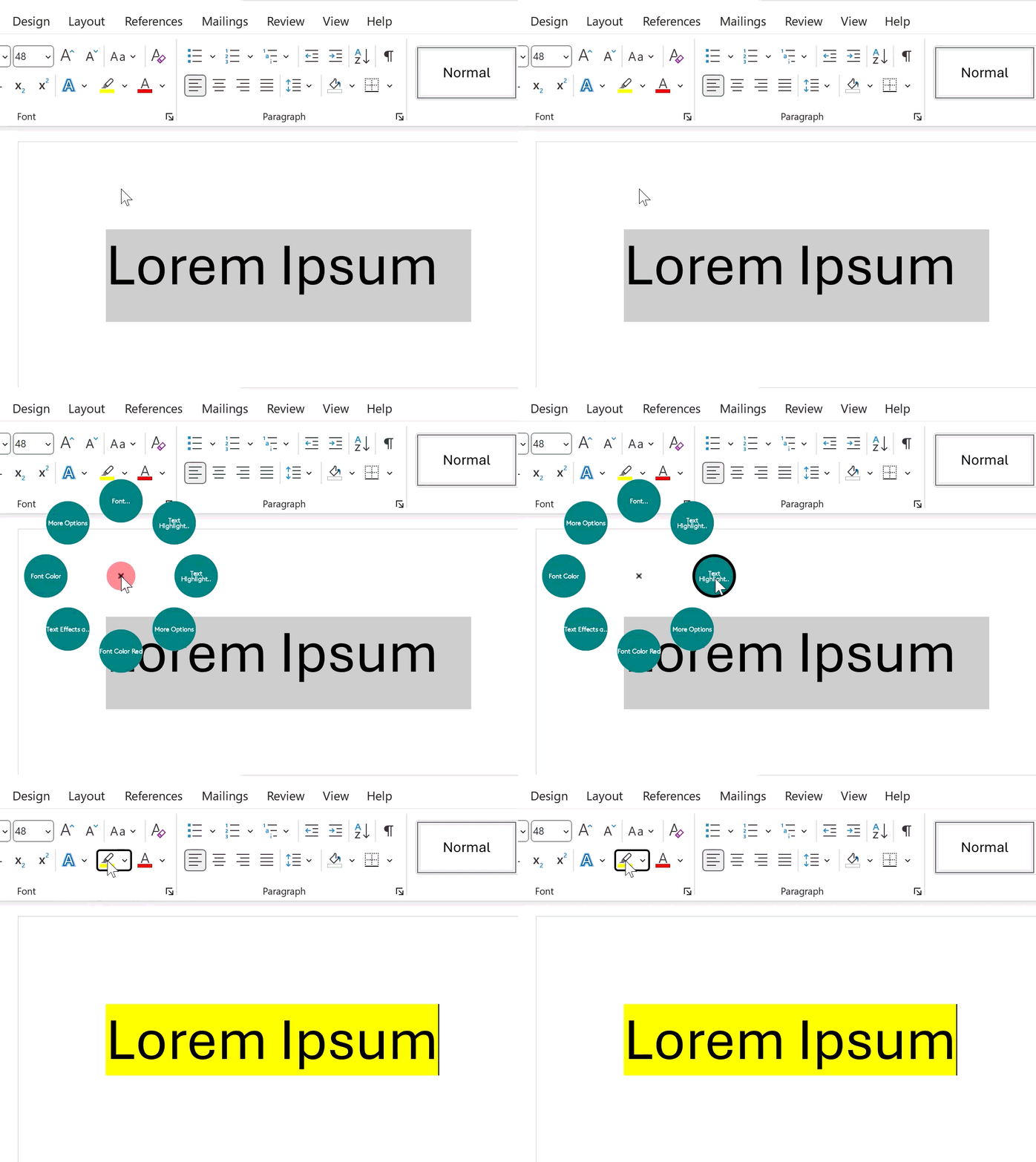
Access Ring via Actions Ring (click to play the GIF)
-
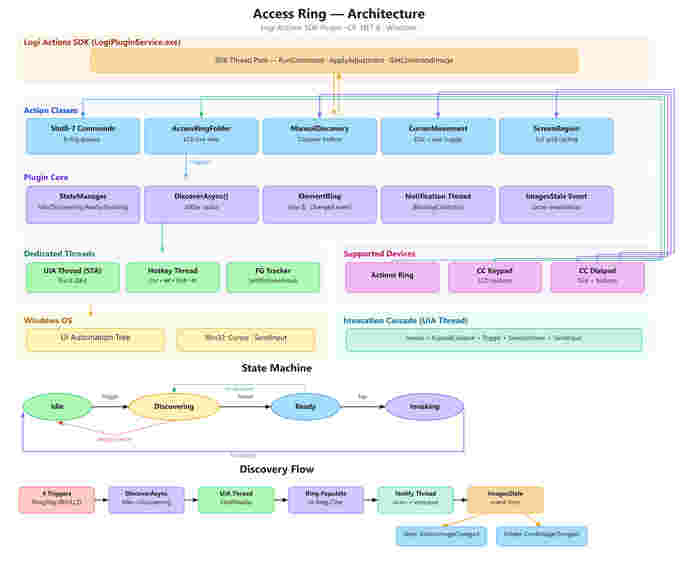
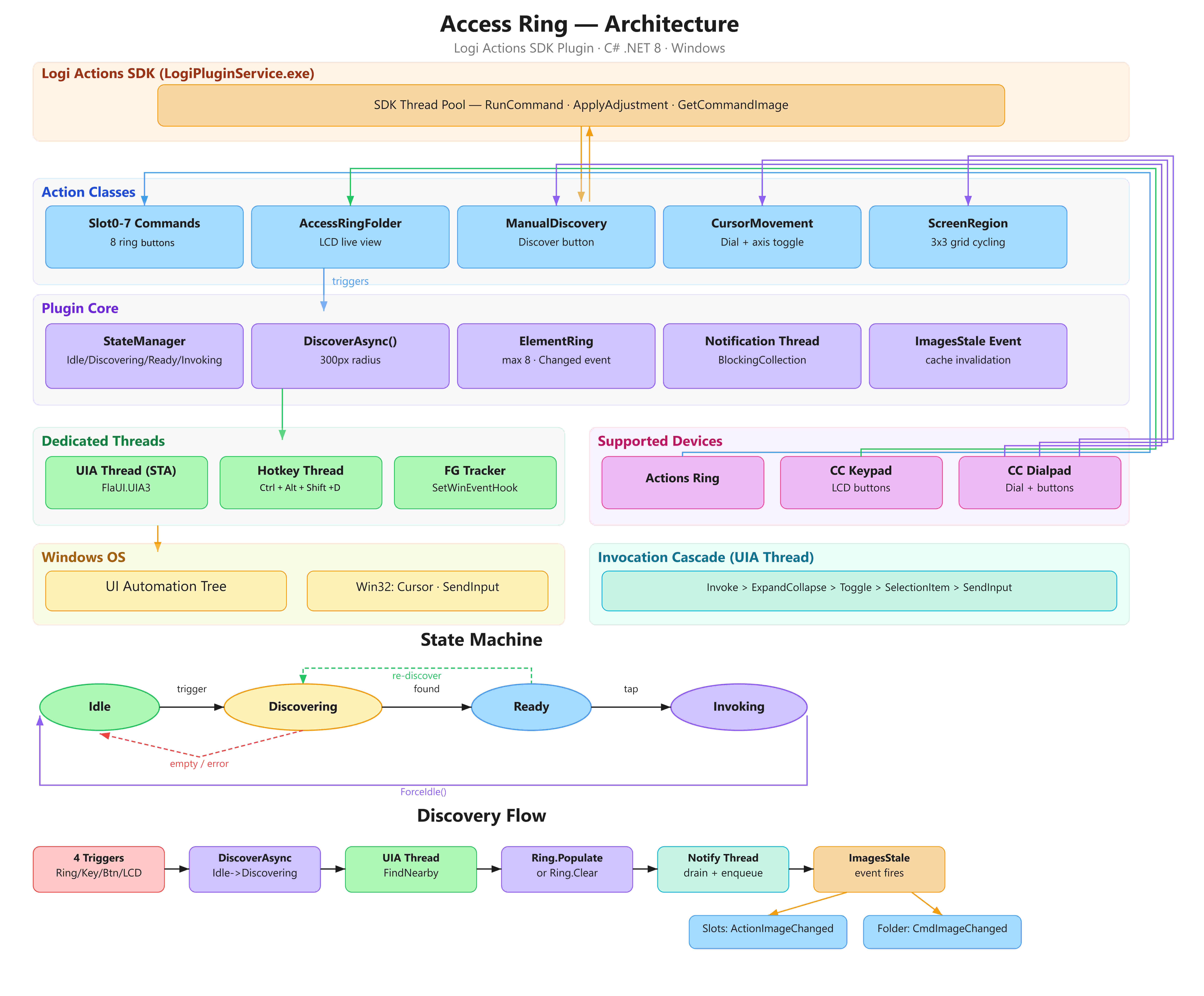
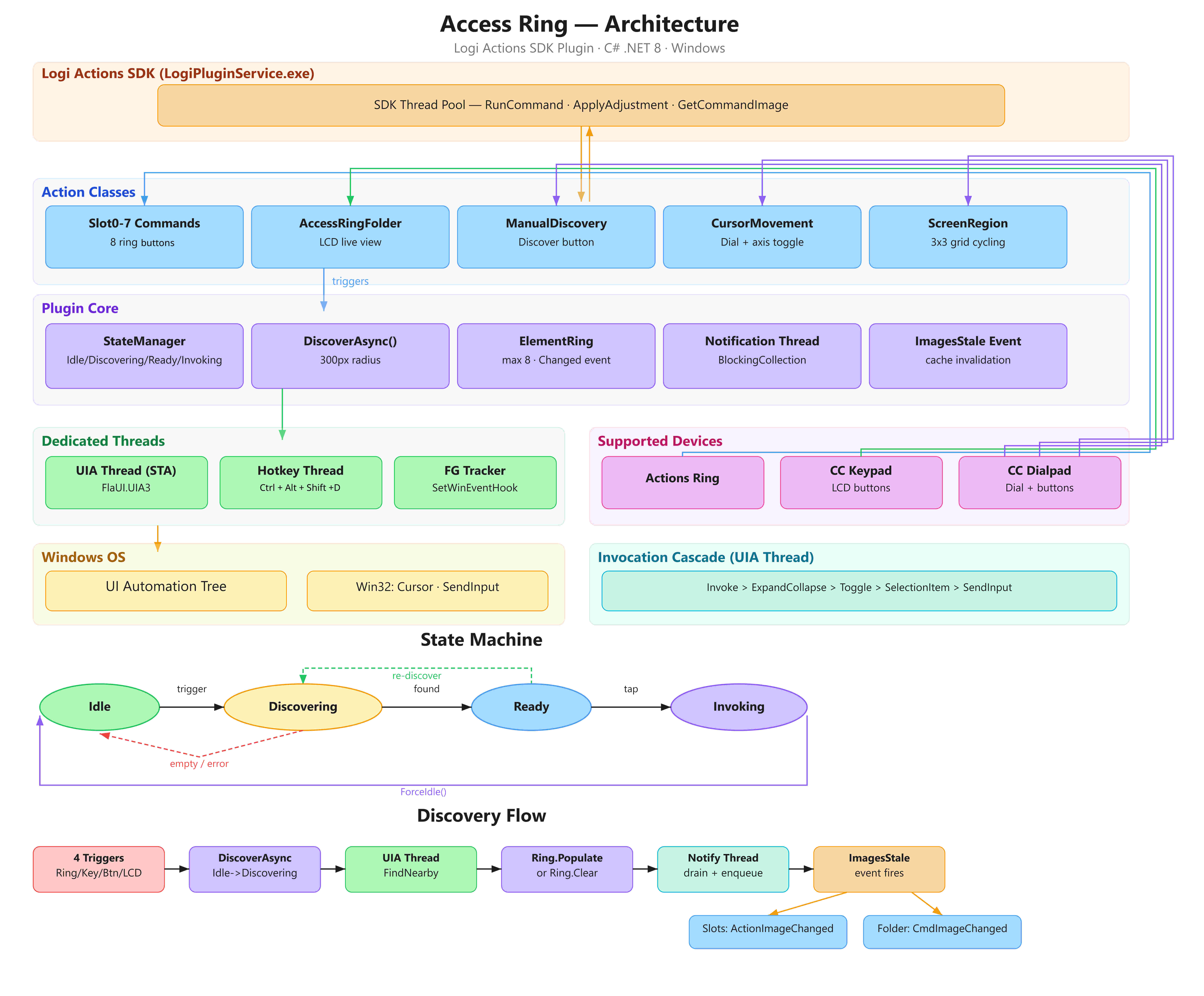
Access Ring Architecture (click for better resolution)
Inspiration
Me and my partner live with rare diseases. My partner has GNE Myopathy a form of muscular dystrophy that causes progressive weakening of the muscles. We often meet people with similar disorders who have motor impairments which causes major challenges with conventional mouse clicking.
Over 1.3 billion people worldwide live with some form of disability (WHO, 2023). Motor impairments from Parkinson's, essential tremor, multiple sclerosis, muscular dystrophy, ALS, repetitive strain injury, spinal cord injury, arthritis... the list goes on. Every one of these conditions turns a simple toolbar click into a challenge.
And the thing is, existing accessibility tools all try to fix the input side. Sticky keys, mouse keys, voice control. They change how you click, but none of them change what you click on. The tiny 16-pixel target is still there, still demanding precision. After 40 years of graphical interfaces, nobody has questioned that assumption.
When we got our hands on the MX Creative Console and MX Master 4, something clicked (pun intended). The Actions Ring has 8 programmable button slots. The Creative Console has LCD buttons and a precision dial. These are physical surfaces that can show discovered UI elements as big, clearly labeled targets. Instead of aiming at a tiny toolbar button on screen, you just tap a labeled button on your desk.
So we built Access Ring around one simple question: What is near my cursor right now?
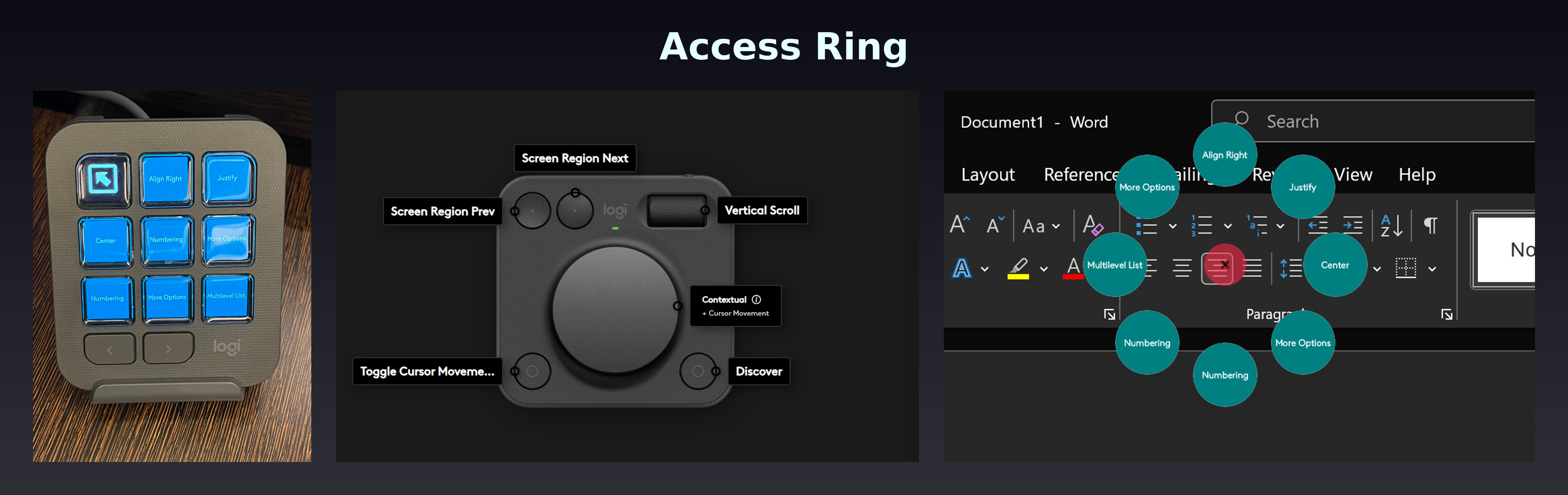
What it does
Access Ring scans a 300-pixel radius around your cursor using Windows UI Automation, finds interactive elements (buttons, checkboxes, menu items, tabs, radio buttons, hyperlinks, toggles, list items, split buttons, dropdowns) and presents up to 8 of them sorted by proximity on your Logitech device. Tap one to invoke it.
Three devices, three interaction styles, one shared discovery engine.
MX Creative Console Keypad: Persistent Live Display
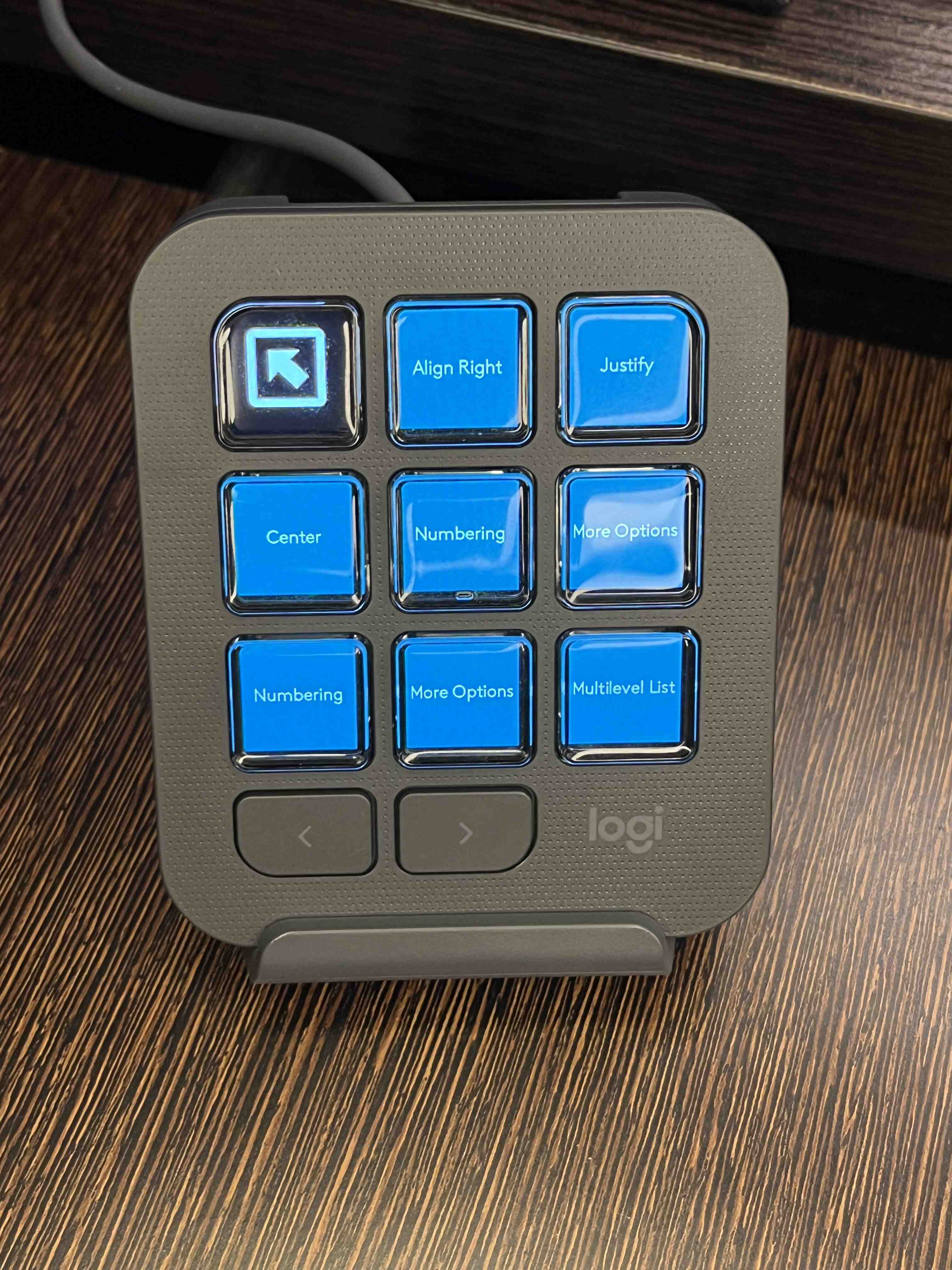
The Keypad LCD becomes a live view of interactive elements near your cursor. No configuration needed. No mode switching. Open the Access Ring folder and it stays open, always showing the current state.
- Idle: A single teal "Discover" button waits for your tap
- Scanning: Display briefly shows violet "Scanning..." feedback
- Results: LCD buttons fill in with element names. Tap any button to invoke.
It picks up discovery results from every source. Whether you trigger from the Dialpad, the Actions Ring, or the Ctrl+Alt+Shift+D keyboard hotkey (assigned to the mouse button), the Keypad display refreshes on its own.
MX Creative Console Dialpad: Complete Mouse-Free Controller
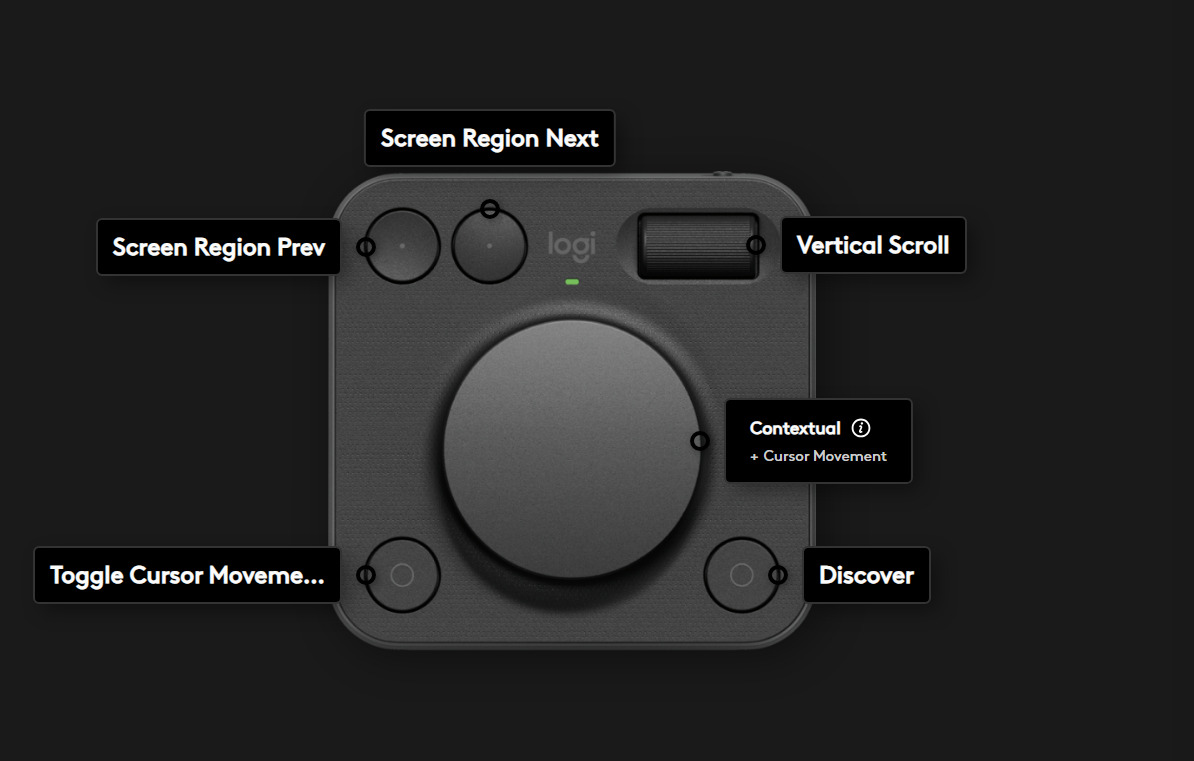
This is where it gets interesting for accessibility. The Dialpad turns the Creative Console into a full controller that doesn't need a mouse at all.
- Screen region navigation: Two buttons cycle through a 3x3 grid of your screen. Each tap jumps the cursor to the center of the next region, getting you close in one or two taps.
- Cursor movement dial: Rotate for fine cursor control. Press to toggle between horizontal and vertical movement. Speed scales with how fast you turn it.
- Discover button: Triggers element discovery at the current cursor position.
The full mouse-free workflow:
- Tap Region buttons to jump near your target area
- Rotate the dial for fine cursor positioning
- Press Discover
- View results on the Keypad LCD
- Tap the element you want
Put together with the Keypad, the Creative Console provides complete cursor control and element interaction without ever touching a mouse.
MX Master 4 Actions Ring: Quick-Access Companion
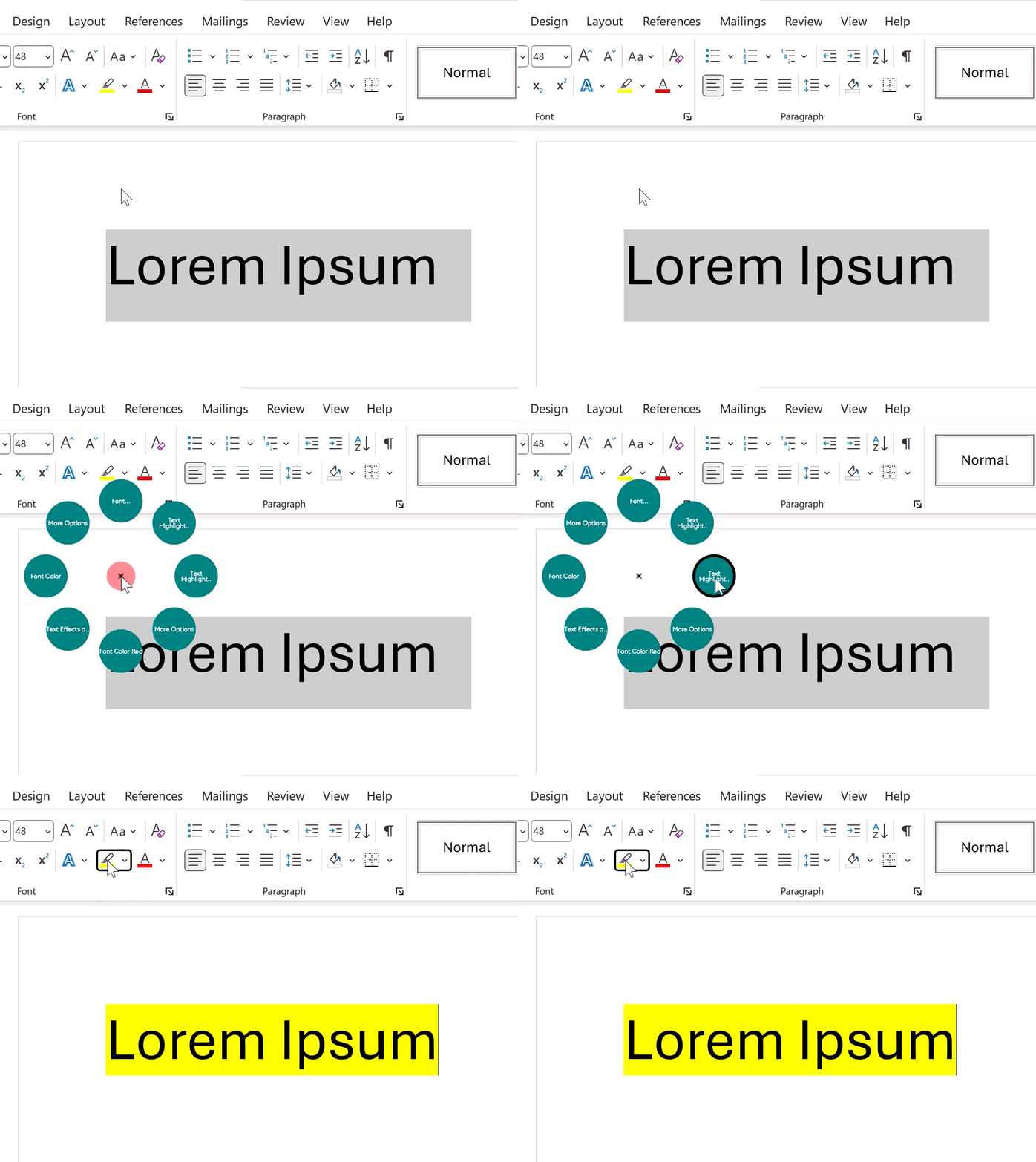
For people who already have a MX device in hand, the Actions Ring adds fast element targeting to the MX device like MX Master 4.
One-tap flow: If elements are already discovered (from a previous scan, the hotkey, or the Dialpad Discover button), just open the ring and tap the button you want. Done.
Two-tap flow:
- Tap any ring button to discover elements near your cursor. All 8 buttons update with nearby element names.
- Open the ring, find the element you want, tap its button to invoke it.
Haptic feedback gives you tactile confirmation so you don't need to look:
- Discovery success: a quick pulse confirms elements were found
- Empty area: a subtle nudge means nothing interactive is nearby
- Invocation complete: a sharp tap confirms the element was activated
Smart Invocation
When you tap an element, Access Ring picks the most reliable invocation method:
- UI Automation patterns first. Direct invocation through the accessibility API via COM. Works even when the Actions Ring overlay or other windows are in the way. Supports InvokePattern, ExpandCollapsePattern, TogglePattern, and SelectionItemPattern.
- Coordinate click fallback. If no automation pattern works, Access Ring synthesizes a precise mouse click at the element's screen coordinates via SendInput.
After invocation, the cursor moves to the invoked element's center so you can see what happened.
Global Hotkey
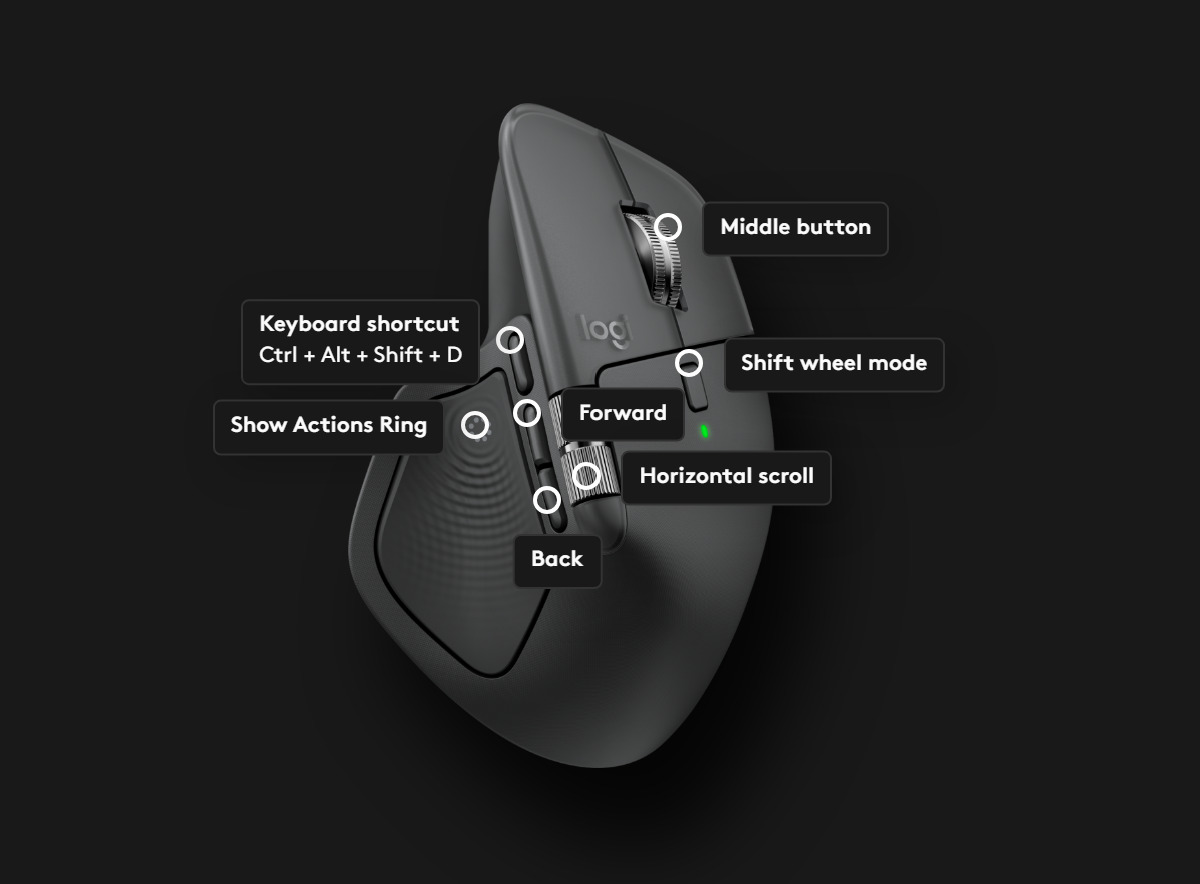
Ctrl+Alt+Shift+D triggers discovery from anywhere, updating all connected devices at once. You can also assign the hotkey to a mouse button in Logi Options+ for one-click discovery.
How We Built It
Access Ring is a C# .NET 8 class library DLL loaded in-process by LogiPluginService.exe. The whole thing is 24 source files, roughly 2,500 lines of code.
Six-Thread Architecture
Each thread exists for a specific reason. This wasn't planned upfront; each one was added when we hit a real problem that couldn't be solved any other way.
| Thread | Purpose |
|---|---|
| SDK thread pool | RunCommand, ApplyAdjustment, GetCommandImage callbacks from the SDK |
| Notification thread | Cache invalidation and SDK notification calls via BlockingCollection queue |
| UIA thread (STA) | All FlaUI/UI Automation queries and element invocation, because COM needs a Single-Threaded Apartment |
| Hotkey thread | Win32 message pump for Ctrl+Alt+Shift+D global hotkey registration |
| Foreground tracking thread | SetWinEventHook(EVENT_SYSTEM_FOREGROUND) with its own Win32 message pump, zero-polling |
| Main thread | Plugin lifecycle (Load/Unload) |
Discovery Pipeline
All discovery is manual and user-triggered. No background polling, no speculative caching, zero resource footprint when idle.
Four trigger sources (ring button tap, Ctrl+Alt+Shift+D hotkey, Dialpad Discover button, Keypad LCD idle button) all funnel into a single code path: Plugin.DiscoverAsync(). This runs on the dedicated UIA STA thread via FlaUI.UIA3, querying the Windows UI Automation accessibility tree with COM-level condition filtering. That means we filter for interactive control types at the COM boundary instead of fetching everything and filtering in C#. Big performance difference.
For window detection, we use an event-driven foreground tracker as the primary source, with WindowFromPoint as a fallback for cross-process popups like dropdown menus.
State Machine
Four states: Idle, Discovering, Ready, Invoking. Managed with lock-based synchronization and an atomic TryTransition(from, to). This turned out to be essential because the SDK double-fires RunCommand for a single button press, so without atomic transitions we'd get duplicate invocations.
Invocation Cascade
We try five approaches in order, stopping at the first one that works:
- InvokePattern (buttons, links)
- ExpandCollapsePattern (dropdowns, menus)
- TogglePattern (checkboxes, toggle buttons)
- SelectionItemPattern (tabs, radio buttons, list items)
- Coordinate click fallback via SendInput (last resort)
UIA patterns talk directly to the target app via COM, completely bypassing the screen. This matters because the Actions Ring overlay sits on top of everything and would intercept any simulated mouse clicks.
Known Limitations
- Access Ring works with applications that support the Windows UI Automation accessibility API. Applications built using GPU-based UI frameworks like GPUI do not currently offer accessibility support. Accessibility support for apps built using Electron and Flutter frameworks may vary.
- Applications with collapsible toolbars (e.g., auto-hidden ribbons) may close their UI when the Actions Ring overlay opens. Persistent UI elements like pinned ribbons, floating toolbars, and standard dialogs work reliably. This limitation can be addressed by enabling the "always show" setting for the toolbar in the respective application (e.g., "Always Show Ribbon" in Microsoft Office). This does not affect the Creative Console, which has no overlay.
- Discovery speed depends on the target application's accessibility tree complexity. Most applications return results in under a second.
- Rarely, the target application's accessibility layer may stop responding (observed occasionally with Microsoft Word). When this happens, the LCD Keypad shows "Scanning…" for about 5 seconds and then goes back to "Discover" without finding anything. Pressing Discover again during the next 15 seconds or so produces the same result. After that, discovery starts working again on its own. This is a Windows accessibility limitation that the plugin cannot work around.
- Sometimes the
Ctrl+Alt+Shift+Ddiscovery hotkey may not work because another application is already using the same shortcut. Access Ring tries to show a warning in Logi Options+ when this happens, but it can't always detect the conflict. Some applications (for example Windows PowerToys Keyboard Manager) capture keyboard shortcuts through a low-level keyboard hook that is invisible to the warning. If the hotkey doesn't respond, find the application that uses the same shortcut and assign it a different one. - When manually installing the plugin using a
.lplug4file, Logi Plugin Service may not load the plugin properly, leading to unexpected quirks. If this happens, restart the service from Logi Options+ -> Application Settings -> LOGI SERVICES -> RESTART LOGI PLUGIN SERVICE. - Windows only. macOS support coming soon.
Challenges we ran into
The Ring Overlay Steals Focus
This one hurt. When the Actions Ring opens, its overlay window becomes the foreground window, which deactivates the target application. Apps with collapsible UI (like Word's ribbon in "Show Tabs Only" mode) immediately hide their toolbar elements. By the time our RunCommand fires, the buttons we discovered are gone.
How we solved it: We prioritize UIA automation patterns over coordinate clicks. UIA patterns work via COM regardless of which window has focus, so they bypass the overlay entirely. Coordinate clicks are only a last resort. We also filed a feature request with Logitech to add WS_EX_NOACTIVATE to the overlay window, which is the standard Win32 approach for interactive overlays that shouldn't steal focus.
Thread Pool Starvation Froze the Dial Cursor
This was a nasty one to debug. After discovery, we need to notify the SDK about up to 17 updated images (8 ring slots + up to 9 folder buttons). Each notification triggers a GetCommandImage call on the SDK's thread pool. But ApplyAdjustment (the dial cursor movement callback) uses the same pool. During discovery, the dial cursor would freeze for anywhere from 737ms to 4 full seconds while bitmap rendering hogged all the threads.
How we solved it: We moved all notification work to a dedicated thread with a BlockingCollection queue. A 5ms sleep between each notification call gives the thread pool just enough breathing room for dial callbacks to slip through. That's about 85ms total spread across 17 calls, completely imperceptible to the user but enough to keep the cursor moving. We also added a drain-before-enqueue pattern so rapid re-discoveries discard stale notifications instead of piling up.
Cross-Device Bitmap Size Contamination
The SDK passes different image sizes for different contexts: 96x96 for ring buttons, 116x116 for LCD buttons, 80x80 for action picker thumbnails. We discovered that when the LCD folder is active and we send notifications for both folder buttons and ring slots in quick succession, the SDK gets confused internally and passes 48x48 to the ring slots instead of 96x96. The result: blurry, unreadable text on the ring.
How we solved it: We track the largest size the SDK has ever requested per command type and always render at that maximum. Smaller contaminated values get ignored. When we detect a size upgrade (like going from 80 to 96 on the first actual ring open), we trigger a full re-render.
FlaUI Needs Its Own Thread
FlaUI.UIA3 uses COM automation that requires a Single-Threaded Apartment. The SDK's thread pool threads are MTA (Multi-Threaded Apartment). Trying to use FlaUI from the thread pool doesn't just fail gracefully; it crashes with an assembly resolution error that takes the whole plugin down.
How we solved it: We gave FlaUI its own dedicated STA thread with a BlockingCollection work queue and an async RunAsync() dispatch method. Every FlaUI call in the entire plugin routes through this one thread. The same BlockingCollection + dedicated thread pattern ended up being our go-to solution for the notification thread and hotkey listener too.
Eight Separate Classes for Eight Ring Buttons
We originally tried using the SDK's AddParameter mechanism to create 8 slots from a single command class. It doesn't work that way. When you assign the same command to all 8 ring buttons in Logi Options+, each button gets an identical copy. There's no way for one command class to show different content on different buttons.
How we solved it: We created 8 concrete subclasses (AccessRingSlot0Command through Slot7Command), each hardcoded to a specific element index. All the real logic lives in a shared abstract base class. The 8 instances register themselves in a static list at construction time, so one event handler can notify all of them at once without worrying about subscription timing.
Accomplishments that we're proud of
- Complete mouse-free workflow through the Creative Console. Someone with no mouse ability can navigate the entire screen, discover elements, and invoke them using only the Dialpad and Keypad.
- Three different interaction styles (one-or-two-tap ring, persistent LCD view, dial-based navigation) all running off one unified discovery pipeline with a shared ElementRing, shared state machine, and one
DiscoverAsync()code path. - Production-ready package (.lplug4) built. This isn't a demo; it's a real plugin ready for distribution.
- Zero resource usage when idle. No background polling, no timers, no speculative caching. The plugin sits completely dormant until you explicitly ask it to discover.
- Haptic feedback on MX Master 4 with three distinct waveform patterns for discovery success, empty area, and invocation complete. You can feel what happened without looking at the screen.
- Sub-100ms notification spread across 17 SDK calls that keeps the dial responsive during discovery, solving a thread pool starvation problem that initially caused multi-second cursor freezes.
What we learned
The SDK is a gateway, not the destination. The Logi Actions SDK gives you clean abstractions (RunCommand, ApplyAdjustment, GetCommandImage), but the real work happens underneath: COM threading, Win32 message pumps, UI Automation accessibility trees, P/Invoke struct alignment quirks on x64. Getting the SDK side working took days. Getting the OS side working took weeks.
Thread pool contention will bite you when you least expect it. When your plugin and the SDK share a thread pool, a 5ms sleep can be the difference between a responsive dial and a frozen cursor. Every SDK notification call is effectively a thread pool reservation, and you have to budget them carefully.
Accessibility has to be baked into the architecture. It can't be added later. Every design choice in Access Ring was shaped by motor impairment scenarios. Manual-only discovery so background scanning doesn't fight the user's intent. UIA patterns first so overlays don't block invocation. Cursor repositioning after invocation so the user doesn't have to hunt for the cursor. Enabled elements sorted first so the most useful targets appear at the top. If we'd built a "normal" plugin and then tried to make it accessible, we'd have ended up with something fundamentally different and much worse.
Working through SDK edge cases made us write better code. We hit undocumented behaviors that sent us down debugging rabbit holes, but the defensive patterns we built in response (atomic state transitions, max-size tracking, explicit cache invalidation) ended up making the plugin more resilient to edge cases we hadn't even thought of. The Logitech Developer Community in Discord made it easy to report what we found.
Supporting three devices at once forced clean separation. The discovery pipeline has no idea which device triggered it. The ElementRing doesn't know which displays are listening. The state machine doesn't care which action class is driving the transition. This wasn't some upfront architectural choice. It happened because three devices needed the same data through three completely different interfaces, and any coupling between them would have created a maintenance nightmare.
What's next for Access Ring
- macOS support. We've already completed a detailed feasibility study mapping every Windows component to its macOS equivalent via the AXUIElement accessibility API. The plan is a native Swift helper process.
- Configurable discovery radius. Right now it's fixed at 300px. Users with significant tremor might want it wider; people working in dense toolbars might want it narrower.
- Element filtering profiles. Let users focus discovery on specific control types like only buttons, or only menu items. Helpful for reducing clutter in complex UIs.
- Favorites and pinning. Frequently used elements could appear first or persist across discoveries, cutting down on repeated scanning.
- Automatic discovery as a user option. We originally built auto-discovery that scanned for elements whenever the cursor stopped moving. It worked, but it caused real problems: the SDK thread pool is shared between image rendering and dial cursor movement, so background discovery would freeze the dial for seconds at a time. Auto-discovery also fought with manual discovery when both fired at once, and cursor movement dismissed results the user hadn't acted on yet. We removed it entirely and went manual-only. But with the dedicated notification thread and stagger pattern now in place, we think we can bring it back as an opt-in setting for users who prefer it, especially those using only the Keypad without the dial.
- Keypad pagination. Right now we show up to 8 elements on the Keypad LCD. In dense toolbars there are often more interactive elements within the discovery radius than we can display. Pagination would let users flip through pages of results on the Keypad, surfacing all nearby elements instead of just the closest 8.
- Per-application settings. Different apps need different discovery parameters. Once the SDK supports default profiles for universal plugins, we'd like to tie discovery radius and element filters to specific applications through Logi Options+.


Log in or sign up for Devpost to join the conversation.