Inspiration
Me and my partner live with rare diseases. My partner has GNE Myopathy a form of muscular dystrophy that causes progressive weakening of the muscles. We often meet people with similar disorders who have motor impairments which causes major challenges with conventional mouse pointing.
We are trying to solve this problem by using MX Master4 + MX Creative Console & Actions Ring.
What it does
Access Ring — Precision Without Effort
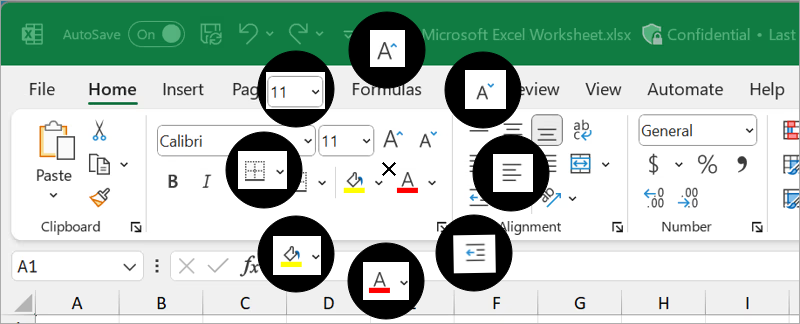
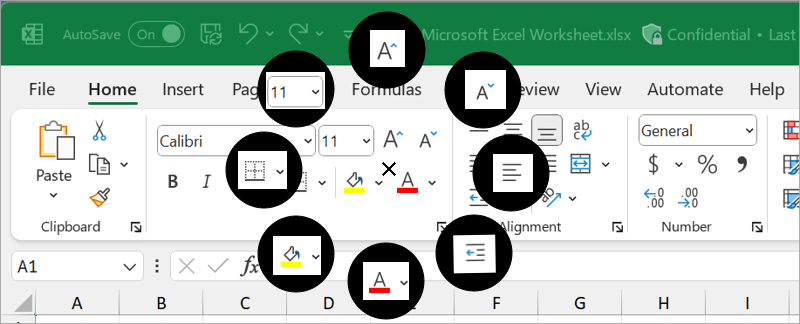
Access Ring transforms how people interact with their computer by eliminating the need for precise mouse movements. Designed for users with limited motor control, it turns any point on the screen into a smart, accessible control hub.
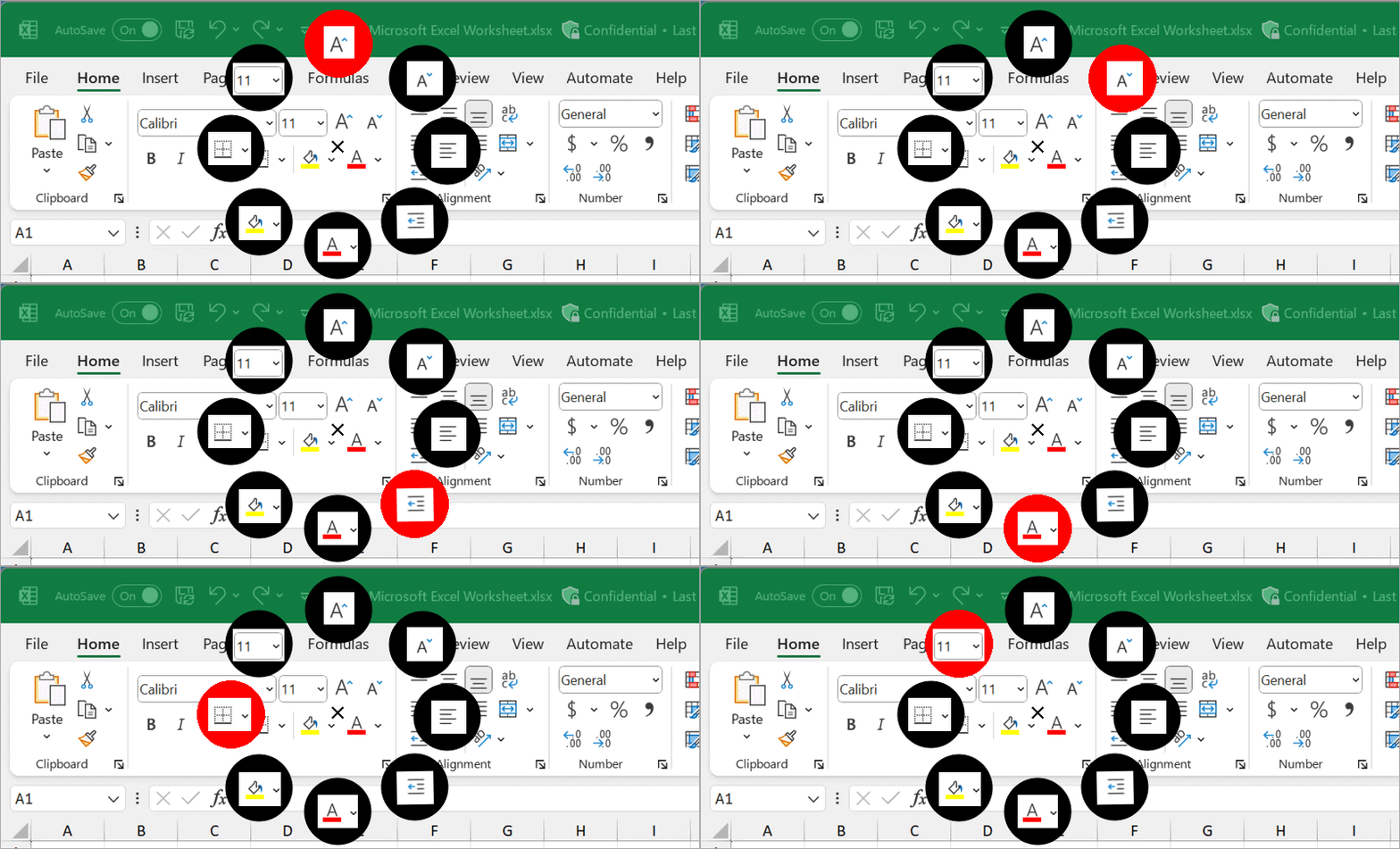
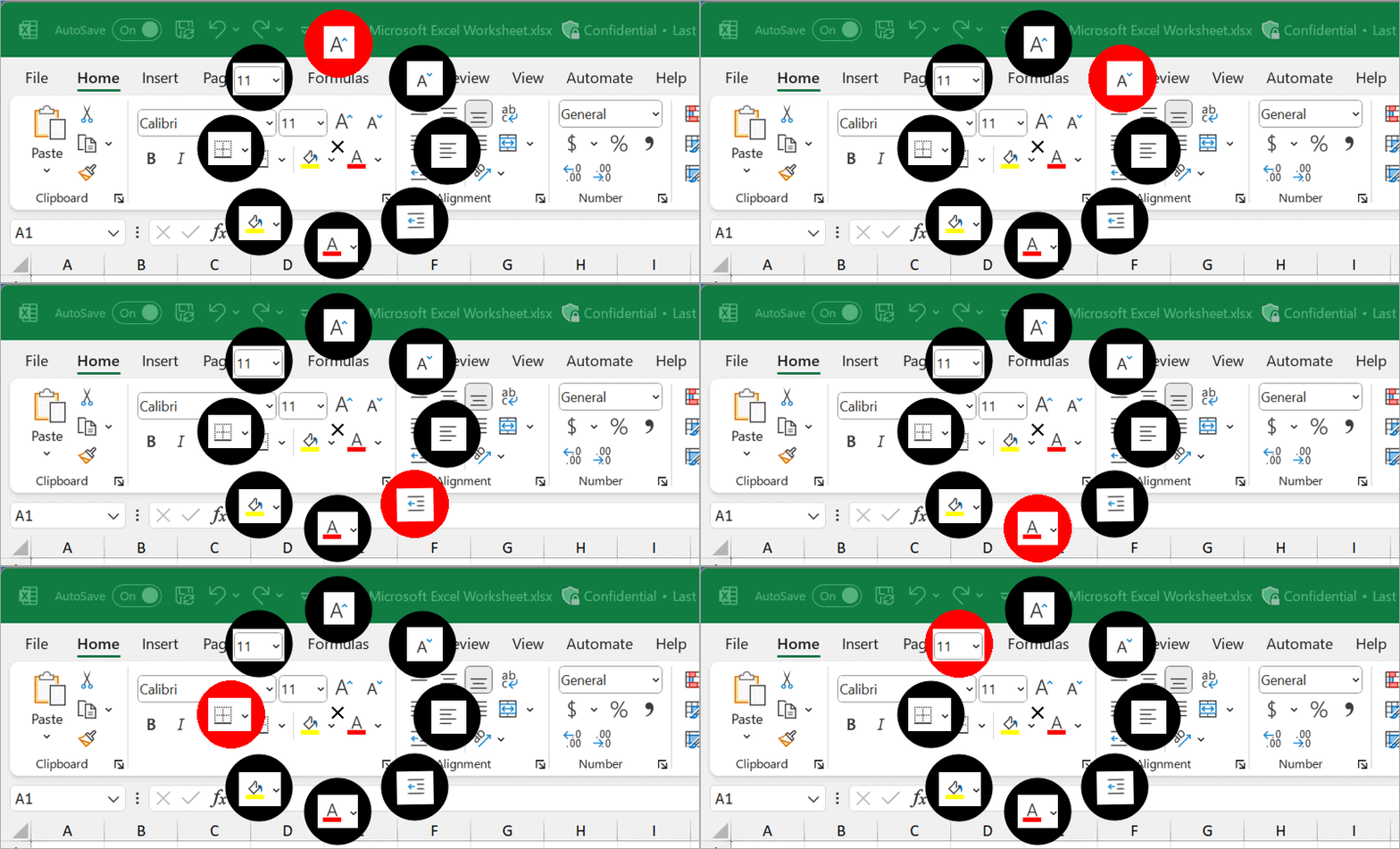
With a single press on the MX Master 4, Access Ring detects nearby clickable elements using system-level accessibility APIs and surfaces them in a clean, radial Action Ring. Instead of struggling to click tiny buttons or links, users simply choose from up to 8 clearly presented targets — powered by intelligent ranking and visual cues.
By combining semantic UI understanding with adaptive interaction design, Access Ring reduces strain, minimizes repetitive motion, and dramatically improves productivity across any application.
It’s not just a shortcut tool — it’s a new input paradigm that makes computing more accessible, efficient, and inclusive.
User flow
The user clicks the actions ring button and the clickable elements under the cursor is displayed as actions ring in the screen and on the buttons of the MX Creative Console.
User can cycle the actions using the MX Creative Console Dialpad and execute the action by clicking on the display keys in the MX Creative Console or by clicking the buttons in MX Master 4.
Haptic feedback on the MX Master 4 can help with providing tactile confirmation for the actions.
How we are building this
Access Ring is based on the seminal research paper titled Enhanced Area Cursors: Reducing Fine Pointing Demands for People with Motor Impairments by Findlater et al.
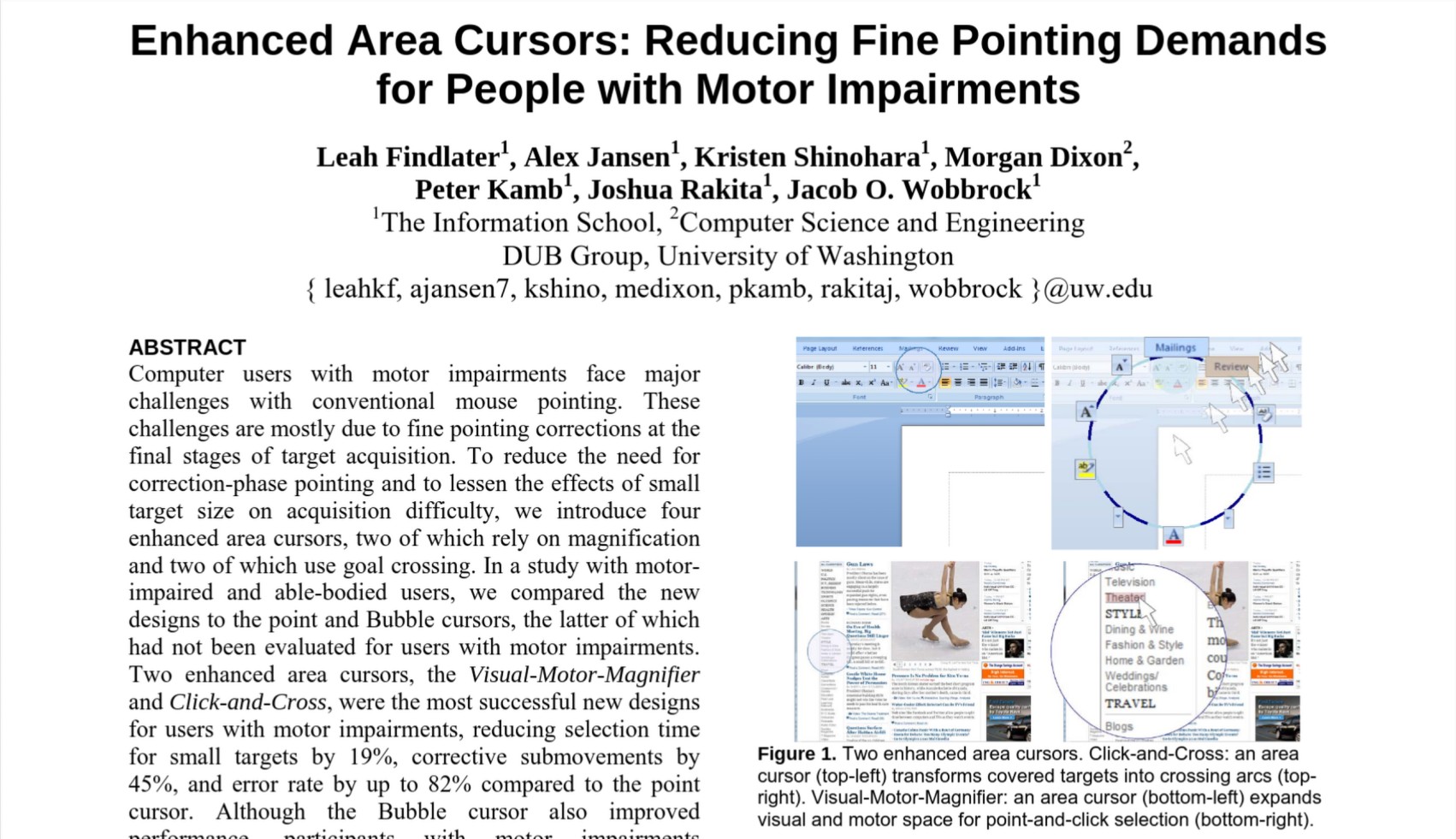
In this paper the researchers have concluded that,
Two enhanced area cursors, the Visual-Motor-Magnifier and Click-and-Cross, were the most successful new designs for users with motor impairments, reducing selection time for small targets by 19%, corrective submovements by 45%, and error rate by up to 82% compared to the point cursor.
In the Click and Cross Cursor The user moves a circular area cursor over the desired target and clicks to activate. All targets under the cursor animate out to the periphery and become enlarged crossing targets. To select one of these targets the user simply crosses over the associated Arc segment and stops the mouse.
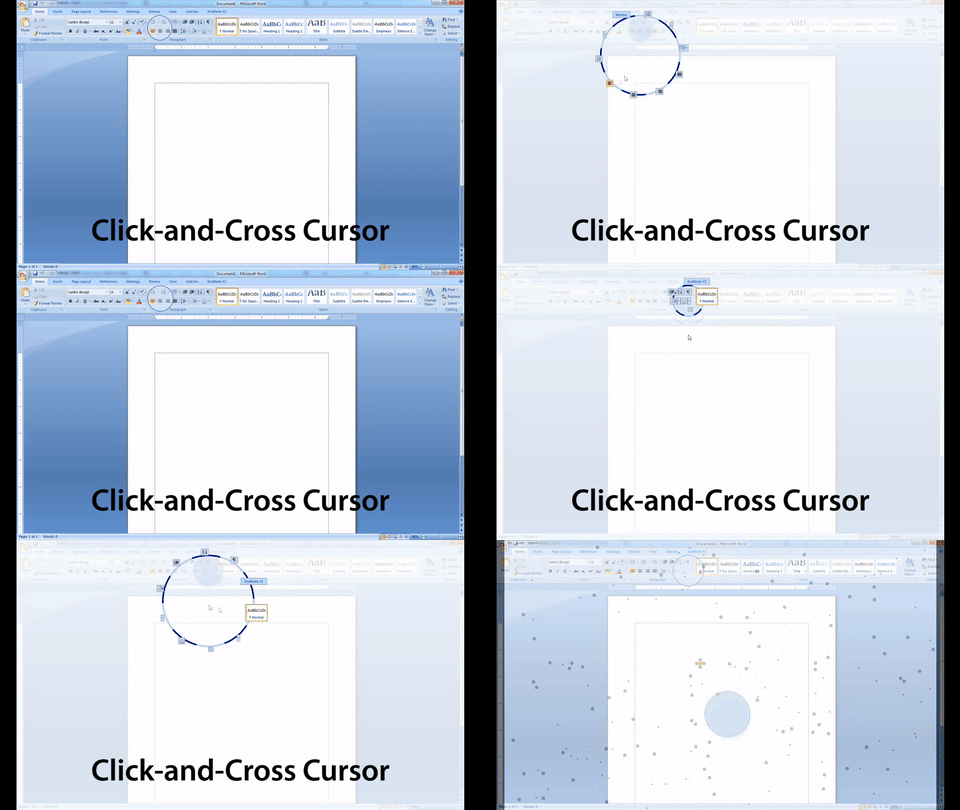
Source: Alex Jansen(one of the authors of the paper) on YouTube
In Access Ring we are implementing a technique similar to Click and Cross using the Actions Ring via Logi Actions SDK with MX Master 4 and MX Creative Console.
Actions Ring allows us to show the targets under the cursor as an action ring and the user can easily select the target using Creative Console or MX Master 4.
Actions Ring are found to reduce repetitive mouse movements by up to 63%*. When combined with Access Ring plugin, Actions Ring can improve accessibility along with productivity for people with motor impairments.
Implementation Plan
Trigger — User presses the Haptic Sense Panel to open the Actions Ring, then presses one of the Actions Ring buttons which fires the SDK
RunCommandevent and captures the current cursor position as the search origin.Discover — Use FlaUI/UIA to find all enabled, visible, interactive elements within a ~100px radius of the cursor on the window underneath it.
Capture — Screenshot each element's bounding rectangle using BitBlt → DXGI → PrintWindow → text label fallback waterfall, resized to 90×90px.
Display — Dynamically update each Actions Ring bubble's image via
GetCommandImage()to show the screenshot of each discovered element, so the user sees the nearby elements directly on the Actions Ring when it opens.Navigate — Cycle element selection using the MX Master 4 thumb wheel, Creative Console dial, or side buttons via the SDK's
ApplyAdjustment()callback, keeping the Actions Ring bubble highlights and LCD key selection indicator in sync.Confirm — Pressing the selected Actions Ring bubble fires
RunCommand, which invokes the corresponding element via UIA patterns (InvokePattern,TogglePattern,SelectionItemPattern,ExpandCollapsePattern) without moving the mouse.Cancel — Escape key, a third Haptic Sense Panel press, or moving the mouse beyond a threshold dismisses the Actions Ring and restores focus to the underlying application.
LCD Keys — Each Creative Console key shows the screenshot of one discovered element via
GetCommandImage(), refreshed dynamically each time the system is triggered by an Actions Ring button press.
What's next for Access Ring
Building Access Ring with the help of logitech mentors.
Built With
- logi-actions-sdk
- mx-creative-console
- mx-master-4


Log in or sign up for Devpost to join the conversation.