-
-
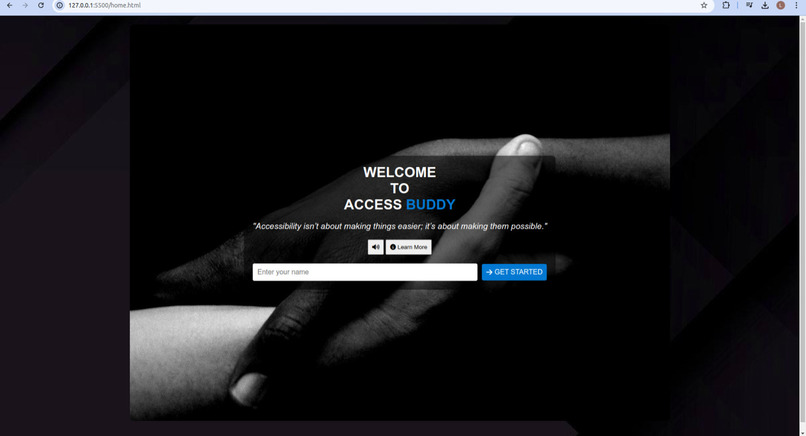
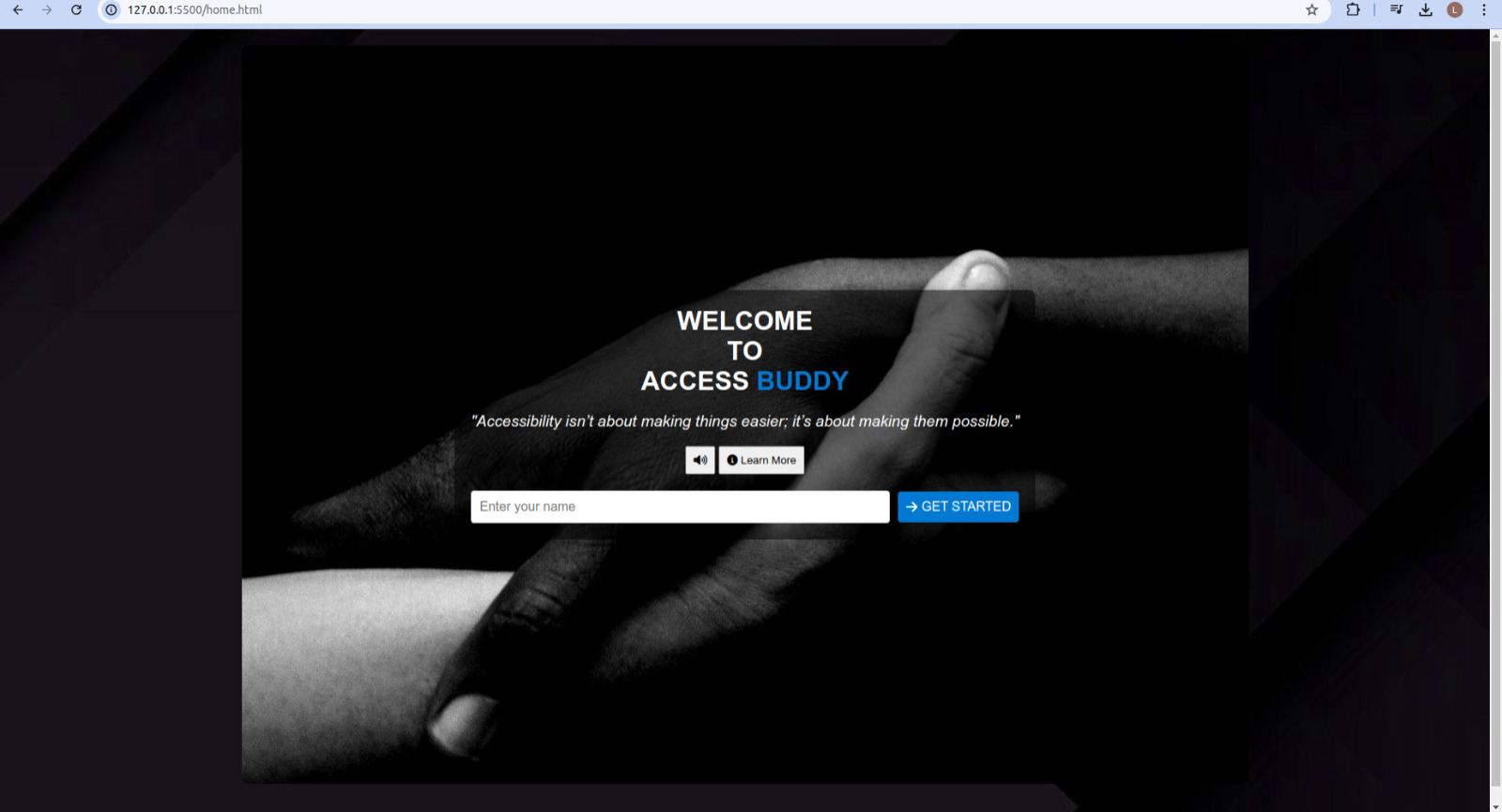
Home Page
-
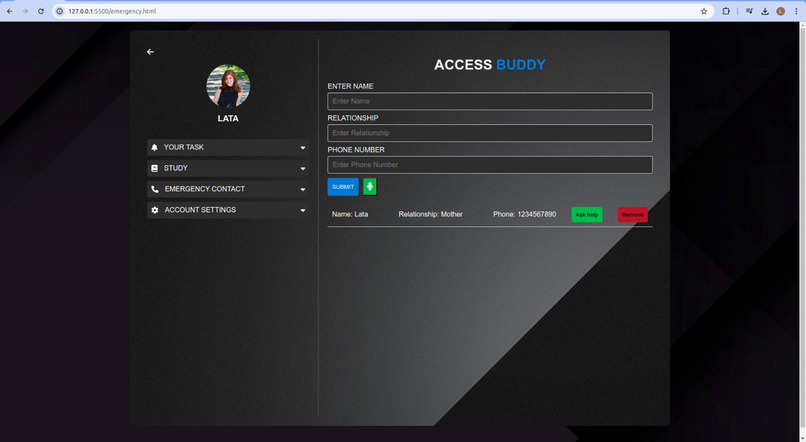
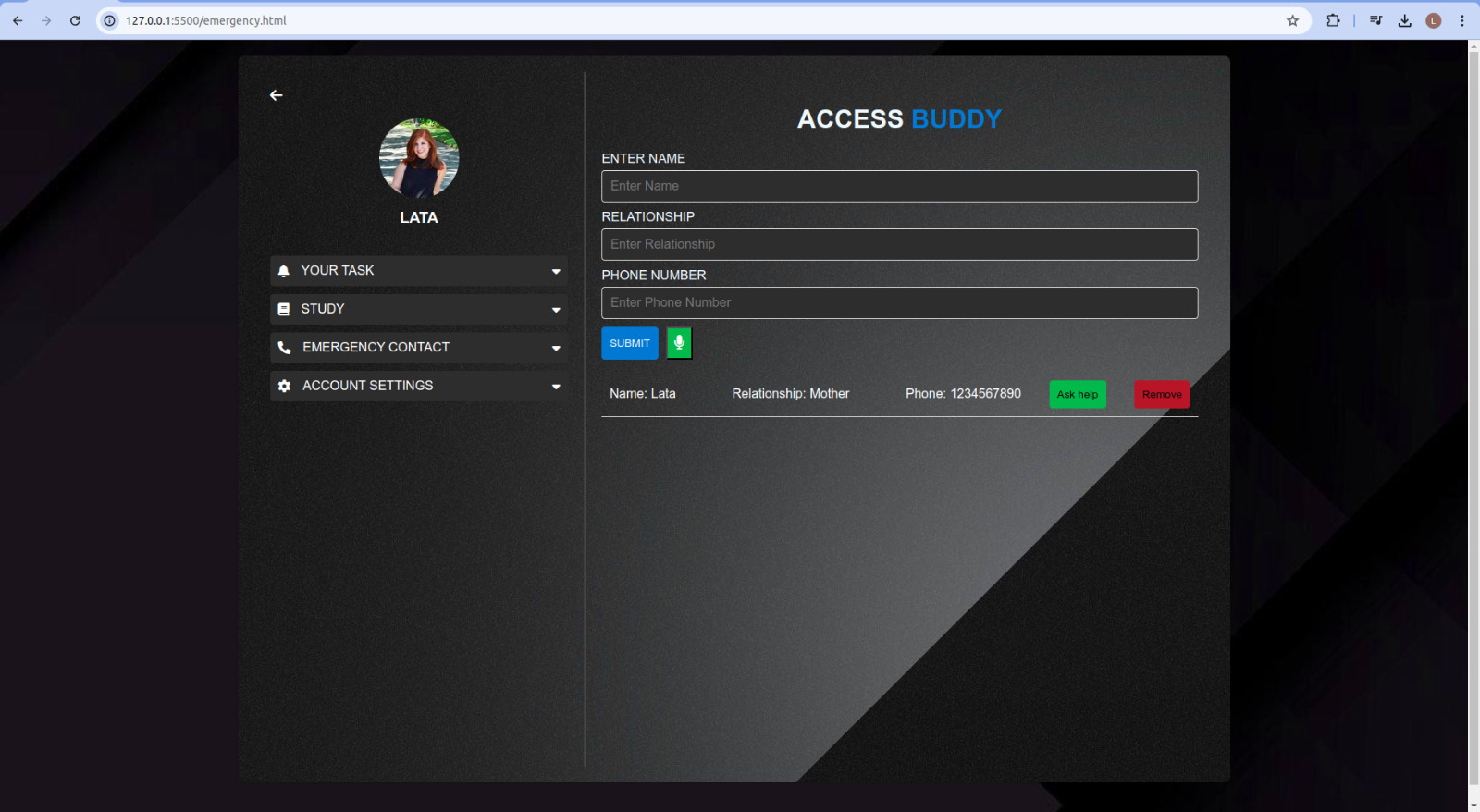
Emergency Contacts
-
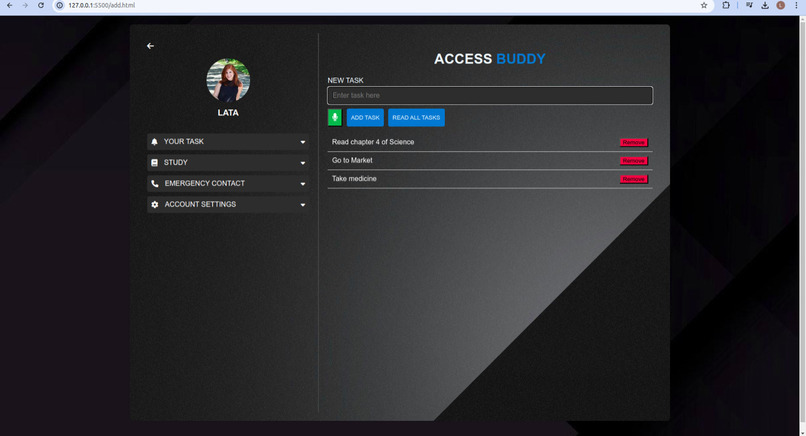
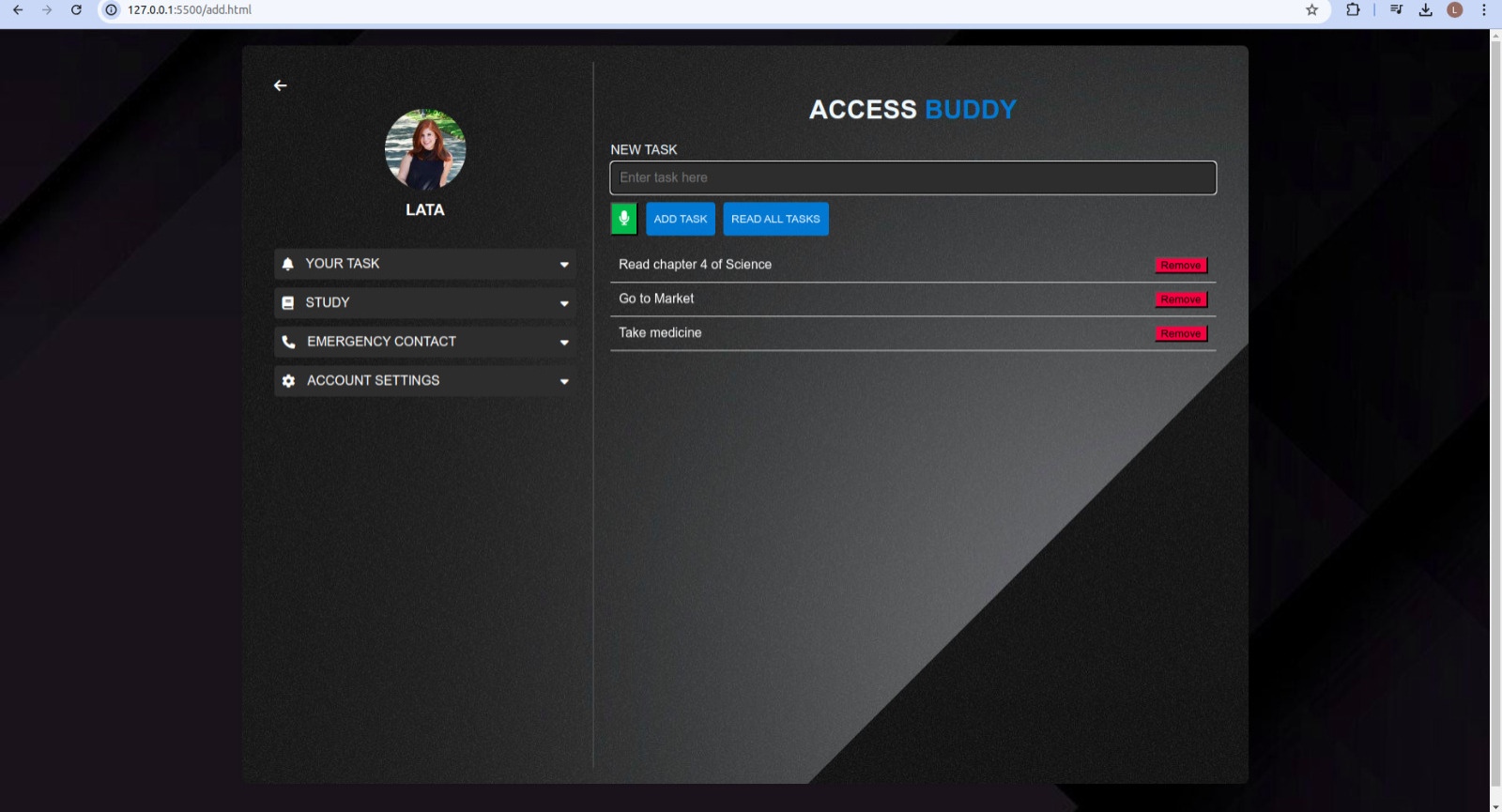
Manage Tasks
-
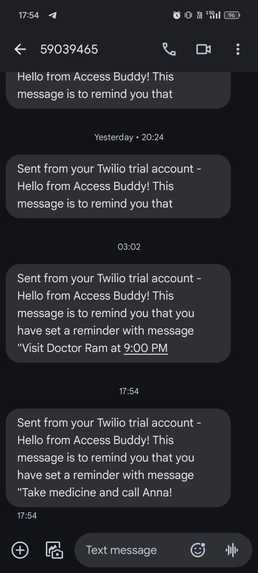
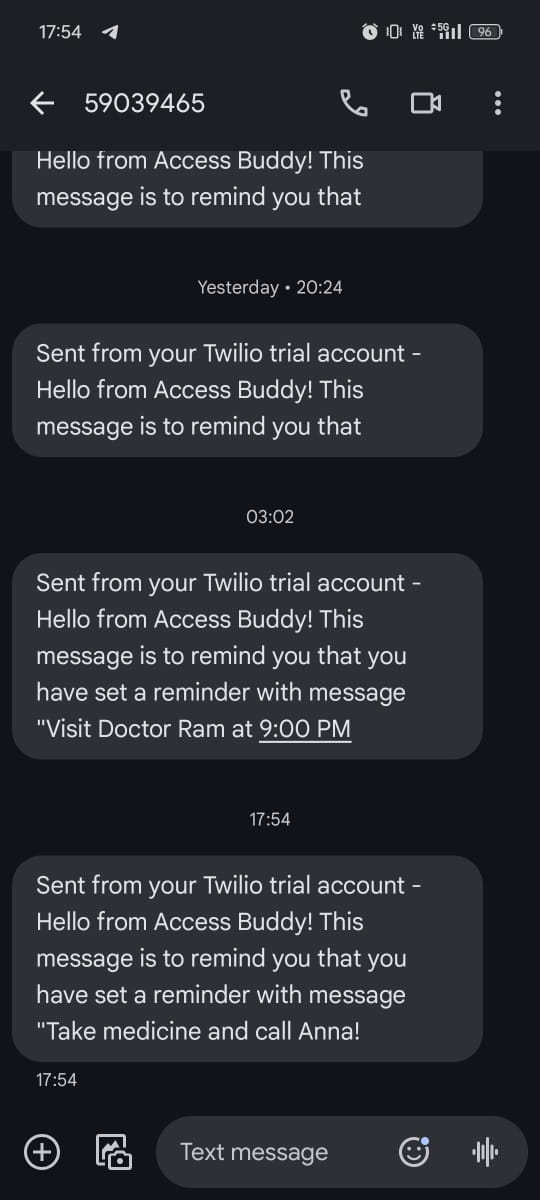
Reminder SMS Received
Inspiration
My inspiration for building Access Buddy stemmed from a deep empathy and understanding of the challenges faced by individuals with visual impairments and a desire to create a more inclusive digital environment. Recognizing that over 96% of the world’s top web pages are not accessible and that 4.9% of U.S. adults have vision disabilities, I wanted to develop a solution that addresses these gaps. By focusing on voice control and accessibility, I aimed to design a platform that not only simplifies daily tasks and reminders but also ensures that visually impaired users can navigate and interact with the web more effectively. This project reflects my commitment to improving web accessibility and making technology more equitable for all users.
What it does
Access Buddy is a comprehensive personal assistant designed to enhance accessibility and support individuals with disabilities. The website provides a user-friendly interface where you can manage daily tasks through manual input or voice commands, set reminders that trigger automatic SMS and calls, and access a study aid that reads text aloud for visually impaired users. It also features an emergency function that saves contacts and sends alerts to relatives if needed. With its voice-controlled functionalities and accessible design, Access Buddy aims to make daily management and emergency responses easier for its users.
How I built it
I used a combination of HTML, CSS, and JavaScript to develop Access Buddy. The application leverages the Web Speech API for voice commands and text-to-speech functionalities. To ensure accessibility, I incorporated ARIA attributes and followed best practices for creating accessible web content. I also integrated an intuitive design to make navigation easy for users.
Challenges I ran into
I learned valuable lessons in time management and developing a robust application within a tight timeframe along with my daily classes and schedule. One of the main challenges I faced was ensuring that the voice commands and text-to-speech functionalities worked seamlessly across all features. Additionally, coming up with a user-friendly UI design was another challenge I encountered.
Accomplishments that I'm proud of
I am proud of creating a functional and accessible web application that helps individuals with disabilities manage their tasks and stay organized. I am particularly proud of the solution because I developed it with empathy, considering the needs and challenges faced by visually impaired users. I also explored and utilized technologies such as the Web Speech API and Twilio, which were integral to enhancing the application's functionality and user experience.
What I learned
Throughout the development of Access Buddy, I learned a great deal about web accessibility standards and the implementation of voice-controlled features. I learned about the difficulties faced by visually impaired people and the importance of accessibility. This experience highlighted how essential it is to create inclusive digital environments that cater to diverse needs.
What's next for Access Buddy
In the future, I plan to expand the features of Access Buddy by incorporating additional accessibility tools and integrations. I aim to refine the voice recognition capabilities and enhance security and authentication. I want to host this app so that it can be provided to the visually impaired to use.
Steps to run project locally
Clone the repository using the following command:
git clone https://github.com/lata-11/AccessBuddy.gitNavigate to the project directory:
cd AccessBuddyOpen the
home.htmlfile in your web browser.
Explore the Features
- Home Page: Enter your name and get redirected to the dashboard page.
- Dashboard: Use the volume button to read out content, navigate through the app guide, and stop reading by clicking anywhere on the screen.
- Add Task: Manage your daily tasks by adding or removing them manually or using voice commands.
- Set Reminder: Set reminders with specific dates and times. The app will send an automatic SMS and call to your phone number.
- Study Aid: Write text in the provided area and click the designated button to read the content aloud.
- Emergency Feature: Save emergency contacts and send an SMS and call to designated relatives in case of emergency by clicking the help button.

Log in or sign up for Devpost to join the conversation.