-
-
Overview
-
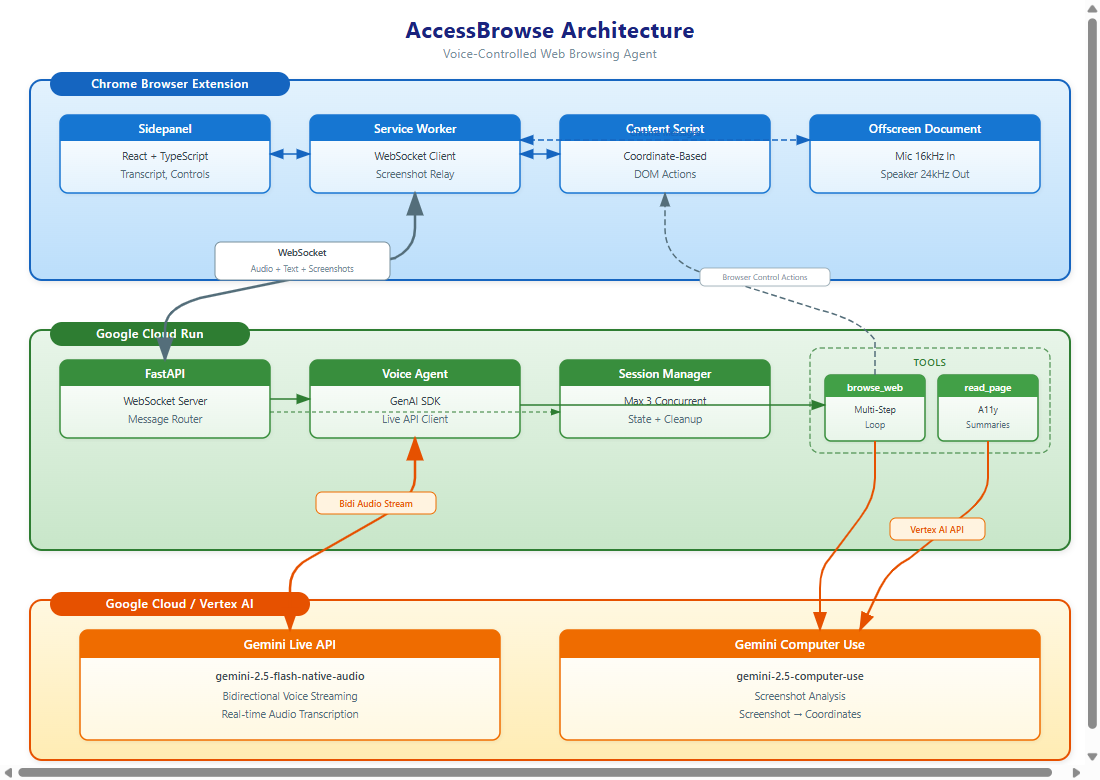
Architecture Diagram
-
Shopping on Amazon
-

Getting CNN news
-
Searching for a home
-
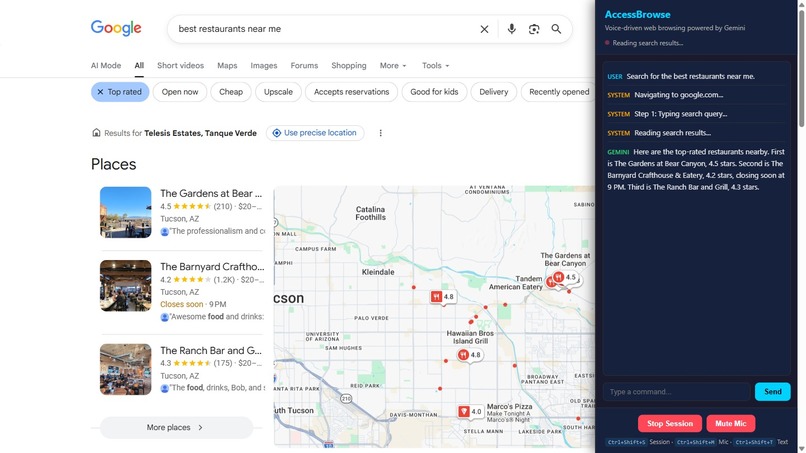
Navigating a map
-
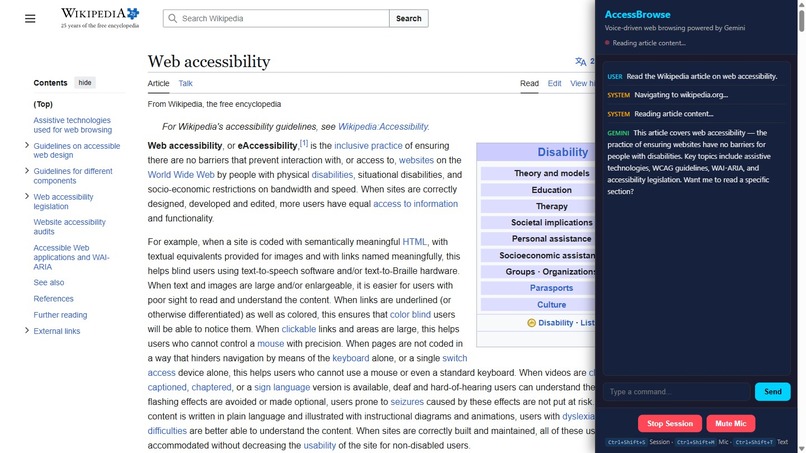
Hearing a wikipedia article
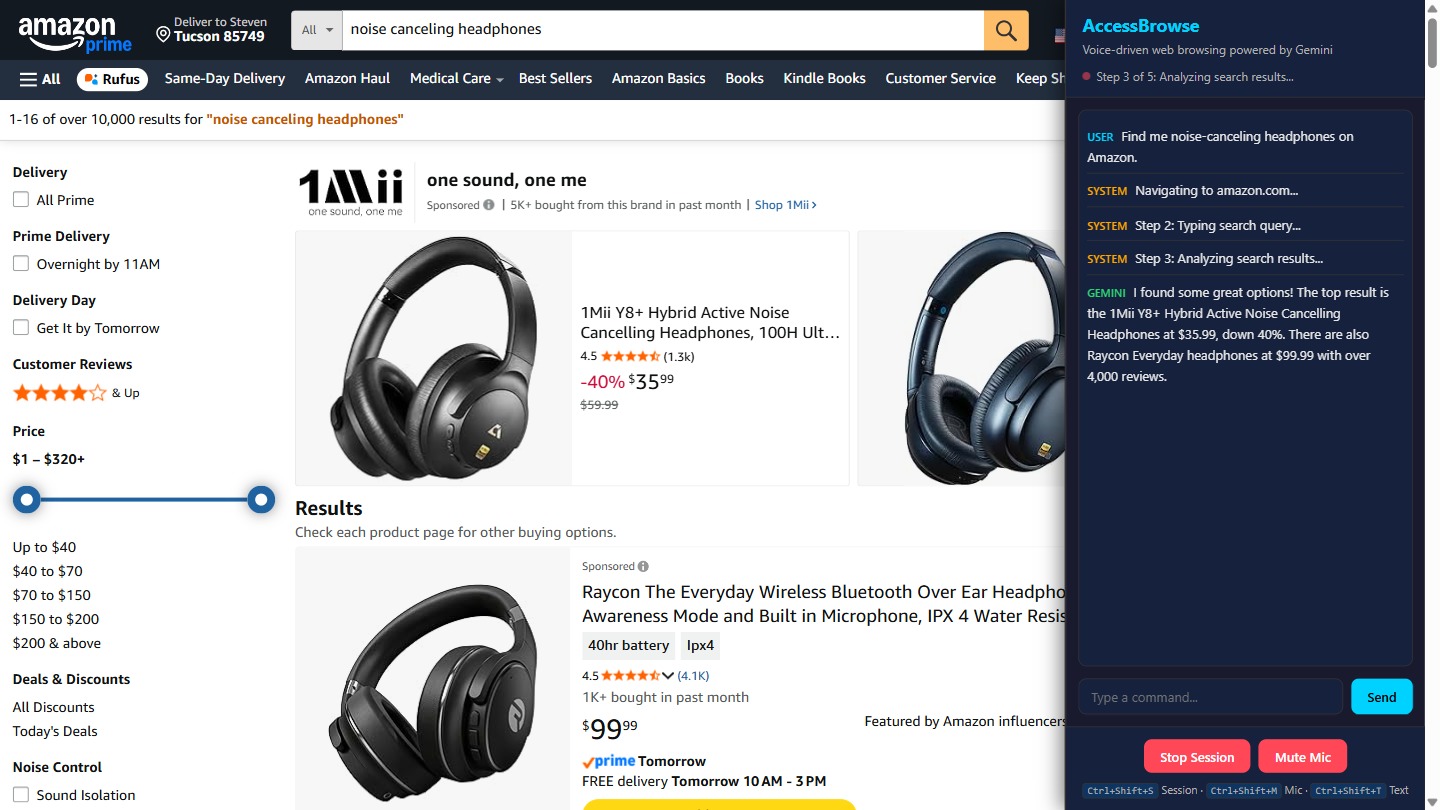

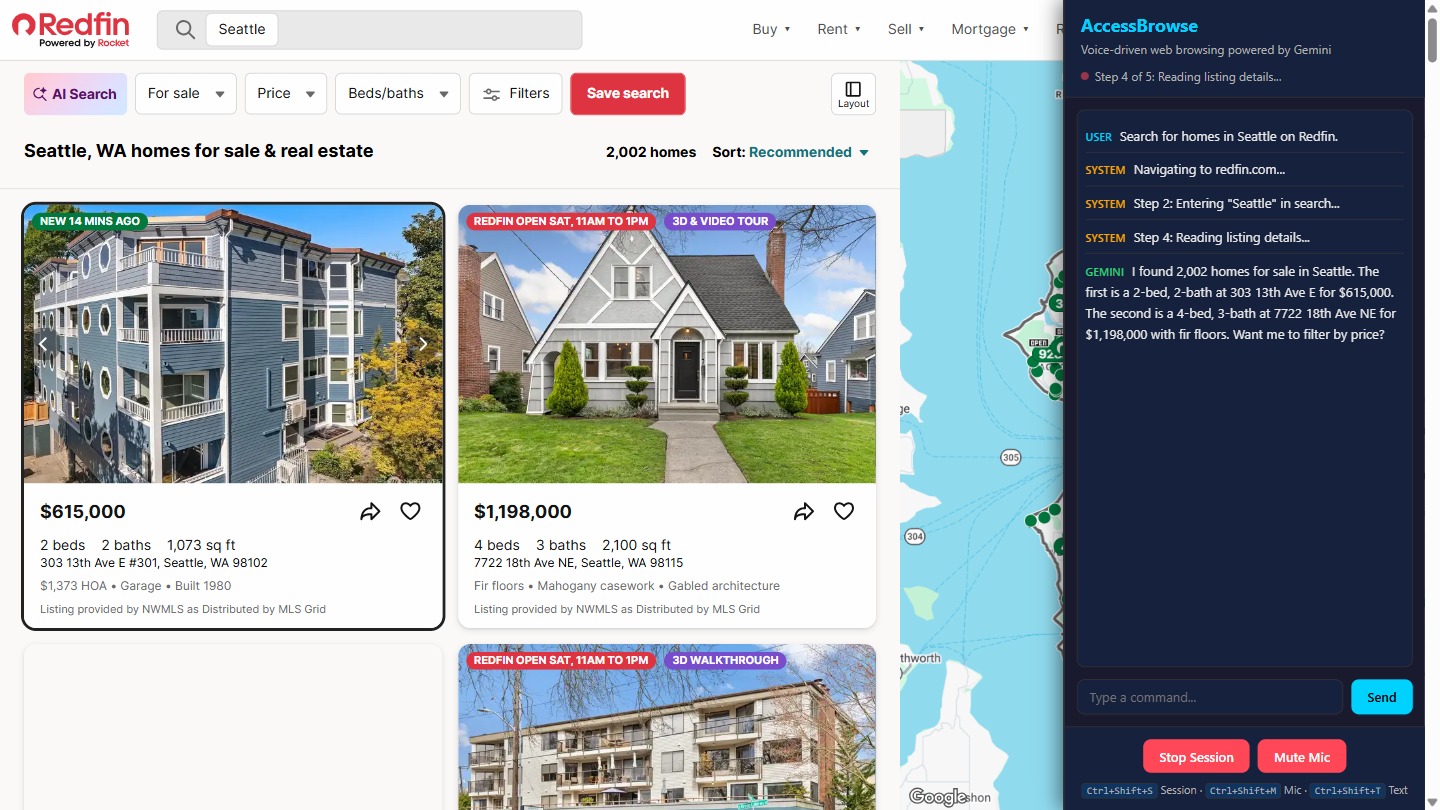
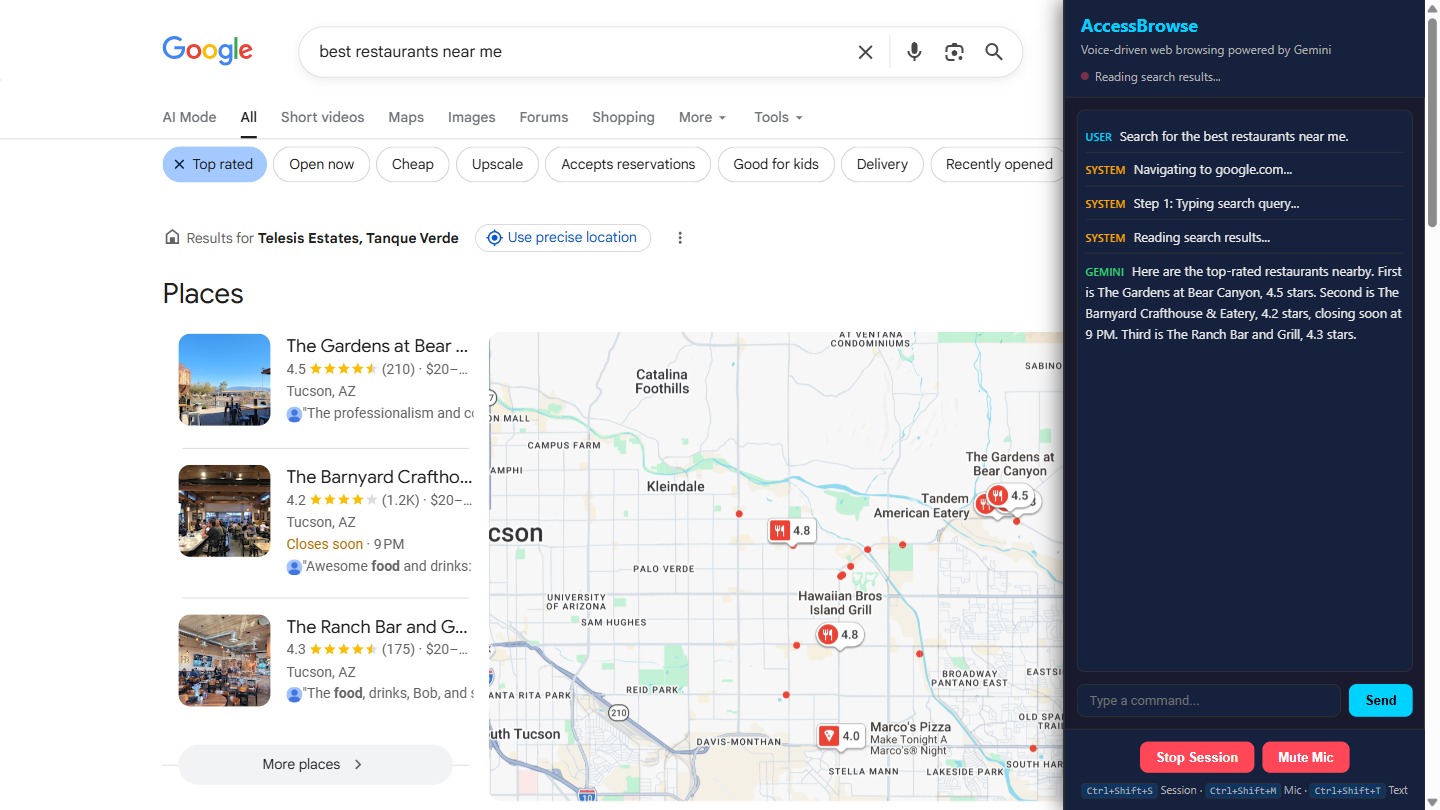
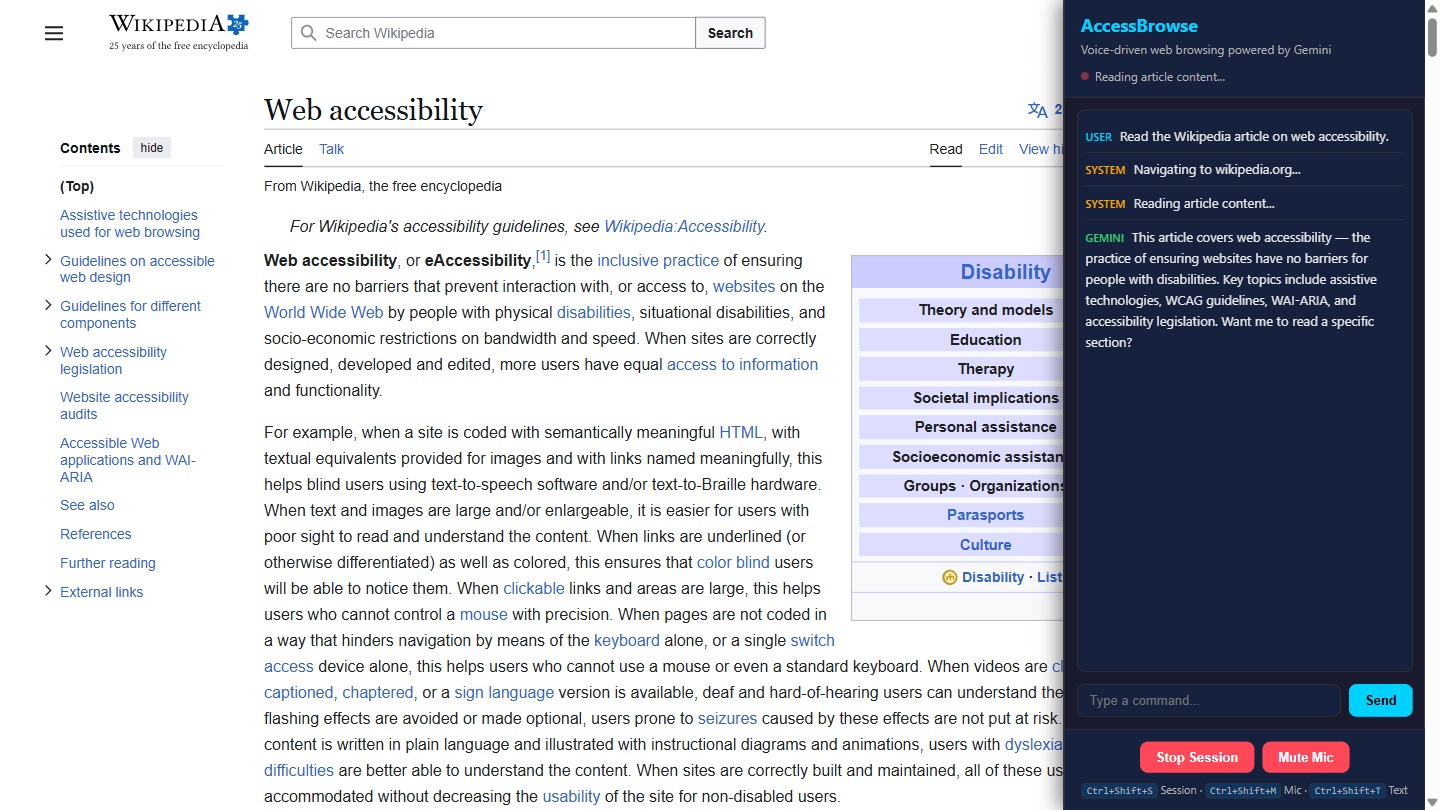
INSPIRATION:
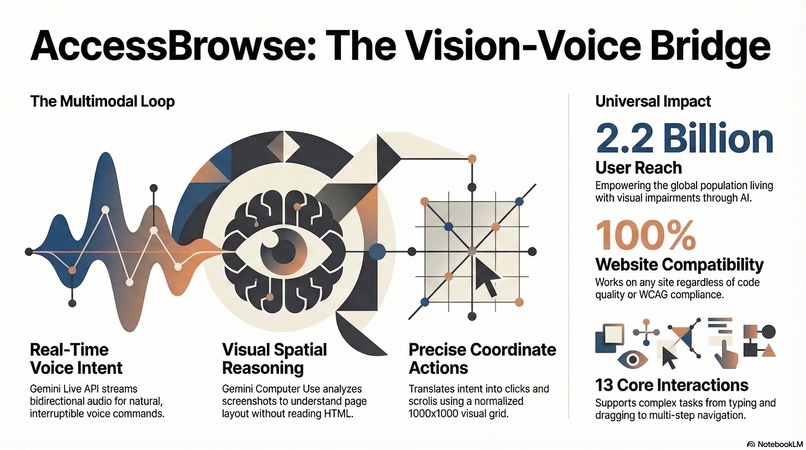
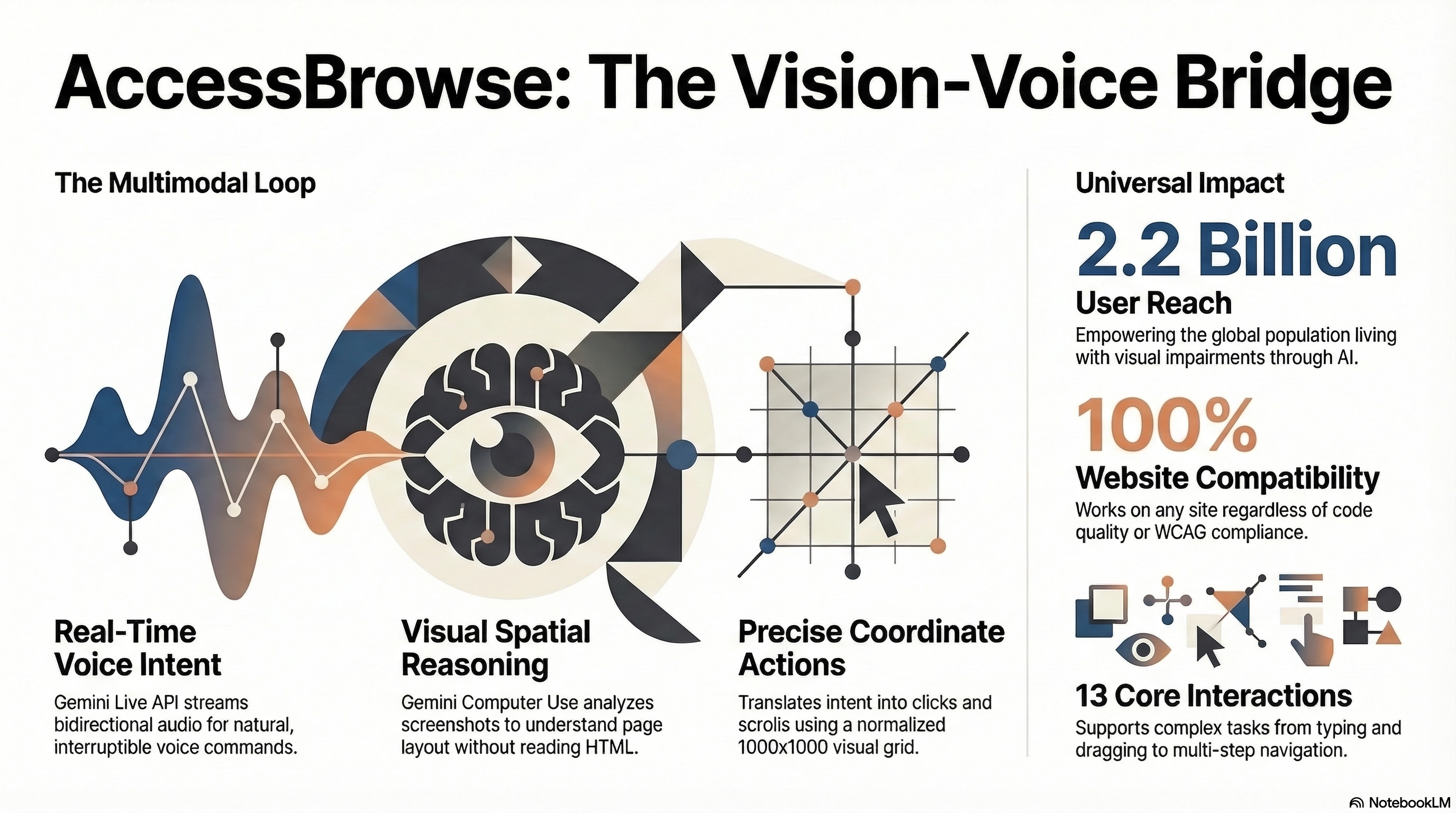
Over 2.2 billion people worldwide have some form of visual impairment, yet the web remains fundamentally visual. Screen readers help with text, but they struggle with modern single-page applications, dynamic layouts, and interactive elements that depend on visual context rather than semantic markup. We wanted to build something that makes any website accessible through natural voice conversation — no keyboard shortcuts, no tab navigation, no understanding of page structure required. Just speak, and browse.
Informed by prior accessibility research and a commitment to inclusive technology, we recognized that the combination of Gemini Live API for real-time voice and Gemini Computer Use for visual understanding created a unique opportunity to solve this problem in a fundamentally new way — through coordinate-based browsing that works on any website without site-specific configuration.
WHAT IT DOES:
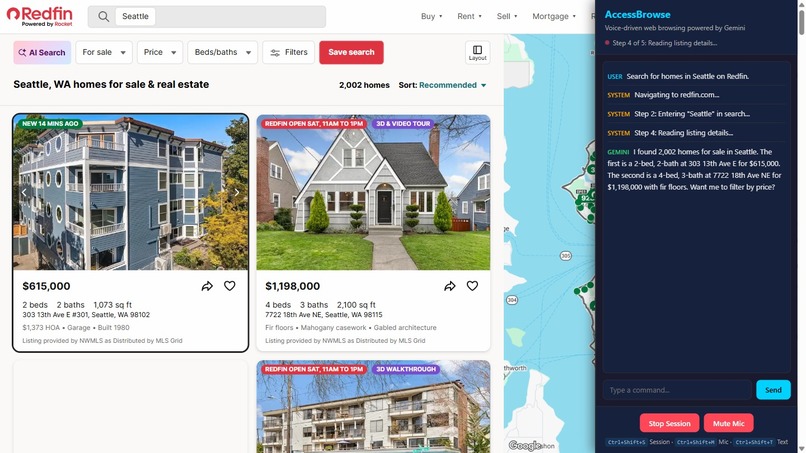
AccessBrowse is a Chrome extension that fuses two Gemini modalities — real-time voice conversation and visual page understanding — into a seamless multimodal experience. Say "Find me apartments in Seattle under $1000 on Zillow" and AccessBrowse handles every step: navigating to the site, typing search criteria, applying filters, scrolling through results, and reading back the most relevant listings — all through natural, real-time voice interaction.
The multimodal UX loop: user speaks (voice input) → Gemini Live API understands intent (language) → Gemini Computer Use analyzes the screen (vision) → system speaks results back at 24kHz (voice output). This works on any website without DOM parsing or site-specific selectors. The extension supports 13 action types (click, type, scroll, hover, drag, key press, and more) executed via coordinate-based DOM interaction.
HOW WE BUILT IT:
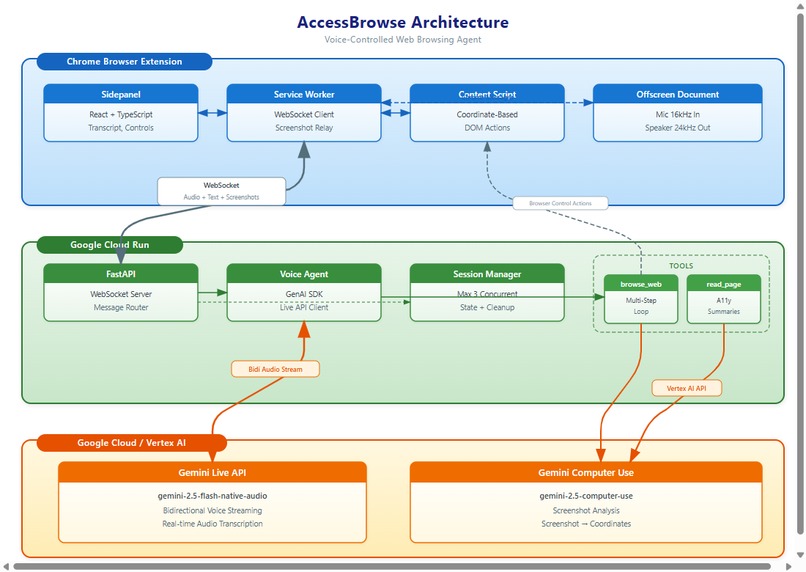
The backend is a Python FastAPI server deployed on Google Cloud Run that manages WebSocket connections to Chrome extensions. Voice sessions use the Google GenAI SDK's client.aio.live.connect() for bidirectional streaming with Gemini Live API (gemini-2.5-flash-native-audio). When Gemini decides to interact with a website, it calls registered tools (browse_web, read_page) that orchestrate a multi-step loop: request screenshot from extension, analyze with Gemini Computer Use (gemini-2.5-computer-use), translate coordinates, execute action, repeat.
The Chrome extension (MV3) has four cooperating modules: a service worker for WebSocket and action dispatch, a content script for coordinate-based DOM actions using document.elementFromPoint(), an offscreen document for microphone capture at 16kHz and playback at 24kHz via Web Audio API, and a React/TypeScript sidepanel showing live transcripts and status. The entire system is fully async with no blocking operations.
CHALLENGES:
The biggest challenge was managing Gemini Live API sessions within a bidi-streaming context. The connection requires keepalive audio frames (silence at 200ms intervals), careful lifecycle management on disconnect, and a specific flow for tool calling: receive tool_call, execute multi-step browse actions (which may take 30+ seconds), return tool results, then resume audio streaming. Getting this right within a fully async Python event loop took significant iteration.
Coordinate accuracy was another challenge — Gemini Computer Use returns normalized coordinates, but precision depends on screenshot quality and visual density. We tuned JPEG compression to 60% quality and found that the normalized 1000x1000 grid with elementFromPoint() translation works robustly across viewport sizes. Audio latency optimization (brief filler speech before tool calls, queued buffer playback) was critical for a product where the user experience is entirely audio.
ACCOMPLISHMENTS:
We built a coordinate-based browsing system that works on any website — no site-specific configuration, no DOM parsing, no CSS selectors. The system supports 13 action types and handles multi-step tasks autonomously. The fully async architecture lets a single Cloud Run instance serve 3 concurrent voice browsing sessions. Audio output at 24kHz delivers noticeably clearer voice quality for users who rely on audio as their primary interface.
The complete stack was built from scratch with production-grade engineering: 107 Python unit tests (7 suites), 38 content script tests covering all 9 action types, end-to-end integration tests, GitHub Actions CI pipeline, Infrastructure-as-Code deployment (deploy.sh), and a fully containerized Docker backend. This is production-ready software, not a hackathon prototype.
WHAT WE LEARNED:
Vision-based interaction via Gemini Computer Use is remarkably reliable — the model consistently identifies form fields, buttons, and interactive elements from screenshots alone. The normalized coordinate grid abstracts viewport size entirely, making the same responses work across different screen resolutions. The GenAI SDK's live session context manager is clean, but tool calling within live sessions required experimentation due to limited documentation.
We also learned practical lessons about Chrome MV3 constraints: service workers lack DOM access (requiring offscreen documents for audio), chrome.tabs.captureVisibleTab needs activeTab permission and a visible tab, and all inter-component message passing must use JSON-serializable data (making base64 encoding essential for audio and image data).
WHAT'S NEXT:
Multi-tab browsing (comparing apartments side by side via voice), user preference memory (remembering filters and preferences across sessions), Chrome Web Store publication for one-click installation, and expanded form handling (auto-fill, file upload, multi-select dropdowns) for complex workflows like job applications. We also plan to explore caching common website layouts to reduce the number of Computer Use calls needed for familiar sites.
TRY IT YOURSELF:
- Clone the repo and load the extension/ folder in Chrome (chrome://extensions → Developer mode → Load unpacked)
- Navigate to any website (Amazon, Zillow, CNN — anything works)
- Click the AccessBrowse icon to open the sidepanel
- Click "Start Session" — status bar shows "Connected"
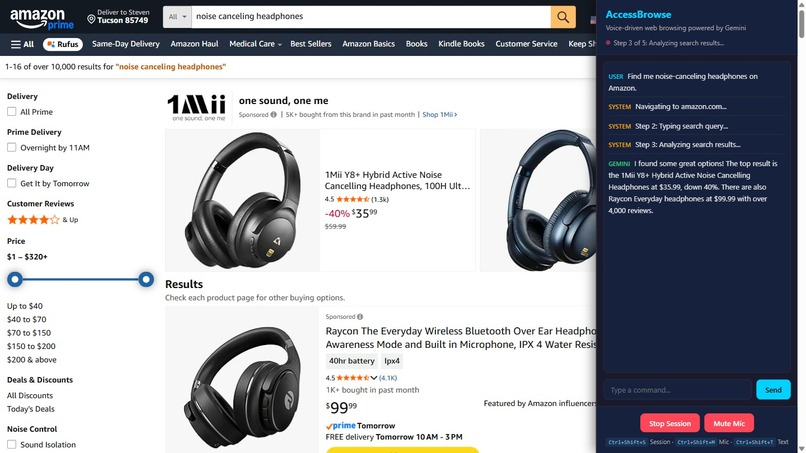
- Click the mic button and speak: "Find me headphones on Amazon"
- Watch the page navigate and interact autonomously, then hear results spoken back at 24kHz
The backend is live on Cloud Run. No configuration needed — the extension connects to production automatically. Verify the backend at: https://accessbrowse-n6oitfxdra-uc.a.run.app/health
Built With
- chrome
- cloud-run
- fastapi
- gemini-computer-use
- gemini-live-api
- google-genai-sdk
- python
- react
- typescript
- vertex-ai
- web-audio-api

Log in or sign up for Devpost to join the conversation.